How to Forget Network on Smart TV and Reconnect
Short answer: Open the TV’s saved Wi-Fi entry and choose Forget, or use the model’s network reset if it has no per-network option.
Google TV Help locates Network & Internet, while Roku Support documents its broader Network connection reset.
If you searched “how to forget network on smart TV,” verify the actual connection screen before changing a setting. Identify which connection is saved and have the new password ready. The available controls depend on the television’s platform and model. Test the native TV connection after making the change, and keep a physical control handy while network-based control is unavailable.
How to forget network on smart TV: Find the Saved Wi-Fi Network
Find the television’s active network
Check the status screen and write down the exact SSID. If the TV uses a wired link, open the saved wireless menu directly if the model offers it. If you no longer have a working physical controller after disconnecting, explore the available ways to connect Google TV to Wi-Fi without a remote.
Confirm the result before proceeding
Save the new password before changing the old entry. A phone remote can go offline as soon as the TV leaves the network. Include whether this occurred before or after the change when you describe the saved connection in this “how to forget network on smart TV” procedure.
Local control has its own baseline. Put the phone and compatible television on the expected home network and open the app with the TV awake. Select the actual device and test a direction that produces an obvious focus change. If a different set responds, verify the device name before reconnecting or removing any saved equipment. Write down the result if you need to report the saved connection in this “how to forget network on smart TV” procedure.
Use the result to narrow down the saved connection in this “how to forget network on smart TV” procedure. After changing a connection, play a familiar short video in an app installed on the television. If it fails, try a second service and inspect network status without assuming the first app’s generic error identifies the cause. If the TV can still stream from an HDMI player, return to Home for a test that belongs to the set itself.
For a fair wired comparison, confirm the television’s status actually moved from Wi-Fi to Ethernet after the cable was attached. Use the same router and built-in app first, so you changed the local connection only. If wired works, retest the wireless path from the usual room. Reconnect the expected route after you finish comparing.
Read more: How to Connect Phone Network to Smart TV Using a Hotspot
Forget a Network on Google TV
| What you observe | What to check next |
|---|---|
| Google TV shows Forget network | Remove that entry and verify the new active SSID |
| Roku TV offers Network connection reset | Use that documented broader action only if appropriate |
| A Fire TV lists the network but has no visible action | Check the remote-button prompt for the model |
| An older TV can only change networks | Reconnect through the model’s documented setup |
Forget one entry where supported
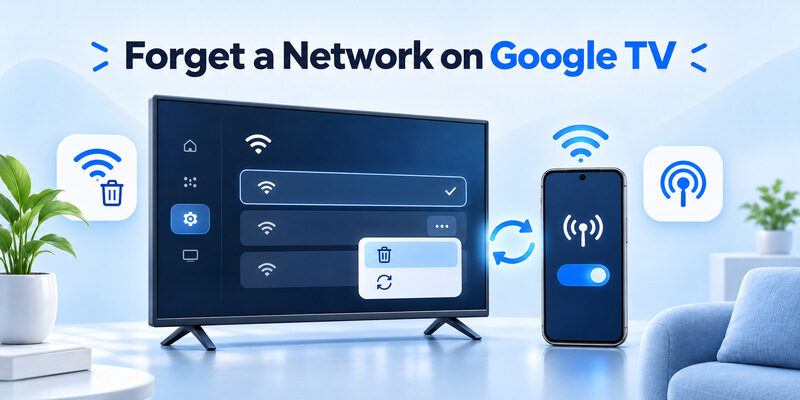
On Google TV, open Settings → Network & Internet, choose the current or saved Wi-Fi entry, and select Forget network if shown. Reopen the list to verify it disconnected.
After selecting Forget, reopen the status view without entering the same credentials. If the TV reconnects automatically, check whether the reset applied to the television or a separate player, and whether the old and new router names match. A saved password belongs to the Wi-Fi profile on the device that stores it, so clearing the TV will not remove a streaming stick’s own entry. Write down the result if you need to report the saved connection in this “how to forget network on smart TV” procedure.
Compare the model’s options
Manufacturer builds can vary. On a Google streamer managed in Google Home, the documented Forget this network option may be in the device information screen. After reconnecting a compatible Fire TV Stick, you can set up the Fire TV Stick remote app and test it on the new network.
Use the current model’s Google TV Settings and Network & Internet screen. Verify that Wi-Fi is enabled and connected to the intended entry, or that the reported wired route is correct. A TV’s About screen can confirm its software version if the network labels in a different model’s screenshots do not match.
A phone on Wi-Fi and a television on Ethernet can share the router’s local network if the router allows it. Guest isolation can block phone discovery even with a working internet test. Use the main reachable network for both as a comparison. Then check any permission the app requests for local access, and repeat a single visible action.
Check Roku TV’s Network Reset
Use Roku’s documented reset scope
Roku Support gives Settings → System → Advanced system settings → Network connection reset → Reset connection. The Roku device restarts, and you set up its network again.
A Roku television’s Network connection reset is wider than removing one named network. Write down the current name and password, wait for the documented restart and use Set up connection to establish the path the TV should use. If your goal is simply to switch Wi-Fi and keep setup intact where possible, compare the ordinary network setup first. Reuse the same conditions the next time you check the saved connection in this “how to forget network on smart TV” procedure.
Use a reversible test
Before escalating the saved connection in this “how to forget network on smart TV” procedure, use the TV’s own Roku home screen for a Roku TV. A separate Roku player has its own connection records.
Read the warning before confirming any reset. The smallest option that targets the connection is usually the easiest to verify. Keep the normal control and current Wi-Fi credentials nearby. If the prompt describes accounts, applications or general TV settings, confirm the manufacturer’s exact procedure before continuing. Then open the documented network setup again.
Use the Vizio connection test shown in the model’s documentation. Read the result before changing Manual Setup or automatic addressing. After any authorized change, open the status again and check the same built-in service. Keep the distinction between Vizio Home, a supported control app and a separate player shown on an HDMI input.
Read more: Smart TV Network Cable Guide for Ethernet Setup
Forget or Replace Wi-Fi on Fire TV
Check Fire TV’s network actions
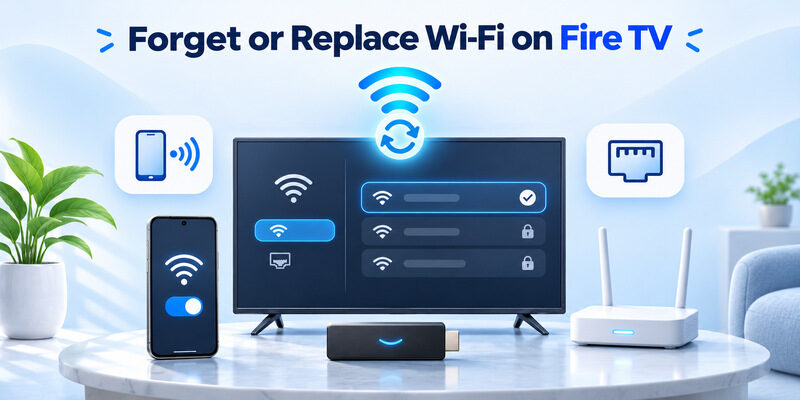
Open Fire TV Settings → Network and check the available action for the listed network. Some device interfaces expose a forget action from the selected connection’s options.
Use the same baseline for the saved connection in this “how to forget network on smart TV” procedure. For a documented Fire TV example, open Settings → Network, highlight the saved network, and follow the Menu and Select confirmation prompts if that model offers them. Panasonic’s Fire TV troubleshooting page documents this interaction for its own supported sets. If the Fire TV software is on an external stick, remove the entry on that stick as well if it is the device you want to disconnect.
Check the current state
Keep the change and the observation separate when assessing the saved connection in this “how to forget network on smart TV” procedure. Follow the on-screen button instructions for the remote. If the television has a separate Fire TV stick, do the action on whichever device should stop using the stored network.
Identify the entry by its exact name and verify it is the currently saved one before you remove it. A Settings page can show nearby networks and previously used ones in the same list. If the model offers management of saved entries, read the prompt to confirm you selected the intended network rather than the broader reset.
Open the Fire TV device’s network settings where the platform provides them and look for the documented test or remote-button prompt. Check the currently selected connection and the exact step that fails. If the set has Fire TV only through an HDMI device, return to the TV’s own system for a separate status result.
If your phone can no longer discover the television after the network change, learn how to fix LG ThinQ when it cannot find your TV.
Check Samsung and LG Options
Look for Samsung and LG model options
On a compatible Samsung, check the saved network management option if the TV has one. On LG webOS, open Wi-Fi Connection, select the network and inspect the available disconnect or forget action.
Confirm the result before proceeding
Keep the original starting state for the saved connection in this “how to forget network on smart TV” procedure. An older television may offer only a network reset, or it may let you overwrite a saved connection by choosing the current network and entering the correct password.
When you revisit the saved connection in this “how to forget network on smart TV” procedure, start at the television’s own Home screen and open its complete settings. An HDMI-connected player can present a nearly identical looking menu, and quick settings often show only shortcuts. Look up the exact model and region when the path differs. Write down the first menu and its current connection before tapping a reset or disconnect option.
In webOS, look in All Settings for the path the exact model documents. Where LG shows a multi-stage connection diagram, note the first unavailable stage. If the problem follows standby, compare a full restart and model-supported Quick Start+ behavior. Keep the previous setting in view to make the test reversible.
If you need to know how to remove Wi-Fi network from LG smart TV storage, check the available actions in Wi-Fi Connection on that webOS version. For Vizio, consult the model’s Network menu and reset scope separately.
Read more: Sony Smart TV Network Settings for BRAVIA Models
Remove an Old Network After a Router Change
Avoid returning to the old SSID
If the previous router remains on, identify the two access points before rejoining. When both use the same network name and different settings, temporarily disable the old unit if you manage it or give the new network a distinct name. If your phone remote also stops working during the transition, follow these steps to restore your TV remote app after changing routers.
Compare the model’s options
Before making another change for the saved connection in this “how to forget network on smart TV” procedure, test from the room where the TV is used. Two radios with the same name can look like one selection until you check which equipment accepted the client.
Record the model and active route when working through the saved connection in this “how to forget network on smart TV” procedure. When two access points use the same name, the wireless list may show one apparently familiar choice. Use the router’s regular client view where available to identify the equipment serving the TV. Compare with one known network or a clearly named test hotspot and then return to the household arrangement. Keep working mesh names intact unless the network owner intends to change them.
Use the network’s normal automatic addressing as a baseline when it is appropriate. Make a record of deliberately configured values before changing them, and ask the network owner if those values are required. If the TV has no local address or gateway on a network where it should, resolve that stage first. A DNS change concerns name lookup farther along the connection.
A hidden Wi-Fi name requires exact manual entry on devices that support it. Verify the spelling and current security details from the network owner. Compare with a visible network if the hidden setup fails. A failed scan, an unsupported radio option and a rejected password are distinct results even if all of them leave the TV offline.
Reconnect to the Correct Network
Join with the current password
Select the target network and type the new password carefully. Use the device’s show-password option if available and you can see the screen privately.
Use a reversible test
Include the active route in a report on the saved connection in this “how to forget network on smart TV” procedure. If the same password fails on a second device, verify the router credentials before clearing more TV settings. Existing client connections can be using a cached password.
If you repeat the test for the saved connection in this “how to forget network on smart TV” procedure, check the router’s current network name and password using a fresh connection on another trusted device. An already-connected phone can prove the network is running without proving that your remembered password is correct. After verifying the password, rejoin on the TV and record the active network. Compare the result with what the television showed before the change.
Before asking for support, record the complete model and software along with the exact menu labels. Use the same native screen after restarting. Include the active connection and what one other device can do on that network. A model-specific case with observable results is easier to evaluate than a report that only says Wi-Fi is bad.
A venue can allow a device to join the Wi-Fi and still require a separate sign-in before internet access. Check the venue’s normal instructions and whether the TV supports that process. Use a known trusted hotspot as a comparison if permitted. A television that plays on home Wi-Fi can still be unsuitable for a network that requires a browser-based portal.
Read more: Vizio Smart TV Network Settings for Wi-Fi and Ethernet
Handle a Missing Forget Option
| Task | Useful comparison |
|---|---|
| Forget one entry where supported | Manufacturer builds can vary. |
| Look for Samsung and LG model options | An older television may offer only a network reset, or it may let you overwrite a saved connection by choosing the current network and entering the correct password. |
| Choose the smallest available change | A wireless toggle can disconnect temporarily while preserving the credentials. |
Choose the smallest available change
If no Forget button appears, check your model’s manual for a network-only reset or reconnect option. A factory reset affects many unrelated settings.
Check the current state
Start the next comparison for the saved connection in this “how to forget network on smart TV” procedure from the same room. A wireless toggle can disconnect temporarily while preserving the credentials. Check whether the actual goal is to forget the entry or simply use the new connection.
Check which individual action is disabled and which controls still open. Try from the TV’s own Home screen after a normal restart. An unavailable address field can be expected for automatic addressing, while an entire missing settings menu calls for a model-specific check. Compare that result with a built-in app and note whether the equipment is managed.
Look at what the television’s wireless list contains as a whole before choosing an action. If it sees several networks but misses your own, compare broadcast name, signal and radio compatibility. When it sees nothing, use a verified nearby hotspot or another known network for a clearer test. Keep the television in the same place during the comparison.
For searches about how to forget network on Hisense smart TV models, identify the platform first. A Hisense Roku TV follows Roku’s network process, while a VIDAA or Google TV interface can provide different actions.
If you are looking up how to forget network on Vizio smart TV models, start with the exact Vizio manual. Check whether the available choice clears one entry or resets a wider set of settings. If the TV joins the new network but streaming remains slow, use these checks to diagnose a slow TV Wi-Fi connection before removing the saved network again.
Read more: LG Smart TV Network Settings for webOS
Verify the TV Joined the Right Router
Verify the connected SSID in the native TV settings after reconnecting. Play a known video and, if you use a phone remote, rescan on the expected home network.
When checking the saved connection in this “how to forget network on smart TV” procedure, keep the old network off for the verification if it has the same name. This makes an automatic reconnection easier to identify.
If you are returning or moving a television, verify exactly what you need to remove. Removing a saved Wi-Fi entry handles access to that network. A television with streaming accounts linked to it may call for the manufacturer’s broader preparation process before being handed to somebody else. Keep those goals distinct while choosing a menu. Use the observed change to narrow down the saved connection in this “how to forget network on smart TV” procedure.
After the temporary connection test, turn off the alternate network if you control it and choose the regular home network from the device’s own menus. Reopen connection status before watching a long program. Where the television stores more than one entry, check which network it automatically chooses the next time it wakes. Include whether this occurred before or after the change when you describe the saved connection in this “how to forget network on smart TV” procedure.
When discussing the saved connection in this “how to forget network on smart TV” procedure with support, use the television manual and router documentation to check that both support the configured wireless security and frequency. Start with the current password and exact SSID. If another trusted device can make a fresh connection, note how the television’s error differs. Use a secured, documented setup without relaxing protections on the home network for a transient test.
If you need a backup for compatible TV controls, open on an iPhone after the television reconnects to a reachable home network. Select that TV with its screen awake and test one direction. If discovery fails, check the actual network and the app’s relevant local access.
Final Thoughts
Verify the connected SSID in the native TV settings after reconnecting. Keep the old network off for the verification if it has the same name. This makes an automatic reconnection easier to identify.
For the “how to forget network on smart TV” case, record the comparison that worked and retest the task you use most.