
Download Hisense TV Remote: Choose the App for Your TV Platform
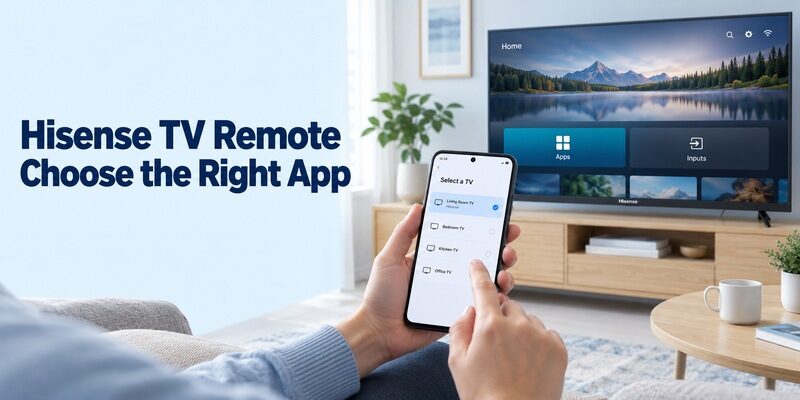
Short answer: Use the remote app for your Hisense television’s operating system: the TV-directed VIDAA app, Roku, Amazon Fire TV, or Google TV; check older and Xumo models separately. Before you download hisense tv remote software, identify the platform shown by the television itself. Hisense sells several software families, and they do not all accept the same phone controller. This guide explains the main download routes, how to verify an app publisher, what to do with older RemoteNOW references, and when infrared hardware matters. It also covers first-time connection, missing-device troubleshooting, and practical checks for inputs, sound, and everyday viewing.
Match the Download to Your Hisense Platform
Read the Television’s Own Home Screen
Hisense is the manufacturer, not one universal remote protocol. Its official US platform page lists Android TV, Google TV, Fire TV, Roku TV, VIDAA, and Xumo families. Product availability and naming differ by market, so use the model and software on the television you own rather than a current catalog from another country.
Before you download hisense tv remote software, find the full model in the TV’s information menu, its rear label, or purchase documents. Note the home-screen platform too. This prevents a common mismatch: installing a Google controller for a Hisense television that actually runs VIDAA or Roku. For a broader overview of the available routes, see this Hisense TV remote app guide before choosing a controller based only on the brand name.
Identify Any Separate Streaming Device
A Fire TV or Roku interface might come from a player plugged into HDMI. In that case, the player’s app controls that device, while the Hisense television retains its own settings and input menu. Trace the connection if the screen’s software does not match the television’s documentation.
A hisense tv remote download should restore a specific missing action. Name that action before choosing the app: opening a streaming service, changing an antenna channel, or selecting another HDMI input. Those actions may belong to different devices even though you watch all of them on the same panel.
If you download hisense tv remote software for someone else, ask them to show the failing action while the television is on. Their description of changing channels may mean selecting live television, opening a streaming tile, or operating a separate receiver. Seeing the actual screen helps you choose the correct target.
| Television platform | Starting app route | Essential distinction |
|---|---|---|
| VIDAA | TV’s Support > Mobile App guidance | Match the app version to the TV |
| Roku TV | Official Roku mobile app | Select the television, not another player |
| Fire TV | Amazon Fire TV | Follow Amazon’s current phone setup |
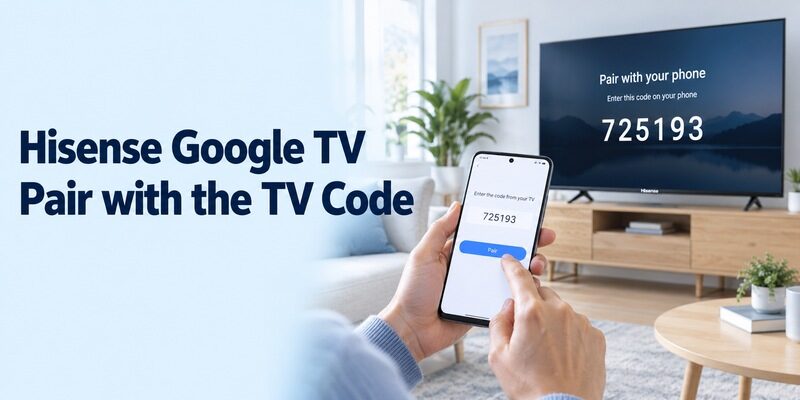
| Google TV or supported Android TV | Google TV mobile app | Pair with the displayed TV code |
| Xumo or older interface | Model-specific current instructions | Check version and regional support |
For example, a household might use a Hisense VIDAA television with an attached Fire TV Stick. Amazon’s app can be the right answer for opening the stick’s menus while VIDAA remains the relevant route for the television’s own controls. Record both names instead of labeling everything simply Living Room TV. That makes later troubleshooting much easier to explain.
Download Hisense TV Remote Control Through the VIDAA TV’s Own Guide
Use the Mobile App Entry on the Television
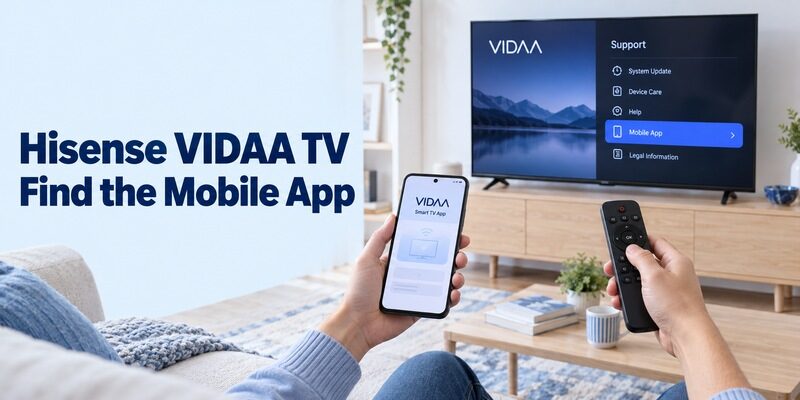
VIDAA recommends obtaining the correct app version from the TV itself. Its support instructions direct you to Settings, then Support > Mobile App, where a QR code leads to the appropriate download. The guidance covers iOS and Android. Menu organization can vary, so consult the model’s manual if the entry is elsewhere.
When you download hisense tv remote software for a VIDAA set, this TV-directed route is more specific than choosing the first similarly named store result. Read the destination and publisher before installation. Keep the physical remote available while reaching the television’s support menu and completing any initial prompts.
If you need help identifying menus, buttons, or supported control methods on a particular model, consult this Hisense remote control manual guide alongside the TV’s own mobile-app instructions.
Connect the App and Review Its Supported Functions
VIDAA’s connection guide requires the phone and TV on the same network. It also directs users to review and accept the relevant TV terms and privacy notices if they have not already done so, then restart the mobile app and select the intended television.
The current VIDAA Smart TV Android listing identifies V America Operations Inc. and describes power, volume, channel, search, and media-sharing functions, while noting model-dependent compatibility. After you download hisense tv remote software, test the commands you actually need rather than treating that broad list as a guarantee for every set.
If the television appears but one media-sharing feature does not work, return to a simple navigation test. Moving the menu highlight and opening a photo from the phone are different workflows. Establish whether the core remote works before investigating the additional media function, its permissions, or the file involved.
After you download hisense tv remote software through the TV’s own instructions, save the application’s exact name and publisher. A later search may present several similarly named products. These notes help another household member install the same supported tool without relying on the color of its icon.
Set Up the Official Roku App for a Hisense Roku TV
Select the Roku-Published Mobile App
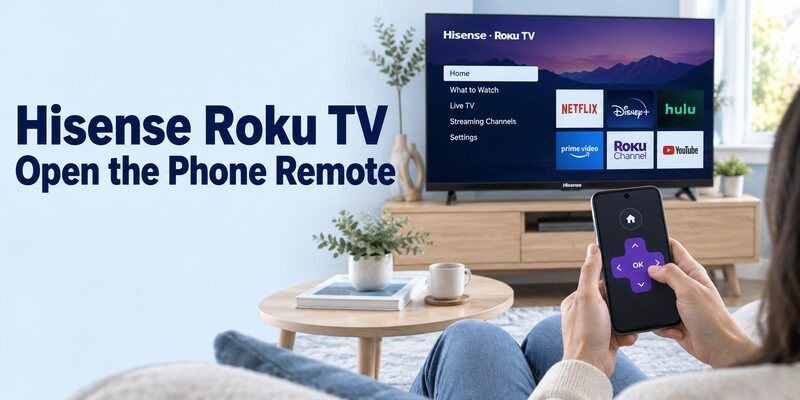
Roku provides a free mobile application for Android and iOS. Its official support page describes using the app as a remote for Roku TVs and streaming players. Choose the official publisher and follow its current sign-in and device-connection prompts on the phone.
For the Roku branch specifically, this Hisense Roku TV remote app guide explains the setup and free-control options for compatible Roku models.
For a download on a Roku model, keep the television awake and the phone on the same home network. Select the correct Hisense Roku TV, then open Remote. A separate Roku player in another room can also appear, so verify the target before sending commands.
Test Roku’s Available Buttons
Begin with directions, selection, Home, and Back. Then inspect the available volume, keyboard, voice, and Headphone Mode options. Roku notes that controls vary with the device, so use your actual remote screen as the practical feature list.
After you download hisense tv remote software, open a familiar app and return to the television’s home screen. Test antenna or input-related functions separately if they matter to you. When a Roku player is attached instead of built into the TV, its supported television power and volume integration is a separate configuration to check.
If you download hisense tv remote software mainly for private listening, test the relevant headphone feature with your actual viewing source. Check that sound reaches the intended phone or headphones and that you know how to return to normal speakers. Do this before another viewer depends on the setup.
Use Amazon Fire TV for a Hisense Fire TV
Follow the Fire TV Phone Setup
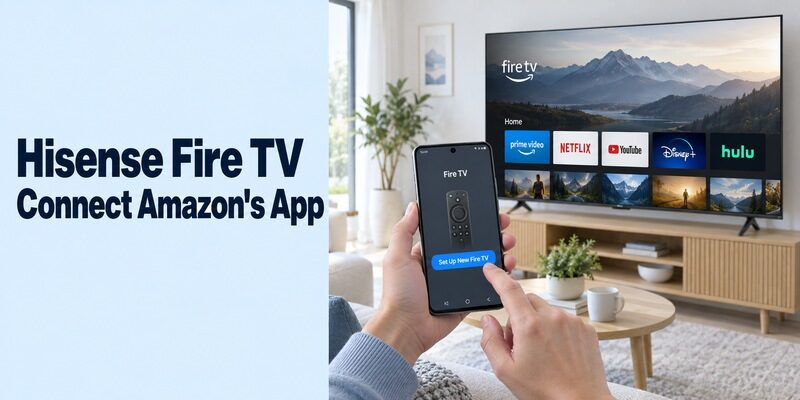
A Hisense Fire TV belongs to Amazon’s Fire TV control route. Install Amazon Fire TV from the phone’s supported store and verify Amazon as the publisher. Amazon’s instructions specify a shared Wi-Fi network, an Amazon account sign-in, the remote icon, and Set Up New Fire TV followed by the on-screen prompts.
When you download hisense tv remote software through this route, complete the displayed setup before judging the connection. The Fire TV app also includes content discovery, so opening recommendations on the phone is not the same as connecting its directional remote to the television.
For the complete Amazon-side process, follow this Fire TV remote download guide before trying an app intended for another Hisense platform.
Check Sound and Power as Separate Features
Amazon documents app volume and power setup for supported Fire TV devices and televisions with the required HDMI-CEC support. The option appears when the equipment supports it. Do not assume these buttons are available on every Hisense Fire TV or absent from every phone setup.
Once you download hisense tv remote software and menu navigation works, test volume carefully. If you use an external soundbar, identify that audio target and follow the relevant equipment-control instructions. A working menu connection can coexist with an unsupported or unconfigured sound-control path.
Pair Google TV with a Hisense Google or Android TV
Install Google’s Mobile Application
Google TV includes a remote for compatible Google TV and Android TV equipment. Use Google’s own mobile listing on Android or iPhone. The app may open an entertainment-browsing screen first; look for the television connection control rather than assuming a separate remote product is required.
For a confirmed Hisense Google or Android TV model, this Google TV remote app for Android guide explains where to find the remote feature and complete the normal phone setup.
For a hisense smart tv remote download, verify the actual Google or Android TV platform before installation. Do not infer support from the word smart alone. A television’s built-in software and a generic Android box attached to it should each be checked against their own model documentation.
Confirm the Code from the Intended Screen
Google’s current instructions use TVs nearby, selection of the target, the code shown on its screen, and Pair. Keep the phone and TV on the same home network. Follow the corresponding prompts on your installed application version if the entry point has a slightly different label.
After you download hisense tv remote software, send a single directional command and watch the television respond. Try a short search to check text entry, then return to Home. If only one text field fails while directions work, record that limited result rather than treating the entire remote as disconnected.
Check Older RemoteNOW and Xumo References Against the Actual Model
Do Not Treat an Old Download Guide as Current Availability
An older RemoteNOW reference does not establish a currently available download for every phone. The historical Google Play and US App Store addresses checked for this guide could not be verified as working current listings. That does not establish a universal removal date or the status of every regional installation.
If you need to download hisense tv remote software for a television whose documentation names RemoteNOW, check the TV’s present Mobile App guidance or ask regional Hisense support for the supported route. Keep an existing working setup while verifying an alternative rather than replacing it solely because a search result promotes another package.
Identify the Correct Xumo App Version
Xumo’s current instructions distinguish Berry and Teal television interfaces. The first Settings item is Closed captions for Berry or Picture and sound for Teal. Berry uses the Xumo TV app for iOS; Teal uses Xumo Remote on supported iPhone and Android devices. Follow the corresponding same-network connection instructions for that version.
When you download hisense tv remote software for a Xumo model, identify that version before choosing the store result. For an older XClass or unfamiliar interface, confirm the current model-specific instructions with support instead of assuming a platform migration or app compatibility from the brand name alone.
Evaluate Independent Wi-Fi and Infrared Apps by Their Requirements
Read the Publisher’s Actual Scope
An independent app’s title is not evidence of Hisense endorsement. Remote For Hisense TV -WiFi/IR from mlStudios is one Android example. Its current listing describes smart Android TV control and infrared functionality when the phone supports IR, and lists advertising and in-app purchases.
If you want to download universal remote for hisense tv, compare the app’s stated platform and hardware requirements with your own devices. Treat broad supported-series lists as claims to verify, particularly when the same series name can cover different operating systems or regional models.
Confirm Infrared Hardware Before Testing Profiles
An IR route requires a compatible transmitter, either built into a supported phone or supplied through a specifically supported accessory. Installing an application alone does not add that component. An ordinary iPhone and an Android phone without an IR blaster cannot send appliance infrared commands just because the screen displays remote buttons.
If you are evaluating independent controllers, use this free TV remote-control app guide to compare connection requirements before assuming that every on-screen remote can operate an older Hisense set.
Before you download hisense tv remote software for an older non-networked television, verify the phone’s hardware and the app’s matching code profile. Aim the transmitter at the TV sensor and test several essential buttons. A single power response does not prove that input, menu, and channel commands all match.
If a profile opens the menu but sends the wrong channel command, save that observation before trying another supported profile. Avoid repeated rapid power presses, which make it difficult to tell whether a delayed response or an incorrect command caused the result. Keep the television awake for the initial navigation checks and use deliberate, separate button presses.
Resolve Connection Problems Without Erasing a Working Setup
Identify Whether the Problem Is Installation or Discovery
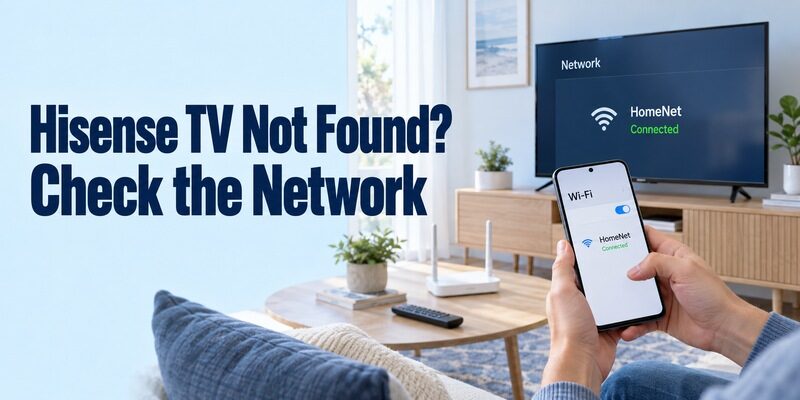
Start at the first step that fails. A store error belongs to phone or listing eligibility. A missing TV belongs to platform, power, or network discovery. A code that appears but is rejected belongs to the current target and pairing attempt. These situations do not require the same response.
When you download remote control for hisense smart tv after changing routers, the television may still need its network restored through supported onboard controls or a compatible physical remote. Another phone app does not automatically give an offline television the new Wi-Fi credentials.
Change One Relevant Condition at a Time
Check the phone and TV’s actual network names and any required local-device permissions. Guest networks can separate devices even when both reach the internet. Use the restart instructions for the particular TV platform if the connection remains unresponsive; distinguish a normal restart from a factory reset.
After you download hisense tv remote software, record whether it fails immediately, after phone sleep, or only when switching rooms. Keep account, network, and channel settings intact while investigating. If one controller still works, use that working path to inspect the setup instead of resetting everything at once.
| Symptom | Check first | Useful detail for support |
|---|---|---|
| App unavailable | Phone and regional listing | Exact store message |
| TV not listed | Platform, power, local network | TV model and network names |
| Code rejected | Correct screen and fresh prompt | Stage at which pairing stops |
| IR buttons do nothing | Transmitter and profile | Phone hardware and tested buttons |
| Only volume fails | Audio device and integration | Which controller still changes sound |
Verify Free Access and the Complete Viewing Routine
Separate Installation Cost from Useful Controls
A free download does not prove every advertised feature is included or compatible. For a download, read the current listing and purchase prompts. Check the essential controls where the app allows before paying for optional extras or an advertising-free interface.
When you download hisense tv remote software, define success in terms of your routine. Open a familiar app or input, navigate to available content, adjust sound through its working controller, and return. A subscription request from the streaming service is a content-access issue, not proof that the phone remote failed.
Save a Repeatable Setup and a Physical Backup
Close and reopen the app, select the same room, and repeat the sequence. Ask another viewer to do it too. Clear names and a familiar phone shortcut help more than several installed controllers whose icons look alike. Record any action that still requires the original handset.
Once you download hisense tv remote software and establish a working routine, place the backup controller somewhere consistent. Show users which control restores the TV input if they accidentally select another source, especially when the phone app primarily operates an attached player.
Keep a compatible physical remote for initial setup, a flat phone battery, or a network change. Broader platform guidance is available at , while your own notes should retain the TV model, phone app publisher, and working audio arrangement.
Final Thoughts
Choose the television’s platform first, then verify the app and connection. To download hisense tv remote software successfully, use VIDAA’s TV-directed route or the appropriate Roku, Fire TV, or Google TV application. Check Xumo versions and older models separately, confirm IR hardware when relevant, and test the whole viewing routine before relying on the phone as your everyday controller.
