
Download Panasonic TV Remote: Complete App Guide and Setup Instructions
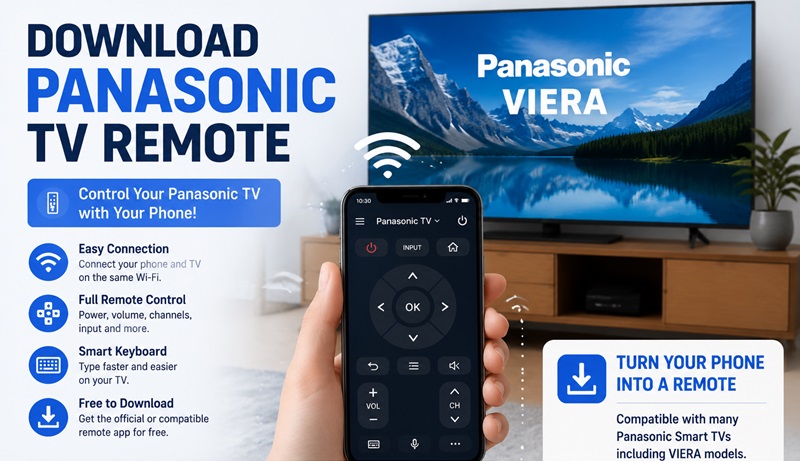
Quick Answer: To download a Panasonic TV remote app, first identify your TV’s operating system. For compatible Panasonic VIERA models, check Panasonic’s TV Share / TV Remote 3 or legacy TV Remote 2 support. For Panasonic Google TV or Android TV models, use the Google TV app on a compatible phone. For Panasonic TVs with Fire TV built in, check compatibility with the Amazon Fire TV app.
Quick setup:
- Find your Panasonic TV model number.
- Identify whether it uses VIERA, Google TV, Android TV, or Fire TV.
- Choose a compatible remote application.
- Download the app from the App Store or Google Play.
- Turn on your television.
- Connect your phone and TV to the same reachable home network.
- Open the app, select your TV, and complete pairing if prompted.
- Test Volume, Home, navigation, and Input.
Important: Not every Panasonic TV supports smartphone remote control. Compatibility depends on the model, software platform, network connection, and available remote-control features.
1. Which Panasonic TV Remote App Should You Download?
Panasonic has sold televisions with different smart TV platforms over the years.
That is why there is no single Panasonic remote app guaranteed to work with every model.
Panasonic TV Remote App Compatibility
| Panasonic TV Type | App to Check First | Important Notes |
|---|---|---|
| Compatible VIERA Smart TV | Panasonic TV Share / Remote App 3 | Availability and support vary by model and region |
| Older supported VIERA | Panasonic TV Remote 2 | Legacy app; may no longer be supported or available |
| Panasonic Google TV | Google TV app | Requires a compatible Google TV device |
| Panasonic Android TV | Google TV app | Supports compatible Android TV devices |
| Panasonic Fire TV | Amazon Fire TV app | Verify compatibility with the built-in Fire TV model |
| Non-smart Panasonic TV | Compatible physical remote | Wi-Fi apps generally cannot control TVs without supported network features |
The best choice depends on the television itself, not simply whether your phone uses Android or iOS.
How to Identify Your Panasonic TV Model
Check the label on the back of your television.
You may also find the model number in:
- The TV’s Settings or About menu
- The original user manual
- The purchase documentation
- The product support page
Panasonic model numbers vary by region and product generation.
Once you know the model, search Panasonic’s official support documentation to identify the TV’s operating system and supported mobile applications.
Panasonic TV Remote 2
Panasonic TV Remote 2 was designed for selected VIERA televisions.
Panasonic’s official documentation describes features such as:
- Remote navigation
- Touchpad control
- TV settings access
- Supported media sharing
- Device selection
- Model-dependent additional controls
The app uses a home network connection to communicate with compatible VIERA TVs.
However, it is a legacy application.
Panasonic support information indicates that TV Remote 2 is no longer supported for certain models and directs users toward newer app options.
Do not assume an old TV Remote 2 installation will work on the latest iPhone or Android device.
Panasonic TV Share and Remote App 3
Panasonic also documents TV Share, associated with its newer VIERA mobile-control software.
On supported televisions, available functions may include:
- TV remote controls
- Volume adjustment
- Touch-based navigation
- Supported content sharing
- Selected voice functions
- Other model-specific features
App names and availability can vary by country and software generation.
Some Panasonic support articles refer to the solution as Panasonic Remote App 3.
Before installing, verify that the application supports your particular VIERA model.
Panasonic Google TV and Android TV
If your Panasonic television runs Google TV or Android TV, the Google TV app may be the easiest option.
Google provides a virtual remote for compatible televisions.
Depending on your setup, you may be able to:
- Navigate the Home screen
- Change volume
- Control playback
- Enter text
- Access supported voice features
- Turn the TV on or off when supported
The virtual remote pairs with the television using a code displayed on the TV screen.
Panasonic Fire TV
Some Panasonic televisions have Fire TV built in.
These models use Amazon’s Fire TV platform rather than the older VIERA remote system.
For a compatible model, check the official Amazon Fire TV mobile app.
The Fire TV app is different from Panasonic TV Remote 2.
A VIERA-specific app should not be assumed to control a Panasonic Fire TV.
Can You Factory Reset a Panasonic TV Without a Remote?
2. Panasonic TV Remote Apps and Compatibility Guide
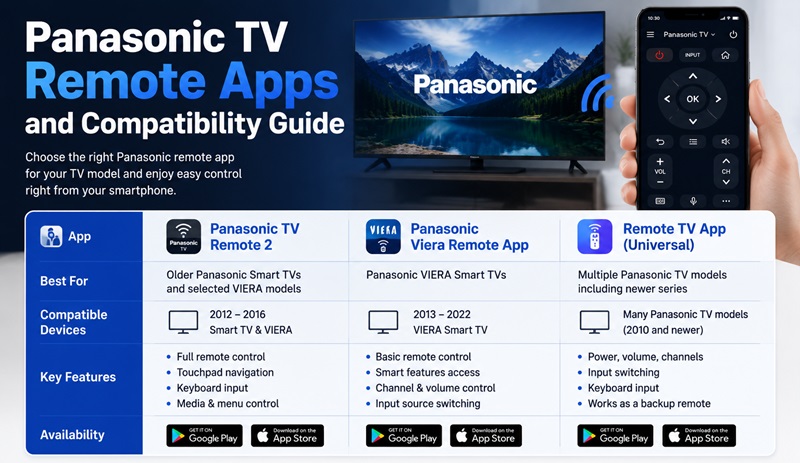
Choosing the correct application is an important part of the download panasonic tv remote process. Panasonic has released different remote solutions for different television generations, so the best app depends on your TV model and operating system.
Some users download the first Panasonic remote application they find, but the app may not connect because the television does not support that version. Checking compatibility before installation can save time and prevent setup issues.
Panasonic Remote App Comparison Table
| App Type | Supported Devices | Main Features |
| Panasonic TV Remote 2 | Selected Panasonic Smart TVs and Viera models | Remote control, navigation, keyboard input |
| Panasonic Viera Remote App | Panasonic Viera Smart TVs | Basic TV control and smart functions |
| Remote TV App | Multiple Panasonic TV models | Smartphone remote control and backup solution |
Panasonic TV Remote 2 Features
The Panasonic TV Remote 2 application was created for specific Panasonic Smart TV models.
Users searching for panasonic tv remote 2 download usually want the original Panasonic solution because it provides a familiar remote layout and supports basic television functions.
Depending on the TV model, Panasonic TV Remote 2 may include:
- Touchpad control.
- Remote button navigation.
- Text input.
- Menu browsing.
- Media control.
However, not every Panasonic television supports this application. Older and newer TV generations may have different compatibility requirements.
Panasonic TV Remote 2 APK Download: What You Should Know
Some users search for panasonic tv remote 2 apk download when they cannot find the application through their normal app store.
APK files are Android application packages that allow manual installation. However, users should always verify compatibility and download applications from trusted sources.
Installing an incorrect APK version may result in:
- Connection problems.
- Missing features.
- Application crashes.
- Unsupported TV detection.
- The safest approach is to use official application stores whenever possible.
Panasonic Viera TV Remote Compatibility
Panasonic Viera televisions were among the most popular Panasonic Smart TV models.
Users searching for panasonic viera tv remote app download usually want to control older Viera Smart TVs without using the original remote.
Before installing a Viera remote application, check:
- Your Viera TV model.
- Your TV network connection.
- Your smartphone compatibility.
- The available remote features.
Some Viera models support advanced functions, while others may only support basic remote controls.
📘 Find the Right Guide: Panasonic TV Remote: Choose, Set Up and Replace It
3. How to Connect Panasonic TV Remote App to Your TV
After completing your panasonic tv remote download, the next step is connecting your smartphone to your television.
Most Panasonic remote applications require both devices to be connected to the same Wi Fi network.
Before Connecting Your Remote App
Make sure:
- Your Panasonic TV is powered on.
- Your smartphone has the remote application installed.
- Both devices use the same Wi Fi connection.
- Your TV supports smartphone remote control.
A stable network connection helps prevent delayed responses and connection interruptions.
Step by Step Guide to Pair Panasonic Remote App
Follow these steps:
Step 1: Open the Remote Application
Launch the Panasonic remote app on your smartphone.
Allow any required permissions so the application can search for available devices.
Step 2: Find Your Panasonic TV
The application will scan your network for compatible Panasonic televisions.
Select your TV from the available device list.
Step 3: Confirm the Connection
Some Panasonic TVs may display a confirmation message or pairing code.
Follow the instructions shown on your television screen.
Step 4: Test Remote Functions
After connecting, test:
- Power button.
- Volume controls.
- Channel navigation.
- Input switching.
- Keyboard features.
If all functions work correctly, your Panasonic remote app is ready to use.
What If the Panasonic TV Does Not Appear?
Sometimes the application cannot detect the television.
Common reasons include:
- Different Wi Fi networks.
- Unsupported TV model.
- Outdated application version.
- Network connection problems.
- Try these solutions:
- Restart your Panasonic TV.
- Restart your smartphone.
- Reconnect both devices to Wi Fi.
- Update the remote application.
- Check your TV compatibility.
💡 Discover Helpful Guides
Can You Factory Reset a Panasonic TV Without a Remote?
4. Panasonic TV Remote App Not Working: Common Problems and Fixes
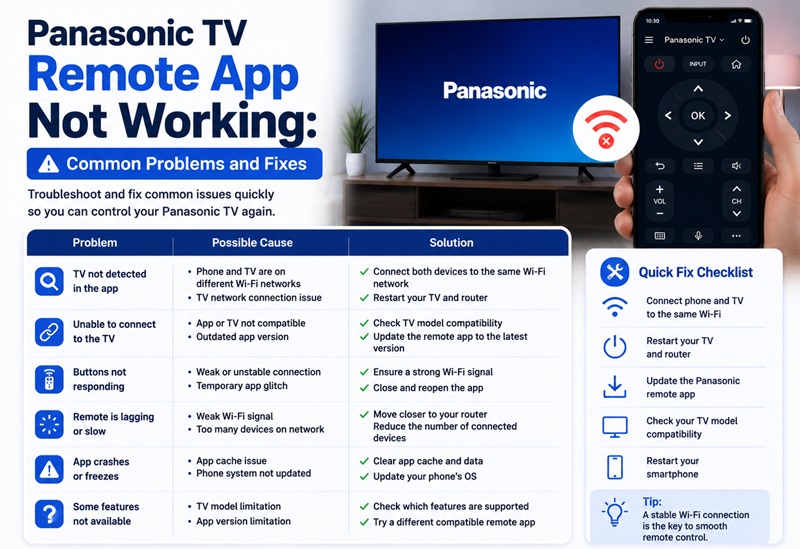
Even after completing a panasonic tv remote app download, some users experience connection issues.
Most problems are caused by compatibility problems, network errors, or incorrect setup.
Common Panasonic Remote App Problems
| Problem | Possible Cause | Solution |
| TV cannot be found | Different Wi Fi networks | Connect both devices to the same network |
| App cannot connect | Unsupported TV model | Check Panasonic compatibility |
| Remote buttons do not respond | Connection issue | Restart the application |
| App keeps disconnecting | Weak network | Improve Wi Fi connection |
| Features are missing | Wrong app version | Install a compatible remote app |
The App Cannot Find My Panasonic TV
This is one of the most common problems after installation. Check that:
- Your TV is connected to the internet.
- Your phone uses the same Wi Fi network.
- Your Panasonic TV supports remote applications.
- Your application is updated.
If your TV is too old or does not support smart remote features, a universal Remote TV App may provide a better solution.
Panasonic Remote App Is Slow or Disconnects
A slow response usually comes from network problems.
Try:
- Moving your router closer to your TV.
- Restarting your network connection.
- Closing background applications.
- Updating your smartphone software.
A stable Wi Fi connection provides smoother remote control performance.
The Official Panasonic App Is Not Available
Some users cannot find older Panasonic applications in their region.
For example, users searching for panasonic tv remote original app download may discover that availability depends on location and device compatibility.
In this situation, consider using a compatible third party remote application designed for Panasonic televisions.
📘 Find the Right Guide: App for Panasonic TV Remote: VIERA and Platform Options
5. Panasonic Viera TV Remote App Download: What You Need to Know
Panasonic Viera televisions introduced smart features that allowed users to control their TV through mobile applications.
When users search for panasonic viera tv remote app download, they are usually looking for a way to control older Panasonic Viera models without the original remote.
What Is Panasonic Viera Remote?
Panasonic Viera refers to a series of Panasonic Smart TVs that included internet connectivity and smart functions.
Depending on the model, Viera TVs may support:
- Remote control applications.
- Network features.
- Smart device connections.
- Media navigation.
However, compatibility depends on the specific television generation.
How to Download Panasonic Viera Remote App
To find the correct application:
- Step 1: Check your Panasonic Viera model number.
- Step 2: Search for a compatible remote application.
- Step 3: Install the application.
- Step 4: Connect your phone and TV to the same network.
- Step 5: Complete the pairing process.
This method helps users avoid downloading applications that are incompatible with their television.
Panasonic TV Remote Kaise Download Karen
Some users search panasonic tv remote kaise download karen when looking for instructions in Hindi.
The process is simple:
- Step 1: Open the app store on your smartphone.
- Step 2: Search for a compatible Panasonic TV remote application.
- Step 3: Install the application.
- Step 4: Connect the app with your Panasonic TV.
The same installation process applies regardless of language preference.
💡 Discover Helpful Guides: Can You Factory Reset a Panasonic TV Without a Remote?
6. Use Remote TV App by Begamob for Panasonic TV Control
If your original Panasonic remote is lost, damaged, out of batteries, or simply inconvenient to use, Remote TV App by Begamob provides another way to control compatible Panasonic TVs directly from your smartphone.
Instead of keeping a separate physical controller nearby, you can keep common TV controls on a device you already use every day. This is especially convenient when you need a quick backup remote or have several supported TV brands at home.
For compatible Panasonic TVs, Remote TV App may provide access to everyday functions such as:
- Volume and mute controls
- Menu and directional navigation
- Playback controls
- Input switching
- Text entry on supported screens
- Other common remote functions depending on the TV model
Compatibility and available controls can vary by Panasonic model, TV platform, and network configuration. A Wi-Fi remote app also generally requires the television to support network-based remote control.
How to Set Up Remote TV App With a Panasonic TV
Getting started only takes a few steps:
- Download Remote TV App by Begamob on your smartphone.
- Turn on your Panasonic TV.
- Connect the phone and TV to the same Wi-Fi network.
- Open Remote TV App and allow local-device discovery if requested.
- Select your Panasonic TV when it appears.
- Complete any on-screen pairing request.
- Test Volume, navigation, playback, and Input to confirm the connection.
If the television does not appear, first check that both devices are on the same network and that your Panasonic model supports app-based control.
Why Use an App Instead of a Physical Remote?
A physical remote can be lost, damaged, run out of batteries, or become difficult to replace. A phone-based remote gives you a backup that is usually already within reach.
Remote TV App can also be useful in a multi-TV household because you may be able to manage several supported television brands from one smartphone instead of keeping a different controller for every screen.
For users searching for a download panasonic tv remote solution, this makes Remote TV App a practical option when you want convenient phone control rather than immediately purchasing another physical remote.
💡 Discover Helpful Guides: Panasonic TV Remote Instructions for Buttons Menus and Daily Use
7. Frequently Asked Questions About Panasonic TV Remote Download
Where Can I Download Panasonic TV Remote App?
You can download a Panasonic TV remote application from supported app stores. Before installing, check your Panasonic TV model to make sure the application supports your device.
Users searching for panasonic tv remote app download should verify compatibility because different Panasonic TV generations may require different remote applications.
Is Panasonic TV Remote 2 Still Available?
The availability of Panasonic TV Remote 2 depends on your region, smartphone platform, and TV compatibility.
Users searching for panasonic tv remote 2 app download may find the application available for some older Panasonic Smart TVs, while other models may require a different remote solution.
Can I Download Panasonic TV Remote App Free?
Some Panasonic remote applications are available as free downloads depending on your device and location.
Users searching for panasonic tv remote app free download should check:
- Application compatibility.
- Supported Panasonic TV models.
- Available features.
A free remote application may provide basic controls, while some alternative apps offer additional features.
Does Panasonic Remote App Work With Viera TV?
Many Panasonic Viera televisions support remote applications, but compatibility depends on the exact model and release year.
Before completing a panasonic viera tv remote app download, check your Viera TV specifications and supported applications.
Can I Use My Phone as a Panasonic TV Remote?
Yes, you can use your smartphone as a Panasonic TV remote if your television supports remote applications.
You usually need:
- A compatible remote application.
- A stable Wi Fi connection.
- A supported Panasonic TV model.
Once connected, your smartphone can replace many functions of a traditional remote.
How Do I Download Panasonic TV Remote 2 APK?
Users searching for panasonic tv remote 2 apk download are usually looking for Android installation files.
However, official app stores are recommended because unofficial APK files may:
- Be incompatible with your device.
- Lack important features.
- Create connection problems.
Always check compatibility before installing any manual application package.
Download the ultimate Remote TV App and control your favorite smart TVs with ease. Whether you use LG, Sony, Samsung, TCL, Hisense, Philips, Roku TV, Android TV, Google TV, or many other popular brands, our app lets you turn your smartphone into a powerful TV remote in seconds.
Enjoy quick setup, an intuitive interface, and convenient features like touchpad navigation, keyboard input, volume control, channel switching, and more. Download the Remote TV App today and take full control of your TV—no physical remote required.
