
LG Magic Remote Lagging: 7 Quick Fixes for Delay, Stutter and Disconnects
Pointer crawling, buttons answering a second late, or a “Magic Remote signal is unstable” pop-up in the corner of the screen? LG Magic Remote lagging is rarely a dead remote. Most of the time it comes down to weak batteries, a lost pairing or Wi-Fi interference, and you can usually fix it in about five minutes.
Quick answer: To fix LG Magic Remote lagging, (1) replace both batteries with fresh alkaline ones, (2) hold Back + Home for 5 seconds, then press the Wheel (OK) to re-register the remote, (3) unplug the TV for 30–60 seconds, and (4) move your Wi-Fi router at least 20 cm (8 in) away from the TV. If the delay is still there, turn off Quick Start+ and SIMPLINK. LG’s support guidance names low batteries, lost pairing and wireless interference as the usual culprits.
Why Is My LG Magic Remote Lagging?
The Magic Remote does far more than a basic infrared remote: it tracks motion for the pointer and talks to the TV over a wireless link. That is why LG Magic Remote lagging can start with something as small as a tired battery or a router parked next to the TV.
Four causes cover almost every case:
- Low batteries, which make the pointer stutter and buttons slow.
- Lost or unstable pairing between the remote and the TV.
- Wireless interference from a router, mesh node or other device near the TV.
- A slow TV, where the remote works but webOS is the one lagging.
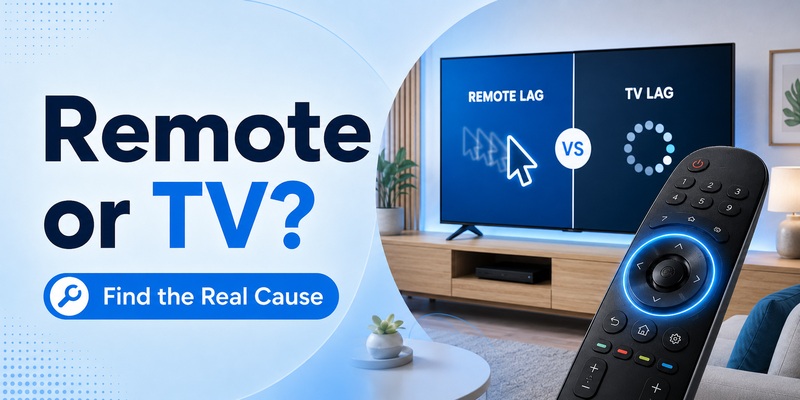
Run this 30-second test to see which one you are dealing with. Press Volume Up a few times, then Home, then move the pointer.
| What you see | Likely cause | Start with |
|---|---|---|
| Pointer and buttons are both delayed | Batteries, pairing, interference | Steps 1–4 |
| Volume reacts instantly, Home and apps are slow | The TV (webOS), not the remote | Steps 3 and 6 |
| Pointer jumps or vanishes, Power and Volume still work | Lost wireless link | Steps 2 and 4 |
| Works only close to the TV | Weak signal or interference | Steps 1 and 4 |
| Lags only inside Netflix or YouTube | App load on the TV | Steps 3 and 6 |
Explore Related Articles: How to Connect LG Remote to TV: Complete Pairing and Recovery Guide
How Do I Fix LG Magic Remote Lagging? (7 Steps, Easiest First)
Work through these in order. Each fix for LG Magic Remote lagging takes a minute or two, and you can stop as soon as the pointer feels smooth.
Step 1: Replace Both Batteries
Low power is the most common reason for a stuttering pointer and delayed buttons, and the remote often keeps half-working instead of dying outright. Remove both old batteries and insert two fresh alkaline ones of the same brand, checking polarity. Rechargeable AAs usually deliver a lower voltage, so some remotes behave worse on them.
Then shake the remote to wake the pointer and sweep it slowly across the whole screen. If LG Magic Remote lagging is gone, you are done. If batteries run out suspiciously fast, see why an LG Magic Remote battery drains fast.
Step 2: Re-Register It If Your LG Magic Remote Keeps Disconnecting
A half-broken pairing makes the remote feel slow even when it has not fully disconnected.
- Turn the TV on and point the remote at it.
- Press the Wheel (OK) button. The TV should show a registration message.
- Still lagging? Hold Back + Home together for 5 seconds to unpair (the power button flashes).
- Point the remote at the TV and press Wheel (OK) again to register it.
On some models, holding the Guide button for 5 seconds cancels and re-registers the remote in one go. Button combinations vary by Magic Remote model, so your manual wins if it differs. Need the full walkthrough? See how to connect an LG remote to your TV.
If the remote goes completely dead right after re-registering, take out the batteries, power-cycle the TV (Step 3), put the batteries back and repeat once. Some users report this brings the pointer back. And if your LG Magic Remote keeps disconnecting minutes after a successful pairing, skip ahead to Step 4, because interference is the likely cause.
Step 3: Power-Cycle the TV and Turn Off Quick Start+
Standby does not fully clear the TV’s memory, and a TV that never shuts down properly can lose contact with the remote. Unplug the TV, press and hold its physical power button for 15–30 seconds to drain leftover power, wait 30–60 seconds, then plug it back in.
Next, go to Settings → General → Quick Start+ and switch it off (the exact path differs by webOS version). One forum user fixed repeated “signal unstable” warnings this way, because the TV now shuts down completely each time. The trade-off is a slightly slower start-up.
Step 4: Move the Router and Other Wireless Devices Away
This is the fix people skip, and it matters. LG advises keeping a Wi-Fi router or access point at least 0.2 m (about 8 in) from the TV, or the Magic Remote may not perform as expected. LG also notes that the TV’s wireless receiver sits on the lower left of the panel (sometimes mid-panel), so a router on the left side is the worst spot. Move it to the right if you can.
Check everything near the TV: routers, mesh nodes, streaming boxes, game consoles, smart-home hubs and USB wireless adapters. Move one device away, then test from your normal sofa position, not just from in front of the screen. Some users also report that switching the TV to 5 GHz Wi-Fi reduces lag when the 2.4 GHz band is crowded.
Step 5: Turn Off SIMPLINK and “Mobile TV On”
If you use a soundbar or receiver, SIMPLINK (HDMI-CEC) handshakes can stall menu responses. Disable it temporarily in the TV settings and see if the lag disappears.
One lgwebos forum user also cured an unstable remote by installing brand-new batteries, re-registering with Back + Home, then switching off both options under Settings → Connection → Mobile TV (the menu name varies by model). Turn them back on later if you need them.
Step 6: Update the Software and Free Up the TV (If Only Apps Lag)
When Volume reacts instantly but Home, Settings or apps hesitate, the TV is the slow part, not the remote. In that case LG Magic Remote lagging is really webOS lag:
- Update the TV: Settings → General → About This TV → Software Update.
- Uninstall apps you no longer use to free memory.
- Compare the pointer on a plain Settings screen with the pointer while a heavy app loads. Smooth in Settings but choppy in the app means the app is the problem.
If the remote is too unresponsive to navigate, use the buttons on the TV itself.
Step 7: Replace the Remote or Contact LG
Only reach this step if Steps 1–6 changed nothing. Try another compatible remote, or your phone as a remote.
- Another remote works perfectly: your Magic Remote is faulty, especially if it was dropped or got wet. Replace it.
- A second remote lags too: suspect the TV’s receiver. One forum case traced an unstable Magic Remote to the TV’s Wi-Fi module, so contact LG support.
Avoid repeated factory resets. They can erase apps, sign-ins and Wi-Fi settings, and if one proper reset does not help, a second will not.
View Related Articles: LG TV Remote iOS: Official iPhone Setup and Control Guide
Why Does My Screen Say the LG Magic Remote Is Unstable?
The pop-up “Your Magic Remote signal is unstable” means the TV detects a weak or interrupted link to the remote, and it is the clearest sign that LG Magic Remote lagging comes from the connection rather than the TV. Reports follow a pattern: the cursor lags badly, recovers for a few seconds, then lags again, often right after opening Netflix or YouTube. When the LG Magic Remote is unstable, you may also see:
- A pointer that disappears while Power and Volume still work. LG says this happens when the remote loses its wireless connection.
- Buttons that work ten times and then ignore two presses.
- A remote that works only when you sit close to the TV.
- Your LG Magic Remote keeps disconnecting and reconnecting every few minutes.
Fix it in this order: new batteries (Step 1), re-register (Step 2), Quick Start+ off (Step 3), router moved (Step 4), Mobile TV options off (Step 5). If the LG Magic Remote is unstable even after all five, the cause is probably hardware. See Step 7.
Can I Use My Phone as an LG Remote While I Fix This?
Yes. A phone remote works over your home Wi-Fi instead of the Magic Remote’s own wireless link, so you can keep navigating while you troubleshoot. It is also a quick diagnostic: if the TV responds instantly to your phone but not to the Magic Remote, the remote or its link is the problem, not the TV.
It will not repair a faulty Magic Remote, but if LG Magic Remote lagging keeps coming back, it is the easiest backup to keep on hand. Begamob Remote works with LG webOS and 1,000+ other TV brands, and there is also a guide for controlling an LG TV from iPhone.
Never be stuck without a remote. Try Begamob Remote for your LG TV →
FAQ: People Also Ask About LG Magic Remote Lagging
What are the common problems with LG Magic Remotes?
The most common problems are a laggy or stuttering pointer, buttons that respond intermittently, the remote disconnecting with a “signal unstable” message, and a pointer that vanishes while Power and Volume still work. Short range and fast battery drain also come up often. Most trace back to batteries, pairing or interference. If only one button fails, see LG remote volume button not working.
Why is my TV remote so laggy?
A laggy TV remote is usually caused by weak batteries, interference from nearby wireless devices, or a TV that is slow to process commands. For LG Magic Remote lagging, replace the batteries, re-register the remote and move your router at least 20 cm from the TV. If volume reacts instantly but menus are slow, the TV is the cause.
Why is my LG smart TV so laggy?
An LG smart TV usually lags because webOS is short on memory, apps are running in the background, or the software is out of date. Power-cycle the TV, turn off Quick Start+, uninstall unused apps and update the software. If only the pointer lags while menus open instantly, look at the remote instead (Steps 1–4).
My LG TV remote is going crazy. How can I fix it?
A Magic Remote that jumps, double-presses or ignores buttons is typically hit by weak batteries or wireless interference. Install fresh alkaline batteries, re-register it (Back + Home for 5 seconds, then press Wheel (OK)), and move routers or other wireless devices away from the TV. If a dirty or worn Wheel is the only faulty part, clean it or replace the remote.
Can Wi-Fi interfere with an LG Magic Remote?
Yes. LG says electronic devices near the TV can interfere with the Magic Remote’s wireless signal, and recommends keeping a Wi-Fi router or access point at least 0.2 m (about 8 in) away. A router on the TV’s left side is the worst case, because the receiver sits on the lower left of the panel.
