
How to Control Cable Box With LG Magic Remote: Easy 7-Step Setup
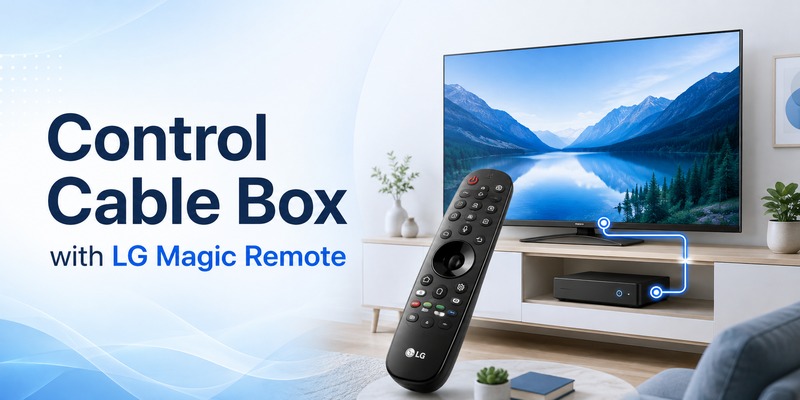
Tired of juggling two remotes? Here’s how to control cable box with LG Magic Remote: connect the box to your TV by HDMI, open Universal Control Settings in webOS, choose Set-top Box, select your provider and pass the on-screen test. This guide gives the exact menu path for each webOS version, plus fixes for when the box won’t respond.
Can LG Magic Remote control cable box? Yes. The flow: HDMI → External Input → Universal Control Settings → Manage Settings → Set-top Box → location → provider → test → Finish. Good to know: it works with the Magic Remote only, LG doesn’t support it for game consoles, and the TV must have your set-top box’s model information.
How Do I Control Cable Box With LG Magic Remote? (7 Steps)
Here is how to control cable box with LG Magic Remote on a webOS TV. Menu names change slightly by model year, so if your screen looks different, check the webOS table in the next section.
- Connect and power on. Plug the cable box into an HDMI port on your LG TV and turn on both devices. Make sure the box’s picture appears first, because Universal Control can’t fix a missing signal.
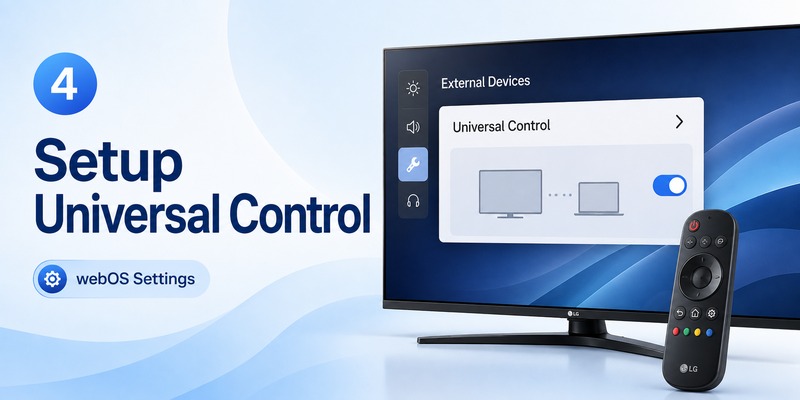
- Open Universal Control Settings. Press External Input on the Magic Remote, select the HDMI port your cable box uses, then choose Universal Control Settings at the top of the screen. On webOS 23/24 you can also go to Settings → All Settings → General → External Devices → Universal Control Settings.
- Select Manage Settings → Set-top Box. Confirm the HDMI port, choose Set-top Box from the external device list and select Next.
- Confirm your location. Check the address on screen. If it’s wrong, select Change Locale and correct it.
- Choose your service provider. Pick your cable provider and box manufacturer. If yours isn’t listed, select More. Tip: for Xfinity X1 boxes, choose “Xfinity X1” rather than the raw device model number.
- Run the test. When the test screen appears, press Test and watch the cable box, not just the TV. If the box doesn’t respond, go back and try a different option when prompted.
- Finish. Confirm the test worked, then select Finish to save.
Need the guide, menu or DVR? Press the 1-2-3 button (or the three-dot “More Actions” button) on your Magic Remote to bring up an on-screen keypad and extra cable box controls. Button names vary by remote model.
Magic Remote battery dead or pairing lost? Use your iPhone as an LG TV remote. It’s quick to set up and always in your pocket. → Download the LG TV Remote app
Can LG Magic Remote Control Cable Box on Every webOS TV?
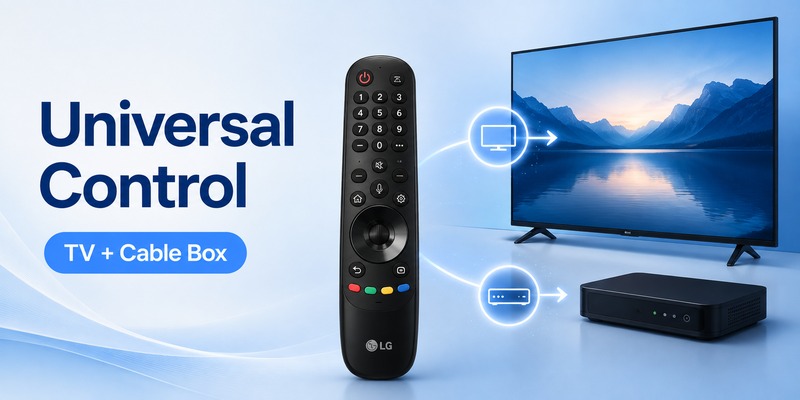
Short answer: on most webOS TVs, yes, with three limits. According to LG, Universal Control works only with the Magic Remote, isn’t supported for game consoles, and can’t be used if your set-top box’s model information isn’t saved on the TV.
The only real difference in how to control cable box with LG Magic Remote across model years is where the menu lives:
| TV / webOS version | Where to open Universal Control |
|---|---|
| 2023–2024 · webOS 23 / 24 | Settings → All Settings → General → External Devices → Universal Control Settings |
| 2021–2022 · webOS 6.0 / 22 | External Input → select the HDMI port → Universal Control Settings (top of the Select Input Mode screen) |
| 2019–2020 · webOS 4.5 / 5.0 | External Input → select the HDMI port → Device Connector icon (top of the screen) |
| webOS 4.0 and older | Press Home → open the Device Connector app |
LG notes that its guides cover many models, so your screens may differ slightly. Focus on the menu names, not the exact look.
Explore Related Articles: LG TV Remote Volume Button Not Working? 12 Practical Fixes to Restore Volume Control
Does it set up automatically? Often. Using the LG Magic Remote to control cable box on a 2019 or newer TV can be hands-off: LG says webOS 4.5 (2019) and later usually configure the integrated remote on their own once a set-top box is connected by HDMI. If no setup prompt appears, use the manual steps above, or trigger it from Settings → All Settings → Connection → Device Connection → Auto Device Setup (webOS 5.0). On webOS 4.5 the entry is called HDMI Device Connection.
How Do I Use the LG Magic Remote to Control Cable Box, Soundbar and Other Devices?
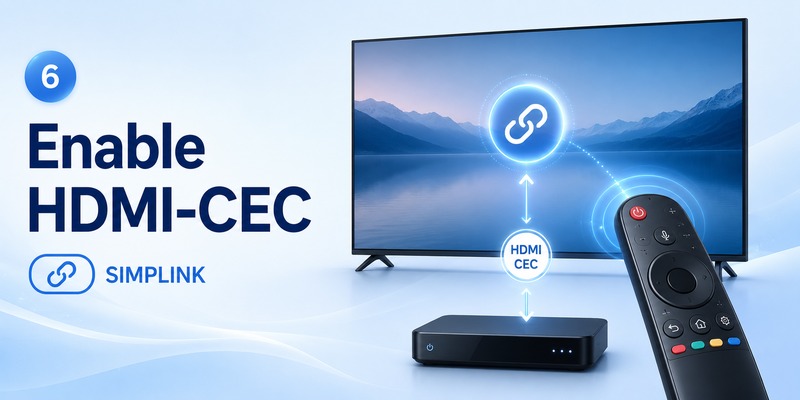
Universal Control is built for set-top boxes. For other HDMI gear, LG relies on SIMPLINK, its name for HDMI-CEC. The cleanest way to handle how to control cable box with LG Magic Remote alongside your other gear is to build the setup in layers:
- Cable box: set it up with Universal Control (steps above).
- Soundbar: connect it to the TV’s HDMI ARC/eARC port and switch SIMPLINK (HDMI-CEC) on, usually under Settings → All Settings → General → External Devices → HDMI Settings. Compatible soundbars can then follow the TV remote’s volume and power.
- Other HDMI devices (Blu-ray player, etc.): if the device supports HDMI-CEC, SIMPLINK may let the Magic Remote handle basic functions. Support varies by device.
- Game consoles: LG says Universal Control isn’t supported for them.
Done in that order, you can control cable box with LG remote commands such as channel, power and guide, and still change soundbar volume with the same remote. Set up the box first, enable SIMPLINK second, then test each device separately. If devices start powering on or switching inputs by themselves, review each device’s HDMI-CEC setting. Volume keys misbehaving? See LG TV remote volume button not working.
Keep a backup remote on your phone.
Download the LG TV Remote app and use your iPhone as a backup LG remote
Why Can’t I Control Cable Box With LG Remote? (Quick Fixes)
When the Magic Remote controls the TV but not the box, work through this list in order. Most failures come from the input, the provider choice or a blocked signal.
- Check that the TV sees the box. Select the cable box’s HDMI input. No picture? Restart the box, reseat the HDMI cable or try another HDMI port, then run Universal Control again. If you ever move the box to a different port, repeat the setup.
- Confirm the Magic Remote itself works. The pointer, Home button and TV volume should respond. If not, fix the connection first with how to connect an LG remote to your TV. A slow pointer? See LG Magic Remote lagging.
- Run Universal Control again. Open Manage Settings and redo the set-top box setup carefully.
- Pick the right provider and manufacturer. A similar-looking provider may send the wrong commands. Use More if yours is hidden.
- Clear the signal path. LG advises positioning the set-top box so nothing blocks signal reception. Open cabinet doors or move objects in front of the box.
- Can’t find the menu? If you don’t see “All Settings → Device Connector,” look under General → External Devices for Universal Control Settings.
- Watching through a provider app? If you stream cable through an app such as Xfinity Stream, there is no HDMI box to control. Use the app’s own on-screen controls instead.
Still no luck? If Universal Control can’t identify your box, keep the provider remote for the buttons LG doesn’t map.
Bottom line: how to control cable box with LG Magic Remote comes down to three things: a working HDMI picture, the right provider in Universal Control and a clear signal path. So, can LG Magic Remote control cable box models from most providers? Yes, once Universal Control recognizes yours.
One app for every TV at home? Begamob Remote works with 1,000+ TV brands, including LG, Samsung, Sony, Roku and TCL. → Explore Begamob Remote
FAQs About Using an LG Magic Remote With a Cable Box
These are the questions people ask most about how to control cable box with LG Magic Remote.
How do I get my LG remote to control my cable box?
Use Universal Control. Connect the box by HDMI, press External Input, select its HDMI port, open Universal Control Settings → Manage Settings, choose Set-top Box, confirm your location, pick your provider, pass the test and select Finish. It works with the Magic Remote only.
How do I get my LG TV to recognize my cable box?
Connect the box by HDMI, power on both devices and select that HDMI input so the box’s picture appears. On webOS 4.5 (2019) and later, the TV usually detects the box and starts Universal Control by itself. If it doesn’t, open Universal Control Settings and add the box manually. No picture at all points to a cable or port problem, so try another HDMI port.
How to use TV remote for cable box?
Most TV remotes must be paired with the box first. On an LG TV, that pairing is Universal Control: once the box is set up, you can control cable box with LG remote buttons such as channel up/down, power and guide. Press the 1-2-3 or “More Actions” button for the on-screen keypad and extra cable box controls.
How to control other devices with LG Magic Remote?
Beyond using the LG Magic Remote to control cable box, you can reach other HDMI devices through SIMPLINK (HDMI-CEC), such as a compatible soundbar connected over ARC/eARC. Support depends on each device. LG says Universal Control isn’t supported for game consoles.
Why isn’t my cable provider listed?
Select More to show additional providers and check that your location is correct (Change Locale). If your box still isn’t available, Universal Control may not have its model information, so keep the provider remote.
Why can the Magic Remote control the TV but not the cable box?
Pairing the Magic Remote with the TV is not the same as setting up Universal Control. Open Universal Control Settings, choose Set-top Box and your provider, and repeat the test.
Do I still need my cable company’s remote?
Possibly. Some provider-specific buttons and menus may not be available through the Magic Remote, so keep the original remote nearby.
Does the Magic Remote use HDMI-CEC?
LG’s version of HDMI-CEC is called SIMPLINK. Universal Control remains the main way to set up a cable or set-top box, and SIMPLINK complements it for compatible HDMI devices.
