
How to Turn Off Audio Guidance on LG TV Remote
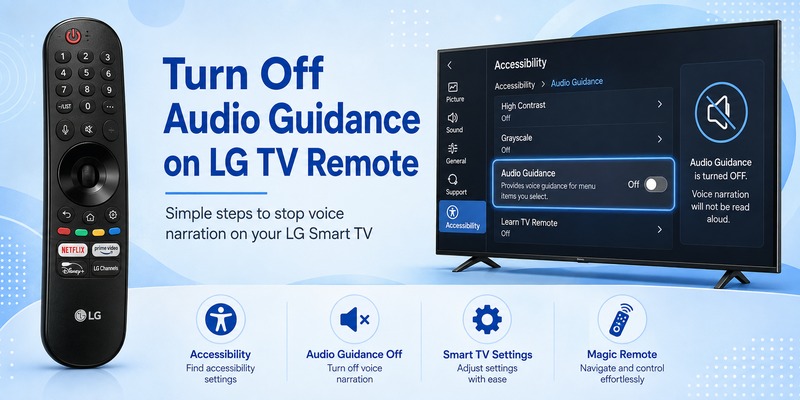
If your LG TV suddenly starts reading menu items, volume levels, input names, or settings aloud, Audio Guidance is probably turned on.
For most current LG Smart TVs, the quickest fix is:
Settings → All Settings → General → Accessibility → Audio Guidance → Off
On many compatible LG remotes, you can also press and hold the Mute button to open the Accessibility menu and disable Audio Guidance faster.
If the voice continues after you turn the setting off, the TV may be playing Audio Description from a movie, streaming app, broadcast, or connected device instead.
How to Turn Off Audio Guidance on LG TV Remote
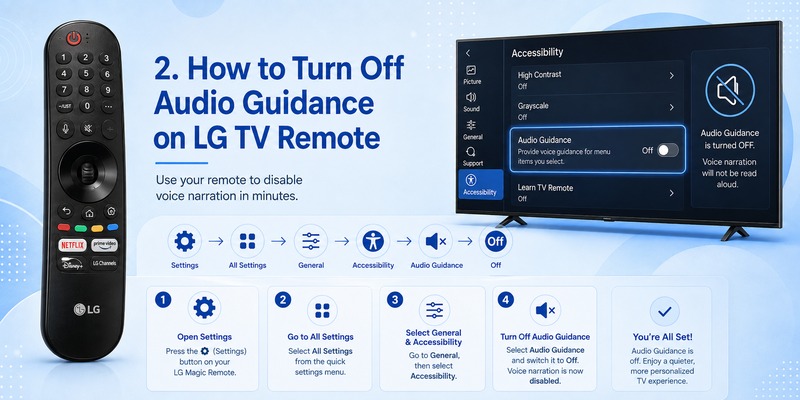
For most modern LG Smart TVs, use this path:
Settings → All Settings → General → Accessibility → Audio Guidance → Off
LG’s current support documentation lists this route for TVs using recent versions of webOS.
To turn off audio guidance on LG TV remote, follow these steps:
- Turn on your LG TV.
- Press the Settings button on your LG remote.
- Select All Settings from the on-screen quick settings panel.
- Select General.
- Open Accessibility.
- Select Audio Guidance.
- Change Audio Guidance from On to Off.
Once the setting is disabled, move through several menu items using your remote.
The spoken navigation should stop immediately.
This method is the most reliable answer to how to turn off audio guidance on lg tv and how to turn audio guidance off on lg tv because it directly changes the accessibility setting rather than simply reducing the TV volume.
Muting the television’s normal audio is not the same thing as disabling Audio Guidance.
If you want to turn off voice guidance on lg tv, make sure you disable the accessibility feature itself.
Explore Related Articles: LG TV Remote Volume Button Not Working? 12 Practical Fixes to Restore Volume Control
Use the Mute Button to Turn Off Audio Guidance Faster
On many compatible LG televisions, there is an even faster way to turn off audio guidance on LG TV remote.
Press and hold the Mute button on your LG remote until an Accessibility menu appears.
LG’s support guidance instructs users to press and hold Mute to display the Accessibility menu, then change Audio Guidance from On to Off.
Try these steps:
- Point your LG remote toward the TV.
- Press and hold Mute.
- Wait for the Accessibility menu to appear.
- Find Audio Guidance.
- Switch it to Off.
This shortcut can be particularly useful when you want to turn off audio guidance on LG TV remote without navigating several levels of the Settings interface.
It is also helpful if the spoken navigation makes going through the complete settings menu frustrating.
If you searched for how to turn off voice guidance on lg tv remote, this shortcut should be one of the first options to try.
Menu appearance can vary depending on the LG TV model and webOS version, so your screen may not look exactly like LG’s examples. LG specifically notes that menu layouts can differ between models and software versions.
If holding Mute does not display the expected menu, use the standard Settings method instead.
Download LG TV RemoteHow to Turn Off Audio Guidance on LG TVs: Newer vs Older Models
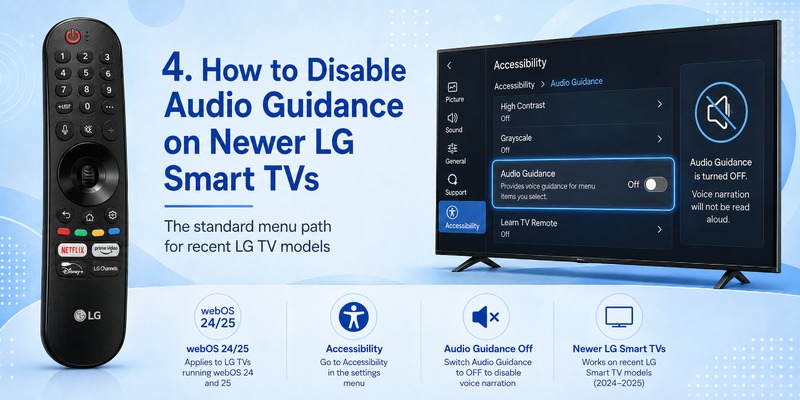
The exact way to turn off audio guidance on LG TV remote depends mainly on your TV’s model year and webOS version.
The biggest difference is where LG places the Accessibility menu:
- 2021–2025 LG TVs: Accessibility is generally located inside General.
- Older LG TVs: Accessibility may appear directly under All Settings.
So if instructions for another LG TV do not match what you see on screen, try the menu path for your generation below.
LG TVs From 2023–2025: webOS 23, webOS 24 and webOS 25
This includes many recent LG OLED, QNED, NanoCell and UHD TVs released in 2023, 2024 and 2025.
Use this path:
Settings → All Settings → General → Accessibility → Audio Guidance → Off
Follow these steps:
Step 1: Press the Settings button, usually marked with a gear icon, on your LG remote or Magic Remote.
Step 2: Select All Settings to open the full TV settings menu.
Step 3: Select General.
Step 4: Open Accessibility.
Step 5: Select Audio Guidance.
Step 6: Switch the main Audio Guidance option to Off.
Once disabled, your LG TV should stop reading menu names, settings, volume information and other interface elements aloud.
You may also see controls for voice speed, pitch or Audio Guidance volume. If your goal is an LG TV audio guidance turn off, do not simply reduce the volume. Turn the main Audio Guidance toggle completely Off.
LG TVs From 2021–2022: webOS 6.0 and webOS 22
LG TVs running webOS 6.0 or webOS 22 generally use almost the same menu structure as newer models.
Use:
Settings → All Settings → General → Accessibility → Audio Guidance → Off
To disable it:
- Press Settings on the remote.
- Open All Settings.
- Select General.
- Choose Accessibility.
- Open Audio Guidance.
- Change Audio Guidance to Off.
Therefore, if you own a 2021 or 2022 LG OLED, NanoCell, QNED or UHD television, you should normally start with the General menu rather than looking under Sound.
LG TVs From 2020 or Earlier: Older webOS Interfaces
On some older LG Smart TVs, the location of Accessibility is different.
Instead of going through General, try:
Settings → All Settings → Accessibility → Audio Guidance → Off
The steps are:
Step 1: Press the Settings button on your LG remote.
Step 2: Select All Settings.
Step 3: Look directly for Accessibility.
Step 4: Select Audio Guidance.
Step 5: Change the setting to Off.
The important difference is that older webOS versions may place Accessibility directly inside All Settings, while newer versions put it under General.
Newer vs Older LG TVs: What’s Different?
| LG TV generation | Typical webOS | Menu path |
|---|---|---|
| 2023–2025 models | webOS 23–25 | Settings → All Settings → General → Accessibility → Audio Guidance |
| 2021–2022 models | webOS 6.0 / webOS 22 | Settings → All Settings → General → Accessibility → Audio Guidance |
| 2020 or earlier models | Earlier webOS versions | Settings → All Settings → Accessibility → Audio Guidance |
In other words, the actual Audio Guidance feature works similarly across generations. The main difference is where the Accessibility menu is located.
On newer LG TVs:
General → Accessibility → Audio Guidance
On many older LG TVs:
Accessibility → Audio Guidance
This is why someone searching how to turn off audio guidance on LG Smart TV may find screenshots that do not exactly match their television.
Can’t Find Audio Guidance? Check What Type of Voice You Hear
Before changing other voice settings, make sure the problem is actually Audio Guidance.
Audio Guidance reads the TV interface aloud, including:
- Menu names
- Settings
- Volume levels
- Input selections
- TV status information
If your TV is reading these items, follow the relevant path above and switch Audio Guidance to Off.
However, if the voice only appears while watching a movie or TV program and says things such as:
“She walks across the room.”
or
“The car stops outside.”
you are probably hearing Audio Description, not Audio Guidance.
Audio Description may come from the TV, streaming app, broadcast, cable box or another connected device. In that case, turning off Audio Guidance will not stop the narration.
Check the Audio Description/Video Description setting, the streaming app’s audio-language menu, or the audio track selected on your connected device.
Also, do not disable voice recognition just because the TV is speaking. Magic Remote voice commands and Audio Guidance are separate features, so you can turn off spoken menu guidance while continuing to use voice search and voice control.
Explore Related Articles: LG Magic Remote Lagging: 12 Fixes for Slow or Delayed Response
Audio Guidance vs Audio Description: Know the Difference
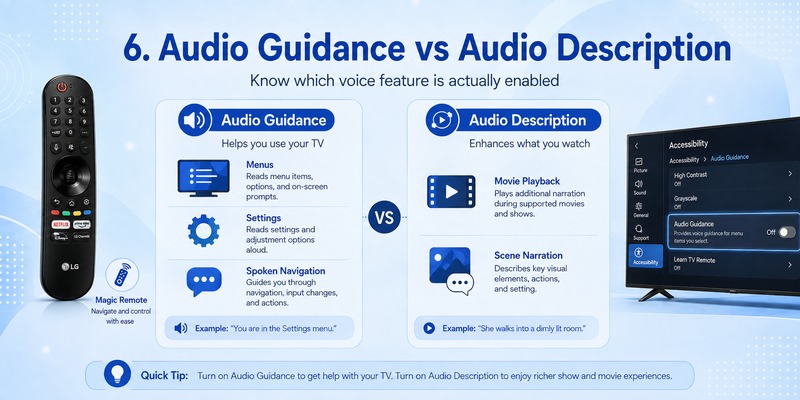
This is the most important troubleshooting step after attempting to turn off audio guidance on LG TV remote.
Audio Guidance
Audio Guidance helps users navigate the television.
You might hear:
- Menu names
- Settings
- Volume information
- Interface selections
- TV status information
If this is what you hear, use Accessibility → Audio Guidance → Off.
Audio Description
Audio Description describes visual elements of entertainment content.
You might hear narration such as:
“She walks across the room.”
“The car stops outside the house.”
“He looks toward the window.”
If this voice appears mainly while watching a particular movie, program, streaming service, broadcast, or external device, Audio Description may be enabled.
LG notes that if narration describes the program being watched rather than TV menus, the source may be Audio Description from the app or connected external device. In those cases, the relevant audio or caption setting may need to be changed within that source.
LG also documents Video/Audio Description settings on supported TV models and notes that availability can depend on broadcasts and connected equipment.
Therefore, someone searching for how to turn off audio description on lg tv remote may actually need a different setting from someone trying to turn off audio guidance on LG TV remote.
If you already disabled Audio Guidance but narration continues only during content playback, inspect:
- The TV’s Accessibility or Audio Description setting
- The streaming app’s audio language menu
- The program’s audio track
- Your cable or satellite box
- Your connected set-top box
- Other external media devices
The search lg remote turn off audio description commonly leads users to Audio Guidance instructions even though the unwanted narration is coming from the content source.
Identifying where the voice appears is therefore critical.
Explore Related Articles: How to Connect LG Remote to TV: Complete Pairing and Recovery Guide
What to Do If Audio Guidance Will Not Turn Off
If you have already switched Audio Guidance off but your LG TV is still talking, do not immediately factory-reset the television.
Work through these checks first.
1. Test the TV menus
Open Settings and move through several options.
Then:
- Adjust the volume
- Change an input
- Return to the Home screen
If the TV continues reading each highlighted option aloud, check:
Settings → All Settings → General → Accessibility → Audio Guidance
Make sure the main switch is actually set to Off.
2. Try the Mute shortcut
Press and hold the Mute button to reopen Accessibility.
Check Audio Guidance again.
This is a quick way to confirm that the setting was changed successfully.
3. Check what you are watching
If menu narration stops but a voice continues during a movie or television program, Audio Description is probably active.
Look at the audio or accessibility options inside the app or content source.
4. Check connected devices
A cable box, set-top box, or streaming device can provide its own narration.
If the voice only appears while using one HDMI source, inspect that device’s accessibility and audio settings instead of repeatedly changing the LG TV setting.
5. Restart the TV
Once you have confirmed that Audio Guidance is off:
- Turn off the television.
- Wait briefly.
- Turn it back on.
- Test the menus again.
A factory reset should generally be a last resort because it can remove your custom settings and require you to configure the TV again.
If your LG remote itself is responding slowly or incorrectly, you can also check the related troubleshooting guides on Remote TV App.
🧭 Explore Guides: LG MR26GA vs MR25GA: Which LG Magic Remote Should You Choose in 2026?
Can You Turn Off Audio Guidance Without the Original LG Remote?
Yes, in some situations.
The easiest method uses the physical LG remote because it provides direct access to Settings and the Accessibility shortcut.
However, if your remote is lost, damaged, or temporarily unavailable, a compatible phone remote may help you navigate the TV.
If the television is already connected to your home network, a compatible remote app may provide enough navigation control to reach:
Settings → General → Accessibility → Audio Guidance
Support depends on the LG TV model and the capabilities of the remote app.
A phone remote should therefore not automatically be treated as a complete replacement for every Magic Remote feature, but it can be useful for basic navigation when the physical remote is unavailable.
🛠️ Learn with Step-by-Step Guides: LG Remote TV: Complete Guide to Setup, Apps, Pairing, Codes, and Troubleshooting
Frequently Asked Questions
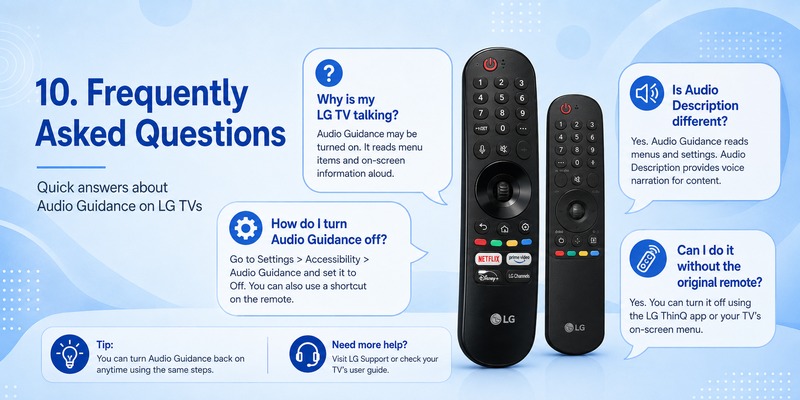
Why did my LG TV suddenly start talking?
Audio Guidance may have been enabled accidentally.
If your TV reads menu items, settings, volume levels, or interface information aloud, open Accessibility and switch Audio Guidance off.
What is the fastest way to turn off Audio Guidance on an LG TV?
On many compatible models, press and hold the Mute button until the Accessibility menu appears.
Then select Audio Guidance → Off.
If the shortcut does not work, use:
Settings → All Settings → General → Accessibility → Audio Guidance → Off
Why is my LG TV still narrating after Audio Guidance is off?
If the voice only appears during a movie, TV program, or streaming content, you may be hearing Audio Description instead of Audio Guidance.
Check the audio track or accessibility settings in the app, broadcast, cable box, or connected device.
Where is Audio Guidance on an older LG TV?
On some older webOS models, Accessibility may be located directly under:
Settings → All Settings → Accessibility
rather than inside General.
Can I turn off voice guidance without the LG remote?
Possibly.
If your TV is already connected to the network, a compatible phone remote may allow you to navigate to the Accessibility settings.
If the TV is offline or still in initial setup, a compatible physical remote may be required.
Does turning off Audio Guidance disable Magic Remote voice control?
No. They are separate functions.
Audio Guidance reads interface information aloud, while Magic Remote voice features are used for commands and search.
How can I tell whether the problem is Audio Guidance or Audio Description?
If the voice reads menus, settings, volume levels, and interface items, it is probably Audio Guidance.
If the voice describes what is happening in a movie or program, it is more likely Audio Description.
📘 Find the Right Guide: How to Set Quick Access on LG TV Remote: Complete Shortcut Setup Guide
Final Thoughts on How to Turn Off Audio Guidance on LG TV Remote
For most LG Smart TVs, the simplest solution is:
Settings → All Settings → General → Accessibility → Audio Guidance → Off
That is the main process you need to turn off audio guidance on LG TV remote on current webOS televisions. LG’s official support information confirms this path for recent models, while some older TVs place Accessibility directly inside All Settings.
If you want an even faster method, press and hold the Mute button on compatible LG remotes to open Accessibility, then switch Audio Guidance off.
Remember that spoken menu navigation and narration during movies are not always the same feature.
If you turn off audio guidance on LG TV remote and menu narration stops but a narrator continues describing a program, check Audio Description settings in the TV, streaming app, broadcaster, set-top box, or connected device.
Once you identify the source of the voice, the fix is usually simple.
For users who simply need to turn off audio guidance on LG TV remote, start with Accessibility, disable Audio Guidance, and test the TV menus again before changing any other sound or remote settings.
Download LG TV Remote