
Roku Remote Control Volume: How to Set It Up and Fix Problems
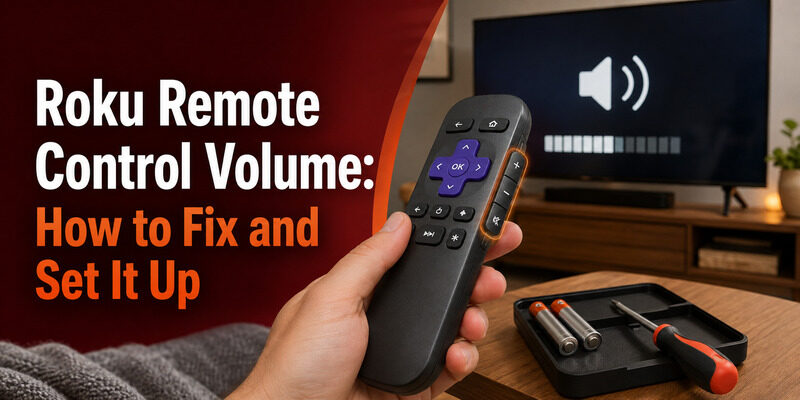
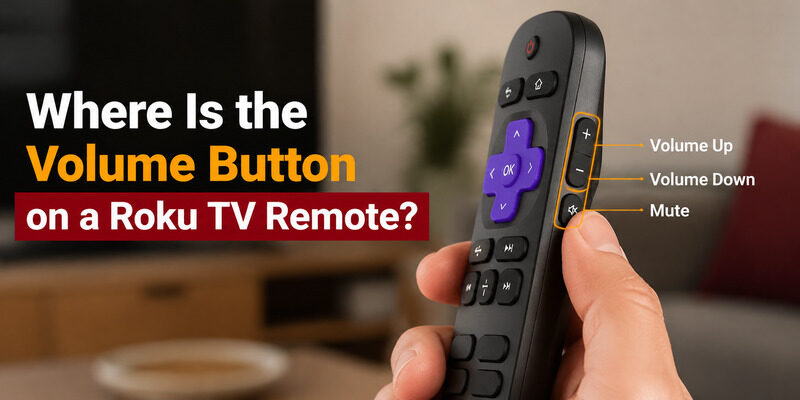
On most Roku remotes, the volume control is on the right edge of the remote rather than the front face — with volume up, volume down, and mute buttons running down the side.
But not every Roku remote has volume buttons, and even those that do sometimes need a quick setup step before they’ll control your TV’s sound. That’s the source of a lot of confusion around roku remote control volume.
This guide shows where the volume buttons are, how to set up volume control on a Roku remote that isn’t adjusting sound, how to fix volume that suddenly stopped working, and how to control volume from a phone when the remote can’t.
Whether your remote has side buttons, no buttons, or buttons that aren’t responding, there’s a fix below.
Quick Diagnosis: Why Roku Remote Volume Is Not Working
| Problem | Most likely cause | First thing to try |
|---|---|---|
| Navigation works, but Volume does not | TV-control setup | Run Set up remote for TV control |
| Volume works, but Power does not | TV compatibility / CEC | Enable CEC and repeat setup |
| Volume and Mute both stopped working | TV-control configuration | Re-run TV setup |
| All remote buttons respond slowly | Weak battery / remote issue | Replace or recharge battery |
| Roku navigation also stopped working | Pairing or battery problem | Restart and reconnect remote |
| Only one volume button fails | Stuck or worn button | Inspect and clean the button |
| Volume changes by itself | Stuck key / another controller | Check physical buttons and connected remotes |
The important distinction is simple:
If Roku navigation still works, troubleshoot TV volume control first. If the whole remote stops responding, troubleshoot the remote connection itself.
Download TV Remote App💡 Discover Helpful Guides: Roku Remote TV: Complete Guide to Setup, Pairing, Apps, Fixes, and Replacement
1. Where Are the Volume Buttons on a Roku Remote?
On Roku remotes that support TV controls, the Volume Up and Volume Down buttons are usually located on the side of the remote. Some models also include a Mute button.
However, not every Roku remote has volume controls.
Roku Simple Remote
A Roku Simple Remote primarily controls Roku navigation using infrared.
Depending on the Roku product and remote version, it may not include dedicated TV Power or Volume controls.
If your remote has no Volume buttons at all, there is nothing to configure—you will need to use:
- The TV’s original remote
- Physical TV controls
- A compatible phone remote
- Another supported Roku Voice Remote with TV controls
Roku Voice Remote
Many Roku Voice Remote models include:
- Volume Up
- Volume Down
- Mute
- TV Power
These controls are separate from normal Roku navigation.
That distinction matters because a remote can navigate Roku perfectly while its TV Volume or Power buttons fail.
Roku confirms that supported Voice Remotes can be configured separately to control a TV’s power and volume.
📘 Find the Right Guide: Roku Remote App Not Connecting to Your TV? How to Fix It
2. How to Set Up Roku Remote Volume Control
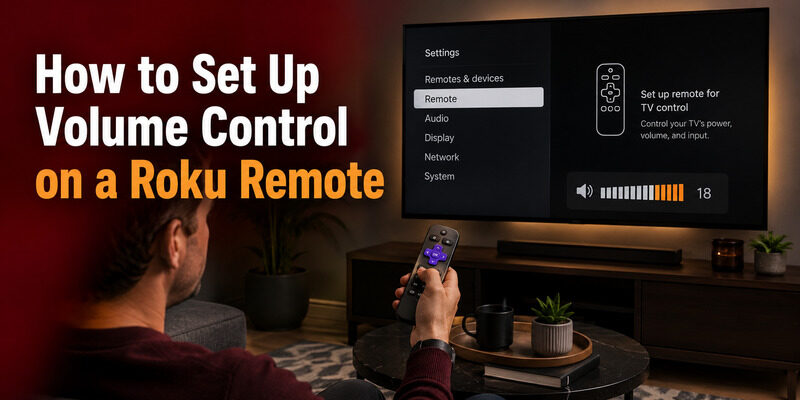
If your remote has Volume buttons but they do not control the television, set up TV controls from Roku Settings.
Step 1: Make Sure the Roku Remote Is Already Working
Before changing TV-control settings, test basic Roku navigation.
Press:
- Home
- Back
- Directional buttons
- OK
If those buttons respond normally, the Roku remote connection itself is probably fine.
You can move directly to TV-control setup.
If navigation does not work either, troubleshoot the entire remote before focusing on Volume.
Step 2: Open the TV-Control Setup
Go to:
Settings → Remotes & devices → Remotes → [Your Remote] → Set up remote for TV control
This is Roku’s current setup path for supported Voice Remotes.
Step 3: Follow the Audio Test
During setup, Roku plays audio and asks whether you can still hear it.
Follow the on-screen prompts carefully.
The Roku device uses your answers to determine which TV-control configuration works with your television.
Make sure:
- The TV volume is turned up
- The Roku remote is pointed toward the television during setup
- Nothing blocks the TV’s IR sensor
Roku specifically recommends pointing the Voice Remote toward the TV during this setup process.
Step 4: Test Volume, Mute, and Power Separately
Once setup finishes, test:
- Volume Up
- Volume Down
- Mute
- TV Power
Do not assume all four functions must behave the same way.
Roku notes that compatibility varies between TV models. Some TVs may support Volume control but not Power.
📖 Read More Guides: How to Pair a New Roku Remote Without the Old One
3. Roku Remote Volume Not Working? Try These Fixes
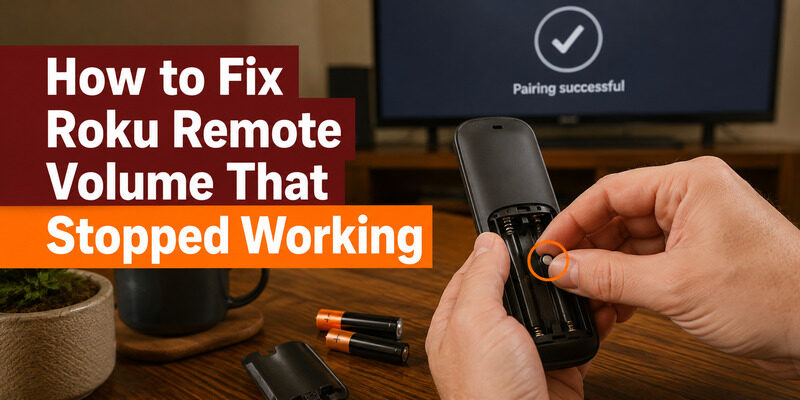
If Volume previously worked but has stopped responding, use the symptoms to decide what to troubleshoot.
Fix 1: Run TV-Control Setup Again
This should be the first fix when:
- Roku navigation works normally
- Only Volume, Mute, or Power is affected
Go back to:
Settings → Remotes & devices → Remotes → [Your Remote] → Set up remote for TV control
Then repeat the audio test.
A software update, TV change, or configuration issue can require TV controls to be set up again.
Roku specifically recommends re-running this setup when Power or Volume controls stop working.
Fix 2: Restart Roku and the TV
Restart both devices before making deeper changes.
For a Roku streaming player:
- Disconnect Roku from power.
- Wait at least five seconds.
- Reconnect it.
- Wait for the Home screen.
- Test the Volume buttons again.
You can also restart many Roku devices through:
Settings → System → Power → System restart
or the available restart option for your model.
Restarting clears temporary software problems without changing your Roku settings.
Fix 3: Replace or Recharge the Remote Battery
Weak battery power can make remote behavior inconsistent.
If your Roku remote uses replaceable batteries:
- Replace both batteries together
- Use a fresh matching pair
- Check the battery contacts for dirt or corrosion
For rechargeable models, charge the remote before continuing.
If all remote functions feel slow or inconsistent—not just Volume—the battery becomes a more likely cause.
Fix 4: Point the Remote Directly at the TV
Some TV-control commands may use infrared.
Stand in front of the television and point the Roku remote directly toward the TV’s IR sensor.
Make sure there is no:
- Soundbar blocking the bottom edge of the TV
- Cabinet door in front of the sensor
- Decorative object covering the receiver
Roku’s current troubleshooting guidance recommends testing Volume and Power while pointing the remote directly at the TV sensor.
If Volume begins working only when you point directly at the television, IR communication is likely involved.
Fix 5: Check HDMI-CEC
CEC allows HDMI-connected devices to exchange certain control commands.
TV manufacturers use different names for CEC, including:
- Samsung Anynet+
- LG SIMPLINK
- Sony BRAVIA Sync
- HDMI Control
- CEC Control
If Power or voice-based TV control does not work, check whether CEC is enabled on the television.
Roku notes that voice commands for TV Power and Volume rely on CEC, even when physical buttons may use IR.
After enabling CEC, run Set up remote for TV control again.
Fix 6: Update Roku Software
Go to:
Settings → System → System update → Check now
Install any available update and restart Roku.
Roku recommends checking for software updates when Power or Volume controls stop responding.
Then repeat TV-control setup.
Fix 7: Re-Pair Only If Other Roku Buttons Also Fail
Do not immediately re-pair a remote just because Volume stops working.
If Home, Back, and navigation still work, the Roku connection itself is probably intact.
Re-pairing becomes more relevant when:
- Navigation also stops responding
- The remote frequently disconnects
- Roku no longer detects the Voice Remote
- Multiple Roku-control buttons fail together
That is a different troubleshooting path from a Volume-only problem.
💡 Discover Helpful Guides: Roku TV Remote Headphone Jack Compatibility Guide
4. Volume Works but Power, Mute, or Other Buttons Don’t
Different combinations of working and non-working buttons can point to different causes.
Volume Works but Power Does Not
This does not necessarily mean the remote is defective.
Roku states that some television models may support Volume control without supporting Power through the same remote setup.
Try:
- Enable HDMI-CEC on the TV.
- Check for Roku updates.
- Repeat Set up remote for TV control.
- Test Power again.
If you use a Roku player powered from the TV’s USB port, Roku also warns that the player may lose power when the TV turns off. Connecting the Roku player to a wall outlet can help in this situation.
Volume Works but Mute Does Not
Repeat Roku’s TV-control setup.
An incomplete or imperfect TV-control match can sometimes leave one function behaving differently from the others.
If only the physical Mute button continues to fail while Volume Up and Down work reliably, also inspect the button itself for:
- Dirt
- Stickiness
- Physical wear
- A sunken key
Power Works but Volume Does Not
First repeat TV-control setup.
Then check:
- Whether the TV uses a soundbar or AV receiver
- Whether CEC is enabled
- Which device is actually controlling audio
For example, your TV may power on normally while audio is routed through an external sound system.
In that case, TV Power and audio Volume may not be controlled through exactly the same path.
💡 Discover Helpful Guides: Roku iPhone Remote: How to Control Your Roku from iOS
5. Roku Volume Problems With Soundbars and AV Receivers
Volume troubleshooting becomes more complicated when sound does not come directly from the TV speakers.
Your setup may look like:
Roku → TV → Soundbar
or:
Roku → AV Receiver → TV
In these systems, Volume commands may need to control the external audio device rather than the TV itself.
Check Where the Audio Is Coming From
First identify whether sound is currently coming from:
- TV speakers
- HDMI ARC/eARC soundbar
- Optical soundbar
- AV receiver
- Another external speaker system
If you recently changed your audio configuration and Roku remote Volume stopped working at the same time, the two events may be related.
Check CEC and ARC/eARC
For HDMI-connected sound systems, confirm that:
- HDMI-CEC is enabled
- ARC/eARC is enabled where required
- The correct HDMI port is being used
Then restart all connected devices.
If Roku navigation works normally but only audio control fails, do not repeatedly re-pair the remote. Focus on TV/audio-control configuration instead.
6. Control Roku TV Volume Without Working Remote Buttons
If the physical remote cannot control Volume, you still have several temporary options.
Use the TV’s Physical Buttons
Many TVs have buttons on:
- The bottom edge
- The rear panel
- One side of the cabinet
- Under the manufacturer’s logo
Depending on the model, these buttons may provide:
- Power
- Volume Up
- Volume Down
- Input
- Menu navigation
This is the simplest backup if you only need to adjust sound temporarily.
Use the TV’s Original Remote
If you still have the television manufacturer’s original remote, use it to control Volume while troubleshooting the Roku remote.
This can also help identify where the problem is.
If the original TV remote controls Volume normally, the television itself is probably fine and the issue is more likely Roku remote configuration.
Use Your Phone as a Temporary Remote
If your Roku TV or compatible device is already connected to the network, a phone remote can provide another way to control supported functions.
A compatible Remote TV App can be useful while:
- Reconfiguring the physical remote
- Looking for a replacement remote
- Testing whether Volume control works through another controller
Available Volume functionality can depend on the Roku device, television, and audio setup, so phone control should be treated as a convenient fallback rather than a guaranteed replacement for every physical remote function.
e your phone as a TV remote while you troubleshoot the Roku remote.
🗺️ Browse How-To Guides: Roku Remote Control Volume: How to Fix and Set It Up
7. Common Roku Volume Problems and Quick Fixes
Roku Remote Volume Is Delayed
If Volume changes only after several presses:
- Replace or recharge the remote battery.
- Restart Roku.
- Restart the TV.
- Point the remote directly at the TV.
- Check for obstructions around the TV sensor.
If all Roku buttons are delayed as well, investigate the remote or Roku system rather than Volume setup alone.
Volume Changes by Itself
Check whether a physical button is stuck.
Press and release:
- Volume Up
- Volume Down
- Mute
several times.
Remove any case or cover that may be pressing against the buttons.
Also check whether another controller is active, such as:
- TV remote
- Universal remote
- Phone remote
- Soundbar remote
If Volume continues to change without any input, restart the TV and disconnect unnecessary controllers while testing.
Only Volume Up or Volume Down Works
This is more likely to indicate a physical button issue than a complete TV-control setup failure.
Inspect the non-working button and compare its feel with the working one.
If one key is sticky, loose, or sunken while everything else works normally, cleaning or replacing the remote may be more appropriate than changing Roku settings.
Navigation Works but Neither Volume nor Power Works
This is one of the clearest signs that you should check TV-control configuration before pairing.
Run:
Settings → Remotes & devices → Remotes → [Your Remote] → Set up remote for TV control
If that fails:
- Update Roku.
- Enable CEC.
- Restart Roku and TV.
- Run setup again.
Nothing on the Roku Remote Works
This is no longer just a Volume problem.
Check:
- Batteries or charge level
- Remote type
- Roku device restart
- Voice Remote pairing
- Possible hardware damage
Use the dedicated Roku Remote Quit Working troubleshooting guide for the full diagnostic process.
🛠️ Learn with Step-by-Step Guides: Roku TV Remote Size: Dimensions, Types, and Layout
8. When Should You Replace the Roku Remote?
A remote is more likely to have a hardware problem when:
- One physical button consistently fails
- Volume keys feel stuck or damaged
- Battery replacement makes no difference
- TV-control setup succeeds but one key still never responds
- The remote has suffered liquid or impact damage
- The same TV controls work normally from other remotes
Before replacing it, confirm whether the problem affects:
only Volume, all TV-control buttons, or the entire Roku remote.
That distinction prevents replacing a working remote when the real issue is simply TV-control configuration.
9. FAQs About Roku Remote Volume Control
Why is my Roku remote volume not working?
If Roku navigation still works but Volume does not, repeat:
Settings → Remotes & devices → Remotes → [Your Remote] → Set up remote for TV control
Roku recommends this when Power or Volume controls fail.
How do I program my Roku remote to control TV volume?
Go to:
Settings → Remotes & devices → Remotes → [Your Remote] → Set up remote for TV control
Follow the audio prompts until Roku identifies settings that work with your television.
Why does my Roku remote change channels but not volume?
If Roku navigation works normally, the remote is likely still connected to Roku. The problem is more likely with TV-control setup.
Repeat the TV-control configuration rather than starting with re-pairing.
Why does Roku remote volume work but Power doesn’t?
Some TVs support Volume but not Power through Roku’s TV-control system. Roku documents this compatibility limitation.
Try enabling CEC and repeating TV-control setup.
Does the Roku remote use IR for volume?
Depending on the setup, Roku TV-control functions may use IR or CEC-related behavior. Roku recommends pointing the remote directly at the TV sensor when troubleshooting physical Volume and Power controls.
Do all Roku remotes have volume buttons?
No.
Volume and TV-control buttons are available on supported Roku remote models, particularly Voice Remotes with TV controls. A basic remote may not provide dedicated Volume control.
Can I control Roku volume from my phone?
On compatible Roku TV and network setups, a phone remote may provide supported TV controls. Availability depends on the Roku device, TV, and audio configuration, so it is best used as a backup rather than assuming every setup provides identical controls.
Should I re-pair my Roku remote if only Volume stops working?
Usually not as the first step.
If Home, Back, and navigation still work normally, start by repeating Set up remote for TV control.
Re-pairing becomes more relevant when Roku navigation also stops responding.
💡 Discover Helpful Guides: Roku TV Remote Batteries: Size, Types, and Replacement
Final Thoughts
When Roku remote volume control stops working, first determine whether the problem affects only TV controls or the entire remote.
If Roku navigation still works, start with:
Settings → Remotes & devices → Remotes → [Your Remote] → Set up remote for TV control
Then check the TV’s IR sensor, CEC settings, Roku software, batteries, and any connected soundbar or AV receiver.
If navigation also fails, move beyond Volume troubleshooting and check the remote’s battery, connection, and pairing instead.
The key is to troubleshoot the function that is actually failing rather than resetting or re-pairing a remote that is still connected correctly.
Download TV Remote App