TCL TV Not Responding to Remote? Try These Fixes
Last updated: September 2026
Short answer: Check fresh batteries, a clear signal path, and the TV’s physical power button first.
A TCL TV not responding to remote commands may have a handset problem, a lost voice connection, or an unresponsive television. Those situations need different next steps. Testing another control method early helps you avoid buying a remote for a problem that actually belongs to the TV or its connected equipment.
Work through the checks below in order, testing after each meaningful change. Identify whether your set uses Roku TV, Google TV, Android TV, or Fire TV before attempting pairing. Similar-looking TCL controllers do not all use the same button sequence, and restoring one function does not automatically restore the others.
Quick Diagnosis: Why Your TCL TV Is Not Responding to the Remote
| Symptom | Most likely area | First thing to try |
|---|---|---|
| Nothing responds | Battery / remote / pairing | Replace batteries and restart TV |
| Power works, navigation doesn’t | Voice remote pairing | Reconnect remote |
| Navigation works, Volume doesn’t | TV-control / audio path | Check audio and TV controls |
| Voice only doesn’t work | Bluetooth / internet / voice setup | Re-pair and check network |
| Remote works only close to TV | IR obstruction / weak signal | Clear sensor path |
| One button fails | Physical button issue | Inspect and clean |
| Phone remote works | Physical handset problem | Focus on remote |
| TV button also fails | TV/system issue | Restart TV |
1. TCL TV Not Responding to Remote? Start Here
Before resetting anything, check whether the issue is with the TV, the remote, or just one control function.
Step 1: Replace or Reseat the Batteries
Open the battery compartment and:
- Remove both batteries.
- Check the + and – orientation.
- Reinsert them firmly.
- Replace both with a fresh matching pair if needed.
Do not replace only one battery.
If the remote has rechargeable power instead of removable batteries, make sure it is charged before troubleshooting further.
Step 2: Test the TV’s Physical Power Button
Use the physical button on the TCL TV.
Depending on the model, it may be:
- Under the TCL logo
- On the bottom edge
- On the rear panel
- On one side of the TV
If the TV responds to the physical button, the television itself is probably still functioning and the problem is more likely the remote or remote connection.
If the TV also ignores its physical controls, skip remote troubleshooting for a moment and restart the television.
Step 3: Identify What Still Works
Test:
- Power
- Home
- Directional pad
- OK
- Volume
- Voice
The pattern matters.
For example:
Power works but Home does not
→ pairing may be the issue.
Home works but Volume does not
→ TV-control or audio configuration may be the issue.
Nothing works
→ batteries, remote signal, pairing, or hardware becomes more likely.
💡 Discover Helpful Guides: How to Pair an Xfinity Remote With a TCL TV: Step-by-Step Guide
2. Check the Batteries, IR Sensor, and Signal Path
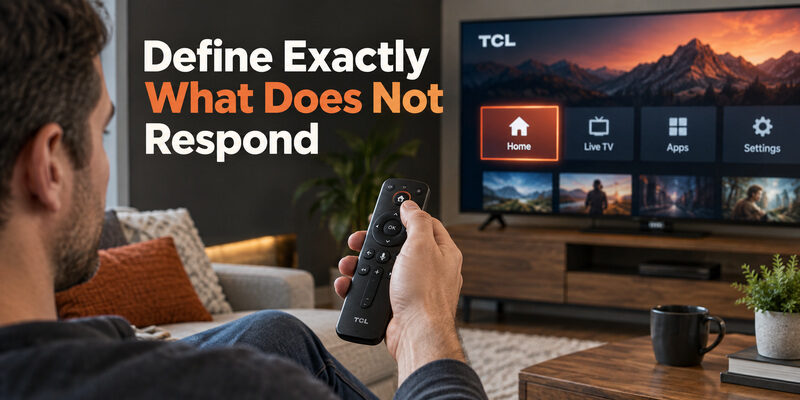
If you use a basic TCL infrared remote, the remote needs a clear path to the TV’s IR receiver.
Clear the TV Sensor Area
Look around the lower front edge of the television.
Make sure the sensor is not blocked by:
- Soundbar
- Decorations
- Console
- Cabinet edge
- Other electronics
Stand directly in front of the TV and test the remote again.
Try From Close Range
Move closer to the television and press:
- Power
- Home
- Volume
If the remote only works from a very short distance, check:
- Battery strength
- IR sensor obstruction
- Remote emitter condition
Test the IR Remote With a Phone Camera
If you have a standard IR remote, you can use a smartphone camera as a quick test.
- Open the phone camera.
- Point the front of the TCL remote toward the camera.
- Press a remote button.
- Watch the phone screen.
If you see a flashing light from the remote emitter, the remote is at least transmitting an IR signal.
If there is no visible signal:
- Replace the batteries
- Reseat the batteries
- Test several buttons
If the remote still shows no sign of transmission, the handset may be faulty.
A visible flash does not guarantee that the command is correct for the TV, but it helps confirm that the remote is transmitting.
📖 Read More Guides: TCL TV Remote: Complete Setup, App, Codes, Troubleshooting & Replacement Guide
3. Restart the TCL TV and Rule Out a Frozen App or Input
Sometimes the remote is working, but the TV software is temporarily stuck.
This can happen when:
- An app freezes
- A streaming service becomes unresponsive
- An HDMI device takes over control
- The TV interface stops reacting
Restart the TV
A basic power cycle is usually enough:
- Turn off the TV if possible.
- Unplug it from power.
- Wait about 30–60 seconds.
- Plug it back in.
- Let the TV fully restart.
- Test the remote again.
Do not jump straight to a factory reset.
Test the Home Screen
If the problem happens only inside one app, return to the TCL Home screen.
Then test:
- Home
- Back
- Navigation
- Volume
If the remote works normally outside the app, the problem is probably app-specific rather than a remote failure.
Check the Current Input
If you are controlling an external:
- Cable box
- Game console
- Fire TV
- Roku player
- Streaming box
some buttons may be controlling the external device instead of the TCL TV.
Switch back to the TV’s own Home screen and test again.
Download TV Remote App4. Reconnect a TCL Voice Remote
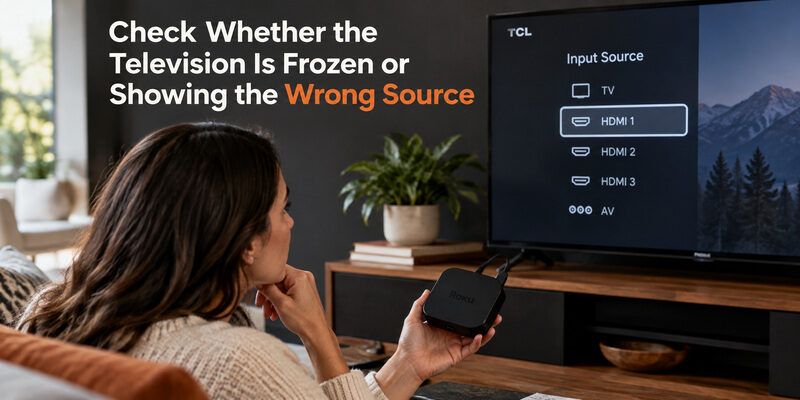
Voice remotes do not always behave like basic IR remotes.
The correct reconnect method depends on the TCL platform.
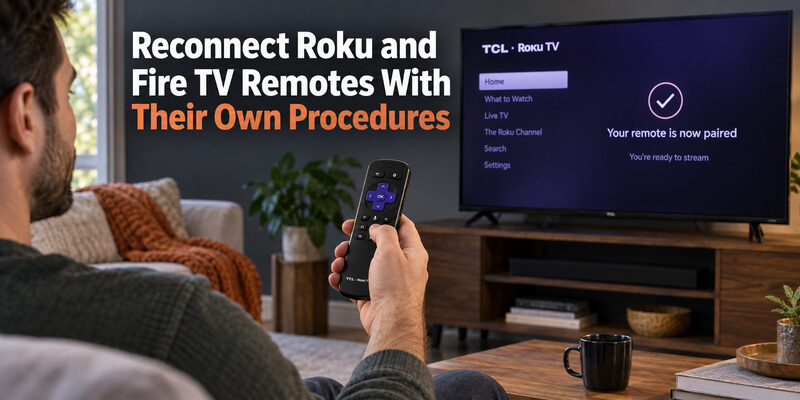
Do not mix Roku, Google TV, Android TV, and Fire TV pairing procedures.
| TCL platform | Typical reconnect approach |
|---|---|
| TCL Google TV / Android TV | Use Remotes & Accessories or supported button combination |
| TCL Roku TV | Use the remote pairing method for that Roku remote |
| TCL Fire TV | Use Fire TV remote pairing procedure |
| Basic IR remote | No Bluetooth pairing required |
TCL Google TV / Android TV
On many TCL Google TV and Android TV models, open:
Settings → Remotes & Accessories
and follow the remote-pairing instructions.
Some supported TCL Android TV remotes use a button combination such as:
HOME + OK
to enter pairing mode.
The exact method depends on the remote and TV model, so follow the on-screen instructions when available.
TCL Roku TV
If you use a Roku voice remote, check whether it has a pairing button.
If it does, use the pairing procedure for that remote model.
Some newer Roku voice remotes use a button combination instead of a dedicated pairing button.
If the remote is a basic Roku IR remote, there is nothing to pair.
TCL Fire TV
For compatible Fire TV remotes, pairing commonly involves holding the Home button while the TV is ready to detect the remote.
Again, use the method for the exact TV/remote model rather than applying one platform’s procedure to another.
When Pairing Is More Likely Than a Battery Problem
Think about pairing when:
- Power works but navigation does not
- Voice stopped working
- The remote was recently replaced
- The TV was reset
- The remote previously worked but suddenly lost smart functions
📘 Find the Right Guide: TCL Roku TV Remote Not Working? Easy Fixes to Get It Working Again
5. Power, Volume, Voice, or Only Some Buttons Not Working
If only part of the remote fails, do not treat it like a completely dead remote.
Use the failed function to narrow down the cause.
| What works | What fails | Likely cause |
|---|---|---|
| Navigation works | Power / Volume | TV-control / IR / CEC |
| Power works | Navigation | Pairing |
| Navigation + Power work | Voice | Bluetooth / network / voice setup |
| Most buttons work | One key | Physical wear / debris |
| Nothing works | Everything | Battery / pairing / hardware |
Power Does Not Work
If navigation still works:
- Point the remote directly at the TV
- Check the IR sensor area
- Check whether TV-control setup is required
The remote may still be connected even if the Power command fails.
Volume Does Not Work
If Home and navigation work normally but Volume does not:
- Check the TV audio output
- Check whether sound is coming through a soundbar or receiver
- Check TV-control configuration
Do not immediately re-pair the remote if Roku/Google TV navigation is still working.
Voice Does Not Work
If everything works except voice control:
- Check batteries.
- Check Bluetooth pairing.
- Check internet connection.
- Reconnect the voice remote.
- Test again from the Home screen.
A voice failure does not automatically mean the microphone is broken.
Only One or Two Buttons Fail
Inspect the physical buttons.
Look for:
- Sticky feel
- Sunken key
- Dirt
- Loose button
- Physical damage
If only one button fails while everything else works normally, the problem is more likely mechanical than software-related.
📖 Explore Articles: TCL TV Remote Download: Control Your TCL TV With Your Phone
6. Use a Phone Remote to Isolate the Problem
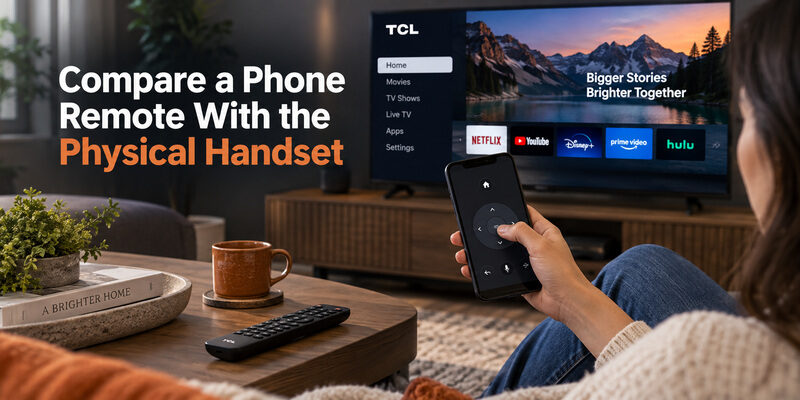
A compatible phone remote can be useful not only as a backup but also as a diagnostic tool.
If the phone remote works while the physical TCL remote does not, that tells you something important:
The TV is still accepting remote commands.
That means you should focus on:
- Physical remote batteries
- Pairing
- IR signal
- Button condition
- Remote hardware
rather than assuming the TV itself is broken.
When a Phone Remote Helps Most
Use it when:
- The physical remote suddenly stops working
- You need to reach Settings
- You need to reconnect a voice remote
- You want to test whether the TV is responsive
- You are waiting for replacement batteries or a new remote
Depending on the TCL platform, you may be able to use:
- Roku mobile controls
- Google TV remote
- Fire TV app
- A compatible Remote TV App
The phone and TV generally need to be connected to the same local network for network-based control.
💡 Discover Helpful Guides: TCL TV Not Responding to Remote Troubleshooting Guide
7. What If the Problem Comes and Goes?
An intermittent remote problem can be harder to diagnose than a completely dead remote.
If the problem appears only sometimes, note what changes.
Check Distance
If the remote works close to the TV but fails from the normal seating position, investigate:
- Weak batteries
- IR blockage
- Remote emitter problems
Check Startup Timing
If the remote does not respond immediately after the TV turns on but works a minute later, the TV software may still be starting.
Check the Room Setup
Look for:
- Soundbar blocking the receiver
- Furniture
- Decorative objects
- Direct sunlight on the sensor area
Test One Change at a Time
Do not change:
- Batteries
- Pairing
- Network
- TV settings
all at once.
Change one thing, then test.
That makes it easier to identify what actually fixed the problem.
💡 Discover Helpful Guides:
TCL Android TV Remote: Buttons, Pairing and Phone Backup
8. When to Replace the Remote or Contact TCL
If you have already tried the basic fixes, use the remaining symptoms to decide what to do next.
Replace the Remote When
A replacement is more reasonable when:
- Fresh batteries make no difference
- The remote is physically damaged
- One or more buttons are permanently dead
- IR output is missing
- Pairing repeatedly fails with a known-compatible remote
- Phone controls work but the physical handset does not
Before buying a replacement, verify the exact TCL platform and remote compatibility.
A Roku remote, Google TV remote, Android TV remote, and Fire TV remote are not necessarily interchangeable.
Contact TCL Support When
Contact TV support when:
- The physical TV buttons also fail
- The TV repeatedly freezes
- A known-compatible replacement remote also fails
- The TV does not detect any compatible remote
- The IR receiver or Bluetooth hardware may be faulty
This is the point where the problem may be on the TV side rather than the remote side.
FAQs About TCL TV Not Responding to Remote
Why is my TCL TV not responding to the remote?
The most common causes are:
- Weak or incorrectly installed batteries
- Blocked IR sensor
- Lost voice-remote pairing
- Frozen TV software
- Physical remote damage
Start with fresh batteries and test the physical TV button before changing advanced settings.
Why does my TCL remote Power button work but nothing else?
This often points to a pairing issue on a voice remote.
Power may use a different control method from navigation or voice.
Reconnect the remote using the pairing method for your TCL platform.
Why does the TCL remote work only when I stand close to the TV?
Check:
- Battery strength
- IR sensor obstruction
- Remote emitter
A basic IR remote should have a clear path to the television.
Why does my TCL remote work for navigation but not Volume?
If navigation works, the remote connection is probably still active.
Check:
- TV audio output
- Soundbar/receiver
- TV-control setup
- IR or CEC configuration
Why does my TCL remote voice button not work?
Voice features typically depend on:
- Bluetooth pairing
- Internet access
- Voice settings
- Battery power
Re-pair the voice remote before assuming the microphone is damaged.
Why is my TCL TV not responding even after I changed the batteries?
Check:
- Battery polarity
- Battery contacts
- IR sensor
- Voice-remote pairing
- TV restart
Fresh batteries do not fix pairing or TV-side problems.
How do I know whether my TCL remote is broken or the TV is broken?
Try:
- The TV’s physical button
- A compatible phone remote
- A known-compatible replacement remote
If the TV responds to other control methods but not the original remote, the remote is the more likely problem.
Can I control my TCL TV without the physical remote?
Yes, on supported smart TVs.
A compatible phone remote may work if the TV and phone are connected to the same local network.
Final Thoughts
Start a TCL TV not responding to remote investigation by separating handset power, command delivery, and television response. Fresh batteries and a physical-button test provide a useful starting point; platform-specific pairing and focused function checks provide the next steps.
Replace hardware only when the evidence supports that choice. A reliable phone backup, clear model details, and a short description of the failed commands make the remaining problem easier to resolve without unnecessary factory resets or repeated purchases.