
How to Connect TCL Remote: Pair, Connect and Test Your Remote
By the Remote TV App Team
Short answer: Infrared remotes need no pairing; voice remotes use the pairing procedure for their TV platform.
TCL Google TV, Android TV, Roku TV, and Fire TV do not share one universal button combination. A programmable universal remote introduces another method: entering or searching its manufacturer’s TV codes. Choosing the correct branch is the most important step before you press anything.
Use this connect TCL remote to TV guide to identify the handset, prepare the equipment, and follow the appropriate setup route. Then test navigation, sound, inputs, and voice separately. If only one function fails, preserve the working connection while investigating that specific feature instead of repeatedly resetting the entire television.
Choose Your Connect TCL Remote to TV Method
Look at the television’s built-in platform and the remote’s model information. A microphone button is a useful clue, but the handset’s documentation is stronger evidence. A remote intended for an external streaming player may be a different product from one intended for the television itself.
| Remote type | Connection method | Starting action |
|---|---|---|
| Compatible simple infrared remote | Direct IR commands | Install correct batteries and aim at TV |
| Supported TCL Google TV voice remote | Platform-specific wireless pairing | Follow TCL’s Home and OK guidance |
| Supported Roku voice remote | Roku pairing procedure | Use its pairing button or supported combination |
| Supported TCL Fire TV remote | Fire TV pairing procedure | Follow the relevant Home-button sequence |
| Programmable universal remote | Manufacturer code entry or search | Identify its code-list version and TV mode |
Do not start with a random pairing combination. The phrase “connect TCL remote to TV” covers several different processes. Confirming the control family first avoids applying a voice-remote reset to an infrared handset that was never supposed to pair.
If you have the original remote, photograph its model information before opening a replacement package. Keep the television model with that record so the chosen procedure can be checked against both devices.
💡 Discover Helpful Guides: TCL TV Remote: Complete Setup, App, Codes, Troubleshooting & Replacement Guide
Prepare for One Controlled Connection Attempt
Check power and access
Turn on the TV with a working controller or its physical power button. Install the batteries specified for the remote, observing polarity, or charge the controller according to its own instructions. Do not assume every TCL handset uses the same power design.
Keep the television visible and place a wireless remote nearby during setup. For infrared commands, clear the path to the TV’s receiver area. To connect TCL remote to TV successfully, the equipment must be powered and able to receive the chosen kind of signal.
Preserve a working recovery route
If another controller or phone app already works, keep that connection available. You may need it to open settings, confirm the television model, or recover from an unsuccessful attempt. Avoid removing saved accessories before reading the model-specific instructions.
Change one connection at a time. Note the remote model, button combination, indicator behavior, and television response. This makes a failed attempt useful evidence rather than another unexplained step in a long series of resets.
Use a Simple Infrared Remote Without Pairing
Aim and test basic commands
A compatible simple IR controller sends commands directly to the television. Install the correct batteries, point the transmitter toward the receiver area, and test Power or Home. There is no wireless accessory relationship to establish on a handset designed only for infrared operation.
For how to connect TCL TV remote questions involving this type, a pairing screen is unnecessary. A television with the wrong input selected should still show some response to supported TV commands, such as a volume indicator or Home screen.
Investigate range and obstruction before codes
Move closer and clear objects that block the receiver. Compare several buttons. If the remote is an exact compatible replacement, do not assume it needs a universal code simply because an unrelated tutorial offers one.
Infrared compatibility and wireless pairing are different questions. In a connect TCL remote to TV task, no response from a simple IR handset can involve batteries, a blocked path, an unsuitable replacement, or a TV-side issue. Repeated voice-pairing combinations do not address those possibilities.
📘 Find the Right Guide: TCL TV Remote Control Replacement Buying Guide
Pair a Supported TCL Google TV or Android TV Remote
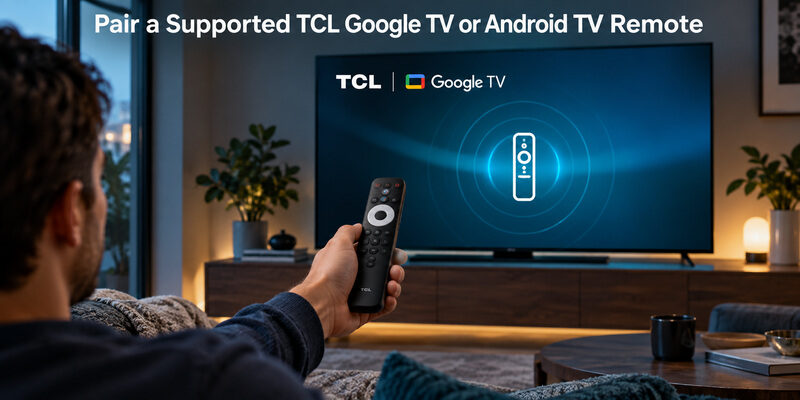
Follow TCL’s own button sequence
TCL’s official Google TV remote instructions describe holding Home and OK together until the pairing animation or confirmation appears. Its Android TV troubleshooting guidance likewise explains the wireless connection needed for supported voice functionality. Check the exact model instructions where the supplied handset differs.
Use this route to connect TCL remote to TV when the television and controller match that supported design. Do not substitute a Google streaming device’s remote instructions simply because both devices use a Google TV interface.
Confirm basic control and voice separately
After the television confirms pairing, test Home, direction, selection, and Back. Then make one simple supported voice request. Power responding before pairing does not prove that the remote’s wireless voice connection was already complete.
If the TV displays a TCL TV pair your remote prompt, read the illustrated buttons carefully. The on-screen hardware illustration matters. A replacement with different buttons may require a compatibility check rather than a longer hold of the wrong combination.
For how to pair TCL TV remote searches, the useful result is a confirmed connection followed by working commands. Keep that evidence before moving on to sound or assistant settings.
📖 Read More Guides: TCL TV Remote Download: Control Your TCL TV With Your Phone
Connect a Roku Voice Remote to TCL Roku TV
Use the pairing button when present
Roku’s official voice-remote guidance describes holding the pairing button for about five seconds until the status light flashes on applicable models. The button location and power design vary, so identify the actual handset before removing covers or attempting setup.
To connect TCL remote to TV through this route, use a supported Roku voice remote and follow the television’s pairing response. A momentary button tap is not the same as the documented hold that starts pairing mode.
Use the supported button combination when there is no pairing button
For supported Roku voice remotes without a pairing button, Roku describes holding Back and Home together for about five seconds until the status light flashes. This instruction applies to the specified voice-remote hardware, not every simple Roku TV remote.
A simple Roku IR remote does not need this process. If you are trying to pair TCL remote to TV and cannot find a pairing button or microphone feature, confirm the remote type before assuming a hidden reset procedure is required.
Wait for the television’s result, then test ordinary navigation. If connection fails, consult the compatibility and troubleshooting guidance for that remote rather than switching to TCL Google TV button combinations.
Follow the TCL Fire TV Setup Sequence
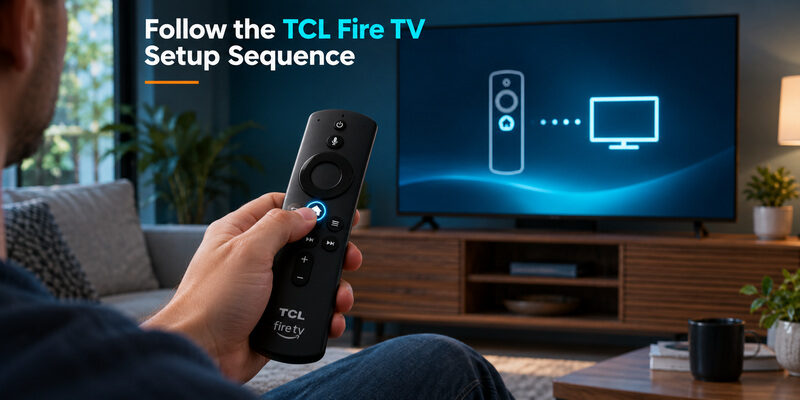
Start the documented Home-button hold
TCL’s Fire TV setup troubleshooting describes holding Home for about ten seconds while the remote is near the television. Its instructions specify staying within about ten feet and observing the on-screen setup response.
When prompted to press Play/Pause in that sequence, release Home and press Play/Pause as directed. To connect TCL remote to TV on Fire TV, follow the prompt order instead of holding several controls throughout the whole process.
Avoid importing another Fire remote’s reset blindly
Fire TV remote reset sequences can differ by hardware. A procedure involving Left, Menu, and Back should not be applied simply because the remote resembles an online example. Confirm that the support page covers the supplied controller and the current symptom.
Pairing and resetting are not interchangeable first steps. For how to pair a TCL TV remote on this platform, complete the normal supported pairing attempt before considering a deeper remote reset. Keep any working TV controls available while you investigate.
If the replacement is intended for a separate Fire TV player, verify its support for the television before interpreting a failed attempt as a faulty handset.
📖 Explore Articles: TCL TV Remote Battery Size and Replacement Guide
Verify the Connection With a Normal Viewing Routine
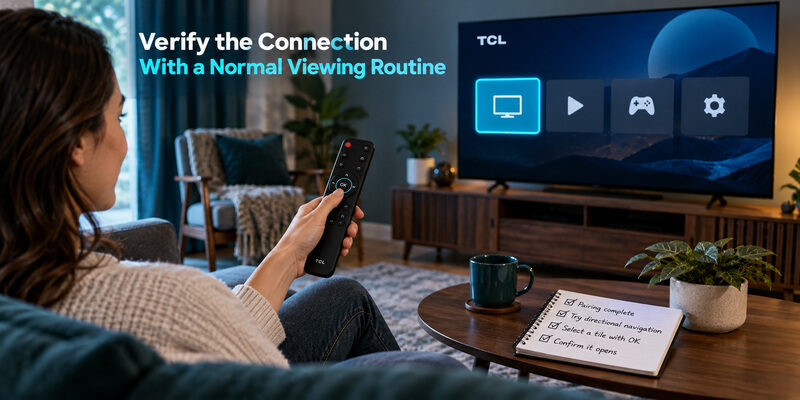
Do not judge the connect TCL remote to TV process by a light alone. Test the actual functions you expect to use, keeping the television on a familiar screen and the audio output clearly identified.
- Check Home and directions: Move to a known item and confirm the selection.
- Check Back: Leave that screen and return to a predictable place.
- Check sound: Adjust volume and mute on the output you actually use.
- Check inputs: Select a connected HDMI source where the handset supports it.
- Check voice: Try one simple request if the remote and TV support it.
- Check recovery: Return to standby normally and confirm the intended wake behavior.
Test separate functions separately. A soundbar can make audio control behave differently from TV speakers, while a streaming app can interpret navigation differently from the home interface. Preserve every successful result before troubleshooting the one that fails.
After you connect TCL remote to TV, save the successful method with the remote’s model. The same notes can help another viewer recover later without repeating every branch of this guide.
Test the intended television when several devices are nearby
In a room with more than one television or streaming player, confirm which screen reacts to the handset. A successful connection to the wrong device can look like a failed controller when you keep watching the intended screen. Use the host’s recognizable name and observe its own confirmation during setup.
When you connect TCL remote to TV in a shared entertainment area, keep the other equipment’s state in mind. Do not reset a nearby player simply because its interface reacts unexpectedly. First establish which host the remote is operating and follow the relevant model guidance for changing that relationship.
A useful acceptance test starts from a known home screen and ends on the intended source. Ask another viewer to repeat it once. They may reveal a confusing device name or button assumption that the person who completed pairing no longer notices.
Distinguish adding a replacement from finishing first setup
An already configured television provides more recovery options than a new set waiting at its first pairing screen. If a phone or old handset still works, preserve that route while adding the replacement. If the TV has never been configured, follow its displayed setup instructions and use supported physical hardware.
The connect TCL remote to TV process should fit that starting state. A method that opens accessory settings on a configured screen cannot be assumed to work when you have no way to reach those settings yet.
Record whether you are adding a controller, restoring a lost pairing, or completing initial installation. That distinction makes a connect TCL remote to TV support request more precise and prevents advice for one stage from being applied to another. It also explains why keeping a working fallback can reduce the disruption of a future connect TCL remote to TV problem.
💡 Discover Helpful Guides: TCL TV Not Responding to Remote Troubleshooting Guide
Diagnose a Connection That Works Only Partly
Identify the failed control path
A partially working remote provides useful information. If all ordinary buttons respond but voice does not, investigate wireless pairing or assistant setup. If the TV responds to a phone app but not an IR handset, compare remote power, compatibility, and the infrared path.
| Symptom | More focused next check |
|---|---|
| Power works, voice fails | Wireless pairing and supported assistant setup |
| Navigation works, sound fails | Active audio output and control configuration |
| Works only close to the TV | Battery condition, obstruction, and IR path |
| Pairing indicator flashes without success | Supported hardware, TV readiness, and correct procedure |
| Another controller also fails | TV responsiveness and broader support guidance |
Repeat the same task after one change
Change a single relevant condition, then repeat the failed action. For example, install fresh specified batteries before repeating the same pairing procedure. Do not also reset the television and change its network if the evidence does not call for those steps.
The goal is a reliable explanation as well as working control. A connect TCL remote to TV attempt that fails at the same stage is easier to escalate than a sequence of unrelated changes with no recorded result.
If a remote repeatedly scrolls without a deliberate press, inspect for a stuck button and remove any object pressing the keypad. That behavior is different from a handset that never connected at all.
💡 Discover Helpful Guides: 5 Best Free TCL Google TV Remote Apps to Control Your TV From Your Phone
Final Thoughts
To connect TCL remote to TV, identify the handset first: direct infrared control, platform-specific voice pairing, or universal-remote programming. Follow one matching procedure and confirm the television’s response before changing methods.
Keep working functions and settings intact while diagnosing the rest. Verify navigation, audio, input, and voice as separate results. A successful connect TCL remote to TV routine is one that you can repeat and explain, with the correct model information saved for the next time it is needed.
Download TV Remote App