HDMI-CEC Explained for TVs and Streaming Devices
By the Remote TV App Team
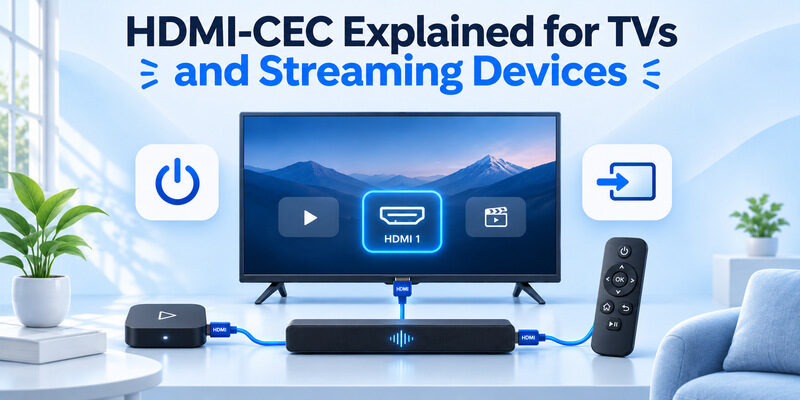
HDMI-CEC (High-Definition Multimedia Interface–Consumer Electronics Control) lets compatible televisions and HDMI-connected devices exchange commands, so one remote can control functions such as power, input selection, and volume. You can often turn on a streaming player and have the TV automatically switch to the right HDMI input. However, the exact functions depend on the TV, connected device, and enabled settings.
The feature is built into many modern home-entertainment products, but manufacturers give it different names. This guide explains what it does, how to activate it on common TV brands, when it helps, and how to fix control problems without confusing them with picture or sound issues. Understanding HDMI-CEC first makes those checks much easier.
1. What Is HDMI-CEC? Meaning and How It Works
The simplest hdmi-cec meaning is control over the HDMI connection. CEC stands for Consumer Electronics Control, a feature of the HDMI standard that lets compatible equipment send commands to one another. Instead of relying on a separate cable or wireless connection for every action, connected devices can share supported control instructions through HDMI.
For example, a streaming box may tell a television that it has become the active source. The television can respond by selecting that input. In the opposite direction, a TV remote may send supported navigation commands to a connected player. These exchanges happen locally; HDMI-CEC does not require an internet connection to pass control messages.
There is an important distinction: carrying a picture and accepting remote commands are separate capabilities. A TV may show perfect video from a console while the console ignores the TV remote. That does not prove the HDMI port is broken. It usually means you should check device support and control settings before replacing hardware.
Manufacturers also choose which commands their devices recognize. The name on a settings screen tells you that the feature exists, not that every action is guaranteed. Treat the supported functions as a checklist to test rather than an all-or-nothing promise. HDMI-CEC compatibility is best judged by specific working commands, not logos alone.
2. What Can HDMI-CEC Control?
The main benefit is reducing routine switching between controllers. Depending on your equipment, HDMI-CEC may help with four everyday jobs: waking devices, selecting inputs, managing audio, and navigating a connected player.
Linked power and automatic input switching
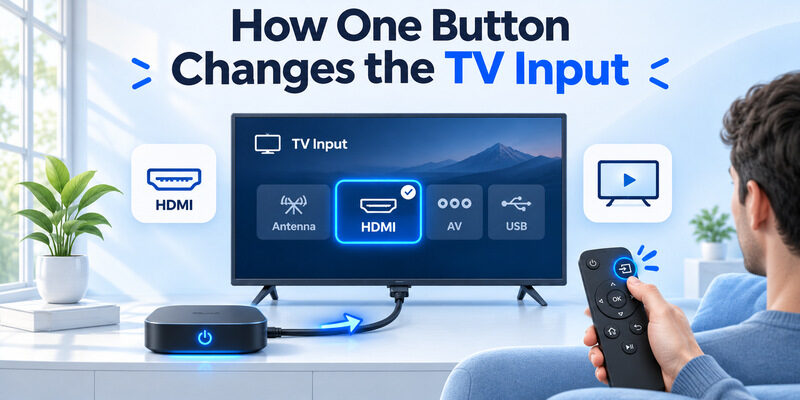
Imagine the TV is displaying a cable channel and you press Home on a streaming remote. With one-touch play enabled, the streaming player can request the TV to wake up and show its HDMI input. Some setups also allow the television to send a standby command when you switch it off.
Power-on and power-off are not necessarily symmetrical. A player might wake the television reliably but stay on when the TV enters standby. Look for separate options called Power Sync, Auto Power, One-Touch Play, or Standby Control. Settings on both devices determine the final behavior.
Volume, playback, and menu navigation
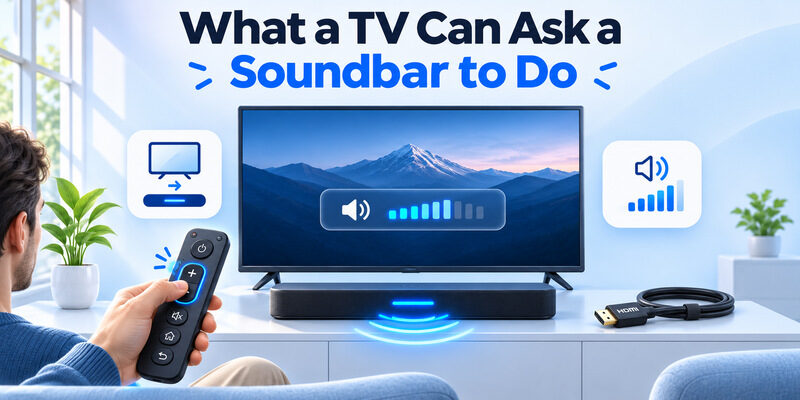
When a compatible soundbar or AV receiver is connected, the television may relay volume or mute commands to the device producing the sound. A TV remote can also navigate certain external players or control basic playback if both products implement those commands.
| Function | Typical real-world result | What to check |
|---|---|---|
| Power sync | Player wakes the TV | Enable wake or power options on both devices |
| Input selection | TV changes to the player’s HDMI port | Enable one-touch play or active-source control |
| Audio control | Soundbar responds to TV volume keys | Confirm the external audio output and CEC settings |
| Navigation | TV remote moves through player menus | Check whether the player supports remote-key forwarding |
Do not assume that the volume icon moving means the soundbar received a command. Listen to the actual speaker and watch its display, if available. That quick check separates a visual indication from a working audio-control link. This is particularly useful when HDMI-CEC controls an external sound system.
3. Which Devices Support HDMI-CEC?
A typical hdmi-cec device is a television, streaming player, game console, Blu-ray player, soundbar, or AV receiver with compatible HDMI control features. Support is common but not universal. Some equipment provides power control only; other products support a wider range of menu or audio commands.
To create a workable setup, start with one source connected directly to one TV. Use a suitable HDMI cable, enable control on the television, and enable the corresponding option on the source. Add a soundbar, receiver, or HDMI switch only after the simple connection behaves as expected.
A pass-through HDMI switch can complicate things because not every switch forwards CEC messages reliably. An AV receiver may also select its own source while the television continues showing the receiver’s single HDMI input. In that case, the apparent input behavior is not necessarily caused by the TV.
Samsung’s published Anynet+ documentation provides a useful numerical example: on specified Samsung TVs, the system supports up to 12 compliant external devices, with up to three of the same type, subject to home-theater exceptions. This is a manufacturer-specific limit, not a guarantee for every HDMI-CEC TV. Consult the exact device manual for supported actions and connection limits. A device count is less useful than knowing which HDMI-CEC functions are supported.
4. HDMI-CEC Names Used by Popular TV Brands
A search through your TV’s settings may not show the words HDMI-CEC at all. Manufacturers often use their own marketing names for the same underlying control standard. Recognizing those names can save time before troubleshooting begins.
| TV brand or platform | Feature name | Common location |
|---|---|---|
| Samsung | Anynet+ | External Device Manager |
| LG | SIMPLINK | HDMI Settings or Device Settings |
| Sony BRAVIA | BRAVIA Sync / Control for HDMI | External Inputs or HDMI controls |
| Roku TV | Control other devices (CEC) | System settings |
| Vizio | CEC | System settings |
| Panasonic | VIERA Link / HDAVI Control | HDMI-related settings |
These labels describe broadly related technology, but device capabilities can differ. For example, LG pairs SIMPLINK with separate power-sync options on some older webOS versions. Sony also recommends checking both the television and external equipment when BRAVIA Sync fails.
If you use a Samsung television, our samsung tv remote app guide explains phone-based control options. A network remote is a different control path from HDMI, so app pairing and Anynet+ should not be treated as the same setting.
5. How to Enable HDMI-CEC on Your TV
You generally need to enable HDMI-CEC on the television and on the connected device. First turn on the TV, select the correct HDMI input, and confirm that the source displays a picture. Then use the brand-specific path below. Menu labels change by model year, region, and software version.
Samsung TV: Enable Anynet+
For many 2025–2026 Samsung models, open Settings > All Settings > General & Privacy > External Device Manager > Anynet+ (HDMI-CEC) and turn it on. Samsung’s official support guidance lists a different path for 2023–2024 models: All Settings > Connection > External Device Manager > Anynet+.
After enabling the feature, turn on the connected streaming player or console and test automatic input selection. If menu controls do not work, look for a separate control setting on the source. Samsung also notes that Anynet+ cannot control external equipment that does not support CEC.
LG TV: Enable SIMPLINK
On an LG TV running webOS 26, the official support path is Settings > All Settings > System > Devices > HDMI Settings > SIMPLINK (HDMI-CEC). For many webOS 22 models, look under All Settings > General > Devices > HDMI Settings instead.
Older LG models may include Auto Power Sync as a separate toggle. Turn it on if you specifically want devices to wake or enter standby together. Once enabled, restart the connected source and test a single action, such as TV power or soundbar volume. On LG systems, HDMI-CEC power behavior can also depend on the source’s own settings.
Sony BRAVIA: Enable BRAVIA Sync
On supported Sony televisions, open Settings and look for BRAVIA Sync settings, Control for HDMI, or HDMI device controls under External Inputs. Enable the feature, then check the equivalent control option on the connected player or audio system.
Sony’s BRAVIA Sync support information identifies power, volume, device-menu control, and basic playback among supported command types. The exact path and available actions vary across Sony TV generations, so check your model’s manual if the menu differs.
Roku TV or Roku streaming player
On many Roku TVs, go to Settings > System > Control other devices (CEC). Enable the relevant options, including 1-touch play where available. Roku’s support guidance explains that pressing a button on a compatible streaming remote can make the TV select the corresponding player input.
For a standalone Roku player connected to another brand’s TV, check CEC settings on both the Roku and the television. A setting enabled on the player alone cannot make an incompatible or disabled television respond.
Verify the setup in two minutes
- Leave the television on a different HDMI input.
- Wake the connected streaming player using its original remote.
- Check whether the TV selects the correct port automatically.
- Return to the original input and test one other command, such as standby.
- If a soundbar is connected, check volume separately while that soundbar is actually producing sound.
Record which actions work instead of judging the entire feature from one failed button. This makes later troubleshooting much faster and shows which HDMI-CEC commands are genuinely useful.
6. Is HDMI-CEC Good? Benefits and Limitations
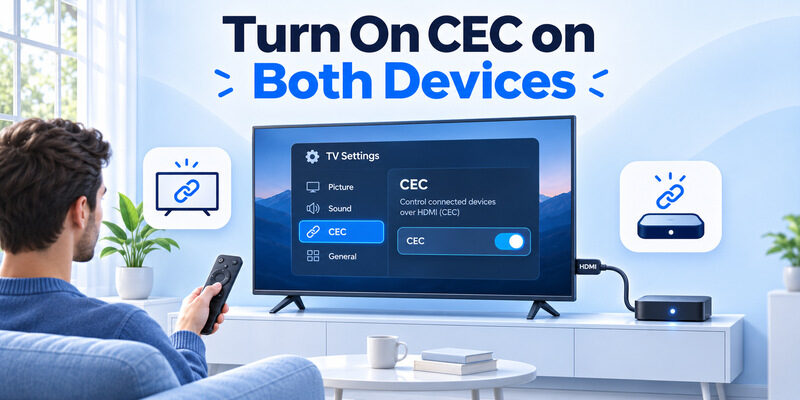
If you are asking is hdmi-cec good, the practical answer is yes for simple, compatible setups—but not always for complex entertainment systems. It reduces the number of remotes you need for everyday tasks and can save several input-selection steps whenever you start watching something.
The main advantages are convenience, local operation, and compatibility with certain existing HDMI connections. There is generally no separate subscription or internet account needed for the CEC control messages themselves. For a TV and a single streaming box, automatic power and input switching can feel almost seamless.
There are drawbacks. A console may wake for an update and take over the screen. A player may respond to a power command while ignoring navigation keys. Mixed-brand products can implement different subsets of the standard, and an HDMI switch or receiver may interfere with the connection.
A good decision rule is keep the commands that genuinely help and disable the ones that interrupt viewing. If your TV supports a separate automatic-input toggle, try disabling that rather than turning off every HDMI control feature. This may let you preserve soundbar volume control while preventing an unwanted input switch.
For a living room containing a console, a set-top box, and a media player, independent power control may be more predictable than fully synchronized behavior. The most useful setup is the one that works consistently for the people using that television. HDMI-CEC should reduce daily friction, not create it.
7. HDMI-CEC vs HDMI ARC, eARC, and Infrared Remotes
HDMI-CEC is frequently confused with ARC and eARC because these features may appear next to one another in settings. They solve different problems. CEC exchanges control commands, while ARC and eARC carry audio from a television back to compatible sound equipment.
| Technology | Main purpose | Important distinction |
|---|---|---|
| HDMI-CEC | Shared power, input, volume, and navigation commands | Requires compatible devices and settings |
| HDMI ARC | Sends TV audio to a soundbar or receiver | Uses the port designated ARC |
| HDMI eARC | Enhanced audio-return capability | Requires supported hardware and appropriate audio settings |
| Infrared (IR) remote | Sends remote commands through light signals | Usually needs suitable hardware and line of sight |
For a soundbar problem, first identify whether the issue is missing sound or missing volume control. If the bar produces no sound, investigate the TV’s audio output, ARC/eARC port, supported audio formats, and cable connection. If it plays sound but the TV remote cannot adjust its volume, investigate control settings instead.
A useful real-world test is to play a short video at a moderate volume, then press Volume Up once. Watch the soundbar, not merely the television’s volume graphic. If the audio level changes through the external system, the control path works.
IR is different again. A physical remote may send infrared commands directly to a television, while a streaming remote may talk to its player over Bluetooth and rely on CEC for TV power or input changes. That explains why two buttons on one remote can behave differently. A failed IR command also does not necessarily indicate an HDMI-CEC fault.
8. How to Fix HDMI-CEC Not Working
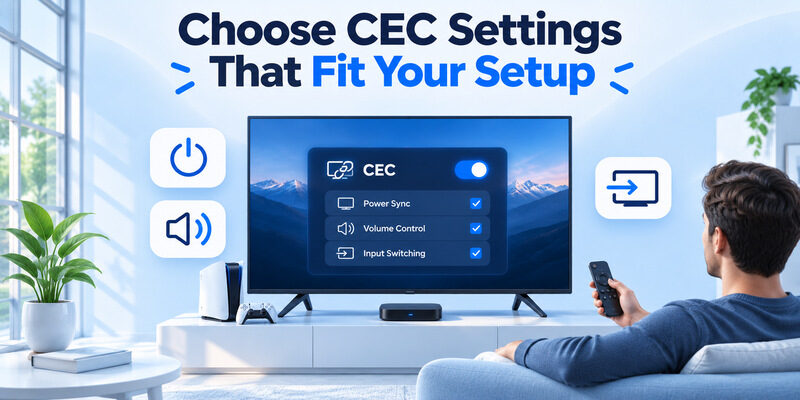
When HDMI-CEC stops responding, troubleshoot the failed function rather than resetting every device immediately. Begin with the simplest configuration, note the exact symptom, and change one setting at a time.
Start with compatibility, cables, and settings
Confirm that both products support the command you expect. Next, enable the relevant HDMI control setting on the TV and source, then power-cycle both devices. Reseat the HDMI cable and temporarily bypass any receiver, splitter, or switch.
The fact that video works does not prove the CEC signaling path works. LG’s support material notes that CEC communication uses pin 13 in an HDMI cable, so a cable or adapter fault can affect commands even when a picture remains visible. Try another suitable cable if the direct connection still fails.
Match the symptom to the next fix
| Symptom | Likely area to check | First action |
|---|---|---|
| TV will not switch input | One-touch play or active-source setting | Enable it on the source and TV |
| TV turns on by itself | Another device sends a wake or active-source request | Check each connected source |
| Soundbar plays audio but ignores volume | CEC audio control | Verify external audio and control settings |
| Remote navigates TV but not player | Player support or forwarded keys | Enable device-control setting |
| Feature fails through HDMI switch | CEC pass-through limitation | Test direct HDMI connection |
Stop unwanted automatic switching
If the TV suddenly moves to another HDMI input while you are watching, identify which connected device just woke. A console or streaming box may have sent an active-source request. Disable that source’s automatic input switching or one-touch-play option first, if available.
LG’s 2026 support guidance specifically identifies SIMPLINK as one possible cause of unexpected input changes. That is a reason to check the control link, not proof that every unexplained switch has the same cause. Firmware issues and stored device information may also affect behavior.
Restart, reconnect, and test again
Once you have a known working direct connection, reconnect additional equipment one piece at a time. Test the same button after each addition. This approach isolates a problematic receiver or switch without losing settings that already work.
If a device still fails, consult the model-specific support documentation and check available firmware updates. Avoid factory resets until simpler tests have failed, especially if the television has many customized settings or paired services. Many HDMI-CEC problems can be isolated without wiping user preferences.
9. Can a Remote TV App Help When HDMI Control Fails?
A Remote TV app can provide a convenient alternative for controlling a compatible smart television when a physical remote is missing or difficult to use. However, a phone app does not repair the HDMI control link between a console and television.
Most phone-based smart TV remotes communicate over the local network rather than through an HDMI cable. Depending on app and model support, they may let you navigate TV menus, change volume, or switch inputs while you diagnose a connected player. For supported Samsung televisions, the linked guide above explains how a samsung tv remote app differs from the television’s own HDMI settings.
Our universal remote tv control option is designed for compatible smart TVs; available functions vary by model, network permissions, and app version. To set up a network-based remote, make sure the phone and TV are on the appropriate local network and approve any pairing prompt shown on screen.
Important: A compatible remote app can help with TV control, but it cannot guarantee control of an unrelated HDMI-connected player. If you need an independent way to operate your TV while testing, Download universal remote tv control and confirm compatibility before relying on it as your only remote.
10. Frequently Asked Questions About HDMI-CEC
Does HDMI-CEC work with every HDMI cable?
Not automatically. Most suitable modern HDMI cables support the necessary control connection, but damaged cables, unusual adapters, or equipment that does not pass CEC signals can cause failures. Test a direct connection with a suitable cable before assuming the TV settings are wrong.
Do I need Wi-Fi or internet for HDMI-CEC?
No. The commands travel through the HDMI connection, so the feature itself does not need Wi-Fi or internet access. Streaming services, account sign-ins, software updates, and separate phone-based remote apps may still require a network connection.
Can HDMI-CEC turn on both the TV and soundbar?
Sometimes. Many compatible setups can coordinate power commands, but the behavior depends on the devices and settings. Some products support wake without synchronized standby. Test the two directions separately and check options such as Auto Power Sync or Device Power Control.
Can I turn off automatic input switching but keep soundbar volume?
Often, yes. If the source provides a separate one-touch-play or auto-switching option, disable that specific function while leaving other supported control features active. If the only available setting is a master CEC switch, changing it may also disable volume control.
Is HDMI-CEC the same as ARC or eARC?
No. ARC and eARC concern the return of audio from the TV to sound equipment; CEC concerns commands between connected devices. A system can have a control problem while audio still plays, or an audio-routing problem while linked power works.
Can one TV remote control a game console and streaming box?
Possibly, but not completely. Some devices accept menu-navigation or playback commands, while others expose only power and input control. Do not expect every game button or app-specific shortcut to be forwarded. Check the supported functions on each device.
11. Final Thoughts
HDMI-CEC is useful when it makes a compatible TV, player, and soundbar behave like one coordinated system. Its biggest advantages are automatic input selection, simpler power control, and fewer remotes for routine actions. Its biggest limitation is uneven support across brands, models, and individual commands.
Begin with one HDMI source, enable control on both ends, and test power, input, and volume separately. If an automatic feature becomes annoying, adjust that particular setting before disabling everything. And if you need to operate the TV independently while troubleshooting, a compatible phone remote can help—but it remains a separate control method, not a substitute for a functioning HDMI link.
Sources consulted (no outbound links): Samsung Support, “What is Anynet+ on your Samsung TV” (2026); LG USA Support, “How to Turn Your TV and HDMI Devices On and Off Together” (2026); Sony Support, “BRAVIA Sync (HDMI-CEC) overview and troubleshooting information”; Roku Support, “How to enable HDMI-CEC and ARC on your TV” (2026).
Download TV Remote App