
Apple TV Remote App Free: Use the iPhone Control You Already Have
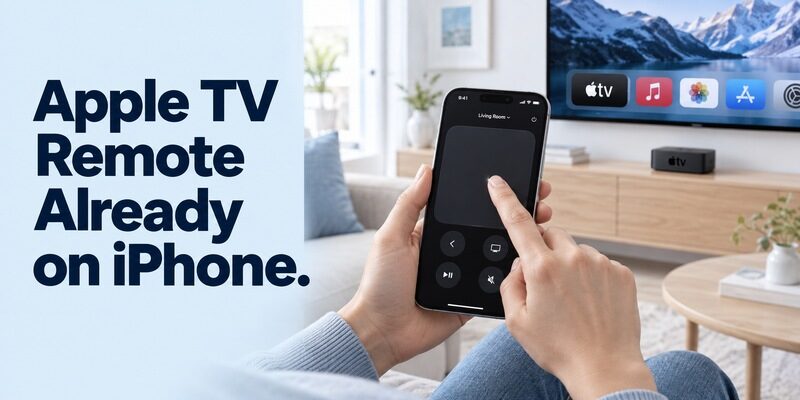
Short answer: The Apple TV Remote built into iPhone and iPad Control Center is free. You usually do not need a separate App Store download for an apple tv remote app free setup on supported Apple devices.
The built-in remote controls supported Apple TV hardware and certain AirPlay-compatible smart TVs, but those are different targets with different setup requirements. A television displaying the Apple TV streaming app is not automatically compatible with every Apple remote feature. This guide shows where to find the control, how to select and authorize the right device, and how to diagnose missing volume or keyboard functions without buying an unnecessary subscription. It also explains what changes when your only phone is Android or the television has lost its network connection.
Open the Built-In Apple TV Remote App Free of Charge
Start in Control Center, not the App Store. Apple’s current setup guide describes opening the remote control directly on an iPhone or iPad. That built-in feature is separate from movie purchases and streaming subscriptions.
Find the Remote control
On a recent iPhone, open Control Center from the upper-right corner and look for Remote. If it is missing, use the controls editor to add it. Older system versions organize this differently; Apple’s guide provides the older Settings-based route as well.
An apple tv remote app free search can send you past many independent products before showing this built-in option. Check your phone first. You may already have everything needed to navigate a compatible Apple TV without installing another app or entering payment details.
Select a device before navigating
Open Remote and choose the intended Apple TV or supported television from its device selector. Keep the TV visible while connecting. If requested, follow the on-screen authorization instructions rather than entering an account password into an unrelated code field.
The first useful test for an apple tv remote app free setup is a visible menu response. Move the highlight once, select an item, and return to the previous screen. A device name alone does not prove that you have selected the television in front of you.
If opening Control Center shows a media playback panel, look specifically for Remote rather than assuming that the playback panel is the full controller. The two surfaces can serve different tasks. Returning to the device selector and choosing your Apple TV helps you confirm that you have opened the intended controls.
Identify the Hardware Behind the Apple TV Name
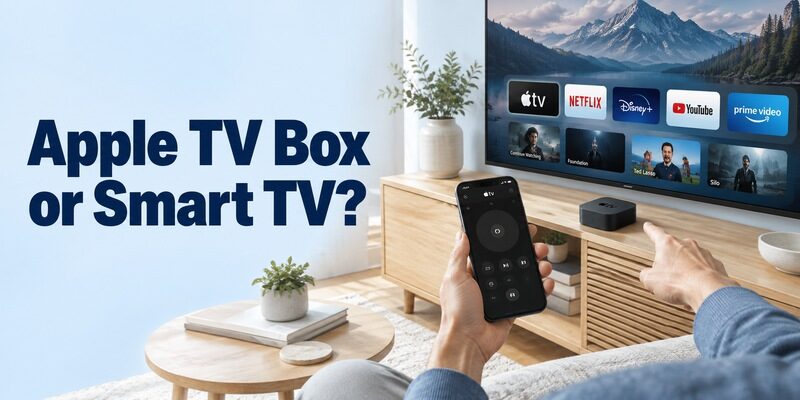
Apple TV hardware, the Apple TV app, and an AirPlay TV are different things. Confusing them can make a valid remote appear broken when it is actually aimed at an unsupported target.
Apple TV HD or Apple TV 4K
Apple’s built-in phone remote supports Apple TV HD and Apple TV 4K. These are separate devices connected to a television, typically through HDMI. Select that hardware in the phone’s device list when you want to navigate its Home screen.
For apple tv remote app free use, identify the box rather than relying on the television’s front logo. A Samsung, Sony, or LG screen can display the Apple TV box while still needing its own control method for some television settings.
Smart TVs with an Apple TV streaming app
The presence of the Apple TV app on a television does not turn that television into Apple TV hardware. Apple’s setup guide identifies AirPlay-compatible smart TVs as a separate supported route and requires adding an eligible TV to Home and assigning it to a room.
Before choosing an apple tv remote app free alternative, check whether your television qualifies for that route. If not, its manufacturer or platform app may be the appropriate remote even while you watch content inside the Apple TV streaming app.
| What you own | Appropriate first check | What not to assume |
|---|---|---|
| Apple TV HD or 4K box | Built-in iPhone or iPad Remote | It controls every television setting |
| Eligible AirPlay smart TV | Home registration and supported remote features | App installation alone completes setup |
| TV with Apple TV streaming app only | TV platform’s control method | Streaming app equals Apple TV hardware |
| Older Apple TV generation | Model-specific Apple support guidance | Current phone instructions apply unchanged |
Authorize the Correct Screen on Your Home Network
Connect the phone and target through the required home network. Apple’s troubleshooting guidance starts with checking the same Wi-Fi network, then software updates and restarting the devices when necessary.
Compare connections before entering a code
Check the iPhone’s Wi-Fi settings and the Apple TV’s network settings. A guest connection can be isolated from the main household network. Using cellular data on the phone does not establish the local connection that the remote expects.
When setting up apple tv remote app free access, avoid changing the router and the Apple TV at the same time. Establish which device is disconnected first. A clear sequence preserves the working parts of the setup and makes it easier to identify the actual fault.
Read the requested passcode carefully
Apple’s setup instructions describe a four-digit passcode when authorization is requested. Use the code from the target screen and follow the prompt on the iPhone or iPad. If you have multiple Apple TV devices, check the selected room before retrying.
An apple tv remote app free authorization prompt is not a subscription checkout. If a separate app or website asks for a payment card to activate a basic remote, verify the product identity and return to the built-in control before agreeing to an unrelated transaction.
When two screens display authorization prompts, stop and finish only the intended connection. Cancel an accidental selection before proceeding. This simple discipline prevents a successful pairing from becoming confusing later, when the phone reconnects to a room you did not mean to control. Give each device a recognizable name through its supported settings.
Learn the Touch Area, Back, and Playback Controls
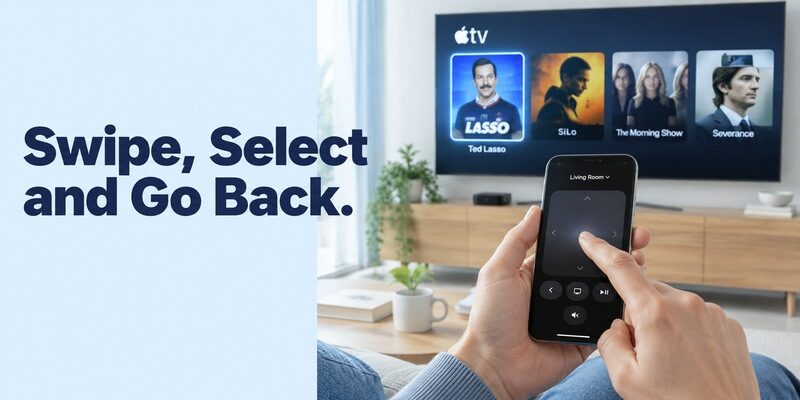
Practice one navigation action at a time. Apple’s Apple TV 4K User Guide explains that swiping moves the highlight and tapping the touch area selects an item. The phone layout is not a photograph of the Siri Remote, so learn the control by its function.
Navigate without accidental selections
Begin on the Home screen, move between a few tiles, and pause before tapping. A short, deliberate gesture is easier to assess than rapid swipes. Return with Back and repeat the same route so you can recognize a normal response.
For an apple tv remote app free replacement, this short practice session is worthwhile when another household member is used to physical buttons. Let them try opening and leaving a familiar app before relying on the phone during a program.
Test playback in a supported app
Play a familiar video and check pause and resume. Then try the additional controls shown for that playback screen. Features can depend on the active app and system version, so do not infer universal support from a button that appears in one service.
Keep the initial apple tv remote app free test separate from paid-content decisions. A free trailer or content you already access is sufficient to verify playback controls; buying a film is not necessary to determine whether the phone remote works.
Understand Why Volume May Behave Differently
Volume depends on the audio equipment and supported control path. A working phone touchpad with unresponsive volume buttons can be a valid partial setup rather than a failed pairing.
Check where the sound is playing
Identify whether audio comes from the television’s speakers, a HomePod arrangement, a soundbar, or an AV receiver. Apple’s remote setup guidance and user guide describe supported audio configurations and explain that volume support is not universal.
For apple tv remote app free troubleshooting, test a one-step volume change and restore it. Watch which device changes level. This avoids confusing the phone’s own media volume with the sound coming from the television system.
Keep infrared control separate
The physical Siri Remote and the iPhone do not have identical hardware. A volume arrangement that relies on the hand-held remote’s infrared commands should not be assumed to work the same way from a phone. Consult Apple’s TV-and-receiver control guidance for the actual setup.
If an apple tv remote app free session navigates reliably but cannot adjust your audio equipment, keep that equipment’s physical remote nearby. Purchasing a different app cannot automatically give an ordinary iPhone an infrared transmitter.
Make a brief note of which controller adjusts which audio device. For example, the phone may navigate Apple TV while the television remote adjusts the speakers. Showing this division to another viewer is more useful than leaving them to repeat pairing whenever a volume button appears inactive. Recheck the arrangement after changing audio equipment.
Use Your iPhone Keyboard for Search and Sign-In
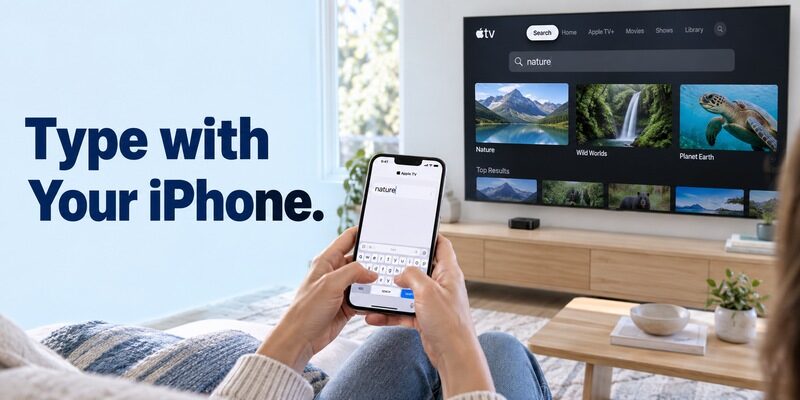
Keyboard sharing has its own requirements. Apple’s keyboard guide describes a nearby iPhone or iPad signed in to the same Apple Account as Apple TV, with Wi-Fi and Bluetooth enabled on the mobile device.
Respond to the keyboard notification
Open a text field on Apple TV and look for the keyboard notification on the nearby Apple device. Tap it and enter a short search to verify the connection. Confirm the characters on the television before attempting a longer entry.
In an apple tv remote app free workflow, keyboard entry is particularly helpful when directional typing becomes slow. Start with an ordinary search term, then use account credentials only when you recognize the television service and the sign-in screen you intentionally opened.
Diagnose text entry separately from navigation
If swiping and selection work but the keyboard notification does not appear, inspect the keyboard-sharing requirements and phone notification settings. Do not assume that the Apple TV has lost its entire remote connection.
A may advertise text entry, but the supported fields and authorization method still matter. Check the exact feature rather than expecting every independent app to reproduce Apple’s integrated keyboard experience.
Manage Several Rooms and Shared Devices
Use recognizable device names and deliberate selection. Similar Apple TV names make it easy to issue a perfectly valid command to the wrong room. Confirm the target before changing volume or interrupting playback.
Verify the selected television
When moving between rooms, reopen the device selector and choose the screen you can see. Do not rely on the last selection from an earlier session. A saved connection is convenient, but it also makes accidental control of another room possible.
For a shared apple tv remote app free arrangement, show family members the selector before explaining advanced buttons. Choosing the correct device is the first step that every other control depends on.
Review authorized devices when ownership changes
Apple’s user guide describes reviewing remote devices under Remotes and Devices on Apple TV. If an old phone changes hands, review the relevant device association and remove access through the documented settings where appropriate.
Avoid sharing an account password simply to teach someone where Remote lives. Keep access consistent with your existing household account arrangement. A useful apple tv remote app free setup should remain understandable when a phone is replaced or a guest leaves.
Fix a Missing Device Without Resetting the Apple TV
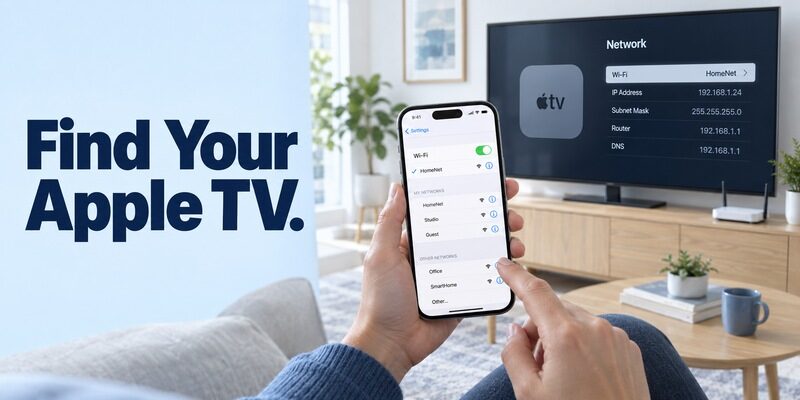
Start with the connection and the exact symptom. If the device is absent from the list, that is different from a visible device rejecting authorization or a connected device missing one audio feature.
| Symptom | First useful check | Next step |
|---|---|---|
| No Apple TV in the selector | Target power and shared network | Verify network settings on both devices |
| Wrong room responds | Selected device | Choose the intended Apple TV |
| Passcode does not work | Current prompt and target screen | Restart that authorization attempt |
| Navigation works, volume fails | Supported audio setup | Check receiver, soundbar, or TV controls |
| Keyboard notification missing | Keyboard-sharing requirements | Check account, wireless settings, and notifications |
For apple tv remote app free recovery, reopen the remote controls and retry the intended device before changing system settings. Apple’s setup guide recommends updating the devices and restarting them when network checks do not solve the problem. Let any update finish before evaluating the result.
Avoid a factory reset while you lack a reliable setup controller. Removing saved settings can leave an Apple TV harder to reach. Record the model, phone software, and exact failed stage if you need support, and preserve any working remote connection while investigating.
If you can still navigate using the physical remote, leave it available during diagnosis. Test the same menu action from both controllers and note whether the problem affects only the phone. If both fail in one streaming service but work on the Home screen, investigate that service before altering the device-wide remote configuration.
Decide What to Do When Your Only Phone Is Android
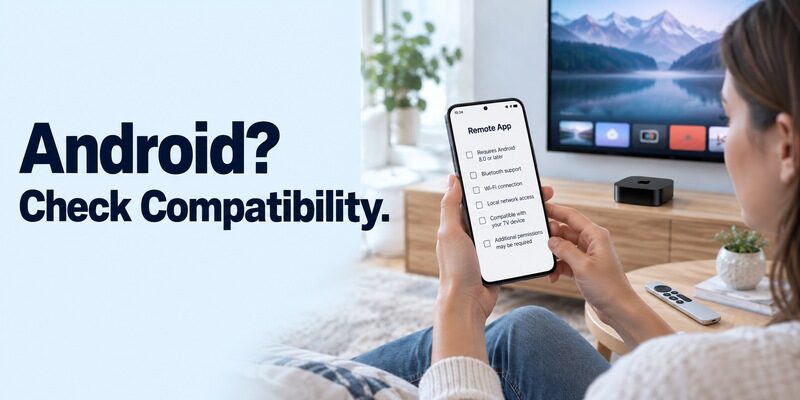
The iPhone Control Center route does not transfer to Android. An Android user needs an independently supported app or another controller; installing the Apple TV streaming app is not equivalent to installing Apple’s built-in iOS remote.
Evaluate an independent remote carefully
Check explicit Apple TV model support, pairing instructions, and which functions remain free. The phrase apple tv remote app free may describe a free installation followed by paid features. Read those terms before relying on the application as your main controller.
Test selection, navigation, Back, and playback individually. An app that discovers the Apple TV but cannot complete authorization has not demonstrated compatibility. Do not pay merely to resolve a local-network mismatch or an unsupported device generation.
Consider another practical control method
Apple’s user guide documents using other supported remotes with Apple TV 4K. Check that guidance before assuming an accessory will work. A controller that requires setup through an on-screen menu may not solve an initial-setup problem when you have no existing control.
For another phone interface, review and confirm support for your exact equipment. On a compatible setup, it can provide convenient navigation when the physical remote is unavailable, while device authorization and network requirements still apply.
Frequently Asked Questions
Do I need a streaming subscription to use the built-in remote?
No. An apple tv remote app free setup is separate from streaming subscriptions, rentals, and purchases. You can use the built-in controls to navigate supported equipment without buying entertainment through them. Any content purchase should be evaluated separately from the remote connection itself.
Can the built-in remote control every smart TV?
No. Apple identifies supported Apple TV hardware and an eligible AirPlay smart-TV route. A television having Wi-Fi or an Apple TV streaming app is not enough by itself. Check the TV’s documented support and required Home setup before expecting it in the remote selector.
Will the phone work after the router is replaced?
It can work once the phone and Apple TV have the required connection again. A router change may leave the television device using old network settings. Keep a reliable physical controller available to restore connectivity instead of assuming another app download will discover an offline device.
Should I keep the Siri Remote after phone control works?
Yes. It remains a useful backup for phone charging, network changes, setup, and functions that depend on its hardware. A convenient apple tv remote app free arrangement can reduce daily reliance on the physical remote without making that controller unnecessary in every situation.
Final Thoughts
The easiest apple tv remote app free solution for supported iPhone and iPad users is already in Control Center. Open Remote, choose the correct target, authorize it when prompted, and verify a few simple commands.
Treat television compatibility, keyboard sharing, and volume support as separate checks. Keep a physical fallback, and evaluate independent apps only when they offer a documented solution for the phone and Apple TV you actually use.
