
Walker TV Remote App Free: Set Up TV Smart Centre on a Supported Model
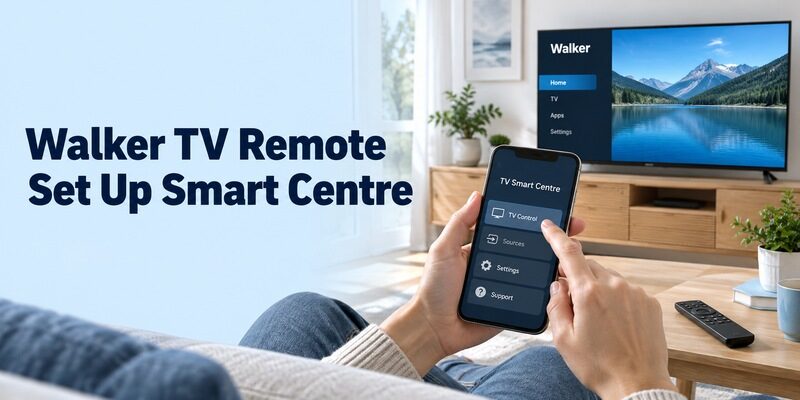
Short answer: TV Smart Centre by Vestel is a free app route to check for a compatible Walker smart TV, with model support, Virtual Remote, and the network connection verified first. Searching for walker tv remote app free does not establish that every television carrying the Walker name accepts the same phone controller. Older sets and newer platforms can need different checks. Start with the model label and its own instructions, then connect the phone to the intended television. This guide explains how to prepare the set, recognise a successful connection, test live-TV controls, and separate ordinary remote use from optional sharing or recording features that your particular model may not provide.
Walker TV Remote App Free: Confirm Smart Centre Support
Use the Full Model Rather than the Brand Alone
Walker appears in Vestel’s TV Smart Centre compatibility list, with an explicit model-dependent qualification. That makes the app a supported-brand starting point, not proof that every Walker TV works with it. Check the complete model and the software information on the television before applying a setup guide.
Write the television and any connected streaming box on separate lines. If a box supplies the home screen, its phone remote may control the box while leaving the television’s own menus untouched. This distinction is especially useful when only some buttons seem to work and you are unsure which device received them.
Look for the Mobile-Control Section in the Manual
The Walker WP4K4322BRD instruction book supplied by Glen Dimplex Ireland documents Smart Center as a mobile-control route. It also qualifies the availability of additional functions. Use that as a model-specific example rather than transferring all of its menu locations to another Walker set.
For your walker tv remote app free search, locate the equivalent section in your own manual. If the documentation does not establish support, ask the supplier or app publisher about the full model. A photograph of a similar remote or the presence of streaming applications is not enough to confirm compatibility.
Install the Vestel Application and Check Free Access
Verify the Publisher on Your Phone’s Store
Choose TV Smart Centre from Vestel, checking the publisher as well as the title. The Irish App Store identifies the application as free for supported Apple devices. The Google Play listing identifies VESTEL and discloses advertisements. Check the current requirements for your phone before installing.
A walker tv remote app free result from another publisher may be a separate product with different supported devices and payment terms. Do not assume that an app with a Walker picture uses the same protocol as Smart Centre. Read its actual connection requirements before granting access or comparing its features.
Establish the Cost of the Controls You Need
Keep remote access separate from television content. A subscription channel or paid movie remains a separate service even when navigation is free. An offer displayed by a streaming application does not mean that the phone’s remote buttons require that purchase.
When testing an alternative walker tv remote app free listing, check whether essential functions remain usable without accepting a trial. Note any ads that interrupt your usual tasks. An application can be free to install while offering optional purchases, so the useful question is whether its unpaid controls meet your own needs.
Read more: Mi TV Remote App Free: Choose Xiaomi’s IR or Wi-Fi Control Route
Prepare Virtual Remote on the Television
Find the Setting with a Working Controller
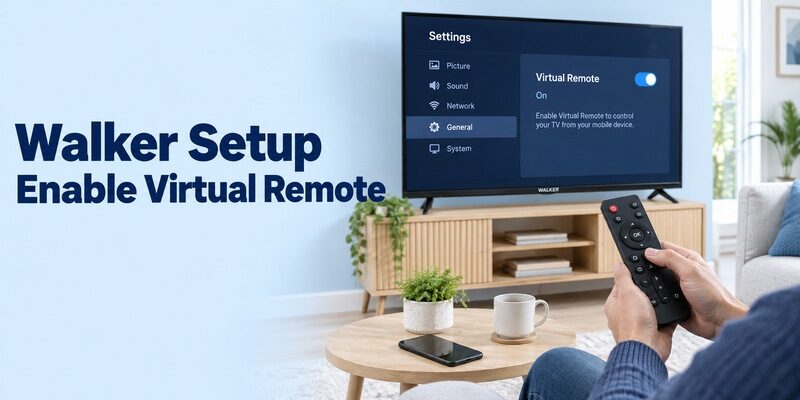
Vestel’s setup requirements include enabling Virtual Remote in the television’s settings. Use your model’s manual to locate that option. The WP4K4322BRD documentation includes a Virtual Remote switch, but its menus should not be treated as an exact map for all other Walker televisions.
Before starting a walker tv remote app free connection, turn the set on and keep a working controller nearby. Record the setting’s original value before changing it. If the option is missing, revisit the model-support question rather than selecting unrelated network or sharing settings at random.
Distinguish Remote Control from Media Sharing
The Walker manual treats Audio Video Sharing as a feature relevant to sharing media. It is not simply another name for the Virtual Remote switch. Follow the documented requirements for the feature you intend to use, and avoid assuming that enabling a photo-sharing option creates full mobile remote support.
This makes the first test easier to interpret. You want to know whether one navigation command reaches the television, not whether every network feature is available at once. Leave optional experiments until basic control works, especially if the original remote is unreliable and you need a dependable way back to settings.
Connect the Phone and Use Add TV
Check the Actual Household Network
Vestel instructs users to connect the TV to the internet and the phone to the same Wi-Fi network before adding the television. Compare the names shown on both devices. A phone using mobile data or an isolated guest network can appear online without being able to reach the TV.
For a walker tv remote app free attempt, keep the television awake and its network connection established. If you recently changed routers, reconnect the TV first with a working input method. Installing the phone app does not automatically transfer the new network password to a television that is still offline.
Select the Intended Walker and Send One Command
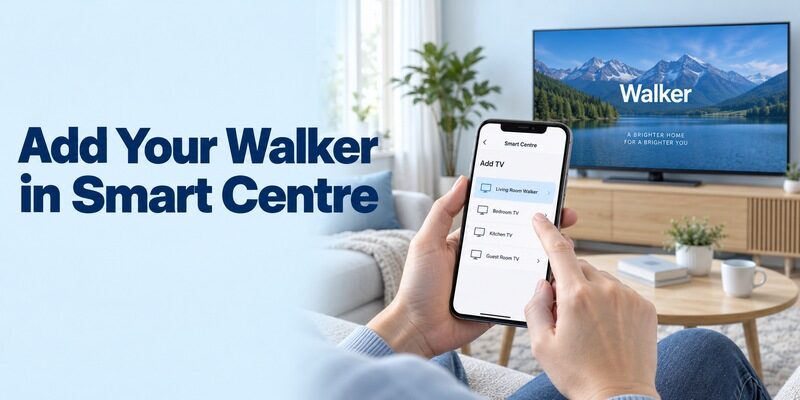
Open the app’s Add TV flow and select the intended television, completing any prompts that actually appear. Do not invent a universal PIN or use a code from a physical remote’s programming booklet. Those codes belong to a different setup process and do not automatically authorise a phone connection.
After a walker tv remote app free connection, try a single direction button on a familiar menu. Watch which screen changes. Then test selection and Back. A device name in the app is helpful, but a repeatable response from the correct television is the practical evidence that control is working.
If there are several similar device names, take a moment to identify them before continuing. Ask another person to watch the other room’s television if necessary. Clear room names, where supported, reduce accidental selection and help everyone use the same working setup without repeating your discovery process.
Read more: How to Control Samsung TV With Phone Without WiFi
Test the Controls Used for Live Television
Check Channels and the Programme Guide
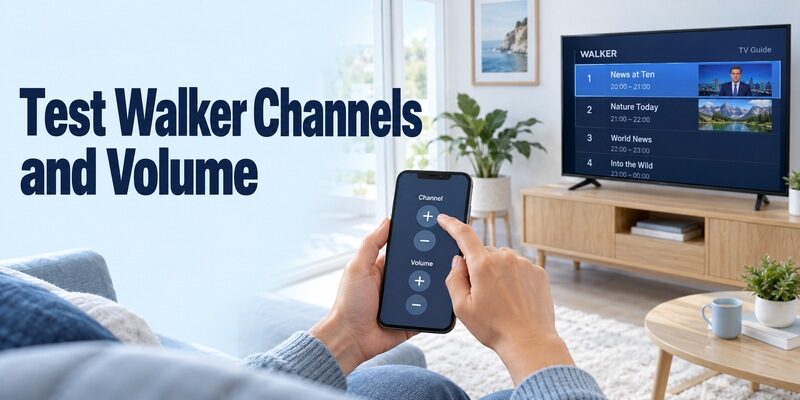
Test the television’s own tuner separately from an external receiver. If you normally watch channels through a connected box, the channel list and guide may belong to that box. A TV remote changing the television’s tuner does not necessarily change the programme shown through HDMI.
Your walker tv remote app free trial should include the source you actually watch. Try a channel change, return to the previous programme where supported, and open the relevant guide. Keep the physical controller available so that you can compare the intended action with the response from the phone.
Do not reorganise the whole channel list while still learning the mobile interface. Begin with navigation that is easy to reverse. If the guide is slow to populate, check whether ordinary arrows still respond. A slow information panel and a completely disconnected remote are different symptoms and should be investigated separately.
Verify Volume and Input Recovery
Change the sound level by a small amount and observe which speakers respond. If a soundbar or receiver produces the audio, it may have a separate control arrangement. The television’s volume display alone does not establish that the external speaker received the command you intended.
A walker tv remote app free setup should also let you return from another source, or have a clear backup for that task. Test the input list and your normal HDMI or television source. An app that opens streaming content but leaves input recovery untested is not yet a complete household solution.
Explore Extra Features Only Where They Are Supported
Navigation, text entry, media sharing, and recording are separate capabilities. Vestel’s store description advertises additional functions but qualifies features by television support. Use the following table to plan a small test rather than assuming that every displayed option works on every model.
| Feature you want | Useful test | What success does not prove |
|---|---|---|
| Phone keyboard | Enter a harmless word in a supported search field | Every application accepts the same text input |
| Media sharing | Open one ordinary supported photo | Full screen mirroring or all file formats work |
| FollowMe-style viewing | Check the model’s supported broadcast route | Every streaming service can be retransmitted |
| Recording or reminders | Read the model’s storage and programme requirements | A phone alone adds recording hardware |
| Voice controls | Test an available command on your phone | All phone platforms provide identical features |
For a walker tv remote app free evaluation, keep optional failures separate from working basics. If a photo cannot be shared, return to the remote and try an arrow. That establishes whether you are investigating a media feature or the whole connection. Avoid discarding a useful controller because an unrelated extra is unsupported.
Use non-sensitive test content and a familiar menu while learning an extra feature. If a recording option requires storage, check the television’s own instructions before preparing a drive. Do not format a device containing files you need merely because a recording icon appears in the phone interface.
Read more: Download Remote TV LG: Control Your TV From Your Phone
Troubleshoot an Empty Device List Methodically
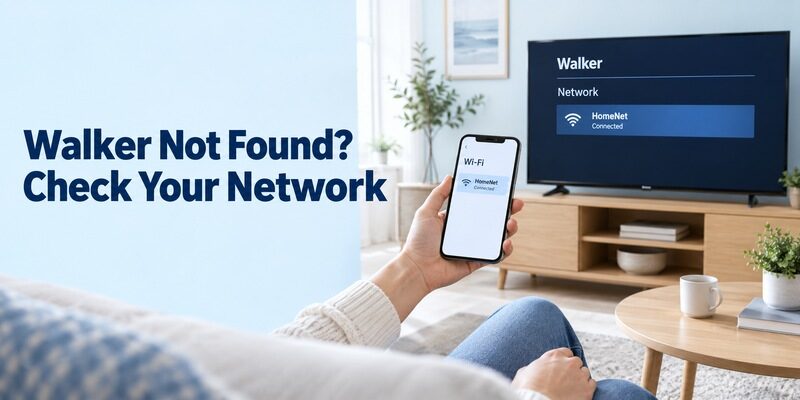
Check prerequisites before reinstalling the app. A missing television can result from unsupported hardware, an offline set, local-network restrictions, or a disabled remote setting. These possibilities require different next steps.
| Observation | Useful first check |
|---|---|
| Neither household phone finds the TV | Television support, power, network, and Virtual Remote |
| One phone works and another does not | App publisher, phone permissions, and local connection |
| TV appears only while awake | Standby and supported wake behaviour |
| Device is listed but commands fail | Correct device selection and connection completion |
| Failure began after a router change | Television’s saved network credentials |
During walker tv remote app free troubleshooting, change one condition and repeat the same short test. Review relevant local-network access on the phone and whether a VPN prevents local communication. Reopen the application after a change so that you are not judging an old device list.
An ordinary restart can clear a temporary issue without erasing the television’s configuration. Keep that separate from a factory reset. Removing saved networks and returning to first-time setup may make a missing-remote problem harder. Preserve the last working controller and connection while you identify the first stage that fails.
For example, if the TV appears and an arrow works but a channel button does nothing, begin with the active source and that particular function. If no television appears on either phone, begin with discovery prerequisites instead. These are diagnostic starting points rather than guaranteed causes. A walker tv remote app free support request becomes much clearer when you describe the last successful action and the first failed one in that order.
Plan for Standby and a Lost Physical Remote
Test Reconnection After Normal Standby
A working power-off button does not establish that the phone can wake the television. The WP4K4322BRD manual describes a networked-standby feature with specific Android and application restrictions. It should not be read as a promise that every phone remote can wake every Walker TV.
After your walker tv remote app free setup works, let the TV enter its normal standby state and test the supported reconnection route. If a physical button is needed to wake it, record that limitation. A controller can still be useful for viewing once the television is on.
Restore Network Access Before Expecting Discovery
If the remote is lost and the TV is not connected, check the model’s physical buttons or joystick functions. Some sets allow limited navigation; others may not provide everything needed for network setup. A compatible replacement can be necessary to complete the initial configuration.
Do not buy an unverified controller simply because it looks like the original. Match the full television model or a confirmed compatible remote reference. Once your walker tv remote app free route is established, keep that physical fallback in a known place for network changes, phone charging, and setup recovery.
Read more: Roku TV Remote App for Android: Setup, Features & Fixes
Recheck the Route for TiVo and Older Walker Sets
Identify a Different Built-In Platform
Glen Dimplex Ireland also lists Walker smart televisions powered by TiVo. That is a reminder to verify the exact model rather than treating older Smart Center instructions as universal. Use the supplied manual and the app’s current compatibility information for that television.
An application carrying TiVo in its name may be designed for a different TiVo product. Do not assume that a recorder’s companion app controls a TiVo-powered television. For a walker tv remote app free search, confirm the actual device category and connection method before following account or pairing instructions.
Check Hardware for an Infrared Alternative
On an older television without a supported network route, an IR app needs a phone with a real infrared transmitter and a matching command profile. Many Android phones lack that hardware, and a standard iPhone does not include a traditional TV-control IR blaster.
A free download cannot add the missing emitter. If you do have supported hardware, test several essential commands before saving a profile; power alone can be a partial match. Keep the TV’s own remote for any function the phone cannot reproduce, particularly input selection or a built-in disc player.
Save the Setup So Another Viewer Can Use It
Keep a Short Working Configuration Note
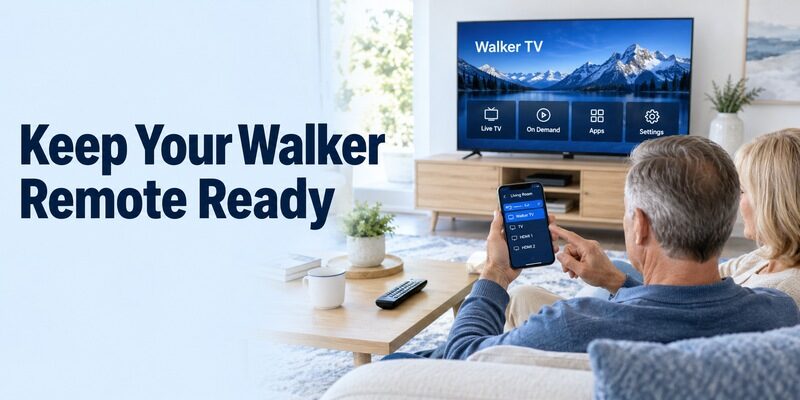
Record the model, application publisher, selected TV name, and controls you verified. Include the documented remote setting and any standby limitation. You do not need account passwords or every failed attempt in this note; keep only the information that helps repeat a successful connection.
After a walker tv remote app free trial, remove unused alternatives if they no longer serve a purpose. Check any trial subscription separately before deleting its application. Keeping one understood working route is easier for other viewers than leaving several similar remote icons with no indication of which one controls the set.
Keep the app’s identity in the note even if its icon seems distinctive today. Store artwork and names can change, and a replacement phone may show several similar search results. For a walker tv remote app free installation on the new handset, compare the publisher and supported platform before restoring the connection. A backup of the old app’s data does not prove that all permissions or device settings have carried over correctly.
Repeat the Test After a Phone or Router Change
Show another household member how to select the television, navigate, and return to the normal source. Ask them to start from a closed app so that you can spot unclear steps. This is a useful final test of whether the setup is convenient beyond the person who configured it.
For related explanations, offers further television-control guides. Match each guide’s platform requirements to your model. If a later change breaks discovery, compare the new setup with your notes before assuming that the television needs a reset or an unrelated application.
Final Thoughts
A walker tv remote app free setup begins with a supported model, the correct Vestel application, and a reachable television with the required remote setting enabled. Establish basic navigation before testing channels, sound, inputs, or optional sharing functions. Check standby separately and preserve a physical recovery route. Older sets and TiVo-powered models deserve their own documentation check. Once the phone works, a short setup note helps the household keep using it through ordinary phone and network changes.
