
Download Fire TV Remote: Install Amazon’s App and Start Controlling Your TV
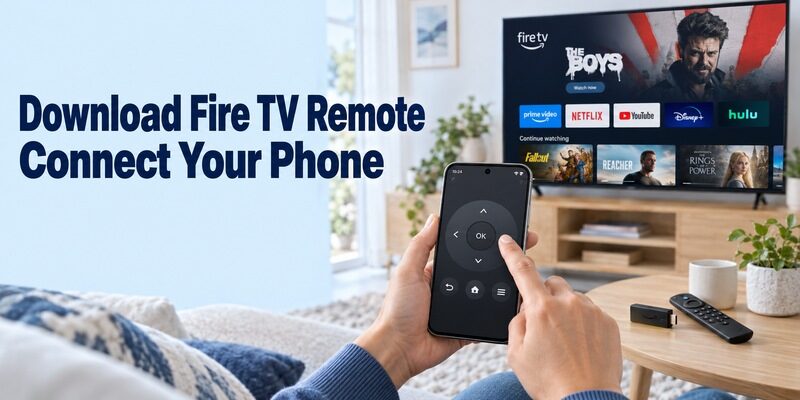
Short answer: Install Amazon Fire TV on your Android phone or iPhone, connect it to the same Wi-Fi as your Fire TV, sign in, and complete the app’s remote setup. You can download fire tv remote software without buying a separate remote subscription from an unrelated publisher. The important steps are choosing Amazon’s actual app and connecting it to the intended Fire TV device. This guide walks through installation, the current setup route, Redmi Fire TV compatibility, keyboard and navigation checks, and conditional volume controls. It also explains what to do when the device does not appear and why a browser-only remote search should not replace the supported mobile setup.
Download Fire TV Remote from the Correct Store Listing
Identify Amazon as the Publisher
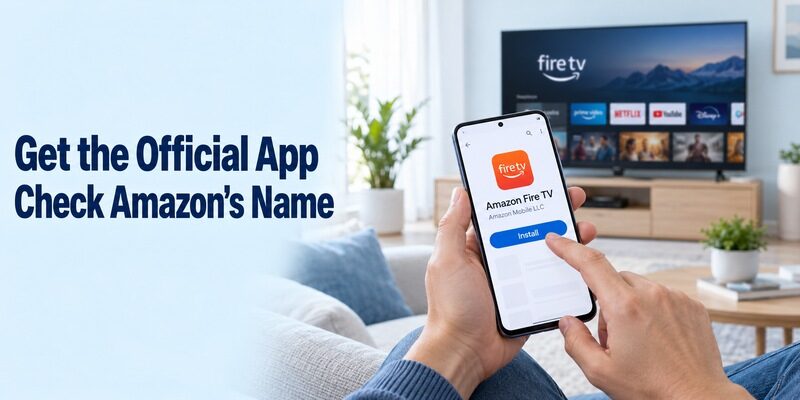
The official mobile application is named Amazon Fire TV. Its Google Play listing identifies Amazon Mobile LLC, while the Apple App Store identifies AMZN Mobile LLC. Check both the name and publisher before installing. A similar icon or the words Fire Stick in a title do not establish that a different product is Amazon’s application. For a direct comparison of the official route on both phone platforms, see this free Fire TV remote app guide before installing an unrelated controller with a similar name.
When you download fire tv remote software, open the listing on the phone that will control the television. Use the store’s installation button and allow the download to finish before starting another search. If the application is already present, open it or install the available update through that same verified listing.
Distinguish a Free App from Paid Viewing
The official iPhone listing shows the app as free. A download does not include subscriptions to the streaming services you may open with it. Controlling an interface and being entitled to watch a particular programme are separate matters. If you are setting up the controller on Apple’s platform, compare free TV remote apps for iPhone by the television platform they support rather than treating app installation as a content subscription.
Before you download fire tv remote alternatives that request payment, identify the exact benefit offered and verify the publisher. A third-party subscription is not part of the basic installation steps Amazon documents for its own app. If your goal is simply to replace missing navigation buttons, establish that official route before comparing optional alternatives.
| Installation choice | What to verify | What it establishes |
|---|---|---|
| Google Play on Android | Amazon Fire TV, Amazon Mobile LLC | Correct Android publisher |
| App Store on iPhone | Amazon Fire TV, AMZN Mobile LLC | Correct iPhone publisher |
| App already installed | Publisher and available update | Existing app is the intended product |
| Similar remote application | Independent publisher, costs, support | A different product requiring evaluation |
Prepare the Fire TV and Phone Before Connecting
Keep the Intended Fire TV Visible and Awake
You need to see which device responds during setup. Turn on the television and select the Fire TV input if you use a separate player. For a television with Fire TV built in, open its own home interface. Avoid beginning with an unrelated HDMI source while expecting a pairing prompt to appear there.
When you download fire tv remote software for a home with several screens, note the room and the target’s device name. A bedroom player and a living-room Fire TV television may both be available to the app. Selecting the right one matters more than the order in which they appear.
For example, leave the target on a simple home menu while another screen continues playing normally. Send one short directional command and watch the target’s highlight move. If the other television responds instead, return to device selection. This is a clearer identification test than launching a programme, which can introduce a subscription prompt or change what someone else is watching.
Check the Shared Network and Phone Eligibility
Amazon’s current support instructions require the mobile device and Fire TV to use the same Wi-Fi network. Check the actual network names rather than relying only on internet access. A phone using cellular data can browse a store while still being outside the local connection needed for the remote.
Check the current store’s compatibility result for your handset before you download fire tv remote updates. Generic support minimums and a particular release’s store requirements may differ. If installation is unavailable, record the phone model and software version instead of assuming a different television setting will make the app install.
Open Remote and Complete Amazon’s Setup Flow
Use the Remote Area of the App
The Fire TV app now includes entertainment browsing as well as a controller. Amazon’s help page separates Remote, Search, Home, Profiles, and My Stuff functions. Landing on recommendations therefore does not mean you downloaded the wrong app or that its remote feature has disappeared.
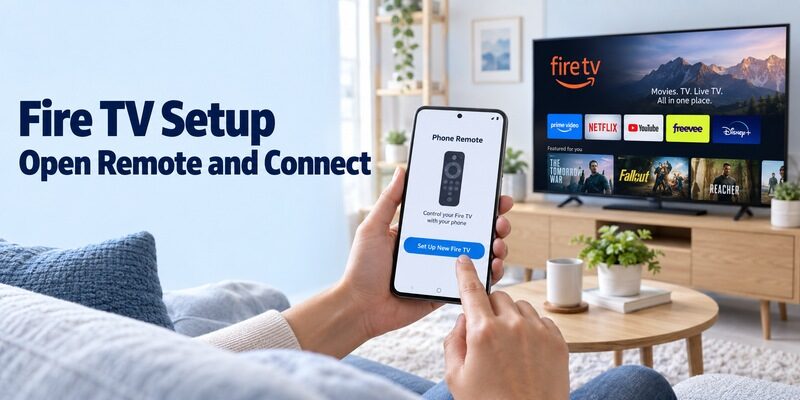
For how to download fire tv remote app and begin using it, Amazon’s current instructions are to open the app, sign in to your Amazon account, select the remote icon, and choose Set Up New Fire TV. Follow the prompts shown for the installed app version and selected device.
Complete Any On-Screen Confirmation
Keep the television visible while following the connection process. If it shows a code or asks for confirmation, use the information for that screen rather than an example from an old tutorial. A device-list entry alone is not proof that pairing has completed.
After you download fire tv remote software and finish setup, press one directional control while watching the selection move. Return to the starting position and select a harmless menu item. This short check separates a functioning remote connection from an app that merely opens its own content catalog.
If you download fire tv remote software on a second phone, complete its own displayed setup steps. Do not copy a previous pairing code from your notes. Keep notes about the device name and app publisher, while treating any new on-screen confirmation as specific to the current attempt.
If no movement occurs, confirm the selected device before repeating installation. When several people are setting up phones at once, finish one connection first and use it as a reference. That keeps a code shown for one pairing attempt from being confused with another person’s request.
Use the Same Platform Route for a Redmi Fire TV
Read the Television’s Platform Name
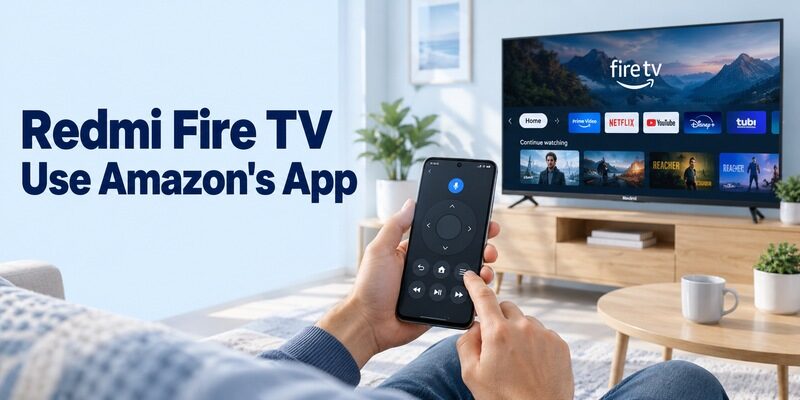
A Redmi Smart Fire TV is Fire TV equipment, not automatically a Google TV target. Xiaomi’s official Redmi Smart Fire TV FAQ confirms Fire TV is built into that product family. The practical inference is to start with Amazon’s supported Fire TV mobile-control route for a compatible model.
A redmi fire tv remote app download search should therefore begin with Amazon Fire TV and the exact television model. Do not choose a Google TV controller merely because another Xiaomi or Redmi television uses Google’s platform. The shared brand does not erase that operating-system difference.
The same platform-first principle applies to other branded televisions, as explained in this Element TV remote app download guide, where the correct controller depends on whether the screen actually runs Fire TV, Roku, Google TV, or another system.
Separate the Redmi TV from a Redmi Phone
The word Redmi can also describe the handset. A Redmi phone running supported Android software can install the official Android app when its store permits it. The Fire TV network route does not depend on selecting a television IR code in Mi Remote.
When you download fire tv remote software, record both device roles clearly: the phone runs the app, and the Fire TV receives the commands. If you also use infrared to control a separate television or audio device, treat that as an additional method with its own hardware requirements, not as Amazon’s phone-pairing procedure.
Test Navigation, Search, and Content Launching
Start with the Directional Pad
Basic menu movement is the clearest first control test. Amazon’s app guidance describes the paired directional pad as a way to navigate and select content. Open Remote, move through a familiar screen, select an item, and return. Use a task whose expected result is easy to recognize.
After you download fire tv remote software, compare the buttons actually displayed with the actions you need. Interface layouts can change between releases, and some features require compatible Fire TV equipment. Do not assume every button pictured in an older review remains in the same location or exists on every device.
Try Text Entry in a Simple Search Field
The current Google Play listing describes a mobile keyboard and voice search. Test typing with a short title or ordinary search phrase. Check that the text appears on the intended screen, then erase it. This confirms the input path without introducing a password or account-recovery issue.
When you download fire tv remote software mainly for easier typing, test the particular application you use most. A search field, an on-screen web form, and a protected sign-in field can behave differently. If directions work but one text field does not, describe that limited result rather than concluding the whole remote is disconnected.
Content browsing inside the phone app is another distinct workflow. Before tapping a viewing option, check whether it will open on the phone or the connected TV. A watchlist update is useful, but it is not the same test as sending a directional command to the living-room screen.
Check Whether Your Setup Supports Volume and Power
Look for the App’s Supported Setup Option
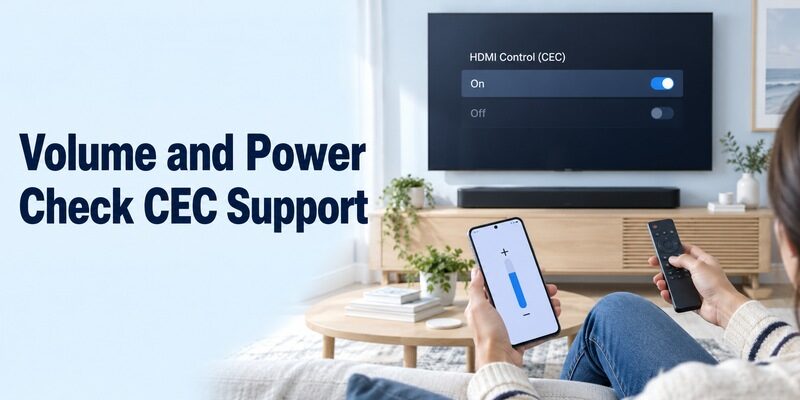
Volume and power are conditional features, not universally absent or universally available. Amazon says the app offers their setup option when the Fire TV supports it, and that the television must support the required HDMI-CEC protocol. Use the option shown on your actual setup rather than promising it from a generic screenshot.
After you download fire tv remote software, verify normal navigation before investigating these extra controls. If navigation works but sound does not, the local remote connection may already be functioning. The remaining issue can be the separate path that tells the television or audio device to change volume.
Check CEC and the Actual Audio Device
Amazon recommends enabling HDMI-CEC in the television settings and checking whether the physical Fire TV remote can control volume or power. For an external speaker, it also directs users to Fire TV’s Equipment Control configuration when needed. Follow the television manufacturer’s terminology for its CEC setting.
Keep volume changes small during the test and watch which device responds. A soundbar and the TV’s internal speakers are different audio targets. If the required integration is unsupported, retain the appropriate physical or manufacturer-supported audio controller; repeatedly reinstalling the mobile app will not establish compatibility.
Before you download fire tv remote alternatives to solve only a sound problem, compare the same volume command with the original controller. If both fail, investigate the audio equipment first. If only the phone fails, record whether its volume setup option is present and which sound device you selected.
Understand the Limits of a No-Download Remote Search
Use Current Documentation for Browser Claims
The current Amazon guidance reviewed here directs users to the mobile Fire TV app. A fire tv remote online no download search may lead to older demonstrations, independent tools, or pages that do not document support for your present device. This guide does not establish a current official browser-only remote as an equivalent replacement.
If you prefer not to download fire tv remote software, begin with a compatible physical controller or another control method explicitly supported by your equipment. Do not treat an old browser address as a confirmed solution simply because a tutorial once showed a remote interface there.
Avoid Confusing Casting with a Full Remote
Opening content on a television from a supported phone application is not necessarily a complete Home, Back, input, and settings controller. Define which buttons you are trying to recover. A casting feature that starts one video may not solve the problem of reaching the TV’s network menu.
Similarly, a search to download remote control for firestick concerns software on the phone, not installing the phone controller onto the streaming stick. Follow the app’s supported setup route. Enabling developer settings or installing unrelated receiver packages is not part of Amazon’s documented basic mobile-remote procedure.
Troubleshoot the First Failed Step
Resolve Discovery Before Repeating Pairing
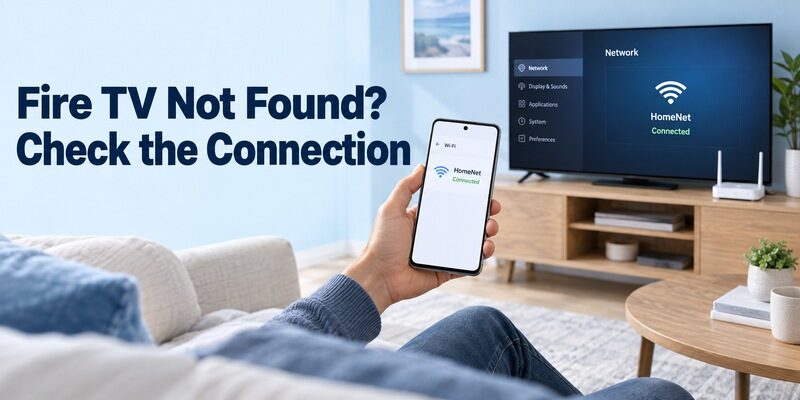
An absent device and a rejected pairing attempt are different problems. If no Fire TV appears, check the intended device is powered and on the same local Wi-Fi as the phone. Confirm you have opened Remote rather than only browsing titles in the app. Check relevant local-device permissions if the phone requests them.
When you download fire tv remote software after moving house or replacing a router, the Fire TV may still need its own network connection restored. Use the device’s supported setup controls or a compatible physical remote. Installing another phone application does not by itself reconnect an offline player to the new network. If the Fire TV lost its connection after a router change, follow this guide on how to connect a Firestick to new Wi-Fi without a remote before repeating the mobile-app setup.
Isolate Reconnection and Partial-Control Problems
If the remote initially works, close and reopen the app and select the same device again. Note whether failure occurs immediately, after the phone sleeps, or only when switching rooms. Those observations narrow the problem more effectively than changing several network and television settings at once. For a connection that drops after working normally, use this Firestick remote app disconnecting guide to isolate the network or device condition before replacing the controller.
After you download fire tv remote software, preserve working account and device settings while testing. Restart the relevant app or device using its supported instructions before considering more disruptive changes. A factory reset can remove useful setup information and should not be the first response to one missing button.
| Failure point | Useful observation | Next focused check |
|---|---|---|
| Cannot install | Store message on the phone | Current phone and regional eligibility |
| No device appears | Target TV’s power and network | Same local Wi-Fi and app permissions |
| Confirmation fails | Which screen shows the prompt | Correct device and current prompt |
| Directions work, sound fails | Audio equipment in use | Supported CEC and equipment control |
| Works until reopening | Selected device after reopening | Reconnection and target selection |
Make the Working Setup Easy to Repeat
Run One Complete Viewing Session
Finish with the routine you actually use, not just a successful connection message. Open a familiar app, choose available content, test any required playback control, adjust sound using its working controller, and return to Home. Keep track of functions that still need the physical handset.
Ask another household member to repeat the same sequence. If they select the wrong Fire TV, improve the device naming or explain the room labels. If they cannot find Remote after opening the app, show that entry point directly. This practical handover prevents a functioning setup from becoming confusing the next evening.
Once you download fire tv remote software and verify that routine, keep the working app easy to find on the phone. A clearly placed shortcut can be more helpful than installing several competing controllers with nearly identical names.
Retain a Backup and Useful Support Notes
Keep a compatible remote available for a depleted phone battery, initial setup, or a network change. Record the app publisher, phone model, Fire TV model, and exact failed action if you need support. State whether menu navigation still works; that single observation can distinguish a connection problem from an equipment-control limitation. Before buying a fallback controller, check whether a universal remote will work with your Fire TV and confirm the features you need from the television or streaming device.
You can consult broader platform guides at . Keep your own device notes alongside them, particularly when a streaming stick, television, and soundbar each handle different parts of the viewing experience.
Final Thoughts
Install Amazon’s verified app, connect the right device, and test the complete routine. To download fire tv remote software successfully, use the appropriate phone store, follow current Remote setup prompts, and verify the shared Wi-Fi connection. Treat volume, power, text entry, and content access as separate checks, then retain a compatible physical backup for the situations the phone does not cover.
