
Onida TV Remote Download: Choose the App for Your TV Model
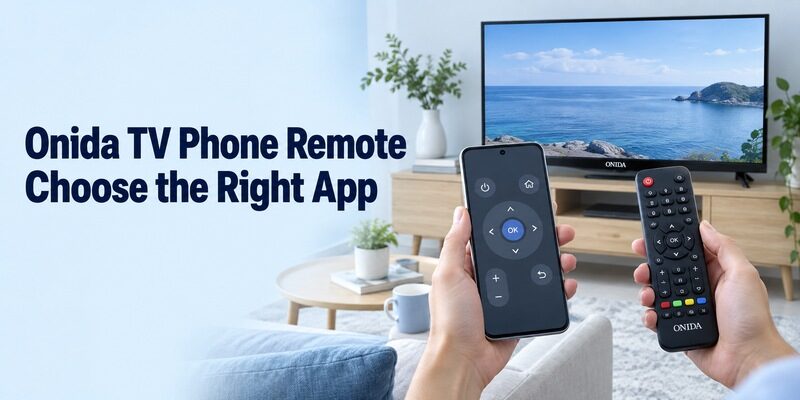
Short answer: Choose the remote app by your Onida television’s platform: Google TV for supported Google or Android TV models, Amazon Fire TV for Fire TV models, or a compatible infrared app for an older IR-controlled set. An onida tv remote download cannot make every phone control every Onida television. The brand’s current range includes several operating systems, and an app with Onida in its name may be an independent product with specific hardware requirements. This guide helps you identify the right route, install and connect the controller, and test the buttons that matter. It also covers Coolita compatibility checks, free-download claims, and recovering access when the original remote is missing.
Match the Onida TV Remote Download to the Television
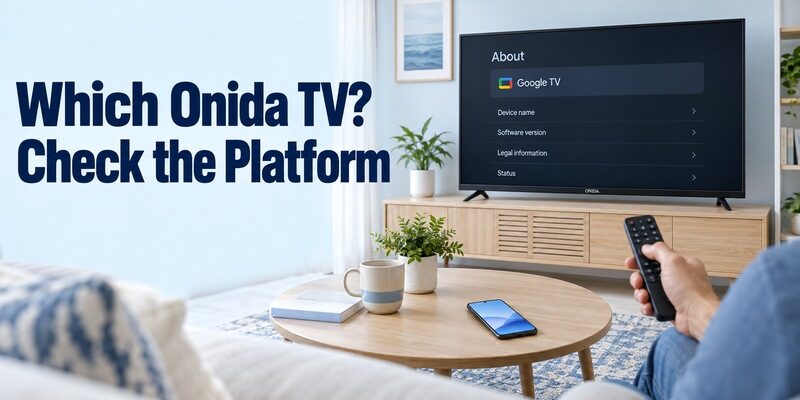
Identify the Model and Operating System
Onida’s television catalog separates Google TV, Fire TV, Android TV, and Coolita platforms. That distinction matters more than screen size or resolution when choosing a phone controller. Check the model’s system-information menu, manual, or purchase record before assuming that another owner’s app will work on your screen.
An onida tv remote download for a recent Google TV should not be selected by following instructions for an older non-smart set. Likewise, a television described as smart does not necessarily support Google’s phone-pairing protocol. Write down the full model identifier and the actual operating-system name, keeping those details separate from marketing terms such as QLED.
This platform-first check is also useful when comparing a TV remote app’s publisher and connection requirements, because a brand name alone does not identify the correct control method.
Determine Which Device Supplies the Menus
If a streaming player is connected through HDMI, its home screen may be what you see most often. The player and the Onida television are separate control targets. A Fire TV Stick plugged into an older Onida display does not convert the panel’s own picture and input menus into Fire TV menus.
Before starting an onida tv remote download, decide whether you need to operate the panel, the attached player, or both. Note which physical controller currently changes the input and which one opens streaming applications. This simple distinction prevents a successful player connection from being mistaken for a complete television-remote replacement.
| Your equipment | Starting app route | Main limitation to check |
|---|---|---|
| Onida Google TV or compatible Android TV | Google TV from Google LLC | Network discovery and pairing |
| Onida Fire TV | Amazon Fire TV app | Correct Fire device and supported controls |
| Older IR-controlled Onida | Compatible IR app and profile | Phone must transmit supported infrared commands |
| Onida Coolita | Exact model’s supported companion | Do not assume Google or Fire compatibility |
| External streaming player | Player’s own supported controller | Panel settings may need another remote |
Set Up an Older Onida with Infrared Hardware
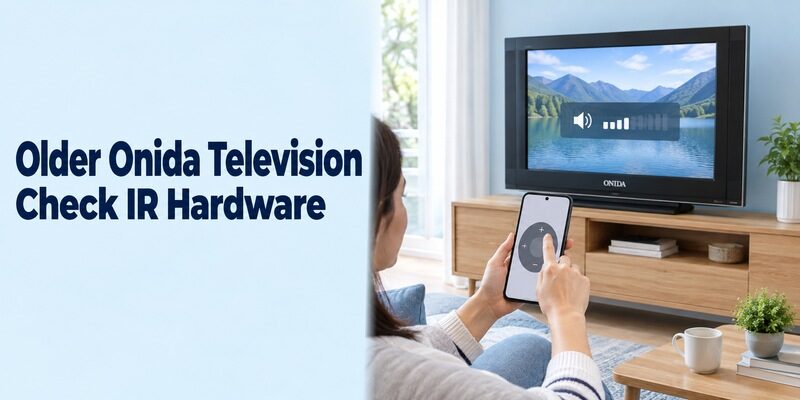
Verify the Phone’s Transmitter
An infrared application needs a compatible IR emitter. Look up the exact phone’s specifications rather than assuming that every Android phone includes one. A camera or Bluetooth radio does not perform the same job. Downloading software cannot add a built-in transmitter to hardware that lacks it. Before relying on an older-model app, review the same IR hardware considerations covered in this IR hardware and smart TV remote support guide.
For an onida tv remote old model download, first confirm that the television uses a supported infrared command set and that the phone can transmit it. An accessory is only useful when the application and phone explicitly support that accessory. A matching physical handset is a practical alternative when those requirements cannot be met.
Install a Listing with Clear Requirements
Guten Morgen’s Remote for Onida TV listing explicitly requires an IR-emitter phone, identifies advertising, and states that it is unofficial. TV Smart Remote’s similarly named listing also describes an infrared requirement and independent status. These are compatibility claims from the developers, not evidence that Onida publishes the applications.
For this onida tv remote download route, install the selected app on the phone and follow its available profile or remote-layout prompts. Xiaomi’s Mi Remote support information also includes Onida among supported brands, while noting that some devices are unsupported. If using that option, select the appropriate television profile and test it with suitable IR hardware.
Keep the TV awake for the initial trial and point the emitting end toward its receiver area. Check a simple menu or volume command before repeatedly pressing Power. Save the profile only after several useful commands work; a single successful response does not establish a complete match for the television.
Compare the trial from your usual seat after checking it at a shorter distance. An obstruction on the cabinet or a hand covering the phone’s emitting end can change the result. Keep the successful profile name even if another layout looks more like the original handset; functional testing is a stronger basis than appearance.
Install Amazon’s App for an Onida Fire TV
Choose the Fire TV Phone Application
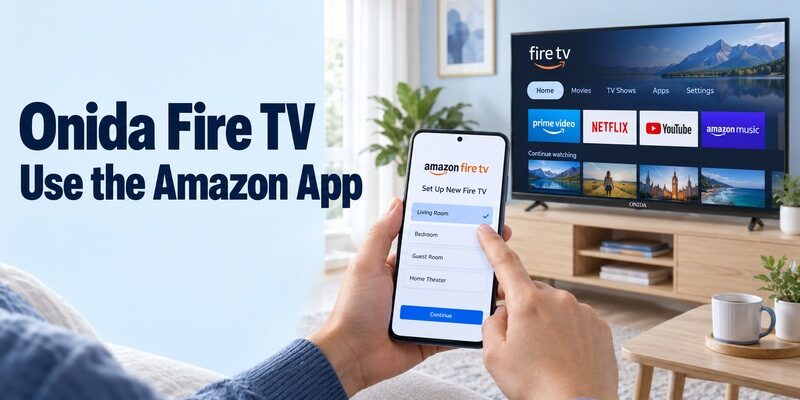
Use Amazon’s Fire TV mobile app for a supported Onida Fire TV system. Amazon’s current help page identifies both Android and iPhone store routes. Read the publisher and description in your phone’s store so you choose the official controller rather than an independent app with a similar title.
For compatible Fire TV models, install a verified free Fire TV remote app only after confirming that the Onida television itself uses the Fire TV platform.
An onida tv remote download for Fire TV belongs on the phone, not in the television’s video catalog. Keep the TV on and connect the phone to the same Wi-Fi network. If the screen is supplied by an external Fire device, select that device during setup and keep its role distinct from the Onida panel.
Follow the Current Fire TV Setup Flow
Amazon’s documented workflow asks you to open the app, sign in to your Amazon account, select the remote icon, and choose Set Up New Fire TV. Continue through the displayed prompts for the intended device. Use the current approval information shown on your own screen whenever the connection process requests it.
After this onida tv remote download setup, test navigation and a familiar application. Check the controls actually offered for your device; power and volume availability can depend on the supported equipment arrangement. Do not assume that a missing sound control means the entire connection has failed when Home and Back already work.
Keep a note of the selected Fire device’s name. If you have several Amazon devices, confirm the correct screen responds before saving the routine. More detail on the platform route is available in the guide, while the Onida manual remains the reference for panel-specific controls.
Pair Google TV on Supported Google and Android Models
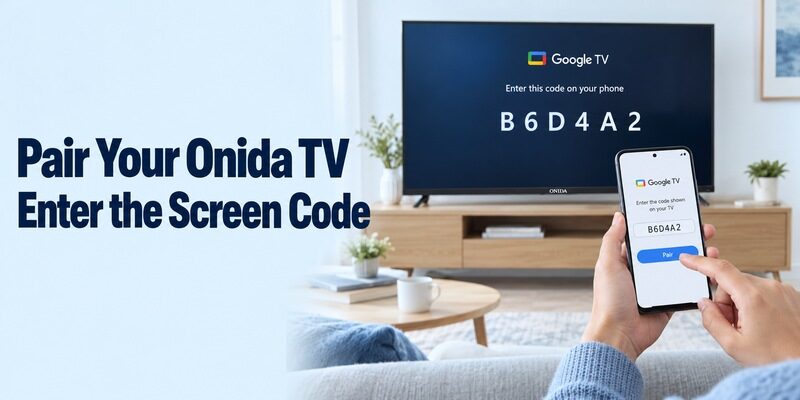
Select Google’s Phone Controller
Google documents phone control for compatible Android TV and Google TV devices through the Google TV app. The publisher is Google LLC. Use this route when the Onida model’s platform supports it, rather than assuming that any television with downloadable apps is an Android TV device.
Once the platform is confirmed, follow the dedicated Google TV remote app for Android setup instead of trying a controller designed for another operating system.
For this onida tv remote download, install the current supported phone version and place both devices on the required shared network. Keep the television’s home screen visible. If the phone finds several screens, compare names carefully and select the intended Onida television rather than a nearby player or another room’s display.
Enter the Television’s Current Pairing Code
Google’s Android TV instructions describe selecting the television, entering the displayed code, and pairing. Follow the equivalent device-discovery prompts in your current phone app. Read the code from the screen involved in that attempt; old screenshots and saved example codes are not reusable pairing credentials.
Once the onida tv remote download is connected, test directions, selection, Home, and Back. Open an appropriate search field before testing phone typing. If only text entry fails in one application, record that specific result. A field-specific input limitation is different from a television that cannot be discovered or paired at all.
Close the controller briefly and reopen it while the TV remains awake. Confirm whether it reconnects automatically or asks you to select the device again. This establishes the everyday reconnection step before you introduce the separate question of waking the television from standby.
Check Coolita Support Without Assuming Another Platform’s App
Use the Exact Model’s Documentation
Coolita is a separate platform in Onida’s catalog. Onida’s manual index includes a guide for newer 32- and 43-inch Coolita televisions with satellite tuners. Find the manual matching your equipment and check its supported phone-control or casting instructions rather than applying a Google TV setup sequence by appearance alone.
An onida tv remote download for Coolita should have a model-specific basis. A store listing that mentions Coolita or another television brand does not establish support for every Onida implementation. If the TV provides a companion-app instruction, compare that exact app and publisher with the listing available on your phone.
Treat CooLink as a Compatibility Check
CooLink’s current Google Play listing names COOLITA TECHNOLOGY PTE. LTD. and describes remote-control and casting functions. That verifies the product’s stated purpose, but the listing alone does not prove that your particular Onida model supports it. Use it when the television’s own guidance or support confirms the connection route.
Before committing to this onida tv remote download option, ask which functions are supported: basic navigation, media sharing, voice, or power. These are separate capabilities. If model support cannot be confirmed, keep the physical remote and seek a precise answer from Onida rather than treating repeated unsuccessful installations as evidence of a faulty TV.
Compare Free Downloads and Independent App Claims
Read the Connection Requirements Before the Price
Free installation and practical compatibility are different questions. An onida tv remote control app download free search may surface advertising-supported independent controllers beside official platform applications. Read the supported hardware, operating system, and purchase information before deciding whether a listing fits your equipment.
For any onida tv remote download, a premium purchase cannot by itself create a missing phone transmitter or add a protocol the television does not support. Establish basic control before paying for optional conveniences. If a feature requires additional equipment, verify the exact supported accessory instead of assuming that a generic adapter will work.
Resolve Ambiguous Descriptions with the Developer
Some listings use broad language about smart control while describing infrared requirements elsewhere. Onida Smart TV Remote by Smart TV Remote Pro, for example, describes infrared control and no voice support, while release notes also mention Wi-Fi. That mixed description is a reason to confirm the specific mode and model with the developer.
Do not treat a long list of buttons or brands as a guarantee. For an onida tv remote download, ask whether the app supports your exact TV and phone combination and which transport it will use. A clear answer about one workable mode is more useful than an unqualified claim to replace every remote.
Verify Input, Sound, Navigation, and Standby Separately
Test One Normal Viewing Session
A controller is useful when it completes your routine reliably. With the TV awake, move through a menu, select a familiar app, return home, and change the input if that function is offered. Use short presses and watch each response so you can distinguish a wrong mapping from a delayed command.
After an onida tv remote download, test sound using the equipment that actually produces it. If a soundbar or receiver is connected, its volume path may differ from the TV’s own speakers. Record whether the phone changes the on-screen volume indicator, the audible level, both, or neither.
Check Wake Behavior Only After Basic Control Works
Turning the television off and waking it from standby are separate capabilities. First establish reliable control while it is on, then try the model’s documented standby route. Keep mains power connected during that test; an electrically disconnected television cannot receive a phone wake command.
If an onida tv remote download navigates normally but cannot wake the screen, retain the physical controller and check model-specific settings. Avoid reinstalling the app simply because wake support differs from navigation. Note whether manually waking the TV restores the phone connection, since that is useful evidence for further troubleshooting.
Fix the Failed Connection Method
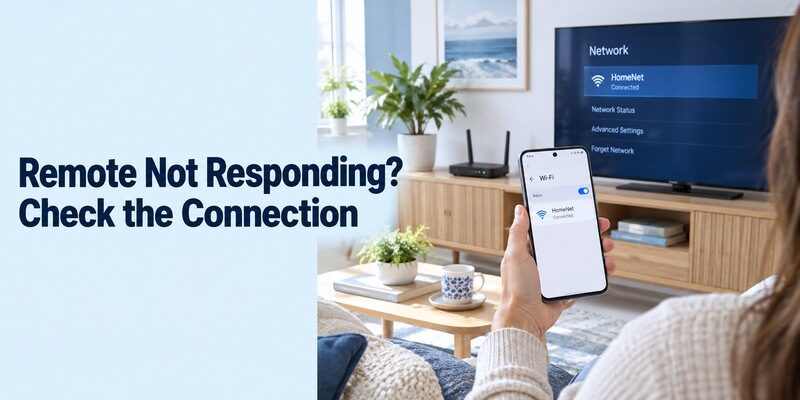
Troubleshoot Network Discovery and Pairing
For Wi-Fi control, begin with model support and the local network. Check that the TV is awake, the phone is on the intended network, and relevant discovery permissions are available. Guest networks or isolation settings can prevent local communication even when both devices can browse the internet.
If the onida tv remote download finds the TV but cannot complete registration, focus on the current screen prompt and selected device. Reopen the app after correcting the connection conditions. Change one condition at a time and repeat a simple command so that a successful result tells you what actually helped.
Troubleshoot Infrared Profiles and Aim
For infrared control, inspect the phone hardware, emitting direction, line of sight, and chosen profile. A router restart will not repair a missing IR transmitter. If some commands work, keep their results before testing another supported profile, using the same distance and television state for a fair comparison.
If an onida tv remote download sends the wrong actions, stop using that layout for sensitive settings and try a better-matched profile. Avoid service-menu codes or firmware changes as remote-app experiments. Ordinary button mapping should be resolved through compatible controller selection, not by altering unrelated television configuration.
| Symptom | First investigation | Useful note |
|---|---|---|
| No TV in a network app | Platform, awake state, local network | Exact model and network names |
| TV found but not registered | Live approval or code prompt | Current error message |
| No IR response | Emitter, aim, profile | Phone model and selected layout |
| Some buttons are wrong | Command mapping | Working and failing buttons |
| Only wake or sound fails | Standby or audio equipment path | Other successful controls |
Recover Access and Keep a Working Backup
Restore the Television’s Network When Necessary
An offline TV may need a physical setup method before phone discovery can work. After a router or password change, use supported onboard controls or a compatible handset to restore network access. A freshly installed app on the phone cannot automatically type credentials into a screen that it cannot reach.
Before repeating an onida tv remote download, check whether this is the actual obstacle. Keep any working controller available while recovering the network. A factory reset can create additional setup requirements, so follow the exact model’s troubleshooting guidance instead of resetting merely because an application found no devices.
Save the Model, Publisher, and Successful Commands
Record the TV model, app publisher, phone platform, connection method, and saved device or profile name. Test the arrangement again after reopening the app and ask another viewer to repeat the normal routine. Keep a compatible physical remote for phone-battery problems, initial setup, and unsupported controls.
Include a brief note about returning to the usual input after using a console or another player. This step is easy to overlook when testing only the home screen. A household member should be able to resume normal television viewing without knowing which settings were changed during the original setup session.
Use the television’s matching manual for hardware questions and for broader phone-controller guidance. If support is needed, provide the commands already tested rather than only the phrase that the remote does not work. A precise description helps distinguish compatibility, discovery, registration, and individual-button failures.
Final Thoughts
Choose the platform first and confirm the phone’s connection capabilities before installing. An onida tv remote download can be straightforward when it matches a Google, Fire, supported Coolita, or infrared setup. Verify the publisher, follow the actual pairing prompts, and test a complete viewing routine. Keep the working device or profile documented and preserve a physical recovery method so that the setup remains useful after network changes or phone interruptions.
