
ECCO TV Remote Control App Download: Find a Compatible Route
Short answer: Identify your ECCO television’s model and supported control method before choosing a phone app; a manufacturer-published ECCO remote was not verified in the sources checked for this guide. An ecco tv remote control app download search can return unrelated entertainment software, similarly named brands, and universal controllers with different requirements. A supported Android TV device may use Google’s phone remote, while an infrared route needs compatible transmitting hardware and a matching profile. Neither option should be assumed for every ECCO model. This guide explains how to verify the equipment, choose a realistic download, recover an offline television, and test essential controls without confusing a successful installation with a working remote.
Start with the Exact ECCO Television and Region
Record the Model Before Searching Again
The model identifier is stronger evidence than the word smart. ECCO Africa’s LH32GS product page verifies a smart television and an included physical remote, but the page does not establish a particular phone-control protocol. Its broad product description is not enough to promise Google TV or another companion app for every unit.
For an ecco tv remote control app download, copy the full model from the television’s information menu, documentation, or label. Keep the operating-system name separate from screen size and resolution. If you cannot reach the label easily, consult the invoice or manual before moving a large television just to read it.
The same platform-first approach is explained in this guide to choosing a TV remote app by television platform, where the operating system determines the realistic phone-control route.
Keep South African Product Details in Context
An ecco tv remote control app download south africa search should use the exact product sold in that region. Ask the supplier identified in your purchase documents for the supported phone app, if any, and the required connection method. A familiar brand name on a different country’s listing is not a model match.
Before you download ecco tv remote software, distinguish the television from an attached decoder or streaming player. The device supplying the home screen may need its own controller. Record which handset selects HDMI and which navigates content so that you know whether the desired replacement must control one device or several.
If the television was supplied with a printed setup sheet or an app name on its own help screen, keep that reference. Compare the spelling and publisher with the current phone-store entry. An ecco tv remote control app download is easier to assess when the recommendation can be traced to the exact product rather than an unrelated search result.
Verify the Publisher Behind an ECCO TV Remote Control App Download
Exclude the Unrelated Entertainment Discovery App
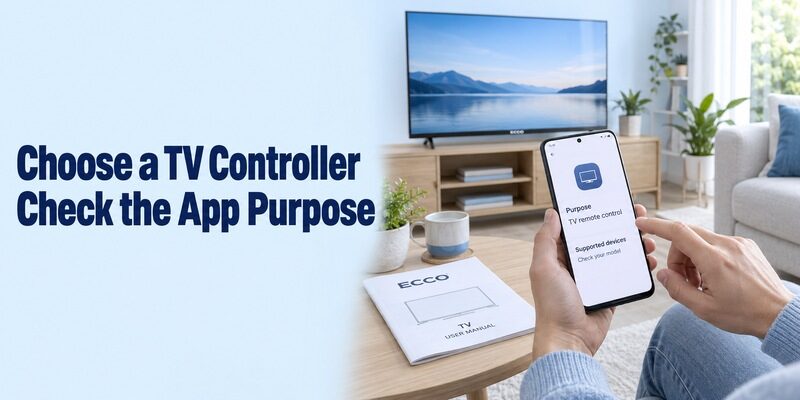
ECCO: Find Movies & TV Shows is described by its developer as an entertainment-discovery product. Its own website explains finding content and directing users to streaming services. That description does not establish it as a controller for ECCO-branded television hardware, despite the exact name appearing in search results.
When evaluating an ecco tv remote control app download, read the app’s function and publisher before installing. A page about recommendations, trailers, or where to watch a movie answers a different question from operating power, input, and menu buttons. Matching the name alone can lead to a perfectly legitimate but irrelevant application.
A similar publisher check is essential when reviewing a TV remote app’s publisher and connection method, especially when an app title uses the television brand without proving official support.
Do Not Substitute EKO or EcoStar Without Evidence
Mobile-Care’s Remote Control for EKO TV listing describes an independent EKO controller and an infrared requirement. That listing does not prove ECCO compatibility. Similar spelling, a user’s review, or a familiar-looking remote layout is not sufficient evidence that the same profile supports your television.
The same caution applies to an ecostar tv remote control app free download search: retain the exact brand and model when consulting support. For an ecco tv remote control app download, request compatibility confirmation for your equipment rather than selecting another brand because its name appears nearby in the results.
Choose a Network Route Only When the Platform Supports It
Confirm Compatible Android TV or Google TV Software
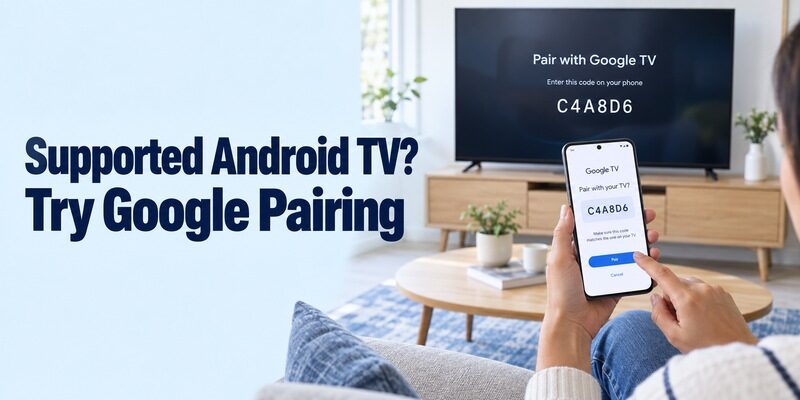
Google’s phone-remote instructions apply to supported Android TV and Google TV devices. A television merely described as Android-based may use a different implementation. Confirm the platform through the exact model’s documentation or system information before expecting Google’s discovery and pairing workflow to work.
If that requirement is met, an ecco tv remote control app download can use the route from Google LLC. Install the app on the controlling phone, not as an unrelated entertainment application on the TV. Keep the intended screen awake and visible during the first connection.
Follow the Supported Pairing Workflow
Google’s Android TV guide describes selecting the television in the phone app, entering its displayed code, and pairing. Put the devices on the required shared network and follow the current prompts. Use the code from the active attempt on the intended screen, not a sample from a tutorial.
After this conditional ecco tv remote control app download setup, send one directional command and watch the television respond. Test Home and Back before trying typing or optional functions. If the TV never appears, return to platform and network verification; repeatedly reinstalling the phone app does not establish missing protocol support.
| Verified equipment condition | Suitable starting route | Evidence still needed |
|---|---|---|
| Compatible Android TV or Google TV | Google’s documented phone remote | Correct device and successful pairing |
| Another documented smart platform | Its supported companion app | Exact model and phone eligibility |
| Supported infrared television profile | Compatible IR controller | Transmitter and command matching |
| External streaming player | Player’s official control route | Separate panel-control requirements |
| Platform or profile unknown | Model documentation or supplier support | A specific supported method |
Check Infrared Hardware and Profile Support Together
Confirm the Phone Can Transmit the Commands
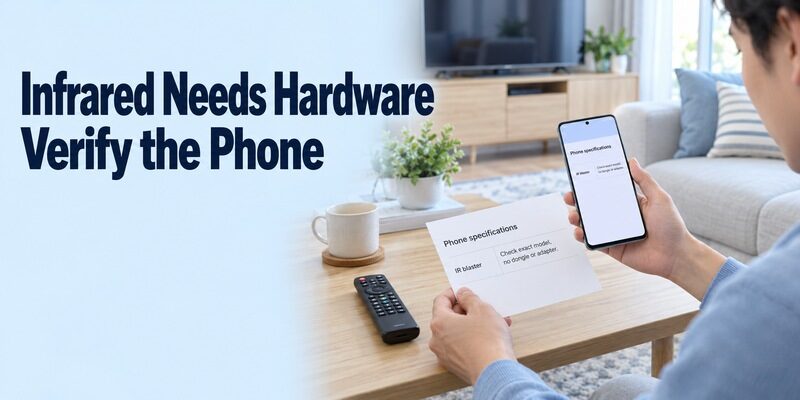
Infrared control requires transmitting hardware as well as software. Look up the exact phone’s specifications for an IR blaster or emitter. A camera, Bluetooth connection, or USB port alone does not establish this capability. An ordinary phone cannot gain a built-in IR transmitter by installing an application.
For a practical comparison of IR hardware and smart-TV control routes, see this IR hardware and smart TV remote support guide before selecting an infrared app.
Before choosing an ecco tv remote control app download for infrared use, verify that the app includes a profile supporting your television. A generic brand list is not enough if ECCO or the exact model is absent. An external accessory also needs explicit support from the app and phone; connector fit alone proves little.
Test a Supported Profile Without Guessing Brand Equivalence
Once the developer or documentation confirms a suitable profile, keep the TV awake and follow that controller’s setup prompts. Point the emitting end toward the receiver area and test a harmless command at a short distance. Continue with input, navigation, and sound before saving the profile as a dependable replacement.
For an ecco tv remote control app download, do not assume a profile is complete because Power works once. Record which commands respond correctly and which do not. If no supported profile can be verified, obtain a matching physical handset rather than trying random service codes or altering the television’s firmware.
Repeat a successful test from your normal seat. A blocked receiver or a hand covering the emitting end can make a correct profile seem unreliable. Keep the saved profile name in your notes, even if a different on-screen layout looks more like the original remote. Functional results are the useful evidence.
Recover an Offline Television Before Expecting Phone Discovery
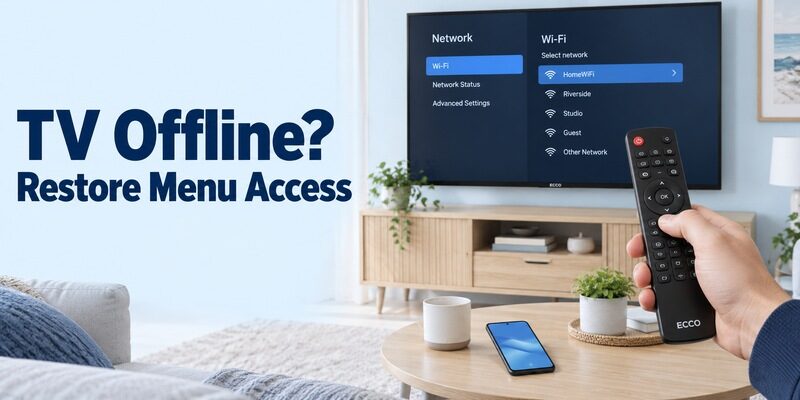
Restore Network Access with a Supported Local Method
A network remote generally needs the television to be reachable before it can control it. If the router or password changed, use a compatible physical handset or the TV’s documented onboard controls to restore the connection. Do not assume the phone can enter credentials into a screen it has never connected to. For a compatible Google TV that is offline after a network change, first follow the recovery steps to connect Google TV to Wi-Fi without a remote.
An ecco tv remote control app download cannot automatically solve that initial-access problem. Check whether the TV is actually connected, rather than only whether it is powered on. If its only usable local button is Power, ask the model’s supplier which replacement remote or documented setup method can access the network menu.
Interpret No Signal as an Input Clue
A No Signal screen can belong to an empty or inactive input. It does not, by itself, establish a failed phone app or missing Wi-Fi. Identify the selected input and confirm that an attached decoder or player is powered on. Use the appropriate controller to reach the television’s own home or settings interface.
Before repeating an ecco tv remote control app download, separate input recovery from network setup. A streaming player may be online while the panel shows the wrong HDMI source. Conversely, the television’s smart interface may be accessible while an external box is off. Change one condition at a time so the result remains interpretable.
Keep the current working arrangement until the new route is proven. A factory reset can remove saved networks and create more setup dependencies. Use a reset only when the model’s actual troubleshooting procedure calls for it and you have a way to complete the resulting onboarding.
Evaluate Free Downloads, Purchases, and Permissions
Check What the Free Offer Includes
A free installation is not a compatibility guarantee. An ecco tv remote app free download result may include advertisements, optional purchases, or a trial. Read the current listing and any purchase screen for the product you actually selected, keeping installation cost separate from hardware requirements and television subscriptions.
Use the same compatibility checklist when comparing a free universal TV remote app, because a no-cost download does not confirm support for every television model.
For an ecco tv remote control app download, establish the basic connection and useful buttons before paying for optional conveniences. A purchase cannot by itself supply a missing IR emitter or add an unsupported TV protocol. Ask exactly what the upgrade changes instead of interpreting a premium label as proof of wider compatibility.
Grant Access for the Feature You Are Using
Read permission prompts in context. Local-device discovery, media sharing, and microphone input serve different functions and may request different access. If you only want menu navigation, do not assume that every optional casting or voice feature is necessary to evaluate the basic remote.
After an ecco tv remote control app download, keep a short note of the feature that failed and the permission involved. If discovery was denied, investigate that specific setting. If local photos cannot be cast while navigation works, test the media feature separately rather than treating the whole controller as disconnected.
Keep Other Brand Searches on Their Own Support Routes
Apply the Same Model Check to Aiwa and Bush
A controller for another brand needs its own compatibility evidence. An aiwa tv remote control app download should begin with the Aiwa model and platform; a bush tv remote control app download should do the same for the Bush television. Neither search establishes a substitute for an unverified ECCO profile.
This distinction matters in a home with several screens. Keep each television’s app, room name, and working controls documented separately. An ecco tv remote control app download should not be judged against a controller already paired to a different brand in another room, even if both screens have similar home-menu tiles.
Follow Xumo’s Version-Specific Instructions When Relevant
For a xumo tv remote app download, Xumo’s current support page distinguishes Berry and Teal systems. Its Settings-menu check uses Closed captions as the first item for Berry and Picture and sound for Teal. Berry uses the Xumo TV iOS app; Teal uses Xumo Remote on supported Android and Apple devices.
A xumo tv remote app download free search still needs that version check. Xumo’s instructions are relevant to compatible Xumo equipment, including its documented Stream Box route; they do not establish a native ECCO platform. If a Xumo box supplies the picture on an ECCO panel, identify the box and panel as separate targets.
Test a Complete Viewing Routine and Save the Results
Check Navigation, Inputs, and Sound
The useful test is a normal viewing session, not simply an app opening. With the TV awake, select a familiar input or application, navigate, pause where supported, change sound, and return to the starting screen. Observe one command at a time and use short presses during the trial.
After an ecco tv remote control app download, record whether each command affects the intended equipment. A soundbar or attached player may need a different control path from the television panel. If two controllers remain necessary, explain their roles clearly rather than describing the new phone app as a complete replacement.
Test Reconnection and Standby Separately
Close and reopen the phone app while the screen remains on. Note whether it reconnects or needs device selection again. Only then test the television’s documented standby behavior. Waking a screen and navigating an already awake screen are different capabilities, and neither can operate equipment disconnected from mains power.
Save the app publisher, phone model, TV model, selected profile or device, and remaining limitations. Ask another viewer to repeat the routine from that note. If they cannot return to the usual input after using another device, add that recovery step before treating the arrangement as ready for everyday use.
Also try the controller after briefly using another phone application. This shows whether returning to the remote requires an extra connection step during ordinary use. Keep any such step in the note, along with the location of the physical backup. A working setup should be understandable without repeating the original compatibility research.
Troubleshoot with Specific Evidence Instead of More Downloads
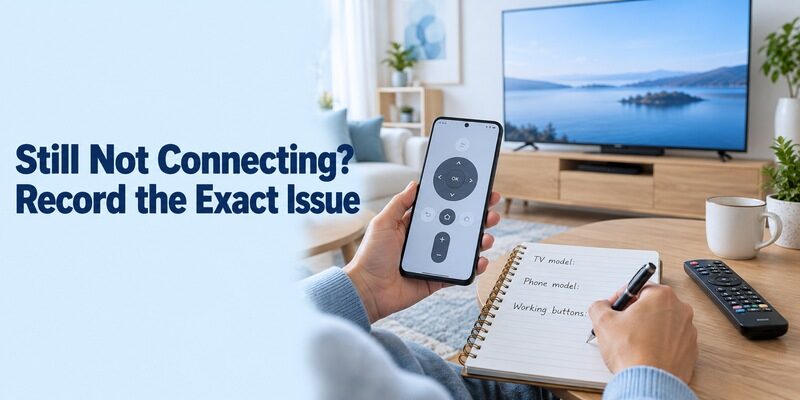
Identify the First Failed Stage
Installation, discovery, registration, and individual commands fail for different reasons. A store eligibility message belongs to the phone or region. A missing network device calls for platform and connectivity checks. A partly working infrared layout calls for profile verification. Keep those observations separate when deciding the next action.
If an ecco tv remote control app download still cannot reach the television after verified setup, record the current error and the steps already tried. For network control, check relevant local-network access and guest-network isolation. For infrared control, check the actual emitter and tested profile. Repeating unrelated changes makes the problem harder to explain.
Know When to Use Model-Specific Support
When no supported app or profile can be established, ask the television’s supplier for the exact replacement handset or documented phone-control method. Include the full model, region, phone platform, and essential commands required. This gives support something concrete to confirm instead of a broad request for any universal application.
Keep any working physical remote available while investigating. Further platform guidance is available at , but the television’s own documentation remains the reference for hardware-specific claims. A clear limit on what has been verified is more useful than promising compatibility that the available evidence does not establish.
| What you observe | Most useful next check | Detail for support |
|---|---|---|
| App is unavailable | Phone and regional eligibility | Store message |
| No television found | Supported platform and local network | Exact TV model |
| Pairing fails | Current selected screen and prompt | Error text |
| IR buttons partly work | Correct transmitter and profile | Command-by-command result |
| No verified app route | Model-specific controller support | Required input, menu, and power functions |
Final Thoughts
Confirm the ECCO model and supported connection before choosing a download. An ecco tv remote control app download can be useful when it leads to a verified network route or a compatible infrared profile, but similarly named products are not proof of support. Recover local access first if the TV is offline, test a complete viewing routine, and keep the working configuration documented. When phone compatibility remains unverified, use model-specific support to obtain a dependable physical replacement.
