
TV Picture Quality Issues: Fix Blur, Color, and Flicker
By the Remote TV Team | Last updated: November 2026
Quick answer: To fix tv picture quality issues, first compare a built-in TV menu with a streaming app or HDMI input. If the menu looks sharp, check the source resolution, connection, and playback quality. Then switch to a neutral picture mode, correct the aspect ratio, lower excessive sharpness, and test color and motion settings one at a time. If the same defect appears in the TV’s built-in picture test, contact the manufacturer rather than repeatedly changing settings.
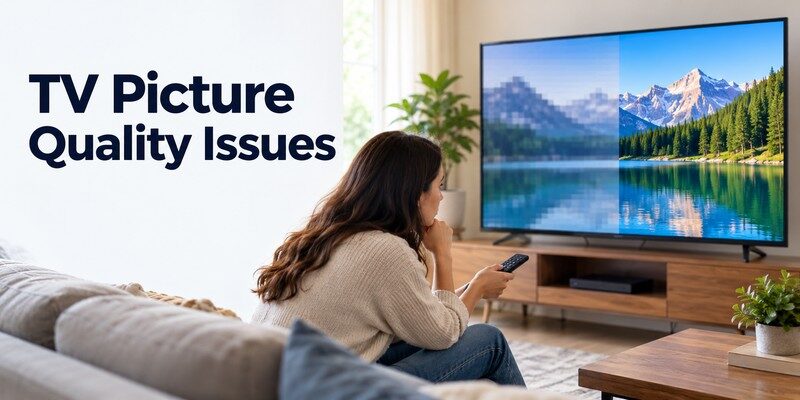
A blurry football match, blocky dark scene, or unnaturally red face does not necessarily mean the display is damaged. Smart TVs process video from antennas, streaming apps, consoles, and cable boxes differently. This guide separates settings problems from faults requiring service.
1. Diagnose TV Picture Quality Issues Before Changing Settings
The fastest way to solve tv picture quality issues is to identify where the poor image starts. Do not adjust ten sliders at once. First, display the TV’s own Home or Settings screen.
Compare the menu with the video
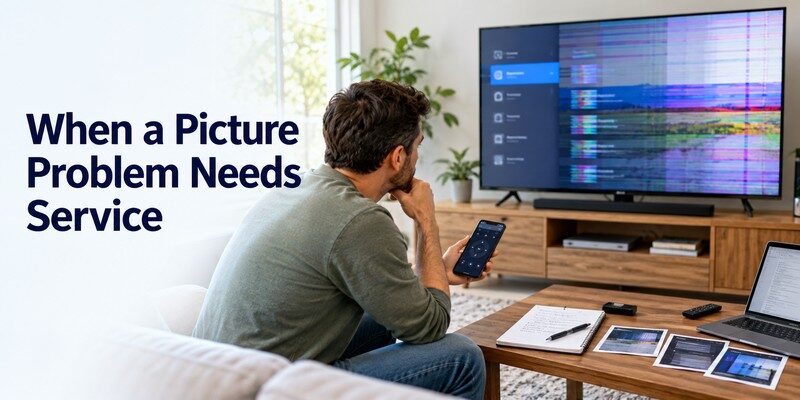
If menus and text remain crisp but a movie looks fuzzy, your tv picture quality issues probably begin upstream, not with the panel. Investigate that movie’s resolution, compression, streaming speed, or the external device. If even menu letters show permanent discoloration or lines, run a manufacturer picture test.
A particularly useful detail is whether the defect moves with the content: compression blocks often change every few seconds, while a damaged pixel line stays in exactly the same position.
Match the symptom to the next test
| What you see | Common explanation | First useful action |
|---|---|---|
| Soft faces and text in one app | Low-resolution stream or upscaling | Check playback quality |
| Large square blocks during action scenes | Video compression or unstable signal | Compare another source |
| Red, green, or purple tint on one input | HDMI/source color mismatch | Reseat cable and check output |
| Stuttering pans or smeared fast movement | Motion processing or frame-rate mismatch | Test motion settings |
| Lines visible in TV menus and picture test | Possible display hardware fault | Request service assessment |
Document which sources are affected. The location and timing of tv picture quality issues are more useful to a technician than a vague description such as “bad screen.” Photograph the defect if you might need service.
2. Fix a Blurry or Soft TV Picture
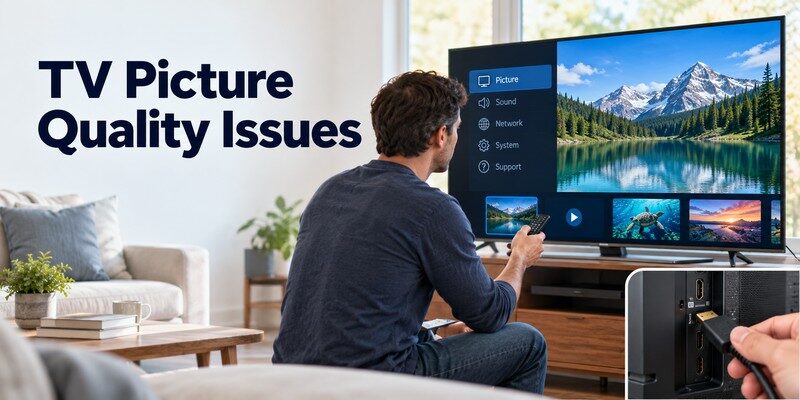
If your image looks out of focus, start with the source rather than pushing Sharpness to maximum. Many tv picture quality issues start with a low-detail source. The basic tv picture blurry fix is to confirm that your content is actually HD or 4K, then choose a natural picture preset.
Check the source resolution
A Full HD image contains 1,920 × 1,080 = 2,073,600 pixels. A 4K UHD image contains 3,840 × 2,160 = 8,294,400 pixels—exactly four times as many. But a 4K television cannot invent missing detail in a heavily compressed 480p video. Upscaling fills the panel; it does not magically restore the original image.
Open your streaming app’s playback information where available, and check the HDMI player’s output settings.
Select a balanced picture preset
Start with Movie, Cinema, Filmmaker Mode, or Standard. Aggressive Vivid modes may make edges and colors unnatural.
Reduce excessive sharpness gradually. Oversharpening can create bright halos around faces, subtitles, or building edges; setting Sharpness to zero is not universally correct because manufacturers use different scales. Disable unusual edge-enhancement features temporarily and restore them only if they help.
Check picture size and overscan
A zoomed image can hide logos and soften text, creating tv picture quality issues that look like a sharpness defect. Look for Screen Fit, Just Scan, Original, 1:1, or Fit to Screen. Choose the option that displays the entire picture without cropping, if supported by that source.
If tv picture quality issues persist in just one HDMI device, compare that device with a built-in app before assuming the panel is worn out.
3. Stop Pixelation and Blocky Streaming Video
When the tv picture pixelated symptom appears as squares or smeared patches, distinguish a weak broadcast signal from internet video compression. The television may simply be displaying a damaged or low-bitrate source accurately.
Test streaming speed and stability
Netflix Help Center recommends a stable connection of 3 Mbps for 720p, 5 Mbps for 1080p, and 15 Mbps for 4K UHD. Those are Netflix playback recommendations, not universal minimums for every service or a promise of perfect picture quality.
Restart the router if several devices are affected. Allow a stream time to reach higher quality: some services begin playback at a lower resolution before increasing it.
Check antenna and cable signals
For tv picture quality issues affecting live broadcasts, inspect your TV’s signal information menu, if available. Reseat a loose coaxial connection and retune channels only when reception guidance calls for it. Pixelation on one channel can come from the broadcast or cable provider, especially during bad reception.
If blocks appear only when a streaming stick is connected, try another HDMI port or a known-good cable. tv picture quality issues that disappear on a different input strongly suggest a source or connection issue, not a damaged panel.
Avoid the wrong fix
Increasing sharpness does not repair missing video data; it often makes compression blocks more obvious. Apply only enough processing to improve the particular source, and compare before and after using the same scene.
A useful clue: fixed colored squares or permanent vertical bands visible even on the Home menu are not ordinary streaming pixelation. Those deserve a separate display diagnosis.
4. Correct Wrong Colors, Washed-Out HDR, and Dark Scenes
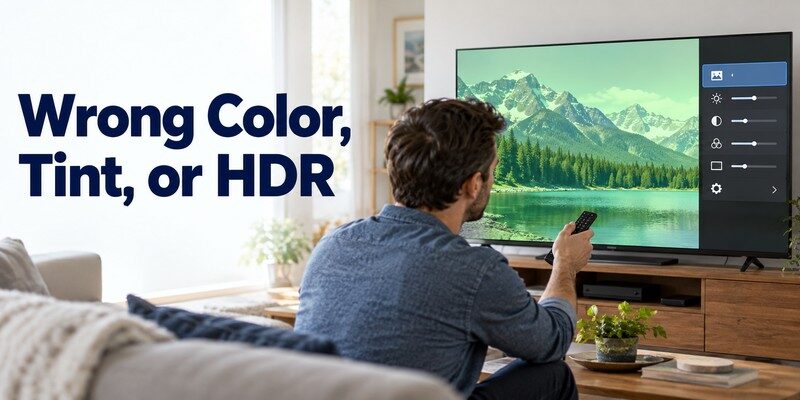
Unusual colors are tv picture quality issues that can come from presets, source formats, loose cables, or genuine screen trouble. A practical tv color distortion fix starts by checking whether the tint affects every source.
Start with a neutral color preset
Choose Movie, Cinema, Filmmaker Mode, or Standard and turn off unfamiliar color filters or accessibility modes that may have been enabled accidentally. Compare a natural face, green grass, and white subtitles. Do not immediately push saturation higher: an oversaturated image can look impressive in a store while hiding realistic skin tones.
Color Temperature set to Warm is often a reasonable starting point for natural-looking whites, but preferences and factory tuning vary. If faces are too red or green, reset that input’s picture settings before changing white balance or color-management controls.
Understand washed-out HDR
For HDR-related tv picture quality issues, remember that HDR is a format and processing chain, not merely a Brightness setting. To show intended contrast and color, the content, playback device, cable, input format, and TV must negotiate a compatible signal. A mismatch between a source’s HDR output and the TV’s interpretation can produce flat or strange-looking colors.
Check that the source isn’t forcing HDR for everything. On supported HDMI inputs, review settings called HDMI Enhanced Format, Input Signal Plus, or Ultra HD Deep Color, using your TV’s manual rather than turning every advanced option on blindly.
LG’s 2026 guidance identifies HDMI connections and Ultra Deep Color as possible causes of unusual colors. Investigate a single faulty input before changing the entire TV.
Investigate very dark scenes
In a bright room, reflections can make blacks look gray. Adjust room lighting, backlight or OLED pixel brightness appropriately, and compare with a familiar scene. Do not interpret compression banding in a dark streaming scene as proof that the display has failed.
5. Reduce Motion Blur, Judder, and Other Visual Artifacts

Sports, fast camera pans, and video games reveal problems that may not be visible in a still image. Some tv picture quality issues result from motion processing rather than resolution or panel sharpness.
Separate blur, judder, and stutter
Motion blur makes fast objects look smeared. Judder is uneven movement during panning, often related to how film frame rates are displayed. Stutter describes visibly stepped motion, especially on certain fast-response displays with low-frame-rate content. These effects have different causes and cannot be fixed with one universal slider.
For motion-related tv picture quality issues, televisions offer controls such as Picture Clarity, Motion Smoothing, TruMotion, Motionflow, or Action Smoothing. Test a low setting first, then compare it with Off. Strong interpolation may make movies look unnaturally smooth or introduce artifacts around moving objects.
Use the right mode for gaming
Game Mode usually prioritizes responsiveness by reducing some video processing. Enable it when input lag matters, but don’t assume it makes every movie sharper. If your console and TV support variable refresh rate or high refresh rates, confirm both ends are configured correctly before enabling those functions.
When tv picture quality issues appear only during movement, pause the video. If the frozen frame looks clean but motion looks wrong, focus on frame rate and motion settings. If the paused frame is already blocky, investigate compression, source quality, and connection stability instead.
Sony’s support guidance explains that noise-reduction options can influence perceived clarity in moving scenes.
6. Improve Picture Settings on Samsung, LG, Sony, and Roku TVs
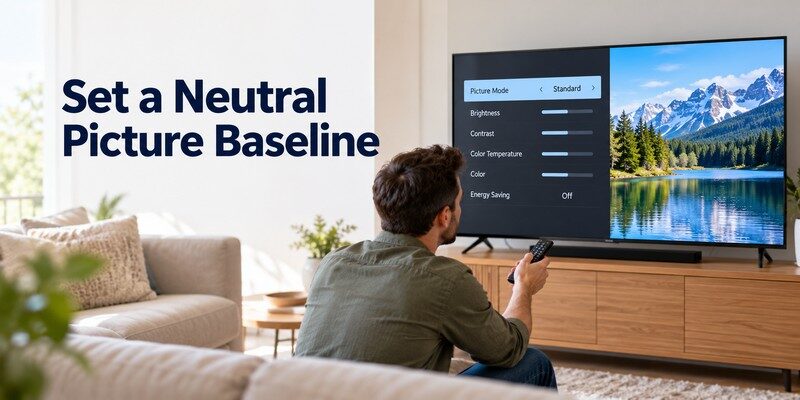
Menus differ by model year, but for tv picture quality issues the logic remains: begin with a neutral preset and test one source at a time. If you’re wondering how to improve tv picture quality, use these brand-specific starting points rather than copying someone else’s exact calibration numbers.
Samsung: run Picture Test before service
To diagnose tv picture quality issues on many 2022-and-newer Samsung TVs, go to All Settings → Support → Device Care → Self Diagnosis → Picture Test. Samsung explains that if the test image looks normal, external equipment or signal quality may be responsible.
You can also check Picture → Expert Settings for sharpness, contrast enhancement, and brightness controls. If the remote is missing, our samsung tv remote app guide covers navigation options for supported sets. A phone remote changes settings; it does not improve the original video signal.
LG: compare the internal test and HDMI input
LG offers Screen Self-Diagnosis or Picture Test on many webOS models. On newer sets, look under All Settings → Support. LG’s July 2026 support guidance recommends checking the test image and HDMI connections when colors bleed or overlap.
If a cable box is the only bad source, reconnect the HDMI cable and review any port-specific UHD setting that matches the box’s output capabilities.
Sony and Roku: focus on clarity and source quality
On compatible Sony Android TV and Google TV models, look in Display & Sound → Picture → Clarity for noise reduction and sharpness options. Sony advises that some blurry scenes can improve when Random Noise Reduction is set to Low or Off; this is model-dependent.
On Roku TVs, try a natural preset and test another streaming channel before changing advanced controls.
Consistent tv picture quality issues across these brands should be tested using the TV’s own menu or diagnostic image, not judged solely from a single low-quality stream.
7. Tell a Signal Problem From a Hardware Problem
Some tv picture quality issues are fixable in minutes, but others require inspection. A useful dividing line is whether the problem appears in built-in menus and self-diagnostic images.
| Where the defect appears | What it suggests | Next step |
|---|---|---|
| One streaming title or channel | Content quality, compression, or delivery | Test another title/source |
| Only one HDMI port or device | Connection, source format, or cable | Switch cable, port, device |
| All video, but crisp TV menus | Processing or incoming signal settings | Reset picture mode, check source |
| Built-in Picture Test and menus | Possible screen or internal board fault | Contact authorized service |
| Permanent line, crack, or spreading patch | Likely physical display problem | Stop adjustments; request assessment |
When a reset helps—and when it doesn’t
If tv picture quality issues remain after multiple adjustments, resetting picture settings is reasonable. This restores image controls without necessarily deleting streaming accounts. Reserve a full factory reset for broader system software problems; that reset may erase apps and logins.
Do not open the TV cabinet: internal power circuits may remain dangerous after unplugging. Seek an authorized estimate for permanent lines or discoloration visible in the picture test.
Use your phone to reach the settings menu
If the remote is broken, a compatible Remote TV app can help you navigate picture settings on supported smart TVs. For iPhone users, universal remote tv control may provide navigation and input selection where the TV supports the app’s connection method. Most Wi-Fi remote features require the phone and TV to be on the same suitable network, and some models require confirmation on-screen.
A remote app cannot restore missing video detail or repair hardware.
8. Frequently Asked Questions
Why does my 4K TV look blurry even with a 4K label?
A 4K label describes a display or available stream format, not the quality of every video. The source may be lower resolution, compressed, or temporarily streaming at reduced quality. Check the app’s playback information, the HDMI output setting, and your connection before raising sharpness.
Can a bad HDMI cable cause picture distortion without losing the entire image?
Yes. Connection problems may cause colored specks, interruptions, or abnormal patterns. Try a known-good cable and another HDMI input. For modern high-bandwidth formats, use a cable certified for the format; HDMI Licensing Administrator describes Premium High Speed certification for products such as 4K at 60 Hz.
What should I do if the picture is pixelated only on live TV?
Check whether other channels and built-in apps look normal. If only broadcast channels are affected, inspect signal strength, the antenna or coaxial connection, and the provider’s reception status. Changing a TV’s contrast or sharpness cannot repair missing broadcast data.
Is it better to use Vivid, Standard, or Filmmaker Mode?
For a neutral starting point, try Filmmaker, Cinema, Movie, or Standard if your TV offers them. Vivid may look brighter in a sunny room but can exaggerate color and edges. Compare the modes with familiar content, then make small changes rather than applying copied calibration settings.
Can a remote app fix bad picture quality?
No. A compatible phone remote can help you reach picture menus and switch inputs, but it cannot improve a weak broadcast or repair a damaged panel. If you need a remote alternative, Download universal remote tv control for iPhone and check your television’s compatibility.
9. Final Thoughts
The most reliable way to solve tv picture quality issues is to test the source, connection, TV processing, and panel—in that order. Start with a built-in menu or picture test. If it looks correct, investigate the content’s actual resolution, streaming performance, HDMI output, and picture mode. Use color and motion controls sparingly, comparing the same scene after every change.
If tv picture quality issues remain visible on the TV’s own diagnostics, professional service is more appropriate than endless resets. Keep a working remote or supported Remote TV app available for navigating settings, and remember that better control cannot compensate for missing source detail.
Download TV Remote App