
How to Connect Bluetooth Speaker to TV: Pairing and Sound Fixes
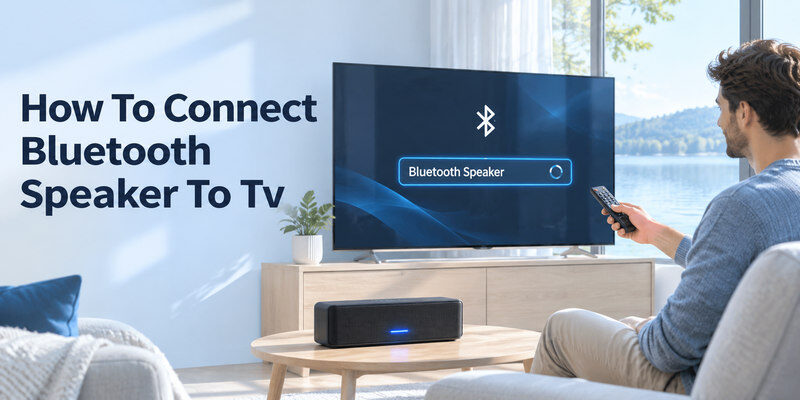
To connect a Bluetooth speaker to your TV, turn on the speaker’s pairing mode, open your TV’s Settings, find Bluetooth under Sound Output or Connected Devices, select your speaker, and confirm the connection. Once paired, switch the TV’s audio output to the Bluetooth speaker.
If your TV does not support Bluetooth audio, you can use a compatible Bluetooth transmitter connected to its audio output.
Learning how to connect bluetooth speaker to tv can help you enjoy clearer dialogue, more flexible speaker placement, and a wireless home entertainment setup without running audio cables across your room.
This guide explains the process for Samsung, LG, Sony, Google TV, Fire TV, and other popular televisions. It also covers older TVs, Bluetooth connection failures, audio delays, and practical troubleshooting methods.
1. Can Your TV Send Audio to a Bluetooth Speaker?
Before learning how to connect bluetooth speaker to tv, confirm that your television supports Bluetooth audio output.
Many modern smart TVs include Bluetooth technology, but not every Bluetooth-enabled television can transmit sound to an external speaker.
Some models only use Bluetooth for remote controls, keyboards, or game controllers.
How to check whether your TV supports Bluetooth audio
Follow these steps:
- Turn on your television.
- Open Settings using the remote control.
- Look for Sound, Audio, Connections, or Remotes & Accessories.
- Find an option labeled Bluetooth Speaker List, Bluetooth Audio, Bluetooth Devices, or Pair Accessory.
- Check whether the TV allows wireless speakers or headphones to be selected as audio output devices.
If no relevant option appears, check the specifications for your exact TV model.
Important: Having Bluetooth functionality does not automatically mean your TV supports Bluetooth speakers.
What Bluetooth profile does your TV need?
For conventional Bluetooth audio, your television generally needs the Advanced Audio Distribution Profile, or A2DP.
A2DP allows compatible Bluetooth devices to transmit stereo audio wirelessly.
Sony confirms that its Google TV and Android TV models require A2DP support to send sound to Bluetooth headphones or speakers.
Bluetooth Classic audio operates in the 2.4 GHz frequency band, according to the Bluetooth Special Interest Group.
This makes wireless audio convenient, although nearby electronic devices, physical obstacles, and distance can affect connection stability.
What equipment do you need?
To establish a connection, prepare:
- A television supporting Bluetooth audio output.
- A Bluetooth speaker with sufficient battery or external power.
- A working TV remote control.
- The speaker’s pairing instructions, if needed.
For TVs without compatible Bluetooth audio, you may also need a transmitter.
Understanding these requirements makes how to connect bluetooth speaker to a tv much easier, especially when working with an older television.
Download TV Remote App2. How to Connect Bluetooth Speaker to TV in 6 Steps
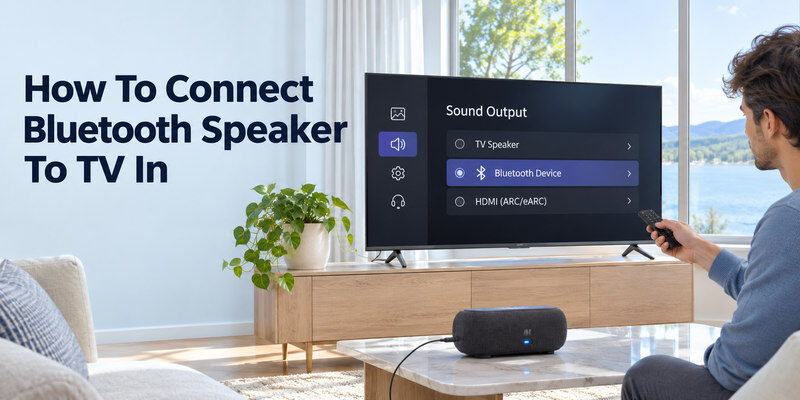
The basic pairing process is similar across many television brands.
If you are wondering how to connect a bluetooth speaker to a tv, begin with these six steps before trying manufacturer-specific settings.
Step 1: Turn on your Bluetooth speaker
Connect the speaker to power or check its battery level.
Press the power button and wait until it finishes starting.
Some speakers automatically enter Bluetooth mode when turned on. Others require you to change the source manually.
If the speaker supports several inputs, such as AUX, USB, and Bluetooth, select Bluetooth mode.
Step 2: Enable Bluetooth pairing mode
Press the Bluetooth or Pair button on the speaker.
Depending on the model, you may need to hold it for several seconds.
A flashing Bluetooth indicator or an audible pairing notification usually confirms that the device is discoverable.
Tip: If your speaker is already connected to a smartphone, disconnect it from that phone before pairing it with the television.
Some speakers automatically reconnect to their most recently used device, which can prevent the TV from finding them.
Step 3: Open your TV’s Bluetooth settings
Use the remote control to access the Settings menu.
A typical navigation path is:
Settings → Sound → Sound Output → Bluetooth Speaker List
Other smart TVs may use:
Settings → Remotes & Accessories → Pair Accessory
The exact menu depends on your TV brand, operating system, and software version.
When investigating how to connect bluetooth speaker to smart tv, always check the audio output settings rather than assuming every Bluetooth menu supports sound.
Step 4: Select your Bluetooth speaker
Wait for your TV to search for nearby Bluetooth devices.
Your speaker should appear under its manufacturer name or model number.
Select it, then choose Pair, Connect, or Pair and Connect.
The connection normally completes without additional configuration.
If your television requests confirmation, approve the pairing request.
Step 5: Choose the Bluetooth speaker as audio output
Pairing does not always change the audio destination automatically.
Open Sound Output and select your connected Bluetooth speaker.
The television should now direct sound to the external speaker instead of its internal speakers.
If your speaker is connected but silent, this is one of the first settings to check.
Step 6: Test the audio connection
Play a movie, television channel, or streaming video.
Check whether:
- Sound comes through the Bluetooth speaker.
- Volume controls respond correctly.
- Dialogue matches the movement of people’s lips.
- The connection remains stable.
Adjust the volume on both the television and speaker if necessary.
Once you understand how to connect bluetooth speaker to tv, reconnecting the same speaker is often easier because compatible devices remember previously paired connections.
However, you may need to select the speaker again after changing audio devices or restarting your equipment.
3. Pair a Bluetooth Speaker With Samsung and LG TVs
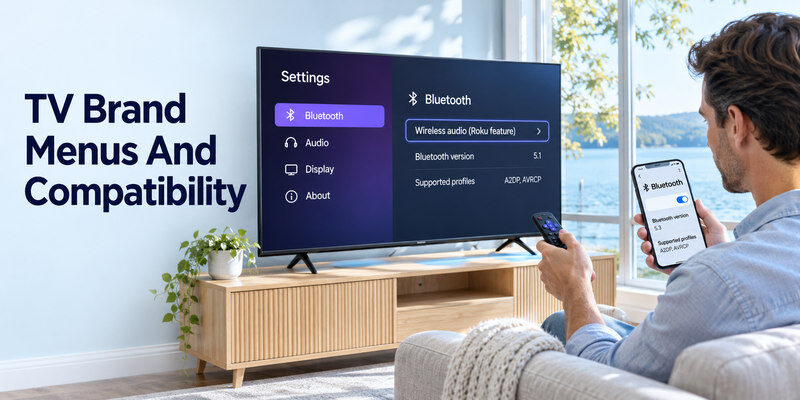
Different TV manufacturers organize their audio settings differently.
The following instructions explain how to connect bluetooth speaker to tv on two widely used smart television platforms.
How to connect a Bluetooth speaker to a Samsung TV
Samsung Smart TVs commonly include a dedicated Bluetooth speaker selection menu.
Follow these instructions:
- Turn on your Samsung TV and Bluetooth speaker.
- Put the speaker into pairing mode.
- Press Home on the TV remote.
- Open Settings → All Settings → Sound.
- Select Sound Output.
- Choose Bluetooth Speaker List.
- Select your speaker and confirm Pair and Connect.
After pairing, Samsung should route the audio through the selected wireless speaker.
If Bluetooth Speaker List is missing, confirm whether your model supports Bluetooth audio.
According to Samsung’s support documentation, menu availability and compatibility can vary between television models.
Some newer Samsung TVs also offer Multi Connect functionality for compatible Bluetooth audio devices. This is not available on every model.
If you want to learn how to connect bluetooth speakers to a tv as a pair, check whether your particular Samsung TV supports simultaneous Bluetooth audio output.
How to connect a Bluetooth speaker to an LG TV
LG televisions use the webOS operating system, and the Bluetooth menu varies by software generation.
For many LG TVs released between 2021 and 2025:
- Press the Settings button.
- Select All Settings.
- Open Sound → Sound Out.
- Choose Use Wireless Speaker.
- Select Bluetooth Devices → Connectable Devices.
- Select your Bluetooth speaker.
- Confirm the connection.
For 2026 LG TVs running webOS 26, the path is generally:
All Settings → Sound → Sound Out → Bluetooth Devices → Connectable Devices
For older LG TVs running webOS 5.0 or earlier, look for Bluetooth directly under Sound Out.
LG’s August 2026 support guidance confirms these version-specific differences.
Helpful tip: If the speaker does not appear, temporarily disable Bluetooth on smartphones that previously connected to it.
This can prevent the speaker from reconnecting to another device while the television searches.
Can you use JBL, Bose, or Sony speakers?
In many cases, yes.
You do not necessarily need a speaker manufactured by the same company as your television.
Compatible JBL, Bose, Sony, Anker, and other Bluetooth speakers may work if both devices support the appropriate audio profiles.
However, compatibility is not universal.
If you are researching how to hook up bluetooth speaker to tv using a portable speaker, check whether the speaker supports normal Bluetooth audio reception and can enter pairing mode without relying on a proprietary ecosystem.
4. Connect Bluetooth Audio on Google TV, Sony, Fire TV, and Roku
The process for how to connect bluetooth speaker to tv also depends on the television’s operating system.
This is especially important because brands such as TCL, Hisense, and Sony may use different smart TV platforms.
Google TV and Android TV
Google TV provides a Bluetooth accessory pairing menu on compatible devices.
To connect:
- Open your Google TV home screen.
- Select your profile icon and open Settings.
- Choose Remotes & Accessories.
- Select Pair Remote or Accessory.
- Put your Bluetooth speaker into pairing mode.
- Select the speaker from the available devices.
- Confirm the pairing request.
Google states that its Google TV Bluetooth accessory workflow supports one connected audio device at a time.
You can view previously paired devices and reconnect them under Remotes & Accessories.
Sony Smart TV
Many Sony BRAVIA televisions run Google TV or Android TV.
For supported models, use the Bluetooth pairing process under Remotes & Accessories.
Other Sony models may organize Bluetooth settings differently.
Before pairing, verify that your TV supports A2DP.
Sony’s September 2026 support information emphasizes that not every Bluetooth audio device is guaranteed to work with every Sony television.
Amazon Fire TV
Many Fire TV devices support compatible Bluetooth speakers.
The usual process is:
- Open Settings.
- Select Controllers & Bluetooth Devices or a similarly named menu.
- Choose Other Bluetooth Devices.
- Select Add Bluetooth Devices.
- Put your speaker into pairing mode.
- Select the speaker when it appears.
Menu wording varies by Fire TV device and software version.
Some televisions with Fire TV built in may offer additional wireless audio features.
Roku TV
Roku requires extra attention because Bluetooth audio capabilities vary significantly by model.
Some newer Roku devices support direct Bluetooth headphone connections, while others require specific Roku accessories or alternative listening methods.
Bluetooth Headphone Mode does not guarantee support for an ordinary portable Bluetooth speaker.
Check your Roku model’s supported audio destinations before buying additional equipment.
If your TV cannot send Bluetooth audio directly, an external Bluetooth transmitter may be a more practical solution.
Understanding platform limitations is essential when researching how to connect a bluetooth speaker to a smart tv, particularly for TVs that advertise Bluetooth without supporting general wireless speaker output.
5. How to Use a Bluetooth Transmitter With a Non-Bluetooth TV
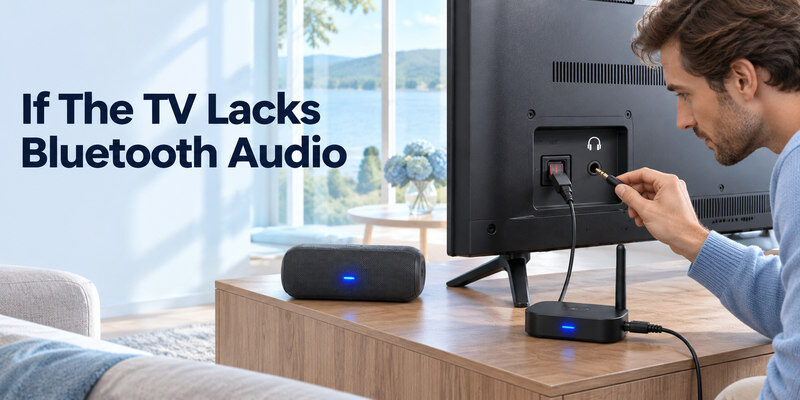
You can still learn how to connect bluetooth speaker to tv even when your television does not have built-in Bluetooth audio support.
A Bluetooth transmitter receives sound from a wired audio output and broadcasts it wirelessly to a compatible speaker.
This solution can work with many older televisions.
Step 1: Identify your TV’s audio output
Check the ports on the back or side of your television.
Common audio outputs include:
- 3.5 mm headphone output: An analog audio connection.
- Optical audio output: A digital audio connection, sometimes labeled Digital Audio Out.
- RCA audio output: Separate red and white analog audio connectors.
Not every TV has all three connections.
Make sure the selected port is an output, not an audio input.
Step 2: Choose a compatible transmitter
Select a Bluetooth audio transmitter that supports the TV’s available output.
For an optical connection, choose a transmitter with optical input.
For a headphone connection, choose a transmitter with a compatible 3.5 mm input.
Some transmitters include multiple connection options.
Important: A Bluetooth receiver and a Bluetooth transmitter are not the same thing. You need a device capable of transmitting TV audio to your speaker.
Step 3: Connect and power the transmitter
Connect the appropriate audio cable between the television and transmitter.
Supply power using the transmitter’s supported USB or power connection.
For optical audio, you may need to configure the television’s digital audio output format.
Step 4: Pair the transmitter with your speaker
Put your speaker into pairing mode.
Activate pairing mode on the Bluetooth transmitter.
Wait until the devices establish a connection.
Transmitter pairing methods vary, so follow the instructions included with your hardware.
Step 5: Test and adjust the sound
Play a video and confirm that audio reaches your speaker.
If you are using optical output and hear nothing, try selecting PCM stereo in your TV’s digital audio settings, if supported.
Some transmitters cannot decode compressed surround sound formats.
Using a transmitter is often the simplest answer to how to connect tv to bluetooth speakers when the television does not provide compatible Bluetooth audio output.
It avoids replacing an otherwise functional TV.
6. Fix Bluetooth Speaker Connected but No Sound
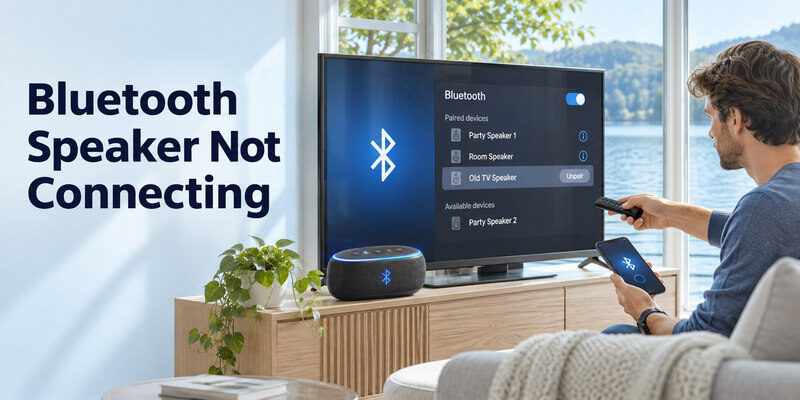
Even after learning how to connect bluetooth speaker to tv, you may encounter pairing failures, silent speakers, or unstable connections.
Fortunately, many of these problems can be resolved without replacing your equipment.
Problem 1: The Bluetooth speaker does not appear
If your television cannot discover the speaker, check its pairing status.
Try the following:
- Move the speaker closer to the TV.
- Turn Bluetooth off on nearby phones previously paired with the speaker.
- Restart the speaker.
- Reactivate pairing mode.
- Search for Bluetooth devices again.
The most common practical checks are whether the speaker is discoverable and whether another device has already claimed the connection.
If the speaker still does not appear, verify TV compatibility.
Problem 2: The TV says connected, but there is no sound
A successful Bluetooth pairing does not always mean the television has changed its active audio output.
Open Sound Settings and select the speaker.
Then:
- Increase the television volume.
- Increase the speaker volume.
- Make sure neither device is muted.
- Check whether the speaker remains connected.
- Test audio from another channel or app.
Some televisions maintain separate volume levels for internal and Bluetooth speakers.
LG’s September 2026 troubleshooting guidance also suggests checking the digital sound format if a connected Bluetooth speaker produces unusually low volume.
Where supported, changing an incompatible audio format to PCM may help.
For additional instructions, see our TV no sound troubleshooting guide.
Problem 3: The Bluetooth speaker keeps disconnecting
Wireless interference, distance, or a competing Bluetooth connection can interrupt playback.
To improve stability:
- Place the speaker near the television.
- Remove unnecessary obstacles.
- Keep the speaker away from potential sources of interference.
- Disconnect other devices that may automatically reconnect to it.
- Restart the television and speaker.
Bluetooth Classic audio uses the 2.4 GHz spectrum, which is also used by many home wireless devices.
This does not mean Wi-Fi always disrupts Bluetooth, but interference is possible in crowded environments.
Problem 4: The TV will not pair after a software update
Stored Bluetooth pairing information can sometimes become outdated or corrupted.
Open your TV’s Bluetooth device list.
Select the problematic speaker and choose Forget, Remove, or Unpair, depending on the platform.
Then restart both devices and perform the pairing process again.
Google’s support instructions recommend reconnecting accessories and restarting devices as troubleshooting steps.
Avoid factory-resetting the entire TV unless simpler solutions have failed.
A factory reset can remove network settings, installed apps, and personalization.
Problem 5: Sound comes from both the TV and speaker
Some televisions support simultaneous output through internal and external speakers.
If you only want Bluetooth audio, open Sound Output and select the external speaker alone.
On supported Samsung models, an accessibility setting called Multi-output Audio may control simultaneous playback.
The best approach to how to connect bluetooth speaker to tv is to complete pairing, verify sound output, and test playback before changing advanced settings.
7. Improve Bluetooth Sound Quality and Reduce Audio Delay
Knowing how to connect bluetooth speaker to tv is only the first part of creating a comfortable wireless listening experience.
Sound quality, connection stability, and synchronization also matter.
Reduce Bluetooth audio delay
Bluetooth audio requires the television to process, encode, transmit, and play sound through an external device.
This can introduce latency.
You may notice that a person’s mouth moves slightly before you hear their dialogue.
To reduce this problem:
- Open your TV’s advanced audio settings.
- Look for A/V Sync, Audio Delay, or Lip Sync.
- Adjust synchronization settings if available.
- Disable unnecessary audio processing features.
- Check whether your television and speaker support compatible low-latency audio modes.
The correct adjustment depends on whether the sound is early or late relative to the picture.
A Bluetooth connection does not guarantee perfectly synchronized audio, particularly when using older equipment or additional transmitters.
Improve wireless connection stability
For reliable playback, place the speaker somewhere with a relatively clear path to the television.
Avoid hiding it behind a large metal object or inside a closed cabinet.
If you use a battery-powered speaker, keep it sufficiently charged.
A stable power supply helps eliminate low-battery behavior as a possible cause of unexpected disconnections.
Is Bluetooth better than HDMI or optical audio?
Bluetooth offers convenience, but it is not always the best connection for a permanent home theater installation.
| Connection | Main advantage | Main limitation |
|---|---|---|
| Bluetooth | Wireless and convenient | Possible latency and compatibility issues |
| HDMI ARC/eARC | Designed for TV audio systems | Requires compatible ports and equipment |
| Optical | Reliable wired digital audio | Limited format support compared with eARC |
| 3.5 mm AUX | Simple analog connection | Requires an audio cable |
Samsung recommends considering HDMI ARC or optical connections for compatible television audio systems when sound quality and reliability are priorities.
For portable speakers, however, Bluetooth may be the most convenient option.
Control your TV while using Bluetooth speakers
After connecting your speaker, you may still need a convenient way to navigate the television’s menus and manage playback.
A compatible Remote TV App can help you control supported smart TVs from your phone.
Depending on your TV model, available functions may include volume adjustment, menu navigation, input selection, and playback controls.
You can also explore how a universal remote TV app works with different smart TV platforms.
Download Remote TV App for iPhone:
Download Universal Remote TV Control on the App Store
Note: Remote TV App is a television control tool, not a replacement for Bluetooth audio hardware. Your TV and speaker must still support a compatible audio connection. App functionality varies by device.
8. Frequently Asked Questions About Bluetooth Speakers and TVs
Can I connect any Bluetooth speaker to my TV?
Not necessarily.
The TV must support a compatible Bluetooth audio output profile, and the speaker must support the corresponding audio connection.
Some televisions have Bluetooth functionality only for accessories such as remotes or controllers.
For the best results, check the specifications of both devices.
How do I connect a Bluetooth speaker to a smart TV without a remote?
On compatible televisions, you may be able to use physical TV controls, a manufacturer-supported mobile remote, or another compatible remote control application.
First, establish control of the TV’s settings menu.
Then navigate to Bluetooth audio settings and pair your speaker.
A mobile remote app does not automatically create Bluetooth audio support if the TV lacks it.
Can I connect two Bluetooth speakers to one television?
It depends on the TV and speaker models.
Some newer televisions support simultaneous Bluetooth audio output to multiple compatible devices.
Other models allow only one Bluetooth audio destination.
Certain speaker ecosystems also support proprietary stereo or party modes, but these features may require compatible speakers from the same manufacturer.
Check the TV’s multi-audio capabilities before attempting a dual-speaker setup.
Can I use Bluetooth speakers with an older television?
Yes, if the television has a suitable audio output and you use a compatible Bluetooth transmitter.
Connect the transmitter through the TV’s headphone, optical, or supported analog audio output.
Pair it with your Bluetooth speaker and configure the audio output if necessary.
This is a practical alternative when direct Bluetooth pairing is unavailable.
Why is my Bluetooth speaker connected but not playing TV sound?
Your television may still be using its internal speakers.
Open Sound Output and select the connected Bluetooth device.
Check volume levels, confirm that the speaker is not connected to another device, and test a different audio source.
If the problem continues, remove the Bluetooth pairing and reconnect.
Can Bluetooth speakers work with Netflix, YouTube, and other TV apps?
Generally, yes.
When your TV routes system audio to a Bluetooth speaker, sound from compatible streaming applications can usually use the same output.
However, individual devices, apps, and audio formats may behave differently.
If one streaming app is silent while others work, check its audio track settings and the television’s supported output formats.
Do Bluetooth speakers need Wi-Fi to connect to a TV?
No.
Traditional Bluetooth audio does not require a Wi-Fi connection or an internet subscription.
The TV and speaker communicate directly over Bluetooth.
You may still need Wi-Fi for streaming applications, software updates, or mobile remote control functionality.
What should I do if Bluetooth audio is delayed?
Look for A/V Sync or Audio Delay settings on your television.
You can also restart both devices, reduce interference, and verify whether your equipment supports low-latency audio.
If synchronization remains unacceptable, consider a compatible wired audio connection.
What is the easiest way to connect a Bluetooth speaker to a TV?
The easiest method is direct Bluetooth pairing.
Put the speaker into pairing mode, open the TV’s Bluetooth audio settings, choose the speaker, and confirm the connection.
If direct pairing is unsupported, a Bluetooth transmitter is often the most practical alternative.
Final Thoughts
Understanding how to connect bluetooth speaker to tv makes it easier to improve your home entertainment setup without complicated wiring.
For most compatible smart TVs, the process involves enabling pairing mode, selecting the Bluetooth speaker from your TV’s settings, and verifying that audio output is correctly configured.
If your television lacks Bluetooth audio support, a compatible transmitter may solve the problem.
The key is to confirm compatibility first, pair the devices correctly, and troubleshoot audio output or synchronization settings when necessary.
With these steps, you can enjoy television sound through a wireless speaker while keeping your entertainment setup simple and flexible.
