
TV No Sound? 12 Easy Fixes to Restore Your TV Audio
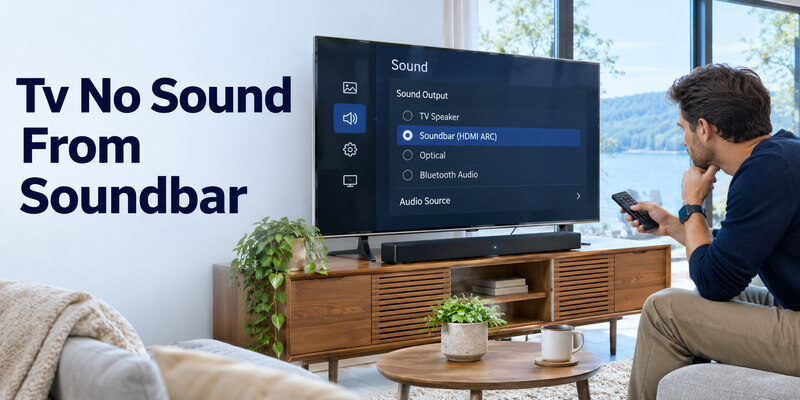
If your TV has a picture but no sound, first check the mute button, increase the volume, switch the audio output to TV speakers, and restart the television. If audio is still missing, inspect HDMI connections, disconnect external speakers, and run the TV’s built-in sound test.
Most tv no sound problems can be investigated without opening the television or replacing expensive components. Incorrect audio settings, muted external devices, incompatible sound formats, and temporary software errors are common possibilities.
The fastest troubleshooting sequence is:
- Unmute the TV and raise the volume.
- Select the internal TV speakers in Sound Settings.
- Restart the TV and connected devices.
- Test another channel or streaming app.
- Run a built-in sound test to check whether the speakers work.
This guide explains how to fix tv no sound problems on Samsung, LG, Sony, Roku, and Google TV devices, including televisions connected to soundbars or streaming boxes.
1. Why Is There No Sound on My TV?
When you experience tv no sound, the problem usually involves the audio signal, sound output selection, connected equipment, or internal speaker system.
Modern smart TVs process video and audio separately. Therefore, a television can display a perfectly clear picture while failing to produce sound.
Incorrect audio output settings
A common explanation for a tv has picture but no sound problem is that the TV sends audio to the wrong device.
For example, your television might still be configured to send sound to Bluetooth headphones that are no longer nearby.
It might also be connected to a powered-off soundbar or AV receiver.
Solution: Open Sound Settings and select the internal TV speakers to determine whether audio returns.
Muted or low-volume devices
A television and a connected cable box can have independent volume controls.
Even if your TV volume is set to 50, a cable box with its audio muted may deliver a silent signal.
Similarly, some streaming devices allow separate audio adjustments.
Check both the TV and the connected device before changing advanced settings.
HDMI and audio format problems
HDMI connections carry both picture and audio signals.
However, an HDMI connection can sometimes display video successfully while experiencing an audio compatibility problem.
For example, a streaming box may output a surround-sound format that the connected equipment cannot decode.
Changing the source device to PCM or 2-channel stereo is a useful diagnostic step.
Sony’s official HDMI audio troubleshooting guidance recommends this approach when appropriate.
Software or hardware problems
Temporary firmware errors, interrupted updates, defective speakers, and damaged audio circuits can also cause sound failures.
However, hardware failure should not be your first assumption.
Always test the TV’s internal speakers before considering a repair.
🛠️ Learn with Step-by-Step Guides: TV No Picture: Fast Checks for a Black or Blank Screen
2. How to Fix TV No Sound: 5 Quick Solutions
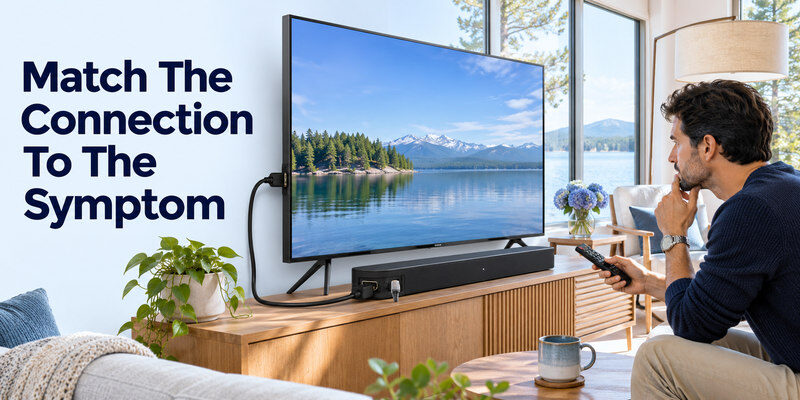
Before performing complicated troubleshooting, try these five basic solutions.
They address the most straightforward reasons for tv no sound problems and require no technical expertise.
Fix 1: Check the mute button
Start with your remote control.
- Turn on your television.
- Press the Mute button once.
- Raise the volume using Volume Up.
- Look for the volume indicator on the screen.
- Play a video with known working audio.
If the volume indicator appears but nothing changes, the TV may be using an external speaker.
Samsung and LG both recommend checking mute and volume settings during their official troubleshooting procedures.
Important: If you use a soundbar, raising the TV speaker volume might not affect the soundbar’s volume.
Fix 2: Check both volume controls
If you use a cable box, streaming stick, or external receiver, check its audio settings separately.
For example, a set-top box can output silence even while the television displays its picture.
Try increasing the volume on both devices.
If you suspect tv volume not working, test whether the TV responds to its physical buttons or another compatible remote.
For Roku devices, our Roku remote control volume guide explains how to configure volume buttons and troubleshoot remote-control problems.
Fix 3: Restart your TV completely
Restarting can clear temporary software problems that interfere with audio playback.
Follow these steps:
- Turn off the television.
- Unplug its power cable from the wall outlet.
- Leave it disconnected for approximately 60 seconds.
- Reconnect the power cable.
- Turn the television on and test the sound.
If you’re using a streaming box or soundbar, restart that device as well.
A full power cycle is different from simply putting the television into standby mode.
Some smart TVs keep background processes running while in standby. Disconnecting power allows a more complete restart.
Do not repeatedly unplug the television during an active software update.
Fix 4: Switch to another channel or app
Sometimes tv no sound affects only one streaming service, video, or television channel.
To identify the problem:
- Play a different television channel.
- Open another streaming application.
- Test a video that previously played correctly.
- Switch between HDMI and the television’s built-in apps.
If audio works elsewhere, your TV speakers are probably functioning.
Focus on the problematic source rather than resetting the entire television.
For instance, if YouTube works but another streaming application remains silent, examine that application’s audio options and available updates.
Fix 5: Use another remote control
A malfunctioning remote may prevent you from changing volume or navigating sound settings.
If your original remote is missing or damaged, a compatible smartphone remote can help.
The Remote TV app offers an alternative way to navigate supported smart TVs.
You can also use universal remote tv control on your iPhone or iPad to access supported functions such as volume adjustment and menu navigation.
Connect your phone and compatible smart TV to the same Wi-Fi network, complete pairing, and test the available controls.
Remember: A remote app can help change audio settings, but it cannot repair damaged speakers or fix an incompatible audio connection by itself.
3. Check TV Speaker and Audio Output Settings
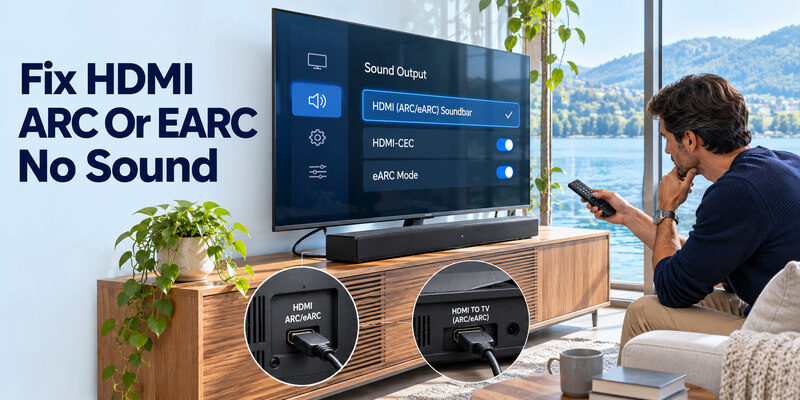
Incorrect speaker selection is one of the first things to investigate when dealing with tv no sound.
Smart TVs can send sound to several destinations, including internal speakers, HDMI audio systems, optical devices, and Bluetooth headphones.
Selecting the wrong output can make your television appear completely silent.
Fix 6: Select the internal TV speakers
Open the television’s Settings menu and locate its audio output options.
Depending on your device, the setting may be called:
- Sound Output
- Sound Out
- Speakers
- Audio Output
- TV Speaker
Choose TV Speaker or Internal TV Speaker.
Then play a video and gradually increase the volume.
For Samsung televisions, a common pathway is:
Settings → Sound → Sound Output → TV Speaker
For LG televisions:
Settings → Sound → Sound Out → Use TV Speaker
Menu names vary by television model and software version.
According to LG’s April 2026 support guidance, an external-device audio failure can occur when the television is configured to use an external speaker rather than its built-in speaker system.
This makes audio output selection an important early troubleshooting step.
Fix 7: Disconnect Bluetooth audio devices
Your television may automatically reconnect to previously paired Bluetooth headphones or wireless speakers.
When that happens, audio may stop playing through the internal speakers.
To investigate:
- Open Bluetooth or Sound Output settings.
- Find the currently connected audio device.
- Disconnect the headphones or speaker.
- Select the internal TV speakers.
- Play a video to confirm the result.
If sound returns, the issue was likely related to audio routing rather than the TV’s hardware.
You can reconnect your Bluetooth device afterward and check whether its volume is adjusted correctly.
Check accessibility and audio balance settings
Accessibility features do not normally disable all TV audio, but some sound configuration changes can make listening confusing.
Check whether the television has unusual audio balance, headphone volume, or independent output settings enabled.
For example, an extreme left-right balance setting may make sound appear missing from one speaker.
Restore the balance to the center and choose a standard sound mode.
Avoid changing several settings simultaneously. Test after each adjustment so you can identify what actually restores the audio.
4. Fix TV No Sound From HDMI and Streaming Devices
If tv no sound occurs only when using a Fire TV Stick, Roku player, game console, or cable box, the external device deserves closer attention.
The television itself may be functioning normally while the connected device sends an unsupported or interrupted audio signal.
Fix 8: Inspect the HDMI connection
HDMI cables transmit digital video and audio through the same connection.
A loose cable, damaged connector, or communication error can cause problems with either signal.
Try this sequence:
- Turn off the television and HDMI source device.
- Disconnect the HDMI cable at both ends.
- Inspect the connectors for visible damage.
- Reconnect the cable firmly.
- Turn both devices on and test the audio.
If silence continues, try another HDMI port or a known-working cable.
Never force a connector into an HDMI port.
A successful picture does not guarantee that every audio capability has been negotiated correctly between connected devices.
Fix 9: Change the digital audio format to PCM
Some TVs, soundbars, and streaming devices do not support every surround-sound format.
Your source device may offer settings such as:
- Auto
- PCM
- Stereo
- Dolby Digital
- Dolby Digital Plus
- Passthrough
If the television is silent, temporarily select PCM or Stereo.
PCM stereo normally uses two audio channels: left and right.
By comparison, a 5.1-channel surround configuration uses five main channels and one low-frequency effects channel.
A device expecting basic stereo audio might not decode a surround format sent by another device.
Changing to PCM is a diagnostic step, not necessarily the best permanent setting for every home theater system.
Sony’s official support instructions recommend trying PCM or 2-channel audio when HDMI-connected devices fail to produce sound.
Once audio works, you can check which higher-quality formats your equipment supports.
Fix 10: Restart streaming applications
If your tv sound not working problem affects only one streaming application, investigate the app before changing hardware.
Start by closing and reopening the application.
Then try:
- Restarting the TV or streaming device.
- Checking for app updates.
- Selecting a different audio track.
- Disabling unsupported surround-sound output temporarily.
- Clearing the application’s cache, where supported.
For Android TV or Google TV, some applications provide a cache-clearing option under:
Settings → Apps → Select App → Clear Cache
The exact menu varies by device.
Avoid selecting Clear Data immediately because it may remove app settings or sign-in information.
Also check whether the video provides multiple languages or audio tracks.
An unexpected audio track selection can sometimes explain why one program behaves differently from others.
5. Fix TV No Sound With Soundbars and Bluetooth Speakers
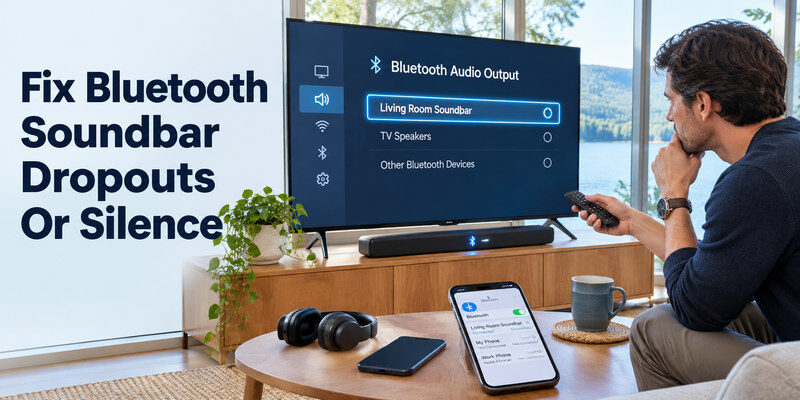
Soundbars and external speaker systems can improve entertainment audio, but they add additional connections and settings to troubleshoot.
When tv no sound appears after connecting a soundbar, start by isolating the external equipment.
Fix 11: Check the soundbar connection
First, confirm that the soundbar is powered on.
Next, ensure the soundbar is set to the correct input, such as HDMI ARC, Optical, or Bluetooth.
The soundbar and television must use compatible connection settings.
For an HDMI ARC connection:
- Locate the TV’s HDMI port labeled ARC or eARC.
- Connect it to the appropriate HDMI port on the soundbar.
- Select the external audio system in the TV’s sound settings.
- Enable the required HDMI-CEC controls when applicable.
- Test the audio with a familiar video.
Depending on the manufacturer, HDMI-CEC may be called Anynet+, SIMPLINK, or another brand-specific name.
ARC and eARC are audio-return technologies, not ordinary HDMI inputs on every port.
Using an unmarked HDMI port may prevent the return-audio connection from working as expected.
Test the TV without the soundbar
To identify whether the problem belongs to the TV or soundbar:
- Disconnect the external audio device.
- Change the TV output to internal speakers.
- Play a video.
- Listen for sound directly from the television.
If the internal speakers work, investigate the soundbar, cable, input selection, and supported audio formats.
If the internal speakers remain silent, continue with the television’s built-in diagnostic tools.
Check optical audio connections
Optical audio cables require a secure physical connection and a compatible digital audio format.
Check that the optical cable is inserted correctly and is not sharply bent or damaged.
Make sure the soundbar is set to its optical input.
If necessary, test PCM output rather than an unsupported multichannel format.
Sony’s support documentation identifies incompatible digital audio decoding and connection problems as possible reasons for optical-audio failures.
For Bluetooth soundbars, remove an outdated pairing and reconnect the device if ordinary reconnection fails.
Do not factory-reset your television merely because one external speaker stops working. Isolate the devices first.
6. Troubleshoot TV No Sound on Samsung, LG, Roku, and Google TV
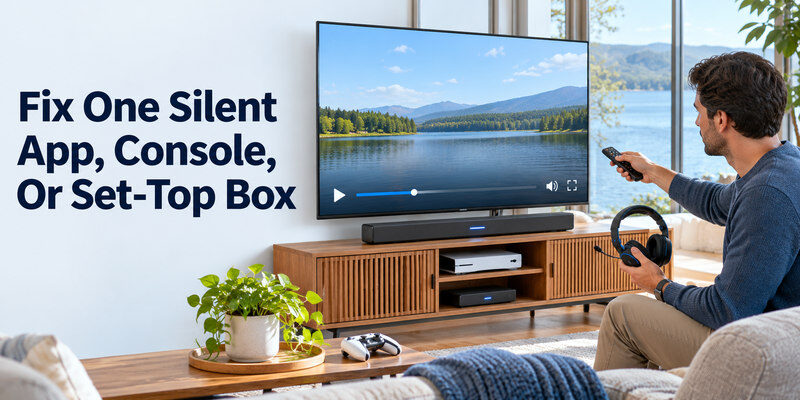
Different manufacturers use different software interfaces and audio settings.
If general troubleshooting has not resolved tv no sound, follow the instructions most relevant to your television.
Samsung TV audio troubleshooting
Samsung televisions provide built-in audio testing tools that help distinguish speaker problems from connected-device issues.
Try these steps:
- Open Settings.
- Navigate to Sound.
- Select Sound Output.
- Choose TV Speaker.
- Test audio from a built-in application.
If the issue continues, look for the Sound Test function.
On many Samsung models, the pathway is:
Settings → Support → Device Care → Self Diagnosis → Sound Test
Samsung’s 2026 support guidance recommends checking sound output, connections, software updates, and the built-in Sound Test when investigating missing audio.
If your physical remote does not respond, the samsung tv remote app guide explains available smartphone-control options for compatible Samsung televisions.
LG TV audio troubleshooting
LG smart TVs commonly use the Sound Out menu to select the active audio device.
Navigate to:
Settings → All Settings → Sound → Sound Out → Use TV Speaker
If sound returns, the original output selection was likely incorrect.
For supported LG models, Sound Self-diagnosis is available in the Support menu.
LG’s official troubleshooting information explains that a successful sound test indicates the TV’s internal audio system is functioning, making external devices or their settings more likely sources of the problem.
Some LG models also provide an AV Reset option for restoring sound and picture settings.
Before replacing an LG remote, consult our LG Magic Remote compatibility guide to ensure the replacement is appropriate for your television.
Roku TV audio troubleshooting
If tv no sound happens on a Roku TV or while using a Roku streaming player, check the audio settings and source device.
Start by restarting Roku through the available system power or restart option.
Then open the audio settings and review the output format.
If the current device supports it, test Stereo or PCM output instead of a multichannel format.
When using a Roku streaming player with another television, check the TV’s own sound output settings as well.
If the remote controls navigation but cannot adjust volume, configure the remote’s TV-control functions separately.
Sony and Google TV audio troubleshooting
Sony Bravia and other Google TV devices may offer audio settings under Display & Sound, Sound, or Audio Output.
Choose the television’s internal speakers and test audio.
For an external sound system, select the appropriate audio-system output and verify the connection.
If the device remains silent, test PCM output and restart both the television and connected equipment.
When only one Android or Google TV application is affected, clear its cache if supported and check for updates.
Always consult the model-specific settings when menu labels differ.
7. Advanced TV Audio Troubleshooting and Hardware Checks
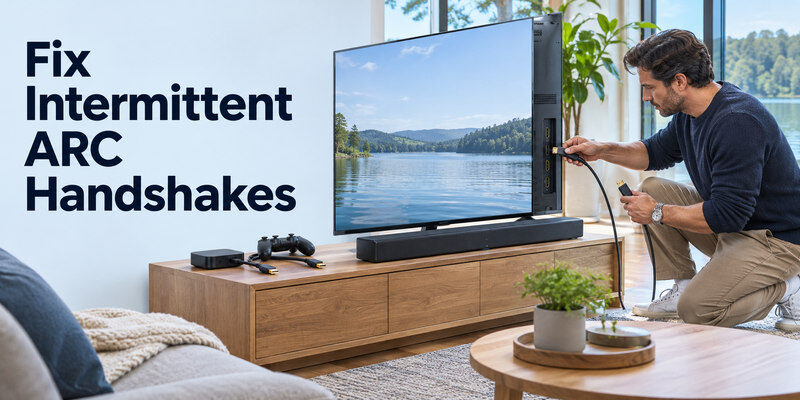
If tv no sound remains unresolved after the basic checks, the next step is determining whether the problem involves software, a connected device, or internal hardware.
Fix 12: Run a built-in sound test
A built-in sound test is one of the most useful diagnostic tools available on modern smart TVs.
It plays a test tone or melody to help evaluate the television’s audio system.
The results can guide your next action:
| Sound test result | What it suggests | Next action |
|---|---|---|
| Test audio plays normally | Internal audio likely works | Check apps, HDMI sources, and sound settings |
| Test plays but is distorted | Speaker or sound-processing issue possible | Reset sound settings and seek support if needed |
| No sound during the test | TV audio configuration or hardware problem possible | Verify output settings, then contact support |
| TV speakers work but soundbar is silent | External connection or device issue likely | Check ARC, cables, input, and format |
A sound test is evidence, not a complete hardware diagnosis.
For example, hearing a normal melody strongly suggests that the internal speakers can produce sound, but it does not prove that every audio feature works perfectly.
Samsung and LG both recommend using built-in tests to narrow down audio problems before arranging repairs.
Reset the TV’s sound settings
If the sound test produces unexpected results, consider restoring the television’s sound configuration.
On many Samsung TVs:
Settings → Sound → Expert Settings → Reset Sound
Other brands offer similar sound-reset functions.
Resetting audio settings may clear an incorrect output configuration or unusual sound-processing adjustment.
However, a sound reset is not the same as a complete factory reset.
A factory reset can remove saved preferences, network settings, and installed-app configuration.
Use a full factory reset only after simpler troubleshooting methods have failed.
Check for system updates
Software updates sometimes correct compatibility problems and audio-related bugs.
Open the television’s software update menu and check for available firmware.
If an update is available:
- Ensure the TV has a stable power supply.
- Follow the manufacturer’s instructions.
- Avoid disconnecting power during installation.
- Restart the TV when the update process finishes.
Also check firmware updates for connected soundbars and streaming devices.
When tv no sound begins immediately after a software change, record the update version and affected applications before contacting support.
Recognize potential hardware failure
Internal hardware problems become more plausible when all of the following occur:
- The television is silent across every input.
- Internal speakers are selected.
- The built-in sound test fails.
- Restarting and resetting sound settings do not help.
- External devices and cables have been ruled out.
Possible hardware causes include defective speakers, damaged connectors, or problems with the television’s internal audio circuitry.
Do not attempt to open a television unless you are qualified to work on electrical equipment.
TVs can contain hazardous voltages even after being unplugged.
If your television is still under warranty, contact the manufacturer or an authorized repair provider.
Can a smartphone remote help?
A smartphone remote is useful when audio troubleshooting is blocked by damaged volume buttons or a missing physical controller.
For compatible Smart TVs, Universal Remote TV Control provides access to supported remote functions.
You can Download universal remote tv control for iPhone or iPad from the App Store.
The app is developed by BEGAMOB GLOBAL LIMITED and supports remote-control functions for a range of compatible television brands.
A remote-control app helps you operate the television; it does not replace speaker diagnostics or hardware repair.
Download TV Remote App8. Frequently Asked Questions About TV No Sound
Why does my TV have a picture but no audio?
The most likely starting points are mute settings, an incorrect audio output, a silent connected device, or an incompatible sound format.
If tv no sound occurs while the picture remains normal, select the internal speakers, test another source, and run the built-in sound test.
Why is my TV suddenly silent?
Temporary software problems, a changed speaker output, Bluetooth reconnection, or an external device’s mute setting may explain sudden silence.
Restart the television and check the active audio output before resetting other settings.
Can HDMI cause a TV to have no sound?
Yes. HDMI-related audio failures can occur because of loose connections, communication problems, or unsupported audio formats.
Reconnect the cable, try another HDMI port, and test PCM or stereo output where available.
Why does my TV work with headphones but not its speakers?
Your TV may still be configured to send sound through the headphones or another external device.
Disconnect the headphones and select TV Speaker.
If the internal speakers remain silent during a sound test, contact the manufacturer for further diagnosis.
Can I fix a TV audio problem without a remote?
Yes, depending on the television model.
Use the TV’s physical buttons, a compatible replacement remote, or an available smartphone remote app.
Once you can access Settings, investigate the speaker output and other audio options.
How much does it cost to repair TV sound?
The cost depends on the TV brand, model, warranty status, required parts, and local labor rates.
A configuration problem may cost nothing to correct, while defective internal hardware may require professional repair.
Request a model-specific estimate before approving a repair.
Should I reset my TV if there is no sound?
Start with a power cycle and a sound-settings reset.
A complete factory reset should usually be a later troubleshooting step because it can erase saved settings and app configurations.
When should I contact a technician?
Seek professional assistance when the built-in sound test repeatedly fails after the correct audio settings have been confirmed.
You should also request service if the TV shows signs of electrical damage, unusual smells, overheating, or other physical faults.
Final Thoughts
A tv no sound problem does not automatically mean your television is broken.
Start with the simple fixes: unmute the TV, increase the volume, select the internal speakers, and restart connected devices.
If audio remains missing, inspect HDMI connections, test PCM output, and disconnect external sound systems.
The most useful final step is to run the TV’s built-in sound test. It helps determine whether further investigation should focus on a connected device or the television itself.
With a systematic approach, many audio problems can be identified without unnecessary repairs or equipment replacement.
