
Guest WiFi Blocking TV Remote App? How to Fix It
If your phone and TV are on the same WiFi but cannot connect, restart both devices, verify they are on the same local network, disable VPNs, check app permissions, and restart your router. If the problem continues, check whether your router blocks communication between devices or whether your TV supports the connection method you are trying to use.
The phone and tv on same wifi but not connecting issue commonly affects screen mirroring, casting, Samsung Smart View, AirPlay, and WiFi-based remote control applications.
Quick fixes to try first:
- Restart your phone and Smart TV.
- Confirm both devices use the same WiFi network.
- Disable VPN connections temporarily.
- Turn off guest-network or device-isolation settings.
- Enable Local Network permissions on your phone.
- Update your TV firmware and mobile applications.
- Restart the router and reconnect both devices.
Important: A television can have a working internet connection while still being invisible to your phone. Internet access and local device communication are different functions.
1. Why Is Your Phone and TV on Same WiFi but Not Connecting?
When the phone and tv on same wifi but not connecting problem occurs, it does not automatically mean your internet connection is broken.
Your phone may browse websites normally, and your TV may stream videos without difficulty. However, the devices might still be unable to discover or communicate with each other.
This happens because wireless screen mirroring and phone-based remote control often depend on communication inside your home network.
Your devices cannot discover each other
Many Smart TVs use local-network discovery protocols to become visible to compatible phones.
For example:
- Google Cast uses network discovery to identify compatible receivers.
- Apple AirPlay uses local networking to discover supported displays.
- Samsung SmartThings can communicate with compatible Samsung TVs.
- WiFi-based remote applications may discover TVs through supported local networking protocols.
If the router blocks this communication, a TV may not appear in the device list.
Your router separates connected devices
Some routers have features called AP Isolation, Client Isolation, or Wireless Isolation.
These settings prevent wireless devices from communicating directly with one another, even when they share the same WiFi name.
According to Google Cast Help, AP isolation can prevent Cast-enabled devices from being discovered or configured correctly.
This is an important explanation for phone and tv on same wifi but not connecting, especially on guest networks, hotel networks, and routers with advanced security configurations.
Your phone or TV blocks the connection
Sometimes, the problem is unrelated to the router.
Possible causes include:
- Disabled Local Network permission on an iPhone.
- Missing Nearby Devices permission on Android.
- An outdated television operating system.
- A TV waiting for connection approval.
- Incompatible casting technology.
- A VPN interfering with local-network communication.
- An incorrect or expired pairing session.
Key takeaway: The first step is identifying whether the TV has lost WiFi access or whether the phone simply cannot discover it.
Download TV Remote App2. How to Fix Phone and TV on Same WiFi but Not Connecting
If you are experiencing phone and tv on same wifi but not connecting, start with these simple troubleshooting methods before changing advanced router settings.
Fix 1: Restart Your Phone and Smart TV
Restarting both devices clears temporary software problems and starts a fresh network connection.
Follow these steps:
- Turn off your television.
- Unplug the TV from its power outlet for approximately 30 seconds.
- Restart your smartphone.
- Reconnect the TV to power.
- Wait for the television to finish starting.
- Open your casting or remote application again.
Avoid relying only on standby mode, since some televisions keep background services running while the screen is off.
A complete restart may restore device discovery and clear stalled pairing requests.
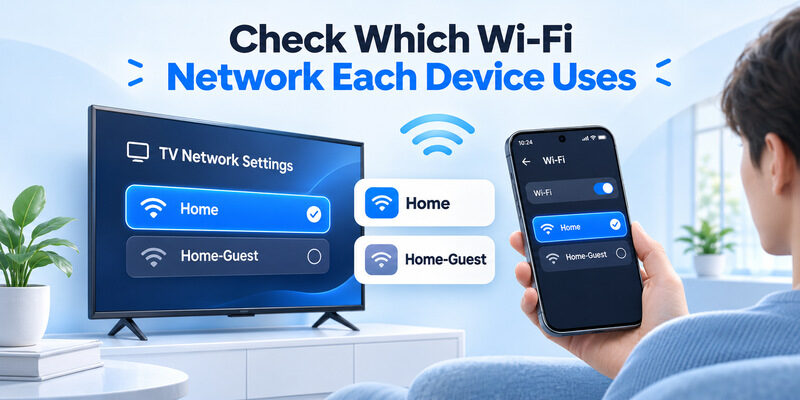
Fix 2: Verify Both Devices Use the Same WiFi Network
One of the most common reasons for phone and tv on same wifi but not connecting is that the devices are actually connected to different networks.
For example, a home router might broadcast:
- HomeWiFi
- HomeWiFi-5G
- HomeWiFi-Guest
Different WiFi names do not necessarily mean separate local networks. However, guest networks often restrict communication with other devices.
On your smartphone:
- iPhone: Open Settings → Wi-Fi.
- Android: Open Settings → Network & Internet → Internet, or the equivalent WiFi menu.
On your Smart TV:
- Open Settings.
- Navigate to Network or Connections.
- Check the connected WiFi name.
Connect both devices to the same primary home network and try again.
Fix 3: Disable Your VPN Temporarily
VPN applications can sometimes interfere with local-network discovery or routing.
If you use a VPN on your phone:
- Disconnect the VPN temporarily.
- Close your remote or screen mirroring application.
- Reopen the application.
- Search for your TV again.
Some VPN services support local-network access through settings such as LAN access or local device discovery.
If disabling the VPN fixes the issue, look for an option that allows access to devices on your home network.
Do not disable a VPN required by your organization without checking its security requirements.
Fix 4: Restart Your WiFi Router
A router restart can help clear temporary networking problems.
To restart your router safely:
- Unplug the router’s power cable.
- Wait approximately 30 seconds.
- Reconnect the power cable.
- Allow the router to finish starting.
- Reconnect your phone and television.
After both devices reconnect, try discovering the TV again.
If the phone and tv on same wifi but not connecting issue disappears after restarting the router, a temporary network or discovery problem may have been responsible.
Fix 5: Update Your Phone, TV, and Applications
Outdated software can introduce compatibility problems between devices.
Check for updates in three places:
Smart TV: Open the Software Update option in your television’s settings. The exact menu varies by manufacturer and model.
iPhone or Android: Install available operating system updates through your phone’s settings.
Connection application: Update SmartThings, Google Home, or your preferred remote application.
After installing updates, restart the devices and test the connection again.
Fix 6: Remove the TV and Pair It Again
If your TV appeared previously but no longer connects, the saved pairing information may be outdated.
Open the relevant mobile application and remove the old TV connection.
Then:
- Verify that both devices are connected to WiFi.
- Make sure the TV is fully powered on.
- Search for nearby compatible televisions.
- Select your TV.
- Accept the connection request or enter the displayed PIN when prompted.
Do not ignore the approval prompt on the TV. Some televisions require confirmation before allowing a new phone to control them.
3. Check Your Router and Local Network Settings
If basic troubleshooting does not resolve phone and tv on same wifi but not connecting, the next step is checking whether your network allows the devices to communicate.
Fix 7: Disable AP Isolation or Client Isolation
AP isolation prevents wireless devices from communicating directly with each other.
This feature is useful for separating devices on public or guest networks, but it can interfere with casting and local TV remote applications.
To check the setting:
- Open your router’s administration interface.
- Locate Wireless, WiFi, Guest Network, or Advanced Settings.
- Look for AP Isolation, Client Isolation, or Wireless Isolation.
- Disable isolation on your trusted home network if appropriate.
- Save your settings and test the connection.
Security note: Keep isolation enabled on untrusted public or guest networks. Instead, connect your phone and TV to a trusted home network that allows local communication.
Google’s official Cast troubleshooting documentation specifically identifies AP isolation as a possible reason that compatible devices cannot communicate.
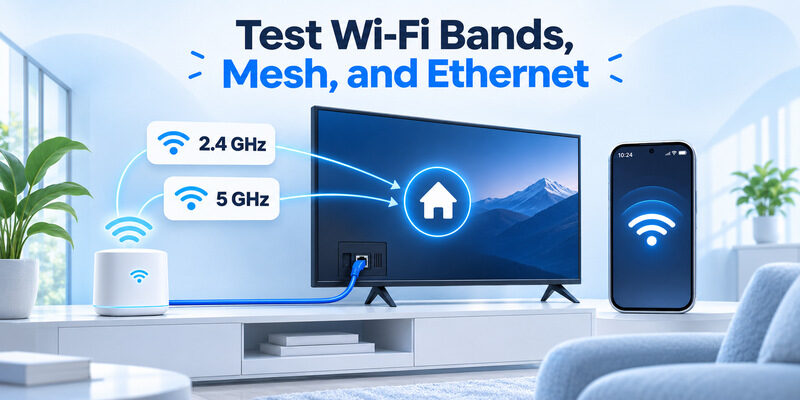
Fix 8: Check the 2.4 GHz and 5 GHz WiFi Bands
Modern home routers commonly offer 2.4 GHz and 5 GHz WiFi connections.
These bands have different characteristics:
| WiFi band | Main advantage | Main limitation |
|---|---|---|
| 2.4 GHz | Generally better range and wall penetration | More interference and lower potential speeds |
| 5 GHz | Higher potential speeds and less interference in many environments | Shorter effective range |
Being on different WiFi bands does not automatically prevent devices from connecting.
For example, a phone using 5 GHz may communicate normally with a TV using 2.4 GHz when the router bridges both bands into the same local network.
However, certain network configurations separate the bands or interfere with discovery traffic.
For troubleshooting, try connecting both devices to the same band temporarily, provided your television supports it.
Google’s Android casting guidance also recommends checking wireless-band and network configuration when investigating casting problems.
Fix 9: Compare the IP Addresses
If the phone and tv on same wifi but not connecting problem continues, compare the local IP addresses assigned to each device.
For example:
- Phone IP: 192.168.1.105
- TV IP: 192.168.1.120
With a subnet mask of 255.255.255.0, these addresses are on the same subnet.
However:
- Phone IP: 192.168.1.105
- TV IP: 192.168.0.120
With that same subnet mask, they are on different subnets.
Different subnets can indicate separate routers, guest networks, or network segmentation. They do not always prevent communication, but some discovery protocols cannot cross those boundaries.
To find your IP address:
iPhone: Settings → Wi-Fi → Information button.
Android: Settings → Wi-Fi → Connected Network → Network Details.
Smart TV: Settings → Network → Network Status or Network Information.
Important: Matching address prefixes do not guarantee communication. Firewall rules or client isolation can still block devices on the same subnet.
If you use a mesh system or secondary router, check whether it creates a separate network instead of operating as an access point.
4. Fix Samsung TV WiFi and Phone Connection Problems
Samsung Smart TVs can experience two different connection problems: the television cannot join the wireless network, or it joins WiFi successfully but cannot communicate with the smartphone.
Samsung TV Connected to WiFi but Not Showing on Phone
If your search is samsung tv not connecting to wifi but phone is, first confirm whether the TV actually has an internet connection.
Open an installed streaming application on the television.
If it works, focus on local-network discovery and mobile pairing instead of repeatedly entering your WiFi password.
Samsung recommends checking the wireless connection, updating SmartThings, and confirming that supported devices are registered correctly.
For compatible Samsung TVs, try these steps:
- Open Settings → All Settings.
- Select Connection → Network.
- Open Network Status.
- Confirm the TV’s wireless connection.
- Open SmartThings on your phone.
- Sign in to the appropriate Samsung account.
- Add or reconnect the television.
- Approve the connection request on the TV.
Menu names may vary by television generation and region.
If you need additional setup instructions, read our samsung tv remote app guide.
Samsung TV Cannot Connect but Other Devices Work
The search samsung tv not connecting to wifi but other devices are describes a different issue.
In this situation, the TV cannot establish a working network connection even though smartphones and other devices connect normally.
Try the following:
- Restart the television and router.
- Re-enter the correct WiFi password.
- Move the router closer to the TV if the signal is weak.
- Check whether the TV supports the selected WiFi band.
- Try a compatible security mode supported by the TV.
- Reset the TV’s network configuration if simpler steps fail.
On many recent Samsung models, the network reset path is:
Settings → All Settings → Connection → Network → Reset Network.
Older models may use a different menu.
A network reset removes saved wireless connection information, so keep your WiFi password available before proceeding.
Samsung 7 Series and 8 Series WiFi Issues
People searching samsung 7 tv not connecting to wifi or samsung 8 series not connecting to wifi may be dealing with older television models.
The terms 7 Series and 8 Series cover multiple generations, so not every television supports the same wireless standards or settings.
Check the exact model number before changing router configuration.
Some older televisions may have limitations involving:
- Supported WiFi frequency bands.
- Wireless security protocols.
- Router compatibility.
- Software update availability.
If your Samsung television supports only 2.4 GHz, connect it to a compatible 2.4 GHz network rather than forcing a 5 GHz connection.
If available, you can also test an Ethernet connection to determine whether the issue is specific to wireless networking.
5. Fix iPhone and Android Screen Mirroring Issues
Sometimes the phone and tv on same wifi but not connecting issue appears only when you try to mirror your screen.
For example, both devices have internet access, but your television does not appear in the Screen Mirroring, Smart View, or Cast menu.
The solution depends on your phone and TV.
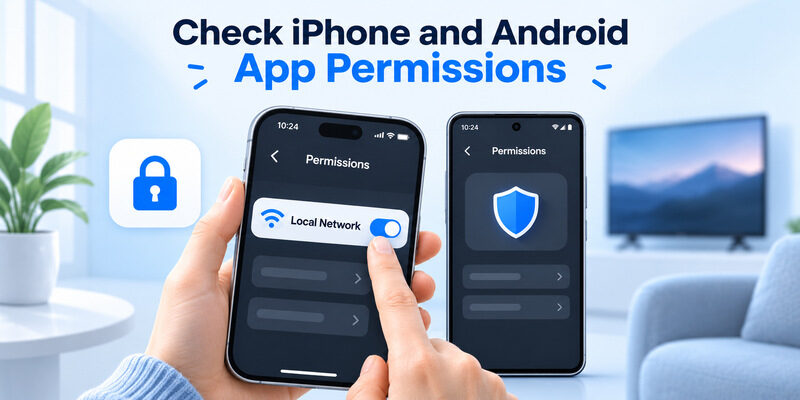
Fix 10: Enable Local Network Permission on iPhone
On iOS 14 and later, applications that access local-network devices generally need the appropriate Local Network permission.
If permission was denied, an application may be unable to discover your television.
To check the permission:
- Open Settings on your iPhone.
- Navigate to Privacy & Security.
- Select Local Network.
- Find the application you want to use.
- Enable access if the app requires it.
- Reopen the application.
The application must also support your TV’s connection method.
If you are using AirPlay, confirm that the television supports AirPlay and that the feature is enabled.
Apple’s official troubleshooting guidance recommends keeping compatible devices updated, checking that they use the same WiFi network, and restarting them when AirPlay fails.
Fix 11: Check Android Casting and Nearby Devices Permissions
Android phones may use Google Cast, Samsung Smart View, or another manufacturer-specific sharing feature.
For Android screen mirroring:
- Open your phone’s Quick Settings.
- Select Cast, Screen Cast, Smart View, or an equivalent option.
- Wait for compatible televisions to appear.
- Choose the correct TV.
- Approve the connection if requested.
If the television is missing, review the mobile application’s permissions and verify device compatibility.
Not every Android phone supports every television’s mirroring technology.
For example, a TV that supports only Miracast does not automatically support Google Cast.
Google’s casting guidance states that compatible Android screen-casting setups can benefit from placing devices within approximately 15 feet (4 meters) of each other and the router to reduce connection-quality problems.
This is a performance recommendation, not a strict maximum operating distance.
Fix 12: Verify TV Compatibility and Enable Screen Mirroring
Even after resolving phone and tv on same wifi but not connecting, screen mirroring will fail if the television does not support the selected technology.
Check which technology your TV supports:
- AirPlay: For compatible Apple devices and AirPlay-enabled televisions.
- Google Cast: For supported Google Cast devices and applications.
- Samsung Smart View: For compatible Samsung phones and TVs.
- Miracast: For devices that explicitly support Miracast screen mirroring.
On some televisions, screen mirroring must be enabled in Settings or through a dedicated sharing menu.
Also check whether a previous pairing request has been blocked.
A working WiFi connection does not guarantee screen mirroring compatibility. Both devices must support a compatible connection method.
6. Connect Your Phone Using a Remote TV App
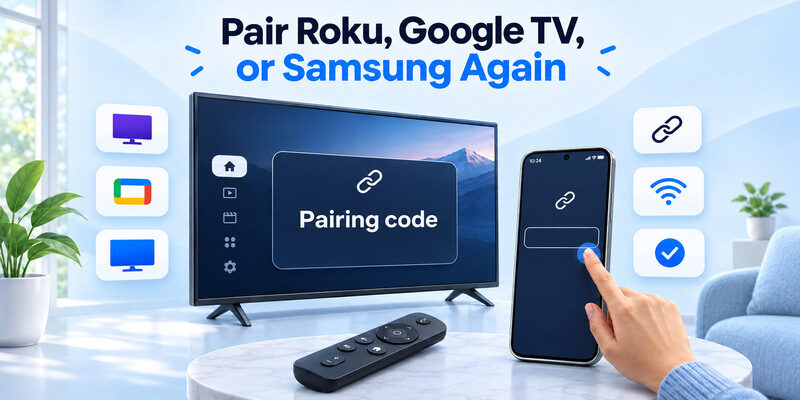
If your phone and tv on same wifi but not connecting problem involves a virtual TV remote, you can troubleshoot the connection using a compatible remote application.
A phone-based remote provides convenient access to television controls without needing a physical remote nearby.
How to Connect a Remote TV App
The Remote TV app offers phone-based control for compatible Smart TVs.
Depending on the supported television model, a remote application may provide functions such as:
- Volume adjustment.
- Channel switching.
- Directional navigation.
- Menu access.
- Input selection.
- Playback controls.
Follow these steps to connect:
- Install a compatible remote application on your phone.
- Connect the smartphone and television to the same local WiFi network.
- Open the application and allow the required permissions.
- Search for available televisions.
- Select your TV from the discovered device list.
- Follow the pairing instructions and approve access on the television.
- Test the basic remote functions.
If the application cannot discover your TV, return to the router and permission checks described earlier.
Installing a different application does not automatically resolve network isolation or unsupported TV protocols.
Use Universal Remote TV Control
A compatible universal remote tv control application can be useful when you want to manage supported television brands from your phone.
For more guidance, see our TV remote troubleshooting guide, which explains common discovery and pairing problems.
Before installing any remote application, check compatibility with your television and confirm whether the app requires local WiFi communication.
Download Remote TV for iPhone
Want a convenient way to control a compatible Smart TV?
Download universal remote tv control from the App Store and follow the application’s setup instructions.
A phone remote can make everyday navigation easier once the connection is established. However, it cannot replace missing network connectivity or guarantee support for every television model.
7. Advanced Fixes When Your Phone Still Cannot Find Your TV
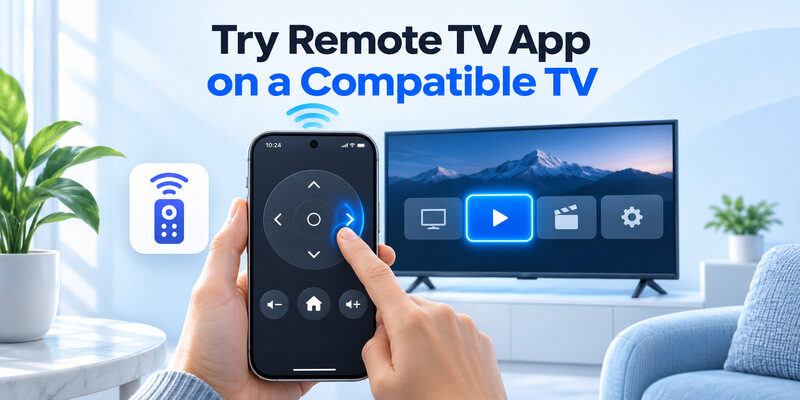
If the phone and tv on same wifi but not connecting problem remains after all basic checks, try these advanced diagnostics.
Check Your Router’s Multicast Settings
Some TV discovery protocols depend on multicast networking.
Router features such as multicast filtering, VLAN segmentation, or wireless client isolation can interfere with discovery.
Google’s Cast troubleshooting documentation recommends checking AP isolation and relevant multicast or UPnP settings when compatible devices cannot be discovered.
Do not disable your entire router firewall or expose unnecessary services to the internet.
Instead, review local-device discovery settings for your trusted home network. If necessary, contact your router manufacturer or internet provider.
Test the TV With Another Network
A temporary mobile hotspot can help identify whether the home router is causing the problem.
Use a compatible hotspot configuration and attempt to connect the television.
If your TV connects to the hotspot but not your home WiFi, investigate the original router’s wireless settings.
If the TV cannot detect any networks, check the manufacturer’s troubleshooting instructions or seek technical support.
Be aware that older TVs may not detect hotspots configured with unsupported WiFi bands or security settings.
Test Another Smartphone
Try connecting a second compatible phone to the same television.
If the second phone works, the original phone may have a permission, software, VPN, or application issue.
If neither phone can discover the TV, investigate the TV’s network settings, compatibility, and router configuration.
This comparison helps narrow the problem without immediately performing a factory reset.
Separate Internet Problems From Local Connection Problems
Another scenario is wifi connecting to tv but not phone.
Here, the TV connects successfully while the smartphone fails to join the WiFi network.
That is primarily a phone-to-router problem, not a TV pairing problem.
Check the smartphone’s saved WiFi password, wireless settings, software updates, and network configuration.
When troubleshooting phone and tv on same wifi but not connecting, always determine which connection has failed before making changes.
Only consider a full factory reset after exhausting less disruptive options. A factory reset may remove accounts, preferences, and installed application settings.
8. Frequently Asked Questions
Why Is My Phone and TV on Same WiFi but Not Connecting?
The most common explanations include separate local networks, disabled application permissions, router isolation, outdated software, or unsupported casting technology.
When phone and tv on same wifi but not connecting persists, compare their IP addresses and check whether your router allows local-device communication.
Why Won’t My TV Connect to WiFi When My Phone Does?
The search tv won t connect to wifi but phone will usually indicates that the television has a different wireless compatibility, signal-strength, password, or network-configuration problem.
Restart the TV, confirm its supported WiFi bands, and reset its network settings if necessary.
Can My Phone Connect to My TV Without Internet?
Sometimes.
Certain local-network connections can work without an active internet connection when the phone, TV, and networking equipment support the required communication.
However, some applications require internet access for authentication, content delivery, or additional features.
WiFi access and internet access are not the same thing.
Why Does My TV Appear in the App but Refuse to Connect?
Possible causes include a rejected pairing request, an outdated saved connection, local-network restrictions, or incompatible remote protocols.
Remove the television from the application, reconnect it, and accept any new pairing prompt.
If phone and tv on same wifi but not connecting occurs only inside one application, also check whether that particular application supports your TV model.
Should My Phone and TV Both Use 2.4 GHz WiFi?
Not necessarily.
Devices on different bands can communicate when both bands belong to the same local network.
However, temporarily connecting them to the same supported band can be a useful diagnostic step.
Will Resetting My Router Fix the Problem?
Restarting the router may resolve temporary connection problems.
A full factory reset is different: it removes custom router settings and may require your home network to be configured again.
Start with a simple restart, not a factory reset.
What Should I Do if Nothing Works?
If the phone and tv on same wifi but not connecting issue continues, test another smartphone, inspect the router’s isolation settings, and confirm the TV’s supported networking features.
If your television cannot connect to any compatible network, contact the manufacturer for model-specific support.
Final Thoughts
The phone and tv on same wifi but not connecting issue is usually easier to solve once you identify whether the problem involves internet access, local-device discovery, or TV compatibility.
Start by restarting both devices, verifying the local network, checking app permissions, and reviewing router isolation settings. Then update your television and reconnect the mobile application.
For compatible Smart TVs, a phone remote can provide a convenient alternative to a physical controller once communication is working correctly.
If you want to control your television from your iPhone, explore the Remote TV app and its supported features.
