
Download Remote Control for DStv – App & Setup Guide
Short answer: To control a compatible DStv decoder with an infrared phone app, you need an IR-equipped handset and a matching decoder profile; the official streaming and account apps serve different purposes.
If you want to download remote control for dstv, first identify whether you need to change channels on the box, watch on your phone, or manage your subscription. Those tasks lead to different downloads.
This guide explains the practical IR route, how to check an app publisher, why remote modes matter, and how to test the decoder separately from the television. It also covers phones without infrared, remote-recording claims, and a useful recovery plan when the original controller is missing.
Choose the Tool for the Task You Actually Need
Changing Channels Is Different from Watching on a Phone
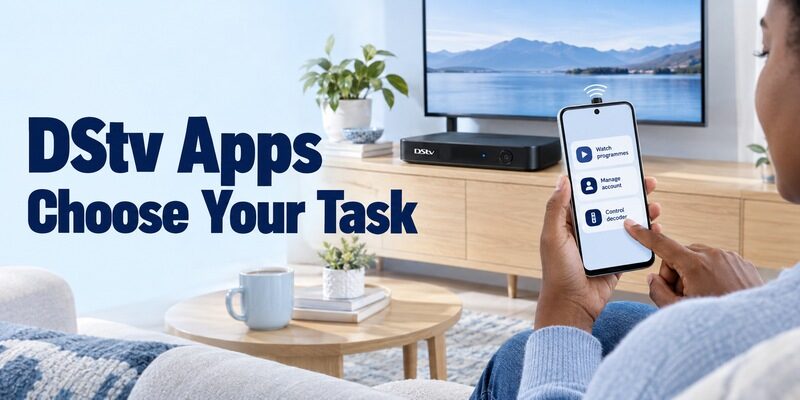
A streaming app is not automatically a replacement for the decoder’s directional remote. The official DStv app listing identifies MultiChoice as the provider and describes viewing features such as live streaming and catch-up content. Choosing a programme on the phone starts a viewing workflow; it does not prove that the physical decoder has received a channel command.
Before you download remote control for dstv, decide which screen should change. If you want to watch on the phone, use the supported DStv streaming app and your available viewing entitlement. If you want the box connected to your television to change channels, investigate a controller compatible with that box.
Account Management Has Its Own App
DStv’s official customer guidance describes MyDStv as a way to manage payments, balances, packages, details, and certain errors. Its use of the word control refers to managing the account experience. Do not read that wording as a guarantee of a live directional pad for every decoder.
When you download remote control for dstv, keep these product roles separate. A successful account sign-in and a working remote signal are different achievements. If the decoder displays a subscription-related error while its menus still respond, account support may be relevant even though the physical remote connection is functioning.
| Your goal | Tool category | Main requirement |
|---|---|---|
| Change channels on a decoder | Compatible decoder controller | Supported model and command method |
| Watch programmes on a phone | Official DStv streaming app | Supported device and viewing access |
| Manage payments or packages | MyDStv or official self-service | Correct account and regional service |
| Schedule a supported recording | Documented recording service | Eligible decoder and current availability |
| Change television inputs | TV’s own supported controller | Television model compatibility |
For example, a viewer with a broken handset may still be able to watch on a supported phone while arranging a replacement. That is a temporary viewing alternative, not evidence that the phone now controls the decoder. Keep the original goal visible: restoring the living-room channel buttons may require different equipment from opening a stream on a mobile screen.
Identify the Decoder and the Television Separately
Read the Box’s Model Label
The DStv decoder is usually the target for channel and programme-guide commands. Locate its model information on the equipment or its documentation. Keep the full model name, including the generation where shown, rather than describing every box simply as a DStv decoder.
This detail matters before you download remote control for dstv because remote profiles are not universal evidence of support. A profile that resembles your old handset may still send the wrong commands. If you have the original remote, note its model too; it can help support identify the appropriate replacement or code family.
Verify Which Input Shows the Decoder
Use the television’s available controls to select the input connected to the box. Confirm that the picture or menu you see belongs to the decoder. If the television instead runs a DStv streaming application directly, the TV platform’s controller may be the relevant tool. If you also need to control the television separately from the decoder, this BPL TV remote app guide shows why the display model and its control method must be identified before downloading another app.
When you download remote control for dstv for a shared room, record both the decoder name and TV input. A remote can appear ineffective simply because the display is showing another source. Preserve this distinction when testing sound, since the television, decoder, and soundbar may have separate controls.
Download Remote Control for DStv with Clear Hardware Requirements
Inspect an Identifiable Third-Party Listing
Check the publisher before treating a DStv-named app as official. Google Play lists DSTV Remote Control App from Battery Stats Saver. The listing says it is not affiliated with the referenced companies, requires infrared hardware, and includes ads and in-app purchases. Treat it as an independently supplied option whose compatibility still needs testing. You can also compare free universal TV remote app options by their stated hardware requirements, but do not treat a general app listing as proof that it supports your DStv decoder.
If you download remote control for dstv through this route, install the phone application from its current store listing and inspect the requirements shown on your device. Do not rely on broad “all decoders” language as proof that your particular box, remote mode, and required buttons are supported.
Confirm a Transmitter Before Installing
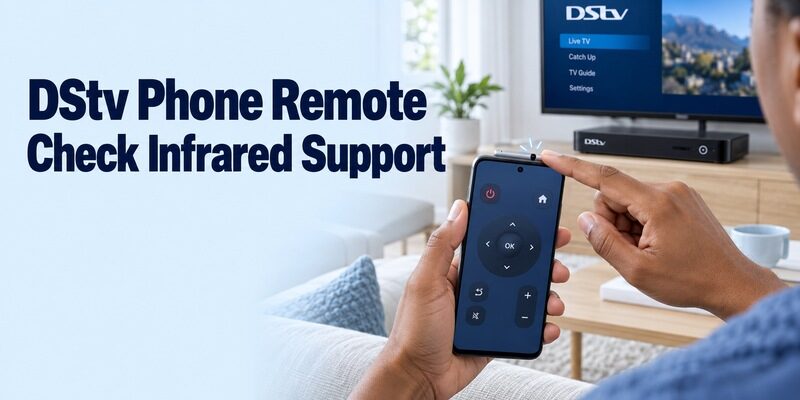
Check the phone manufacturer’s specifications for a built-in infrared transmitter or IR blaster. A normal iPhone does not gain an infrared remote emitter when you install an app. Android phones also vary: the operating system alone does not establish that the hardware exists. For a comparable explanation of the difference between infrared hardware and network control, see this Crown TV remote testing guide before assuming that a successful installation can send commands to the decoder.
Before you download remote control for dstv, settle this hardware question. An external IR accessory is a separate product with its own supported app and setup instructions. If neither built-in IR nor a compatible accessory is available, look for a documented alternative for your equipment or obtain a matching physical controller.
Before accepting a trial or purchase prompt, confirm that the application reaches your decoder at all. If the interface lets you test basic commands, use those first. Keep a note of which buttons are included in the available access level. Paying for additional controls cannot create a missing IR transmitter or establish an unsupported decoder profile by itself.
Match the Profile and Remote Mode
Select the Decoder Category
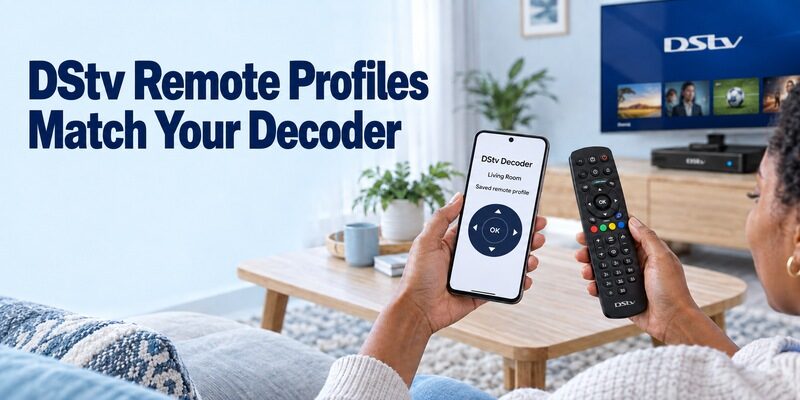
Use a decoder or set-top-box profile for decoder commands. In the chosen app, follow its available profile-selection process and choose the appropriate DStv option. Do not select the television manufacturer and expect that profile to operate a separate satellite receiver. When the room contains both a decoder and a television, keep the phone profile aligned with the device you intend to operate; this free Android TV remote app guide can help you compare the separate phone-control routes.
As you download remote control for dstv and test the available profiles, note which ones produce a response. Keep the decoder awake, use the same basic menu, and send one short command at a time. Consistent test conditions make it easier to compare profiles without accidentally crediting another controller in the room.
Check Mode Differences Before Changing Settings
DStv’s official A7 product documentation describes three remote modes, used to keep multiple Exploras from responding to the same handset. That is a specific hardware example, not a promise that every phone app can transmit all those modes. Consult the instructions for your decoder and selected app when a plausible profile does not respond.
Do not alter the decoder’s accepted modes blindly after you download remote control for dstv. Keep a working physical controller available before changing settings that determine which commands the box accepts. In a multi-decoder room, preserving the existing arrangement prevents a new app from operating the wrong receiver.
Test Channel Control Before Trying Extra Features
Aim at the Decoder’s Receiver
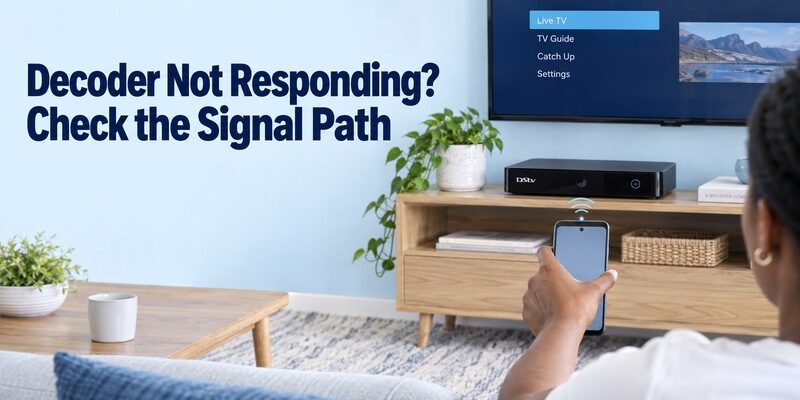
For infrared operation, point the phone’s transmitting edge toward the decoder, not merely toward the television screen. Keep the box’s receiver area unobstructed and observe its response. A cabinet door or another device placed in front of the box can complicate the test.
After you download remote control for dstv, begin with a non-destructive navigation action in an ordinary menu. Move one selection and return, or open the guide and close it where the app provides those buttons. This confirms a useful response without changing important setup values.
Verify Your Essential Buttons
Test directions, OK, Back, guide access, and channel entry if present. If you use recording features, examine the controls that the app actually exposes rather than assuming every button from the original remote is reproduced. A controller can be useful for basic viewing while lacking specialist functions.
Save the working profile after this download remote control for dstv test and give it a clear room name. Reopen the application and repeat two basic commands. That second pass checks whether you saved the correct profile instead of temporarily previewing one during setup.
Try a familiar channel that you already receive, then return to the guide. Do not use an unavailable channel as your only success test: a service message may appear even though the channel command was accepted. Watch for the channel number or menu movement as well as programme playback, and separate those observations when deciding whether the controller works.
Keep Television Volume and Decoder Commands Distinct
Listen to the Device Producing the Sound
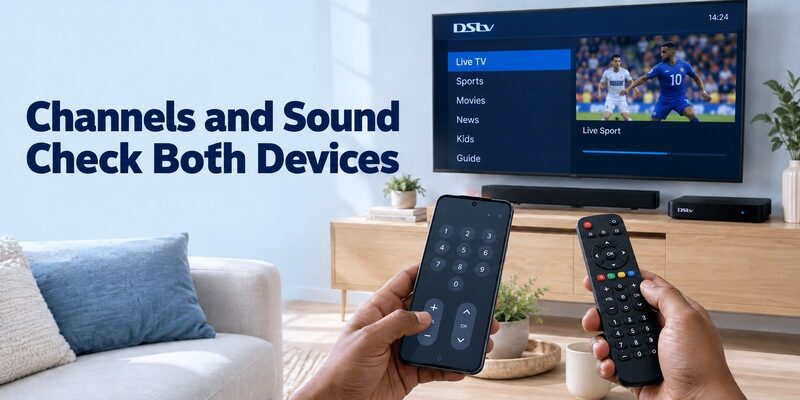
A decoder connection does not automatically give the phone full control of the television or soundbar. Identify where audio is coming from and which physical controller normally adjusts it. Observe both the on-screen response and the actual listening level during a small volume change.
If you download remote control for dstv and channel navigation works while sound does not, preserve the working decoder profile. Investigate the audio device and its control method separately. Repeating decoder setup may not change a limitation involving another piece of equipment.
Reproduce Only Features That Are Supported
DStv’s A7 documentation describes programming that physical remote for other audiovisual equipment. Those capabilities belong to the supported handset and configuration. They do not establish that an unrelated mobile app inherits the same learned codes, equipment sequence, or additional device controls.
For a practical download remote control for dstv setup, keep a TV or soundbar controller available when needed. If the app offers additional device profiles, test each against its own target and label it accordingly. A clearly separated two-controller arrangement is easier to use than one ambiguous profile with unpredictable buttons. If you also need a backup for the television rather than the decoder, review universal TV remote setup options and keep that controller labelled separately from the DStv handset.
Understand What Remote Recording Does and Does Not Mean
Read Older Explora Instructions in Context
Remote recording is a scheduling feature, not the same as live directional control. DStv’s older Explora quick guide describes sending a recording request to an internet-connected Explora and notes country limitations. That document explains the distinction, but an older guide should not be treated as proof that every historical app path remains available today.
If your reason to download remote control for dstv is to schedule programmes from elsewhere, verify the current service for your country, account, and decoder. Look for the recording option in official guidance or ask DStv support to confirm it. Do not infer availability from an archived screenshot alone.
Keep Network Features Separate from IR Reach
An infrared phone controller operates through a local signal to the receiving equipment. A service that accepts a recording request over the internet uses a different path. The word remote appears in both descriptions, but one does not demonstrate the capabilities of the other.
When you download remote control for dstv, state your expected distance and task clearly: changing channels from the sofa, viewing on a phone, or scheduling while away. This prevents a local IR app from being judged against an internet service it was never shown to provide.
If support confirms a recording service for your setup, test with an ordinary programme and verify the request on the decoder using the supported method. Keep the result distinct from the phone remote profile you use in the room. A successful scheduling request answers a recording question; it does not validate every navigation, sound, or power command offered by a separate application.
Diagnose a Decoder That Does Not Respond
Use the Pattern of Failure
Start with the last thing that worked. If no infrared buttons respond, check the phone transmitter, target, line of sight, profile, and any relevant mode. If only a few buttons fail, compare the app’s exposed controls and the selected code profile before changing the decoder’s broader configuration.
After you download remote control for dstv, compare the same command with an available physical remote. If the physical controller works consistently, the decoder is accepting at least that command path. If both fail, inspect power state and the receiver area, then follow the model’s troubleshooting instructions.
Keep Recordings and Settings Intact
Do not factory-reset a decoder simply to test a new app. A reset is a different operation with consequences that depend on the model and procedure. Preserve your existing setup while investigating the narrower issue, and avoid interrupting active recordings or software updates during routine troubleshooting.
Record the app publisher, phone model, decoder model, profile, and exact failed command before contacting support. Explain whether the original controller still works and whether another decoder responds accidentally. This gives a useful technical description without requiring you to change unrelated settings or disclose account credentials to an app developer.
| Symptom | Check first | Useful comparison |
|---|---|---|
| App installed, no IR response | Phone transmitter and decoder profile | Same command from physical remote |
| Wrong box responds | Profile and accepted remote mode | Existing multi-decoder arrangement |
| Channels work, volume fails | Audio device and control method | TV or soundbar remote |
| Picture absent during testing | TV input and decoder power | Known working viewing input |
| Menus work, programme access fails | Displayed service error | Official account support guidance |
Final Thoughts
Identify the task and decoder before choosing the download. To download remote control for dstv for live channel control, confirm a supported command method, verify the phone’s hardware, and test a matching profile against the physical box. Keep streaming, account management, and recording requests separate from that control test. Once the essential buttons work repeatedly, save the profile clearly and retain a compatible physical backup for anything the phone cannot handle.
