
Samsung TV Code for Universal Remote: Codes, Setup, Apps, and Troubleshooting Guide
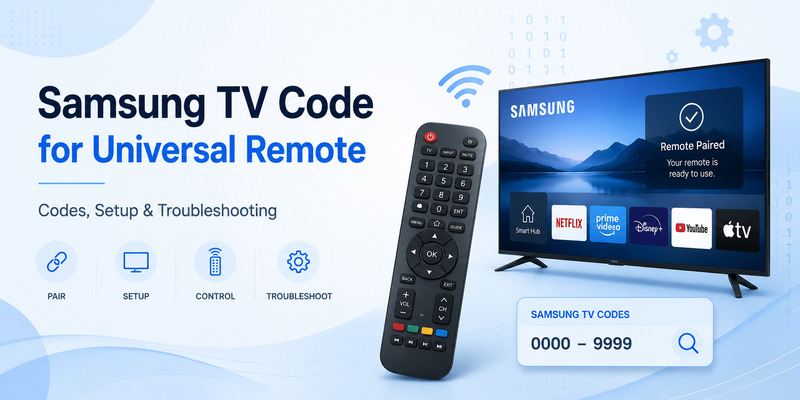
Quick Answer: The correct Samsung TV code for a universal remote depends on the brand, model, and code-list version of your universal remote. Commonly listed Samsung codes include 0060, 0178, 0702, 0812 (four digits) and 10060, 10178, 10702, 10812 (five digits), but they are not universal across all controllers. Check your remote’s official code list first, enter a matching Samsung code, and test Power, Volume, Input, and Menu. If the code fails, try the next listed code or use automatic code search.
This guide brings together Samsung universal remote TV codes, step-by-step programming methods, and troubleshooting tips for compatible Samsung televisions.
Samsung TV Universal Remote Codes: 3, 4 & 5 Digits
Samsung TV universal remote codes come in different lengths because remote manufacturers maintain different programming databases.
The number of digits alone does not tell you whether a code is compatible.
Common 4-Digit Samsung TV Codes
The following numbers appear in published Samsung universal remote code lists and can serve as reference candidates when your controller’s documentation uses the same code system.
| Code | Code | Code |
|---|---|---|
| 0019 | 0030 | 0056 |
| 0060 | 0093 | 0178 |
| 0217 | 0448 | 0587 |
| 0702 | 0812 | 1060 |
| 2051 | 0650 | 0766 |
Important: These are reference codes, not a verified compatibility list for every universal remote. Some remote brands use completely different four-digit codes.
Before entering a number, check the manufacturer’s documentation for your exact remote model.
Common 5-Digit Samsung TV Codes
Some universal remotes use five-digit setup codes.
Frequently published Samsung candidates include:
| Code | Code | Code |
|---|---|---|
| 10060 | 10030 | 10178 |
| 10019 | 10702 | 10812 |
| 12051 | 10650 | 10587 |
These numbers are not interchangeable with four-digit codes unless the remote manufacturer explicitly documents the conversion.
For example, do not assume that adding a leading digit to a four-digit code makes it valid for your controller.
3-Digit Samsung TV Codes
Three-digit codes are especially dependent on the remote manufacturer.
For example, the RC-G008 universal remote programming guide lists these Samsung TV codes:
| Remote model | Samsung codes |
|---|---|
| RC-G008 | 009, 010, 011, 012, 013, 014 |
These codes are documented for that remote model and should not be treated as a general three-digit Samsung code list.
If your controller requires three digits, look up the Samsung section in its own manual.
Which Samsung TV Code Should You Try First?
Use this order:
- Identify your universal remote brand and model.
- Check the correct code-list version.
- Find Samsung under the TV category.
- Try the first code recommended by the manufacturer.
- Test the remote.
- Try the next listed code if necessary.
The remote manufacturer’s official code list takes priority over any generic list found online.
How to Program a Universal Remote to Samsung TV
Most traditional infrared universal remotes support direct code entry, although button names and setup sequences vary.
Method 1: Enter a Samsung TV Code Manually
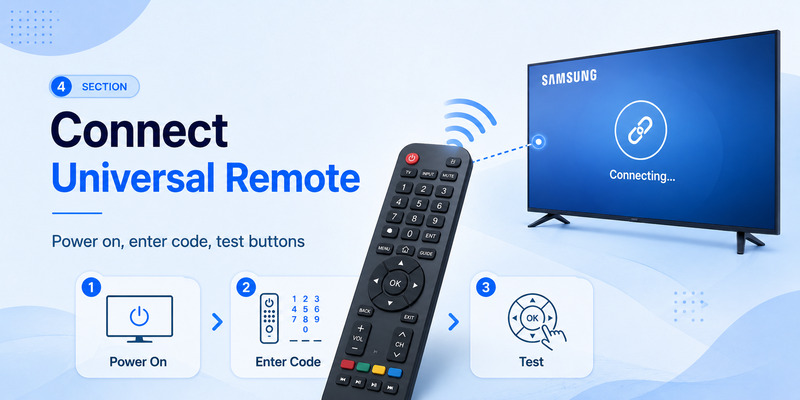
- Turn on your Samsung TV.
- Install fresh batteries in the universal remote.
- Find the remote’s Setup, Code Search, Program, or equivalent button.
- Enter programming mode according to the remote’s instructions.
- Select TV mode if your remote has separate device buttons.
- Enter a Samsung code listed for your specific remote.
- Wait for the indicator light to confirm the entry.
- Point the remote toward the television.
- Press Power to test the connection.
- Turn the TV back on and test the remaining controls.
On some remotes, the LED turns off after a successful code entry. Others flash or display a different confirmation.
Always follow your remote’s model-specific instructions.
Test More Than the Power Button
A code may turn your Samsung TV on and off without providing full control.
After programming, test:
- Power
- Volume Up and Volume Down
- Mute
- Channel Up and Down
- Input or Source
- Home or Menu
- Navigation arrows
- OK or Select
If important buttons do not work, try another code from the same manufacturer’s list.
Method 2: Program a Samsung TV Without a Code
If you do not know the correct code, your universal remote may offer automatic code search.
The general process is:
- Turn on the Samsung television.
- Activate code-search mode using the buttons specified in your remote manual.
- Select TV as the target device if required.
- Start the search or send test commands.
- Watch for the TV to respond.
- Stop the search as soon as a working profile is found.
- Save the selected code using the specified button.
- Test all essential controls.
Some remotes scan codes automatically, while others require repeated button presses.
Not every universal remote supports automatic search.
For a broader explanation, see our guide to finding a TV code for a universal remote.
Samsung Universal Remote Codes by Remote Brand
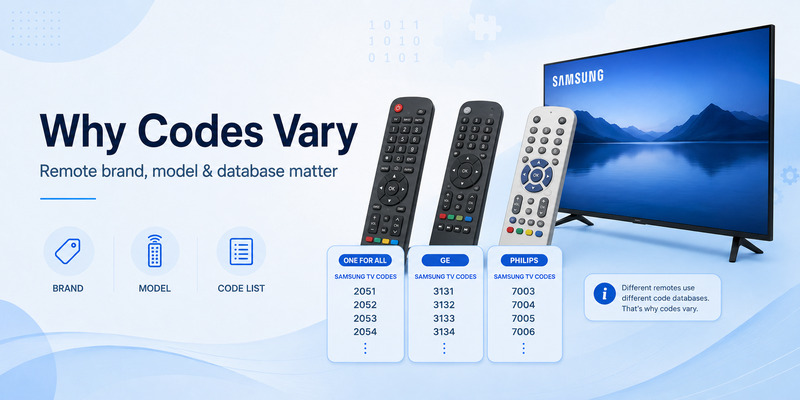
The correct Samsung TV code is determined primarily by the universal remote you are programming.
RCA Universal Remote Codes for Samsung TV
RCA remotes use model-specific code lists and may offer several programming methods.
To find the correct Samsung code:
- Locate the RCA remote model number.
- Open its official code list or code finder.
- Select Samsung under TV.
- Enter the recommended code.
- Test the remote.
- Repeat with another listed code if necessary.
Do not assume all RCA remotes accept the same code length or programming sequence.
GE and Philips Universal Remote Codes for Samsung TV
GE, Philips, and some related universal remote products may use different code-list versions.
For these remotes:
- Identify the remote model.
- Find its code-list version, if shown.
- Look up Samsung TV codes for that exact version.
- Follow the direct-entry procedure in the manual.
- Test Power, Volume, Input, and navigation.
A code that works on one GE remote may not be valid for another version.
One For All Universal Remote Codes for Samsung TV
One For All remotes also use model-specific setup codes.
Check the official One For All setup tool or manual for your remote model.
Some models offer additional methods for learning or configuring missing functions.
ONN Universal Remote Codes for Samsung TV
Many ONN universal remotes support Samsung televisions, but setup varies by model.
Before programming:
- Find the ONN remote model number.
- Check its included code list.
- Look up Samsung TV.
- Follow the model-specific programming sequence.
- Test the result.
If direct code entry fails, use automatic search if your ONN remote supports it.
Example: RC-G008 Samsung Codes
For the RC-G008 universal remote, the published programming instructions specify:
- Press Mute + Power for approximately three seconds until the indicator lights.
- Enter a supported three-digit Samsung code, such as
009. - Check whether the LED confirms the code.
- Test the remote.
- If necessary, repeat with
010,011,012,013, or014.
This procedure applies to RC-G008 and should not be copied to unrelated remote models.
📘 Find the Right Guide
How to Control Cable Box With LG Magic Remote: Complete Setup Guide
Samsung TV Universal Remote Code Not Working? Troubleshooting
If your Samsung TV does not respond after programming, the code may be incorrect or the remote may not be transmitting properly.
1. Check the Remote Model and Code Length
Confirm that your controller accepts the code format you entered.
A remote requiring five digits may reject a four-digit code.
Also check whether your code-list version matches the remote.
2. Replace the Batteries
Weak batteries can cause failed programming or inconsistent infrared transmission.
Install a fresh matching pair and repeat the setup.
3. Make Sure the Remote Is in TV Mode
Multi-device universal remotes may control TV, DVD, cable, or audio devices.
Select TV mode before testing Samsung TV commands.
4. Remove Infrared Obstructions
Many universal remotes communicate with Samsung TVs using infrared.
Make sure:
- Nothing blocks the TV’s IR receiver.
- The remote is pointed toward the television.
- A soundbar or decorative object is not covering the sensor.
- Strong lighting is not interfering with the signal.
5. Try Another Samsung Code
If Power works but Volume or Input does not, the selected code may offer only partial compatibility.
Try the next Samsung code listed for your controller.
A different code may support more functions.
6. Try Automatic Code Search
If manual entry fails repeatedly, automatic search may find a compatible command profile.
Follow your remote’s exact search and save procedure.
7. Test the Remote’s Infrared Signal
Some smartphone cameras can detect the infrared light emitted by a remote.
Point the remote’s IR emitter toward a camera lens and press a button.
A flashing light may be visible in the preview.
However, some cameras filter infrared light, so this test is not definitive.
8. Restart the Samsung TV
If the remote appears programmed correctly but the TV remains unresponsive:
- Turn off the television if possible.
- Disconnect its power.
- Wait approximately one minute.
- Reconnect power.
- Test the remote again.
Avoid factory-resetting the television as an initial troubleshooting step.
9. Check Compatibility
Not every universal remote supports every Samsung TV function.
A basic infrared remote may control Power, Volume, and Input but lack advanced Smart TV features.
If you need voice search or special shortcuts, consider a compatible smart replacement remote.
Does a Universal Remote Work With Samsung Smart TV?
Yes, many third-party universal remotes can control compatible Samsung Smart TVs.
However, the level of support depends on the controller and television.
What Functions Usually Work?
A compatible infrared universal remote may provide:
- Power
- Volume
- Mute
- Channel control
- Input selection
- Menu access
- Basic navigation
What Functions May Be Missing?
Depending on the remote, you may not have:
- Voice commands
- Microphone controls
- Dedicated streaming shortcuts
- Advanced Samsung Smart Remote functions
- Certain Bluetooth-only features
A universal remote that supports basic Samsung TV commands is not necessarily a complete replacement for every Samsung Smart Remote function.
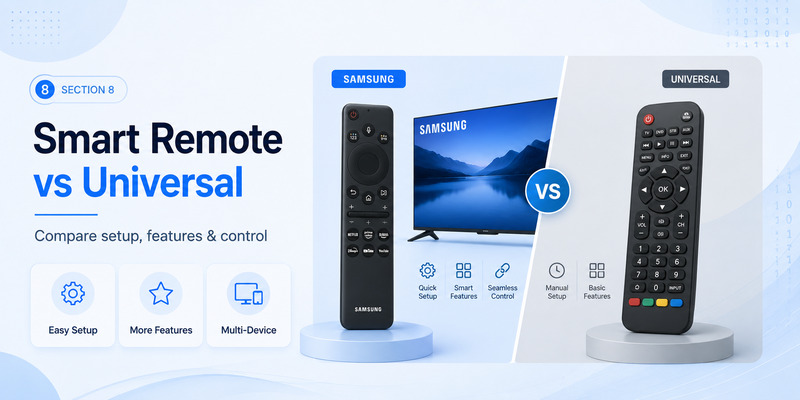
Samsung Smart Remote vs. Third-Party Universal Remote
These are two different situations.
Third-party universal remote controlling Samsung TV: You program the controller using a Samsung TV code or another supported setup method.
Samsung Smart Remote controlling external devices: You configure compatible devices through Samsung’s Universal Remote feature, HDMI-CEC/Anynet+, or related TV settings.
Samsung’s built-in Universal Remote feature does not provide a universal programming code for every third-party remote.
For more information, see our universal remote TV setup guide.
📘 Find the Right Guide: 4 Digit Universal Remote Codes for Roku TV
Can You Use a Phone Instead of Samsung TV Universal Remote Codes?
If you own a compatible Samsung Smart TV, a smartphone remote app may be an alternative to programming a physical controller.
Samsung’s SmartThings app supports remote-control features on compatible Samsung TVs.
A network-based phone remote generally does not require traditional infrared setup codes.
How to Control Samsung TV With a Phone
- Turn on the Samsung Smart TV.
- Connect the phone and TV to the required network.
- Install a compatible remote app.
- Select the television.
- Complete any authorization request.
- Test navigation and volume.
Availability depends on the TV model, software, and app.
For additional options, read our Samsung TV remote app guide.
When Is a Physical Universal Remote Better?
A physical universal remote may be preferable when:
- Your Samsung TV is not connected to Wi-Fi.
- You have an older television.
- You want tactile buttons.
- You need reliable basic infrared control.
- You want to operate multiple compatible devices.
A phone app is useful as a backup but may not replace every function of a physical controller.
FAQs About Samsung TV Codes for Universal Remotes
What is the Samsung TV code for a universal remote?
There is no single universal Samsung TV code. The correct code depends on your remote’s brand, model, and code-list version.
What are common 4-digit Samsung TV universal remote codes?
Frequently published candidates include 0060, 0178, 0702, and 0812. Confirm that your remote uses the corresponding code database before trying them.
What are common 5-digit Samsung TV remote codes?
Commonly listed candidates include 10060, 10178, 10702, and 10812, but they are not valid for every universal remote.
What are 3-digit universal remote codes for Samsung TV?
They depend on the controller. For example, the RC-G008 manual lists 009, 010, 011, 012, 013, and 014 for Samsung TVs.
How do I program a universal remote to a Samsung TV?
Enter programming mode, select TV if required, enter a Samsung code listed for your remote model, and test the buttons.
Can I program a Samsung TV universal remote without a code?
Yes, if your universal remote supports automatic code search. Follow the search procedure in its manual.
Why is my Samsung TV not accepting a universal remote code?
Possible causes include an incorrect code, wrong code length, unsupported remote model, weak batteries, or incorrect programming steps.
Why does Power work but Volume does not?
The selected code may provide only partial compatibility. Try another Samsung code from your remote manufacturer’s list.
Will a universal remote work with Samsung Smart TV?
Many universal remotes support compatible Samsung Smart TVs, although advanced features may be limited.
Are Samsung TV remote codes the same for RCA, GE, and ONN?
No. Different remote manufacturers and model versions may use different setup-code databases.
Does a Samsung Smart Remote need a universal remote code?
Samsung’s original Smart Remote uses its own setup and connection process. Traditional universal remote codes primarily apply to compatible third-party controllers.
Can I control Samsung TV with my phone instead?
Yes, on compatible Samsung Smart TVs using a supported app such as SmartThings.
What should I do if none of the Samsung codes work?
Check your remote model, consult the official code list, try automatic search, test the infrared signal, and confirm TV compatibility.
Where can I find the correct Samsung TV code?
Start with the instruction manual or official code finder for your universal remote model. The Samsung TV model can help confirm compatibility, but the remote model determines the programming database.
Final Thoughts
Finding the correct Samsung TV code for a universal remote starts with identifying your controller.
Three-digit, four-digit, and five-digit Samsung codes are not interchangeable across all brands. Use the code list supplied for your specific remote whenever possible.
If direct entry fails, try another supported code or automatic code search. Once the television responds, test Power, Volume, Input, Menu, and navigation before finishing.
With the correct setup, a compatible universal remote can provide convenient control of your Samsung television without relying on the original controller.
