
TCL TV Remote Download: Control Your TCL TV With a Phone
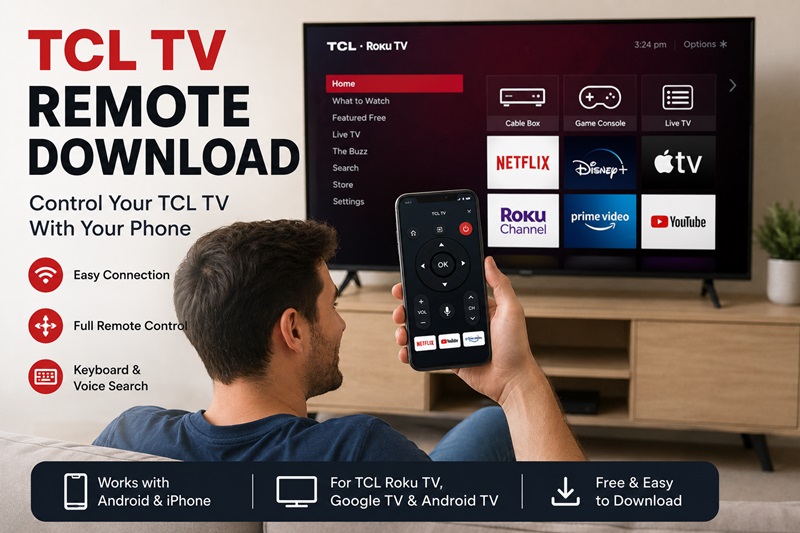
Losing your TCL remote can make it difficult to change channels, open streaming apps, adjust the volume, or even complete the initial TV setup. Fortunately, a tcl tv remote download can turn a compatible Android phone or iPhone into a convenient touchscreen controller.
Before installing an app, identify the operating system used by your television. TCL sells TVs powered by Roku TV, Google TV, Android TV, and other platforms. A Roku app designed for a TCL Roku TV may not directly control a TCL Google TV, even when both televisions have the same brand name.
The basic tcl tv remote download process involves choosing the correct application, installing it from Google Play or the Apple App Store, and connecting the phone and television to the same Wi-Fi network. Once connected, the phone may provide volume controls, menu navigation, text input, voice search, streaming shortcuts, and media casting.
This guide explains how to download tcl tv remote apps, p air them with different TCL platforms, use a phone when Wi-Fi is unavailable, and solve common connection problems.
Quick TCL TV Remote Download Guide
| TCL TV platform | Best first app to try | Android | iPhone |
|---|---|---|---|
| TCL Roku TV | Roku mobile app | Yes | Yes |
| TCL Google TV | Google TV app / compatible remote app | Yes | Yes |
| TCL Android TV | Google TV app / compatible remote app | Yes | Yes |
| Supported TCL models | TCL Home | Model-dependent | Model-dependent |
| Multi-brand TV setup | Universal Remote TV App | Depends on app | Depends on app |
1. Is There an App for a TCL TV Remote?
Yes.
Several mobile apps can turn a compatible Android phone or iPhone into a remote for a TCL television.
The best option depends on the operating system used by the TV.
Common choices include:
- Roku mobile app
- Google TV app
- TCL Home
- Compatible universal remote apps
- Infrared remote apps on phones with an IR blaster
Most modern mobile remotes communicate with the television over the local network rather than using traditional infrared.
That means the phone and television usually need to be connected to the same Wi-Fi network.
For Roku devices, Roku’s official setup instructions specifically require the phone and Roku device to be on the same Wi-Fi network before the app can discover the TV.
Google provides similar guidance for Google TV and Android TV virtual remotes: the phone and TV need to be connected to the same Wi-Fi network for normal remote control.
💡 Discover Helpful Guides:
TCL TV Remote: Complete Setup, App, Codes, Troubleshooting & Replacement Guide
2. Choose the Right Remote App for Your TCL TV
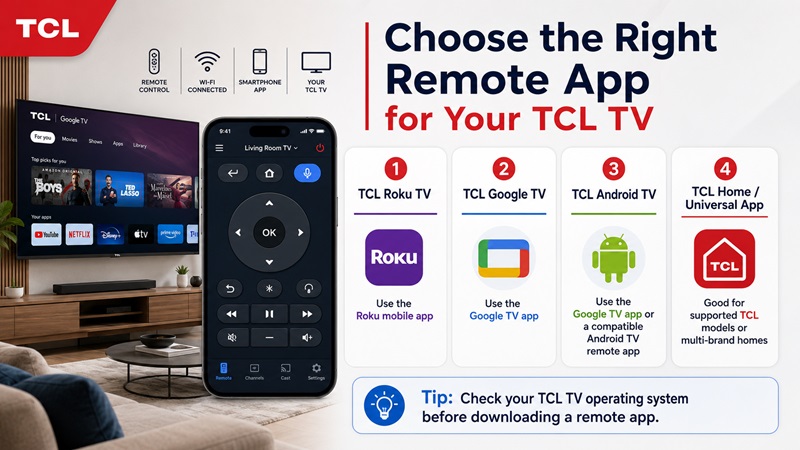
Selecting the correct application is the most important part of a successful tcl tv remote download. The TV brand alone does not determine which app will work.
TCL Roku TV
For a TCL Roku TV, start with the Roku mobile app. This option is suitable when the television’s home screen displays Roku channels, inputs, settings, and streaming tiles.
A roku tcl tv remote app can typically provide:
- Directional navigation
- Home and Back buttons
- Playback controls
- Phone keyboard input
- Private listening on supported devices
- Voice search where available
- Channel shortcuts
The phone and TCL Roku TV generally need to use the same Wi-Fi network. Once the app finds the TV, select the device and open the Remote section.
The Roku application controls the Roku operating system. It does not automatically control a TCL Google TV simply because the television was manufactured by TCL.
TCL Google TV or Android TV
For TCL Google TV or Android TV models, the Google TV app is usually the first option to try. On a compatible Android phone, open the Google TV application and select the remote or Connect TV feature.
An android tcl tv remote app setup may require a pairing code displayed on the television. Enter the code on the phone and confirm the connection.
A compatible tcl tv remote app for android can offer:
- Direction pad controls
- Swipe navigation
- Voice search
- Keyboard input
- Home and Back commands
- Playback control
The exact interface may change depending on the Google TV app version and your Android device.
TCL Home
TCL Home may provide remote functions for compatible televisions and regions. Depending on the model, available features may include keyboard input, voice commands, media sharing, and basic navigation.
Check the TCL Home store listing and your television documentation before assuming that every TCL TV is supported.
Universal Remote Apps
A universal Remote TV App is useful when you own televisions from several brands or want one interface for multiple devices.
Before installing one, confirm that it supports your TCL operating system. A general app may support Roku TV but not every Google TV feature, or vice versa.
The best app for tcl tv remote is usually the application designed for the platform running on the television. Universal options become more useful when multi-brand control, casting, or a consistent interface matters more than platform-specific tools.
📘 Find the Right Guide: TCL Roku TV Remote Not Working? Easy Fixes to Get It Working Again
3. How to Download a TCL TV Remote on Android
For Android users, the safest method is to download remote apps directly from the Google Play Store.
Step 1: Identify the TCL Platform
Check:
Settings → System → About
or look at the TV home screen.
Determine whether you have:
- Roku TV
- Google TV
- Android TV
- another TCL platform
Step 2: Open Google Play
On your Android phone:
- Open Google Play Store.
- Tap Search.
- Search for the appropriate remote app.
For example:
- Search Roku for a TCL Roku TV.
- Search Google TV for a compatible TCL Google or Android TV.
- Search TCL Home for supported TCL models.
- Search for a compatible universal remote app if you want multi-brand control.
Step 3: Check the App Before Installing
Before tapping Install, review:
- Developer name
- Compatibility
- Ratings
- Recent reviews
- In-app purchases
- Subscription terms
- Requested permissions
This matters because many apps are free to install but may place some remote functions behind a subscription.
Step 4: Install and Open the App
Tap:
Install → Open
Then allow relevant permissions when needed.
Depending on the app, these may include:
- Nearby Devices
- Bluetooth
- Location
- Local network/device discovery
Only grant permissions that make sense for the app’s remote-control features.
📖 Read More Guides: TCL TV Remote Battery Size and Replacement Guide
4. How to Download a TCL TV Remote on iPhone
The process on iPhone is similar.
Step 1: Open the App Store
Open the Apple App Store.
Search for the remote app that matches your TCL platform.
Common searches include:
- Roku
- Google TV
- TCL Home
- Universal TV Remote
Step 2: Check Compatibility
Before installing, review:
- Supported devices
- Developer
- In-app purchases
- Privacy details
- App rating
- Recent reviews
Users searching for a free TCL TV remote app for iPhone should pay particular attention to subscription screens.
“Free download” does not always mean every control is available for free.
Step 3: Install the App
Tap:
Get → Open
When prompted, allow Local Network access if the app needs to discover a television on the same Wi-Fi network.
Step 4: Connect the Phone and TV to the Same Wi-Fi
For network-based control:
- TCL TV → home Wi-Fi
- iPhone → same home Wi-Fi
If the two devices are on different networks, the app may not find the television.
5. Avoid Unverified TCL Remote APK Downloads
Android users may see websites advertising files such as:
- TCL TV remote APK
- TCL remote pro APK
- premium remote APK
- unlocked TCL remote
Be careful with unofficial files.
An APK from an unknown source may be:
- Outdated
- Modified
- Incompatible
- Missing security updates
- Bundled with unwanted software
- Falsely presented as an official TCL app
For most users, the better option is to download from:
- Google Play
- Apple App Store
- An app source explicitly recommended by the TV platform provider
Avoid installing random APK files simply to bypass ads or subscriptions.
💡 Discover Helpful Guides: TCL TV Not Responding to Remote Troubleshooting Guide
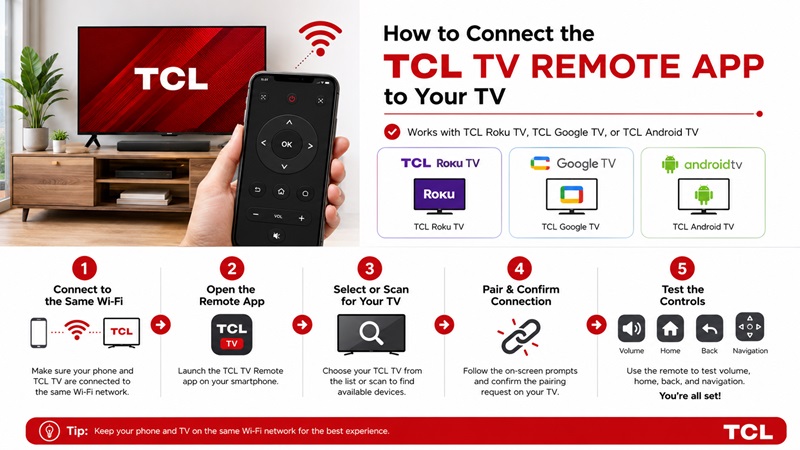
6. How to Connect the TCL Remote App to Your TV
Once the app is installed, connection usually takes only a few steps.
Step 1: Use the Same Wi-Fi Network
Make sure:
Phone Wi-Fi = TV Wi-Fi
This is especially important for Roku, Google TV, and Android TV remote apps.
Roku states that its app discovers Roku devices on the same Wi-Fi network.
Google also requires the phone and Google TV or Android TV to be on the same network for virtual remote control.
Step 2: Open the Remote App
Open the app and look for:
- Device
- TV
- Connect
- Remote
- Scan
- Add device
The wording varies by app.
Step 3: Select Your TCL TV
Wait for the app to find nearby compatible TVs.
Tap your TCL TV when it appears.
If several televisions are listed, compare the device names carefully.
Step 4: Enter a Pairing Code if Required
Some Google TV and Android TV setups display a pairing code on the television.
Enter that code into the phone.
Google’s Android TV remote instructions explicitly include selecting the TV and following the pairing instructions shown on both devices.
Step 5: Test the Main Controls
After connecting, test:
- Home
- Back
- Directional navigation
- OK
- Volume
- Playback
- Keyboard
- Voice
Not every function is available on every TV/app combination.
📘 Find the Right Guide: TCL Google TV Remote App: Setup and Controls Guide
7. What Can a TCL TV Remote App Do?
Available features vary by app and TV platform.
| Feature | Typical availability |
|---|---|
| Directional navigation | Common |
| Home / Back | Common |
| Volume | Model/platform dependent |
| Keyboard input | Common on smart-TV apps |
| Voice search | Platform/app dependent |
| Playback controls | Common |
| Casting | App dependent |
| App shortcuts | App dependent |
| Control multiple TVs | App dependent |
Basic Navigation
The most common functions include:
- Up
- Down
- Left
- Right
- OK
- Home
- Back
These are usually enough for everyday navigation.
Phone Keyboard
One of the biggest advantages of a phone remote is text entry.
Instead of typing with the TV’s on-screen keyboard, you may be able to use your phone to enter:
- Search terms
- Email addresses
- Passwords
- App names
Voice Search
Voice control may be available on compatible Roku, Google TV, Android TV, or universal remote setups.
Exact support depends on the TV platform and app.
Casting
Some applications include:
- Photo casting
- Video casting
- Screen mirroring
- Media sharing
Do not assume every remote app includes casting just because it can control navigation.
📖 Read More Guides: 5 Best Free TCL Google TV Remote Apps to Control Your TV From Your Phone
8. Can You Use a TCL Remote App Without Wi-Fi?
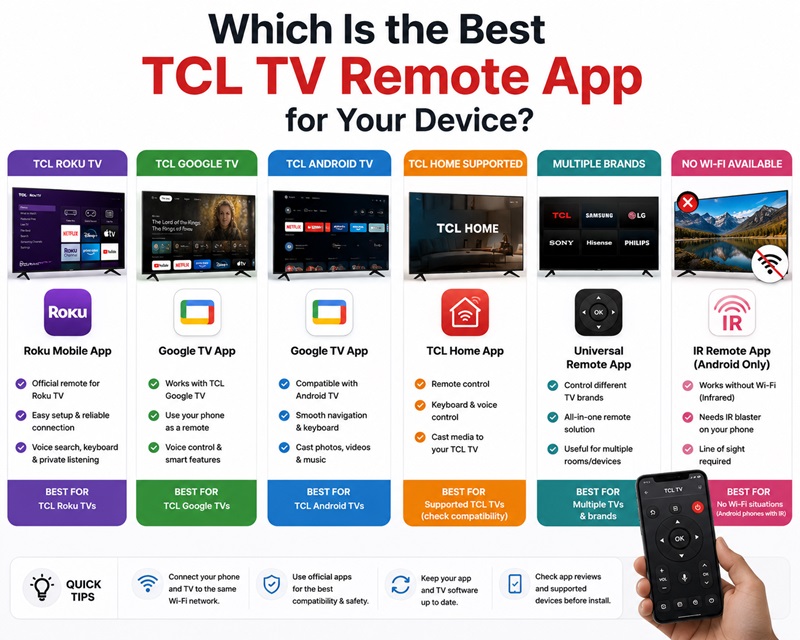
Sometimes—but it depends on what “without Wi-Fi” means.
No Internet, but Your Router Still Works
If the router is still creating a local Wi-Fi network, a phone remote may continue to work even when the internet connection is temporarily unavailable.
The key requirement for many apps is local network communication, not necessarily active internet access for every command.
No Local Wi-Fi Network at All
If the TV and phone are not connected to the same local network, most Wi-Fi remote apps will not be able to discover the TV.
Roku specifically notes that its mobile remote cannot control a Roku device when the Roku is not already connected to the home Wi-Fi network.
What About Infrared?
Some Android phones include an infrared blaster.
On those devices, a compatible IR app may be able to control a TCL television without Wi-Fi.
However:
- Most modern phones do not have IR hardware
- IR apps usually provide basic controls only
- Voice and smart-platform functions may not be available
Other Backup Options
If there is no network connection, try:
- Physical TV buttons
- Original TCL remote
- Replacement remote
- Compatible universal remote
9. TCL TV Remote App Not Working? Try These Quick Fixes
If the app downloads successfully but cannot control the TV, start with these checks.
1. Confirm the TV Platform
Make sure the app matches the TCL operating system.
For example:
- Roku app → TCL Roku TV
- Google TV app → compatible TCL Google/Android TV
Using the wrong platform app is one of the easiest mistakes to make.
2. Check Wi-Fi
Verify that the phone and TV are on the exact same network.
Roku and Google both list same-network connectivity as a core requirement for their mobile remotes.
3. Check App Permissions
On the phone, confirm that relevant permissions are enabled.
This may include:
- Local Network
- Nearby Devices
- Bluetooth
- Location
depending on the app and operating system.
4. Restart the TV and Phone
Restart:
- TCL TV
- Phone
- Router if necessary
Then reopen the app.
Google specifically recommends restarting Google TV as part of virtual remote troubleshooting.
5. Reconnect the TV
Remove the TV from the app if possible, then scan again.
For a Google TV or Android TV, repeat the pairing-code process.
For Roku, wait for the app to rediscover devices on the local network.
6. Check Roku Mobile Control Settings
On Roku TVs, mobile control can be restricted in settings.
Roku documents controls under:
Settings → System → Advanced system settings → Control by mobile apps
and notes that changing these settings affects whether apps can control the Roku device.
💡 Discover Helpful Guides: TCL Remote Control App: Choose, Pair and Fix Your Setup
10. Use a Universal Remote App for Multiple TVs
If your home has TVs from several manufacturers, switching between separate manufacturer apps can become inconvenient.
A compatible Universal Remote TV App can provide one interface for multiple brands and smart-TV platforms.
Depending on the supported television, features may include:
- Power
- Volume
- Channel control
- Directional navigation
- Home and Back
- Streaming shortcuts
- Keyboard input
- Photo/video casting
This can be particularly useful when you own a TCL TV alongside Samsung, LG, Sony, Roku, or other supported televisions.
For a TCL TV, always confirm platform compatibility before installing.
📘 Find the Right Guide: How to Pair an Xfinity Remote With a TCL TV: Step-by-Step Guide
FAQs About TCL TV Remote Download
What app should I download for a TCL TV remote?
It depends on the TCL platform.
For a TCL Roku TV, the Roku mobile app is usually the first official choice.
For compatible TCL Google TV or Android TV models, use the Google TV app or another supported remote application.
Is there a free TCL TV remote app?
Yes, several apps can be downloaded for free.
However, some free apps include:
- Ads
- Trials
- Subscriptions
- Paid premium features
Check the app listing before installing.
Can I download a TCL TV remote on Android?
Yes.
Open Google Play and search for the remote app that matches your TV platform.
Avoid downloading modified APK files from unknown sources.
Can I use my iPhone as a TCL TV remote?
Yes, on compatible TCL smart TVs.
Install an appropriate app from the Apple App Store, allow Local Network access if requested, and connect the iPhone and TV to the same Wi-Fi network.
Why won’t the TCL remote app find my TV?
Common causes include:
- Phone and TV on different Wi-Fi networks
- Wrong remote app for the TV platform
- Local Network or device permissions disabled
- TV not connected to Wi-Fi
- Mobile control disabled
- Temporary network issue
Start by confirming the network and platform.
Can I use a TCL TV remote app without internet?
Possibly.
If the router still provides a local Wi-Fi network, some remote functions may continue to work without internet access.
If there is no local network connection between the phone and TV, most Wi-Fi remote apps will not work.
Does a TCL Roku TV use the same app as a TCL Google TV?
No.
The TV brand may be the same, but the operating systems are different.
A Roku app is designed for Roku devices, while Google TV and Android TV use their own remote-control systems.
Is it safe to download a TCL remote APK?
Use caution.
For most users, downloading from Google Play, the Apple App Store, or an official platform source is safer than installing an APK from an unknown website.
Final Thoughts
A successful TCL TV remote download starts with identifying the operating system running on your TCL television.
Use this order:
- Check whether the TV uses Roku TV, Google TV, or Android TV.
- Choose an app built for that platform.
- Download it from Google Play or the Apple App Store.
- Connect the phone and television to the same Wi-Fi network.
- Select the TCL TV in the app.
- Complete pairing if a code appears.
- Test navigation, Volume, Home, Back, and keyboard controls.
For TCL Roku TV, the Roku app is usually the natural starting point. For Google TV or Android TV models, use Google’s virtual remote or another compatible app. If you want one interface for several brands, a universal Remote TV App can be a practical alternative.
