
How to Reset Apple TV Remote: Pairing, Volume, and No-Remote Fixes
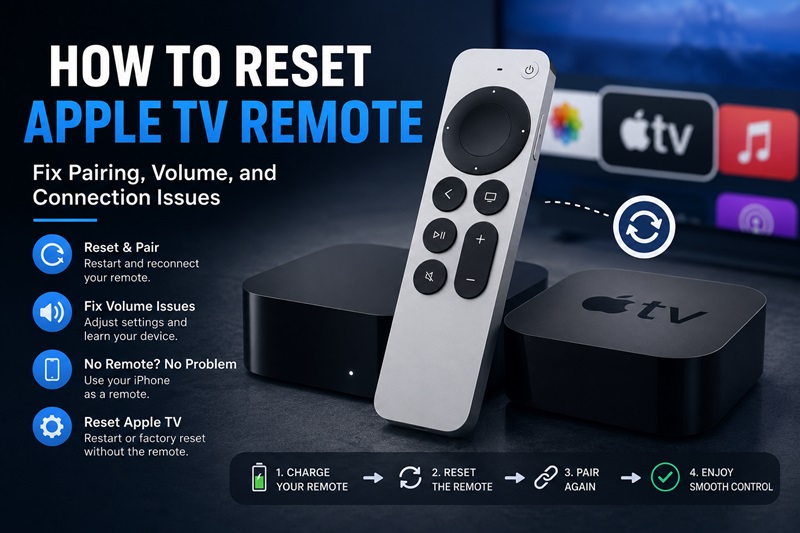
If your Siri Remote or Apple TV Remote suddenly stops responding, you usually do not need to reset the Apple TV itself.
For current Siri Remote and Apple TV Remote models, restart the remote by pressing and holding:
TV/Control Center + Volume Down
Hold both buttons for about 5 seconds, or until the Apple TV status light turns off and back on. Release them, wait several seconds, then press any button on the remote. Apple says the remote should reconnect after the restart.
If it does not reconnect, the next step is to pair the remote again rather than factory-resetting your Apple TV.
1. How to Reset an Apple TV Remote
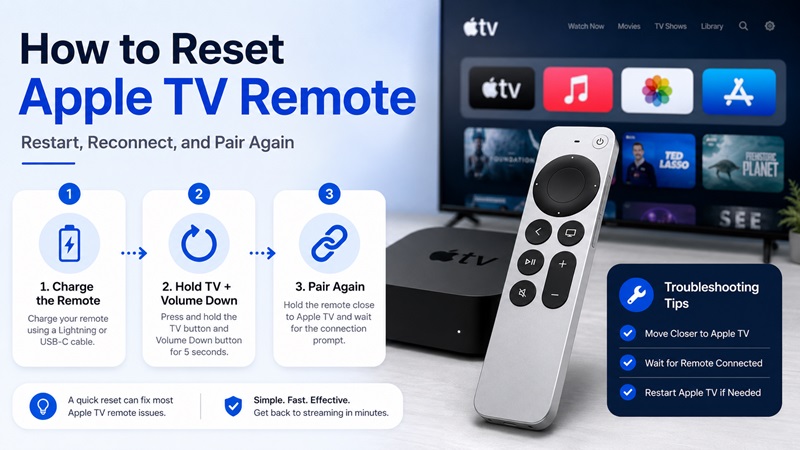
Apple’s support documentation may describe this procedure as restarting the remote, although users often search for it as “reset Apple TV remote.” The important point is that this process restarts the remote itself; it does not erase your Apple TV, apps, accounts, or settings.
Follow these steps:
- Make sure your Apple TV is turned on.
- Move reasonably close to the Apple TV.
- Press and hold the TV/Control Center button and Volume Down at the same time.
- Continue holding them for about 5 seconds, or until the status light on the Apple TV turns off and back on.
- Release both buttons.
- Wait several seconds.
- Press any button on the remote.
You may briefly see a Remote Disconnected message followed by Remote Connected. Once the connection returns, test the directional controls and Home/TV button
Quick reset sequence
TV/Control Center + Volume Down → hold about 5 seconds → release → wait → press any button
That is the main reset procedure most users need.
Download TV Remote App2. Reset vs Restart vs Pair: What’s the Difference?
These terms are easy to confuse because they describe related but different actions.
| Action | What it does | When to use it |
|---|---|---|
| Restart/reset remote | Reboots the remote and its connection | Remote freezes or stops responding |
| Pair remote | Connects a remote to Apple TV | Remote is not recognized or you have a replacement |
| Reconnect | Restores a previously working connection | Remote repeatedly disconnects |
| Factory reset Apple TV | Erases or restores the Apple TV device | Not a normal remote fix |
For this article, resetting the Apple TV Remote means restarting the physical remote, not resetting the Apple TV box.
That distinction matters because factory-resetting the entire Apple TV is unnecessary for most remote problems.
🗺️ Browse How-To Guides: Apple TV Remote Icon: What It Means and How to Use It
3. How to Reset Apple TV Remote Volume
Knowing how to reset apple tv remote volume is useful when navigation works but Volume Up, Volume Down, or Mute does not.
Restart the Remote First
Hold TV/Control Center and Volume Down for about five seconds. Release the buttons, wait for the remote to disconnect, then press a button after it reconnects. Apple recommends this restart before changing volume settings.
This often solves how to reset volume on apple tv remote when a temporary communication error is responsible.
Change the Volume Control Setting
If the restart does not work:
- Open Settings on Apple TV.
- Select Remotes and Devices.
- Select Volume Control.
- Choose a different option and test the buttons.
Apple suggests trying TV via IR instead of Auto. If a sound system uses an optical cable, HDMI-CEC volume control is unavailable through that optical connection, so an infrared setting may be needed.
Use Learn New Device
When Apple TV does not automatically recognize the television, receiver, or soundbar, go to Settings > Remotes and Devices > Volume Control > Learn New Device. Use the original equipment remote and follow the instructions for volume up, volume down, and mute.
Check IR and HDMI-CEC
The Siri Remote may communicate with Apple TV through Bluetooth while controlling TV or receiver volume through infrared. Clear anything blocking the front sensor.
Some systems use HDMI-CEC instead. Confirm that Apple TV is connected to a compatible HDMI port and HDMI-CEC is enabled. Manufacturers may label it Anynet+ on Samsung, BRAVIA Sync on Sony, or SimpLink on LG.
Therefore, how to reset apple tv remote volume may require changing the volume-control method rather than resetting the whole remote.
🧭 Explore Guides: Apple TV Remote Replacement: Buying and Setup Guide
4. How to Reconnect and Pair Your Apple TV Remote
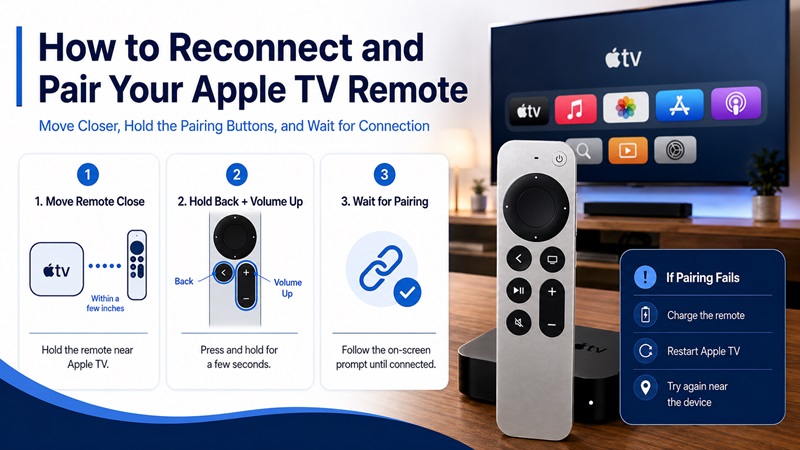
If restarting does not restore control, pairing is the next step in how to reset apple tv remote troubleshooting.
Pair the Remote
- Turn on Apple TV.
- Point the remote at the front of the device.
- Hold it about three to four inches away.
- Press and hold Back and Volume Up. On a remote with a Menu button, hold Menu and Volume Up.
- Continue until the pairing message appears.
- If requested, place the remote on top of Apple TV.
Apple’s support article recommends holding the pairing buttons for five seconds, while the Apple TV 4K guide describes a two-second hold. Continue until you see the onscreen response.
Apple TV 4K supports one paired Apple TV 4K remote at a time. Pairing a new compatible controller unpairs the previous one.
If Pairing Fails
Charge the remote again, move closer, remove obstructions, restart the remote, and unplug Apple TV for at least six seconds. Wait until the Home screen is fully loaded before repeating the pairing process.
If you searched how to reset apple tv remote because a replacement controller will not connect, confirm that it is compatible with your Apple TV generation.
Check Signal Strength
On supported models with tvOS 18 or later, open Settings > Remotes and Devices > Remote. Apple recommends staying within about 20 feet, or six meters, and clearing obstructions if the Bluetooth signal is weak.
💡 Discover Helpful Guides: Apple TV Siri Remote: Complete Guide to Features, Generations, Pairing, and Everyday Use
5. How to Reset Apple TV Without Remote
You can handle how to reset apple tv without remote by first turning an iPhone or iPad into a controller.
Use Apple TV Remote in Control Center
- Connect the iPhone or iPad to the same Wi-Fi network as Apple TV.
- Open Control Center.
- Tap Apple TV Remote.
- Select your Apple TV.
- Enter the four-digit passcode if prompted.
Apple says the Control Center remote works with Apple TV 4K, Apple TV HD, and compatible AirPlay smart TVs. The mobile device and Apple TV should share the same Wi-Fi network.
Once connected, use the onscreen controller to open Settings, restart Apple TV, update tvOS, or access the reset menu.
Use a Remote TV App Carefully
A compatible Remote TV App may help while the physical controller is lost or charging. However, Apple’s built-in Control Center remote should normally be the first choice because it is directly supported.
For any other Remote TV App, use an official app store, confirm Apple TV compatibility, review subscription terms, and never enter your Apple Account password into an unfamiliar application.
Restart or Factory-Reset Apple TV
To restart without the physical remote, use the iPhone controller and open Settings > System > Restart. If Apple TV is completely frozen, unplug it briefly and reconnect power.
Restarting is different from apple tv factory reset without remote, which erases information and settings.
To complete how to reset apple tv without remote:
- Open Settings with the iPhone remote.
- Select System > Reset.
- Choose Reset for the fastest factory reset without downloading software.
- Choose Reset and Update to erase Apple TV and install software updates.
- Keep Apple TV connected to power until it finishes.
Apple confirms that both choices restore Apple TV 4K or Apple TV HD to factory settings, while Reset and Update requires internet access.
Use a factory reset mainly before resale or when restarting, updating, and normal troubleshooting have failed.
📖 Read More Guides: Thomson TV Remote App iOS: How to Control Your Thomson TV From iPhone
6. Apple TV Remote Problems and Solutions
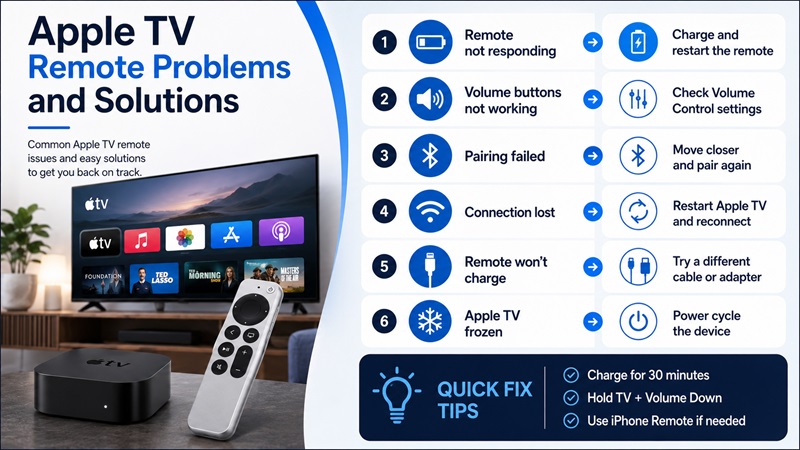
Many people researching how to reset apple tv remote do not need to erase the Apple TV. Match the symptom with the appropriate first action.
| Problem | Likely Cause | Recommended Solution |
| No buttons respond | Low battery or lost pairing | Charge for 30 minutes, restart, then pair again |
| “Connection Lost” appears | Weak Bluetooth signal | Move closer and remove obstructions |
| Volume buttons fail | Incorrect Volume Control option | Try Settings > Remotes and Devices > Volume Control |
| Menus work but TV volume does not | IR blocked or HDMI-CEC disabled | Clear the sensor or enable HDMI-CEC |
| Remote will not pair | Distance, low charge, or temporary device issue | Hold it close, charge it, and power-cycle Apple TV |
| Clickpad is delayed | Weak signal or software issue | Check signal strength and restart both devices |
| Remote will not charge | Cable, adapter, port, or battery issue | Test another compatible cable and charger |
| Original remote is missing | No physical input device | Use Apple TV Remote in Control Center |
| Apple TV is frozen | tvOS or app issue | Restart or briefly unplug Apple TV |
| Every fix fails | Possible hardware fault | Update tvOS and contact Apple Support |
Apple’s general order is to pair the remote, restart it, check signal strength, charge it, and update Apple TV. Volume-only failures should be addressed through the Volume Control menu before seeking service.
Do not factory-reset Apple TV only because one button is stuck, the charging cable has failed, the IR sensor is blocked, HDMI-CEC is disabled, or the remote battery is empty. In these cases, how to reset apple tv remote should mean restarting or pairing the controller, not deleting device data.
This order is the safest way to approach how to reset apple tv remote problems before considering a replacement or factory reset.
To update tvOS, use the iPhone controller if necessary and open Settings > System > Software Updates. Install the available update, then test the remote again. Apple recommends updating Apple TV when basic troubleshooting does not resolve the problem.
📘 Find the Right Guide: How to Pair and Reconnect a Google TV Remote
7. Frequently Asked Questions About Resetting an Apple TV Remote
How do I reset my Apple TV Remote?
Press and hold the TV/Control Center button and Volume Down for about five seconds, or until the Apple TV status light turns off and back on. Release the buttons, wait several seconds, then press any button on the remote.
Does resetting the Apple TV Remote erase anything?
No. Restarting the remote does not erase apps, accounts, settings, or content from the Apple TV.
It simply restarts the remote and its connection.
Why won’t my Apple TV Remote reconnect after resetting?
Try pairing it again near the Apple TV using Back + Volume Up, or Menu + Volume Up on older remotes. If pairing still fails, restart the Apple TV and try again.
What buttons restart the Siri Remote?
For supported Siri Remote and Apple TV Remote models, hold TV/Control Center + Volume Down for about five seconds.
Why does my Apple TV Remote work except for volume?
Volume can use a different control method from Apple TV navigation. Check:
Settings → Remotes and Devices → Volume Control
and try the appropriate HDMI-CEC or IR setting.
Should I reset Apple TV if the remote stops working?
Not as the first step.
Restart the remote first, pair it again if necessary, and restart the Apple TV only if the connection still fails.
Do I need a new remote if resetting doesn’t work?
Not necessarily.
Check charging, pairing, volume configuration, and Apple TV connectivity first. Replacement becomes more reasonable when the remote has physical damage, will not charge, or continues failing after normal troubleshooting.
💡 Discover Helpful Guides: Apple TV Remote Charge: How to Charge Your Siri Remote
