
VU TV Remote Download: Safe Setup and Pairing Guide
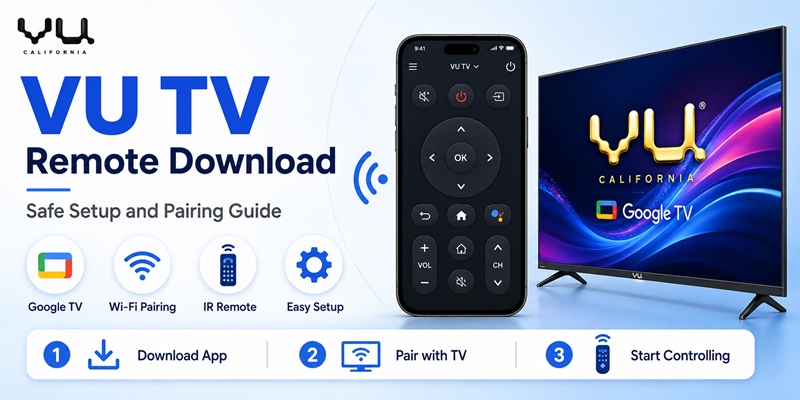
Looking for a VU TV remote download? If your VU Smart TV runs Google TV or Android TV, you can use the Google TV app to control it from a compatible Android phone or iPhone. Download the app, connect your phone and TV to the same Wi-Fi network, select your television, and enter the pairing code displayed on the screen.
For older VU TVs, you may need a remote app that supports infrared (IR) control and an Android phone with a built-in IR blaster.
This guide covers the best download options, step-by-step setup, compatibility requirements, and solutions when your VU TV remote app is not working.
Best VU TV Remote Download Options for Android and iPhone
Before downloading a remote app, check which operating system your VU television uses. Different VU models may require different connection methods.
| VU TV Type | Recommended Option | Connection |
|---|---|---|
| VU Google TV | Google TV app | Wi-Fi |
| VU Android TV | Google TV app | Wi-Fi |
| Older VU LED TV | Compatible IR remote app | Infrared |
| VU Smart TV using another OS | Model-compatible app or physical remote | Varies |
| VU TV without network access | IR or physical replacement remote | Infrared |
Option 1: Google TV App for VU Smart TV
For compatible VU Google TV and Android TV models, Google’s official app is a practical first choice.
It provides an on-screen remote for navigating menus, selecting content, and controlling supported playback functions. Depending on the device, additional features may include keyboard input and voice search.
Download Google TV:
- Android: Google TV on Google Play
- iPhone: Google TV on the App Store
The app is free to download, although some entertainment content available through Google services may require payment.
For another way to access compatible TV controls, read our Google Home TV remote setup guide.
Option 2: VU TV Remote App Free Download for Older TVs
If your television does not support Google TV remote pairing, a third-party VU remote control app may be an alternative.
Some Android applications offer infrared control for older VU LED televisions. Others support network-based control on selected Smart TV models.
Before installing an app, verify:
- The developer and app listing
- Compatibility with your VU TV model
- Whether the app requires Wi-Fi or infrared
- User reviews and permissions
- Advertising or in-app purchase requirements
For example, third-party apps such as VU TV Remote Control by AYYAN advertise IR functionality and Wi-Fi features for supported devices. These applications are not official VU products, and compatibility is not guaranteed.
If you are comparing multiple solutions, our Android remote TV guide explains how smartphone remotes communicate with different televisions.
How to Download and Connect a VU TV Remote App
Once you have selected a compatible application, follow the appropriate setup method.
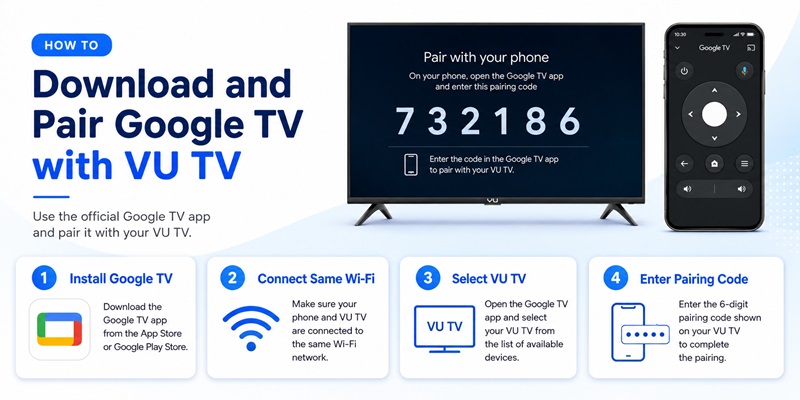
Method 1: Connect a VU Google TV Remote Over Wi-Fi
Step 1: Turn on your VU TV
Make sure the television is powered on and has completed its initial setup.
Step 2: Connect both devices to the same network
Your smartphone and VU TV should be connected to the same local Wi-Fi network. Avoid guest networks that isolate connected devices.
Step 3: Download the Google TV app
Open Google Play or the Apple App Store, find Google TV, and install the official application.
Step 4: Find your VU TV
Open the app and access its TV connection or remote feature. Select your compatible VU television from the available devices.
Step 5: Enter the pairing code
A code should appear on the television. Enter that code on your smartphone and confirm pairing.
Step 6: Test the remote
Try the directional buttons, OK, Home, Back, and playback controls. Test volume and power separately because these features can vary by TV model.
Your phone can now serve as a convenient VU Smart TV remote whenever the devices remain connected and reachable.
For more details about compatible Google TV controls, see our Google TV remote replacement guide.
Method 2: Use an Infrared Remote App
If you have an older VU television, a compatible infrared application may provide basic remote functionality without Wi-Fi.
- Check whether your Android smartphone includes an IR blaster.
- Install a reputable IR remote app that lists VU compatibility.
- Open the app and choose TV as the device category.
- Select VU from the available brands.
- Point your phone toward the TV’s infrared receiver.
- Test the Power button.
- If the TV responds, test Volume, Menu, and Input.
- Save the working remote profile.
Important: An infrared app cannot work without the required transmitter hardware. Most iPhones do not have built-in IR blasters.
If your phone cannot send infrared signals, consider a compatible physical replacement or learn how universal TV remotes work.
Explore Articles: Apple TV Remote Download: Complete Guide to Controlling Apple TV From Your Phone
Can You Control a VU TV Without the Original Remote?
Yes, but the available options depend on your television’s operating system and current connection status.
Use Your Phone as a Remote
A compatible Wi-Fi remote app is often the easiest option when your VU Smart TV is already connected to the network.
Once paired, the phone can help you navigate menus, launch streaming apps, and enter search terms.
However, a Wi-Fi remote may not work if the television is disconnected from the network or cannot wake from standby.
Use the TV’s Physical Buttons
Many televisions have physical controls located beneath the screen or along the rear or side panel.
Depending on the model, these buttons may allow you to:
- Turn the television on or off
- Adjust volume
- Change input sources
- Access a limited menu
Physical buttons can be useful when you need to restore access before pairing a mobile remote.
Use a Compatible Universal Remote
A universal remote may provide a more reliable alternative when smartphone control is unavailable.
Check that the remote explicitly supports your VU television model or includes an appropriate programming method.
Not every universal remote supports advanced functions such as voice search or dedicated streaming shortcuts.
If you need help with setup, follow our guide on how to program a universal remote to a TV.
VU TV Remote App Not Working? Try These Fixes
A successful VU TV remote download does not always guarantee an immediate connection. Most problems involve network settings, incompatible apps, or missing hardware.
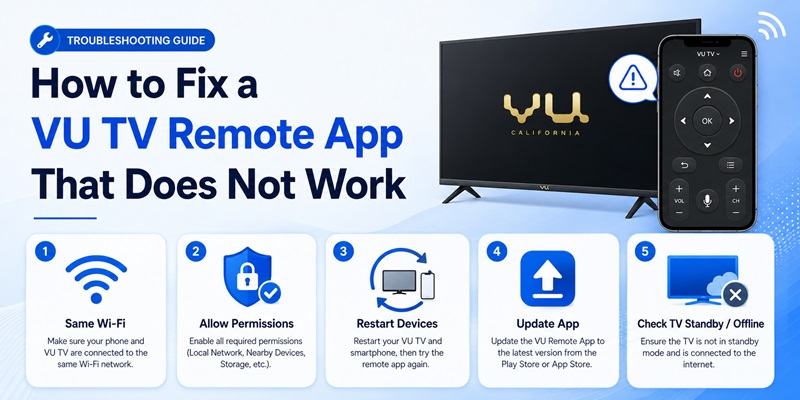
1. VU TV Is Not Showing in the App
If the app cannot find your television:
- Confirm that the TV is switched on.
- Connect the phone and television to the same network.
- Check that the television has an active network connection.
- Restart the app and television.
- Temporarily disable VPN connections.
- Check local-network permissions on your phone.
If the TV still does not appear, verify that its operating system supports the remote application.
2. VU TV Pairing Code Is Not Working
If the code is rejected, cancel the pairing attempt and start again.
Wait for a new code to appear on the TV, then enter it carefully.
Also check whether your phone is attempting to connect to a different television with a similar device name.
3. Remote Connects but Buttons Do Not Respond
If the application connects successfully but some commands fail, test individual functions.
For example, if navigation works but volume does not, the problem may involve the TV’s audio configuration rather than the network connection.
Restart the app, update the television software if available, and pair the devices again.
4. Infrared Remote App Does Not Work
For an IR-based VU TV remote app, check the following:
- Does your phone have an IR blaster?
- Are you pointing it toward the TV?
- Is anything blocking the TV’s IR receiver?
- Have you selected the correct VU remote profile?
- Does another available profile work?
If the phone lacks infrared hardware, switching between IR-only apps will not resolve the problem.
5. VU TV Is Not Connected to Wi-Fi
A network-based remote generally cannot discover a television that is offline.
Use the TV’s physical buttons, a compatible IR remote, or another supported input method to restore network connectivity.
After the TV reconnects, reopen the mobile app and try pairing again.
For more general troubleshooting, our free remote control app for TV guide explains the differences between remote solutions and their limitations.
Is a VU TV Remote App Safe and Free?
Many remote control apps are free to install, but some include advertisements, subscriptions, or paid features.
Before downloading a VU TV remote app, review the app store listing and confirm that the requested permissions match its advertised functionality.
A Wi-Fi remote may require local-network access, while voice-related features may request microphone permission.
Avoid downloading modified APK files from unknown websites when a legitimate app store version is available.
For compatible VU Google TV or Android TV models, Google’s official remote functionality is a sensible starting point.
Third-party apps may also work, but their privacy practices, reliability, and compatibility should be evaluated individually.
Frequently Asked Questions
Is there an official VU TV remote app?
Google’s official Google TV app supports remote functionality on compatible VU televisions running Google TV or Android TV. Some dedicated VU remote apps available in app stores are third-party products rather than applications published by VU.
Can I download a VU TV remote app for free?
Yes. Free download options are available, including Google TV for compatible televisions. Third-party apps may contain advertisements or offer optional paid features.
Can I use my iPhone as a VU TV remote?
Yes, if your VU television supports a compatible Wi-Fi remote system, such as Google TV or Android TV remote control. An iPhone generally cannot operate a traditional IR-only television directly because it lacks a built-in IR blaster.
Can I control VU TV without Wi-Fi?
You may be able to control an older VU TV using an infrared remote app and a phone equipped with an IR blaster. A compatible physical remote is another option.
Why is my VU TV not connecting to my phone?
Common causes include different Wi-Fi networks, device isolation, missing permissions, outdated software, or an incompatible television platform. Check the connection method before reinstalling the app.
Can a VU TV remote app turn on the television?
Sometimes. Infrared applications can send supported power commands when the phone has an IR blaster. Wi-Fi power control depends on the television’s network standby capabilities and supported remote functions.
Final Thoughts
A VU TV remote download can be a convenient solution when your original remote is missing, damaged, or unavailable.
For compatible VU Google TV and Android TV models, start with the official Google TV app and pair your phone over the same Wi-Fi network.
For older televisions, check whether your Android phone supports infrared control or consider a compatible physical replacement.
The most important step is choosing a remote solution that matches your exact VU TV model rather than assuming every remote application works with every television.
Download VU TV Remote App