
Why Is My LG TV Remote Not Working? Fix Volume & Pairing
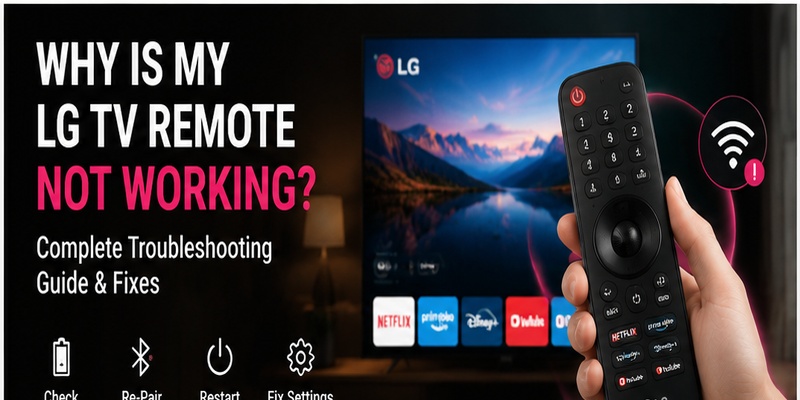
Quick Answer: If your LG TV remote is not working, replace its batteries, check whether the TV responds to its built-in controls, remove obstacles from the infrared sensor, and restart the television. If you use an LG Magic Remote, try registering it again by pointing it at the TV and pressing the Wheel/OK button.
If only the LG TV remote volume button is not working, check Volume Up, Volume Down, and Mute separately. Then test the TV’s internal speakers. The problem may be a stuck volume button, incorrect sound output setting, or soundbar connection rather than a broken remote.
This guide explains why an LG TV remote stops responding and how to fix battery problems, unresponsive buttons, Magic Remote pairing, volume control, and other common issues.
Why Is My LG TV Remote Not Working?
An LG TV remote may stop working because of weak batteries, a blocked infrared signal, lost Bluetooth registration, software problems, or damaged buttons.
The best solution depends on which functions have stopped working.
LG TV Remote Troubleshooting by Symptom
| Symptom | Possible Cause | First Fix |
|---|---|---|
| Remote completely unresponsive | Dead batteries or connection failure | Replace batteries |
| LG Magic Remote pointer missing | Lost Bluetooth registration | Press Wheel/OK to register |
| Only volume buttons fail | Button wear or audio settings | Test Mute and Sound Out |
| Volume bar moves but sound does not change | External audio device or output setting | Test TV speakers |
| Power button works but navigation fails | Magic Remote connection issue | Re-register remote |
| Some buttons work intermittently | Batteries, dirt, or worn contacts | Replace batteries and inspect |
| Voice commands do not work | Connection, network, or voice settings | Check Magic Remote registration |
| Remote works only close to TV | IR obstruction or signal issue | Remove obstacles |
| TV does not respond to any controller | TV software or hardware problem | Restart TV |
Start with the quick checks below before resetting or replacing anything.
How to Fix an LG TV Remote That Is Not Working
These steps apply to many standard LG infrared remotes and LG Magic Remotes.
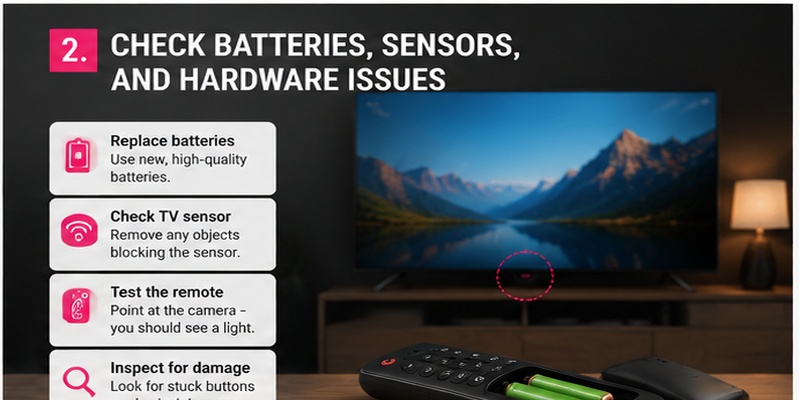
1. Replace the Remote Batteries
Weak batteries can cause delayed responses, missed button presses, or a completely unresponsive remote.
- Remove the battery cover.
- Take out the old batteries.
- Check the battery compartment for visible damage.
- Install a fresh matching pair of batteries.
- Confirm the correct polarity.
- Test Power, Home, Volume, and Mute.
Do not mix old and new batteries.
If your remote has a different power design, follow its model-specific instructions.
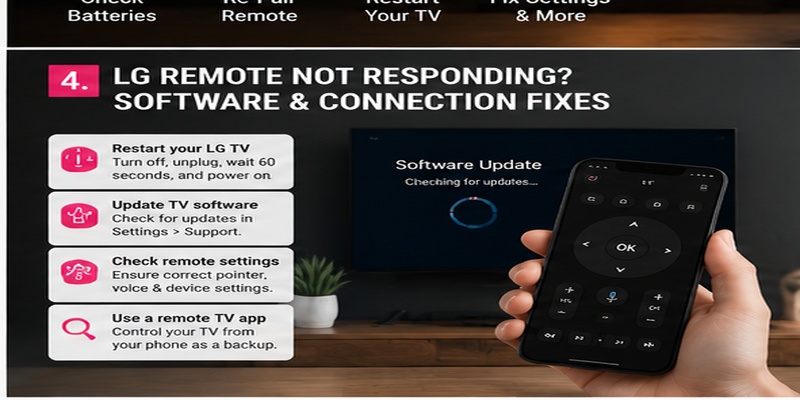
2. Restart Your LG TV
Sometimes the television’s software stops responding even when the remote is working.
To perform a basic power restart:
- Turn off the TV if possible.
- Unplug its power cable.
- Wait approximately one minute.
- Reconnect the power cable.
- Turn the TV on.
- Test the remote again.
This is a power restart, not a factory reset.
It does not intentionally erase your apps, accounts, or saved settings.
3. Check the TV’s Physical Controls
Use the Power button or joystick located on the television.
If the TV responds to its built-in controls but not the remote, the issue may involve the remote, batteries, or communication.
If the TV does not respond to its physical controls, investigate the television itself.
Button locations vary by LG model.
4. Remove Obstacles From the Infrared Sensor
Many LG remotes use infrared signals for some or all commands.
Check that:
- Nothing blocks the TV’s IR receiver.
- A soundbar is not covering the sensor.
- You are pointing the remote toward the TV when using IR functions.
- Strong light is not interfering with reception.
- The remote is within a reasonable operating distance.
Some LG Magic Remote functions use Bluetooth, so not every button depends on direct infrared line of sight.
5. Check Whether the Remote Is Sending an IR Signal
For an infrared remote, a smartphone camera may help you check whether the remote is transmitting.
- Open the phone’s camera.
- Point the remote’s infrared emitter toward the lens.
- Press an IR-controlled button.
- Look for a flashing light in the camera preview.
Some cameras filter infrared light, so a negative result is not definitive.
This method cannot verify Bluetooth communication.
6. Inspect the Buttons
Check for:
- Stuck or sunken buttons
- Visible debris
- Loose battery covers
- Damaged battery contacts
- Cracks or liquid damage
If several buttons fail at once, start with batteries and communication.
If only one button fails repeatedly, local physical wear becomes more likely.
Explore Related Articles: How to Connect LG Remote to TV: Complete Pairing and Recovery Guide
LG TV Remote Volume Button Not Working? How to Fix It
If the LG TV remote volume button is not working while other buttons still respond, use the following checks.
The goal is to determine whether the issue comes from the physical volume rocker, the remote connection, or the TV’s audio output.
1. Test Volume Up, Volume Down, and Mute
Press each button separately.
Watch what happens on screen and listen for changes in sound.
| Result | What It Suggests | Next Step |
|---|---|---|
| Volume Up works, Volume Down fails | Possible worn button contact | Inspect and clean rocker |
| Volume Down works, Volume Up fails | Possible worn button contact | Inspect and clean rocker |
| Both volume buttons fail, other buttons work | Button or audio-control issue | Test another controller |
| Mute works but volume does not | Volume rocker or control configuration | Inspect buttons and settings |
| Volume indicator changes but loudness stays the same | Audio-output or external-device issue | Test internal TV speakers |
| No volume indicator appears | Could be external Sound Out setting or remote issue | Check Sound Out first |
| Volume changes intermittently | Batteries, contact wear, or signal issue | Replace batteries and retest |
Important: The absence of an on-screen volume indicator does not automatically mean the remote is broken. LG notes that some external audio output settings can hide the TV’s normal volume display.
2. Check Whether the TV Is Muted
Press Mute once and test the volume again.
Some LG remote models use a dedicated Mute button, while newer models may offer Mute through a long press of Volume Down.
Check your remote’s button layout.
If the TV is still silent, inspect the audio output settings.
3. Switch to the TV’s Built-In Speakers
This is one of the most useful tests when LG TV remote volume control appears to be broken.
On many LG TVs released in 2021 or later:
- Open Settings.
- Select All Settings.
- Go to Sound.
- Select Sound Out.
- Choose Use TV Speaker.
- Test Volume Up and Volume Down.
On some older models, the option may be called Internal TV Speaker.
If the TV’s internal speakers respond normally, the remote may be functioning correctly.
The problem may be related to your soundbar, receiver, headphones, or audio-output configuration.
4. Check Soundbar and HDMI-CEC/SIMPLINK Settings
If your LG TV is connected to a soundbar or AV receiver, check how audio is being controlled.
Depending on your setup, the TV may use:
- HDMI ARC or eARC
- HDMI-CEC/SIMPLINK
- Optical audio
- Bluetooth audio
- Other supported audio connections
For HDMI-connected devices, confirm that the required HDMI-CEC settings are enabled on compatible equipment.
If the soundbar is controlled through infrared or universal control settings, verify that the correct device has been configured.
Do not assume that enabling SIMPLINK will fix every audio connection.
If volume works through the soundbar’s original remote but not the LG remote, the issue may be with device-control configuration rather than the LG TV itself.
5. Clean the LG Remote Volume Button
A sticky or dirty volume rocker can prevent one or both directions from registering.
- Remove the batteries.
- Remove any protective remote case.
- Wipe around the volume button with a dry microfiber cloth.
- Use a soft brush to remove visible debris.
- Press both sides of the rocker gently to check movement.
- Reinstall the batteries.
- Test the volume again.
Do not pour cleaning fluid into the remote or force the button.
If the rocker remains stuck or responds only to heavy pressure, it may be physically worn.
6. Test Volume With Another Controller
Try changing the volume using:
- The TV’s built-in controls, if supported
- Another compatible LG remote
- A compatible LG TV remote app
- The connected soundbar’s original remote
If another controller adjusts the volume normally, the original remote becomes the likely cause.
If none of the controllers can change the sound, check the television’s audio configuration and external devices.
For an alternative control method, see our LG TV remote app guide.
7. Re-Register the Magic Remote if Other Functions Also Fail
If volume problems appear together with a missing pointer, unresponsive navigation, or frequent disconnections, re-registering the Magic Remote may help.
However, if only one side of the volume rocker is broken while every other function works, a physical button problem is more likely.
Follow the pairing instructions in the next section.
8. When to Replace a Damaged Volume Button Remote
Consider replacement when:
- Only Volume Up or Volume Down fails consistently.
- The button is visibly damaged.
- Cleaning does not help.
- Fresh batteries make no difference.
- Another compatible controller adjusts volume normally.
- The remote has suffered liquid or impact damage.
Check the exact LG remote model before purchasing a replacement.
LG Magic Remote Not Working or Not Pairing
LG Magic Remotes support pointer-based navigation and, on compatible models, voice control.
Some features depend on Bluetooth registration.
How to Register an LG Magic Remote
LG’s current support guidance recommends:
- Turn on the LG TV.
- Wait approximately 20 seconds.
- Point the Magic Remote toward the TV.
- Press the Wheel/OK button.
- Wait for the registration confirmation.
- Test navigation and the pointer.
If the remote is registered successfully, the pointer and supported smart functions should work normally.
How to Reset or Re-Pair an LG Magic Remote
The unpairing button combination varies by remote generation.
For some supported LG Magic Remotes, LG instructs users to:
- Hold Back + Settings together for at least five seconds.
- Wait for the remote to unpair.
- Point the remote at the TV.
- Press Wheel/OK to register it again.
Other generations use different combinations, including Home + Settings or model-specific buttons.
Always confirm the procedure for your exact remote model.
For more information, see our how to reset LG TV remote guide.
LG Magic Remote Pointer Not Working
If the pointer does not appear:
- Install fresh batteries.
- Press Wheel/OK to register the remote.
- Restart the television.
- Check for wireless interference.
- Follow model-specific re-pairing instructions.
A missing pointer does not necessarily mean that Power and Volume must also fail.
Some basic remote functions may still operate even when Bluetooth registration is lost.
LG Magic Remote Voice Control Not Working
If navigation works but voice commands fail:
- Check that the remote is registered.
- Verify that the TV is connected to the internet.
- Review voice-control settings.
- Check supported language and region settings.
- Update TV software if available.
- Use the microphone button according to your model.
Voice control may require additional account or service setup.
Other LG TV Remote Buttons Not Working
Not every remote problem affects all buttons.
LG TV Remote Power Button Not Working
If Power fails but other controls work:
- Check batteries.
- Point the remote toward the TV.
- Remove objects blocking the IR receiver.
- Restart the TV.
- Test with another compatible remote.
On some Magic Remotes, Power may use infrared while navigation uses Bluetooth.
LG TV Remote Home Button Not Working
If Home fails:
- Test other navigation buttons.
- Restart the TV.
- Re-register the Magic Remote if appropriate.
- Inspect the Home button for physical damage.
- Check for software updates.
LG Magic Remote Scroll Wheel Not Working
If scrolling fails but clicking Wheel/OK still works, the scroll mechanism may be worn or dirty.
If both scrolling and clicking fail, inspect the button and check remote registration.
Avoid forcing the wheel.
LG TV Remote Input Button Not Working
Test Input using another compatible controller or the TV’s own interface.
If Input works elsewhere, the remote button may be faulty.
If the TV cannot change inputs through any control method, investigate the television’s software or input settings.
LG Magic Remote Keeps Disconnecting
Try:
- Replacing batteries.
- Moving closer to the TV.
- Restarting the TV.
- Reducing nearby wireless interference.
- Re-registering the Magic Remote.
- Checking for available software updates.
View Related Articles: LG TV Remote iOS: Official iPhone Setup and Control Guide
Use Your Phone if Your LG TV Remote Is Broken
If your physical LG TV remote is not working, a compatible smartphone remote app may help you control the television.
How to Control LG TV With a Phone
- Turn on your LG Smart TV.
- Connect the TV and phone to the same accessible Wi-Fi network.
- Install a compatible remote app.
- Open the application.
- Select your LG TV.
- Approve any connection request displayed on the television.
- Test navigation and volume.
App compatibility depends on your TV model and operating system.
Read our LG TV remote app guide for additional options.
Can a Phone Remote Fix Volume Problems?
A phone remote can help identify whether the physical volume button is defective.
If volume works through the phone but not the original remote, inspect or replace the physical controller.
If the phone also cannot change volume, investigate Sound Out settings and connected audio devices.
What if the LG TV Is Not Connected to Wi-Fi?
A network-based phone remote may not discover an offline television.
You may need the TV’s physical controls or another compatible remote to restore network connectivity.
When Should You Replace an LG TV Remote?
Most remote problems should be checked before purchasing a replacement.
| Situation | Recommended Action |
|---|---|
| Batteries are weak | Replace batteries |
| TV software is temporarily frozen | Restart TV |
| Magic Remote pointer is missing | Re-register remote |
| Volume fails with external speakers | Check Sound Out |
| One button is stuck | Clean exterior safely |
| Multiple buttons are physically broken | Consider replacement |
| Remote has severe corrosion or liquid damage | Stop use and seek service |
| Compatible replacement works normally | Original remote may be faulty |
If you decide to buy a replacement, confirm the remote’s model number and compatibility with your LG television.
A standard infrared remote may provide basic controls but not every Magic Remote feature.
FAQs About LG TV Remote Not Working
Why is my LG TV remote not working?
Common causes include weak batteries, blocked infrared signals, lost Magic Remote registration, temporary TV software problems, or damaged buttons.
How do I fix an LG TV remote that is not responding?
Replace the batteries, restart the TV, remove IR obstructions, and re-register the Magic Remote if supported.
Why is my LG TV remote volume button not working?
Possible causes include a worn volume rocker, weak batteries, sound-output configuration, or an external audio device that is not responding to volume commands.
Why does my LG TV volume bar move but the sound stay the same?
The TV may be receiving the remote command while the active soundbar, receiver, or other audio device does not change its output. Test the internal TV speakers.
Why is the LG TV volume indicator not showing?
LG notes that some external Sound Out settings can prevent the normal volume indicator from appearing. Check Settings > Sound > Sound Out.
Why does Volume Up work but Volume Down does not?
If only one side of the rocker fails consistently, dirt or physical button wear is more likely than a general pairing problem.
How do I reset an LG Magic Remote?
On some supported models, hold Back + Settings for at least five seconds, then press Wheel/OK to register again. The correct combination varies by model.
How do I pair an LG Magic Remote?
Turn on the TV, wait briefly, point the remote toward the screen, and press Wheel/OK. Follow any registration prompts.
Why does my LG remote power button work but other buttons do not?
Some Magic Remotes use infrared for Power and Bluetooth for navigation. The Bluetooth connection may need to be restored.
Can I fix a stuck LG remote volume button?
You can safely clean around the button with a dry cloth or soft brush. A physically damaged rocker may require replacement.
Can I control my LG TV without the original remote?
Yes, on compatible LG Smart TVs using a supported phone remote app, TV controls, or replacement remote.
Should I factory-reset my LG TV if the remote stops working?
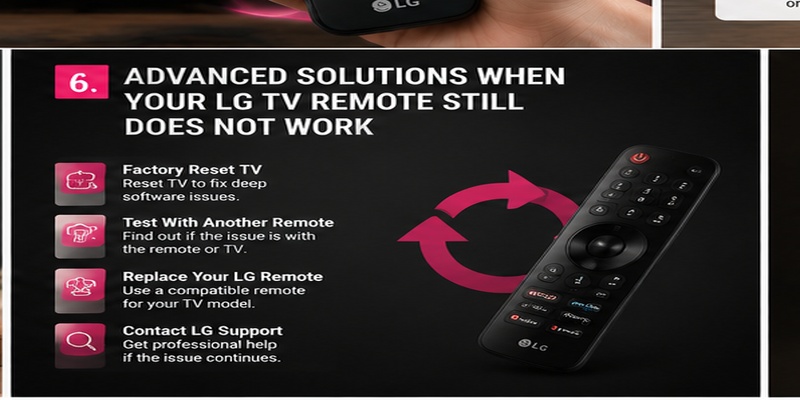
Not as a first step. Try batteries, restarting, re-registering, and checking audio settings first. A factory reset can erase saved settings and account information.
How do I know if my LG remote is broken?
If fresh batteries, a TV restart, and model-specific re-registration do not help, and another compatible controller works normally, the original remote may have a hardware problem.
Final Thoughts
If your LG TV remote is not working, begin with batteries, a TV restart, and basic button tests.
For LG Magic Remotes, check registration when the pointer or smart controls stop responding.
If only the volume buttons fail, investigate the volume rocker, Sound Out settings, and external audio devices before replacing the remote.
Following these steps can help you identify whether the problem comes from the controller, the television, or the connected sound system—without an unnecessary factory reset.
Download LG TV Remote