
How to Pair Universal Remote to TV: With or Without a Code
To pair a universal remote to a TV, turn on the television, put the remote into setup mode, select TV, then enter a compatible code or run the remote’s automatic code search.
The exact buttons vary by universal remote model. One controller may use Setup, another may use Code Search, Set, or a different sequence entirely. That is why identifying your remote model is more important than copying a generic pairing sequence from another remote.
For traditional infrared universal remotes, “pairing” usually means programming the remote with a TV command profile, rather than creating a Bluetooth connection. This guide focuses specifically on how to pair universal remote to TV, both with and without a known code, how to confirm pairing worked, and what to do when the TV does not respond.
1. What You Need Before Pairing a Universal Remote
Before pressing any setup buttons, check the remote itself.
You should know:
- The universal remote brand
- The remote model number
- Your TV brand
- Whether the remote uses IR, Bluetooth, RF, or another connection
- Whether you have the remote’s code list
The remote model is particularly important because pairing procedures and code databases differ between manufacturers and even between models from the same manufacturer.
For example, Jasco’s official support instructions tell users to identify both the remote model and its code-list version before choosing a TV code. Universal Remote Control models also use different setup sequences depending on the controller.
So do not assume that instructions for one GE, Philips, RCA, One For All, or another universal remote automatically apply to yours.
Before starting:
- Turn the TV on manually.
- Install fresh batteries in the universal remote.
- Make sure nothing blocks the TV’s infrared receiver if you are using an IR remote.
- Keep the remote pointed toward the TV during setup.
- Find the remote manual or code list if available.
If you need the code but do not know where to find it, use our guide on how to find tv code for universal remote rather than trying random numbers.
Download LG TV Remote2. How to Pair Universal Remote to TV With a Code
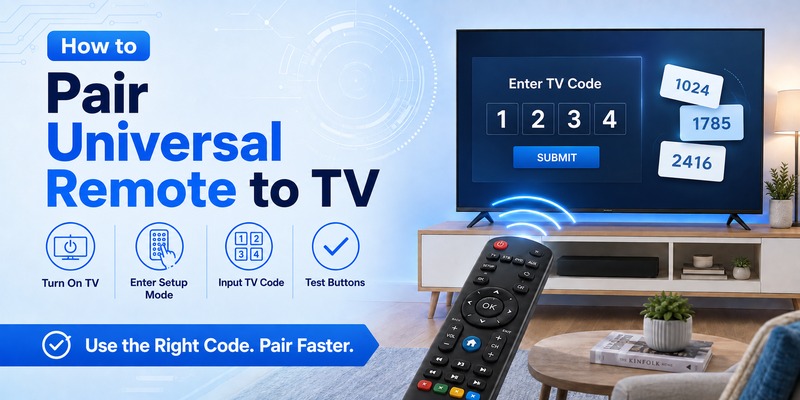
The fastest way to complete how to pair universal remote to tv is usually direct code entry.
A universal remote contains a database of command profiles for different television brands. A programming code tells the controller which command set to use.
Step 1: Turn the TV on
Use the television’s physical Power button or its original remote.
Leave the television powered on throughout the programming process.
Step 2: Activate programming mode
Press and hold the button labeled Setup, Set, Code Search, Program, Magic, or a similar name.
The exact button depends on the remote.
Hold it until the LED remains illuminated or changes its blinking pattern.
Step 3: Select the TV device
Press the TV button on your universal controller.
This tells the remote that the code you are about to enter belongs to a television rather than a DVD player, soundbar, cable box, or other device.
Step 4: Enter the programming code
Type the code using the remote’s number keypad.
Codes may contain three, four, or five digits depending on the universal remote brand.
If the LED flashes or turns off, the code has usually been accepted.
Step 5: Test the remote
Point it at the TV and press Power.
If the television turns off, turn it back on and test other functions.
This is an essential part of how to pair a universal remote to a tv because a partially compatible code may control Power but not Input or Menu.
Test:
- Power
- Volume Up
- Volume Down
- Mute
- Channel
- Input
- Menu
- Directional buttons
- OK or Select
If important buttons fail, repeat how to pair universal remote to tv using another code listed for your television brand.
Do not automatically assume the first code that turns off your television is the best code.
📘 Find the Right Guide: Universal TV Remote Control App: Download, Setup, TV Codes, and Troubleshooting Guide
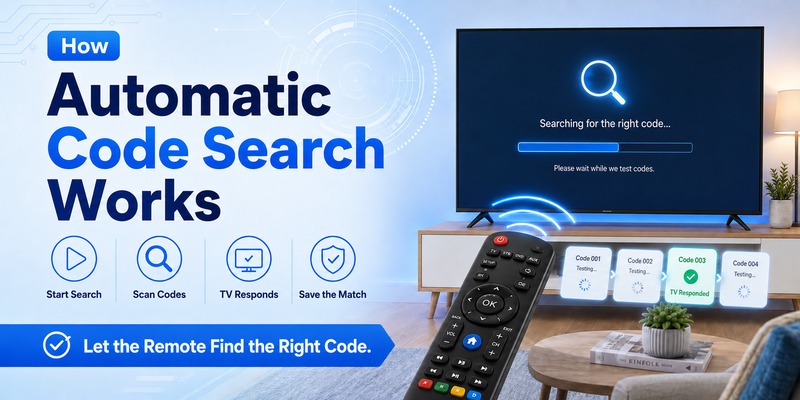
3. How to Pair Universal Remote to TV Without a Code
One of the most useful techniques is learning how to connect universal remote to tv without code.
Most modern universal controllers include automatic or manual code search.
Start by turning on the television.
Hold the Setup or Code Search button until the remote enters programming mode.
Select TV.
Depending on the remote model, you may then press Power repeatedly, press Channel Up, or activate an automatic scanning feature.
Keep the controller aimed directly at the television.
The remote will begin testing different stored command sets.
When the television turns off, stop immediately.
Press Enter, OK, Setup, or another confirmation button specified by the remote manufacturer.
This saves the working code.
The code-search method is particularly useful when you want to know how to pair universal remote to tv but cannot find the original code list.
After storing the code, turn your television back on.
Test Volume, Input, Menu, navigation, and other commonly used buttons.
If basic Power control works but several other commands fail, restart the search. Another compatible profile may provide better functionality.
Understanding how to pair universal remote to tv without direct code entry can save considerable time when working with an older remote or television.
📘 Find the Right Guide: LG Universal Remote TV Codes: Codes, Setup and Pairing Guide
4. Pairing vs Programming: What Does “Pair” Actually Mean?
The words pair, program, connect, and sync are often used interchangeably when people talk about universal remotes, but technically they can describe different processes.
With a traditional IR universal remote, there may be no electronic “pair” between the two devices at all.
The remote simply needs to know which infrared command set to transmit.
Entering a TV code or completing Auto Code Search programs that command profile into the remote.
Bluetooth or RF remotes work differently. Those devices may perform a real pairing process in which the TV or streaming device identifies and stores the remote.
A Smart TV could therefore support:
- IR commands for Power and Volume
- Bluetooth for the original smart remote
- Wi-Fi for a phone remote app
Knowing which connection your remote uses can prevent a lot of wasted troubleshooting.
If your goal is specifically connecting a remote to a Smart TV and understanding those different connection methods, see how to connect universal remote to smart tv.
5. How to Know Your Universal Remote Paired Correctly
Do not judge successful pairing using only the Power button.
A better verification test is:
| Test | What it tells you |
|---|---|
| Power | Basic TV command recognized |
| Volume | Audio commands mapped correctly |
| Mute | Additional core command works |
| Input | Remote can access TV source controls |
| Navigation | Smart/menu controls are supported |
| OK/Select | Navigation profile is usable |
If everything you need works, there is no reason to continue searching for another code.
If only Power works, however, the remote probably found a partial command profile.
Try another code from the remote manufacturer’s list.
The same applies after Auto Code Search. The first profile capable of switching the TV off is not always the profile with the broadest button support.
Also remember that some functions may simply not exist on the universal remote.
Voice microphones, motion pointers, proprietary shortcut buttons, or other manufacturer-specific functions can require the original TV remote even when normal pairing succeeds.
📘 Find the Right Guide: Samsung Universal Remote TV Codes: Complete Codes and Setup Guide
6. Does Pairing Differ by TV Brand?
The basic pairing principle is similar for most TVs. What changes more often is the command profile your remote needs, not the overall pairing concept.
| TV/platform | Typical universal remote approach | What to watch for |
|---|---|---|
| Samsung TV | Code entry or code search | Smart/voice functions may need original remote |
| LG TV | Code entry or code search | Magic Remote pointer/voice may not transfer |
| Vizio TV | Usually IR programming | Test another code if control is partial |
| Hisense TV | Depends on model/platform | Hisense TVs use several smart platforms |
| Roku TV | Compatible IR/universal profile | Roku TV differs from Roku Stick |
| TCL TV | Depends on model/platform | Could run Roku TV, Google TV, Fire TV, etc. |
Samsung and LG TVs
For standard controls such as Power, Volume, Mute, and Input, compatible physical universal remotes commonly use normal code programming.
However, do not expect pairing a generic universal controller to reproduce every feature of Samsung’s original smart remote or LG’s Magic Remote.
Advanced voice and pointer functions can use different technology.
Roku and TCL TVs
Check what the television actually runs.
A TCL Roku TV and a TCL Google TV are not identical from a remote-control perspective.
Also distinguish Roku TV from a separate Roku Streaming Stick. A universal IR remote that controls a Roku television does not automatically control every Roku streaming device.
Hisense TVs
Hisense also sells TVs using different platforms depending on model and region.
So when pairing fails, check the full model instead of repeatedly trying codes simply because the television says “Hisense” on the front.
The important takeaway is that your universal remote model determines the pairing procedure, while the television determines which compatible command profile you need.
7. Why Your Universal Remote Will Not Pair
If the TV does not respond, use the symptom to narrow down the problem.
| Problem | Likely cause | What to do |
|---|---|---|
| Nothing responds | Wrong code, wrong device mode, batteries, blocked IR | Check TV mode, batteries and code |
| Power works only | Partial command profile | Try another compatible code |
| Auto Search finds nothing | TV not in remote database or wrong procedure | Verify remote model/manual |
| Remote worked before but stopped | Programming lost/reset | Program the remote again |
| Basic buttons work but voice does not | Proprietary/Bluetooth feature | Use original compatible smart remote |
| Commands work only at close range | Weak batteries or IR obstruction | Replace batteries and clear receiver |
Check the Remote Model Again
This should be your first step if several codes fail.
A code found online for “Samsung TV” or “LG TV” is useless unless it belongs to the correct remote database.
Some manufacturers even use different code-list versions for different generations of the same remote family.
Check Device Mode
Multi-device remotes often have buttons such as:
TV / CBL / DVD / AUD
If the remote is currently in AUD or DVD mode, pressing TV controls may appear to do nothing even though the television was programmed correctly.
Check the IR Path
For infrared pairing and operation, keep a clear line of sight between the remote and TV receiver.
A soundbar directly in front of the TV is a surprisingly common cause of intermittent universal remote control.
Try Another Code
If Power responds but Volume, Input, or navigation fails, do not immediately conclude that the remote is incompatible.
Try another official code listed for your TV brand.
Jasco specifically notes that some codes may control only a limited number of functions, so testing alternative listed codes can produce better control.
Explore Related Articles: LG TV Remote Volume Button Not Working? 12 Practical Fixes to Restore Volume Control
8. How to Pair a Universal Remote to Vizio TV
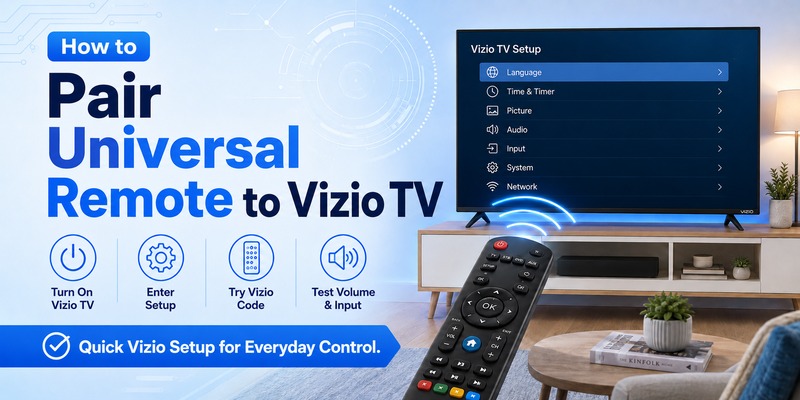
If you need how to pair universal remote to vizio tv, start with direct programming.
Turn on your Vizio television.
Hold Setup until the programming light remains active.
Press TV.
Enter a Vizio code provided by your remote manufacturer.
Point the controller toward the television and test Power.
If it works, check other buttons.
The same process applies to anyone searching how to pair a universal remote to a vizio tv.
If no manual code works, start automatic search.
Vizio televisions commonly respond to standard infrared commands, although the exact level of functionality depends on the universal controller.
For the best how to pair universal remote to tv result, compare multiple working codes if necessary.
One Vizio code may support Power and Volume, while another may provide better Input or navigation support.
💡 Discover Helpful Guides: How to Connect Universal Remote to Smart TV: Complete Setup Guide
9. How to Pair a Universal Remote to Hisense TV
Hisense televisions can run different smart platforms, including Google TV, Roku TV, and VIDAA, but many models still support infrared universal controllers.
To learn how to pair universal remote to hisense tv, start with the code list included with your remote.
Turn on the television.
Enter setup mode.
Select TV and type the Hisense code.
Test the remote.
If you do not have the code list, how to connect universal remote to hisense tv without code generally involves automatic search.
Place the remote into programming mode and let it cycle through available TV profiles until the Hisense television responds.
Save the code immediately.
When applying how to pair universal remote to tv to a Hisense Smart TV, remember that advanced voice-control or platform-specific buttons may not be available on a basic controller.
Basic functions should be your first compatibility test.
10. How to Pair a Universal Remote to Roku and TCL TVs
Roku TVs can be slightly different because Roku functionality may rely on platform-specific controls.
However, many Roku TV models still respond to compatible infrared universal remotes.
For how to pair universal remote to roku tv, first determine the actual television manufacturer.
Roku TV is a platform used by several manufacturers.
Select the appropriate brand in your universal remote’s code guide and test the available profiles.
If you are searching how to pair a universal remote to a roku tv, automatic search can also help when the manufacturer code is unclear.
TCL is one of the most common Roku TV manufacturers.
For how to pair universal remote to tcl tv, turn on the television, activate programming mode, select TV, and enter a TCL or supported Roku TV code from your controller’s guide.
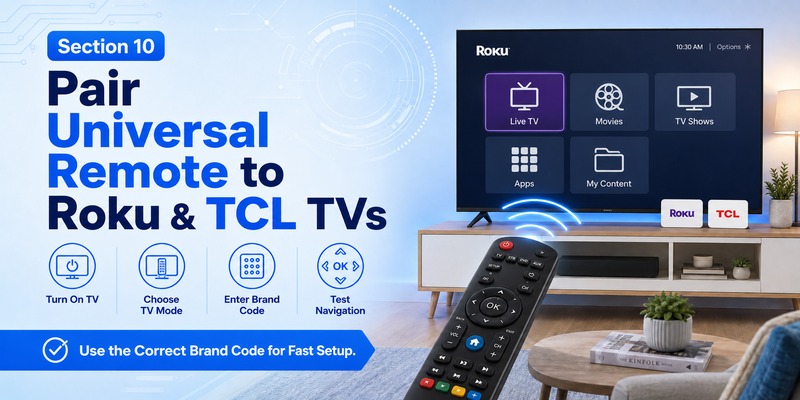
Test navigation carefully.
For Roku TV owners, directional controls, OK, Home, and Back can be just as important as Power and Volume.
A good how to pair universal remote to tv result should support the functions you use most frequently.
💡 Discover Helpful Guides: How to Find TV Code for Universal Remote: Complete Setup Code, Auto Search, and Troubleshooting Guide
12. FAQ About Universal Remote Pairing
Can I Pair a Universal Remote Without a TV Code?
Yes. If your universal remote supports Auto Code Search or a similar search method, it can test stored command profiles until the television responds. The exact buttons required depend on the remote model.
Why Does Power Work but Volume Does Not?
The remote may be using a partially compatible command profile. Try another code listed for your television brand and remote model. Test Power, Volume, Mute, Input, navigation, and OK before deciding which profile works best.
Do Universal Remotes Actually Pair With TVs?
Traditional IR universal remotes are normally programmed rather than Bluetooth-paired. Entering a code selects an IR command set. Bluetooth and RF smart remotes can use a true pairing process where the television recognizes a specific remote.
Can Any Universal Remote Pair With Any TV?
No. Compatibility depends on the universal remote’s command database and supported connection methods. “Universal” means a remote works with many devices, not every TV model or every feature.
Can I Pair a Universal Remote Without the Original TV Remote?
Usually, yes. You normally only need a way to turn the TV on manually and a compatible universal remote. Direct code entry or Auto Code Search can then be completed without the original controller.
Why Did My Universal Remote Stop Working After Changing Batteries?
Some remotes retain their programming during battery replacement, while others may lose settings after a reset or extended period without power. If the remote no longer controls the TV, repeat the code-entry or search procedure.
Final Thoughts
The easiest way to understand how to pair universal remote to tv is to separate the process into two possibilities.
If you have a compatible code:
Turn on TV → enter setup mode → select TV → enter code → test all important buttons.
If you do not have a code:
Turn on TV → enter setup mode → select TV → run Auto Code Search → stop when the TV responds → save → test.
The exact buttons depend on the universal remote model, so always prioritize that remote’s instructions over a generic sequence.
And do not treat Power as the only proof of successful pairing. Test Volume, Mute, Input, navigation, and OK. If some functions fail, another compatible command profile may work better.
Most importantly, remember that pairing depends more on the universal remote model than on the TV brand alone. Identify the remote first, then find the correct setup method and command profile for the television you want to control.
Download LG TV Remote