
Magnavox TV Remote App Free: Connect a Roku TV or Check Your Older Model
Short answer: For a magnavox tv remote app free setup on a Magnavox Roku TV, use the official Roku mobile app for a supported iPhone or Android phone. Older televisions need a model-specific check, and an infrared app requires real compatible transmitter hardware.
Magnavox sells different kinds of televisions, including Roku smart models and TV/DVD combinations. A phone app that works with one type should not be assumed to control every other set carrying the name. Start by identifying the complete model and the interface built into the television. This guide explains the free Roku route, how to evaluate independent infrared apps, and which functions to test before relying on a phone. It also covers attached streaming players, missing buttons, and a practical backup for everyday viewing.
Magnavox TV Remote App Free: Start with Roku on a Roku Television
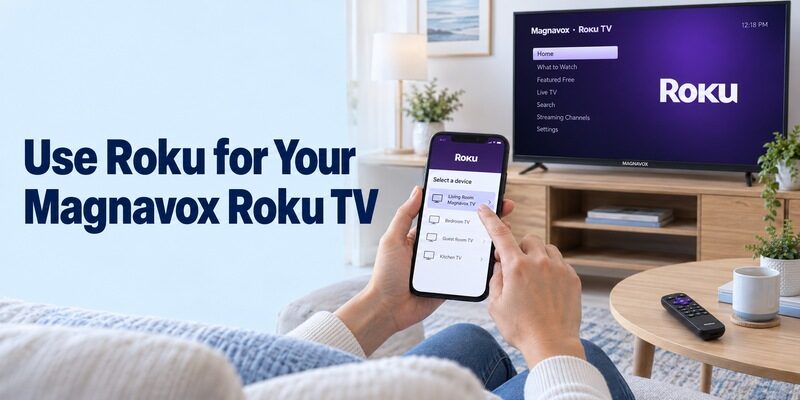
A Magnavox Roku TV has a clear platform-based mobile remote option. Magnavox’s own Roku TV page recommends the free Roku app for iOS and Android as a second controller.
Confirm that Roku is built into the television
Look at the TV’s system information and complete model number. Magnavox’s current product range includes Roku models such as the MRT3205, but a Roku Home screen can also come from a separate player connected through HDMI. Determine which device supplies the interface before choosing the phone’s target.
For a magnavox tv remote app free search, that distinction prevents an unnecessary download. If Roku is the television’s operating system, start with Roku’s own app. If a separate player supplies Roku, its app initially controls that player, while some television functions need an additional supported path.
Verify the publisher before installing
Use the official Roku mobile application published by Roku, Inc. Check the current App Store or Google Play listing for phone requirements and availability in your region. A similar app title or purple remote illustration is not enough to establish publisher identity.
A magnavox tv remote app free result does not have to include Magnavox in the application name. Platform compatibility matters more than matching a search phrase to a store title. Keep the known model details available while comparing the listing with the television’s supported route.
Read more: How to Connect Roku Remote to TV: Full Pairing Guide
Connect the Phone to the Intended Roku TV
The phone and configured television must be able to communicate on the local network. Installing the application does not configure an offline TV automatically.
Prepare the television and local connection
Turn on the Magnavox and confirm its saved network connection with the existing controller. Join the phone to the same suitable household network. Guest or managed networks can isolate devices even when both have internet access, so do not use internet connectivity alone as proof that discovery should work.
For a magnavox tv remote app free attempt, keep the television visible while selecting a target. If the router was recently replaced, restore the TV’s network connection first using a working control method. A phone joining the new network does not transfer those credentials to the television.
Select the device and open Remote
Roku’s mobile instructions use the Devices area to select the Roku device and open its remote. Complete relevant access prompts in the installed application. On an iPhone, review local-network access for the app if discovery was previously denied or the television does not appear.
After a magnavox tv remote app free connection, press one direction button and watch the TV. Confirm that the intended screen responds once. Then open a familiar item and return Home. A device card appearing on the phone is less useful evidence than a repeatable response from the television.
Read more: Roku iPhone Remote: How to Control Your Roku from iOS
Explore Typing and Listening After Navigation Works
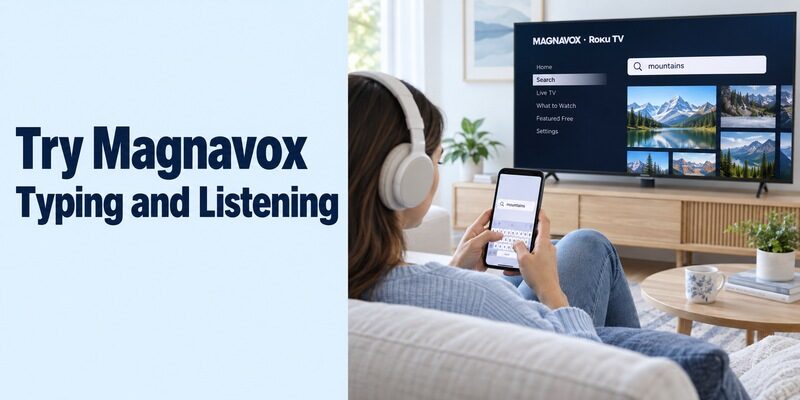
Evaluate additional features individually rather than treating basic pairing as complete compatibility. The viewing source and connected equipment can affect the result.
Test the keyboard in an ordinary search field
Open a supported text field and type a short harmless word. Verify that characters appear and deletion works before entering a long account password. If a particular streaming app does not accept phone text entry, retain directional navigation and check that field separately.
A magnavox tv remote app free setup should also be comfortable from your normal seat. Check that the buttons you use most are easy to reach and distinguish. If adjacent buttons are frequently pressed by mistake, compare another supported layout using the same small set of tasks.
Check listening and voice for the actual source
Magnavox’s Roku overview identifies mobile keyboard, voice, and private-listening features. Use Roku’s current requirements for the particular device and source before relying on an extra. A feature advertised for the platform should still be checked in the viewing situation you actually use.
Start with ordinary navigation, then enable one additional function at a time. Confirm which microphone or audio output is involved and read the relevant access prompt. Keep a simple way to restore normal television sound if the phone or headphones become unavailable during a shared viewing session.
Identify an Older Magnavox Before Choosing a Different App
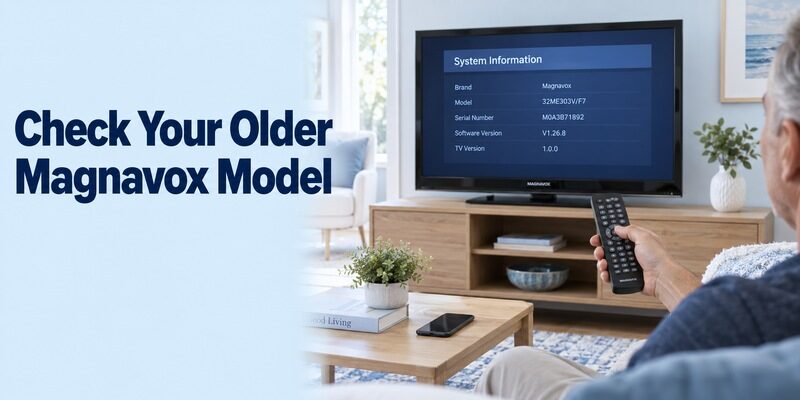
The brand name does not establish that an older television supports network remote control. Read the exact model’s documentation rather than applying current Roku instructions to it.
Distinguish built-in smart features from attached devices
A television can show streaming content through an external box without having a compatible mobile-control service itself. Likewise, a USB media player or network media feature is not proof that the TV accepts all remote commands over Wi-Fi. Identify what the television actually supports.
For a magnavox tv remote app free choice, write the television and any attached player on separate lines in your notes. Record which device owns the input menu, streaming interface, and channel guide. This often explains why one set of phone buttons works while another does nothing.
Use the model’s own support and manual
Check the full model label and the corresponding Magnavox support information. Do not assume that a manual for a similarly sized set belongs to yours. Product families can use different controllers, menus, and connection features even when their front panels look alike.
A magnavox tv remote app free claim should be treated as something to verify against that model. If the documentation does not identify a supported network application, do not invent a pairing PIN or infer a wireless remote function from the presence of Wi-Fi alone.
Evaluate an Infrared App with a Real Hardware Check
An IR remote needs a compatible transmitter and matching commands. Software alone cannot make a phone send traditional television-control infrared signals.
Read the app’s publisher and requirements
The Google Play listing Universal Remote Magnavox by illlusions Inc identifies an infrared controller, requires built-in or external IR transmission hardware, discloses advertisements, and states that it is not Magnavox’s official remote. Those are useful facts for evaluating the listing, not a guarantee that every button works on every model.
Before choosing a magnavox tv remote app free infrared route, check the exact phone specifications. Some Android handsets have an IR blaster; many do not. An ordinary iPhone does not gain a TV-control transmitter through an app installation. Any external accessory needs its own confirmed phone and application support.
Save a profile only after several successful commands
With supported hardware, follow the app’s profile-selection process while aiming the emitter toward the TV. Start with an obvious response, then test menu movement, selection, volume, and inputs. A profile that only operates power may be a partial match rather than a complete solution.
For a magnavox tv remote app free IR test, judge the television’s response rather than a vibrating handset or animated button. Save the profile after confirming the controls needed for recovery, then close the app and reopen the saved device to check that the next session uses the same configuration.
Preserve the Extra Controls on a TV/DVD Combination
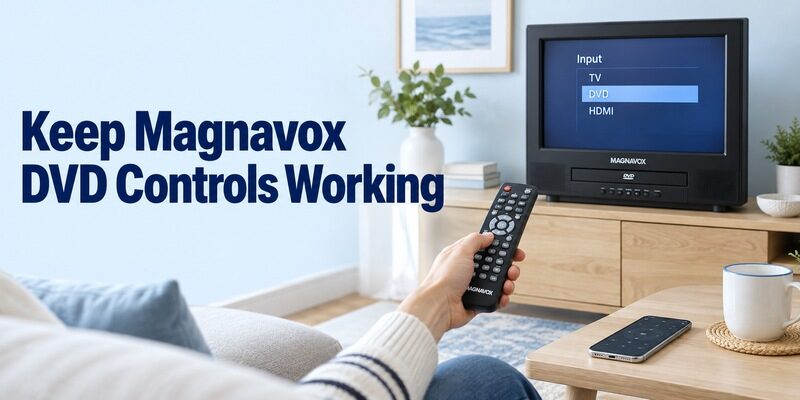
A television remote layout may not expose every built-in disc function. Magnavox’s MTDV2401 product information, for example, identifies a television with an integrated DVD player and a supplied physical controller.
Check disc functions separately from TV buttons
On a model with a built-in player, use the manual to identify the commands required for playback, disc menus, and returning to television viewing. Test those functions with familiar media while the original controller is available. A working volume button does not establish DVD navigation support.
A magnavox tv remote app free profile that changes television channels may still lack a required disc key. Check the entire routine you use, including selecting the DVD source and leaving it again. Do not assume a generic DVD-player category automatically covers a combined TV/DVD model.
Keep a dependable route back to the normal input
Before testing an unfamiliar shortcut, confirm that you can reopen the input list and select the usual source. Preserve any working physical control needed for that recovery. A phone that starts playback but cannot exit the disc interface is an incomplete household solution.
If a replacement controller is needed, choose by complete model and required keys rather than visual resemblance. A broadly compatible remote that omits the combination unit’s special functions may still leave the task unresolved, even if power and basic sound controls work correctly.
Read more: EcoStar TV Remote Control App Free Download: Install and Connect the Right Remote
Control an Attached Streaming Player as Its Own Device
A player’s mobile app initially controls the player, not every feature of the television underneath it. Keep the two targets clear when evaluating a phone remote.
Choose the application for the actual player
Use Roku’s app for a supported Roku player, Amazon’s Fire TV app for Fire TV equipment, or Google’s documented mobile remote for compatible Google streaming devices. Follow that platform’s device-selection and authorization requirements. The Magnavox screen can simply be displaying the player’s HDMI output.
For a magnavox tv remote app free search, identify whether the real goal is navigating streaming apps. You may already have an appropriate platform remote without needing a new app that carries the television brand. Keep the television’s own controller for functions outside that route.
Verify television power and sound instead of assuming
Some current player configurations support television controls through compatible equipment and HDMI control settings. Support varies, so test the actual combination rather than declaring that a player app always can or never can operate TV power and volume.
Check which speakers produce sound and whether the television can return from another input. The guide provides broader Roku context. Keep picture settings, tuner functions, and unsupported input controls associated with their own working route.
Compare Free Use with Advertising and Optional Upgrades
The useful question is whether the required controls remain available during ordinary use. Installation price alone does not answer it.
| What you are considering | What to check first | What it does not establish |
|---|---|---|
| Official Roku mobile app | Correct Roku television or player | Support for every older Magnavox TV |
| Independent IR application | Transmitter hardware and matching profile | Infrared hardware exists in every phone |
| Advertising-supported access | Interruptions during normal tasks | Every optional feature is included |
| Trial or premium option | Exact terms and unlocked functions | Payment fixes unsupported hardware |
| Separate streaming service | Content subscription or purchase | A required fee for basic TV navigation |
For a magnavox tv remote app free comparison, perform the complete task before deciding that an interface meets your needs. An app may open without payment but present optional offers during other actions. Read what each offer actually provides instead of treating every screen as part of pairing.
If another layout would help, review and confirm support for the exact television or player first. Compare it with the known working option using the same source, audio equipment, and navigation sequence. Keep the original app until the alternative has demonstrated dependable control.
Fix the Specific Failure You Can Observe
Separate network discovery, infrared transmission, and individual button problems. Their symptoms point to different next steps.
| Symptom | Likely area to investigate | Useful next check |
|---|---|---|
| Roku TV is absent from Devices | Power, network, or phone access | Compare actual TV and phone connections |
| IR buttons have no visible effect | Transmitter, aim, or command profile | Verify hardware and several profiles safely |
| Power works but menus fail | Partial profile or unsupported function | Compare the original controller’s commands |
| Player responds but input does not | Different controlled devices | Restore the TV’s own input control |
| Keyboard fails in one app | Text-field support | Try another ordinary search field |
| Control stops after changing routers | Stored network credentials | Reconnect the target with a working controller |
A magnavox tv remote app free troubleshooting session should change one relevant condition at a time. Reopen the app after correcting a prerequisite, and use an ordinary device restart where appropriate. Let startup finish and do not interrupt an active software update for a routine connection test.
During a magnavox tv remote app free investigation, keep restart separate from factory reset. Removing saved network and account settings can make recovery more difficult when the physical controller is missing. If another household phone works, compare its app, target, and permissions before disturbing the television’s useful setup.
Keep the Working Remote Ready for the Next Session
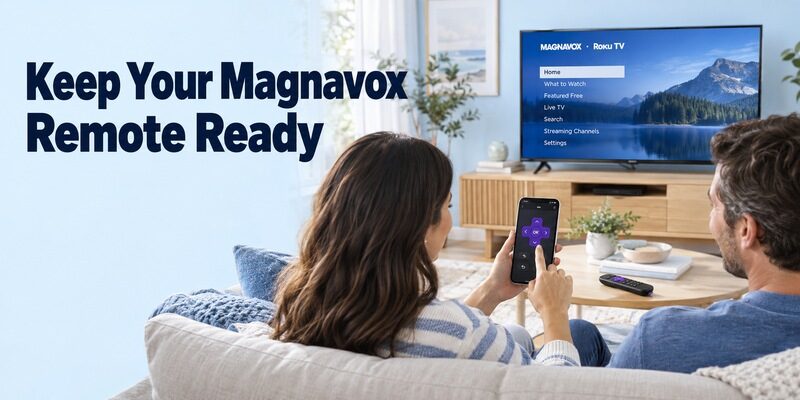
A successful setup should be easy for another viewer to reproduce. Make the device identity and fallback clear while everything is working.
Record the useful configuration
Save a recognizable device name where the application supports it. Note the TV model, phone model, app publisher, and connection method without recording passwords. For an infrared route, retain the successful saved profile and the controls that were actually tested.
For a magnavox tv remote app free household setup, show another viewer how to select the target, return Home, and recover the normal source. Ask them to repeat the task from the closed application. That reveals unclear steps that an experienced installer may overlook.
Recheck after standby or a phone change
Close and reopen the app, then test the supported route after ordinary standby. If waking the television needs a physical controller, document that limitation and check that phone navigation resumes afterward. Store the backup where regular viewers can find it when the phone is charging or unavailable.
Before replacing a router, confirm that the television’s network settings remain accessible. Reconnect the target first and only then repeat phone discovery. A replacement handset may also have different local-access permissions or lack an old phone’s IR transmitter, even after restoring the previous application’s data.
Frequently Asked Questions
Is the official Roku app suitable for every Magnavox TV?
Use it for a supported Roku television or Roku player. A magnavox tv remote app free choice for an older non-Roku set needs a separate model and connection check. The brand name alone does not establish Roku compatibility.
Can an iPhone operate an older infrared-only model?
An ordinary iPhone does not contain a traditional television-control IR transmitter. A network app requires a supported network target, while an external IR accessory needs its own confirmed compatibility. Installing another remote interface does not remove that hardware requirement.
Why does an app turn the TV off but not control its DVD player?
The selected profile may support television commands without the combination unit’s disc functions. Check the model’s required keys and test the DVD source separately. Keep a controller that can return to normal viewing before relying on the phone alone.
Does free remote access include streaming subscriptions?
No. A remote controls supported equipment and does not grant paid entertainment. Keep content charges separate from the application’s own access terms when deciding whether the available free controls are enough for your setup.
Final Thoughts
A magnavox tv remote app free setup works best when the television or player is identified before the application is chosen. Use Roku’s verified mobile route on supported Roku equipment, and check real infrared hardware and exact-model requirements for other televisions.
Test menus, sound, inputs, and any built-in DVD functions you need. Preserve a physical fallback and a short configuration note so that a convenient phone remote remains usable after standby, network changes, or a handset replacement.
