
Universal Remote TV App: Free Options, Setup & Fixes
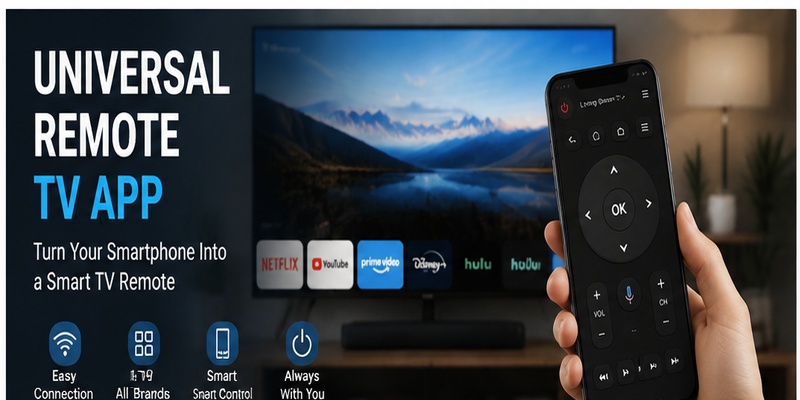
Quick Answer: A universal remote TV app turns your smartphone into a remote for compatible televisions and streaming devices. To get started, choose an app that supports your TV, install it from the App Store or Google Play, connect your phone and TV to the same Wi-Fi network, select your television, and complete any required pairing.
If you want a free universal TV remote app, start with an official app such as Roku, Google TV, Samsung SmartThings, LG ThinQ, or Amazon Fire TV for compatible devices. A third-party universal app may be more convenient when you have several TV brands, but some features may require payment.
The best app depends on your TV’s operating system, your phone, and the controls you need. This guide explains how to choose, download, connect, and troubleshoot a universal TV remote control app.
Best Free Universal TV Remote Apps for iPhone and Android
Not every app labeled “universal” works with every television. The easiest way to choose is to identify the TV’s operating system before downloading anything.
Compare Free TV Remote Apps by Platform
| TV or Device | App to Try First | Phone Compatibility | Basic Remote Cost |
|---|---|---|---|
| Samsung Smart TV | Samsung SmartThings | iPhone, Android | Free on supported devices |
| LG webOS Smart TV | LG ThinQ | iPhone, Android | Free on supported devices |
| Roku TV or Roku player | Roku mobile app | iPhone, Android | Free |
| Google TV / Android TV | Google TV remote functionality | Android; supported Google interfaces on iOS | Free |
| Amazon Fire TV | Amazon Fire TV app | iPhone, Android | Free |
| Apple TV 4K / HD | Apple TV Remote | iPhone, iPad | Free |
| Multiple compatible TV brands | Third-party universal remote app | Depends on publisher | Free, freemium, or paid |
Compatibility and available controls vary by device model, software version, and region.
1. Official TV Remote Apps
An official TV remote app is usually the best starting point when you own one compatible television or streaming platform.
For example, Samsung SmartThings can provide on-screen remote controls for supported Samsung TVs. LG ThinQ supports remote functions on compatible LG televisions.
Roku’s mobile app provides remote controls for supported Roku devices, while Google TV offers a virtual remote for compatible Google TV and Android TV products.
These apps generally provide basic remote functionality without a separate remote-control subscription.
2. Universal Remote TV App for Multiple Brands
A third-party universal remote TV app is designed to support more than one television brand or platform.
This can be helpful if you own:
- A Samsung TV in the living room
- An LG TV in the bedroom
- A Roku TV in another room
- A compatible streaming device connected to a separate display
Instead of switching between several official applications, you may be able to manage supported devices through one interface.
For example, Remote TV App is a multi-brand remote solution for compatible televisions.
Before installing any universal TV remote control app, confirm that your exact television model and operating system are supported.
3. Is a Free Universal TV Remote App Really Free?
The word free can describe several different pricing models.
| Pricing Model | What It Means | What to Check |
|---|---|---|
| Completely free basic remote | Core remote controls available without a remote subscription | Device compatibility |
| Free with optional purchases | Basic functions may be free; advanced features cost extra | Which buttons remain free |
| Free with ads | Remote functions are available but advertisements appear | Ad frequency |
| Free trial | Access may end or become limited after a trial | Renewal and cancellation terms |
| Paid app | Payment required to unlock the service | Refund policy and supported TVs |
A free download does not guarantee that all controls are free.
Check the current App Store or Google Play listing for in-app purchases, subscriptions, and trial conditions before installing.
If you are comparing options primarily by cost, see our free remote control app for TV guide.
4. Universal TV Remote App for iPhone vs. Android
Both iPhone and Android can control many compatible Smart TVs over a local network.
However, available apps and connection methods differ.
iPhone: Most remote apps use Wi-Fi or another supported network connection. iPhones do not have a built-in infrared blaster for controlling conventional TVs directly.
Android: Many remote apps also use Wi-Fi. Some Android phones include an infrared transmitter that can control compatible older TVs through a suitable app.
Do not assume that every Android phone supports infrared control.
For iPhone-specific recommendations, read our free TV remote app for iPhone guide.
➡️ Explore More: How to Reset Your Apple TV Remote: Pairing, Volume, and No-Remote Fixes
How Does a Universal TV Remote Control App Work?
A universal remote TV app sends commands from your smartphone to a compatible television.
The connection method determines which devices it can control.
Wi-Fi Remote Control
Most modern Smart TV remote apps use the local network.
Your smartphone and television usually need to be connected to the same accessible Wi-Fi network.
Once the TV is discovered and authorized, the app may send commands for:
- Power, where supported
- Volume
- Mute
- Home and Back
- Menu navigation
- Playback
- Input selection
- Text entry
Wi-Fi control does not require pointing the phone at the TV.
However, the television must support the application’s control method.
Infrared (IR) Remote Control
Some Android phones have a built-in IR blaster.
With compatible software, these phones can transmit infrared commands directly to certain televisions.
An IR remote app may work without Wi-Fi because it sends commands in a similar way to a traditional physical remote.
Limitations include:
- The phone must have IR hardware.
- The app must support the TV’s command set.
- The phone usually needs a clear path to the TV’s infrared receiver.
- Advanced Smart TV functions may not be available.
Installing an IR app cannot add infrared hardware to a phone that does not have it.
Bluetooth and Other Control Methods
Some devices support Bluetooth or other wireless control technologies.
However, a generic universal remote app does not automatically gain Bluetooth control over every Smart TV.
The television and application must support a compatible pairing method.
Do Universal Remote Apps Need TV Codes?
Most Wi-Fi remote apps do not require traditional three-, four-, or five-digit universal remote codes.
They typically discover the TV over the network and may request an on-screen pairing code.
This is different from programming a physical infrared universal remote.
If you need numeric codes for a physical controller, see our how to find TV code for universal remote guide.
📖 Read More: Apple TV Remote Volume Not Working? Here’s How to Fix It
How to Download and Connect a Universal Remote TV App
Follow these steps to connect a compatible smartphone remote app to your TV.
Step 1: Identify Your TV Platform
Check the television’s model number and operating system.
Common platforms include:
- Samsung Tizen
- LG webOS
- Roku TV
- Google TV
- Android TV
- Amazon Fire TV
- Apple TV
The brand alone may not tell you which app to use.
For example, some TCL and Hisense televisions run Roku TV, while others use Google TV, Android TV, or another platform.
Step 2: Download a Compatible Remote App
Open the App Store or Google Play.
Search for the official app associated with your TV platform or a reputable universal remote application.
Before installing, review:
- Publisher name
- Supported devices
- Recent app updates
- User reviews
- Required permissions
- Subscription and in-app purchase details
Avoid downloading unverified APK files from unfamiliar websites.
Step 3: Connect Your Phone and TV to the Same Wi-Fi
For most network-based remote apps:
- Turn on your television.
- Confirm the TV is connected to your home network.
- Connect your phone to the same network.
- Open the remote app.
- Allow necessary local-network or device-discovery access.
Guest Wi-Fi networks or device-isolation settings may prevent discovery.
Step 4: Select Your Television
Open the device list or Add TV screen in the app.
Wait for compatible televisions to appear.
Select your TV by name or room.
If the app supports manual IP entry, use it only according to the developer’s instructions.
Step 5: Complete Pairing
Some televisions display a PIN or approval request.
Enter the code on your phone or approve the connection on the television.
Other supported devices may connect through an account or previously authorized device.
Follow the app’s instructions rather than assuming every brand uses the same pairing process.
Step 6: Test the Remote
After connecting, test:
- Home
- Back
- Directional navigation
- OK or Select
- Volume
- Mute
- Input
- Play and Pause
- Power, where supported
A successful connection does not guarantee every function is available.
Connect to Samsung TV
For a compatible Samsung Smart TV, Samsung SmartThings is a good official starting point.
Add the television to SmartThings, complete any authorization prompts, and open the available remote controls.
The TV may need to be powered on and connected to the network during setup.
For more details, see our Samsung TV remote app guide.
Connect to LG TV
For supported LG webOS televisions, use LG ThinQ or another compatible remote application.
Connect the phone and television to the same network, register the TV when required, and open its remote controls.
For more options, read our LG TV remote app guide.
Connect to Roku TV
Roku offers a free mobile app with remote functionality for supported Roku TVs and streaming players.
Install the official Roku app, connect your phone to the appropriate network, select the Roku device, and open Remote.
See our free Roku remote control app guide.
Connect to Google TV or Android TV
For a compatible Google TV or Android TV device, use Google’s supported remote functionality.
Select the television in the app and enter the pairing code displayed on the TV when prompted.
For Android setup instructions, see our Google TV remote app for Android guide.
🔍 View Related Articles: Do You Need to Download the Apple TV Remote on iPhone?
Best Features to Look for in a Universal Remote TV App
A good remote app should reliably perform the functions you use most often.
Basic TV Controls
Check for Power, Volume, Mute, Home, Back, navigation, and Input.
These are more important than decorative features if your physical remote is lost.
Smartphone Keyboard
Typing with a phone keyboard can make searching for shows and entering account information easier.
Availability depends on the TV platform and application.
Multiple TV Management
Some universal apps allow you to save several compatible televisions and switch between them.
This is useful for households with different TV brands.
Touchpad Navigation
A touchpad can make moving through menus more convenient.
However, not every TV platform supports the same gesture controls.
Streaming Shortcuts
Some apps provide shortcuts for streaming services or input sources.
These shortcuts may be limited by the TV’s software and available integrations.
Voice Control
Voice commands may be available through supported apps, assistants, and television models.
Do not assume that installing a remote app enables microphone or voice features on every television.
Privacy and Permissions
A remote app may need local-network discovery permissions to find your TV.
Review its privacy information before installation.
Be cautious if a simple remote application requests permissions unrelated to its stated features.
Can You Use a Universal Remote App Without Wi-Fi?
Sometimes, but the answer depends on the TV and phone hardware.
Using a Wi-Fi Remote Without Internet
Your home Wi-Fi network may continue working even if your internet connection is temporarily unavailable.
If the phone and TV remain connected locally, some remote functions may still work.
However, streaming services and account-based features may require internet access.
Using an Infrared Remote Without Wi-Fi
A compatible Android phone with an IR blaster may control certain televisions without Wi-Fi.
This requires a suitable IR remote application and a supported TV command profile.
Can an iPhone Control a Non-Smart TV Without Wi-Fi?
An iPhone cannot directly transmit traditional infrared remote commands because it lacks a built-in IR blaster.
A compatible external accessory or other supported control system would be required.
What About Older Non-Smart TVs?
Most older non-smart TVs cannot be discovered through ordinary Wi-Fi remote apps.
If the television only supports infrared control, you will generally need:
- A compatible phone with IR hardware
- An external IR accessory or hub
- A traditional replacement remote
A Wi-Fi-only app cannot control an infrared-only television by itself.
Universal Remote TV App Not Working? Troubleshooting
If your universal remote TV app cannot find or control the television, work through these checks.
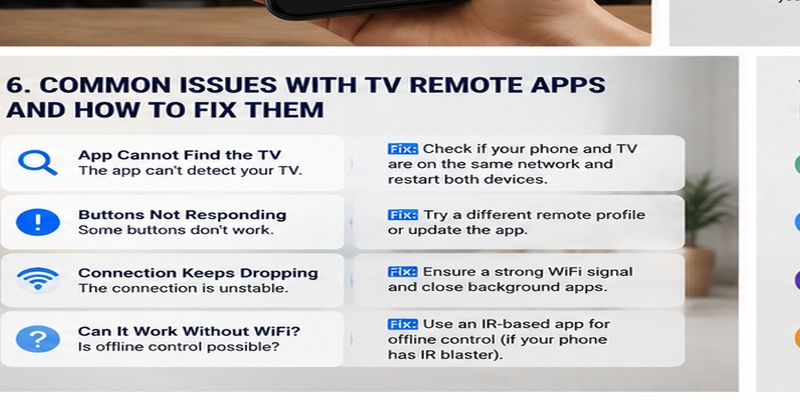
1. TV Not Showing Up in the App
Check that the phone and TV are connected to the same accessible network.
Make sure the television is powered on and supports network remote control.
Guest networks and router isolation can block discovery.
2. Pairing Code Not Working
Use the current code shown on the TV.
Check that you selected the correct device.
Restart the pairing process if the code expires or is rejected.
3. App Connects but Buttons Do Not Respond
Test Home and navigation first.
Check whether the app supports your exact television model.
Restart the app and television if necessary.
4. Volume or Power Does Not Work
Volume and power functions depend on the TV model, audio configuration, and available control protocols.
If navigation works, the connection may already be successful.
Review the TV’s volume and external-device settings.
5. Connection Keeps Disconnecting
Check Wi-Fi stability and restart the phone, television, and router when appropriate.
Disable network isolation settings that prevent devices from communicating.
Update the app and TV software.
6. Remote Stops Working After TV Standby
Some TVs disable network interfaces or remote-control functions while in deep standby.
Check for supported network standby, quick start, or mobile power-on settings.
These options vary by manufacturer.
7. Remote App Cannot Control a Streaming Stick
A streaming stick may use a different control protocol from the television it is connected to.
Make sure the app supports the streaming device itself.
Do not assume that controlling the TV automatically provides full control of every connected streaming device.
8. The TV Is Not Connected to Wi-Fi and the Original Remote Is Lost
A network-based app may be unable to discover the TV.
You may need the television’s physical buttons, a compatible replacement remote, or another manufacturer-supported setup method to restore network access.
9. The App Requires Payment for Basic Controls
Check whether the app is a free trial or freemium product.
If the functions you need are locked behind a subscription, compare official remote apps for your TV platform.
A different supported app may provide the basic controls you need at no additional cost.
FAQs About Universal Remote TV Apps
What is the best universal remote TV app?
The best app depends on your TV’s operating system and your phone. Official apps are a good starting point for a single platform, while multi-brand apps may be more convenient for households with several compatible TVs.
Is there a free universal TV remote app?
Yes. Several official TV remote apps provide free basic controls on supported devices. Third-party universal apps may be free, freemium, or paid.
Can I use my phone as a universal TV remote?
Yes, if your phone and television support a compatible control method, such as local-network remote control or infrared.
Does a universal TV remote control app work on any TV?
No. Compatibility depends on the TV model, operating system, supported protocols, and phone hardware.
How do I connect a universal remote app to my TV?
Install a compatible app, connect your phone and TV to the same network, select the television, complete pairing if required, and test the controls.
Can I use a universal remote app without Wi-Fi?
Some infrared-capable Android phones can control compatible televisions without Wi-Fi. Most Smart TV remote apps require local-network connectivity.
Can a universal remote app control a non-smart TV?
Sometimes. A non-smart TV may be controlled through a compatible infrared transmitter and app, but a Wi-Fi-only remote application generally will not work.
Is there a universal remote TV app for iPhone?
Yes. iPhone supports many official and third-party remote apps for compatible network-connected televisions.
Is there a universal remote TV app for Android?
Yes. Android supports official and third-party TV remote applications. Some Android phones also have infrared hardware.
Do universal remote apps need TV codes?
Most network-based apps do not use traditional universal remote setup codes. They may use an on-screen pairing PIN instead.
Why can’t my remote app find my TV?
Common causes include different Wi-Fi networks, device isolation, unsupported TV models, missing permissions, or a TV that is offline.
Can I use one remote app for Samsung, LG, and Roku?
Some third-party apps support multiple television platforms. Confirm compatibility with each device before relying on a single app.
Can a universal remote app replace my original TV remote?
It can replace many everyday controls on compatible devices. Advanced features, initial setup, and recovery from network failures may still require another control method.
Final Thoughts
A universal remote TV app is a convenient way to control compatible televisions from an iPhone or Android phone.
For one television platform, start with its official free remote app. For several TV brands, consider a reputable multi-brand app and verify its compatibility, pricing, and supported controls.
The most important steps are identifying your TV platform, choosing the right app, connecting both devices correctly, and testing the functions you actually use.
If the app cannot find your TV, check the network and compatibility before assuming the remote software is defective.
Download Universal TV Remote