
Blaupunkt TV Remote App Free: Pair Your Phone and Check the Controls
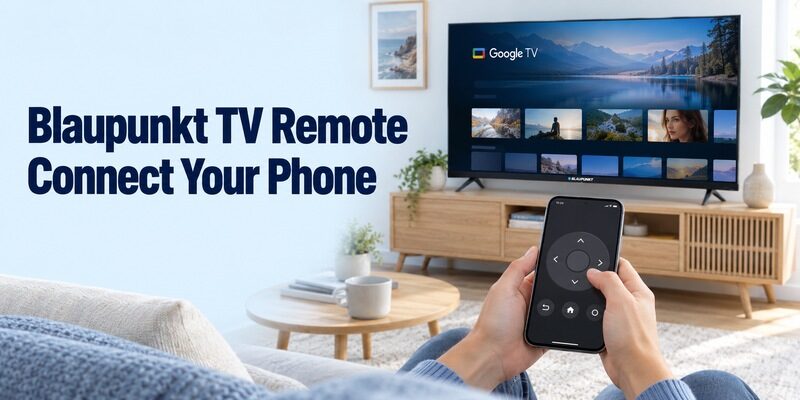
Short answer: For a blaupunkt tv remote app free setup, start with Google’s Google TV app when your Blaupunkt television runs compatible Google TV or Android TV. Other models need their own documented control route; an infrared app additionally requires real transmitter hardware in the phone or a supported accessory.
The brand name on an app result is not enough to establish compatibility or official ownership. Check the television’s full model, its operating system, and the application’s publisher before installing. This guide walks through preparation, phone pairing, essential control tests, and troubleshooting when discovery or individual buttons fail. It also explains why a Bluetooth physical remote, phone keyboard, casting session, and infrared controller should be evaluated as different functions.
Blaupunkt TV Remote App Free: Start with a Supported Download
Match the app to the television platform before searching for extra features. Blaupunkt’s own product information identifies Google TV on models such as the 50QD7010, while its BP550USG9800 manual documents Android TV.
Confirm the system on your own television
Read the complete model from the label and open the television’s system information using its existing controller. Keep every letter and number when checking regional support. Screen size and a streaming-service shortcut do not uniquely identify the operating system or remote-control protocol.
For a blaupunkt tv remote app free choice, distinguish the built-in interface from an attached streaming stick. If the picture comes from an HDMI player, the phone may need that player’s application for streaming navigation and another route for television-specific settings.
Install Google’s phone app where it applies
Use Google’s verified Google TV remote listing on a supported Android phone or iPhone. Its mobile remote is a supported route for compatible Google TV and Android TV devices. Check the store’s current phone requirements and regional availability rather than relying on an old tutorial’s version number.
A blaupunkt tv remote app free result can also describe an independently published product. Read the publisher and connection requirements before accepting an installation. A familiar television picture in the listing does not establish a manufacturer relationship or guarantee that every Blaupunkt model will respond.
Prepare the Television Before Opening the Device Selector
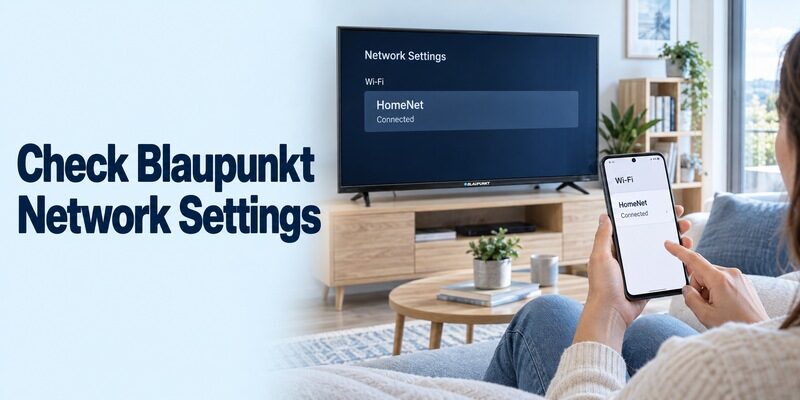
An unpaired phone cannot automatically fix a television that is offline. Keep the physical remote available until the television is awake, configured, and on the expected network.
Check the actual network connection
Open the TV’s network information and compare it with the phone’s Wi-Fi connection. Blaupunkt’s BP550USG9800 manual, for example, places its network controls under Network & Internet. Follow the equivalent menu in your own model’s instructions instead of forcing that path onto a different set.
A blaupunkt tv remote app free network attempt should use a shared local connection that allows the devices to communicate. Both devices having internet access is not enough if a guest network or managed access point separates them.
Make the first attempt observable
Sit where you can see the intended television and keep it turned on. Open the phone application and grant any required local-device access in the context of connecting to your own TV. If that permission was previously declined, inspect the app’s phone settings before repeating discovery.
If several televisions are present, identify the target by room and model. Do not accept a pairing prompt on another screen merely because its device name resembles the one you expected. A clear first connection saves confusion later when controls appear to affect the wrong room.
Pair the Google TV Mobile Remote
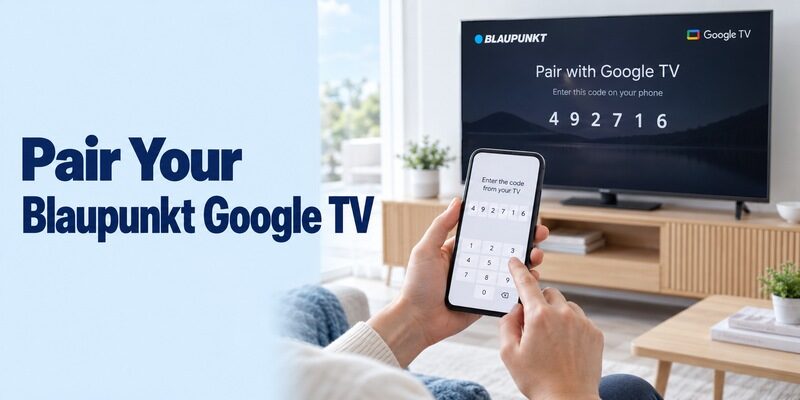
Complete the television’s displayed authorization process. A phone remote is not paired by entering a brand code from a universal infrared remote list.
Select the target and enter its code
Google’s current instructions describe opening Google TV, choosing TVs nearby, selecting the device, entering the code displayed on the television, and tapping Pair. Follow the corresponding controls in your installed app version and use the code from the intended screen.
For a blaupunkt tv remote app free pairing attempt, watch both displays until the request finishes. If the code changes or another television shows it, return to device selection and repeat with the right target rather than trying unrelated number combinations.
Distinguish phone pairing from the physical remote
Blaupunkt manuals also describe Bluetooth pairing for the supplied physical controller. That process uses the controller’s own buttons and the television’s accessory settings. It is separate from Google’s phone-based pairing flow and should not be substituted for it.
After the blaupunkt tv remote app free connection completes, open the remote controls and send one visible command. Keep the original controller paired and usable; there is no reason to remove a functioning physical remote simply to evaluate a phone application.
Read more: How to Control Google TV With Phone: Android & iPhone Guide
Confirm Navigation Before Testing Advanced Features
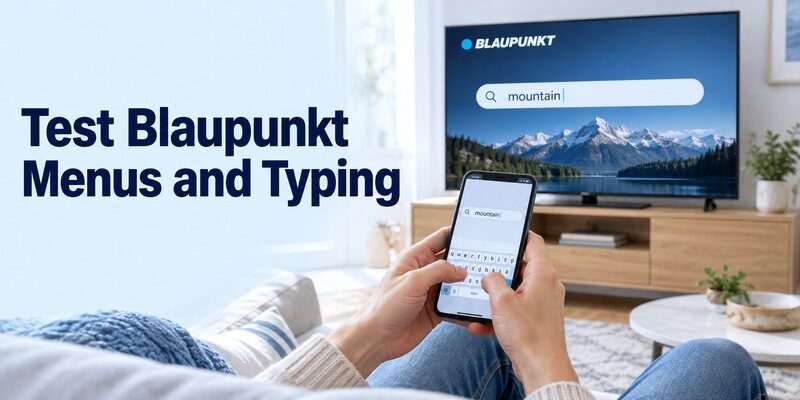
Use a short sequence with a visible result at every step. Start with ordinary menu actions rather than experimenting with unfamiliar settings.
Check directional movement and selection
Move the Home-screen highlight once, open a familiar application, and return with Back or Home. Watch the television after each command. This confirms the selected screen is receiving instructions and reveals whether a tap is being interpreted more than once.
A blaupunkt tv remote app free setup is useful when you can reproduce that routine after closing and reopening the application. A saved device card or an animated button on the phone is not an adequate substitute for a television response.
Try text in a supported search field
Type a harmless short search term before entering a long password or personal information. Confirm where the characters appear and whether the field accepts phone keyboard input. An individual streaming application may behave differently from a system-level search screen.
If text entry fails in one app while navigation works, keep the directional controls available and investigate that field separately. The guide explains the broader Google platform options without replacing Blaupunkt’s model-specific instructions.
Separate Voice, Casting, and Television Control
One successful feature does not prove every phone interaction is supported. A television can receive a video stream without exposing all of its menus through the same application.
Test remote controls after leaving a cast session
Stop or leave the current media session and return to the television’s normal interface. Reopen the phone’s remote controls and move a menu highlight. This distinguishes control of a video currently playing from the navigation needed to choose something else.
For a blaupunkt tv remote app free evaluation, record casting and navigation as separate results. A missing cast target is not automatically the same fault as a connected remote whose keyboard does not appear in one application.
Check which microphone is being used
The television’s hands-free microphone, the supplied voice remote, and a phone application’s voice feature can have different requirements. Blaupunkt advertises voice features on certain models, but that does not mean every model or mobile application has the same capability.
First establish ordinary navigation, then try voice only where the selected app and television support it. Read the microphone permission request for that feature and check the visible response. Preserve working buttons if voice is unavailable rather than rebuilding the entire connection.
Use Infrared Only with Compatible Hardware
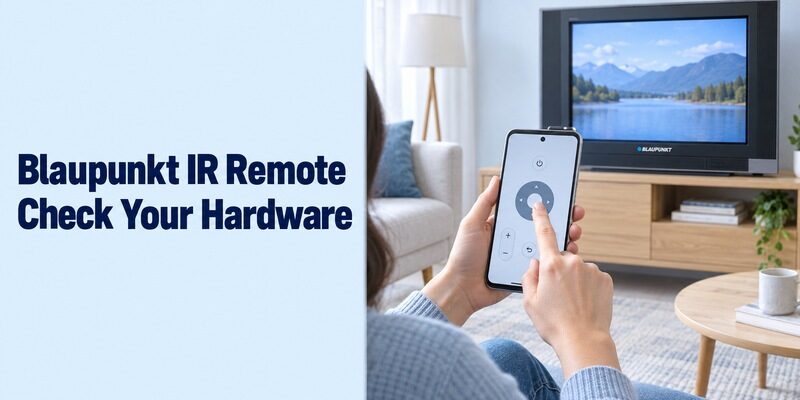
An IR remote needs a real transmitter and matching commands. Software alone cannot add that hardware to a phone.
Inspect the phone and app requirements
Some Android handsets include an IR blaster, but the exact phone specifications must confirm it. An ordinary iPhone does not acquire infrared television-control hardware through an app download. An external accessory is a separate product whose phone and application support also need verification.
The Google Play listing Remote for Blaupunkt TV by Guten Morgen explicitly requires an IR-emitting phone and states that it is not an official Blaupunkt application. In a blaupunkt tv remote app free search, those details matter more than a generic promise to control the brand.
Verify several buttons before saving a profile
Where a supported IR route exists, aim the emitter toward the television and follow the app’s profile-selection process. Test menu movement, selection, volume, and the normal input. One successful power command does not prove every button is mapped correctly.
A blaupunkt tv remote app free infrared test should be judged by what the television does. If only some commands work, revisit the compatible profile instead of changing the router. Network settings do not correct an infrared command mismatch.
Read more: Philips TV Remote App Free: Match the App to Your Television
Read Free-Use Terms in the Actual Application
Separate compatibility from payment and optional upgrades. A paid tier cannot turn an unsupported television into a compatible one.
| What you see | What it establishes | What still needs checking |
|---|---|---|
| Free installation | No initial download price | Whether essential controls remain included |
| Advertisements disclosed | The app may show advertising | Whether it interrupts the routine you need |
| Optional trial | Temporary access under stated terms | Renewal conditions and included features |
| Manufacturer or platform publisher | Application identity | Exact model and phone support |
| Infrared requirement | Physical transmitter is necessary | Whether the phone actually contains it |
For a blaupunkt tv remote app free comparison, check the current store description and the remote interface itself. The Guten Morgen listing indicates advertisements; other independent products can use different access models. Similar names do not establish identical pricing, privacy declarations, or supported functions.
If a content purchase appears inside Google’s entertainment interface, identify what it is selling. Movie rental and streaming subscriptions are different from the mobile remote. Do not interpret every entertainment offer as a mandatory payment for menu navigation.
Diagnose Discovery and Pairing from the First Failure
Change one relevant condition at a time. This makes it possible to identify what restored control instead of simply accumulating more installed applications.
Work through a missing television
Check platform support, power, the TV’s saved network, the phone’s connection, and any required local-device permission. Reopen the device selector after correcting a prerequisite. If another household phone works, compare its app identity and selected device before changing the television.
During a blaupunkt tv remote app free investigation, note whether the TV never appears or appears but cannot complete pairing. Those outcomes point to different stages. Preserve the exact error message where possible and confirm which screen displays the authorization request.
Keep restarts distinct from resets
Use the equipment’s ordinary restart procedure when a supported connection remains unresponsive. Let startup finish before opening the phone remote again, and do not interrupt an active software update for a routine test.
Avoid a factory reset merely to compare two applications, particularly if the original remote is missing. Resetting can remove network and account details that the phone needs. A blaupunkt tv remote app free troubleshooting session should preserve any working control route while narrowing the problem.
Check Sound, Channels, and Input Recovery
Test the same entertainment setup you normally watch. Television navigation, external audio, and provider channels may involve different control targets.
| Everyday task | Simple test | What to record |
|---|---|---|
| TV navigation | Move, select, and return Home | Intended television responds |
| Sound | Change volume one step and restore it | TV speakers or external audio device changes |
| Live channels | Open the usual channel source | TV tuner, receiver, or app provides the channels |
| Input recovery | Return to the normal HDMI or TV input | A usable path back is available |
| Later session | Reopen the app after ordinary standby | Reconnection and wake behaviour |
An external soundbar can remain silent to phone volume commands even when the TV menu moves correctly. Check the supported audio-control route and relevant television settings before blaming the entire connection. Use the physical audio remote as a comparison where available.
For a blaupunkt tv remote app free setup, also verify how to return from a game console or another HDMI input. An attached player’s app may navigate that player successfully while the television’s own source selection still needs a different controller.
Keep a Clear Handover and a Physical Backup
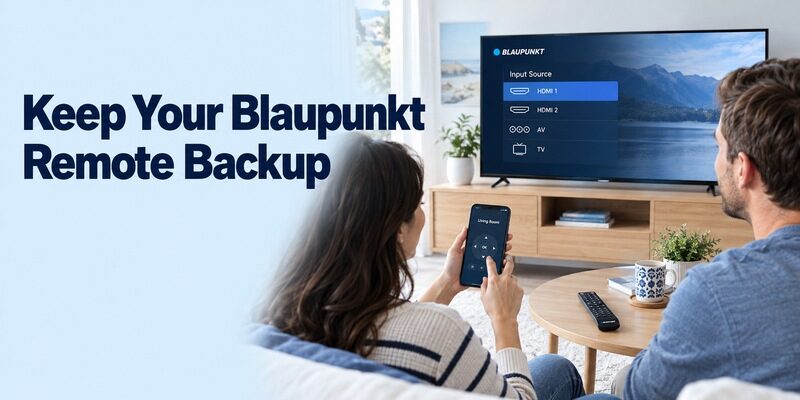
Make the working setup reproducible for the next viewing session. A phone remote should remain understandable when the person who configured it is absent.
Compare another interface against the known connection
Review if another supported interface would improve everyday use, and confirm the exact Blaupunkt model and phone combination first. Compare it against the verified platform route using the same source, audio output, and navigation sequence.
Use the phone from your ordinary seat, in the hand and orientation you prefer. Check whether adjacent buttons are easy to distinguish and whether returning from another phone application requires selecting the TV again. These small usability details often matter more than an unfamiliar feature that you would rarely use during normal viewing.
A blaupunkt tv remote app free comparison should also include a second person repeating the routine from a closed application. If that person cannot find the device selector or return Home, demonstrate the missing step and try again. The goal is a simple shared routine, not a setup that only its original installer can reproduce.
Prepare recovery before changing phones or networks
Save a distinct room name where the application allows it. Show another viewer how to select the television, open the remote, and return to the usual input. For a blaupunkt tv remote app free household setup, a clear device identity is especially useful when several similar televisions or streaming boxes appear together.
Keep the physical remote accessible for startup, network changes, unsupported TV settings, and a phone with an empty battery. Before changing routers, confirm you can still reach the TV’s network menu. Reconnect the television first, then repeat phone discovery on the new network.
Record the TV model, app name, publisher, and successful connection method without including account passwords. When replacing a phone, repeat the basic command tests and required authorization. A restored phone backup does not by itself prove that the new handset has the necessary local-device access.
If the old phone still works, keep it available until the replacement can select the same television and issue a command. This preserves a useful comparison while you check phone-specific settings. Avoid changing the TV’s network at the same time unless necessary; changing both sides together makes a new failure harder to isolate.
For a blaupunkt tv remote app free connection that repeatedly drops, note the exact pattern before asking model support. Describe whether it happens after standby, after locking the phone, or after switching inputs. Include the app publisher and the first unsuccessful action so support can distinguish a platform limitation from a local setup problem.
Keep the corresponding model manual with your setup note. A full model reference is especially valuable if an older television’s menu labels differ from a current tutorial. Record intentional setting changes so they can be checked later, and preserve the known working configuration while investigating optional features.
Store the backup controller where every regular viewer can find it quickly.
Final Thoughts
A blaupunkt tv remote app free solution starts with a verified platform match and a visible television response. Use Google’s mobile remote on supported Google TV or Android TV equipment, and treat infrared as a separate hardware-dependent route.
Confirm navigation, supported text entry, sound, and recovery to the normal source. Keep a physical fallback and diagnose the first failed step when control breaks. That produces a useful everyday remote instead of a collection of downloads that were never matched to the television.
