
Sharp TV Remote Not Working? Fast Fixes for Roku and IR Remotes
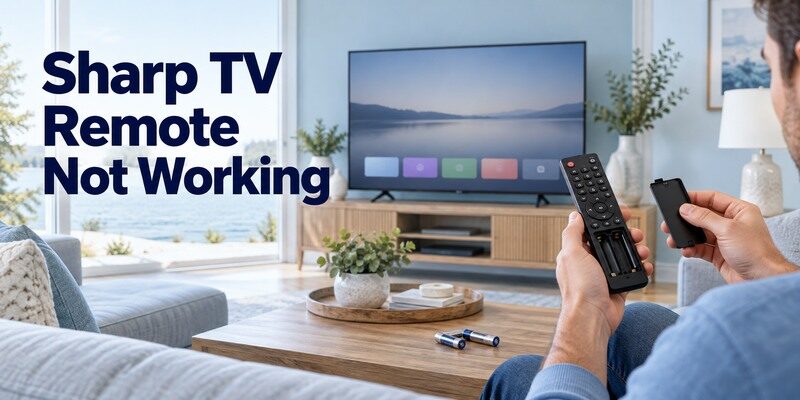
Short answer: Replace both batteries, then wake the Sharp TV with its panel button.
If the Sharp TV responds to its physical power button, test the remote’s signal or pairing next. If the TV itself does not respond, check power before buying a new controller. A sharp tv remote not working report can mean dead batteries, blocked infrared, lost wireless pairing, or a TV that is asleep or offline. Follow the checks in order, then match the platform-specific step to the model you own.
1. Fast Fixes for a Sharp TV Remote Not Working
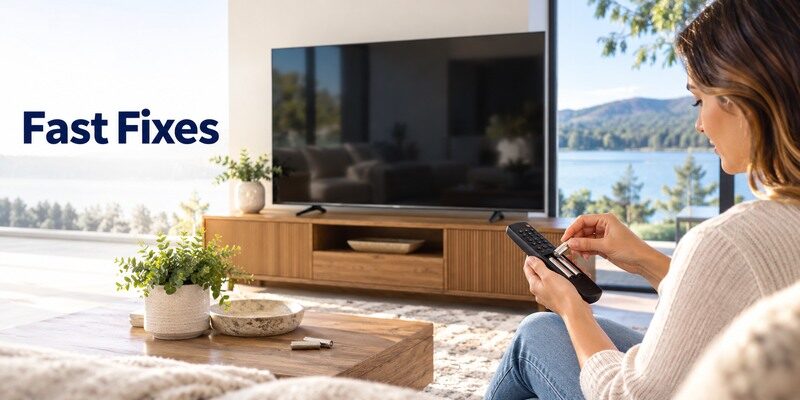
Start with reversible checks that reveal whether the remote or the television is at fault. Do not factory reset the TV first: it can erase settings and make phone control harder if network setup must be repeated.
- Replace both batteries: Use fresh cells in the polarity marked inside the compartment; do not mix old and new.
- Wake the TV: Press the physical power button on the set and look for a standby light.
- Clear the path: Aim at the TV sensor from a short distance and remove objects in front of it.
- Restart the set: Turn it off, unplug it briefly, reconnect, and wait for the home screen.
- Test separate keys: Try power, Home, volume, and voice; different failures point to different causes.
Read the standby light
If there is no TV light, check the outlet and power cable before blaming the remote. A light that changes when you use the physical TV button suggests the panel is powered. If the screen is black while you hear sound, investigate display or input issues separately. A sharp tv remote not working search does not always describe a remote fault.
Try a close-range test
From a few feet away, aim the remote directly at the sensor and press one ordinary button. Move bright lamps or decorations that could interfere with an infrared receiver. If it works only at very close range, low batteries, dirty contacts, or an obstructed sensor are more likely than a broken TV. A Sharp Roku TV may need its physical remote to wake from sleep before the mobile app can reach it. If the Roku phone controller cannot find the television after it wakes, use this Roku remote app connection troubleshooting guide before installing another remote application.
With sharp tv remote not working, do not confuse a dark screen with an unpowered TV. Try the panel button, another input, and the standby light before moving to a remote reset. This separates a display or source problem from a controller that is not transmitting.
2. Identify the Sharp Remote Failure Pattern
Before re-pairing, record exactly which keys fail. A single dead key suggests worn contacts; an entire controller that stopped after a software update may need a restart or pairing check.
| What you see | Likely area | Next test |
| No keys work, TV button works | Battery, IR path, or pairing | Fresh batteries and signal check |
| Only voice or Home fails | Wireless link or one button | Platform-specific pairing |
| Power works, navigation fails | Mixed IR and Bluetooth control | Reconnect wireless remote |
| TV button also fails | TV power or hardware | Outlet and TV support |
| Phone remote works, physical fails | Physical controller | Inspect or replace remote |
All buttons fail
When every command fails, inspect the battery compartment, the remote’s indicator if present, and the TV power state. A sharp tv remote not working case with no power light at all belongs in TV power diagnosis first. Do not purchase a remote solely because the screen is black; verify that the television can turn on with its own control.
Only one group of buttons fails
If volume works but Home or voice does not, the TV and remote may use separate IR and wireless paths. A stuck or worn button is another possibility. Compare several functions; noting which commands respond will help you choose between re-pairing and replacement rather than repeating a general reset.
Write down which key and which distance produces a response when sharp tv remote not working. A remote that works inches from the sensor but not across the room points toward weak output or interference. A phone app that works while every physical key fails makes the handheld unit a stronger suspect.
3. Check Batteries, Contacts, and Remote Signal
Battery replacement is simple, yet the orientation and metal contacts matter. Use the sizes printed in your particular remote rather than assuming all Sharp controllers take the same cells.
Inspect the compartment safely
Remove the batteries and look for corrosion, a loose spring, or an incorrectly seated cell. Wipe light dry residue carefully with a dry cloth and replace damaged hardware rather than forcing a battery into place. Do not bridge contacts with metal or combine different battery types. If the remote was wet, disconnect the batteries and allow it to dry fully before testing.
Test an infrared emitter
For a conventional IR remote, point its front end at a phone camera and press a key; some cameras show a flashing light. The test is imperfect because camera filters differ, and wireless remotes may not emit IR for navigation. A visible flash means the remote sends some signal, not that the TV sensor or button mapping is healthy. Use the result as one clue, not proof.
For a Sharp Roku setup that uses a physical controller, review these Roku TV remote battery checks before assuming that a weak or intermittent signal proves the television receiver has failed.
When sharp tv remote not working follows a battery change, inspect polarity and the contacts again. Batteries can be fresh yet poorly seated, and a bent spring may break the circuit. If corrosion is heavy or liquid entered the remote, replacement is safer than continued attempts to make an unstable contact.
4. Match the Fix to Your Sharp TV Platform
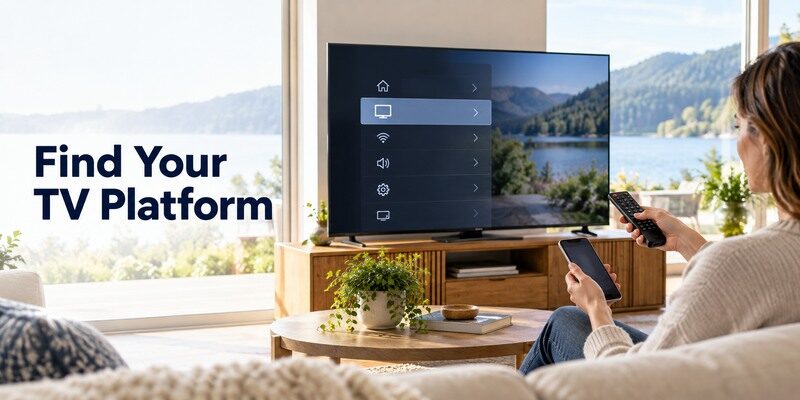
Sharp television lines include Roku TV, Google TV, and older infrared models. The correct pairing method follows the software and remote type, so identify the TV model and home screen before holding a button combination.
Roku TV models
Roku remotes come in infrared and wireless variants. A simple IR remote needs a clear line of sight and usually no pairing; a voice remote must establish a wireless connection. If your Sharp set displays Roku TV, use Roku’s on-screen remote help for the exact remote version. Roku’s official app can help navigate only while the TV remains on the same reachable network as the phone.
Read more: Free Roku Remote Control App: iPhone & Android Guide
Fire TV or Google TV models
If the TV is Fire TV, follow the Amazon Fire TV remote pairing help for that device; some models require holding Home while the TV is awake. For a Google TV model, use its settings and maker guidance for the correct voice-remote sequence. Do not apply a Fire TV button combination to a Roku or IR remote. If you are unsure, read the label and manual first.
For a compatible Sharp Fire TV, use the official route in this guide to downloading the official Fire TV remote app rather than trying a Roku or generic IR pairing sequence.
Older infrared models
An older Sharp TV with a basic IR controller does not gain Bluetooth pairing through software. Check the front receiver, nearby bright light, and whether a matching replacement remote works. The remote part number can be more useful than the television brand alone because different model years may map special keys differently.
According to Sharp Roku TV user guide; Sharp operation manual, the model or platform distinction matters here. Write down the full Sharp model label before installing software or ordering hardware. Its instructions cover a particular device family, so confirm that your own menu and remote match before following them.
The sharp tv remote not working repair path differs by platform because infrared and wireless remotes fail differently. Reading the model number takes less time than cycling through unrelated pairing combinations. Do not mistake a Roku menu shown by an HDMI stick for evidence that the television itself is a Roku TV.
Read more: Download Remote TV Sharp: How to Control Sharp TV With Your Phone
5. Restart the TV Without Erasing Settings
A restart can clear a temporary software hang while preserving network and account setup. Use it before considering a factory reset, particularly if a phone remote currently works.
Power-cycle sequence
Turn the TV off with its physical button if possible. Disconnect wall power for about a minute, reconnect it, and allow the home screen to load fully before testing the remote. The exact startup time varies. This step refreshes the TV’s receiver and operating system; it does not repair a physically broken remote.
When not to reset
A factory reset is a last resort because it can remove Wi-Fi, accounts, and paired devices. If the sharp tv remote not working issue began after a router change, a reset may leave the television offline and prevent any mobile app from finding it. Note the TV model and current settings before seeking model-specific reset instructions from the manufacturer.
After a power cycle in a sharp tv remote not working case, wait until the TV’s system is fully loaded. Pressing keys during startup can look like another failure. If the TV now responds, observe whether the symptom returns after sleep; that pattern can help manufacturer support identify a software or power-state issue.
6. Re-Pair a Wireless Sharp Remote
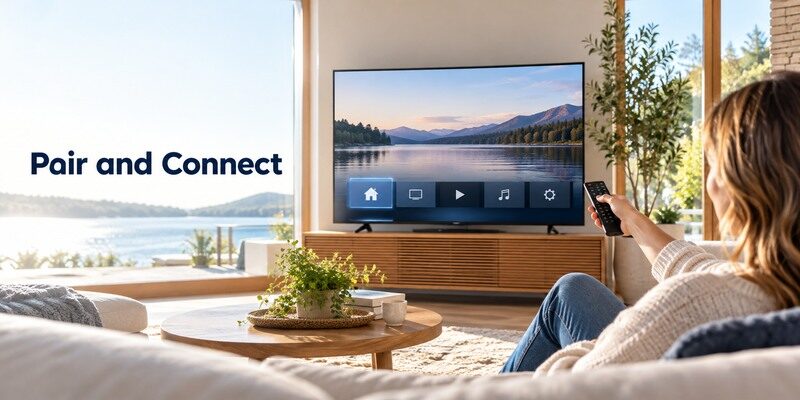
Only use pairing steps when your exact remote is designed for wireless pairing. An IR-only model will never produce a pairing confirmation, however long you hold Home or another key.
Confirm the remote type first
Look for a microphone or voice key, a pairing button under the battery cover, or a TV menu that lists connected remotes. These features vary by model; use the label or manufacturer manual for confirmation. Fresh batteries are worth trying before another pairing attempt, since low voltage can allow occasional keys to work but interrupt a wireless handshake.
Follow the on-screen instructions
Keep the remote near the TV, initiate the pairing route for its platform, and wait for an on-screen acknowledgment. If the TV is reachable by a phone app, navigate to its remote/device settings for a guided setup. Do not repeatedly pair a different platform’s controller: a sharp tv remote not working symptom may reflect incompatible hardware, not a missed timing window.
If sharp tv remote not working began after replacing a voice remote, check whether the new unit is actually designed for the exact television. A physically similar controller can send power by infrared while lacking the correct wireless navigation profile. Seller compatibility lists should include the full model code.
Read more: How to Pair New Roku Remote Without Old One
7. If the Sharp TV Remote Is Still Not Working
At this stage, separate the television receiver from the handheld controller. Two independent control methods are especially useful: the TV’s physical button and a compatible phone remote when the set is online.
Physical button works, remote fails
If the TV’s built-in controls work and the remote remains silent after fresh batteries and a model-correct pairing attempt, suspect the remote or its signal path. Try a known-good model-compatible controller if available. A sharp tv remote not working result after a drop, liquid exposure, or stuck key favors replacement over more network troubleshooting.
No control method works
If physical controls, a correctly connected phone app, and a known-good remote all fail, investigate TV power, receiver hardware, and software with Sharp support. Note the model number, standby-light behavior, and the sequence of tests. This evidence is more useful to support than “remote broken” and helps avoid buying a remote that cannot fix the set.
For persistent sharp tv remote not working, record the outcome of three independent tests: TV button, mobile control on the same network, and the physical remote. That small matrix is more informative than repeated random resets. If only the original remote fails, focus on it; if every method fails, ask about the television.
8. Control Your Sharp TV While You Replace the Remote
If the smart TV is already connected to your home network, a phone can be a temporary controller. This is a fallback for a sharp tv remote not working situation, not a guarantee for a basic TV or a disconnected set.
Choose the platform app
A Roku TV generally uses Roku mobile control; Fire TV uses Amazon’s app; Google TV uses Google TV’s phone remote where supported. Phone and TV must normally share the local network. See the for broader connection steps, and check your TV model before installing anything.
For an eligible Sharp Google TV, follow this Google TV remote app for Android setup after verifying that the television uses the compatible Google TV platform.
Try Remote TV App when supported
The offers a universal iPhone control route for supported smart televisions. If your Sharp set is discoverable, test navigation and volume while deciding on a replacement. It cannot restore Wi-Fi to an offline TV by itself, and model features vary. For a Roku remote’s battery details, the may help if that is your TV platform.
When using a phone during sharp tv remote not working, verify that basic navigation and volume both work. A network remote can prove the TV operating system is responsive, but it cannot by itself prove the front IR receiver is healthy. Keep that distinction in mind before ordering a physical replacement.
9. What Changes on a Sharp Roku TV?
The Sharp model and software family decide which of these next steps applies. Use this focused check before concluding that every sharp tv remote not working case has the same cause.
Wake behavior
A Sharp Roku TV manual describes a case in which the television is asleep and the mobile app cannot turn it on; the physical remote or TV button may be needed to wake it. If the mobile app only begins working once the home screen is visible, focus on the sleep state rather than installing a different application. This observation is especially helpful when the original remote still changes volume but the phone does not find the TV.
Infrared versus Roku voice remote
Look at the actual Sharp remote type. A standard infrared controller needs line of sight, while a voice-capable Roku remote uses wireless pairing for some functions. An IR camera test cannot diagnose every voice command. The Sharp manual also recommends checking batteries, their polarity, and strong lighting near the sensor for conventional remote failures.
10. Choose the Right Replacement for Your Sharp Model
Buy by the TV model or original remote part number, not the brand logo alone. A sharp tv remote not working complaint can persist with a replacement whose power key works but whose voice or special keys use another protocol.
| Choice | When it helps | What to verify |
| Original model-matched remote | Full intended controls | Part number and pairing type |
| Compatible universal IR remote | Basic IR functions | Code support and line of sight |
| Platform voice remote | Supported smart platform | Exact TV model and region |
| Phone app | Online smart TV | Network connection and required controls |
Check the model label
Record the complete model code on the rear of the TV and compare it with the seller’s supported-device list. For a voice remote, confirm pairing compatibility; for a basic IR replacement, check that input and menu keys are included. A return policy matters because visually similar remotes can differ in command sets.
Know when service is needed
If a matched replacement and physical TV controls both fail, contact the manufacturer or a qualified repair service with the tests you performed. The sharp tv remote not working diagnosis may actually point to the TV’s receiver or power hardware. Avoid opening a plugged-in television to investigate a sensor; that is not a safe consumer remote fix.
For a sharp tv remote not working replacement decision, compare the cost of a matched remote with repair service and the TV’s age. Keep proof of the model and part number. Do not open a powered television to inspect a front sensor; a qualified technician should handle internal hardware.
11. Frequently Asked Questions
These short answers address common follow-up questions after the main sharp tv remote not working checks.
Why did my Sharp remote stop suddenly?
Weak batteries, a stuck button, a TV software hang, obstructed IR, or lost wireless pairing can cause an abrupt failure. Start with battery replacement and the physical TV power button; those observations narrow the cause quickly.
Can I reset my Sharp remote without resetting the TV?
Many wireless remotes have a model-specific pairing or restart procedure, while basic IR controllers do not store a TV pairing. Check the exact remote instructions before holding buttons. Avoid a full TV factory reset as a generic remote repair.
Can I use my phone when the Sharp remote is broken?
Yes, if the TV supports network control and is already reachable from the phone. A disconnected or non-smart TV may require its built-in controls or a physical replacement first.
Once sharp tv remote not working is resolved, keep a fresh spare battery set and record the TV model. If the problem recurs, note whether it happens after sleep, a router change, or a software update. A repeatable trigger can distinguish an intermittent remote fault from a one-off loss of pairing.
12. Final Thoughts
For a sharp tv remote not working problem, confirm TV power, replace the cells, test the signal path, and follow the correct platform’s pairing route. The physical TV button and a compatible phone app help isolate which device failed. Replace a remote only after the model and fault are clear.
