
TV App Not Loading: Fix One App or the Whole TV
Quick answer: If you see a tv app not loading error, restart the television completely, confirm that it has an internet connection, and try opening a different app. If only one app fails, force-stop, update, or reinstall that app. If every app fails, restart your router, check the TV’s date and time, install system updates, and inspect available storage. Save a factory reset for last because it can erase account information and settings.
A spinning loading symbol, blank screen, frozen logo, or sudden return to the home screen can make a streaming night frustrating. Fortunately, a tv app not loading error does not automatically mean your television is broken. The real cause may be a stalled process, outdated software, an account problem, an unstable connection, or a temporary outage at the streaming service.
1. Why Is Your TV App Not Loading?
A tv app not loading problem usually falls into one of five categories: network connectivity, application data, television software, account access, or device resources. The visible symptom gives you clues, but it rarely identifies the cause by itself.
| What you see | Likely area to investigate | Best first test |
|---|---|---|
| App stuck on its logo | App cache, login, or network | Open another streaming app |
| All streaming apps show errors | Wi-Fi, router, DNS, or service access | Test the TV’s network connection |
| App opens but video buffers | Connection speed or congestion | Run a speed test |
| App immediately returns to Home | App process or software compatibility | Restart and update the app |
| App missing from the store | TV model, region, or support status | Check device compatibility |
| TV menus are also sluggish | Low available resources or system glitch | Perform a full TV restart |
If you notice smart tv apps not working across multiple unrelated services, check the network first. Reinstalling everything wastes time and may remove saved app settings.
Download TV Remote App2. Diagnose the Problem: One App or Every App?
Before trying to repair a tv app not loading issue, spend two minutes establishing the scope. This prevents a simple account problem from turning into a factory reset. A tv app not loading complaint limited to one app rarely requires resetting the entire set.
Compare two unrelated apps
Open the affected app, then try another service such as YouTube or a built-in streaming channel. Next, open the TV’s Settings menu. If Settings works normally but one app does not, the television’s basic interface is probably functioning.
If all apps fail yet the TV displays menus and local inputs normally, investigate the internet connection and software first. If even Settings freezes, restart the television before changing individual app configurations.
Check the same service on another device
Try the affected service on your smartphone. Use the same Wi-Fi connection first, then switch the phone to mobile data if available. These comparisons reveal useful patterns:
- Fails only on TV: suspect the TV app, firmware, device compatibility, or saved login.
- Fails on every device using home Wi-Fi: suspect the router, internet service, or network settings.
- Fails on Wi-Fi and mobile data: a service-side outage or account problem becomes more plausible.
- Works on another device but not on the TV: investigate the TV’s software and app installation.
Check for an error message
Write down any code and the exact words displayed. An authentication error calls for a different response than a network timeout or insufficient-storage warning. If the screen briefly flashes an error, photograph it before you restart.
3. 12 Fixes to Try When a TV App Is Not Loading
If you are searching how to fix smart tv apps not opening, begin with these low-risk steps. Test the app after each change so you can identify the fix.
Fix 1: Perform a full restart, not just standby
Turn off the TV and unplug it from the wall. Wait at least 30–60 seconds, then reconnect power and switch it on. Some manufacturers recommend a specific restart procedure, so follow your model’s instructions when available.
On many Samsung TVs, holding Power until the set restarts performs a cold boot. Samsung also recommends unplugging for 30 seconds. Unlike standby, a cold boot can clear a stuck process.
If the tv app not loading message disappears afterward, test the app for several minutes before changing other settings.
Fix 2: Confirm the TV actually has internet access
A Wi-Fi icon does not guarantee that the internet is working. Open the television’s Network Status or equivalent menu and run its connection test. Try streaming from another app or loading a built-in online feature.
If the network shows disconnected, reconnect to the correct Wi-Fi name and re-enter its password. A tv app not loading alert can simply reflect a lost connection. If it says connected but apps still fail, test another device.
Fix 3: Restart the modem and router
Turn off the TV, unplug your modem and router, and wait about 30 seconds before reconnecting them. Allow the network to finish booting, then power the television back on.
Netflix’s TV troubleshooting guidance includes a network restart sequence involving a 30-second disconnect, followed by time for the connection to recover. Your equipment may need longer, particularly when a modem and separate router start in sequence.
For a tv app not loading situation across several services, this can be more useful than repeatedly clearing app data.
Fix 4: Force-stop the affected application
On Google TV or Android TV, a typical route is Settings → Apps → See all apps → [App] → Force stop. Confirm, then reopen it from the home screen. Some TV systems do not offer a force-stop control; simply exit the app and restart the TV instead.
Fix 5: Clear the app’s cache
If the issue persists on an Android TV or Google TV device, open the affected app’s settings and select Clear cache, when available. Reopen the app after the operation finishes.
Cache files store temporary information that can become outdated or damaged. Clearing them differs from Clear data or Clear storage, which can erase local preferences and sign-in details. Avoid selecting the stronger option unless you have the account credentials ready.
Fix 6: Update the app
Open the TV’s official app store, locate the affected service, and choose Update if offered. On Google TV, Google Play includes a Manage apps & games area for updates. Other televisions use brand-specific stores.
Keep the TV connected to reliable power until installation finishes. If a tv app not loading issue began immediately after an update, restart once installation completes.
Fix 7: Update the television’s firmware
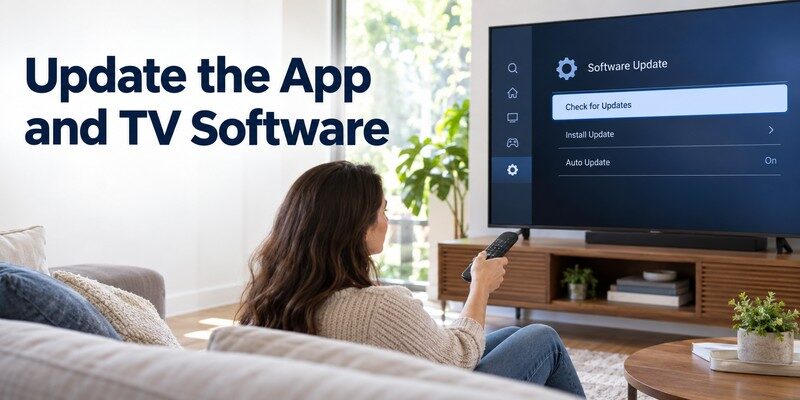
Find Settings → Support → Software Update on many Samsung models, or the equivalent System Update menu on Google TV, LG, or Roku devices. Install the update provided for your exact model.
Outdated firmware can conflict with newer apps. Never install unofficial firmware or unplug the TV during an update.
Fix 8: Remove and reinstall one app
If the TV supports removal, delete only the affected app, restart the television, and reinstall it from the official store. Sign in again and verify that playback works.
Samsung notes that some recommended apps cannot be deleted normally; those may have a Reinstall option instead. LG also recommends updating or reinstalling an app when the failure is confined to that service.
Before deleting: confirm you have your login details. Reinstallation will not fix an internet outage.
Fix 9: Check free storage and unused applications
Open the storage or device-care menu if your TV offers one. Remove unused downloadable apps or unnecessary files, but avoid deleting system components. Restart once space has been freed.
LG identifies insufficient storage as one reason installations can fail. Storage needs vary by model, so avoid assuming one fixed threshold.
Fix 10: Correct the TV’s date and time
Check Settings → Date & Time and enable automatic network time when available. If the displayed year, date, or time zone is clearly wrong, correct it and restart the app.
An incorrect clock can interfere with secure account sessions. Do not change your region simply to bypass app availability restrictions.
Fix 11: Sign out, then sign in again
When you can open the affected service’s settings, sign out and re-enter your credentials. If the app never reaches its account screen, try reinstallation or the official service-specific reset method instead.
Fix 12: Factory-reset only after all safer checks
A factory reset is the last software option for a tv app not loading issue that affects the entire television and survives the other tests. Record Wi-Fi details, passwords, parental settings, and any important configuration first.
A reset may remove apps, accounts, preferences, and connected-device settings. A reset will not fix a streaming-service outage. Ask the provider for help if unsure.
4. Fix Netflix, YouTube, and Other Streaming Apps
A tv app not loading error can behave differently depending on whether the service cannot open, cannot authenticate, or cannot play video. These distinctions matter more than the brand printed on the TV.
Netflix freezes on its logo or loading screen
If netflix not loading on smart tv describes your problem, restart the device completely, then test your network. Netflix’s official support says its app can freeze because stored device data needs refreshing or a network issue prevents loading.
If the interface opens, run Netflix’s built-in network check. If only Netflix fails on your TV, update or reinstall it when supported.
Do not confuse an app-launch failure with streaming quality. A tv app not loading symptom can occur even when your internet plan is fast enough for video. Netflix publishes recommended stable connection speeds of 3 Mbps for 720p HD, 5 Mbps for 1080p Full HD, and 15 Mbps for 4K. These are playback-quality recommendations, not minimum speeds that guarantee an app will open.
YouTube opens but videos never play
First determine whether the YouTube home screen loads. If thumbnails appear but playback fails, test another video and check the network. If the entire app freezes, restart it, update it, and clear its cache on supported systems.
Prime Video, Disney+, and other services
For a tv app not loading complaint limited to one subscription service, verify the account is active, the app is supported on your TV model, and its installation is current. Use the official store rather than sideloading random app packages.
If a streaming service disappears from the store, the TV may no longer support its latest version.
5. Troubleshooting by TV Brand and Operating System
The same tv app not loading symptom can require different controls because Samsung’s Tizen platform, LG’s webOS, Google TV, and Roku do not share identical menus.
Samsung Smart TV
Samsung’s documented sequence is cold boot → software update → app reinstall → Smart Hub reset. Start with the first three and test the service each time. A Smart Hub reset affects multiple apps and can sign you out, so reserve it for persistent problems.
If your physical remote makes menu navigation difficult, our samsung tv remote app guide explains phone-based navigation options for compatible TVs. A remote app helps you reach settings but cannot repair a streaming-service outage.
LG webOS TV
LG’s January 2026 support guidance highlights unstable network connections. It recommends testing the TV’s connection and, where appropriate, temporarily using a phone hotspot to distinguish home-router trouble from the TV itself.
When only one LG app fails, try updating and reinstalling it. If downloads are unavailable, also check storage, signed-in account requirements, and the device’s service-country settings.
Google TV and Android TV
Open Settings → Apps and force-stop the affected service. Clear cache if available, check Google Play for updates, and restart the device through Settings → System → Restart where supported.
If the tv app keeps crashing even after updates, note whether it affects all Google TV profiles or one account. Use Clear data cautiously because it may erase local app preferences. If you cannot navigate the menus, see our google tv remote not working troubleshooting guide.
Roku TV or Roku streaming player
Check the TV’s internet connection, restart the Roku system, and install available system updates. If only one channel is affected, check whether the channel can be removed and reinstalled on your model.
| TV platform | First useful action | Second action | More disruptive option |
|---|---|---|---|
| Samsung Tizen | Cold boot | Update or reinstall app | Reset Smart Hub |
| LG webOS | Test network | Update or reinstall app | TV reset if advised |
| Google TV | Force stop | Clear cache and update | Clear data or factory reset |
| Roku TV | System restart | Update system/channel | Factory reset |
6. Check Wi-Fi Speed, DNS, Storage, and Software Compatibility
When a tv app not loading problem continues across multiple services, investigate your network before changing account settings.
Measure the connection at the television
Use the TV’s built-in network test or the affected streaming app’s speed test if available. Compare it with a phone tested near the TV. If the phone is fast but the television struggles, distance, interference, the TV’s wireless hardware, or its network configuration may be contributing.
Try another network before changing DNS
If possible, connect the television to a trusted phone hotspot for a short test. A service that immediately starts working on the hotspot suggests a home-network issue. If it fails on both networks, focus on the device, app, or account. This distinction matters for a tv app not loading error that keeps returning.
For a tv app not loading issue, manually changing DNS servers should be an advanced step, not the first one. Record the previous settings, and consult your network administrator if the television is on a managed network.
Check supported versions and regional availability
Services change device requirements. Confirm that your TV supports the current official app and still receives firmware updates. Missing apps are not always network failures.
7. Prevent Future App Loading Problems
Keep software current. Install official updates with stable power and let background downloads finish.
Maintain your network. Keep Wi-Fi coverage reliable, router firmware current, and Ethernet cables secure.
Know how to reach Settings quickly. A working physical remote is ideal, but a compatible Remote TV app can help with routine navigation when the original remote is missing. The phone and supported television generally need a suitable local network connection for Wi-Fi control.
For iPhone owners, universal remote tv control may provide an alternative way to navigate supported TVs. It does not replace Netflix, YouTube, or other streaming apps, and it will not fix their servers or account problems.
8. Frequently Asked Questions
Why does my TV say an app cannot load even though Wi-Fi is connected?
A tv app not loading message can appear when Wi-Fi is connected locally but the internet service is unavailable. Test another app, restart the router, and try a different network. Also check whether the affected streaming service is experiencing an outage.
How do I fix a TV app that keeps closing immediately?
Start with a full TV restart. Then force-stop the app if supported, install updates, and clear cache on compatible platforms. If it still exits immediately, reinstall it from the official app store after checking that you know your sign-in credentials.
Will deleting an app remove my streaming subscription?
No. Deleting a TV app generally does not cancel a subscription billed by the service or another provider. However, it can remove local downloads, saved settings, and sign-in sessions. Check the service’s account page before making billing changes.
Should I reset my whole Smart TV when one app does not open?
No. A tv app not loading problem confined to one service should first be addressed with that app’s update, cache, login, or reinstall options. A factory reset is more appropriate only after broader system issues and safer fixes have been ruled out.
Can a phone remote open settings when my physical remote is broken?
Yes, on compatible TVs with phone-control support and an accessible connection. You can Download universal remote tv control for iPhone, connect it to a supported TV, and use it for navigation. A phone remote cannot solve an app outage by itself.
9. Final Thoughts
The most effective response to tv app not loading is to find out whether the problem belongs to one app, the entire television, or the home network. Restart the TV, compare another app, test Wi-Fi, and update the affected software before deleting saved data.
If the tv app not loading issue persists across multiple networks and applications, contact the TV manufacturer with your model and error details. When only one service fails, its support team is usually the better starting point. Keep a compatible remote available so you can reach Settings quickly, but remember that navigation tools and streaming services solve different problems.
Download TV Remote App