
TV Remote App Not Working After Changing Router? How to Fix It
If your tv remote app not working after changing router problem started immediately after installing a new Wi-Fi router, the most likely cause is a network connection or device discovery issue—not a broken remote application.
Quick answer: Follow these six steps:
- Reconnect your TV to the new Wi-Fi network.
- Connect your phone and TV to the same local network.
- Restart your router, television, and remote application.
- Enable Local Network permission on your iPhone if required.
- Disable guest Wi-Fi, VPN interference, or device isolation when applicable.
- Remove the old TV connection and pair your remote app again.
In many cases, these steps restore communication without reinstalling the application or resetting your television.
When troubleshooting tv remote app not working after changing router, it is important to understand that mobile remote applications usually communicate with smart TVs through a local network.
Changing your router may change network names, passwords, IP addresses, or security settings. Your television might continue using an outdated connection while your smartphone automatically joins the new network.
This guide explains how to restore remote functionality on Samsung, LG, Roku, Apple TV, Xumo, and other supported devices.
1. Why Is Your TV Remote App Not Working After Changing Router?
A router replacement can interrupt the communication between your smartphone and television, even when both devices appear to have internet access.
Most Wi-Fi-based TV remote applications rely on local network discovery to locate compatible devices.
When the network changes, the app may no longer recognize the television it previously controlled.
Your TV is still connected to the old network
One common cause of tv remote app not working after changing router is an outdated Wi-Fi connection saved on the television.
Your phone may automatically connect to the new router while your TV remains disconnected.
To check:
- Open your TV’s Settings menu.
- Find Network or Internet Connection.
- Check the current connection status.
- Select the new Wi-Fi network.
- Enter the updated password.
Once connected, open the mobile remote application and search for the television again.
Your phone and TV cannot communicate
Even when both devices have internet access, local communication may be blocked.
For example, your phone might be connected to a guest Wi-Fi network while your television uses the main household network.
Some routers intentionally separate these devices for security.
A shared internet connection does not always mean that two devices can discover each other.
The router assigned new IP addresses
Home routers typically use DHCP to assign IP addresses to connected devices.
After replacing a router, your television may receive a different IP address.
For example:
- Previous TV address: 192.168.1.105
- New TV address: 192.168.0.120
An application that stored the previous address may fail until it discovers the device again.
These addresses are examples rather than values you should manually enter.
Your remote app lost its pairing session
Some smart TVs require permission before allowing a smartphone to control them.
After changing networks, an existing authorization may no longer work.
When tv remote app not working after changing router, clearing the old device entry and completing pairing again may solve the issue.
Important: Do not factory reset your television immediately. Network reconnection and fresh pairing are safer first steps.
Download TV Remote App2. How to Fix TV Remote App Not Working After Changing Router: 10 Steps
The following troubleshooting process addresses the most common causes of remote app connection failures.
Follow the steps in order before making advanced network changes.
Fix 1: Reconnect your smart TV to the new Wi-Fi
If your television cannot access the new network, a Wi-Fi-based remote app will usually be unable to control it.
Open the television’s network settings and choose the current home Wi-Fi connection.
Enter the password carefully.
If the television has saved an outdated network profile, use Forget Network when available and reconnect.
Test the TV’s internet connection by opening a supported streaming application.
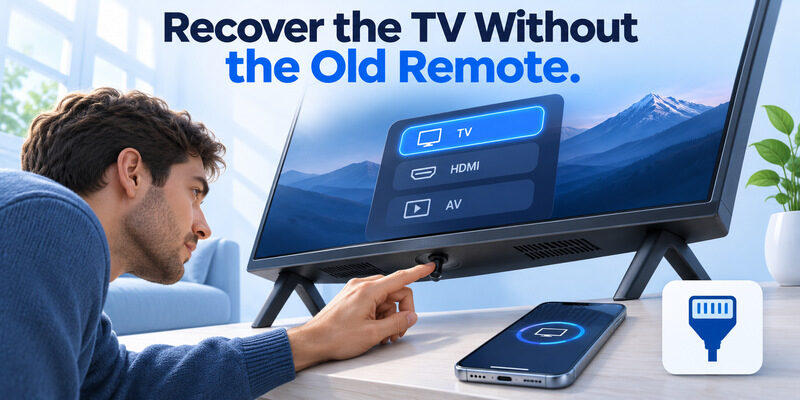
If the television is completely offline and you have lost its physical remote, use the TV’s built-in buttons, Ethernet connection, or another compatible controller to restore network access.
Fix 2: Connect your phone to the same local network
When dealing with tv remote app not working after changing router, verify the network connection on both devices.
On iPhone:
Settings > Wi-Fi
On most Android phones:
Settings > Network & Internet > Internet
Connect your phone to the home network used by the TV.
A television connected through Ethernet can often communicate with a Wi-Fi-connected phone when both connections belong to the same local network.
Note: Your devices do not necessarily need to use the same 2.4 GHz or 5 GHz Wi-Fi band. They need to be on a network that permits local communication.
Fix 3: Restart the router
Restarting your router may resolve temporary connection and address-assignment problems.
- Disconnect the router from power.
- Wait approximately 30 seconds.
- Reconnect the power cable.
- Allow the network to finish starting.
- Reconnect your phone and television.
- Open the remote application again.
Avoid pressing the factory-reset button, which may erase your router configuration.
Fix 4: Restart the TV and smartphone
Temporary software problems can prevent device discovery.
Turn off your television and disconnect it from power for approximately 30–60 seconds.
Restart your smartphone.
After both devices reconnect to the network, reopen the application.
This process can refresh network connections without deleting your television settings.
Fix 5: Disable guest network isolation
Some routers provide separate guest networks.
These networks frequently restrict communication between connected devices.
If your phone is using Guest Wi-Fi, move it to your trusted primary home network.
If you administer the router, check settings such as:
- AP Isolation
- Client Isolation
- Wireless Isolation
- Guest Network Isolation
Do not disable network security on public or unfamiliar networks. Use a trusted network that permits your devices to communicate.
Fix 6: Check VPN and network filtering
Some VPN applications route traffic in ways that interfere with local device discovery.
Temporarily disconnect your VPN and test the remote app.
If it starts working, review whether the VPN supports local network access or LAN traffic exceptions.
Re-enable your normal security settings after troubleshooting.
Fix 7: Grant the required app permissions
Your remote application may require permission to find compatible devices.
For iPhone, review Local Network access.
For Android, check the app’s available device-discovery permissions, which may include Nearby Devices or other permissions depending on the app and operating system.
Grant only permissions necessary for the intended features.
Fix 8: Update the remote app and TV
Outdated software can cause compatibility or communication problems.
Check the App Store or Google Play for an available application update.
Then check your television’s software update settings.
Install updates only through official device or application update mechanisms.
Restart the app after updating.
Fix 9: Remove and reconnect the television
If the application still displays an unavailable device:
- Open your remote application.
- Locate the saved television.
- Select Remove, Forget, or Disconnect if available.
- Return to the device discovery screen.
- Search for the television.
- Select the correct model.
- Approve the pairing request shown on the TV.
Different applications may use different names for these options.
Fix 10: Test another compatible remote application
If tv remote app not working after changing router continues after all network checks, try an alternative application compatible with your television.
A Remote TV app can provide smartphone-based control for supported smart televisions.
However, another Wi-Fi remote app cannot bypass a TV that is offline or isolated from the phone.
You must restore basic network communication first.
3. Fix TV Remote App Connection Problems on iPhone and Android
Mobile operating systems use permission controls that can affect network-based remote applications.
These settings become particularly important after router replacements, software updates, or app reinstallation.
TV remote app not working on iPhone
If you are experiencing tv remote app not working iphone issues, check Apple’s Local Network privacy setting.
According to Apple Support, iOS 14 and later require applications to request permission before accessing devices on the local network, subject to certain system-service exceptions.
To review permission:
- Open iPhone Settings.
- Select Privacy & Security.
- Tap Local Network.
- Find your TV remote application.
- Enable access if it is required for device discovery.
- Close and reopen the app.
Next, confirm that your iPhone is connected to the correct Wi-Fi network.
If the TV remains invisible, temporarily disable a VPN and restart both devices.
Important: Most iPhones do not contain a traditional infrared transmitter for controlling ordinary IR-only televisions. Network remote functionality requires compatible TV hardware and communication.
TV remote app not working on Android
If your Android remote application cannot detect your television, start with the network settings.
Open:
Settings > Apps > Your Remote App > Permissions
Review relevant permissions requested by that particular application.
Depending on the Android version and discovery technology, it may request Nearby Devices, Location, or another applicable permission.
Then:
- Confirm the correct Wi-Fi network.
- Disable VPN interference temporarily.
- Force stop and reopen the app.
- Clear the application’s cache if necessary.
- Search for your television again.
Avoid clearing application storage unless you are prepared to lose saved settings and pairings.
When the app opens but no devices appear
A common tv remote app not working symptom is an empty device list.
This usually calls for network discovery troubleshooting rather than reinstalling the entire application immediately.
Check whether other phones on the same trusted network can detect the TV.
If another phone works, focus on the first phone’s permissions and network configuration.
If no phone works, investigate the TV’s network connection and router settings.
For additional troubleshooting options, explore our guide to the best TV remote apps for iPhone.
4. Fix Remote App Not Working on Samsung, LG, and Roku TVs
Different television platforms handle device registration and remote-control permissions differently.
After restoring your Wi-Fi, complete the setup process for the specific TV brand.
Samsung TV remote app not connecting
Samsung SmartThings supports remote functionality on compatible Samsung smart televisions.
If your remote stops working after a router replacement:
- Connect the Samsung TV to your new Wi-Fi.
- Connect your smartphone to the same local network.
- Open SmartThings.
- Sign in to your Samsung account if required.
- Find your television in the device list.
- Re-add the TV when necessary.
- Approve any connection request displayed on the television.
Samsung’s support documentation recommends using the same Wi-Fi network during initial device registration.
For a detailed walkthrough, read our samsung tv remote app guide.
Tip: If the television is online but cannot be discovered, check network isolation and phone permissions before resetting SmartThings.
LG TV remote app not working
If your lg tv remote app not working problem began after installing a new router, reconnect the LG television before adjusting application settings.
For many newer LG webOS televisions:
- Open All Settings.
- Select General.
- Open Network.
- Choose Internet Connection or Wi-Fi Connection.
- Connect to your new network.
Next, open LG ThinQ and check whether the television appears.
If it does not, remove the outdated registration when supported and add the television again.
LG’s official support guidance also recommends checking the network connection and restarting router equipment when communication fails.
For more troubleshooting methods, see our guide to LG ThinQ app not finding TV.
Roku TV app remote not working
If roku tv app remote not working, Roku recommends confirming that the smartphone and Roku device can communicate through the same network.
On the Roku device, open:
Settings > Network > About
Check the connected network.
On iPhone, verify that the Roku application has Local Network permission.
Some Roku devices also expose:
Settings > System > Advanced system settings > Control by mobile apps
Confirm that mobile app control is enabled using an appropriate security setting.
Then reopen the Roku mobile app and select your device.
Avoid using a broadly permissive network-control setting solely to solve discovery issues.
Google TV remote connection problems
Google TV and Android TV devices may require a pairing code when connecting a phone-based remote.
After changing routers:
- Reconnect the television to the new network.
- Open the supported remote application.
- Search for available TVs.
- Select the correct television.
- Enter the pairing code if prompted.
- Test navigation and volume.
If the remote connects but individual buttons stop responding, follow our Google TV remote not working troubleshooting guide.
The main rule: For tv remote app not working after changing router, restore the television’s network connection before repeating the brand-specific pairing process.
5. Troubleshoot Apple TV, Xumo, and Xfinity Remote Apps
Not every remote application behaves the same way after a network change.
Some depend on local Wi-Fi, while others require specific hardware generations or supported services.
Apple TV remote not working after changing routers
For Apple TV 4K and Apple TV HD, Apple’s built-in remote feature is available through iPhone Control Center.
To reconnect:
- Connect your Apple TV to the current network.
- Connect your iPhone to the same home network.
- Open Control Center.
- Select Apple TV Remote.
- Choose your Apple TV.
- Complete any on-screen pairing instructions.
Apple recommends updating the devices and restarting them if the remote cannot connect.
If you encounter apple tv remote not working 1st generation, identify whether you mean an original first-generation Apple TV device or a first-generation Siri Remote.
These are different products.
Apple’s current Control Center remote supports Apple TV HD, Apple TV 4K, and compatible AirPlay televisions, not the original 2007 Apple TV hardware.
If a physical Siri Remote is unresponsive, its Bluetooth connection and pairing procedure must be checked separately.
See our Apple TV remote reset guide for supported models.
Xumo TV remote app not working
When xumo tv remote app not working, first verify which Xumo application supports your device.
Xumo offers mobile remote functionality for compatible Xumo TVs and streaming devices, but supported models may use different applications.
For a compatible device:
- Make sure the Xumo TV or Stream Box is fully activated.
- Connect it to the home network.
- Connect your phone to the same network.
- Open the compatible Xumo remote application.
- Select the device.
- Complete pairing if prompted.
If your television was previously registered, remove the old pairing and reconnect when that option is available.
Xumo’s November 2026 support documentation confirms that the newer Xumo Remote application supports compatible Xumo devices, while some televisions use the Xumo TV application.
Xfinity TV remote app not working
If you are searching for xfinity tv remote app not working, an important distinction applies.
Xfinity retired its former TV Remote mobile application on February 11, 2025.
The application is no longer a dependable supported method of controlling Xfinity equipment.
Consequently, changing Wi-Fi settings may not restore it.
For compatible Xfinity X1 systems, Xfinity identifies its Web Remote as an alternative.
Physical Xfinity Voice Remotes are another supported control method.
The Xfinity Web Remote does not provide universal support for Xumo Stream Box hardware.
Before troubleshooting, confirm that the remote application itself is still supported. A discontinued app cannot be repaired merely by changing router settings.
6. What to Do When Your TV Remote Still Won’t Pair or Respond
If the television appears in the application but fails to connect, the issue may involve pairing permissions or a separate remote-control problem.
This is different from a television that cannot be discovered at all.
Pairing TV not working after a network change
If pairing tv not working, try the following:
- Keep the TV powered on.
- Open the remote application’s device list.
- Remove the old pairing if supported.
- Search for the television again.
- Accept the connection request on the TV screen.
- Enter a new PIN if required.
Do not repeatedly reuse an expired pairing code.
If the TV shows no pairing prompt, verify that the application supports the specific television model.
TV remote won’t change channels
If tv remote won’t change channels but navigation and volume controls work, first identify which device actually manages the channels.
For example, your television may be connected to a cable box or streaming receiver.
In that situation, the TV’s channel controls may not operate the external box.
When users report my tv remote won’t change channels, the problem may involve selecting the correct device, input, or supported remote mode.
Check whether the application controls the TV tuner or only the television interface.
LG TV remote not working after battery change
The search lg tv remote not working after battery change usually refers to a physical LG remote rather than a Wi-Fi-based smartphone application.
Check battery orientation, battery contacts, and the correct battery type.
For an LG Magic Remote, follow the model-specific pairing procedure if Bluetooth communication has been lost.
Replacing physical remote batteries is not a solution to a smartphone application’s network discovery failure.
Use a symptom-based checklist
| Problem | Likely cause | First action |
|---|---|---|
| TV does not appear | Network mismatch | Check TV and phone network |
| TV appears but cannot connect | Old pairing | Re-pair the TV |
| iPhone finds no TVs | Missing permission | Check Local Network access |
| App disconnects repeatedly | Unstable Wi-Fi | Check router and signal |
| Volume works, channels do not | Wrong device control | Check TV versus cable box |
| Only one app fails | App-specific issue | Update or reinstall carefully |
| All remote apps fail | TV/network issue | Check router isolation |
Remember: A tv remote app not working after changing router problem should be investigated at the network level before you replace a physical remote or reset the television.
7. How to Prevent Remote App Problems After Router Changes
Once the connection is restored, a few network practices can reduce the chance of future interruptions.
Keep a consistent home network
If you replace routers frequently, maintaining the same Wi-Fi name and password may allow some previously configured devices to reconnect automatically.
However, successful reconnection is not guaranteed.
Devices can still require new authorization because of router security settings, encryption modes, or network configuration changes.
Avoid unnecessary network separation
Keep personal smart-home devices on a trusted network where they can communicate when needed.
Guest Wi-Fi and isolated networks can improve security, but they may prevent remote applications from discovering televisions.
If you intentionally use separate VLANs or subnets, configure permitted local discovery and control traffic rather than disabling all security restrictions.
Keep devices updated
Check periodically for television software updates and remote application updates.
New versions may improve compatibility and resolve known connection errors.
Avoid unofficial firmware packages or remote applications from untrusted sources.
Consider a compatible universal remote app
A multi-brand remote application can be convenient when your household has televisions from different manufacturers.
For compatible devices, universal remote tv control offers an iPhone-based remote option.
It is free to download, with in-app purchases.
Before relying on it as your primary controller, verify your television’s compatibility and required network conditions.
If tv remote app not working after changing router happens again, repeat the Wi-Fi and permission checks before reinstalling the application.
8. Frequently Asked Questions About TV Remote App Connection Issues
Why did my TV remote app stop working after I changed my router?
A new router may assign different IP addresses, use a different Wi-Fi password, or isolate connected devices.
The television may remain disconnected while your phone joins the new network.
When tv remote app not working after changing router, reconnecting the TV and completing a fresh pairing usually addresses these common causes.
Do my TV and phone need to use the same Wi-Fi frequency?
Not necessarily.
A phone using 5 GHz and a TV using 2.4 GHz can communicate when both are connected to the same local network and the router permits device discovery.
The important requirement is network reachability, not matching wireless frequency bands.
Can a TV remote app work without internet?
Some network-based remote functions work over a local network without an active internet connection.
However, initial setup, accounts, cloud services, and certain TV features may require internet access.
The exact requirements depend on the manufacturer and application.
Can I fix the connection without resetting my TV?
Yes.
Most tv remote app not working after changing router cases should be investigated with network reconnection, app permissions, router checks, and re-pairing first.
A factory reset should be considered only when appropriate manufacturer troubleshooting recommends it.
Resetting a TV may erase accounts, settings, and application data.
Why does my TV work with Wi-Fi but not the remote app?
Internet access and local network discovery are separate functions.
Your TV may successfully stream video while a router setting prevents your smartphone from discovering it.
Check guest-network isolation, Local Network permissions, VPN settings, and pairing authorization.
Will reinstalling the remote app fix the problem?
Reinstalling may resolve corrupted application data or software problems.
However, it will not automatically reconnect a television to the correct Wi-Fi network.
Try simpler troubleshooting steps first.
What is the easiest alternative if my TV remote is missing?
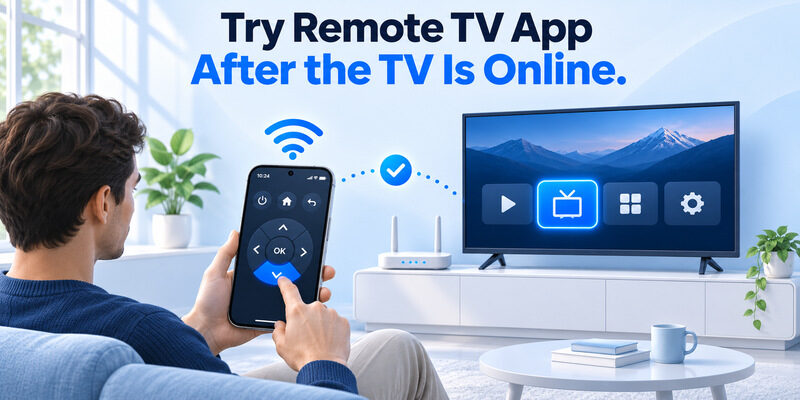
If your TV is compatible and already connected to a reachable network, a mobile remote application may provide navigation, volume, and other supported controls.
You can Download universal remote tv control for iPhone.
Remember that a network-based remote cannot control a completely offline television without another supported connection method.
Conclusion
If your tv remote app not working after changing router, the best solution is to check your TV’s Wi-Fi connection, confirm that your phone can communicate with it, review app permissions, and pair the devices again.
Most common connection failures can be investigated without replacing hardware or performing a factory reset.
For Samsung, LG, Roku, Apple TV, and Xumo devices, follow the manufacturer’s compatible network and pairing instructions.
If one remote application continues failing, confirm that it is still supported before trying another compatible controller.
Restoring a stable local network connection is the foundation of reliable smartphone TV control.
Download TV Remote App