
Apple TV Remote for iPhone: How to Set Up & Use It
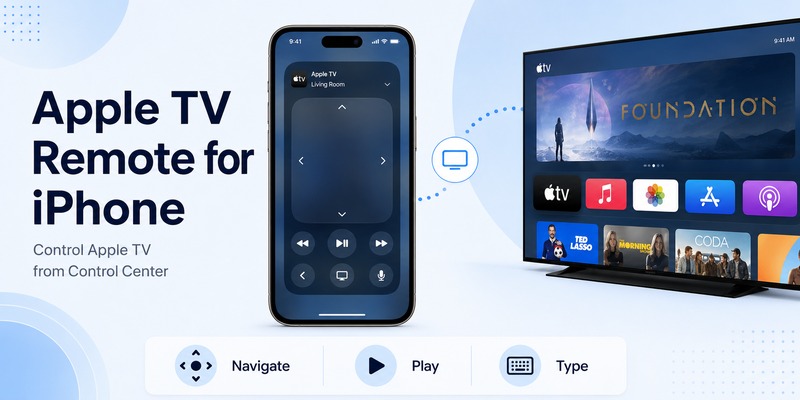
Quick Answer: To use Apple TV Remote on your iPhone, open Control Center, tap the Remote icon, select your Apple TV, and enter the four-digit passcode if prompted. Your iPhone can then control navigation, playback, and other supported functions on Apple TV 4K or Apple TV HD. You normally do not need to download a separate remote app.
If the Remote icon is missing, add it to Control Center. Make sure your iPhone and Apple TV are connected to the same Wi-Fi network before pairing.
Whether you have lost your Siri Remote or simply prefer using your phone, this guide explains where to find Apple TV Remote for iPhone, how to connect it, how to use its controls, and how to fix common problems.
What Is Apple TV Remote for iPhone?
Apple TV Remote for iPhone is Apple’s built-in remote-control feature that lets you operate compatible Apple TV devices from your smartphone.
Instead of using a physical Siri Remote, you can navigate the Apple TV interface with a touch-sensitive control area and on-screen buttons.
Apple TV Remote in Control Center supports:
- Apple TV 4K
- Apple TV HD
- Compatible AirPlay-enabled smart TVs that meet Apple’s requirements
For a compatible AirPlay smart TV, Apple instructs users to add the television to the Home app and assign it to a room before using the Remote control.
Is Apple TV Remote Free on iPhone?
Yes. Apple’s built-in Apple TV Remote functionality is free.
You do not need to purchase a separate remote application or pay a subscription to use its basic controls.
However, streaming services and content available through Apple TV may require separate subscriptions.
Do You Need to Download Apple TV Remote?
On modern iPhones, the standard Apple TV Remote experience is available through Control Center.
If you cannot see the Remote icon, you may simply need to add it.
Some current Apple device configurations also provide access to the Remote from the Home Screen or App Library.
For more information about the download options, see our Apple TV remote download guide.
Where to Find and Add Apple TV Remote on iPhone
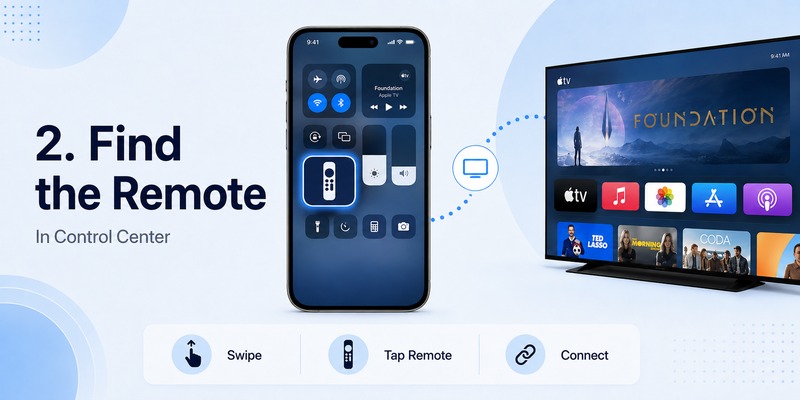
The easiest way to access Apple TV Remote for iPhone is through Control Center.
Find Apple TV Remote in Control Center
On an iPhone with Face ID:
- Swipe down from the top-right corner of the screen.
- Look for the Remote icon.
- Tap the icon to open Apple TV Remote.
On older iPhones with a Home button, open Control Center by swiping up from the bottom edge.
If you already see the Remote icon, you can proceed directly to pairing.
Add Apple TV Remote to Control Center
If the Remote icon is missing on a current iOS version:
- Open Control Center.
- Tap the Add Controls button.
- Select Add a Control.
- Search for Remote.
- Tap Remote to add it.
- Place the control in a convenient location.
On iOS 17 and earlier, the process may instead be:
- Open Settings.
- Select Control Center.
- Find Apple TV Remote.
- Tap the Add button.
The exact interface may vary depending on your iPhone and iOS version.
Where Is Apple TV Remote on Newer iPhones?
The Apple TV Remote feature works through the same general Control Center process on supported newer iPhones.
You do not need a different remote simply because you upgraded your phone.
If you have recently updated iOS, the Control Center layout may look different, but the basic remote functionality remains similar.
💡 Discover Helpful Guides
Apple remote tv app: Complete Apple TV Remote Guide for iPhone, Siri Remote, Pairing & Fixes
How to Connect iPhone to Apple TV
Before learning how to use Apple TV Remote on iPhone, complete the initial connection.
Step 1: Check Your Devices
Make sure you have:
- A compatible iPhone
- Apple TV 4K or Apple TV HD
- A working local network
- Apple TV connected to your network
- A current supported version of iOS and tvOS
For normal setup, Apple recommends connecting your iPhone and Apple TV to the same Wi-Fi network.
Step 2: Open Apple TV Remote
Open Control Center and tap the Remote icon.
If you have multiple Apple TV devices, you may see a list of available devices.
Step 3: Select Your Apple TV
Choose the Apple TV you want to control.
If your household has several Apple TV devices, check the device name or room carefully.
Step 4: Enter the Pairing Passcode
If prompted, enter the four-digit passcode displayed on the television into your iPhone.
Follow any additional instructions shown on the screen.
Step 5: Test the Connection
Once connected, try:
- Swiping through the Apple TV interface
- Selecting an app
- Returning to the previous screen
- Opening the Home Screen
- Playing or pausing content
If these functions work, your iPhone is ready to serve as an Apple TV remote.
💡 Discover Helpful Guides: Apple TV Remote Replacement: Buying and Setup Guide
How to Use Apple TV Remote on iPhone
After pairing, your iPhone provides a touch-based remote interface for everyday Apple TV controls.
Navigate Menus and Apps
Use the touch area to move around the Apple TV interface.
Common gestures include:
| Action | iPhone Remote Control |
|---|---|
| Move between items | Swipe up, down, left, or right |
| Select an item | Tap the touch area |
| Scroll through lists | Swipe repeatedly |
| Open additional options | Touch and hold, where supported |
| Go back | Tap Back |
| Return to Home | Use the available Home or TV control |
The exact button layout may vary with iOS and tvOS versions.
Control Playback
You can use the Apple TV Remote interface to control supported video and audio playback.
Depending on the active app, available actions may include:
- Play
- Pause
- Navigate playback controls
- Move through content
- Select episodes or movies
- Return to the previous screen
Some streaming apps provide additional on-screen controls.
Type on Apple TV With Your iPhone
One useful feature of Apple TV Remote for iPhone is easier text entry.
When Apple TV displays a compatible text field, your iPhone may show a keyboard notification or allow keyboard input.
This can make entering search terms, account details, or passwords more convenient than selecting letters using a physical remote.
If the keyboard does not appear, check the active text field, device connection, and available software updates.
Control Apple TV Volume From iPhone
Volume control is more limited than navigation.
Apple explains that the iPhone’s volume buttons can control supported Apple TV audio setups, such as compatible HomePod, soundbar, or AirPlay speaker configurations.
If your Apple TV is connected directly to a television without a supported audio setup, the iPhone’s volume buttons may not adjust the TV’s volume.
In that case, use the television’s physical remote or another supported volume-control method.
For related troubleshooting, see our Apple TV remote volume not working guide.
Switch Between Multiple Apple TV Devices
If several compatible Apple TV devices are available on your network:
- Open Apple TV Remote.
- Tap the current device name or device selector.
- Choose another Apple TV.
- Wait for the remote interface to connect.
You can switch between supported devices without repeating the entire setup every time, although a passcode may occasionally be requested.
Use Apple TV Remote With an AirPlay-Compatible Smart TV
Apple TV Remote may also work with compatible AirPlay-enabled smart televisions.
Before attempting to connect:
- Confirm that your television supports the feature.
- Add the television to Apple’s Home app.
- Assign it to a room.
- Connect your iPhone to the appropriate network.
- Open Apple TV Remote and select the television.
AirPlay support alone does not guarantee that every television will expose all Apple TV Remote functions.
Can You Use iPhone Instead of a Physical Apple TV Remote?
Yes. For compatible Apple TV devices, your iPhone can replace many everyday Siri Remote functions.
It is particularly useful when the original remote is lost, damaged, or temporarily unavailable.
When an iPhone Remote Is Useful
Using your iPhone as an Apple TV remote can be convenient when:
- You cannot find your physical remote.
- The Siri Remote battery is empty.
- You want to type long search terms.
- You frequently switch between Apple TV devices.
- You prefer touchscreen navigation.
- You want a backup remote.
What Are the Limitations?
The iPhone remote depends on compatible devices and network connectivity.
It may not reproduce every physical Siri Remote function in every setup.
In particular:
- Some TV-specific volume controls are unavailable.
- Initial network configuration may require another control method.
- Certain device functions depend on tvOS or audio hardware.
- A disconnected Apple TV may not appear in the device list.
Can You Use Apple TV Remote Without Wi-Fi?
Apple’s standard setup requires your iPhone and Apple TV to be accessible on the appropriate local network.
If internet service is unavailable but your local network continues working, some remote functions may still operate.
However, if Apple TV is disconnected from its network, your iPhone may not be able to discover it.
Cellular data alone is not a reliable replacement for the required local connection.
If your physical remote is missing, read our lost Apple TV remote guide for additional recovery options.
Apple TV Remote on iPhone Not Working? Troubleshooting
If your Apple TV Remote on iPhone cannot connect or respond, try the following solutions.

1. Check the Wi-Fi Network
Make sure your iPhone and Apple TV are connected to the same Wi-Fi network.
On iPhone, open Settings and select Wi-Fi.
On Apple TV, open Settings and check Network.
Guest networks or device-isolation settings may prevent discovery.
2. Confirm You Selected the Correct Device
If several Apple TV devices appear, make sure you selected the correct one.
Check the device name and room before reconnecting.
3. Update iOS and tvOS
Install available software updates for your iPhone and Apple TV.
Older software can sometimes cause compatibility or pairing issues.
4. Restart Your iPhone and Apple TV
Restart both devices.
Wait until Apple TV reconnects to the network, then open Apple TV Remote again.
5. Remove and Re-add the Remote Control
If the Remote icon is missing or not opening correctly, remove it from Control Center and add it again.
Then try selecting Apple TV.
6. Complete Pairing Again
If a passcode appears, enter it carefully.
Make sure the code belongs to the Apple TV you selected.
7. Check Volume Separately
If navigation works but volume does not, the connection may be functioning normally.
The iPhone remote’s volume controls are only available for supported audio configurations.
Try the television’s original remote to determine whether the problem is specific to volume control.
8. Check the Physical Siri Remote
If you still have your Siri Remote, test whether it controls Apple TV.
If both the physical remote and iPhone remote fail, investigate the Apple TV device, its power, software, and network connection.
For physical remote pairing and recovery, see our Apple TV remote reset guide.
🗺️ Browse How-To Guides: How to Use an Apple TV Remote: Buttons, Navigation, Power, and Everyday Shortcuts
FAQs About Apple TV Remote for iPhone
How do I use Apple TV Remote on iPhone?
Open Control Center, tap Remote, select your Apple TV, enter the passcode if requested, and use the on-screen touch area and buttons.
Is Apple TV Remote already on my iPhone?
On modern supported iPhones, Apple TV Remote is integrated into Control Center. You may need to add the control if it is not visible.
Do I need to download an Apple TV Remote app?
Usually not. The built-in Control Center remote is the standard option for supported iPhones and Apple TV devices.
How do I add Apple TV Remote to Control Center?
On current iOS versions, open Control Center, choose Add Controls, select Add a Control, and search for Remote.
Can I use my iPhone as an Apple TV remote without the original remote?
Yes, if your Apple TV is already connected to a compatible network and you can complete any required pairing.
Does Apple TV Remote work with Apple TV 4K?
Yes. Apple TV Remote supports Apple TV 4K and Apple TV HD.
Can I control Apple TV volume with my iPhone?
Yes, with supported audio setups. Volume controls may not work when Apple TV uses a television or audio system that does not support the required control method.
Why is Apple TV Remote not showing my device?
Possible reasons include different Wi-Fi networks, outdated software, a disconnected Apple TV, or network settings that block discovery.
Can I control multiple Apple TVs from one iPhone?
Yes. You can select different compatible Apple TV devices from the remote interface.
Can I use Apple TV Remote on iPhone without Wi-Fi?
The standard remote requires compatible local network connectivity. It normally cannot discover an Apple TV that is disconnected from the network.
Does Apple TV Remote work with any AirPlay smart TV?
No. Apple specifies compatible AirPlay-enabled smart TVs that meet its requirements and have been added to the Home app.
Final Thoughts
Apple TV Remote for iPhone provides a convenient way to control compatible Apple TV devices without relying entirely on a physical Siri Remote.
For most users, setup takes only a few steps: open Control Center, select Apple TV, enter the pairing code if requested, and begin navigating.
Once connected, you can control playback, browse apps, enter text, and use supported audio controls.
If the remote stops working, check your Wi-Fi connection, software versions, and selected device before considering another remote.
Download TV Remote App