
Download Remote TV Toshiba: Best Apps to Control Your TV With Your Phone (2026)
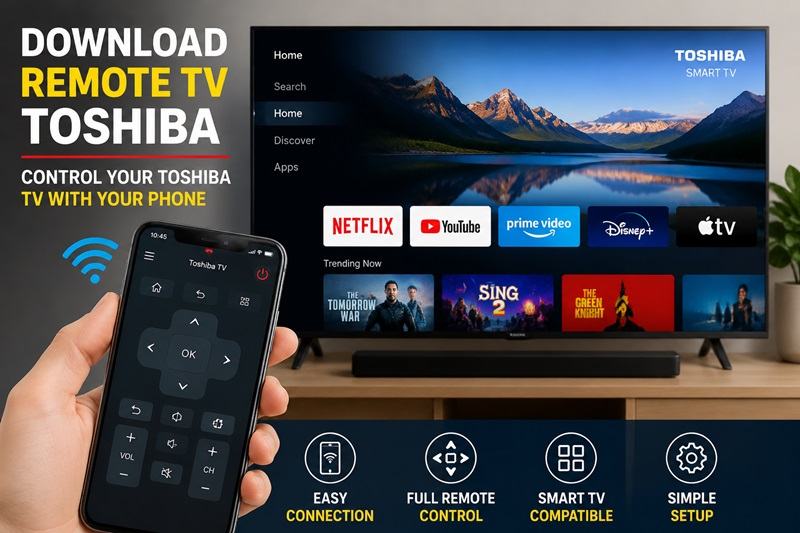
Want to download remote tv toshiba on your phone? You can, but the right app depends on your TV. Toshiba Fire TVs pair with the Amazon Fire TV app, Toshiba Android and Google TVs use Wi-Fi remote apps, and older sets need an Android phone with a built-in IR blaster. This guide puts every option in one comparison table, so you can download remote TV Toshiba apps that actually work in about two minutes.
Quick answer: Yes. You can download remote tv toshiba apps and use your phone as a Toshiba TV remote. Match the app to your TV:
- Toshiba Fire TV: install the Amazon Fire TV app (App Store or Google Play), connect phone and TV to the same Wi-Fi, select your TV and enter the 4-digit code shown on screen.
- Toshiba Android TV / Google TV: use a Wi-Fi remote app from Google Play, such as Remote Control Toshiba or Toshiba Smart TV Remote.
- Older Toshiba TVs without Wi-Fi: use an IR remote app. Your Android phone must have a built-in IR blaster.
- Select regional models: try the Toshiba TV Smart Center app.
- iPhone or iPad: try Remote TV App by Begamob with a compatible Toshiba smart TV.
Not sure what your TV runs? Check Settings > System / Support > About for the model number first.
Can I Download a Remote for My TV? Yes — Here’s How It Works for Toshiba
If you’ve asked “can I download a remote for my TV,” the answer for Toshiba is yes, as long as the TV has Wi-Fi or your Android phone has an IR blaster. The catch is that to download remote tv toshiba apps that work, you need to know which system your set runs. Toshiba has shipped Fire TV Edition, Android/Google TV, VIDAA (common in the UK, Europe and Australia) and older proprietary smart platforms, and each one needs a different type of app.
| Your Toshiba TV | How to recognize it | App to download | Connection |
|---|---|---|---|
| Fire TV Edition | Fire TV home screen, Alexa voice remote | Amazon Fire TV app | Wi-Fi + 4-digit code |
| Android TV / Google TV | Google Play Store, Google Assistant | Remote Control Toshiba, Toshiba Smart TV Remote | Wi-Fi |
| VIDAA / regional Smart Center models | Common on UK, EU, Australia sets | Toshiba TV Smart Center, VIDAA app | Wi-Fi |
| Older non-smart TV | No Wi-Fi or smart menu | IR remote app (Android only) | Infrared |
Wi-Fi Remote or IR Remote: Which One Do You Need?
Wi-Fi apps send commands over your home network, so you don’t need to point the phone at the TV. They require a smart Toshiba TV on the same network as your phone. IR apps work like a physical remote, sending infrared signals straight to the TV with no Wi-Fi at all, but only some Android phones have an IR blaster. iPhones don’t, so an iPhone user who wants to download remote tv toshiba controls should choose a Wi-Fi app (or add an external IR adapter or smart IR hub for a non-smart TV).
Toshiba TV Remote App Download: Which App Should You Choose?
Before any toshiba tv remote app download, compare what each app needs and what it costs. The table covers the apps ranking for this search plus the options Google highlights for Toshiba TVs. Ratings and pricing come from the store listings and review pages checked in October 2026, and they can change.
| App | Platform | Best for | Connection | Cost and limits | Rating |
|---|---|---|---|---|---|
| Remote TV App by Begamob | iPhone / iPad | Compatible Toshiba smart TVs | Wi-Fi | [điền giá/gói] | [điền rating App Store] |
| Amazon Fire TV app | iPhone, Android | Toshiba Fire TV | Wi-Fi + 4-digit code | Free | — |
| TVRem | iPhone / iPad | Toshiba Fire TV and Android TV, plus other brands | Wi-Fi | Free, no subscription listed | 4.8 (App Store) |
| TV Remote – Universal Remote | iPhone | 1,000+ TV models, quick brand setup | Wi-Fi | Free tier mostly limited to volume; full remote needs a subscription | 4.8 (App Store) |
| Universal Remote TV Smart | iPhone | Touchpad and keyboard fans | Wi-Fi | Free with ads; keyboard and ad removal need a weekly or annual plan | 4.2 (App Store) |
| Remote Control Toshiba / Toshiba Smart TV Remote | Android | Toshiba Android and Google TV | Wi-Fi | See Google Play listing | — |
| Toshiba TV Remote Control (Just Remote Control) | Android | Older non-smart Toshiba TVs | IR (needs IR blaster) | Free APK, v10.0 | 1★ from a single review; 1M+ downloads listed |
| Remote for Toshiba TV (TV Smart Remote) | Android | Older non-smart Toshiba TVs | IR (needs IR sensor) | Free, unofficial app | No user reviews yet |
Which should you pick?
- Toshiba Fire TV: start with the official Amazon Fire TV app. Some users report it doesn’t handle volume well on certain Fire TV setups, in which case a third-party remote fills the gap.
- Toshiba Android or Google TV: use a Wi-Fi remote app from Google Play.
- Older TV with an Android phone: use an IR app, and confirm your phone has an IR blaster first.
- iPhone: compare paywalls before you commit. “Free to download” doesn’t always mean free to use.
Download Toshiba Remote Control Safely: Official Stores vs APK Sites
When you download Toshiba remote control apps, the App Store and Google Play are the safest starting point. Check supported TV brands, recent reviews, developer information and requested permissions. APK mirror sites list some Toshiba apps too, but both Android apps in the table above only work with an IR blaster, so they won’t connect over Wi-Fi or on a phone without IR hardware. A quick compatibility check saves you from installing three look-alike apps before one works.
Skip the trial and error. Remote TV App by Begamob turns your iPhone into a Toshiba TV remote in a few taps. Download Remote TV App →
How Do I Download Toshiba TV Remote Control on My Phone?
To download toshiba tv remote control apps without wasting time, follow these four steps. They apply whether you download remote tv toshiba apps on iPhone or Android.
- Identify your TV. Go to Settings > System / Support > About, or read the label on the back. Two Toshiba TVs of the same screen size can run different software, so note the full model number.
- Check for a built-in mobile app option. Some supported models offer Settings > Connection > Mobile App Download, which shows a QR code for the right app. Menu names vary, so search your settings for “Mobile App”, “Mobile Device Connection” or “Content Sharing”.
- Install the app. iPhone: App Store. Android: Google Play. Fire TV: the Amazon Fire TV app.
- Keep the TV on for first setup. Many apps need to find the TV on your network and ask for confirmation on screen, so finish that before switching the TV off.
Once the install is done, your toshiba tv remote app download is complete and you are ready to pair.
How Do I Pair My Phone With My Toshiba TV?
Pairing is the step that makes your download remote tv toshiba setup actually work. For Wi-Fi apps it takes about a minute:
- Put both devices on the same Wi-Fi network. Toshiba specifically asks users to keep the phone and TV in the same network environment.
- Enable mobile access if your model needs it. Some models require Settings > Connection > Mobile Device Connection > Content Sharing. The exact path differs by software version.
- Open the app and let it scan for TVs.
- Select your Toshiba TV. It may appear under its model name or a custom room name. With several smart TVs on the network, confirm which screen responds.
- Enter the pairing prompt. On Fire TV this is the 4-digit code shown on screen. Don’t confuse it with universal-remote programming codes, which are a different process.
- Test the controls. Try Home, direction keys, OK, Back, volume and mute, because finding the TV doesn’t prove every command works.
How Do I Control My Toshiba TV Without a Remote?
If your remote is lost or the batteries are dead, you have four options:
- The TV’s own buttons. Most Toshiba models have at least a power button on the back or side.
- A Wi-Fi phone app. Best choice for smart TVs, but it needs a network connection between phone and TV.
- An IR app on an Android phone with an IR blaster. The only phone-based option that works without Wi-Fi.
- A replacement or universal remote. Useful for older TVs, and handy to keep for setup or network recovery.
If the TV forgot its Wi-Fi network and the app can no longer find it, use a physical control to reconnect it first, then pair the phone again.
Use Remote TV App by Begamob as Your Toshiba TV Remote
On iPhone, the quickest way to download remote tv toshiba controls is Remote TV App by Begamob. It keeps navigation, volume and text entry on the phone you already carry, so a missing remote stops being a problem.
- Turn on your Toshiba TV and connect it to Wi-Fi.
- Connect your iPhone to the same Wi-Fi.
- Open Remote TV App by Begamob and scan for TVs.
- Select your Toshiba TV and confirm any prompt on screen.
- Test navigation and volume.
| Control | What to expect on a compatible TV |
|---|---|
| Menu navigation, Home, Back | Common |
| Volume and mute | Common |
| Channel control | Depends on model and app |
| Text entry | Supported on some setups |
| Power off | Supported on some models |
| Power on | Depends on standby and network wake support |
Power on is the one to test first. Some Toshiba models support Wake on LAN or Wake on Wireless Network, but support varies by model and region, so don’t assume every phone remote can wake your TV from standby.
Lost remote? Don’t wait for a replacement. Get a working Toshiba remote on your phone today. Try Begamob Remote →
Why Is My Toshiba Remote App Not Connecting? 7 Quick Fixes
If your download remote tv toshiba setup stalls at “searching for TV,” work through these checks in order:
- Same network and band. Both devices must be on the same Wi-Fi. If your router splits 2.4 GHz and 5 GHz into separate names, use the same one on both.
- TV online. Open a network feature on the TV to confirm it still has internet.
- Restart the app. Close it fully, reopen and scan again.
- Mobile device settings. Check Mobile Device Connection and Content Sharing on the TV.
- Router and iPhone permissions. Turn off AP isolation in the router, and on iPhone allow the app under Settings > Privacy & Security > Local Network.
- Power cycle. Unplug the TV for 30 seconds, plug it back in and retry pairing.
- Model compatibility. If the TV never appears, your model may not support that app, so try another type (see the table above).
Don’t factory reset the TV as a first step. A reset can wipe the Wi-Fi settings your phone remote needs.
Frequently Asked Questions About Downloading a Toshiba Remote
Can I control my Toshiba TV with my phone?
Yes, on supported models. Install a compatible app, connect the phone and TV to the same Wi-Fi, select your TV and complete the pairing prompt. Older non-smart TVs need an Android phone with an IR blaster instead.
How do I control my Toshiba TV without a remote?
Use the buttons on the TV, a phone remote app, an IR app on an Android phone with an IR blaster, or a replacement remote. Smart TVs work best with a Wi-Fi app because you can also type and navigate menus from the phone.
How do I pair my remote to my Toshiba TV?
For a phone app, put both devices on the same Wi-Fi, open the app, select your TV and enter the code or approve the prompt on screen. For a Fire TV voice remote, hold the Home button for about 10 seconds near the TV, and check your manual if it doesn’t pair. A standard IR remote needs no pairing, only fresh batteries and a clear line of sight.
How do I download a TV remote?
Identify your TV model and system, then install a matching app: App Store or Google Play for most phones, or the Amazon Fire TV app for Fire TV models. To download remote tv toshiba apps for a specific model, follow the four steps in the guide above.
Does Toshiba have a remote app?
Yes, on some models. Toshiba offers Smart Center in certain regions, and some TVs show a Mobile App Download option with a QR code in settings. There is no single official app for every model, so most people download Toshiba remote control apps from the stores based on their TV’s platform.
Can a Toshiba remote app turn the TV on?
Sometimes. Power on depends on the model, standby settings and whether Wake on LAN or Wake on Wireless Network is enabled. Power off is more widely supported.
Is Remote TV App by Begamob a replacement for every Toshiba remote?
Not for every function. Controls depend on your TV model, network and supported features, so use the app as an everyday controller and backup, and keep a physical remote for setup, recovery and model-specific buttons.
Bottom Line: Download the Right Toshiba Remote for Your TV
So, can I download a remote for my TV? For Toshiba, yes. Start with your model and system, then download remote TV Toshiba apps that match it: the Amazon Fire TV app for Fire TV, a Wi-Fi app for Android or Google TV, an IR app for older sets, or Remote TV App by Begamob on iPhone. Pair over the same Wi-Fi, test the buttons you use most, and keep the physical remote for setup and recovery.
Download Toshiba TV Remote