
Element TV Remote App Free: Choose the Correct Xumo, Roku, or Google App
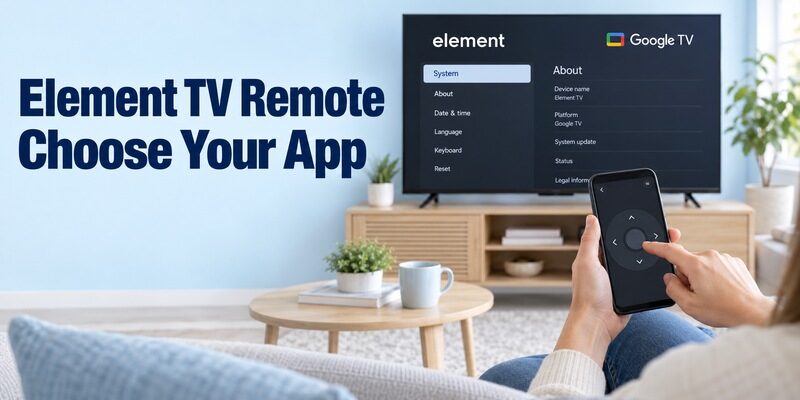
Short answer: Choose the matching Xumo remote, Roku app, or Google TV app for your Element television’s platform. An element tv remote app free search needs an extra compatibility check on Xumo TVs because Xumo currently provides different remote apps for different TV versions.
Element’s own smart-platform pages identify Xumo, Roku, and Google TV televisions, so one brand-named download is not a dependable answer for every model. This guide starts with an app-selection table, explains the Xumo distinction, and then covers the Roku and Google routes. You will also learn how to confirm the phone’s access, separate free controls from paid entertainment, and recover an unsuccessful connection. Keep the full TV model number available, particularly if an older manual or app screenshot does not match the screen in front of you.
Element TV Remote App Free: Choose by Platform and Version
Use the TV’s operating system as the first filter. Element’s Smart TV Platforms page distinguishes its television families. A connected HDMI player adds another system, so check whether you are viewing the television’s own Home screen.
| Element television | Official starting point | Essential qualification |
|---|---|---|
| Xumo TV, Berry version | Xumo TV mobile app on iOS | Correct version, activated TV, supported connection |
| Xumo TV, Teal version | Xumo Remote on iOS or Android | Teal-compatible television |
| Roku TV | Official Roku mobile app | Supported Roku TV on the required network |
| Google TV | Google TV app | Supported Google platform and phone |
| Older or other platform | Exact-model Element support | A documented current phone-control route |
This is a selection guide, not a guarantee for every Element model ever sold. For element tv remote app free setup, confirm the model’s documentation and current app requirements together. A free install label does not establish that an app recognizes your television.
If you have several devices, write down which one you want to navigate. The Element television’s input menu and an external player’s streaming interface may need different controls. Choosing the target first prevents unnecessary troubleshooting of an app that is already operating the correct component.
Identify the Xumo Version before Installing Its Remote
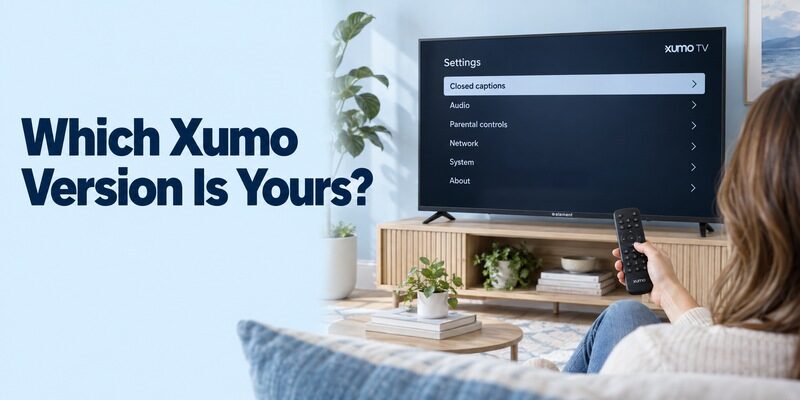
Xumo’s official article Control your Xumo devices with an app, updated in July 2026, distinguishes Berry and Teal versions. Inspect Settings on the television rather than guessing from a remote’s appearance.
Look at the first item in Settings
Xumo identifies a Settings list beginning with Closed captions as the Berry route. A list beginning with Picture and sound uses the Teal route. Follow the current official instructions if the television’s interface differs, rather than selecting an app based on a similar color scheme.
This distinction matters for an element xumo tv remote app free search. The device can carry the same Xumo branding while expecting a different mobile application. Photograph the relevant menu for your own reference before moving between setup screens.
Keep Xumo TV, Xumo Remote, and Xumo Play separate
Xumo TV and Xumo Remote are the remote-app names relevant to the documented versions. Xumo Play is a streaming service, so installing it is not equivalent to setting up a television navigation remote.
For element tv remote app free selection, compare the app’s publisher and description with Xumo’s support page. The correct product should describe controlling your supported device, not merely watching free channels on the phone. A working video stream does not prove television pairing.
Pair the Xumo TV iOS App with a Berry-Version Television
Complete television activation before mobile pairing. Xumo’s Berry instructions require an online, activated TV with its Home screen visible. This app is not a guaranteed substitute for the physical controller during initial activation.
Connect the iPhone or iPad to the television
Install the Xumo TV app through its official Apple store listing. Put the phone and TV on the required shared Wi-Fi connection, open the app, select the television, and enter the pairing code shown on the TV. Follow the displayed prompts rather than using a universal-remote programming code.
For element tv remote app free iphone use, keep the selected TV visible throughout this process. If a code appears on a different room’s screen, cancel that attempt and choose the correct device. Repeating an old code from memory does not establish a new authorization.
Check the controls after authorization
Move one menu highlight, select an ordinary item, and use Back to return. Then test volume and supported playback. The Xumo TV listing describes navigation, playback, volume, and number controls for supported television tasks.
An element tv remote app free connection should survive an ordinary close-and-reopen test. If it returns to another screen in the phone app, reopen the remote and verify the selected television before changing settings. Keep the original remote nearby until the household understands this route.
Use Xumo Remote for a Teal-Version Element TV
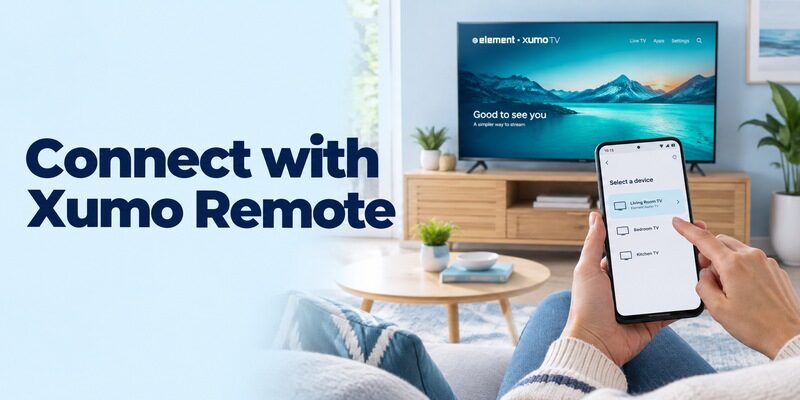
Xumo Remote is a distinct official app. Its current store description identifies supported Xumo TVs and Xumo Stream Box devices, while directing owners of other Xumo TV versions to the separate Xumo TV app.
Select the reachable device in the app
Xumo provides Xumo Remote through the Apple App Store and Google Play. Its store instructions describe opening the app on the same Wi-Fi network as the compatible device, then selecting that device from the available list. The app connects through that supported discovery process.
Do not transplant the Berry code-entry sequence into every Teal setup. An element tv remote app free guide should follow the app actually used by the television. If the interface does not ask for a code, inventing or searching for a code is not a useful next step.
Distinguish TV controls from Stream Box controls
The Xumo Remote listing explicitly limits its volume-control feature to Xumo TVs. A Stream Box attached to an Element screen is therefore not the same target as an Element television with Xumo built in.
For element tv remote app free testing, note the selected device and watch which component responds. A box that navigates correctly but does not adjust television volume may be following the documented feature limits. Keep the TV’s supported controller available for functions outside the box’s mobile interface.
Set Up Roku’s Official App on an Element Roku TV
Element’s Roku platform page recommends the free Roku mobile app for iOS and Android. Use that verified platform route for a television running Roku OS, rather than a similarly titled third-party Element remote.
Choose the TV and open its remote screen
Install the Roku-published app, follow its current account prompts, and connect through the required home network. Select the intended television in the device list and open Remote. Test Home navigation before exploring content recommendations or app-specific playback.
An element tv remote app free search can also return remote apps aimed at other platforms. The presence of the Element name in a store title does not establish that the app supports Roku. Confirm the declared system before granting permissions or considering any premium offer.
Try useful features individually
Check volume, input access, text entry, and supported listening features separately. Roku’s mobile-app page describes several free functions, but the connected device and current viewing source still determine which ones you can use.
If basic navigation works and one feature does not, preserve the working connection while checking that feature’s requirements. An element tv remote app free session should not be classified as completely broken merely because a soundbar or external player needs its own control method.
Connect Google TV to a Supported Element Google TV
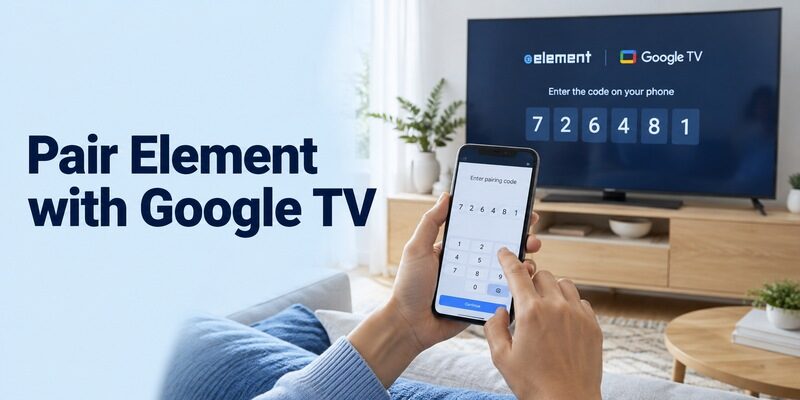
The Google TV app provides the platform’s phone-remote route. Google publishes setup instructions for both Android and iPhone/iPad, so the phone does not have to share the television’s operating system.
Pair the nearby television
Open Google TV, choose TVs nearby, select the Element television, enter its displayed code, and tap Pair as instructed. Keep the phone and target on the required shared local connection. Read the actual television prompt if labels differ in the current app version.
For element tv remote app free setup, use a visible menu movement as the first confirmation. A saved TV name or an entertainment recommendation inside the app is not proof that commands are reaching the television.
Use text entry where it is supported
Open a supported search field and enter a short term. Check the television’s response before typing a longer account credential. If one streaming app does not accept phone typing, try another supported field to distinguish that app’s behavior from a connection failure.
Google TV remote control and casting are related but different actions. Your element tv remote app free test should include Home, selection, and Back, not only sending a video to the screen. This confirms that you can navigate after playback ends.
Read more: Google Remote TV App: Best Free Options for Android & iPhone
Check Phone Access without Changing Every Setting
A functioning internet connection does not prove local-device access. A television can be online while the phone is on an isolated guest network or has denied a required app permission.
Review the connection permission that applies
On iPhone, inspect Local Network access when the chosen app requires it. On Android, follow the current app instructions for its discovery permissions. Voice controls can introduce a separate microphone request; evaluate that in the context of actually using voice input.
If element tv remote app free control stopped after a permission change, restore the documented requirement and retry the same television. Avoid changing the router, resetting the TV, and reinstalling the app simultaneously, because the result will be difficult to interpret.
Check another working household phone
A second authorized phone can help isolate the problem. Compare its app name, selected device, and network with the failing phone. Do not copy account credentials unnecessarily or assume that the app’s presence alone means the second phone has completed setup.
For a shared element tv remote app free arrangement, teach device selection before extra features. The most common household task is choosing the correct screen and reaching a familiar source. Clear room names are more useful than a collection of indistinguishable saved televisions.
Understand What Free Includes
Remote access and entertainment subscriptions are separate products. The official Xumo remote listings identify free downloads, and Roku describes its mobile remote as free. Streaming services opened through those controls may still require their own payment.
Read any trial screen carefully if you are evaluating a free universal remote app for element tv from another publisher. Check whether directional navigation, volume, keyboard entry, and device switching remain available without a paid plan. Do not treat an app’s install button as a promise of unlimited functions.
For element tv remote app free comparison, test compatibility before buying extras. Paying cannot place an offline television on the network or turn a Berry-version Xumo TV into a Teal-compatible model. If the declared platform is wrong, return to the correct supported route.
Retain the name of the app you verified and record which functions meet your needs. If you try several products, identify any subscriptions separately before removing unused apps. Deleting an icon and ending a recurring purchase are different actions, so follow the relevant store or service’s cancellation process.
Check Older Element Models and Infrared Requirements
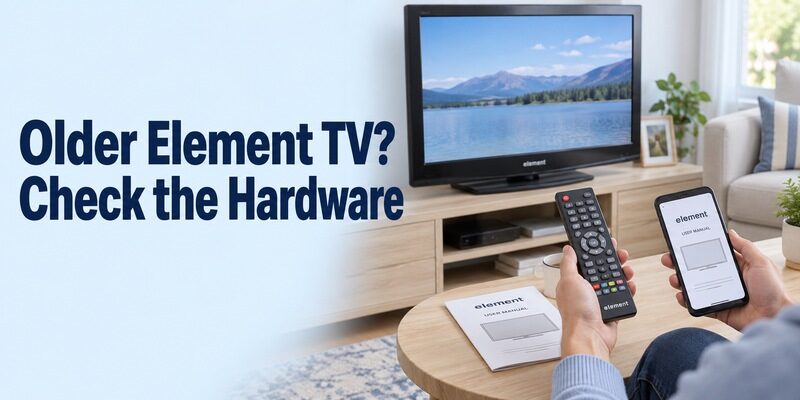
An older television needs its own model-specific answer. Current Xumo, Roku, and Google TV guidance should not be applied automatically to an Element set with a different smart interface or no network features.
Look for a documented phone-control method
Read the exact model’s support information for a supported app or control protocol. A USB port, Wi-Fi icon, or streaming app catalog does not prove that every universal phone remote can communicate with the television.
An element tv remote app free download cannot add a network-remote service that the TV does not provide. If the documentation identifies a different control method, follow that route instead of cycling through unrelated applications.
Confirm infrared hardware before using an IR app
Infrared control requires a real transmitter in the phone or a specifically supported accessory. An ordinary camera or Bluetooth radio is not converted into an infrared emitter by software. The command profile must also match the television.
If suitable hardware is available, test volume, input, and navigation as well as power. A profile that only turns the screen off may still be a poor match. Otherwise, obtain a compatible physical remote and use it to restore the functions the television actually supports.
Troubleshoot by Platform and the First Failed Step
Preserve a working television configuration while diagnosing the app. A wrong Xumo version, an offline Roku TV, and an unsupported phone installation are different problems with different next steps.
| What you observe | Relevant check | Practical next action |
|---|---|---|
| Xumo app does not recognize TV | Berry or Teal version | Compare the TV Settings screen with current Xumo guidance |
| Berry pairing will not begin | Activation and visible Home screen | Complete supported TV setup first |
| Device absent in any app | Platform, power, and network | Wake TV and confirm its saved connection |
| Navigation works, volume does not | Selected TV versus external box | Check that target’s audio-control support |
| Only one phone fails | App version and required permissions | Compare with a known working phone |
After a router change, reconnect the television using a supported controller. Installing another phone app does not transfer the new Wi-Fi credentials to an offline screen. Avoid a factory reset while you have no reliable way to operate the initial setup afterward.
For an intermittent element tv remote app free failure, record the model, app name, TV version, phone software, and exact failed action. Note whether the TV was awake or returning from standby. That evidence helps support distinguish discovery, authorization, and individual-function problems.
Frequently Asked Questions
Does every Element Xumo TV use the same remote app?
No. Xumo’s current guidance distinguishes Berry and Teal versions. Berry uses the Xumo TV iOS app; Teal uses Xumo Remote on supported iOS and Android devices. An element tv remote app free choice should follow that version check before troubleshooting a download that cannot recognize the TV.
Is Xumo Play the app I need to control an Element TV?
No. Xumo Play is a streaming service. Use the correct Xumo remote application for your television version when you need navigation controls. Watching a program on your phone does not establish pairing with the television or provide access to the TV’s settings menu.
Can I control an Element Roku TV from an iPhone?
Yes. Element and Roku identify the official Roku mobile app as an iOS option for supported Roku televisions. Connect through the required network, select the correct TV, and test its Remote screen. This does not establish compatibility with Element televisions running a different operating system.
Will a premium universal app fix an offline Element television?
Do not assume so. A network remote needs the television to be reachable through a supported connection. Restore that connection using an appropriate controller first. Payment alone does not configure missing Wi-Fi details, finish inaccessible activation, or add unsupported transmission hardware to a phone.
Add a Compatible Alternative and Keep a Recovery Method
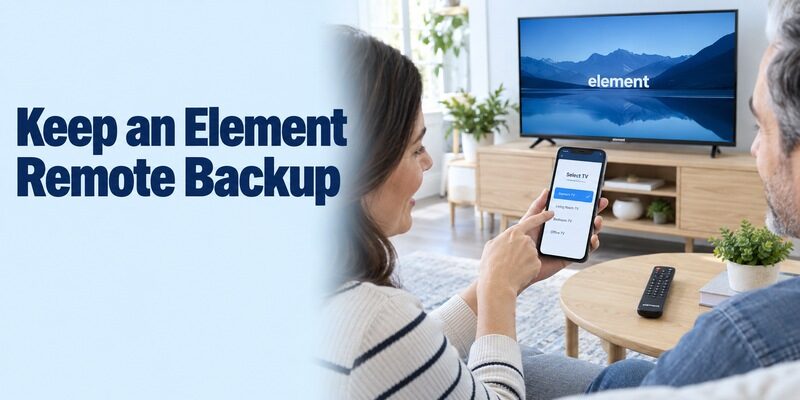
Use a working official connection as your baseline. If another interface would be easier to use, compare it against the tasks you have already verified rather than a broad universal-control claim.
Review and check support for your Element model, platform, and phone. On a compatible connection, it can make navigation available when the physical remote is misplaced. It does not bypass Xumo version requirements or an unavailable network connection.
Before replacing an element tv remote app free setup, repeat Home, Back, input, and volume tests in the same viewing arrangement. Keep a compatible physical controller in a known place for activation, network changes, and phone charging. Show another household member how to recover the usual source.
Final Thoughts
An element tv remote app free solution starts with the correct television platform and, for Xumo, the correct version. Choose the documented app, complete its own pairing process, and verify a visible response before exploring extra features.
Separate TV controls from an external box, and evaluate free-use terms independently of compatibility. A supported phone remote plus a clear recovery method gives you convenient daily control without relying on promises that do not fit your particular Element television.
