HDMI-CEC Cable Buying and Troubleshooting Guide
Short answer: Choose a cable rated for the video and audio you need, then verify CEC with one direct HDMI connection.
Buy for the video and audio mode first. Then test whether the entire connection passes the control signal. HDMI Licensing Administrator distinguishes HDMI cable performance categories and publishes cable guidance for eARC.
An HDMI-CEC cable choice starts with a cable suitable for the video path and an end-to-end control test.
An older cable can work for one setup and fail to support a higher-bandwidth video mode. Test the same CEC command while comparing only the cable.
Choose a Cable for the Whole Setup for HDMI-CEC Cable
Choose by the whole connection
List the display mode, source, and audio equipment you actually use. Check the required HDMI cable category for video bandwidth and eARC where relevant. CEC does not require a cable sold under a special CEC marketing label. It does require a working supported control path. Use a single change to identify which part of HDMI-CEC cable affects the result.
Before comparing cables, learn how HDMI-CEC works and why a working picture does not always confirm that control commands are reaching the TV.
Test on the intended input
Test the simple chain first and label the source and display ports used. If you add a switch, splitter or receiver, compare the same cable direction, input and command after adding it. Check the intermediate device’s documentation for which port passes control or return audio when those features matter.
Install the software supported for the actual control hardware and OS release. Open it without changing automation settings, then check discovery and one supported action. A scan that succeeds while a command fails can narrow the issue to the addressed device, feature or operating state. Record this result with your notes on HDMI-CEC cable.
Leave the system in its normal sleep state before testing wake, and use the same control to repeat it. An always-awake device can make an initial command appear more reliable than it is during ordinary use. Add automated power or routing only after the manual command gives a repeatable result.
Check whether the exact feature has a dependency that occurs during setup rather than playback. A television can show a locally playing HDMI source while an account feature or streaming service stays unavailable. Test the actual content and input you plan to use while the internet is disconnected. A repeatable result can help when comparing HDMI-CEC cable across firmware versions.
Read more: HDMI-CEC PC Setup for Windows and Other Systems
Check the Cable Category and Label
| Feature or step | What to verify |
|---|---|
| Source and display | Confirm model, connector and documented feature |
| Control hardware | Check supported CEC access on the intended path |
| Video and audio | Verify the modes you actually use |
| Receiver or adapter | Compare a short direct connection first |
Check certification and product details
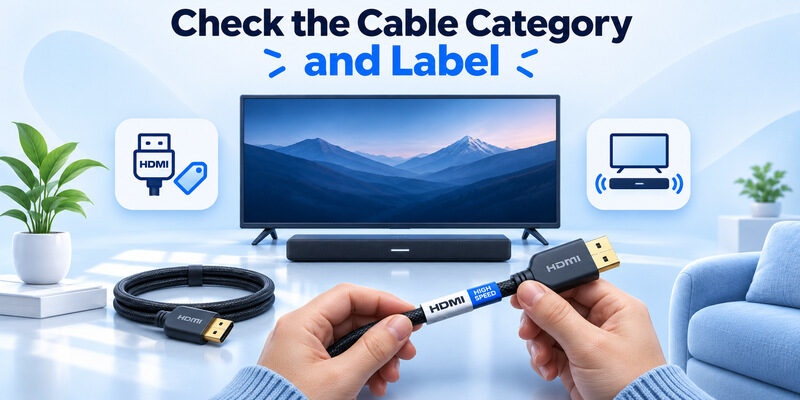
Look for the cable category and the manufacturer’s certification information when your equipment needs it. Verify the connectors at both ends. If a cable is directional, follow its source and display markings. Confirm the actual product description instead of relying on a headline that only says 4K. Check the feature against your model’s documentation for HDMI-CEC cable.
Verify control and picture separately
A labeled cable still needs to be connected to the appropriate ports. Check the TV and audio device’s designated return-audio connection.
For an active or directional cable, verify which labeled end faces the source and which faces the display. Check the manufacturer’s limits for CEC and audio return as well as video. Use a short known working cable for comparison, if practical, before replacing a long installed run. Identify the active device before changing HDMI-CEC cable.
Choose a certified cable category for the bandwidth used by your source and display. For a long active cable, follow the direction markings and review its documented support for CEC and audio return. Compare it against a short cable if you can temporarily bring the equipment together.
Use your usual viewing arrangement for the final check. A direct connection can establish baseline support, while an audio receiver can re-route picture and sound in its own menus. Restore that equipment, select the intended content, and confirm that both the source and speaker you meant to use respond. Keep the result with the settings you use for HDMI-CEC cable.
For a setup with multiple sources, review home theater receiver and TV control to identify the HDMI inputs and the device handling audio.
Read more: HDMI-CEC Adapter Buying Guide for TV and PC Control
Find the ARC or eARC Port
Distinguish eARC and CEC requirements
ARC or eARC carries audio back to compatible equipment. CEC sends supported commands over HDMI. For a soundbar, use the marked ARC or eARC port and follow the required cable guidance. Test playback and volume separately. If you need help with HDMI-CEC cable, give support the model and the result of this check.
Find the failed link
A soundbar that plays via optical cannot receive CEC on that optical link. A television’s HDMI source may still have its own CEC behavior.
Check the audio route independently after testing the video path. A receiver may handle the sources and the display may send sound back over its designated port. Confirm which box currently plays audio and test a familiar volume command. Verify whether the newly inserted component changed the expected output. If HDMI-CEC cable still gives the wrong result, return to this comparison before changing a second setting.
Confirm the full model and regional suffix where the manufacturer uses one. Read its input or system-control section and look for the feature by name. Product pages commonly highlight gaming picture modes. The manual is a better place to verify which port exposes linked power or input control.
Start the audio test from a built-in TV app or tuner. That test removes the external source and its audio format from the comparison. If the bar plays that clip and fails with the external source, inspect the source format and supported TV passthrough before disturbing the return audio connection.
Check the level on the unit that is making the sound. A TV volume animation can be a graphical acknowledgment even if the separate receiver stays at the same level. Play a continuous clip so you can hear the effect of one volume step or mute without losing the original playback position. For the complete audio setup, see how to connect a soundbar through HDMI ARC or eARC and select the correct TV audio output.
Test One Short Direct Connection
Test a short direct HDMI path
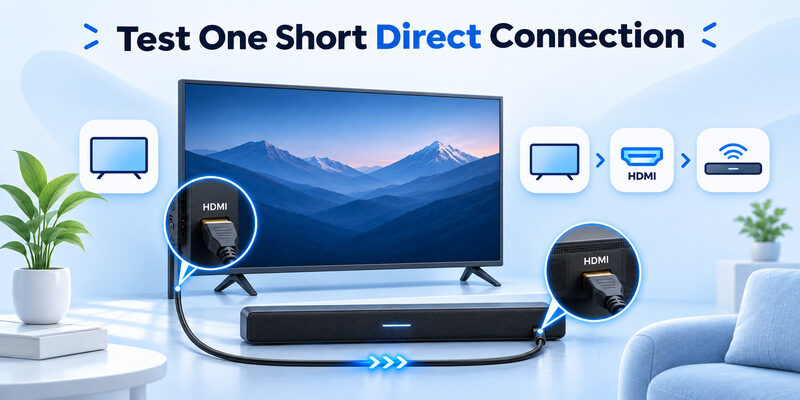
Choose one source and connect it directly with a known working cable. Enable the documented CEC option on both devices and check one visible command. Then compare a second cable or add intermediate equipment one item at a time. Verify the result in the setup you actually use for HDMI-CEC cable. Compare soundbar control through HDMI-CEC with optical and Bluetooth connections before testing volume.
Document a repeatable result
Keeping the source, port and setting fixed helps you decide whether the cable or another device changed the result.
Confirm the operating system can see the control interface using the manufacturer’s tool or supported system utility. If a USB adapter is missing there, check its data connection and documented software. After detection, compare what the tool can see on the HDMI bus while one television is connected. In your notes on HDMI-CEC cable, include which device actually responded.
Reconnect equipment one unit at a time and use the same target command in each trial. For a chain with a switch, test a second known input on the switch if the first trial fails. Check whether its manual documents HDMI control or automatic input selection and whether either feature depends on its power state.
Use a familiar clip and write down the working TV sound output before making changes. If you disconnect a receiver to test video, return to that output after you reconnect it. The television may have selected its internal speakers while the receiver was absent, which makes the original volume test hard to compare.
Read more: Permissions Requested by Google TV and What They Do
Check Switches and Adapters
Check adapters, switches and receivers
Review any intermediate device’s support for HDMI control and the video mode you need. Some equipment can show video while changing what reaches the control bus. Run a direct comparison before replacing the TV or remote. Check whether HDMI-CEC cable changes the feature that originally prompted the test.
Compare the supported functions
If the difference only appears when a switch is inserted, record the model and relevant port. Check its documented CEC passthrough rather than assuming it works on every input.
Record the working display mode from the source and the display’s own information screen. If a component you add changes the available refresh rate, check its exact model specifications. A basic picture may still work at a reduced mode. Test resolution, refresh rate and HDR as separate settings where the equipment exposes them. Keep the result with the model details when reviewing HDMI-CEC cable.
If the source works directly and fails through an adapter, keep the resolution and command fixed while adding the adapter again. Read the adapter’s control and passthrough capabilities. Replacing the cable between two devices may leave the same problem if an intermediate unit is what interrupts the function.
Open a visible source menu with the source’s own remote. Set it aside and use a single direction key from the other remote. Note where the highlight moves. If that works, compare OK and Back separately. A manufacturer can support only a subset of the controls forwarded to a particular device.
If the equipment offers an infrared mode, test from the place you normally sit and with cabinet doors in their normal position. Use the intended receiver’s sensor and avoid pointing at a second box by accident. Compare volume and mute separately because a remote setup can map individual functions differently.
If the HDMI connection is not working on your TV, first check the input, source, and cable before investigating CEC commands.
Diagnose Video With Missing CEC
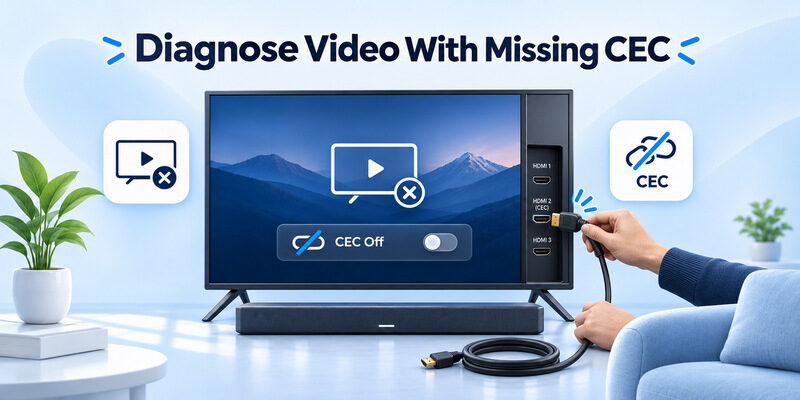
Separate a working video path from the control path
If a picture appears but no HDMI control works, enable the documented CEC settings on both devices. Compare one known command with a short cable directly between them. If the direct test works, reintroduce the adapter or cable that was removed and repeat the same command. Retest after restoring the previous setting to see which part of HDMI-CEC cable changed.
Identify the exact interface
If video and control fail together, check the source and active input before blaming a cable category. A new cable cannot add a CEC function the equipment does not expose.
Write down the direct connection that works and the first changed connection that fails. Include the actual equipment model, selected input and observed behavior. For a report to a manufacturer, specify the one command or display mode you need and whether either changes when the intermediate unit is removed. Use the same starting state when testing HDMI-CEC cable again.
Choose a command the receiving device documents and that produces an observable result. A visible input banner or display transition is a good starting point. Compare the receiver and display if you use both. Test standby only after you understand the result with both devices already awake.
Use the shortest simple chain that still contains the equipment being tested. Start with the television and the one source, using an input and cable that already display its picture. Compare the documented command with the same setup through the receiver or switch. Retest audio after restoring the original route.
Check the model and current software version if a menu path no longer matches the documentation you remember. Open the full settings screen before searching for the option. If the updated device remembers earlier settings, compare the actual saved options with your desired power, input and volume behavior after a restart.
Check whether a second device sees the same network in the room. If the television offers manual entry for a hidden network, use the exact name and the security details in the router’s settings. If the signal is weak on multiple devices, examine placement and router coverage before resetting the TV.
Read more: Bluetooth Permissions iPhone Guide for Apps and Accessories
Compare Length and Cable Direction
Check an active or long cable
For directional and active HDMI products, read the manufacturer’s connection instructions and supported functions. Install the ends in the documented direction and compare against a short direct link. Do not assume identical behavior from two cables based only on length. Record the device model when testing HDMI-CEC cable.
Check the working configuration
If the television cannot show the usual picture, restore the known working connection first. Then test the CEC action on a visible input.
When inspecting a CEC message, separate the sender and destination in the frame header from the operation and its arguments. Tie the capture to a visible event on your equipment. Timing alone can show a correlation. Checking the destination and route can tell you whether it was the intended television or another device. Before you make another change to HDMI-CEC cable, repeat the comparison with the equipment you normally use.
Check that the exact TV has a supported LAN port and connect it to an active router or switch port. Open the wired status screen after connecting. If Ethernet works, compare the same TV app on Wi-Fi to isolate a wireless problem from broader internet or account issues.
Use a phone or laptop on the same network for comparison. Make sure its result comes from Wi-Fi and that the network name is the one used by the television. If both lose internet access together, check router and service status. If only the TV is affected, use its own connection screen.
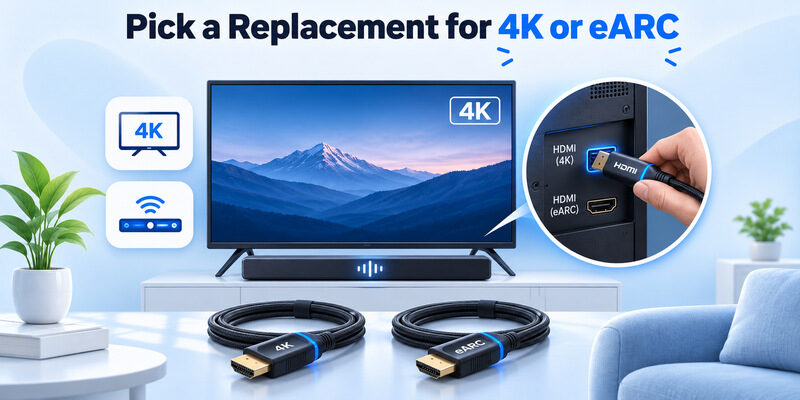
Pick a Replacement for 4K or eARC
| Example result | First comparison |
|---|---|
| A long directional cable was installed backward | For directional and active HDMI products, read the manufacturer’s connection instructions and supported functions. |
| A short cable fixes control | If a picture appears but no HDMI control works, enable the documented CEC settings on both devices. |
| The soundbar is in a regular HDMI port | ARC or eARC carries audio back to compatible equipment. |
| A switch passes video but interrupts CEC | If a picture appears but no HDMI control works, enable the documented CEC settings on both devices. |
Choose a replacement that fits your equipment
Use the minimum certified performance that meets your intended video and audio configuration, and confirm the cable works with the devices you use. Retest CEC, video and audio separately after installation. Check the response here before changing other options for HDMI-CEC cable.
Verify what actually reaches the device
A phone remote may temporarily help select an input on a compatible reachable TV while you test. It cannot repair a disconnected HDMI path.
Decide which capability is essential before comparing listings. Check the supported control function and the video mode in the official documents for the exact item. When it arrives, use the source and connection you plan to keep, and test your actual daily settings while a return is possible. When you check HDMI-CEC cable after an update, start with the same baseline.
For a replacement cable, write down the highest resolution and refresh rate you actually use and whether the same cable must handle ARC or eARC. Read the listing and manufacturer documentation for that exact length and model. After installation, compare the video mode, audio from a TV app, and one CEC action before routing the cable permanently.
If you need a backup for the TV’s own controls, can help from an iPhone when the television is compatible and reachable on the home network. Select the TV and check one navigation command. Use the connected equipment’s own controls for functions the TV cannot forward.
Read more: Bluetooth Permissions Android Guide for Nearby Devices
Frequently Asked Questions
Can I rely on the product name alone?
Check the exact model and manufacturer documentation. Similar product names can describe different supported features. Verify the relevant control action and the video or audio mode you need in your own equipment chain.
Should I test with a receiver connected?
Start with one direct HDMI connection and then add the receiver. Keep the selected source and command fixed. If the result changes, consult the receiver’s documented control behavior and verify the actual video mode.
Can I keep a physical remote as a backup?
Yes. Use it to select the correct input while testing and to verify the television still responds when the other control path fails. A physical controller can help you return to a known working screen.
Does working video prove that HDMI control works?
No. A picture confirms the video path in the current mode. Test a specific supported power, input, or navigation command separately. Check the target’s visible response before relying on the feature.
Final Thoughts
Start with the simplest comparison. Check the intended display mode, port and cable category. Test a short known working cable with the same source and TV input.
Add adapters and switches individually. Compare each against the direct path, with the same device settings and one visible command. Keep the model number and the working settings for HDMI-CEC cable handy.