
HDMI Not Working TV: Fix No Signal, Black Screen, and Sound
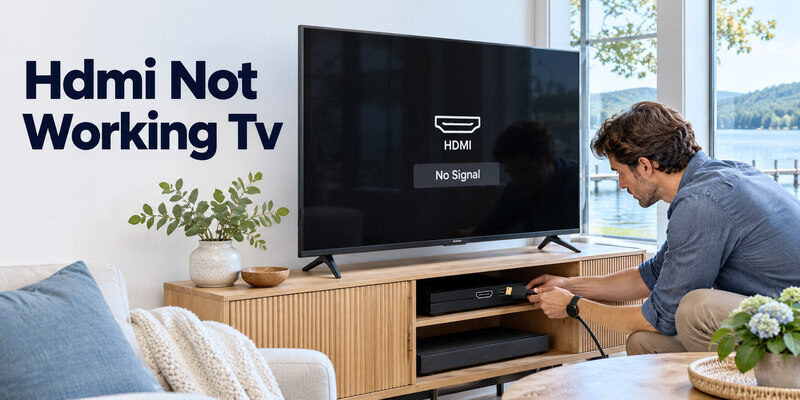
Short answer: When HDMI not working TV, select the correct input and test a known-good source and cable directly before resetting either device.
A TV menu that appears normally while one HDMI input is blank points toward the input chain rather than a completely failed display. The cause may be the source, cable, port, adapter, or a negotiated video mode. Use the result of each comparison to decide the next step, and keep a working connection intact while testing.
Five Fast Checks for HDMI No Signal
- Confirm the source device is on, not merely plugged in.
- Select the TV input number matching the physical connector.
- Reseat the cable at both ends and remove any switch or receiver temporarily.
- Try a known-good cable and another HDMI port, one change at a time.
- Test the original port with a second known-good source.
If a TV’s own Home or Settings menu is also missing, follow a display or power diagnosis instead. If built-in apps work, the TV can display a picture and the HDMI path deserves focused attention. A brief black flash during a normal resolution or refresh-rate switch differs from a persistent “No Signal” screen.
Read the precise on-screen message
“No Signal” often means the TV receives no usable video on the selected input. “Unsupported mode” or a black image with audio may point to a format negotiation problem. A service’s black playback window while desktop and menus remain visible can be copy protection or app behavior. Write down which message appears, whether the TV menu overlays it, and whether sound continues. Those details make the next test more useful than a blanket reset.
Start from the simplest wiring
Connect source HDMI OUT directly to TV HDMI IN with a short known-good cable. Bypass HDMI switches, capture devices, docking stations, AV receivers, and soundbar passthrough for the first comparison. Once a basic picture works, reconnect one intermediary at a time. An intermediary can accept 1080p or 4K/60 while blocking a higher refresh rate or HDR mode; a successful low-resolution picture does not prove the whole route supports every feature.
Read more: How to Connect Laptop to TV HDMI: Picture, Sound, and Display Modes
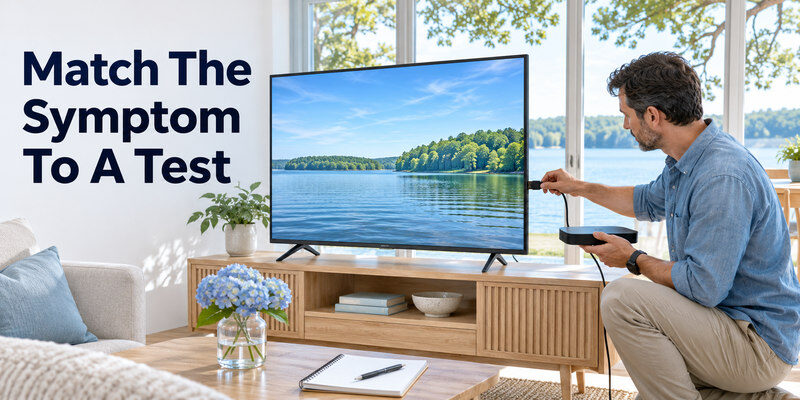
Match the Symptom to a Test
| Symptom | Controlled comparison | Likely direction |
| Only one TV port fails | Same source and cable on another port | Original port or its settings |
| Every source fails on one cable | Known-good replacement cable | Cable or long run |
| Source works on another TV | Original TV with second source | TV input or format negotiation |
| Basic video works, 4K/120 fails | Same route at 4K/60 | Bandwidth, port, or intermediary |
| Video works, sound missing | Built-in app and TV speaker output | Source audio format or TV output |
| TV menu and all inputs blank | Physical TV controls | Display or power path |
Change only one variable per row. Moving the cable, port, source, and output mode together can restore a picture without revealing the actual cause. Keep a small note of the result, particularly if the fault is intermittent. A cable that fails only after warming up may seem fine during a quick startup test. If the television does not respond to its physical power button either, follow the steps to troubleshoot a TV that will not turn on before focusing on the HDMI source.
Test the TV port with another source
Connect a working laptop or streaming box to the suspect TV port using a known-good cable. If it also fails while another port works, inspect that port and its enhanced-signal setting. If the second source displays normally, focus on the original source and its video output. An HDMI port can be physically damaged even while the TV’s apps are fine; avoid forcing a loose connector.
Test the source on another display
Use another TV or monitor that accepts the source’s basic resolution. If the source remains blank, check its power, output mode, and own troubleshooting procedure. If it works elsewhere, return to the original TV’s input capability and settings. For a game console, official low-resolution recovery is safer than guessing button combinations. Preserve sign-ins and data; an HDMI problem rarely calls for a full TV factory reset as the first step.
Fix the Cable and Connector Path
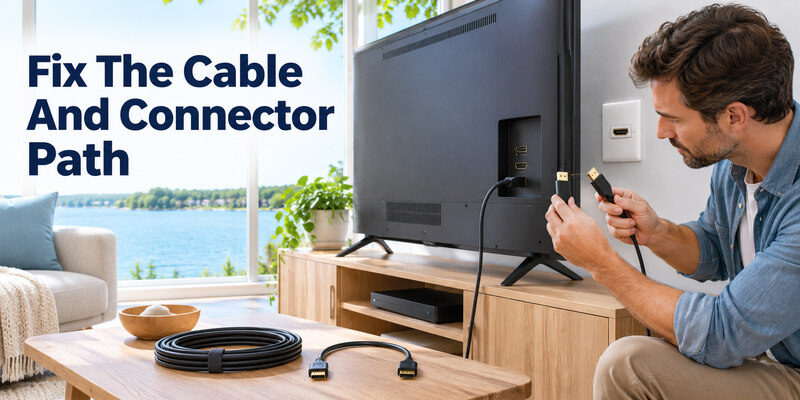
Inspect both HDMI plugs for bent or damaged contacts and fully seat them without excessive force. A very long or tightly bent cable can cause an intermittent link. Swap in a short, tested cable and keep the source connected directly. A cable can carry a lower mode yet fail at a higher bandwidth, so repeat the same resolution and refresh-rate test before concluding that it is sound. If the issue also affects built-in apps or the television menu, use our guide to diagnose common smart TV problems by symptom.
Choose a cable category for the actual mode
According to the HDMI Licensing Administrator, certified Premium High Speed cables cover up to 18 Gbps configurations including many 4K/60 HDR setups; Ultra High Speed cables cover up to 48 Gbps and 4K/120 configurations. The cable label is useful evidence, but the source, TV port, and any intermediary must support the same mode. Do not buy an expensive cable to fix a source that is powered off or a TV on the wrong input.
Check a wall run or adapter separately
A wall plate, USB-C adapter, HDMI switch, or active extender adds another potential fault. Verify a short direct connection before testing those components. For a laptop, check that its USB-C port actually supports video output; the connector’s shape does not guarantee it. An active cable or extender may be directional. Follow its source/display markings and power requirements instead of assuming either end can be reversed.
Read more: How to Connect PS5 to TV: HDMI Setup, 4K, HDR, and 120 Hz
Recover From an Unsupported Video Mode
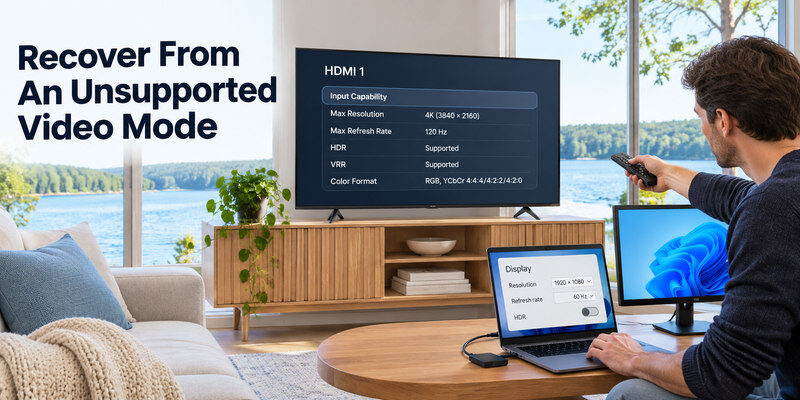
If the picture disappeared after enabling 4K, 120 Hz, HDR, VRR, or a new color format, return the source to a basic supported mode using its own display controls or official recovery instructions. For a PC, connect a working monitor or use its projection shortcut. For a console, follow the manufacturer’s safe video recovery procedure. Then verify the TV’s exact input specification and enable one advanced feature at a time.
Confirm the TV’s input capability
Two HDMI ports on the same TV can have different bandwidth or gaming features. An ARC/eARC label describes audio return; it does not by itself certify 4K/120 input support. Some TVs require an Enhanced HDMI or Input Signal Plus setting on a specific port. Consult the exact model manual and firmware menu. A source may negotiate a lower mode automatically when the desired one is not available.
Separate HDR negotiation from a dead port
If SDR at 60 Hz is stable but HDR causes a persistent blank screen, the basic port is working. Check the source’s color-depth setting, the TV’s enhanced input mode, intermediary support, and cable. The TV may briefly blank while changing HDR or refresh mode; wait for the switch to complete. Repeated dropouts during playback suggest an unstable link and merit a direct-cable comparison. If the source is an Xbox, follow the steps to check an Xbox HDMI connection, including the selected input, cable, and display settings.
Read more: Best TV Brand 2026: Choose by Picture, Budget, Gaming, and Software
Fix Picture With No HDMI Sound
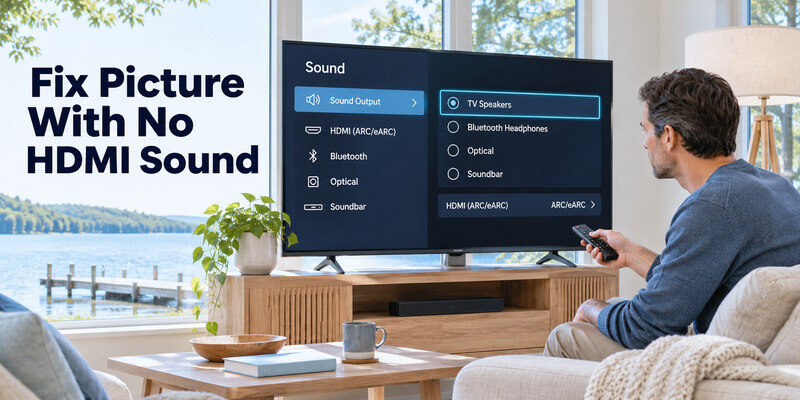
HDMI carries audio and video, but a TV may send sound to Bluetooth headphones, optical, or a soundbar rather than its own speakers. Select TV speakers as a test and compare a built-in app. If the app has sound and the HDMI source does not, check the source’s audio-output format. Use a common compatible setting such as Auto or PCM temporarily, then restore a supported surround format after diagnosis.
Check the source output first
A laptop may still use its internal speakers; choose the TV’s HDMI audio device. A console or streaming box may output a bitstream that the TV or soundbar route cannot decode. Test the same HDMI input with another source and keep TV volume low during switching. If one app on a source is silent while its system menu has sound, investigate that app’s audio settings or service, not the physical HDMI port.
Check ARC/eARC as a separate leg
A console can deliver video and audio to the TV while the TV-to-soundbar ARC path fails. Test TV speakers first, then the soundbar. The TV’s HDMI ARC/eARC connector must connect to the soundbar’s HDMI TO TV port, with the appropriate output and HDMI-CEC settings. Samsung’s soundbar support guidance recommends verifying the labeled ports, output selection, and cable when audio is absent. Do not confuse a soundbar audio fault with a missing console-to-TV video signal.
Read more: Best Budget Smart TV: Choose a Good Picture Without Paying for Extras
Diagnose Intermittent Flicker or Dropouts
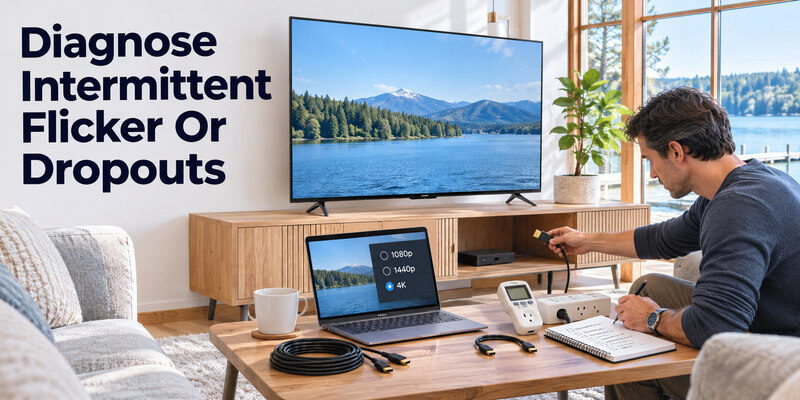
A cable or connector can work at one resolution and fail at another. Record whether the loss happens at startup, after a video-mode change, only during a particular app, or after several minutes. Temporarily use a shorter cable, direct connection, and lower mode. If the fault disappears only at the lower mode, inspect bandwidth across every component. If all sources on one TV port flicker, that port or its settings become more likely.
Compare the same scene and mode
Replay a repeatable clip or game sequence after each change. Keep resolution, refresh rate, and source constant while swapping the cable. Then keep the cable and swap ports. A single random blackout during an app transition is less informative than a repeatable failure at 4K/120. Use the TV’s signal-information page when available to verify the negotiated mode.
Consider heat and power separately
If the source shuts down, freezes, or reboots when the picture vanishes, that is not simply an HDMI handshake. Check the source’s ventilation and power using official guidance. If the TV itself powers off, examine its power path. Never open a TV or power supply to inspect internal components. Record whether the TV menu remains responsive when the external picture disappears.
For gaming setups, compare TV gaming features and HDMI ports, including the exact model’s supported refresh rates and VRR capabilities.
When a Port Needs Service
A port with a loose socket, visible damage, or failure across multiple known-good cables and sources may require manufacturer or qualified repair assessment. Test another port if available and preserve a working route. Give support the exact TV model, firmware, port number, tested source, cable, and mode. A software update can be appropriate when a maker documents a compatibility issue, but an update cannot repair a broken connector.
Avoid a premature factory reset
A reset erases accounts and picture settings while leaving a defective cable or bent port untouched. First use a second source and cable, then a different port. If all inputs and built-in apps fail, move to a broader TV display diagnosis. If only an advanced mode fails, document the supported port features and firmware before escalating.
Keep an input-control fallback
If the TV handset is missing, a compatible may switch inputs on a supported, powered, reachable TV. It cannot repair an HDMI socket or create a video signal from an off source. Keep the TV’s physical control button available while testing, since a phone remote may depend on a working network.
If the screen is actually on the wrong HDMI input because its remote failed, diagnose before treating the console or cable as defective.
HDMI Not Working TV FAQ
Why does HDMI 1 work but HDMI 2 say No Signal?
Test the same source and cable on both ports. If HDMI 2 fails with several sources while HDMI 1 works, inspect its input settings and connector. Different ports may also support different advanced video modes.
Can a cable cause a black screen but still carry sound?
Yes, an unstable or incompatible link can show varied symptoms, but sound alone does not prove the cable is at fault. Test a known-good short cable at a basic supported mode and compare another source on the same TV port.
Do I need to replace the TV if one HDMI port fails?
Not automatically. Another port may remain usable, and a setting or cable may be the cause. If the socket is damaged or multiple known-good sources fail only on that port, ask the manufacturer about repair options.
Why does 1080p work but 4K/120 fail?
The selected port, cable, source, or intermediary may not support the higher-bandwidth mode. Test a direct connection with a certified Ultra High Speed cable where 4K/120 is supported, and verify the TV’s exact port specification.
Will restarting the TV fix HDMI negotiation?
It can clear a temporary handshake, but a repeatable fault needs controlled comparisons. Restart after noting the symptom and checking the input and cable. Avoid a factory reset until model-specific support recommends it.
HDMI Faults That Look Similar but Need Different Fixes
One port fails while another works
Move the same source and known-good cable to another TV input. If the picture appears there, the console and cable are likely functional. In hdmi not working tv diagnosis, check whether the original input has an enhanced-mode setting that rejects the source’s current output, or whether the port is physically damaged. Inspect the connector with the TV unplugged and avoid inserting metal tools. If several sources fail only on that port, document the result for the maker’s support or warranty. Do not conclude the main board has failed from one attempt.
All sources show No Signal
Confirm the TV is set to the port actually used, then test a built-in app to verify the screen itself. Unplug a switch or receiver and connect one source directly. Try a second cable and source at a basic 1080p/60 output if available. When hdmi not working tv across every input, a shared intermediate device, TV input selection, or source power can be the common cause. A factory reset erases settings and should follow evidence, not replace these simple isolation checks. Record whether the TV menu appears normally.
4K/120 fails but 4K/60 works
A stable lower mode suggests a bandwidth, cable, port, or enhanced-input problem rather than total HDMI failure. Use the source’s included or certified Ultra High Speed cable for a high-bandwidth route and connect directly to the TV’s documented 4K/120 input. Disable a receiver or switch temporarily. Check that the console reports the mode as supported. HDMI.org’s cable certification separates Premium High Speed 18 Gbps and Ultra High Speed 48 Gbps classes. The hdmi not working tv symptom can disappear at 60 Hz because the signal demands less bandwidth.
Video works but sound is missing
The HDMI picture path is alive, so inspect the source audio format and TV output. Temporarily choose PCM/stereo and TV speakers, then reintroduce the soundbar. An ARC/eARC soundbar must use the labeled return port and its TV input. If a built-in TV app plays sound while the HDMI source stays silent, the source format or pass-through is the better suspect. Diagnose hdmi not working tv as an audio-route problem in this case, not a reason to buy a new television.
Intermittent blackouts after warm-up
Check whether a cable is strained, a connector is loose, or a switch overheats in a closed cabinet. Test a shorter certified cable directly and allow ventilation around equipment. Note whether the blackout occurs only with HDR or VRR, which narrows the mode. A service technician needs the exact source, port, mode, cable, and timing. Repeatedly hot-plugging a loose connector can worsen wear, so stop using a visibly damaged port and seek manufacturer guidance.
Final Thoughts
For hdmi not working tv, isolate the input chain with a known-good source, cable, and direct connection. Once a basic picture works, add higher video modes and intermediaries one at a time. Source basis: Microsoft external-display troubleshooting, HDMI Licensing Administrator cable guidance, and manufacturer soundbar/TV support.
