
TV Wont Turn On: Power, Standby, and Remote Checks
If your TV won’t turn on, check the power outlet, unplug the television for 30–60 seconds, reconnect the power cord, and press the physical power button on the TV. If it still does not respond, inspect the standby indicator, test another outlet, and check whether the remote control is working.
Many tv wont turn on problems are caused by loose power connections, faulty remotes, temporary software errors, or an inactive power outlet. These issues can often be identified without opening the television or replacing expensive components.
Try these quick solutions first:
- Check the power cable and make sure it is connected securely.
- Test another power outlet to rule out an electrical supply problem.
- Unplug the TV for 30–60 seconds before reconnecting it.
- Press the TV’s physical power button instead of using the remote.
- Replace the remote batteries and check for signal interference.
- Inspect the standby light to identify possible power-related symptoms.
If these steps fail, the television may have a display, power-supply, or internal hardware problem.
This guide explains how to fix tv that wont turn on on Samsung, LG, Sony, Roku, and other Smart TVs, using practical steps supported by official manufacturer troubleshooting instructions.
1. Why Won’t My TV Turn On?
When your TV won’t turn on, the cause may involve the electrical connection, remote control, standby system, software, or internal hardware.
Understanding these possibilities helps you avoid replacing a television that may only need a simple power reset.
1.1 Power outlet or power cable problems
A loose power cable or faulty outlet can prevent a television from receiving electricity.
Common causes include damaged cables, disconnected plugs, switched-off outlets, and tripped circuit breakers.
A worn-out surge protector can also stop delivering power properly.
According to Samsung Support, checking the wall outlet and power connection is an essential troubleshooting step when a television does not turn on.
The first priority is confirming that the TV is receiving power.
1.2 Remote control failure
A television may be working normally but fail to respond to commands from its remote.
This can happen when batteries are depleted, buttons are damaged, or the remote loses its pairing.
Obstacles covering the television’s infrared receiver can also interfere with operation.
If the physical power button works but the remote does not, investigate the remote before assuming the TV is damaged.
1.3 Temporary software errors
Modern televisions contain processors, memory, and operating systems.
Like computers, Smart TVs can occasionally freeze or become unresponsive.
A software problem may prevent the television from starting normally even though the power supply is functioning.
A complete power cycle may clear temporary software errors.
1.4 Standby mode issues
When a smart tv wont power on, it may still be receiving electricity while remaining in standby mode.
A faulty remote, startup error, or internal control problem can prevent the transition from standby to normal operation.
Depending on the manufacturer, a standby indicator may remain illuminated, disappear, or blink.
The light’s behavior provides useful diagnostic information.
1.5 Internal hardware failure
If your TV won’t turn on despite having a working outlet and secure power connection, internal hardware may be responsible.
Potential faults include the power-supply board, main board, display backlight, or related electrical components.
However, these possibilities require professional diagnosis.
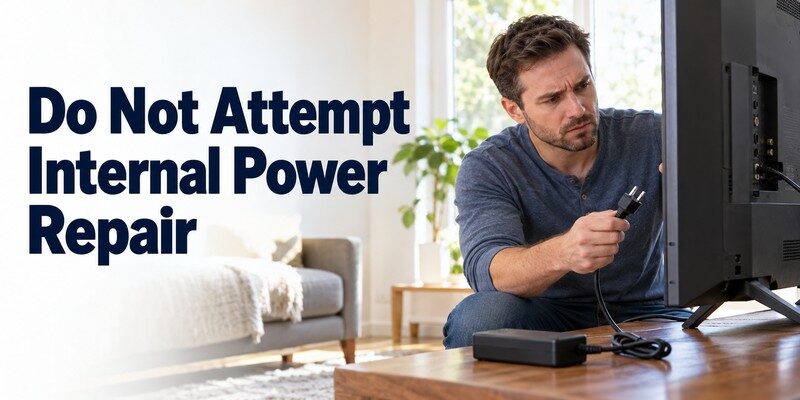
Do not open the TV’s back panel to investigate electrical components. Dangerous voltages may remain inside even after the television has been disconnected.
Download TV Remote App2. 12 Easy Fixes When Your TV Won’t Turn On
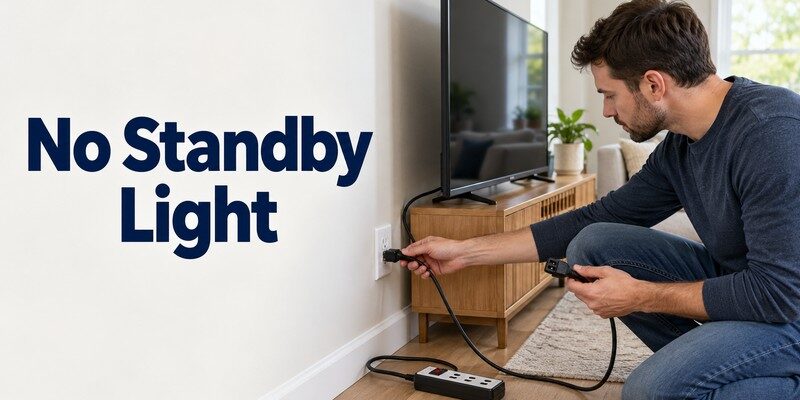
The following troubleshooting methods move from simple checks to more advanced diagnosis.
Try them in order and observe whether the television responds after each step.
Fix 1: Check the power connection
Start by checking the power cable at both ends.
Make sure the plug fits securely into the wall outlet and the connection at the back of the television is properly seated, if the cord is detachable.
Look for visible signs of cable damage.
If the cable has exposed wires, burn marks, or a damaged connector, stop using it.
Never continue using a damaged electrical cable.
Some Samsung televisions use a separate One Connect Box. For these models, inspect the manufacturer’s specified power and connection cables as well.
Fix 2: Test another wall outlet
If your TV won’t turn on, the electrical outlet may be the problem.
Disconnect the television and test the outlet using a small, known-working electrical device, such as a lamp.
If that device also fails, the outlet may not have power.
Try another suitable wall outlet.
Samsung’s official power troubleshooting instructions recommend disconnecting the television for 30 seconds before reconnecting it to a known-working outlet.
If the television works from another outlet, the original outlet or power accessory may need attention.
Do not attempt electrical repairs yourself.
Fix 3: Power cycle your TV
A full power cycle is a simple method for clearing temporary startup problems.
Follow these steps:
- Disconnect the TV from its power source.
- Wait approximately 60 seconds.
- Reconnect the power cable securely.
- Press the physical power button.
- Check whether the screen or standby light responds.
On models whose instructions recommend it, holding the TV’s power button briefly while unplugged may help complete the reset.
A power cycle is different from a factory reset.
It does not normally erase installed applications, accounts, or saved settings.
Fix 4: Press the physical TV power button
When your TV won’t turn on using the remote, locate the power button on the television itself.
Depending on the model, it may be positioned underneath the screen, behind the lower edge, or on the rear panel.
Press the button once and observe the television.
If it turns on successfully, the remote may be malfunctioning.
LG and Samsung both recommend this test in their official support documentation.
Fix 5: Replace remote batteries
Weak or depleted batteries can prevent the remote from sending commands.
Remove the old batteries and install new ones, observing the correct polarity.
For rechargeable remotes, check the charging method recommended by the manufacturer.
Make sure nothing blocks the infrared receiver.
If your TV won’t turn on after replacing the batteries, try the television’s built-in controls.
Fix 6: Remove external devices
Disconnect HDMI devices, USB accessories, streaming sticks, and external receivers from the television.
Then attempt to power it on with only the required power connection attached.
Although HDMI devices do not normally prevent a healthy television from receiving power, a faulty peripheral or control interaction can complicate startup troubleshooting.
If the TV starts normally, reconnect the devices individually.
Testing one device at a time helps identify which connection is associated with the problem.
Fix 7: Inspect the standby indicator
Look for a small indicator light along the lower edge of the TV.
Depending on the model, the light may be red, white, or another color.
Some televisions allow the indicator to be disabled.
If the TV won’t turn on, note whether the light is solid, blinking, or completely absent.
These observations help narrow down the possible cause.
Fix 8: Check for overheating
Overheating can sometimes cause electronic equipment to shut down unexpectedly.
If the television recently turned off during use, allow it to cool in a well-ventilated location.
Inspect the exterior ventilation openings for dust or obstructions.
Keep the TV away from enclosed spaces that prevent adequate airflow.
Do not cover the ventilation openings.
If there is a burning smell, smoke, or unusual heat, disconnect power if it is safe to do so and request professional service.
Fix 9: Disconnect malfunctioning power accessories
A defective surge protector, extension lead, or smart plug can interfere with the TV’s power supply.
If safe and appropriate, test the television directly from a known-working wall outlet.
Samsung specifically recommends bypassing surge protectors when investigating certain blinking standby-light problems.
If the television starts normally without the accessory, replace the faulty equipment.
Fix 10: Check the screen and input source
Sometimes the television has actually powered on, but the display remains black because the selected input has no active video signal.
Press the Home, Menu, or Volume button using the TV’s physical controls or a working remote.
If an on-screen menu appears, the display is responding.
Try switching to a built-in application or another HDMI source.
Fix 11: Perform a manufacturer-supported restart
Some televisions provide specific restart procedures.
For example, Sony recommends holding the Power button on a compatible BRAVIA remote for at least 5 seconds, or until a power-off message appears, when performing a soft reset on a responsive television.
This procedure does not apply when a television has no electrical power or cannot receive remote commands.
Always follow instructions for your exact model.
Fix 12: Contact authorized support
If your TV won’t turn on after the power supply, outlet, and remote have been checked, professional diagnosis may be necessary.
Record the model number, symptoms, and standby-light behavior before contacting support.
This information can help technicians determine whether additional testing or replacement parts are required.
3. TV Won’t Turn On: What the Standby Light Means
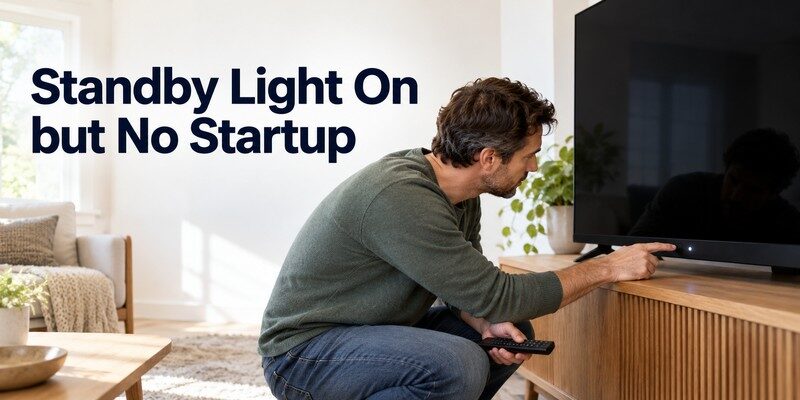
The standby indicator is one of the most useful clues when diagnosing a television that will not start.
However, its meaning varies by manufacturer and model.
TV not turning on with no red light
If you are experiencing tv not turning on no red light, first determine whether the television is actually receiving electricity.
Check the power cable, outlet, and surge protector.
On Samsung TVs, an unlit red standby indicator can mean either that the television is powered on or that it is not receiving power.
Therefore, an unlit indicator alone does not prove hardware failure.
Try the physical power button and check whether the screen displays a menu.
On some LG televisions, the standby-light feature can also be disabled through settings.
Solid red standby light
If the red standby light remains on while the television is off, the TV is generally receiving standby power.
For many Samsung models, this is normal behavior.
Press the physical power button.
If the television starts, check the remote batteries or pairing.
If the indicator remains illuminated but neither the remote nor physical button works, a startup or internal hardware issue may require service.
Blinking red standby light
A flashing standby indicator may indicate a startup problem or diagnostic condition.
For Samsung televisions, support guidance recommends disconnecting the TV for 30 seconds and reconnecting it to a working outlet.
If the indicator continues blinking and the television does not start, Samsung recommends requesting service.
Sony televisions may use different blinking-light patterns to indicate abnormal conditions.
Do not assume every blinking light means the power board is damaged.
Check the manufacturer’s model-specific support information.
Quick standby-light diagnosis
| Indicator behavior | Possible explanation | Recommended action |
|---|---|---|
| No indicator light | No power, disabled light, or TV already on | Test outlet and physical power button |
| Solid red light | Standby power is present | Check remote and startup response |
| Blinking red light | Startup or diagnostic issue | Power cycle and consult manufacturer guidance |
| White or green light | TV may be starting or operating | Check screen and input |
| Light changes but screen stays black | Display or video problem possible | Test menus and audio |
If your TV won’t turn on and its indicator repeatedly behaves abnormally, avoid performing endless restart attempts.
A model-specific diagnostic procedure is more useful than guessing from the light alone.
4. How to Fix a TV That Won’t Turn On With the Remote
Remote-control problems are frequently mistaken for television power failures.
If the physical power button works, focus your troubleshooting on the controller.
Test the remote signal
For a conventional infrared remote, a smartphone camera may help detect whether it transmits an infrared signal.
Point the remote’s infrared emitter toward a compatible phone camera and press a button.
Some cameras display a faint flashing light.
However, this test does not work with every smartphone camera or with Bluetooth-only remote commands.
LG notes that an Android phone camera may be useful for this test, while some iPhone cameras may not detect the signal.
Re-pair the remote
Certain smart remotes require Bluetooth pairing.
On compatible Samsung models, the pairing procedure involves holding the Return and Play/Pause buttons together for approximately 3 seconds.
The process varies between models and remote generations.
If your TV won’t turn on using a paired remote, consult the relevant pairing procedure before replacing the controller.
Check remote compatibility
A replacement remote may look similar to the original but lack support for specific functions.
Before purchasing another one, check the television model and remote compatibility.
Our Sony TV remote troubleshooting guide explains common remote problems and possible solutions.
For TCL televisions, the TCL Roku TV remote troubleshooting guide provides additional information about unresponsive controls.
Can a smartphone replace the remote?
A compatible smartphone remote can be useful when the original remote is damaged.
However, the television must support the required communication method.
If a TV won’t turn on because it has no electrical power, a smartphone application cannot restore that power.
If the television is in a supported network standby mode, certain smartphone remote functions may be available.
5. TV Won’t Turn On but Has Sound or a Black Screen
A black screen does not necessarily mean the television has no power.
Sometimes audio continues playing, startup sounds are audible, or the indicator changes while the display remains dark.
These symptoms should be investigated separately.
TV has sound but no picture
If you can hear a program but cannot see an image, the television is receiving power and processing at least part of the input signal.
Possible causes include display settings, input errors, backlight problems, or panel-related faults.
Try opening the television’s built-in menu.
If menus appear normally, focus on the external video source.
If nothing appears, contact the manufacturer for model-specific display troubleshooting.
TV shows a black screen after startup
If your TV won’t turn on normally but briefly displays a logo before going black, software or display-related problems may be involved.
Disconnect unnecessary external devices and restart the television.
If the screen repeatedly goes black at the same point, record the behavior for technical support.
Avoid factory resets unless the manufacturer recommends them and the television is responsive enough to complete the process safely.
Check the HDMI input
An inactive HDMI source can make a working TV appear broken.
For example, a disconnected cable box may leave the screen black while the television itself remains on.
Press Home or Input and select a known-working source.
If the television displays its settings menu, its display system is at least partially operational.
Understand normal startup time
A Smart TV may need a short period to initialize its operating system and detect connected devices.
According to LG’s July 2026 support documentation, a typical LG television may take approximately 1–5 seconds to turn on and display an image.
This is a model-dependent reference, not a universal maximum.
If your TV won’t turn on after a much longer delay, or repeatedly starts and stops, further troubleshooting is appropriate.
6. Troubleshooting Samsung, LG, Sony, and Roku TVs
The general checks apply to most television brands, but manufacturer-specific procedures can provide more precise guidance.
Samsung TV won’t turn on
Start by observing the red standby light.
If the light is on:
- Try the remote Power button.
- Press the physical TV power button.
- Check the remote batteries or pairing.
- Request support if neither method works.
If the light is off, test a working outlet and inspect the power connection.
For models with a One Connect Box, check its connections according to Samsung’s instructions.
Samsung’s May 2025 support guidance recommends a 30-second power disconnection when testing certain power-related problems.
If you need remote-control guidance after restoring power, see our samsung tv remote app article.
LG TV won’t turn on
LG recommends checking the standby light along the lower edge of the television.
Then inspect the power cable and outlet.
Try the built-in power button.
If the television starts using this button, replace or recharge the remote batteries and check the remote’s operation.
LG’s August 2026 support guidance also recommends checking the circuit breaker when the power outlet does not work.
Some LG models have an additional AC power switch.
Check the user manual before assuming the TV has failed.
Sony TV won’t turn on
Sony BRAVIA televisions may display different diagnostic indicators.
Start with the power outlet and physical TV controls.
For responsive models, Sony provides a soft-reset procedure using the remote Power button.
If the indicator repeatedly flashes red, consult Sony’s model-specific LED troubleshooting instructions.
Sony also advises that persistent abnormal indicator behavior may require service.
Our Google TV remote troubleshooting guide may help when the television is powered but its remote is unresponsive.
Roku TV won’t turn on
Roku TVs and Roku streaming players have different power arrangements.
A Roku TV receives power through its television power cable.
A separate Roku streaming player may receive power through a dedicated adapter or supported USB connection.
If the TV itself is completely unresponsive, investigate the TV’s power supply first.
If the television works but the Roku interface is unavailable, check the streaming device and its power connection.
When your TV won’t turn on while using a Roku remote, try the TV’s physical power button to determine whether the issue is related to the remote.
7. When Is a TV Power Problem a Hardware Failure?
After eliminating simple causes, a hardware problem becomes more likely.
However, no single symptom identifies the failed component with certainty.
Warning signs that require professional inspection
Possible warning signs include:
- The television remains unresponsive on a known-working outlet.
- The standby light repeatedly blinks and startup fails.
- The TV turns off immediately after attempting to start.
- The screen remains completely black despite confirmed power and audio.
- The television produces unusual electrical sounds.
- There are signs of overheating, smoke, or burning.
If your TV won’t turn on and you notice electrical damage, stop using it.
Never attempt to bypass a fuse, open a power-supply board, or repair internal capacitors without appropriate professional qualifications.
Possible internal components
A technician may inspect the following components:
| Component | Function | Possible symptom |
|---|---|---|
| Power-supply board | Supplies power to internal circuits | No startup or repeated shutdown |
| Main board | Controls core TV functions | Boot failures or unresponsive controls |
| Backlight system | Illuminates LCD images | Sound present but screen remains dark |
| Display panel | Produces the picture | Missing or abnormal image |
| Power connector | Transfers electrical power | Intermittent operation |
These are possibilities rather than confirmed diagnoses.
The correct repair depends on testing and the specific television model.
Is repairing the TV worth it?
Compare the estimated repair cost with the price of a similar replacement television.
Also consider the TV’s age, warranty status, display condition, and availability of replacement parts.
A defective remote or external power accessory may be relatively straightforward to replace.
Major panel or internal electrical repairs can be more expensive.
Request a written diagnosis and repair estimate before authorizing major work.
8. Frequently Asked Questions About TVs Not Turning On
Why won’t my TV turn on even though it is plugged in?
A television may be plugged into an outlet that is not supplying power.
Other possibilities include a loose connection, faulty remote, startup error, or internal hardware problem.
If your TV won’t turn on, first verify the outlet and try the physical power button.
Why is my TV’s red standby light on but the screen stays black?
A solid red standby light often indicates that the television is receiving standby power.
Try the physical power button and inspect the remote.
If the light remains illuminated but the TV never starts, contact the manufacturer.
Can I turn on my TV without a remote?
Yes. Most televisions include a physical power button, although its location varies.
Some compatible Smart TVs also support network-based remote functions while in standby.
However, a TV with no electricity cannot be powered on through a smartphone application.
Why does my TV turn on and immediately turn off?
Possible causes include software faults, power-supply instability, overheating, or internal hardware problems.
Disconnect unnecessary devices, verify the power source, and follow the manufacturer’s restart instructions.
If the problem repeats, arrange professional diagnosis.
Does unplugging a TV reset it?
Disconnecting power usually performs a power cycle rather than a factory reset.
This may clear temporary startup problems without deleting saved applications and settings.
A factory reset is a separate procedure.
Can a software update stop a TV from turning on?
A failed or interrupted firmware update can sometimes cause startup problems.
If the television stopped working during or immediately after an update, contact the manufacturer and report the circumstances.
Do not repeatedly disconnect power during an active update.
How long should I unplug my TV before restarting it?
Samsung recommends approximately 30 seconds for certain power troubleshooting procedures.
A 60-second disconnection is also a common general power-cycle step.
Follow the manufacturer’s specific instructions whenever available.
What should I do if my TV is stuck on standby?
If your tv stuck on standby problem persists, test the physical power button, check the remote, and perform a power cycle.
If the standby indicator remains active but the television never starts, professional service may be required.
Can a universal remote turn on a TV with no power?
No. A remote control cannot provide electricity to a television.
A compatible Remote TV app can provide supported remote functions when the television is powered and available for communication.
For compatible Smart TVs, the universal remote tv control application allows users to control available television functions from an iPhone or iPad.
Some supported models allow remote power control from network standby, but compatibility and network configuration matter.
You can Download universal remote tv control from the App Store after confirming that your television supports the required features.
Final Thoughts
When your TV won’t turn on, begin with basic troubleshooting rather than assuming the television needs to be replaced.
Check the power outlet, reconnect the power cable, perform a 30–60-second power cycle, and use the physical power button.
Next, observe the standby light and determine whether the problem involves the remote, the display, or the television’s startup system.
If the television has power but shows a black screen, investigate the display and input source instead of treating the problem as a complete power failure.
If your TV won’t turn on after all safe troubleshooting steps, an authorized technician can help identify the cause.
A systematic diagnosis saves time, prevents unnecessary purchases, and reduces the risk of unsafe repairs.
