
Sony TV Remote Repair: How to Fix a Remote Not Working
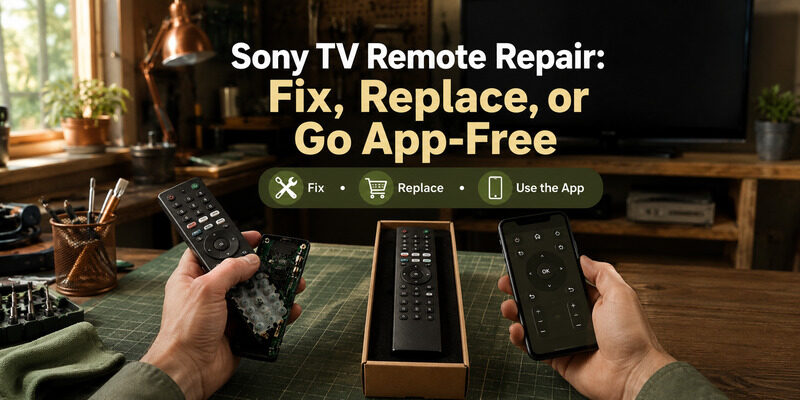
Quick Answer: If your Sony TV remote is not working, start by checking the batteries or charging the remote, restarting the TV, and removing anything blocking the TV’s infrared sensor. For a battery-powered remote, remove the batteries, hold the Power button for a few seconds, wait about a minute, and reinstall them. If your Sony BRAVIA voice remote is not responding, check its Bluetooth connection and re-pair it using the instructions for your TV model.
Most Sony TV remote problems can be diagnosed without opening the remote or replacing internal parts.
This Sony TV remote repair guide covers unresponsive buttons, infrared signal problems, Bluetooth pairing failures, voice control issues, and situations where a replacement remote may be necessary.
Sony TV Remote Not Working? Try These Quick Fixes
Before attempting a more complicated repair, follow these steps:
- Check whether the TV responds to its built-in Power button.
- Replace the remote batteries or charge a rechargeable model.
- Remove any objects blocking the TV’s infrared sensor.
- Restart the Sony television.
- Check whether the remote sends an infrared signal.
- Reconnect a compatible Bluetooth voice remote.
- Update the TV or remote software if supported.
- Inspect the remote for damaged or stuck buttons.
Test the remote after each step.
Diagnose Your Sony TV Remote Problem
| Symptom | Possible Cause | First Fix |
|---|---|---|
| Remote completely dead | Batteries, charging, contacts, hardware | Replace batteries or charge |
| Sony TV does not respond | IR obstruction or TV problem | Check TV buttons and IR sensor |
| Only Power works | Bluetooth connection problem on some models | Re-pair voice remote |
| Voice button not working | Bluetooth or microphone issue | Check pairing |
| Some buttons do not work | Dirt, stuck buttons, wear | Inspect and clean exterior |
| Remote works only up close | Weak batteries or interference | Replace batteries, remove obstacles |
| Remote not pairing | Bluetooth connection failure | Follow model-specific pairing |
| Remote works intermittently | Battery contacts, signal, software | Restart and inspect |
| Remote physically broken | Internal damage | Consider replacement |
The correct solution depends on whether you have an infrared remote, a Bluetooth voice remote, or a rechargeable Sony remote.

How to Repair a Sony TV Remote at Home
Start with the safest and least disruptive fixes.
1. Check the Batteries or Charging Status
Weak batteries are one of the most common reasons a Sony TV remote stops responding.
For a remote with replaceable batteries:
- Remove the battery cover.
- Take out the batteries.
- Check for incorrect polarity or damaged contacts.
- Install a fresh matching pair of batteries.
- Reattach the cover.
- Test the remote.
Do not mix old and new batteries.
If your Sony remote has a USB-C charging port, it may be rechargeable. Charge it using the instructions for that model instead of attempting to remove an internal battery.
2. Reset a Battery-Powered Sony Remote
A simple power reset may resolve temporary problems.
- Remove the batteries.
- Press and hold the Power button for approximately three seconds.
- Wait about one minute.
- Reinsert the batteries correctly.
- Test the remote.
If the remote still does not work, try fresh batteries.
Some Sony troubleshooting guides also recommend pressing each button to release any stuck keys.
The procedure may differ by remote model.
3. Restart Your Sony TV
A temporary TV software issue can make the remote appear defective.
To perform a basic power reset:
- Turn off the TV if possible.
- Unplug its power cord.
- Wait approximately two minutes.
- Plug the TV back in.
- Turn it on.
- Test the remote again.
A normal power restart does not erase your apps or account settings.
4. Check the Sony TV’s Built-In Buttons
Use the Power button located on the TV itself.
If the TV responds to its physical controls but not the remote, the issue is more likely related to the remote or its connection.
If the TV does not respond to its own buttons, the problem may involve the television rather than the remote.
Button locations vary by Sony model.
5. Inspect and Clean the Remote Exterior
Dirt around the buttons or battery contacts can interfere with operation.
To clean the remote safely:
- Remove the batteries or disconnect charging power where applicable.
- Wipe the exterior with a soft, dry cloth.
- Remove visible debris around buttons using a soft brush.
- Inspect accessible battery contacts.
- If contacts need cleaning, follow Sony’s model-specific guidance.
- Let everything dry fully before reinstalling batteries.
Do not spray liquid directly onto the remote.
Avoid immersing the remote in water or using sharp objects to pry buttons loose.
If the remote has a swollen battery, liquid damage, or severe corrosion, stop using it and seek professional assistance.
Sony TV Remote Infrared Sensor Not Working
Traditional Sony TV remotes use infrared light to transmit commands.
If the IR signal is blocked or the remote is not transmitting correctly, the television may not respond.
1. Find the TV’s IR Receiver
The infrared receiver is commonly located along the lower front edge of the television.
Its exact position varies by model.
Check your Sony TV manual if you cannot locate it.
2. Remove Obstacles
Make sure nothing blocks the path between the remote and the television.
Common obstacles include:
- Soundbars
- Decorative objects
- Furniture
- Glass cabinet doors
- Other devices positioned in front of the TV
Direct sunlight and some artificial lighting can also interfere with infrared reception.
3. Test the Remote With a Phone Camera
For an infrared remote, you may be able to check whether it is transmitting a signal using a smartphone camera.
- Open your phone’s camera.
- Point the remote’s infrared emitter toward the camera lens.
- Press a button on the remote.
- Watch the camera preview for a flashing light.
Some phone cameras filter infrared light, so the test may not work on every phone.
If no light appears, try another camera before concluding that the remote is defective.
Important: This test does not diagnose Bluetooth buttons. A Sony voice remote may use infrared for some commands and Bluetooth for others.
4. What If the Remote Sends IR but the TV Does Not Respond?
Check the following:
- The remote is compatible with the Sony TV.
- The TV is powered on.
- The IR receiver is not blocked.
- Bright light is not interfering with the sensor.
- The TV responds to its physical buttons.
- The remote is pointed toward the correct sensor.
If the TV responds to another compatible remote but not the original one, the original remote may need replacement.
For additional guidance, see our Sony remote control manual guide.
Sony BRAVIA Voice Remote Not Working or Not Pairing
Many Sony BRAVIA Google TV and Android TV models use Bluetooth for voice control and other wireless functions.
Some remote buttons may still use infrared.
This explains why a Sony remote can turn the TV on but fail to navigate menus or activate the microphone.
1. Check Whether Bluetooth Pairing Is Required
If your Sony TV remote has a microphone or Google Assistant button, check whether its voice-control features require Bluetooth pairing.
The available settings vary by television model and software.
On supported models, look under:
Settings > Remotes & Accessories
You may see options such as:
- Remote control
- Bluetooth settings
- Connect via Bluetooth
- Activate the MIC button
- Voice Remote Control
2. Re-Pair the Sony Voice Remote
To reconnect a compatible Sony voice remote:
- Turn on the Sony TV.
- Open the remote or Bluetooth settings using a working controller.
- Select the option to connect or register the remote.
- Follow the pairing instructions shown on screen.
- Keep the remote near the television.
- Wait for pairing to complete.
- Test navigation and voice input.
Do not assume every Sony remote uses the same button combination.
Some models use different procedures, and newer models may not require the old remote to be unpaired first.
3. Sony TV Remote Pairing Not Working
If pairing fails:
- Check the batteries or charge level.
- Restart the television.
- Move other Bluetooth devices away temporarily.
- Keep the remote close to the TV.
- Retry pairing.
- Check for available TV software updates.
Wireless interference from nearby devices can affect Bluetooth connections.
4. Sony Remote Microphone Not Working
If navigation works but the microphone does not:
- Check Bluetooth pairing.
- Confirm that voice-control features are supported.
- Review the TV’s voice settings.
- Check the network connection where required.
- Update the TV software.
- Reconnect the remote if necessary.
A microphone problem does not always mean the remote needs hardware repair.
Sony TV Remote Buttons Not Working
If only some buttons fail, the cause may be different from a completely unresponsive remote.
Power Button Not Working
If other buttons work but Power does not:
- Check whether your remote uses infrared for Power.
- Point it toward the TV’s IR receiver.
- Remove obstacles.
- Test the IR signal if applicable.
- Restart the TV.
Some Sony voice remotes use Bluetooth for certain controls and infrared for Power.
Volume Buttons Not Working
Check whether the TV responds to volume changes using its physical controls or another compatible remote.
If your Sony TV is connected to a soundbar or AV receiver, the volume-control configuration may affect which device responds.
Also check whether a button is physically stuck.
Home or Navigation Buttons Not Working
For a Bluetooth remote, check the pairing connection.
For an infrared remote, check the batteries and IR signal.
If one button alone fails repeatedly, it may have a worn or damaged contact.
Buttons Are Stuck or Difficult to Press
Clean the remote’s exterior carefully.
If a button is physically broken or remains stuck after safe cleaning, the remote may require professional repair or replacement.
Do not force open a sealed or rechargeable remote.
FAQs About Sony TV Remote Repair
Can I repair a Sony TV remote myself?
Often yes. Fresh batteries, cleaning sticky buttons, and re-pairing a voice remote solve most problems for free. Only physical damage or a failed emitter typically needs professional repair or replacement.
Is it cheaper to repair or replace a Sony remote?
For basic remotes or a failed infrared emitter, replacement is usually cheaper. Professional repair can be worth it for an expensive voice remote with a fixable fault, or under warranty.
Where can I buy a genuine Sony remote?
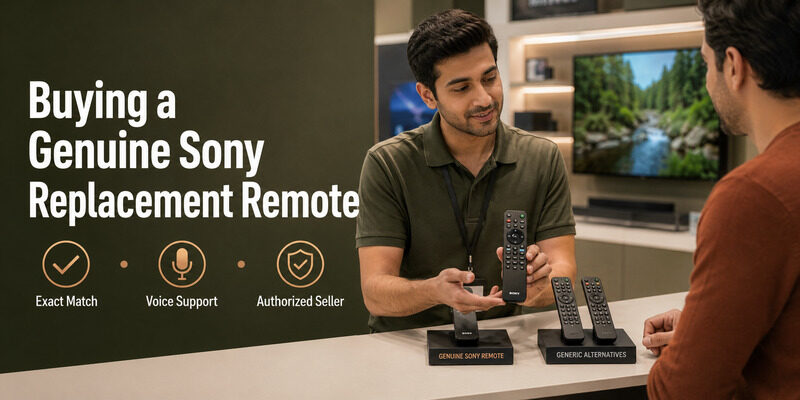
Genuine Sony remotes are available from Sony and authorized retailers. They cost more than third-party remotes but guarantee an exact match, which matters most for voice models.
How do I find a lost Sony TV remote?
Use the remote finder feature if your setup has one, then check couch cushions, under furniture, and other rooms. A phone app keeps the TV usable while you search.
Can I use my phone instead of repairing the remote?
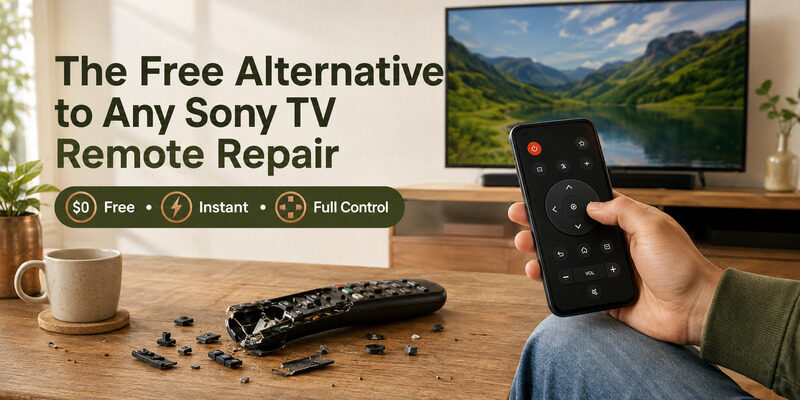
Yes. The Remote TV App controls a Sony TV over Wi-Fi with full functionality and no cost, making it a genuine free alternative to repairing or replacing a physical remote.
Final Thoughts
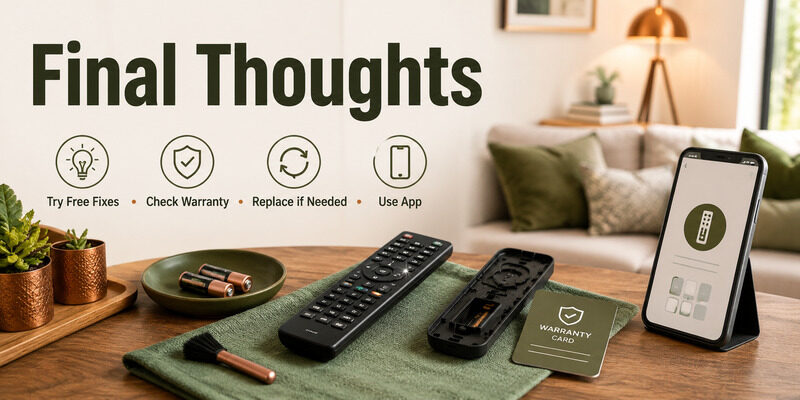
Most Sony TV remote repair needs are solved for free — fresh batteries, cleaning the buttons, or re-pairing fix the majority of cases. When a remote is truly dead, weigh professional repair against a genuine replacement based on the damage and cost, and check your warranty first.
And before spending anything, try the Remote TV App, which replaces a physical remote entirely at no cost. That way you only pay for a repair or replacement if you genuinely want the physical remote back.
Download TV Remote App