
How to Connect Xbox to TV: HDMI, 4K, 120 Hz, and Sound
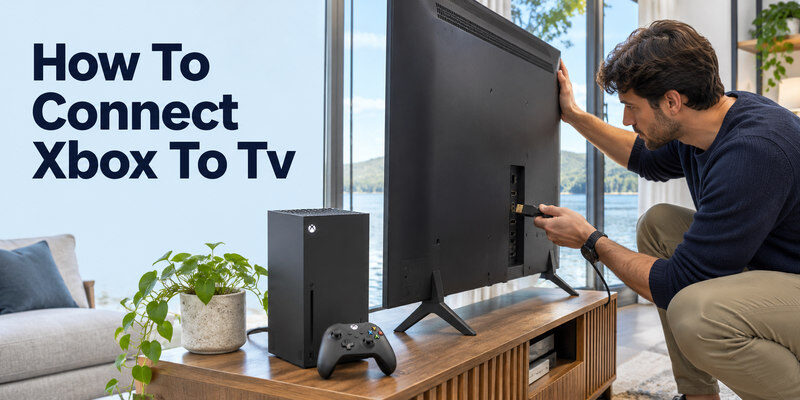
Short answer: How to Connect Xbox to TV? Connect the Xbox’s HDMI OUT to a TV HDMI input, select that input, and start with the console’s automatically detected display settings.
For Series X|S, check the TV’s exact port capabilities before turning on 4K/120, HDR, or VRR. A basic 1080p or 4K/60 picture should be stable first. A receiver, soundbar, switch, or long cable can limit a mode even when the console and TV individually support it. The steps below separate physical connection, advanced video, audio, and No Signal recovery.
How to Connect Xbox to TV? Connect Xbox to a TV in Six Steps
Step 1 – Find HDMI OUT and the TV input
Use the console’s HDMI OUT and a free TV HDMI IN. Note its number, such as HDMI 2. Check the TV manual for a port that accepts the gaming modes you want. The connector’s shape is the same across ports, but features can differ. ARC/eARC labels identify audio return, not a guarantee of 4K/120 input support.
Step 2 – Use a suitable cable directly
Start with the cable supplied for the Xbox model or a known-good certified cable suitable for the desired signal. For 4K/120, an Ultra High Speed HDMI cable is the relevant certified category, according to HDMI Licensing Administrator. Connect the console directly to the TV for first setup. Add a soundbar or receiver only after the picture works, because it may cap passthrough modes.
Step 3 – Select the same HDMI input
Turn on the TV and choose the port number you used. Power on the Xbox with its physical button. A TV on another input will report No Signal even when the console and cable are fine. Some TVs automatically name a connected Xbox, but verify the actual port. Keep the TV remote or physical input button available until setup is complete.
Step 4 – Pair the controller and sign in
Follow the on-screen prompts for controller pairing, language, network, updates, and account sign-in. The direct HDMI picture does not require the TV to be on Wi-Fi. Updates may change menu names or capability detection, so begin with the default video mode and install official updates after a stable display appears. Avoid interrupting the console while an update is in progress.
Step 5 – Check picture and sound
Open the Xbox dashboard, play a familiar menu or game sound at low volume, and confirm whether TV speakers or the selected soundbar play. A headset connected to the controller can redirect audio. Test a built-in TV app separately if a soundbar is silent. The console-to-TV cable and TV-to-soundbar ARC path are different legs of the setup.
Step 6 – Inspect TV & display options
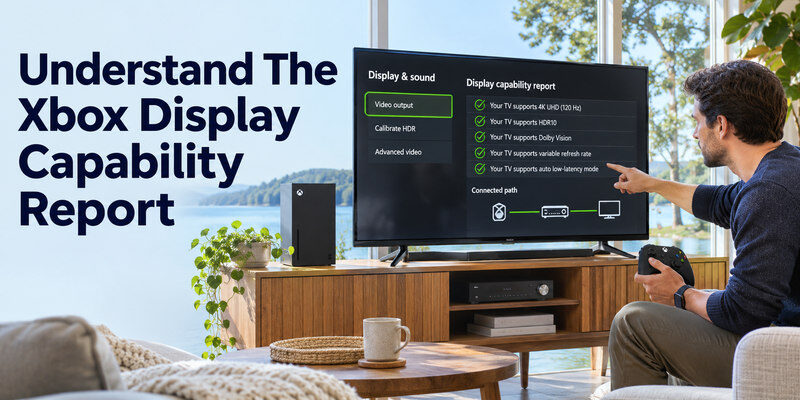
Open the Xbox TV & display options and its 4K TV details/capability view. Compare the reported capabilities to the exact TV port and model. Enable 120 Hz, HDR, VRR, or ALLM only when supported. Test a game that offers the feature, then restart once to see whether the mode persists. Change one setting at a time so a black screen can be traced to the last change.
For more on console and television controls, explore the Xbox and PS5 TV control options, including HDMI-CEC features on compatible devices.
Understand the Xbox Display Capability Report
| Desired result | Check on Xbox | Check on TV/route |
| Basic picture | Auto-detected resolution | Correct input and working cable |
| 4K/60 HDR | 4K TV details, HDR options | 4K/HDR capable input |
| 4K/120 | Refresh-rate option and game mode | 4K/120 TV port, cable, intermediaries |
| VRR/ALLM | Supported features enabled | TV input and firmware support |
| Soundbar audio | Xbox audio format | TV passthrough and ARC/eARC route |
A green capability check in a console menu is more useful than a broad “gaming TV” advertisement, but it still reports the *connected path*. If a receiver sits between console and TV, Xbox may detect the receiver’s limit. Test directly to learn what the TV accepts. A game may render at a lower frame rate even when the TV receives 120 Hz output, so do not conflate refresh rate and game performance.
Change the correct TV input setting
Some TVs require an enhanced HDMI mode for high-bandwidth signals. Check the exact port, because the setting may be per input. Switching it on can briefly blank the picture during negotiation. If 4K/120 appears only when Xbox is on one port, label that port for future use. Do not move a soundbar’s ARC cable blindly; read the TV port map first.
Use Game Mode and HDR calibration
Game Mode often reduces TV processing delay. ALLM can switch it automatically if both devices support it. Run Xbox HDR calibration in the TV picture mode you intend to play in, and compare a real game rather than a static menu alone. Room lighting and display model affect appearance, so copying another owner’s numeric settings can make highlights worse. Keep a working baseline before further changes.
Read more: How to Connect PS5 to TV: HDMI Setup, 4K, HDR, and 120 Hz
Fix Xbox No Signal on TV
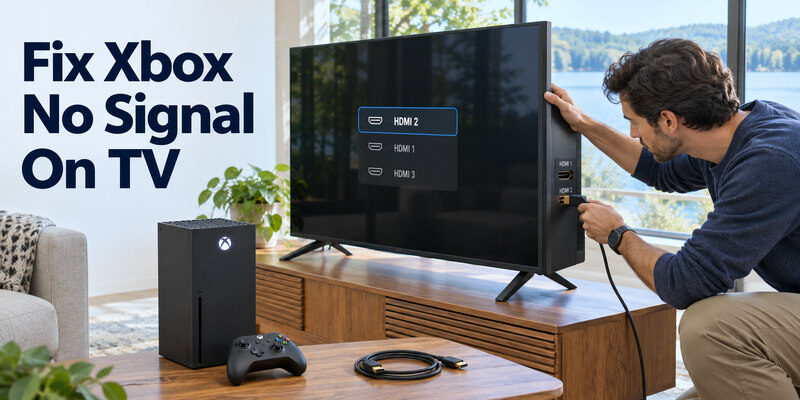
Confirm the Xbox power light, TV input, and HDMI cable seating. Connect directly, bypassing a receiver or switch. Try a short known-good cable and another TV input, one change at a time. Test the original port with a different source. If the console works on another display, focus on the original TV path; if it fails on multiple known-good displays, consult Xbox’s official video troubleshooting for that console. If the picture problem also appears with another device, review common TV picture quality issues to help identify whether the source, cable, input, or display needs attention.
Lost picture after changing resolution
A forced resolution or refresh rate can exceed the TV port’s supported mode. Use the Xbox model’s documented low-resolution recovery procedure to regain a basic picture. Then inspect the TV’s 4K capability report, port setting, and cable before enabling the higher mode again. Do not factory-reset the TV or erase Xbox accounts for a single unsupported video setting.
Blackouts only at 120 Hz
Compare 60 Hz and 120 Hz with the same source, TV input, and cable. If 60 Hz is stable, the basic HDMI path works and a high-bandwidth component or mode is suspect. Test a direct connection with a certified Ultra High Speed cable, current TV firmware, and the port designated for 4K/120. A receiver that passes 4K/60 may still block VRR or higher refresh.
One HDMI port works and another fails
The ports may have different capabilities or one may be damaged. Test a basic resolution with the same console and cable on each. Then test another known-good source on the suspect port. If all sources fail there, seek TV maker guidance; if only Xbox fails, inspect its output mode. Avoid forcing a loose connector.
Read more: How to Fix Smart TV Problems: A Symptom-First Guide
Fix Xbox Sound and Soundbar Routing
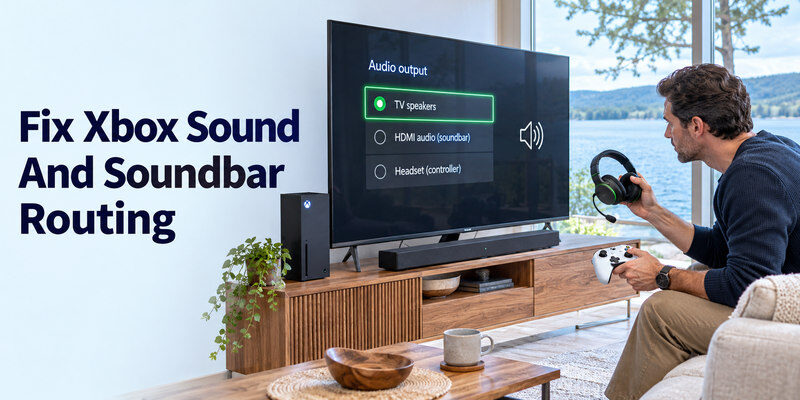
If picture works, choose TV speakers temporarily. Check Xbox audio output and any controller headset connection. If TV speakers receive Xbox audio, the console-to-TV link is working. Then test a built-in TV app through the soundbar. If the bar is silent on both, inspect TV Sound Out, ARC/eARC ports, CEC, and bar input. If only Xbox is silent, try a format compatible with the TV and bar as a diagnostic baseline.
Direct video, returned audio
For a gaming-capable TV and older soundbar, Xbox → TV HDMI and TV ARC/eARC → soundbar often preserves the console’s direct video path. Verify that the TV passes the desired audio format to the bar. A soundbar’s HDMI input may support a lower video mode than the console; do not assume 4K passthrough includes 4K/120, HDR, and VRR. Test each feature end-to-end.
Headset and controller audio
A connected headset may take game audio or chat away from the TV. Check the Xbox audio options and headset controls before blaming the HDMI cable. If game audio works but party chat does not, that is a different route from TV speakers. Keep volume low while switching outputs. Record which device controls volume so another household member can restore the intended mode.
If you need another way to select the soundbar’s input or adjust its settings, check whether a compatible soundbar remote app supports your exact model.
Cable, Receiver, and TV Port Limits
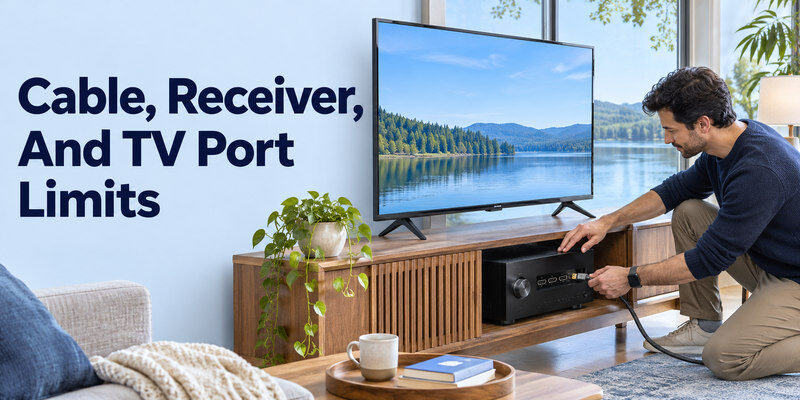
A certified cable reduces uncertainty but does not upgrade the receiver or TV. HDMI Licensing Administrator lists Ultra High Speed for up to 48 Gbps and 4K/120 configurations; Premium High Speed covers up to 18 Gbps and many 4K/60 setups. The connected source, intermediary, and TV input must support the same mode. Test a short direct cable before investing in a long wall run.
Add an intermediary one at a time
After Xbox → TV works, reconnect a soundbar, receiver, switch, or capture card. Verify picture and sound at the same resolution and refresh rate after each addition. If a feature disappears only after one component returns, check its published passthrough specifications. Keep the direct route as a working fallback instead of changing several devices at once.
Prevent physical strain
Leave enough slack behind the console and television. A sharply bent cable or heavy adapter can loosen an HDMI socket. If the TV is wall-mounted, measure the actual route and test it before concealing the cable. An active cable may be directional or need power; follow its maker’s source/display labels. Do not open a console or TV cabinet to inspect internal HDMI circuitry.
Read more: Fire TV Stick Review: Is It Worth Buying in 2026?
Check Performance Without Chasing Labels
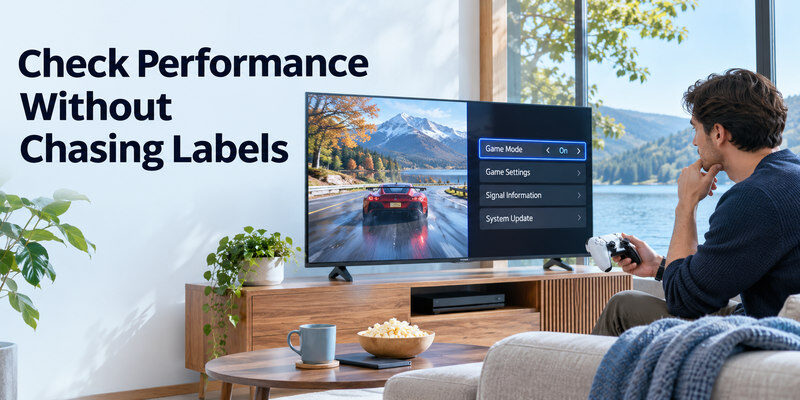
A TV can report 4K and 120 Hz while a specific game has no 120 fps mode. Verify the game setting, the TV’s signal-information screen, and actual input response. A low-latency Game Mode can help controls feel immediate but may change picture processing. Try one title in a repeatable scene and record the result before adjusting HDR, motion, and color settings.
Identify interface lag versus signal trouble
Slow Xbox dashboard navigation may come from a busy console, update, or controller connection even while HDMI video is stable. A black TV image while the console remains powered is a display-path symptom. A full console shutdown is a power or thermal question. Separating those observations prevents a new HDMI cable from being mistaken for a fix to unrelated lag.
Retest after a system update
A console or TV update can alter capability detection or restore default picture settings. After an update, confirm the correct input, resolution, HDR calibration, refresh rate, and sound route. If the previous high mode no longer works, return to basic output and compare the same cable and port before buying hardware. Save a note of the known-good setup.
Remote and Household Use
The TV remote selects the input; the Xbox controller navigates the console. If the physical TV handset is missing, a compatible may help select HDMI on a supported, powered, reachable TV. It cannot add Xbox video output or repair a broken port. Keep the TV’s physical button as a fallback during first setup.
Label the input
Rename the HDMI input Xbox where supported and note which port offers 4K/120. If a bar uses eARC, label that connection separately. A clear port map avoids a later “No Signal” caused by selecting a different input or moving a cable to a less capable port. Keep the included cable or its certified replacement identified.
Preserve a recovery baseline
Write down a stable 60 Hz mode and the procedure for returning to it. Test advanced features individually. If a new receiver or game causes trouble, a proven direct connection tells you whether the original console and TV remain functional. That evidence is more useful to support than a broad description that “Xbox stopped working.”
Read more: TV No Sound? 12 Easy Fixes to Restore Your TV Audio
Xbox to TV FAQ
Can Xbox Series X use any HDMI TV?
It can use compatible lower video modes on many HDMI TVs. 4K/120, HDR, and VRR require an end-to-end compatible TV input and route. Series S and older Xbox models have different output capabilities; check the exact console.
Why does Xbox say my TV does not support 4K/120?
Check the specific HDMI port, enhanced input setting, firmware, cable, and any receiver. Compare the console’s TV capability report on a direct connection. A TV’s panel refresh alone does not prove that its HDMI port accepts the mode.
Should the Xbox connect to TV or soundbar?
Start directly at the TV. Return TV audio to a soundbar by ARC/eARC if supported. Put Xbox through a soundbar only when its passthrough supports every desired video feature.
What if the screen went black after selecting 120 Hz?
Use Xbox’s official low-resolution recovery for your model, then inspect the TV port and path. Re-enable one feature at a time. A basic working image is the diagnostic baseline.
Why is Xbox silent while TV apps play sound?
Check headset routing and Xbox audio-output format. Test TV speakers, then the soundbar path. A TV app working through the bar does not prove every Xbox format is supported through the same route.
Xbox Video Cases to Verify Before Gaming
Start with the TV details screen
On Xbox Series X|S, the console’s 4K TV details and video modes view gives a practical report of what the connected chain advertises. If 4K/120 or VRR is unavailable, check the exact HDMI input, enhanced-mode setting, cable, and any receiver before changing games. For how to connect xbox to tv, this screen is more informative than a box label. A TV may accept 4K/60 on all ports but offer 120 Hz on only selected ones. Record the working report before adding a soundbar or switch.
Series X and Series S expectations
Series X and Series S both connect by HDMI, but games can render at different internal resolutions and frame rates. A console output set to 4K does not mean every title is natively rendered at 4K. Choose the TV’s Game Mode and let a supported game use 120 Hz or VRR where offered. How to connect xbox to tv for an older 60 Hz set is still straightforward: use a compatible video mode and enjoy the content. Do not replace a functioning television solely because a check mark for a mode you do not use is absent.
Xbox plus an eARC soundbar
Reserve the TV’s ARC/eARC port for the soundbar and connect Xbox to a separate gaming-capable input. If the console has picture but no bar audio, temporarily use TV speakers and PCM to isolate the audio format. A receiver or bar HDMI passthrough may block video features that a direct TV connection supports. How to connect xbox to tv with full gaming features therefore needs a port map and two separate tests: video capability and audio return. Label the HDMI sockets so a later device swap does not create a misleading no-signal report.
Black screen only at a new mode
If the Xbox displays a picture at 60 Hz but goes black at 120 Hz, the base connection works. Use the supplied or certified Ultra High Speed cable, the TV’s correct high-bandwidth port, and the enhanced setting. Test without a switch, capture card, or AVR. If necessary, follow Microsoft’s official low-resolution video reset for the exact console rather than guessing button sequences. Restore a safe mode, then re-enable features one at a time. How to connect xbox to tv after a mode failure is an isolation exercise, not a reason to factory reset saved games and accounts.
Final Thoughts
To learn how to connect xbox to tv, connect directly and verify basic picture and sound first. Then use the Xbox capability report and TV port manual to enable 4K, HDR, 120 Hz, and VRR. Source basis: Xbox TV & display options and HDMI Licensing Administrator cable categories; check the exact console and TV manuals for model-specific details.
