
Hisense TV Remote Not Working? 7 Quick Fixes That Usually Work
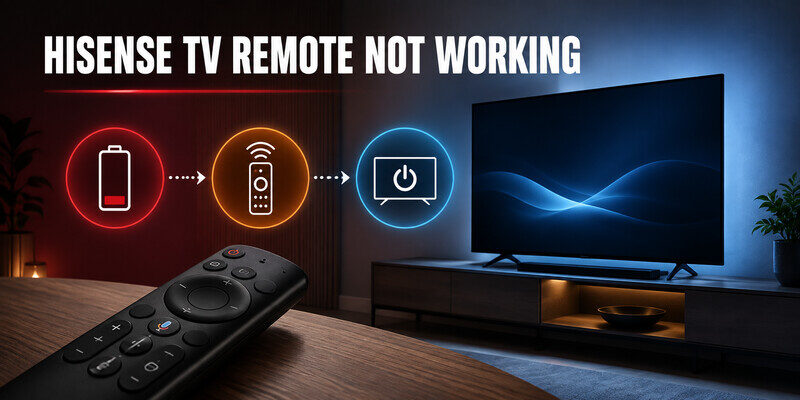
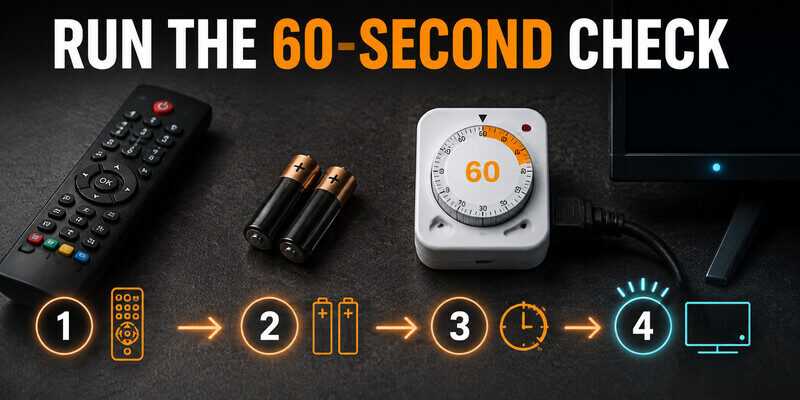
Hisense TV remote not working? Most cases are fixed in under five minutes: use your phone camera to check that the remote still sends a signal, replace the batteries with fresh alkaline cells, unplug the TV for 60 seconds, then re-pair the remote for your TV platform. Still no response? Control the TV from your phone while you sort it out, no new remote needed yet.
Quick answer: how to fix a Hisense TV remote not working
- Camera test: point the remote’s top end at your phone camera and press a button. A faint purple/white flash means the remote works and the problem is the TV or pairing. No flash means batteries or the remote itself.
- Fresh batteries: two matching alkaline cells, correct polarity, clean contacts.
- Discharge the remote: take the batteries out, hold Power for 15–30 seconds, press every button once, reinsert.
- Power-cycle the TV: unplug for 60 seconds, then plug back in.
- Re-pair the remote (Google TV, VIDAA, Roku, Fire TV) and clear anything blocking the TV’s IR sensor.
- No luck? Use the physical button on the TV or your phone as a backup remote.
Why Is My Hisense TV Remote Not Working? Start With the Camera Test
When your Hisense TV remote stops working, first find out which part has failed: the remote, the signal path, or the TV. The camera test does that in 30 seconds. Open your phone camera, aim the remote’s top end at the lens and press Power.
- You see a flash: the remote transmits infrared. Suspect a blocked TV sensor, a lost pairing, or a frozen TV.
- You see nothing: try another button. If no button flashes, suspect batteries, dirty contacts or a damaged remote. If only Power or Volume fails, those key contacts may be worn.
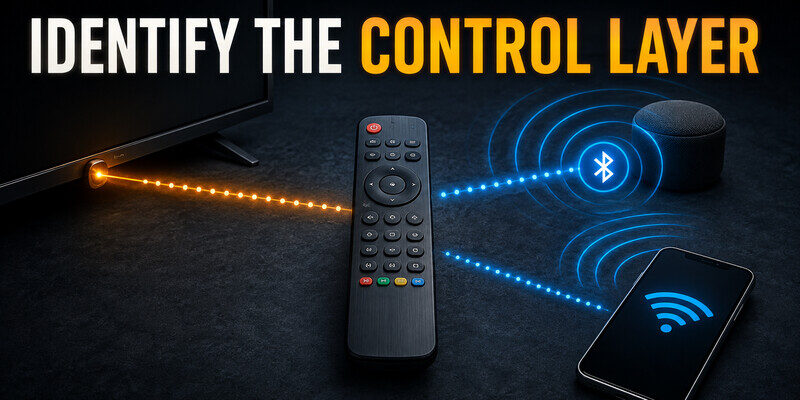
- Voice remotes: they often use Bluetooth for menus and voice, so a blank camera doesn’t prove the remote is dead. Some phone cameras also filter infrared, so try the front camera.
Use the symptom to pick your next step:
| What you see | Likely cause | Go to |
|---|---|---|
| No flash, no LED | Batteries or contacts | Next section |
| LED blinks, TV ignores everything | Lost pairing or frozen TV | Re-pair, then TV restart |
| Power works, Home/arrows don’t | Bluetooth link lost | Re-pair |
| Arrows work, Power/Volume don’t | IR path or TV-control setup | TV-side fixes |
📖 Explore Articles
Hisense TV Remote App: Control Your Hisense TV From Your Phone
Hisense TV Remote Not Working With New Batteries? Check These Four Things
If your Hisense TV remote is not working with new batteries, the batteries are rarely the real cause. Check:
- Matched pair: don’t mix a new cell with an old one. Use two fresh alkaline batteries. Rechargeables often can’t supply enough voltage.
- Polarity and size: follow the + and − diagram. Most Hisense remotes take AAA, but check the compartment for your model.
- Contacts: white or green residue is leaked battery acid. Clean it with a cotton swab and a little isopropyl alcohol or white vinegar, then let it dry completely. Dry abrasion with a nail file also works on dull terminals.
- Stuck charge or key: remove the batteries, hold Power for 15–30 seconds, then press every button a few times. A wedged key can transmit constantly and block the rest.
Still nothing after this? The remote may be damaged (dropped or wet), so move on to the camera result above or the replacement section.
My Hisense TV Remote Is Not Working: How Do I Re-Pair It?
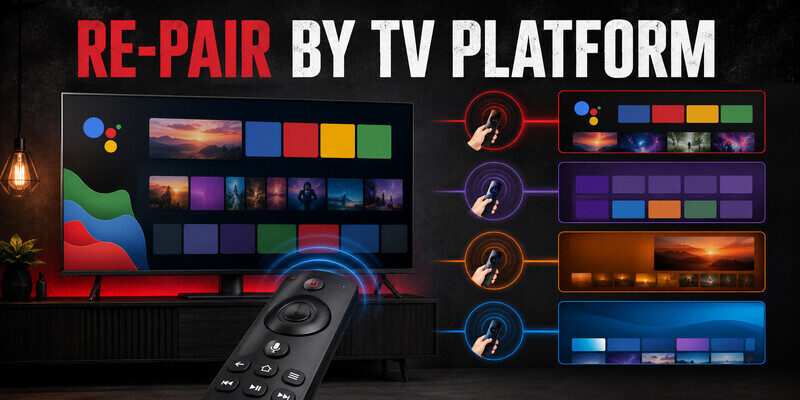
If the camera shows a flash but your Hisense TV remote is not working, or only Power works, re-pair it. Do it from 3–6 feet away, with the TV fully booted.
- Google TV / Android TV: hold Back + Home for about 5 seconds until the LED blinks and a pairing prompt appears. With a second controller, go to Settings > Remotes & Accessories > Pair remote or accessory.
- Hisense Roku TV: unplug the TV for 5+ seconds, plug in, and once the Home screen appears, hold the pairing button for 5 seconds until the light flashes. The button is on the back or inside the battery compartment. If there is no button, hold Back + Home for 5 seconds. If it still won’t pair, hold the pairing button for 20 seconds to reset the remote, then repeat. Roku advises pairing within 30 seconds of seeing the Home screen.
- Fire TV: hold Home for about 10 seconds. For a reset, hold Left + Menu + Back for 12 seconds, then pair again.
- VIDAA / Xumo: many voice remotes pair with Home + Back for about 5 seconds. If yours doesn’t, follow the on-screen prompt or the quick-start guide for your exact model.
Don’t use a button combination from a different model, and don’t assume Roku, Google and Fire TV steps are interchangeable.
Why Is My Hisense TV Not Responding to the Remote or Buttons?
If the camera test passes but your Hisense TV is not responding to the remote or buttons, the fault is on the TV side.
- Power-cycle the TV: unplug it for 60 seconds. Standby is not a restart. Optionally hold the TV’s power button for 30 seconds while it’s unplugged, then wait and reconnect.
- Clear the IR sensor: the small dark window on the lower bezel. Soundbars, game consoles, decorations and direct sunlight can block it. Point the remote straight at it from under 10 feet.
- Remove interference: switch off nearby Bluetooth gadgets and USB 3.0 devices, and unplug extra HDMI devices to rule out HDMI-CEC conflicts.
- Power/Volume fail but menus work: the IR path or TV-control setting is the problem. Re-check the TV brand/equipment setting on your platform.
- Lag or repeated presses: weak batteries, a sticky key or a busy TV. Restart the TV and close heavy apps.
- Update software, factory reset last: a reset wipes your accounts and settings. Do it only with model-specific steps and a backup controller.
If the TV also ignores its own physical buttons, the TV (software, power or service) is the problem, not the remote.
Hisense TV Remote Control Not Working? Use Your Phone Until You Fix It
You don’t have to sit without a TV while you troubleshoot. There are two backups:
- Physical buttons on the TV: usually under the bottom bezel, on the back panel or as a small joystick. They cover power, volume and input, and can often get you into Settings.
- Phone remote: connect your phone and TV to the same Wi-Fi network and use a remote app. It also gives you a keyboard for typing passwords and logins.
Phone control also helps you diagnose. If the phone works, the TV is healthy and the remaining fault is the handset, its IR path or its Bluetooth pairing.
Want a backup that never runs out of batteries? Explore the Begamob universal TV remote for Hisense and 1,000+ other TV brands.
When Should I Replace the Remote or Contact Hisense Support?
Replace the remote if it still fails after fresh batteries, clean contacts, the camera test, correct re-pairing and a TV restart, and your phone or another controller operates the TV normally. Replace it right away after liquid damage, cracked battery terminals or several dead keys. Match the replacement by TV model number and remote part number, not by looks. A generic “universal” remote won’t replace voice or Bluetooth features.
Contact Hisense support if the TV ignores every controller, won’t finish booting, or loses pairing after each restart. Have your model number, serial number, purchase date and the steps you tried ready.
Hisense TV remote not working is almost always a battery, signal or pairing problem. Run the camera test first, work down the list, and keep your phone as the backup remote.
Related guides:
- Hisense TV Remote Batteries
- Hisense TV Remote Flashing Blue
- Hisense Remote Control Manual
- Hisense TV Code for Universal Remote
FAQ
Why is my Hisense TV not responding to my remote?
Usually weak or mismatched batteries, a blocked IR sensor, a lost Bluetooth pairing, or a frozen TV. Run the camera test, replace the batteries, unplug the TV for 60 seconds, then re-pair for your platform. If the TV ignores its own buttons too, suspect the TV.
How do I reset my Hisense TV remote?
Remove the batteries, hold Power for 15–30 seconds, press every button once and reinsert fresh batteries. For Bluetooth remotes, also re-pair: Back + Home for about 5 seconds on Google TV, or the pairing button for 5 seconds on Roku. A factory reset of the TV is not needed to reset the remote.
How to fix an unresponsive TV remote?
Check that it sends a signal (camera test), replace the batteries, clean the contacts, point it at an unblocked sensor from under 10 feet, power-cycle the TV, and re-pair if it’s a Bluetooth remote. If nothing works, replace the remote.
How do I get my Hisense TV to work without a remote?
Use the physical buttons on the TV for power, volume and input, or control it from your phone on the same Wi-Fi network with a remote app such as Remote TV App.
Why is my Hisense TV remote not working with new batteries?
Often the contacts are corroded, the new cells are mismatched, a key is stuck, or the pairing is lost. Discharge the remote, clean the contacts and re-pair it.
Download LG TV Remote