
Hisense TV Remote Replacement: Complete Buying Guide
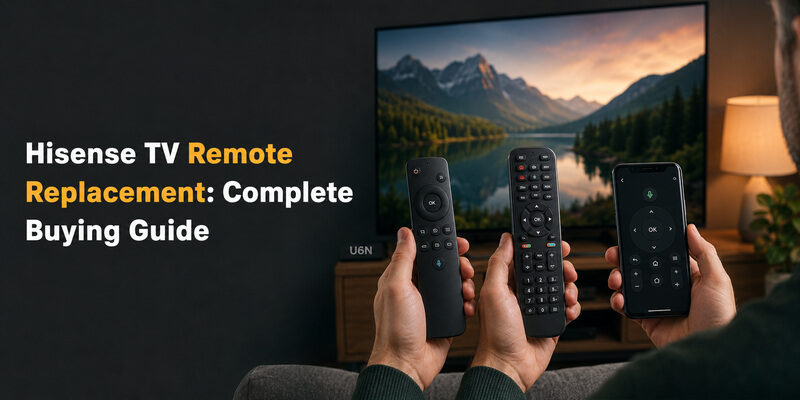
The best Hisense TV remote replacement is a remote that matches your exact television model and operating system. Before buying, find the model number on your TV, identify whether it runs Roku TV, Google TV, Android TV, VIDAA, Fire TV, or Xumo TV, and check the replacement remote’s compatibility list.
Quick answer: How to replace a Hisense TV remote
- Find your Hisense TV model number on the rear label or in Settings.
- Identify your TV’s operating system.
- Check the original remote’s part number, if available.
- Choose a compatible original, replacement, or universal remote.
- Confirm support for the features you need, including voice control.
- Insert the correct batteries.
- Pair the new remote if your TV and remote require it.
- Test Power, Volume, Home, Input, navigation, and voice features.
Important: A compatible infrared remote may work immediately without Bluetooth pairing. Voice-enabled and Bluetooth remotes may require a separate registration process.
This guide explains how to find the right replacement remote for a Hisense TV, compare original and universal options, avoid compatibility mistakes, and fix a replacement remote that does not work.
How to Find the Right Hisense TV Remote Replacement
Not every Hisense television uses the same remote.
Hisense manufactures televisions with different operating systems, including Roku TV, Google TV, Android TV, VIDAA, Fire TV, and Xumo TV.
Two televisions may look similar but require different remote-control technologies.
That is why compatibility should come before price, appearance, or button layout.
Step 1: Find Your Hisense TV Model Number
The model number is the most important detail when buying a replacement.
You can usually find it:
- On the label behind the television.
- On the original product box.
- On your purchase receipt.
- In the TV’s Settings or About menu.
- In the original user manual.
Record the complete model number, including any letters or regional suffixes.
For example, two Hisense models from the same product family may use different remote versions in different markets.
Do not search only by screen size.
A search such as “Hisense 55-inch remote” is less reliable than searching by the complete TV model.
Step 2: Identify the TV Operating System
Look at the television’s Home screen or product documentation.
| Hisense TV platform | What to look for | Replacement consideration |
|---|---|---|
| Roku TV | Roku Home screen and Roku branding | Choose a Roku TV-compatible remote |
| Google TV | Google TV interface | Check Bluetooth and voice compatibility |
| Android TV | Android TV interface | Check model-specific pairing requirements |
| VIDAA | VIDAA Home screen | Check Hisense/VIDAA-compatible part number |
| Fire TV | Fire TV interface | Check compatible Fire TV remote generation |
| Xumo TV | Xumo TV interface | Check Xumo-specific remote compatibility |
| Older non-smart TV | Basic TV menus | A compatible IR remote may be sufficient |
Hisense is the TV manufacturer, but the operating system can determine which advanced remote features are supported.
Step 3: Check the Original Remote Part Number
If you still have the original remote, inspect it carefully.
Look for a model or part number:
- On the rear label.
- Inside the battery compartment.
- In the original manual.
- On the remote’s packaging.
Search using both the TV model and remote part number.
A listing that matches both is generally more useful than one that says only “Fits Hisense TVs.”
If the original remote is damaged, you may be able to read its part number without opening the full case.
For safe battery-compartment access, see our guide to opening a Hisense TV remote.
Step 4: Decide Which Features You Need
Before buying, make a short list of essential functions.
For example:
- Power
- Volume
- Mute
- Input
- Home
- Back
- Directional navigation
- Streaming-app shortcuts
- Voice search
- Microphone
- Bluetooth connectivity
If you only need Power, Volume, and Input, a compatible universal remote may be sufficient.
If you use voice search or specific smart-TV shortcuts, an original or fully compatible replacement may be a better choice.
Download LG TV RemoteOriginal vs Universal Hisense Replacement Remotes
There are three main physical replacement options: original manufacturer remotes, compatible third-party replacements, and universal remotes.
Hisense Replacement Remote Comparison
| Type | Advantages | Limitations | Best for |
|---|---|---|---|
| Original/OEM remote | Closest match to original buttons and functions | May cost more or be harder to source | Restoring full original functionality |
| Compatible replacement remote | Often easier to find and may cost less | Quality and advanced features vary | Replacing a lost or damaged remote |
| Universal remote | Can control multiple devices | May lack voice and platform-specific functions | Basic Power, Volume, Input |
| Phone remote app | Convenient temporary alternative | Usually needs a working network connection | Using TV while waiting for replacement |
Option 1: Original Hisense Remote
An original remote is usually the most straightforward option when you want to restore the TV’s original controls.
Potential advantages include:
- Familiar button layout.
- Model-specific shortcut buttons.
- Supported voice functionality.
- Original navigation behavior.
- Better certainty when the part number matches.
However, even an original-looking remote should be checked against your exact TV model.
An OEM remote intended for a different Hisense generation may not provide every function.
Option 2: Compatible Third-Party Replacement
A compatible replacement is manufactured by another company but advertised for specific Hisense TV models.
These products can be useful when the original part is unavailable.
Before ordering, confirm:
- The complete TV model is listed.
- The replacement supports your operating system.
- The remote uses the correct control technology.
- Voice and microphone functions are included if required.
- The listing clearly states whether pairing is needed.
- A return policy is available.
Avoid assuming that a replacement with identical-looking buttons offers identical functionality.
Option 3: Universal Remote for Hisense TV
A universal remote can control compatible Hisense televisions using the correct programming method.
Common functions include:
- Power
- Volume
- Mute
- Input
- Channel controls
- Basic menu navigation
Advanced features may not be available.
For example, a basic infrared universal remote generally cannot reproduce Bluetooth voice-search functionality unless the product explicitly supports it.
Some universal remotes come pre-programmed for selected Hisense models.
Others require a setup code or automatic code search.
For more information, see our Hisense universal remote codes guide.
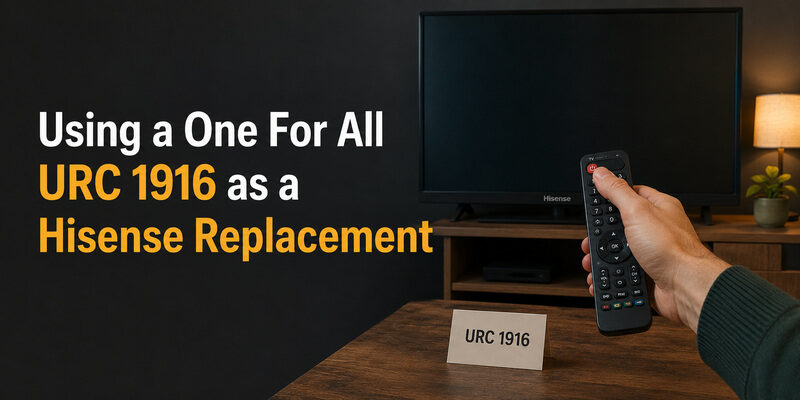
Is One For All URC 1916 a Good Hisense Replacement?
The One For All URC 1916 is marketed as a Hisense TV replacement remote.
It can be a convenient option for supported Hisense televisions because it is designed around common Hisense control functions.
However, do not assume that it supports every Hisense Google TV, Roku TV, VIDAA, Fire TV, or Xumo TV model.
Check the manufacturer’s current compatibility information before purchasing.
Also verify whether you need advanced functions such as voice search or Bluetooth pairing.
A pre-programmed universal remote may be excellent for basic controls while still lacking platform-specific features.
💡 Discover Helpful Guides: Hisense TV Remote App: Control Your Hisense TV From Your Phone
Replacement Remote Compatibility by Hisense TV Platform
The correct replacement depends on the platform your television uses.
Hisense Roku TV Remote Replacement
Hisense Roku TVs use the Roku television platform.
When replacing the remote, distinguish between:
Roku TV-compatible infrared remotes
These can provide basic controls on supported Roku TVs without Bluetooth pairing.
Roku voice remotes
Compatible voice remotes may require wireless pairing and can provide additional functions.
Important: A Roku streaming-player remote is not automatically compatible with a Roku TV.
Check that the listing explicitly supports Roku TV systems and your Hisense model.
If you are waiting for a replacement, the official Roku mobile app can act as a remote when your Hisense Roku TV is already connected to a reachable local network.
See our Hisense Roku TV remote app setup guide.
Hisense Google TV Remote Replacement
Hisense Google TV models may use a Bluetooth voice remote with additional infrared controls.
Before buying, confirm:
- Exact TV model.
- Compatible remote part number.
- Bluetooth pairing support.
- Voice recognition compatibility.
- Streaming shortcut layout.
- Whether the replacement is intended for a Hisense TV rather than a Google streaming device.
A Google TV Streamer or Chromecast Voice Remote should not be assumed to work with every Hisense Google TV.
Pairing instructions vary by manufacturer and model.
Google’s generic Back + Home instructions for certain Google streaming remotes do not automatically apply to Hisense-supplied remotes.
Hisense Android TV Remote Replacement
Some Hisense televisions use Android TV rather than the newer Google TV interface.
These models may support infrared, Bluetooth, or a combination of both.
Choose a remote listed for your specific TV model.
If the original remote included voice recognition, confirm that the replacement supports the same feature.
A basic infrared replacement may still control everyday navigation but lack voice input.
Hisense VIDAA TV Remote Replacement
VIDAA is a smart-TV operating system used by selected Hisense televisions.
VIDAA models can have different remote designs depending on the television series and region.
Before ordering:
- Record the TV model number.
- Identify the original remote part number.
- Check the official Hisense compatibility information.
- Confirm whether the remote requires pairing.
- Check microphone and shortcut-button support.
If you want to use a phone while waiting for a replacement, VIDAA recommends obtaining the appropriate mobile app through the TV’s Support > Mobile App screen where available.
The official VIDAA support website provides additional setup information.
Hisense Fire TV Remote Replacement
Some Hisense televisions include Amazon’s Fire TV platform.
A compatible Fire TV remote may offer:
- Directional navigation
- Home and Back
- Playback controls
- Alexa voice functionality
- Television Power and Volume
However, compatibility depends on the exact television and remote generation.
Do not assume that every Fire TV Stick remote will pair with every Hisense Fire TV.
Check the manufacturer’s supported-device information.
Hisense Xumo TV Remote Replacement
Hisense Xumo TVs use a different smart-TV platform from Roku, Google TV, and VIDAA.
Look for a replacement specifically listed for the relevant Hisense Xumo TV model.
A generic Hisense infrared remote may provide some basic functions without supporting the full Xumo interface.
Check the original remote part number and voice-control requirements before purchasing.
Read more: Hisense TV Remote App for Android: Setup Guide A-Z
Where to Buy a Hisense Replacement Remote
You can look for compatible replacement remotes through several channels.
Official Hisense Support or Parts Channels
Start with Hisense’s official support website for your region.
Search by your complete television model.
Depending on your location, Hisense may provide:
- Product documentation.
- Compatible accessory information.
- Replacement-part guidance.
- Authorized service contacts.
- Warranty support.
Official support is particularly useful when the TV uses a specialized voice remote.
Authorized Electronics Retailers
Authorized retailers may carry original remotes or compatible replacements.
Before ordering, ask the seller to confirm the exact TV model and remote part number.
If the listing includes only a generic photograph, request more information.
Reputable Online Marketplaces
Online marketplaces can offer a broad range of compatible remotes.
Review:
- Complete model compatibility list.
- Remote part number.
- Seller information.
- Product photographs.
- Voice and Bluetooth support.
- Return policy.
- Customer feedback.
A listing described as “Universal Hisense Remote” may support only basic infrared functions.
Universal Remote Manufacturers
Brands such as One For All and other universal remote manufacturers offer products designed for multiple televisions.
Use the manufacturer’s compatibility checker or setup manual.
If the remote requires a programming code, use the code list provided for that exact universal remote model.
Do not assume one Hisense code works with every universal remote brand.
Hisense Replacement Remote Buying Checklist
Before checkout, confirm all of the following:
-
My complete Hisense TV model is listed.
-
The remote supports my TV’s operating system.
-
The remote’s part number matches or is listed as compatible.
-
Power, Volume, Home, and Input are supported.
-
Voice control is supported if I need it.
-
I understand whether pairing is required.
-
Battery requirements are clear.
-
The seller provides a reasonable return policy.
📘 Find the Right Guide: Hisense TV Remote Batteries: Size, Replacement, Drain, and Fixes
The safest purchase is the remote with verified compatibility, not simply the lowest price.
How to Set Up a Hisense Replacement Remote
Setup depends on whether the replacement uses infrared or a wireless connection.
Method 1: Set Up an Infrared Replacement Remote
Many compatible infrared remotes require little or no setup.
- Turn on the Hisense TV using its physical Power button.
- Insert the correct batteries into the remote.
- Point the remote toward the TV’s infrared receiver.
- Press Power or Volume.
- Test Home, Menu, Input, and navigation.
- Confirm that the main functions work.
If the remote is advertised as pre-programmed but does not respond, check compatibility before attempting random button combinations.
Some universal remotes require code entry or an automatic search.
Method 2: Pair a Bluetooth or Voice Remote
For a compatible Hisense Bluetooth or voice remote:
- Turn on the television.
- Insert fresh batteries.
- Move the remote close to the TV.
- Open the TV’s remote or accessory settings if you can.
- Follow the pairing instructions for your exact remote model.
- Confirm the on-screen pairing request if one appears.
- Test navigation and voice recognition.
There is no universal Hisense Bluetooth pairing combination for every platform and remote generation.
Follow the official manual for your TV model.
For detailed button and setup guidance, see our Hisense remote control manual guide.
Method 3: Program a Universal Remote
If your replacement is a universal remote:
- Find its manufacturer and model number.
- Locate the current code list or setup instructions.
- Select Hisense as the TV brand.
- Enter the appropriate code or start automatic search.
- Test Power.
- Test Volume, Input, Home, and navigation.
- Save the working configuration.
Roku TV systems have their own compatibility considerations.
For Hisense Roku TV, Roku publishes universal remote guidance that can help identify compatible control codes.
How to Test a New Replacement Remote
After setup, use this checklist:
| Function | Test |
|---|---|
| Power | Turn TV on or off |
| Volume | Increase and decrease sound |
| Mute | Mute and restore audio |
| Home | Open smart-TV Home screen |
| Navigation | Move through menus |
| Select/OK | Open an app or setting |
| Back | Return to the previous screen |
| Input | Switch HDMI sources |
| Voice | Test supported voice commands |
| Shortcuts | Open supported streaming apps |
If only Power and Volume work, the replacement may not support the television’s full smart interface.
That is a compatibility issue, not necessarily a defective remote.
🗺️ Browse How-To Guides: Hisense Remote Control Manual: Buttons, Pairing, Apps, and Troubleshooting
Final Thoughts
The right hisense tv remote replacement comes down to matching your TV’s smart platform — Google TV, Xumo, or VIDAA — if you want full functionality, or accepting a universal remote’s basic control set if speed and price matter more.
Confirm your model number before ordering, buy from a seller who states clearly whether the remote is genuine or compatible, and test every button as soon as it arrives. Either way, keep the Remote TV App installed as a free backup so a lost or broken remote never leaves the TV unusable while you shop for the right replacement.
Download LG TV Remote🗺️ Browse How-To Guides: How to Pair Hisense Remote to TV: Complete Setup Guide
