
Hitachi TV Remote App Free: Connect the Right App to Your Television
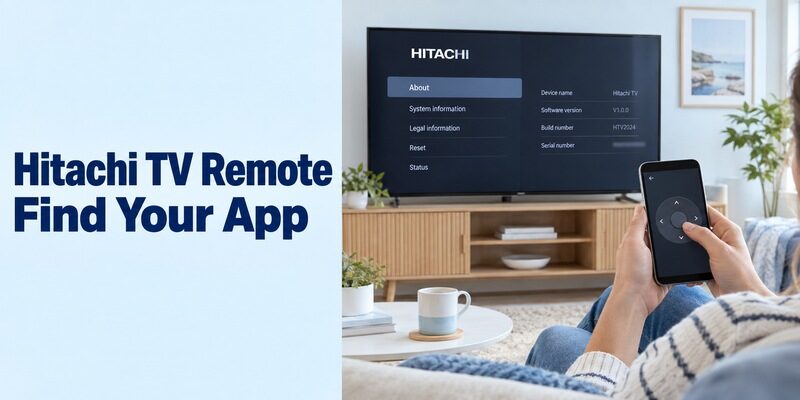
Short answer: A hitachi tv remote app free setup can use TV Smart Centre on supported Hitachi models, the Roku mobile app on Hitachi Roku TVs, or Google TV when the television runs a supported Google platform. The Hitachi name alone does not identify which application will connect.
Begin with the television’s own system information and the model on its label. A familiar streaming screen may belong to an HDMI player, while the television underneath uses a different control method. This guide takes you from that identification step through installation, pairing, everyday button tests, and recovery when the TV does not appear. Keep a working physical controller available until the phone has proved useful through a complete viewing session.
Hitachi TV Remote App Free: Decide What Needs Controlling
Identify the equipment receiving the command. This prevents installing a suitable app for the wrong device in the same entertainment setup.
Separate the television from an attached player
Press Home with the television’s original remote and inspect its own interface. If a separate stick normally supplies your streaming apps, note its name independently. A phone connected to that stick may navigate streaming content without providing every television setting or tuner command.
For a hitachi tv remote app free search, write down the full TV model, its operating system if shown, and the device that supplies your usual programmes. Those three details are more useful than screen size alone.
Define the missing everyday task
Perhaps the physical remote works but typing is slow. Perhaps it is missing and the television is already online. These situations require different tests: keyboard convenience in the first case, basic navigation and recovery access in the second.
A free hitachi tv remote app should solve the actual problem. A media-sharing application that sends photos to the screen does not automatically replace Home, Back, input selection, or television settings.
Start with Virtual Remote on a Supported Smart Centre Set
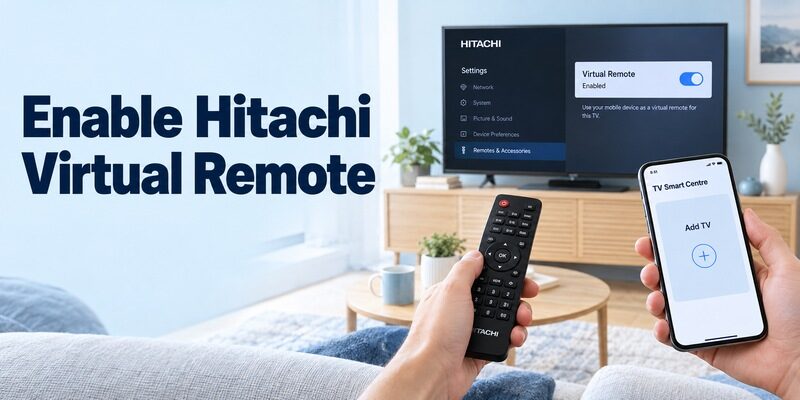
TV Smart Centre explicitly lists Hitachi, with compatibility depending on the model. Its publisher is Vestel; the brand list is not a guarantee for every Hitachi television sold worldwide.
Check the television-side requirement
Vestel’s current app instructions require an internet-connected television, the Virtual Remote option enabled, and a phone on the same Wi-Fi network. Locate that option using your model’s manual; do not copy a menu path from a different television merely because the brand matches.
A hitachi tv remote app free attempt can fail before pairing if the TV is not accepting virtual-remote connections. If the setting is absent, confirm model support instead of changing unrelated advanced options.
Add the television in the app
Install TV Smart Centre from its verified store listing, open the application, and use Add TV after completing the prerequisites. Select the intended set and follow any instructions actually presented on that television.
Once connected, open the remote controls and move a visible menu highlight. A hitachi tv remote app free setup is not complete merely because the application displays a device name. Confirm that the chosen screen responds before relying on it.
Read more: Onn TV Remote App Free: Set Up Roku or Google TV on Your Phone
Make the Phone and Television Reach Each Other
Internet access and local device discovery are different checks. A phone can browse the web while being unable to communicate with the television beside it.
Compare the connections shown on both devices
Read the TV’s current network information and compare it with the phone’s Wi-Fi connection. Avoid assuming the television still uses the intended network after a router replacement or password change.
For a hitachi tv remote app free network setup, prefer the normal shared household network. A guest connection may separate devices even when both can stream online content. Ask the network administrator about local access if this is a managed connection.
Keep the target awake during discovery
Turn on the TV with its physical controller before scanning. Grant the app the local-device permission requested by the phone where applicable, then reopen its device selector. Read each prompt in the context of the connection you are making.
If another household phone already works, compare its app identity, selected television, and network. This gives a useful reference without altering the TV’s functioning configuration or repeatedly installing unrelated remotes.
Connect the Roku App When Hitachi Runs Roku TV
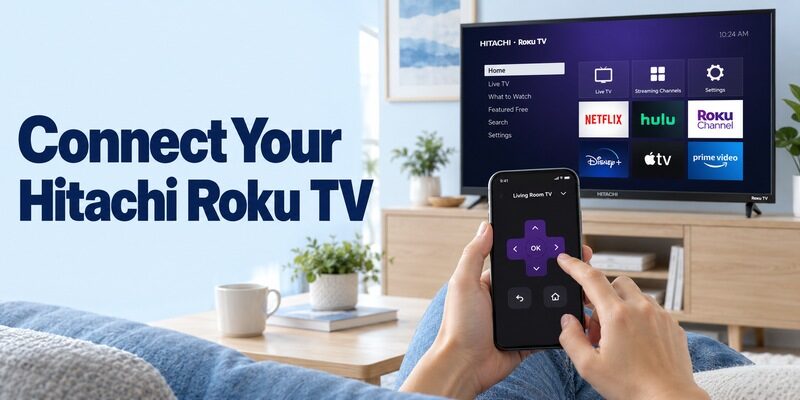
A Hitachi Roku TV remote follows Roku’s control platform. Roku’s own announcement documents Hitachi Roku televisions; that does not establish Roku support for other Hitachi models.
Choose the official mobile application
Use Roku’s verified mobile app listing for your phone. Roku describes its mobile application as free, although streaming services and purchases remain separate from remote-control access.
In a hitachi tv remote app free comparison, distinguish the official Roku application from independently published apps with similar search terms. Check the publisher before accepting an installation or subscription screen.
Select the TV and open Remote
Connect the phone to the television’s local network, select the intended Roku device in the app’s device area, and open Remote. Test navigation on the television’s Home screen before trying extra features.
For broader platform details, the guide covers the distinction between a Roku TV and an attached player. That distinction matters when investigating television volume, power, or inputs.
Do not assume a working phone remote can control an unplugged TV. Standby discovery and wake behaviour depend on the equipment and its supported settings; test them separately from navigation while the screen is already on.
Read more: How to Pair Google TV Remote and Reconnect It
Use Google TV Only When the Platform Matches
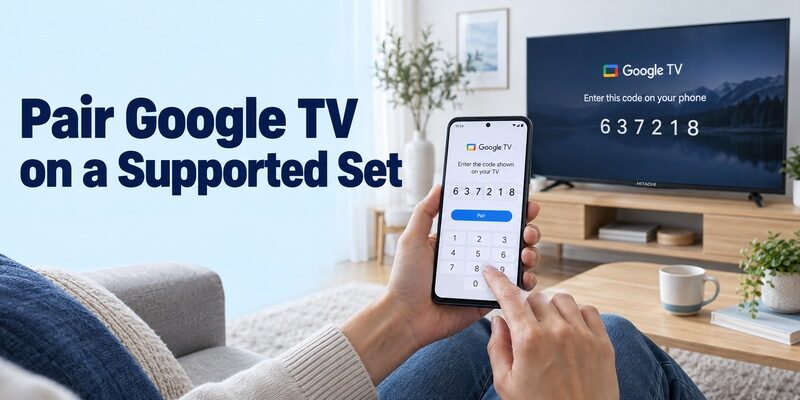
Google TV pairing requires a supported Google TV or Android TV device. A television with online video apps is not automatically part of that platform.
Verify the operating system before installing
Look at the television’s own system information and model documentation. If a connected Google streaming device supplies the interface, select that device deliberately rather than describing it as the television’s built-in system.
For a hitachi tv remote app free route using Google TV, install Google’s verified phone application. Check the current phone requirements in the store instead of relying on an old tutorial’s operating-system version.
Complete the displayed pairing request
Google’s phone-remote guidance uses TVs nearby, device selection, the code displayed on the TV, and Pair. Follow the equivalent controls in the installed version and enter the code from the intended screen.
After a hitachi tv remote app free connection succeeds, test directional movement and selection before entering private text. Keep the original controller nearby in case the television needs an input change or a network setting that the unpaired phone cannot reach.
Evaluate an Older Hitachi Television’s Control Hardware
A phone app cannot create a missing infrared transmitter. Older sets need a control route their hardware actually supports.
Check the phone’s physical capabilities
Some Android phones include an IR blaster; verify the exact phone specifications. An ordinary iPhone does not gain television-control infrared hardware by downloading a remote application.
If a hitachi tv remote app free listing relies on infrared, check its stated requirements before testing it. A directional pad on the phone screen proves only that an interface loaded, not that commands can reach the television.
Test a supported code profile carefully
Where a compatible IR app and transmitter are available, aim the emitter toward the TV and test several ordinary buttons. A profile that sends one successful power command may still map volume, input, or channel buttons incorrectly.
If no verified phone route fits the old television, a compatible physical replacement is a practical solution. Adding a streaming player can provide phone control of that player, but it does not transform every original television function into a network command.
Check What Free Access Includes
Separate the download price from the controls you can keep using. Similar-looking app results can have very different terms.
| Route | What establishes a suitable match | What to inspect before relying on it |
|---|---|---|
| TV Smart Centre | Supported model and required TV setting | Current phone support and available functions |
| Roku mobile app | Hitachi Roku TV or selected Roku player | Device type and supported television controls |
| Google TV | Supported Google TV or Android TV platform | Pairing completion and relevant phone version |
| Independent network app | Explicit support for the exact platform | Included controls, advertisements, and purchases |
| Infrared app | Compatible transmitter and command profile | Hardware requirements and button accuracy |
For a hitachi tv remote app free choice, inspect the current listing and the app’s own access screen. TV Smart Centre’s Android listing indicates advertisements, while its Apple listing identifies a free download. Neither description establishes identical features on every model.
If an optional trial appears, read what follows its introductory period. Do not assume payment will correct an unsupported television or absent phone hardware. Establish compatibility before deciding whether an optional interface upgrade is useful.
Prove the Controls with One Normal Viewing Routine
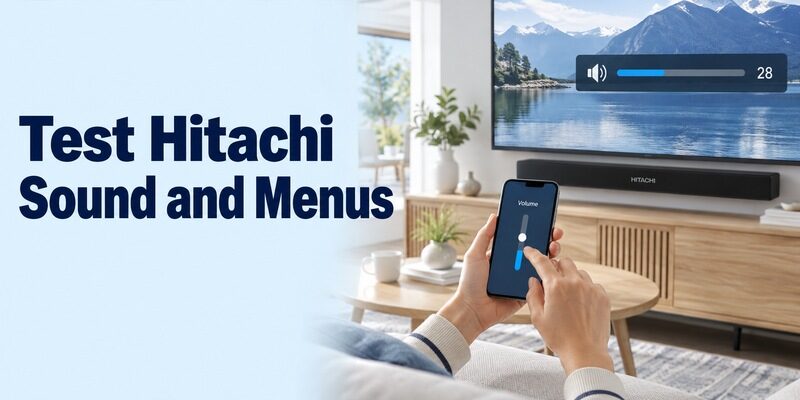
Test the actions you actually repeat each day. This makes the outcome easier to evaluate than pressing every available icon.
Move through menus and try text entry
Start at Home, select a familiar item, return with Back, and reopen it. If a keyboard is supported, try a harmless search term and watch where the characters appear. Some individual apps handle text fields differently.
A hitachi tv remote app free setup can be successful for navigation even when a particular streaming service does not accept phone keyboard input. Keep directional entry available before treating that isolated limitation as a pairing failure.
Test sound and the source of channels
Change volume by one step, then restore it. If sound comes from a soundbar or receiver, determine which device must accept the audio command. Working menu navigation does not prove every external audio control path is configured.
Next check where live channels originate: the TV tuner, a provider receiver, or an app. A television remote cannot be assumed to provide all commands for a separate set-top box simply because its picture appears on the Hitachi screen.
Write down the result of each test in plain language: menus work, text works in the chosen search field, sound changes on the correct device, and the normal source is reachable. This short record helps distinguish an essential missing function from a feature you never use, and makes a later comparison with another supported remote much more meaningful.
Diagnose the First Unsuccessful Step
Use the symptom to choose the next check. Reinstalling the same app rarely helps when the television remains on the wrong network.
| Observed result | First check | Useful next action |
|---|---|---|
| No TV appears | Platform, awake state, and local connection | Restore the expected network and scan again |
| Smart Centre cannot add the set | Model support and Virtual Remote | Follow the exact television manual |
| Pairing prompt appears elsewhere | Selected device identity | Cancel and choose the intended room |
| Navigation works but sound does not | Audio output and control target | Test television speakers or the audio device separately |
| Connection fails after a router change | Saved TV network | Reconnect using a working controller |
During a hitachi tv remote app free investigation, record the first point that fails and any visible message. A missing device list is different from a connected remote with one unavailable button.
Restart the app or equipment using its ordinary instructions when appropriate. Keep a restart distinct from a factory reset, which can erase account and network setup. Preserve a configuration that still works with another controller while narrowing the fault.
If you contact support, provide the TV model, phone model, app publisher, and the failed step. For a hitachi tv remote app free issue, that description is more actionable than a list of several applications tried without a confirmed platform match.
Choose a Practical Alternative and Preserve Recovery Access
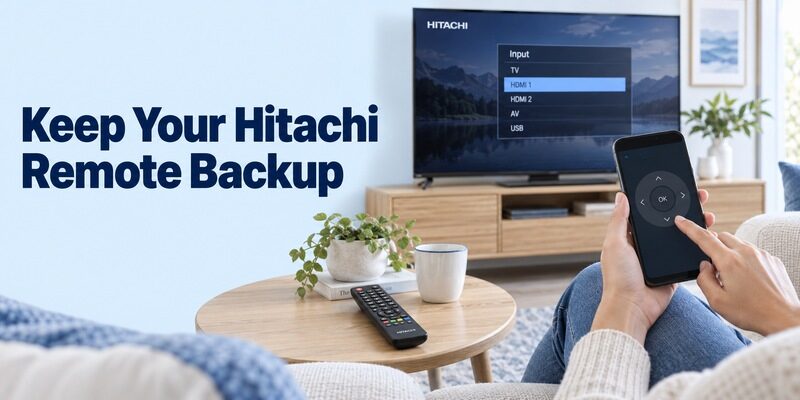
Keep a second way to operate the television. A phone can be charging, disconnected, or unavailable when a setup screen needs attention.
Compare interfaces on a known working connection
Review if another interface would help, and confirm support for your exact Hitachi model and phone first. Compare the same tasks on the same television state so that a different input or audio setup does not distort the result.
Reopen the selected app after closing it, select the saved TV, and repeat one basic command. Then test after normal standby. If it cannot wake the television, use the physical controller and see whether ordinary navigation resumes once the screen is on.
Try the control while sitting at your normal viewing distance, using the hand and phone orientation you normally prefer. Check whether directional taps are easy to distinguish and whether an advertisement or optional purchase prompt interrupts the particular action you need. Evaluate that experience directly rather than assuming that a longer feature list will make the remote easier to use.
A hitachi tv remote app free comparison should also include returning from another phone application. Open a harmless app, come back to the remote, and see whether it reconnects or needs the TV selected again. Either behaviour may be manageable, but everyone using the phone should know the required step before the physical controller is put away.
Prepare for a changed phone or home network
For a hitachi tv remote app free household setup, give the saved device a clear room name wherever supported. Show another person how to select it and return to the normal viewing input. Keep the physical remote in an accessible place.
Record the app name, publisher, TV model, and working connection method for a future phone replacement. Leave passwords out of that note; its purpose is to reproduce the useful setup and identify the correct device.
Before changing routers, make sure someone can still reach the television’s network menu with a working controller. The new phone app may not find a TV that retains the old network credentials. Reconnect the television first, confirm its displayed network, and only then repeat mobile discovery. This sequence avoids mistaking an expected network change for an application defect.
For a hitachi tv remote app free setup on a replacement phone, install the verified application again and follow the platform’s connection process. Do not assume restoring phone settings also restores every local-device permission or television authorization. Keep the original phone available during the change if it still operates the set; it provides a useful comparison until the replacement has passed the same basic tests.
If the television is shared by several people, agree on a simple device name and a normal starting screen. Two similar room names can lead to apparently random control when the phone is actually connected to the other set. A clear label and one visible test command are easier to maintain than repeated pairing attempts.
Keep the applicable model manual with the setup note, especially for an older regional Hitachi set whose menu labels differ from current tutorials. For a hitachi tv remote app free installation, record which settings you intentionally changed so they can be checked later. Avoid copying another household’s advanced settings wholesale; the aim is a reproducible connection on your own equipment.
Final Thoughts
A hitachi tv remote app free solution starts with the correct platform and a verified connection. Use TV Smart Centre only on supported models, choose Roku for a Hitachi Roku TV, and use Google’s remote when the actual device supports it.
Finish by checking navigation, text where supported, sound, and reconnection. Keep a working physical backup and treat older infrared televisions according to their hardware. The useful result is dependable control of your own set, rather than another downloaded app that cannot reach it.
