
Jio TV Remote App Download: Set Up JioHome for Your Set-Top Box
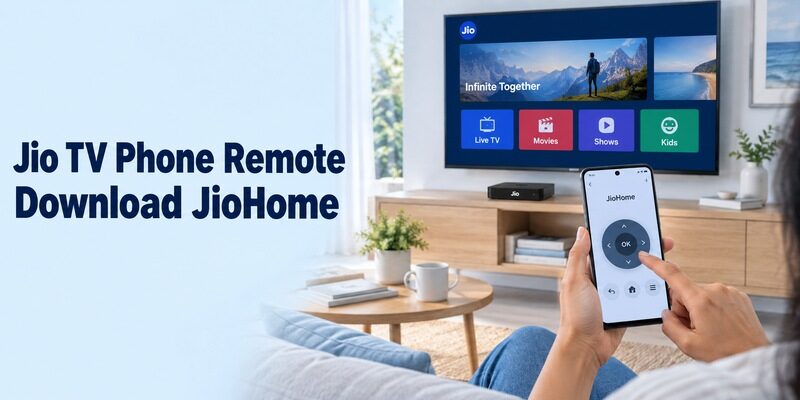
Short answer: Download JioHome from Jio Platforms Limited, then open its STB Remote or eRemote feature and follow the current connection prompts for your Jio Set-Top Box. A jio tv remote app download usually means this phone controller, rather than a JioTV entertainment download or a replacement for every button on the television itself. JioHome also includes content discovery and home-network features, so selecting the correct area matters after installation. This guide explains the verified download route, how to prepare the box and phone, which commands to test, and how to distinguish a remote failure from a subscription, HDMI-input, or physical-handset problem.
Get the Official Jio TV Remote App Download
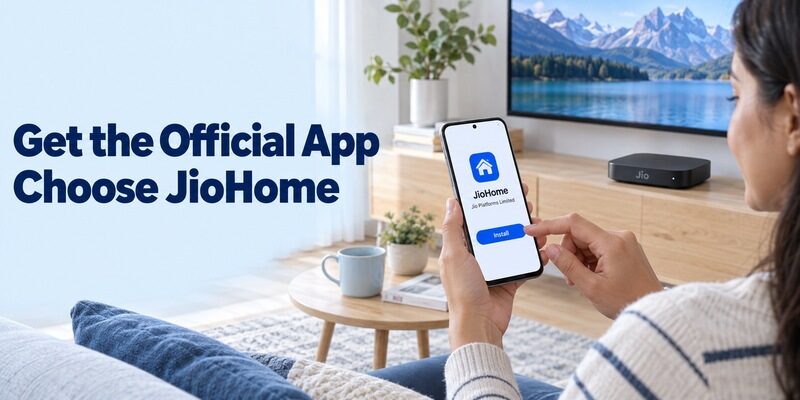
Install JioHome from the Supported Phone Store
Jio identifies JioHome as its phone-based controller for the Jio Set-Top Box. The current Google Play listing names Jio Platforms Limited. Jio’s official download route also leads to an iPhone listing from JIO PLATFORMS LIMITED, offered as a free download. Check the listing available to your own device and region.
For a jio tv remote app download, install the application on the phone you intend to hold. You do not need to find a similarly named remote app in the television’s entertainment catalog. The set-top box remains the equipment receiving the commands, while the mobile application supplies the controls.
Check the Publisher Before Following a Search Result
Search results may place independent controllers beside official Jio products. Read the app name, developer, supported devices, and current description. A Jio logo or a black remote-shaped interface does not establish who operates the listing or whether it supports the actual box you own.
Once the jio tv remote app download is complete, save the application name and publisher. This helps when setting up another household phone later. Use the current store version rather than treating an older tutorial’s version number as a requirement; menu names and available features can change over time.
If a search result offers an APK rather than the supported store listing, return to Jio’s own download route and compare the publisher. This is particularly useful when an old guide uses a different app icon. The current application description is a stronger reference for locating the remote feature than the artwork in a historical screenshot.
Distinguish JioHome from JioTV and Other Jio Apps
Choose by the Task You Want to Complete
A content application and a device controller solve different problems. Jio’s service pages describe entertainment, calling, gaming, and home-control products separately. JioHome is the relevant starting point when you want to operate the Jio box from your phone; JioJoin is associated with calling, including supported TV video-calling arrangements.
A jio tv remote app download will not automatically resolve a missing subscription or activate a streaming entitlement. If you can navigate menus but cannot play a particular title, the remote may already be working. Identify whether the task is selecting content, controlling the box, or managing the service account. The same distinction matters for satellite and receiver services, as shown in this Dish TV remote download guide, where account tools and live receiver controls follow different routes.
Separate the Box from the Television Panel
The Jio Set-Top Box connects to a television, typically through HDMI. Its interface can appear on a Samsung, LG, Sony, or another brand’s screen. The panel’s manufacturer does not change which application controls the Jio box, although the television’s own input and settings controls remain a separate consideration.
When comparing a jio tv remote download with a television-brand remote, ask which menu is failing. A Jio home-screen tile belongs to the box; the television’s picture menu belongs to the panel. A soundbar may introduce a third target. Write down those distinctions before expecting one download to replace every handset.
This Android TV box remote-control guide explains why a set-top box and the television panel need separate control checks, even when both appear on the same screen.
| Your goal | Relevant starting point | What to verify |
|---|---|---|
| Navigate the Jio box | JioHome STB Remote/eRemote | Correct box and current setup |
| Browse Jio entertainment | Relevant Jio content service | Account and content eligibility |
| Diagnose physical JioRemote | MyJio Run Diagnostics | Pairing and battery status |
| Change television input | Supported TV controller | Exact television model |
| Make supported TV calls | JioJoin setup | Calling equipment and service |
Prepare the Box, Phone, and Home Connection
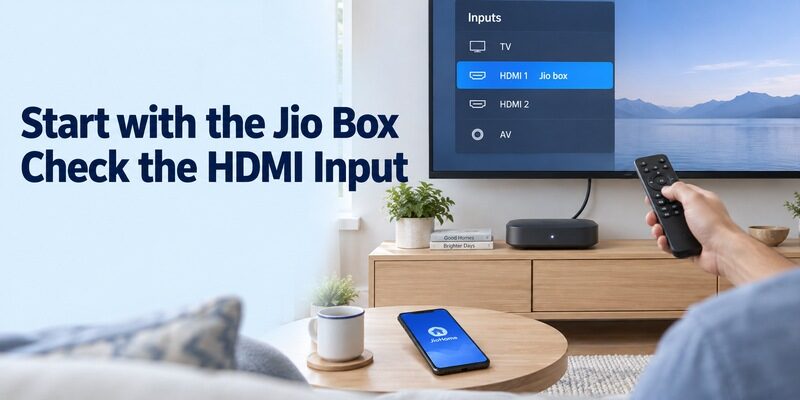
Make the Jio Interface Visible
Start with the television showing the Jio box’s actual output. Jio’s set-top-box setup guide distinguishes powering the box from selecting the correct HDMI source on the television. If the screen says No Signal, inspect the input and equipment state before assuming that the mobile remote is the cause.
Before completing a jio tv remote app download setup, keep the box powered and allow it to finish starting. Use the television’s compatible controller to select its connected input if necessary. This gives you a visible response to judge when the phone begins sending commands.
Complete the Current Account and Connection Prompts
Open JioHome and follow its current sign-in and service-selection instructions for your own connection. Keep the phone on the home network used by the Jio equipment during initial setup. Review requested local-device or Bluetooth access when the application explains that it is needed, and complete the displayed connection flow.
After the jio tv remote app download, do not borrow a fixed pairing-code length or button combination from another television platform. The installed app and box should guide the connection. If the prompt differs from an old tutorial, record the current screen rather than forcing an outdated sequence.
A phone showing internet access is not by itself evidence that the correct home connection or box has been selected. Check the service and device details in the app. If your household has more than one Jio installation, verify the intended location before changing settings or testing remote commands.
Open STB Remote or eRemote and Select the Right Box
Use the Current Remote Entry Point
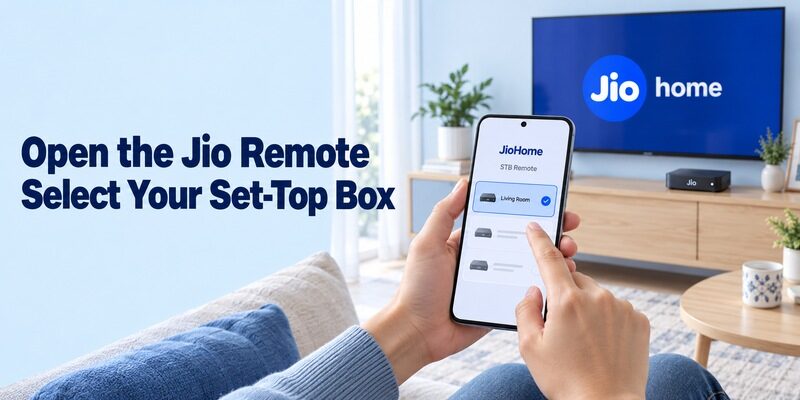
Jio’s current materials call the control area STB Remote and eRemote. Older guidance may refer to MyRemote. The present store description also includes a TV tab for discovering content. Locate the remote feature in the installed version rather than assuming the first entertainment screen is already a connected controller.
After your jio tv remote app download, select the intended set-top box and complete any confirmation the application requests. Keep the television visible until the connection is established. If multiple devices are available, compare their names and watch which screen responds to a harmless navigation command.
Confirm the Link with a Single Action
Move one position in the Jio home-screen menu and observe the highlight. Then try selection and returning to the previous screen. Send commands deliberately while testing; repeated taps during a delay can make an otherwise working connection look erratic.
A successful jio tv remote app download is only the first step. The useful milestone is control of the correct box. If content recommendations load on the phone but the television never responds, remain focused on device selection and remote connection rather than assuming that browsing success proves the remote is paired.
Once the target is confirmed, note its label for the next session. A clear room name is particularly useful when two boxes have similar default names. If the platform offers a supported naming option, use it; otherwise keep a simple household note describing which device belongs to which screen.
For the first test after a jio tv remote app download, stay beside the box and avoid switching between several rooms. Complete one connection and one navigation sequence before adding another device. This makes it easier to tell whether a later mismatch belongs to device selection or to the underlying connection.
Test the Commands You Need for Everyday Viewing
Check Navigation and Text Entry Separately
Test a complete sequence instead of one button. Begin at the box’s home screen, open a familiar app, move through its menus, and return. Inspect the remote controls available in your version for supported search or keyboard actions, then test them in an appropriate field rather than assuming every app accepts input identically.
After a jio tv remote app download, note any command that fails while other navigation remains responsive. A problem limited to one text field is narrower than a lost connection. Try another supported field or the television’s home interface before changing the entire setup.
Verify Audio and Television-Level Actions
The box’s remote interface does not establish universal control of every television or external speaker. Test the sound path you actually use, including a soundbar if present. Compare with the physical controller that normally changes volume so you can identify which device owns the missing action.
If the missing action belongs to the television rather than the Jio box, review universal TV remote setup options before changing a JioHome setting that already controls the set-top box correctly.
When you use a jio tv remote app download to replace a lost handset, check input selection and startup as well as browsing. If the television starts on another HDMI source, a working box remote may still leave you needing a television controller. Keep that recovery path available and explain it to other viewers.
Rehearse from the sofa with the same phone you will use later. Open the application again after closing it, select the box, and repeat the routine. That practical test reveals confusing device labels and missing steps that are easy to overlook during the first successful connection.
Treat Casting, Gaming, and Content Access as Separate Features
Check Optional Features on Their Own Terms
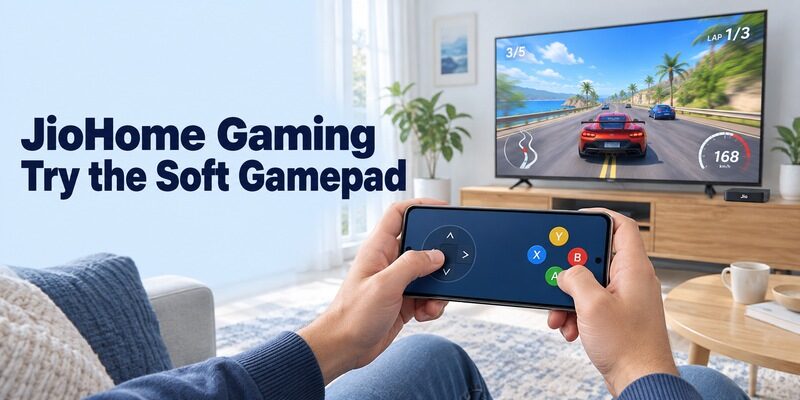
JioHome contains more than a directional remote. Its current listing describes content discovery, casting, JioGames, and JioPC access alongside network management. Jio’s gaming help also identifies a soft controller in JioHome for supported JioGames play. Availability and the needed controls depend on the feature and equipment involved.
A jio tv remote app download does not guarantee that a particular game supports the same buttons as normal menu navigation. Open the relevant game and follow its supported controller instructions. Establish a working remote connection first, then test optional features individually so that one failure does not obscure the others.
Separate Playback Rights from Remote Response
If menus move normally but a service asks for login or payment, check the content account and current plan. Jio’s OTT troubleshooting guidance begins with verifying an active subscription in MyJio. A remote application cannot turn an unavailable title into an included entitlement simply because it can select the title’s tile.
After a jio tv remote app download, use content you know is available for the first playback test. This avoids combining a new controller with an unrelated account problem. If one service fails while another plays, record that distinction before changing network or box settings.
Diagnose the Problem at the Correct Layer
Compare the Phone Remote with the Physical Handset
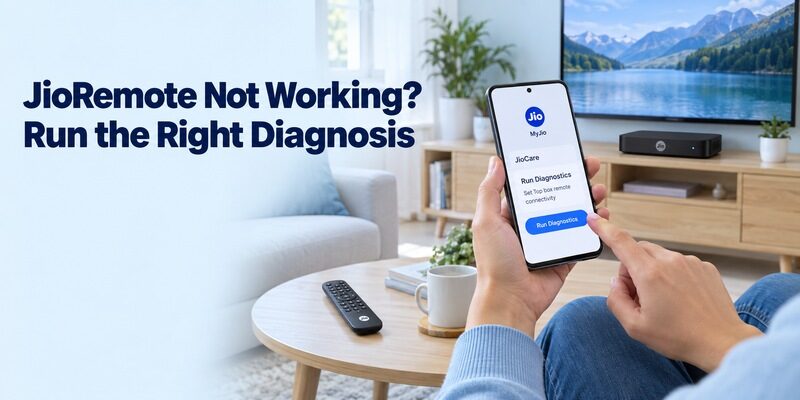
A failing physical JioRemote has its own diagnostic route. Jio directs users to MyJio, the Fiber area, JioCare, and Run Diagnostics for set-top-box remote connectivity. Its AirFiber guidance also describes checks for pairing, battery status, and response, with a Fix Now option when issues are detected.
If the jio tv remote app download works but the physical handset does not, keep the phone connection while running the relevant diagnosis. If the handset works but the phone does not, focus first on the app, selected service, requested permissions, and connection state. Those comparisons narrow the fault without erasing a working configuration.
Distinguish a Stalled App from a Stalled Box
If neither controller moves the home screen, the box itself may be unresponsive. Follow Jio’s supported restart and troubleshooting instructions for your equipment. If only one streaming application fails, use that app’s support path rather than assuming every remote command is unavailable.
After a jio tv remote app download, avoid clearing application data or resetting equipment without understanding what will be removed. Jio notes that clearing data for services such as Amazon and Netflix requires logging in again. Preserve account details and a working control route before following a troubleshooting step that changes stored setup.
| Symptom | Useful comparison | Next focus |
|---|---|---|
| Phone app cannot install | Store eligibility message | Phone and regional listing |
| Wrong screen responds | Selected box and room | Device selection |
| Phone fails, handset works | App and service connection | Mobile setup |
| Handset fails, phone works | MyJio remote diagnosis | Physical remote pairing or battery |
| Menus work, title fails | Other available content | Subscription or streaming app |
| TV shows No Signal | Box power and HDMI source | Television input and connection |
If the phone disconnects only after being idle, note how long it was asleep and whether reopening the remote restores control. Compare that behavior with an immediate setup failure. Reporting the exact sequence gives support a clearer problem to investigate than repeatedly reinstalling without recording what changed.
Check Android, iPhone, and Older Download Advice
Use the Listing for the Device You Own
Mobile and desktop editions can have different capabilities. JioHome has appeared across multiple Apple device categories, including a Mac edition whose description focuses on local media. Do not assume that a desktop listing has the same STB remote interface as the current phone application.
For a jio tv remote app download on Android or iPhone, check the matching mobile listing and its operating-system requirement. If the store reports that your device is unsupported, record that message and consult Jio’s supported route. An old installation package is not evidence that the current service will work correctly on that phone.
Avoid Applying Historical Screens Literally
Older guides may show MyRemote, MyMedia, or a different connection sequence. They can explain the app’s history, but the current August 2026 store description uses newer TV and eRemote terminology. Follow the instructions that match the application actually installed and the equipment linked to your service.
If you are helping someone else, ask them to describe the visible menu before giving the next step. This prevents a missing old label from being mistaken for a missing feature. Keep any unresolved prompt wording in the support note rather than guessing an equivalent control.
Save a Simple Household Routine and Backup
Record the Working Arrangement
A repeatable setup is more useful than a successful one-time demonstration. Write down the selected box, the remote entry point, the television input, and the controller used for sound. Ask another viewer to open JioHome and start the usual content without relying on your memory of the setup.
Keep the correct television remote nearby if it is needed for input changes, and retain a compatible JioRemote where possible. A phone battery, app session, or network issue should not leave the household unable to reach the basic viewing screen.
When the television needs its own fallback controller, this guide explains how to connect a universal remote to a smart TV without confusing that setup with the Jio box’s separate phone remote.
Keep Troubleshooting Notes Specific
When a problem returns, record what still works: the Jio home screen, the phone’s recommendations, the physical remote, or another streaming service. Those observations are more informative than saying that the entire TV is broken. Include the app version and equipment details when contacting support.
Broader guidance on phone controllers is available at . For this setup, preserve the distinction between Jio box control, television settings, and content access; it makes both everyday use and later troubleshooting easier to explain.
Before considering the jio tv remote app download finished, test the setup with a familiar program and then return to the starting screen. Confirm that another viewer can restore the correct HDMI input if it changes. The final household note should contain only the steps and controller names needed for that working routine.
Final Thoughts
Use JioHome’s current remote feature and verify the intended set-top box. A jio tv remote app download should begin with the official mobile listing, continue through the displayed connection prompts, and end with a complete viewing test. Check audio and television inputs separately, use MyJio diagnostics for physical-remote issues, and keep subscription problems distinct from navigation failures. Save the working routine so another viewer can repeat it reliably.
