Panasonic TV Remote with Voice Control Features and Everyday Use

Short answer: A Panasonic TV remote with voice control needs a compatible television and the required wireless registration.
The microphone button does not replace the rest of the remote, and it does not make every Panasonic TV voice-capable. Supported commands depend on the television platform, voice service, language, and current app. Power, menu navigation, subtitles, and external HDMI devices can also follow different control paths.
This guide explains what to check before buying or using a panasonic tv remote with voice control. It covers first use, practical voice requests, the difference between voice input and spoken menu guidance, and the buttons you still need for everyday viewing when the microphone cannot complete a task.
Choose a Panasonic TV Remote with Voice Control That Fits the TV
Match the operating platform
Use the full television model and its operating instructions to identify the supported remote. A Panasonic Fire TV voice handset and a remote for another Panasonic platform should not be assumed interchangeable. Likewise, a voice remote belonging to an HDMI streaming device may control that device’s assistant rather than the television’s own interface.
Confirm the microphone feature explicitly. When a seller says that a replacement is compatible, ask whether that includes voice on your exact TV model. A panasonic tv remote with voice control can share basic infrared commands with another handset while requiring a different wireless connection for speech.
Check the functions the household needs
Decide whether voice is essential for searching, accessibility, or convenience. Then list the physical controls still required, such as Input, volume, arrows, OK, and Back. A replacement should support those routine tasks even when the voice service is unavailable or a particular request is unsupported.
Compare the actual button photograph with the original remote and read the stated exclusions. Buying a panasonic tv remote with voice control purely for a microphone icon can lead to an incomplete match. The relevant question is whether the complete control arrangement suits the television and its regular viewers.
📘 Find the Right Guide: Panasonic TV Remote: Choose, Set Up and Replace It
Understand What Each Control Method Does
| Control method | Typical role | Check before relying on it |
|---|---|---|
| Infrared TV buttons | Basic commands such as power on supported handsets | Receiver path and correct command set |
| Wireless voice remote | Registered navigation or microphone functions | Model compatibility and pairing |
| Voice service | Interpret supported spoken requests | Network account language and service availability |
| HDMI control | Pass supported commands to connected equipment | Compatibility and settings on both devices |
The microphone sends a request
Voice input captures what you say and sends it through the supported service. The result depends on what that service and active interface can do. A command to find a program differs from a command to open a TV setting, and success at one task does not guarantee the other.
With a panasonic tv remote with voice control, observe the listening prompt and the result separately. If the prompt appears, the speech path has at least begun responding. If the words are recognized but the wrong content opens, refining the request may help more than pairing the handset again.
Physical controls remain useful
Menus provide visible choices and confirmation when a spoken request is ambiguous. Arrows and OK are especially useful for selecting among similarly named programs or reviewing a setting before changing it. Keep a reliable manual path for important tasks.
A panasonic tv remote with voice control is easier to use when the viewer understands both paths. Teach a simple button sequence for input selection and subtitles alongside voice examples. That preparation helps when background noise, service availability, or an unfamiliar app interrupts the voice route.
📘 Find the Right Guide: App for Panasonic TV Remote: VIERA and Platform Options
Prepare the Remote and Voice Service
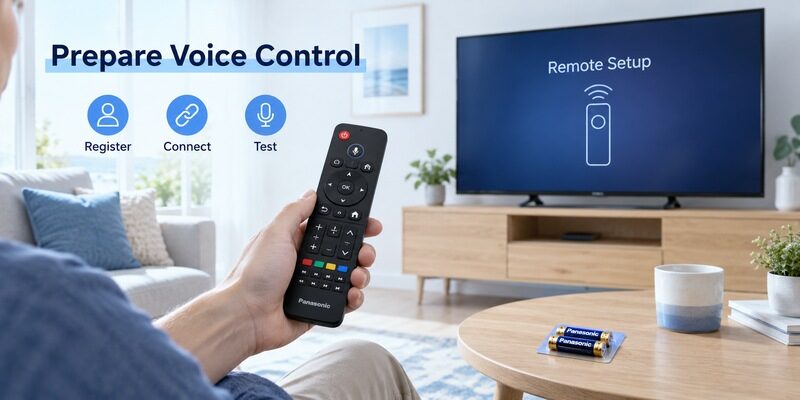
Register the supported handset
Install the specified batteries and follow the television’s remote-registration procedure. Panasonic’s Z85AGZ operating instructions explicitly distinguish Bluetooth voice operation from infrared communication. Other Panasonic families have different registration flows, so use to choose the relevant branch.
A working power button does not confirm voice readiness. Test navigation and then press the microphone button according to the manual. Keep the original working controller available until the new panasonic tv remote with voice control completes both checks.
Review the service prerequisites
Confirm network access and any required account sign-in for the actual TV platform. Select a supported language and complete the visible setup prompts. Do not confuse a phone’s assistant settings with those of the television; the two devices can have different accounts, languages, and available services.
After setup, try a simple supported request before a complicated title or multi-part command. This gives you a clear baseline. If a panasonic tv remote with voice control cannot even open a listening prompt, investigate the remote connection before spending time refining speech or changing search terms.
💡 Discover Helpful Guides: Download the Panasonic TV Remote App: Complete Setup Guide
Make Voice Requests Easier to Interpret
Use one clear task at a time
Begin with the action and the object, such as opening a supported app or searching for a program title. Use the platform’s documented examples as your reference. Avoid combining several unrelated tasks into one sentence while you are still learning what the service supports.
Judge the result on screen. A panasonic tv remote with voice control may recognize a title but return several editions, seasons, or services. Use the directional keys to choose the intended result rather than repeatedly saying the same phrase louder.
Consider a title shared by a film and a television series. A voice result may correctly recognize the name while still needing you to select the intended item. Add a distinguishing detail supported by the service, or choose from the results manually. This is a normal reason to combine speech with buttons; it does not imply that the remote microphone needs repair or that the television failed to hear the request.
Adjust for the listening environment
Reduce competing television sound or nearby conversation when testing recognition. Keep the microphone opening clear and hold the remote as the model instructions describe. A protective sleeve should not cover the microphone or make its button remain pressed.
If one viewer’s requests work more consistently than another’s, compare command wording, selected language, and the listening prompt. Do not assume the remote is broken from one misunderstood phrase. A panasonic tv remote with voice control should be assessed across repeatable, supported requests under ordinary viewing conditions.
💡 Discover Helpful Guides: Panasonic TV Remote Universal Compatibility and Setup Guide
Find Settings Home and Menu Without Voice

Home is the starting interface
If you are asking where is the home button on panasonic tv remote, look for the house symbol in the matching button diagram. Its location varies. A conventional older handset may use a different route to main functions than a newer voice remote, so photographs from another platform can be misleading.
Home can take you away from the current program to the television’s main interface. Know how to return to the viewing source before exploring. On a panasonic tv remote with voice control, Back and Input remain useful recovery keys when a spoken request opens an unexpected page.
Make a short note of the manual route for the settings you use most often. Include the visible menu name as well as the button that opens it. A panasonic tv remote with voice control remains easier to support when another viewer can reach a setting without knowing a particular assistant phrase. Update the note if the television interface changes after a software update.
Settings may be a key or an on-screen option
The answer to where is settings on panasonic tv remote depends on the model. Some remotes have a gear or menu key; others reach settings through Home or a context menu. Use the television’s own diagram instead of assuming that three horizontal lines always mean the same thing everywhere.
The menu button on panasonic tv remote can also behave according to the active screen. Open a harmless option and learn how to leave without saving a change. This makes manual navigation a dependable partner to voice rather than a set of emergency guesses.
📘 Find the Right Guide: Panasonic TV Remote: Choose, Set Up and Replace It
Change HDMI Inputs and Name Connected Equipment
Open the source selector
For how to change hdmi on panasonic tv remote, identify the Input, AV, TV/Video, or equivalent source key in the manual. Open the selector, highlight the connected socket, and confirm as required. Check which HDMI port the external device actually uses before assuming the first numbered option is correct.
The source button on panasonic tv remote controls what the television displays. It does not necessarily open the home screen of the connected streaming device. A panasonic tv remote with voice control may support a spoken input request, but the physical selector gives you a visible fallback when the assistant misunderstands the device name.
Investigate missing or renamed inputs
Panasonic’s Input Labelling support guidance explains that some models allow inputs to be marked Skip or Not Used, making them unavailable or greyed out in selection. If an expected input is missing, check the relevant label setting for your model before concluding that the remote’s Input key is defective.
Use clear names for the equipment you own where custom labels are supported. Game, Cable, or a familiar device name is easier to recognize than an unexplained socket number. After renaming, test source selection again and leave a short note for anyone who uses the television less often.
💡 Discover Helpful Guides: How to Pair Panasonic TV Remote by Controller and TV Model
Turn Subtitles On or Off in the Correct Place
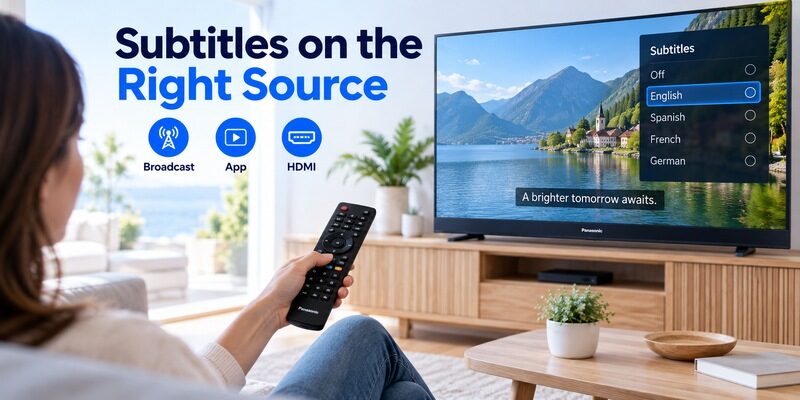
Broadcast television captions
For how to turn on subtitles on panasonic tv remote, begin by identifying whether the TV itself receives the program. A model may provide a dedicated subtitle or CC key, or a setting in its television menus. Availability still depends on the broadcast and supported content.
For how to turn off subtitles on panasonic tv remote, return to the same caption control that enabled them. Do not assume every on-screen word comes from the TV caption setting. A panasonic tv remote with voice control can also be used to navigate to that setting manually when a spoken request is unsupported.
Check whether the subtitle choice applies to the current program, the whole app, or a broader device preference. The scope can differ, so verify the result by returning to playback rather than assuming one menu change affects every source. If another viewer needs captions regularly, preserve their preferred setting and explain any source-specific limitation instead of repeatedly changing several unrelated caption options.
Streaming apps and HDMI sources
An app or external box may generate its own subtitle track. Panasonic’s support page about the CC button specifically notes that captions for an HDMI-connected cable or satellite box must be enabled on that device. Use the active app’s playback or accessibility controls for its subtitles.
If subtitles remain after the television’s CC setting is off, inspect the source’s own menu. Avoid turning off unrelated accessibility features in an attempt to remove them. Distinguishing the source is the key step in panasonic tv remote subtitles troubleshooting, especially when several devices share one television.
Download TV Remote App📘 Find the Right Guide: App for Panasonic TV Remote: VIERA and Platform Options
Separate Voice Commands from Voice Guidance
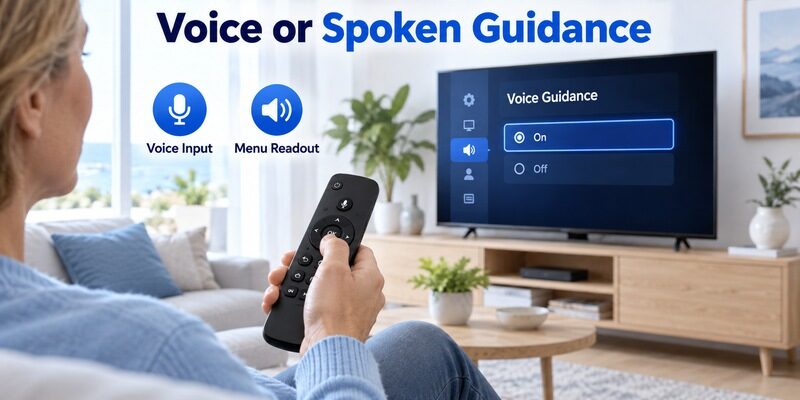
Voice control listens to the viewer
A panasonic tv remote with voice control accepts supported spoken requests through the microphone. Its purpose is to let you ask for a search or action. A listening indicator or assistant response is part of that interaction, depending on the platform.
Changing the TV’s spoken-menu settings does not necessarily disable microphone input. Keep these features separate when helping someone who says that “the TV is talking.” Ask whether it speaks after a microphone request or reads menu items during ordinary button navigation.
Voice guidance reads information aloud
Panasonic’s Voice Guidance support describes an audio readout of basic functions on specified series. For supported examples such as AS680 and CX600, its guidance uses Menu, Sound, Voice guidance settings, then Voice guidance. That path is model-specific and should be checked against the actual television.
Voice guidance is an accessibility output feature. It differs from speech entering through a remote microphone. A panasonic tv remote with voice control can coexist with it, and either feature may be useful independently. Adjust the relevant setting instead of resetting the entire television to stop an unexpected spoken prompt.
💡 Discover Helpful Guides: Download the Panasonic TV Remote App: Complete Setup Guide
Control a Fire Stick or Other HDMI Device Carefully
Confirm HDMI control on both sides
To control fire stick with panasonic tv remote, check the supported HDMI-CEC arrangement and settings on both devices. Panasonic uses names including VIERA Link and HDAVI Control in its documentation. Available commands depend on the combination of equipment, and compatibility should be verified in the relevant manuals.
Basic navigation does not imply complete assistant control. A TV remote may pass certain button commands without becoming the streaming device’s native voice handset. Keep the distinction clear when judging a panasonic tv remote with voice control that works in the TV interface but behaves differently on an HDMI source.
An external device can also change inputs or power through supported linked-control behavior. If the television switches unexpectedly when that device starts, note the sequence and inspect the relevant HDMI-control settings. A panasonic tv remote with voice control does not necessarily cause every change that occurs while it is nearby. Understanding which device initiated the action prevents an unrelated pairing reset.
Keep the source remote available
Test arrows, confirmation, Back, and playback controls in the external device’s interface. If a command is missing, use the device’s own remote while checking its supported control features. Re-pairing the TV handset is not automatically the remedy for a command that the HDMI arrangement never supported.
Avoid changing several HDMI-control options at once. Note the original setting, change one relevant option, and test the same task. That keeps the relationship between TV power, source selection, and external-device control understandable for the household.
Use Text Entry When Speech Is the Wrong Tool
On-screen keyboards provide precise choices
A panasonic tv remote keyboard feature may mean an on-screen keyboard rather than a physical keyboard built into the handset. Use the arrows and confirmation key to enter a title or correct a character. Check the actual screen before assuming a special keyboard button exists on every remote.
Manual entry is useful for ambiguous names and exact characters. A panasonic tv remote with voice control can help find ordinary titles, while the keyboard resolves spelling that speech repeatedly misinterprets. Use the input method that best fits the task rather than treating voice as a requirement.
Keep private entry on the intended device
For passwords or other sensitive text, follow the platform’s visible entry method and review where the text will appear. Avoid speaking private information aloud in a shared room merely because the microphone is convenient. A supported phone keyboard may be another option if the television platform provides one.
Do not assume that any third-party remote app supplies every keyboard function. Confirm the app and television’s actual capabilities, then test a harmless search field. This establishes whether the alternative is useful before you depend on it for a longer setup task.
💡 Discover Helpful Guides: Panasonic TV Remote Universal Compatibility and Setup Guide
Diagnose Voice Failure from the Visible Result

| Result after pressing the microphone | Check next |
|---|---|
| No listening interface | Handset compatibility registration and button condition |
| Listening appears but no usable result | Network language service and request wording |
| Search works but a setting command fails | Whether that action is supported |
| Voice works on TV but not HDMI source | Which device and assistant receive the request |
For a panasonic tv remote with voice control, record the exact result before changing settings. The guide covers broader button and power faults. A narrow voice problem deserves a narrow diagnosis rather than a television factory reset as the first response.
Remote control for tv app can provide manual navigation on compatible networked setups while the microphone issue is investigated. Check the requirements and verify the intended television. It can offer another control route without guaranteeing that it restores the TV’s native voice service.
When asking for voice support, provide one concrete example of a request and its visible result. State the television model, remote identity, selected language, and whether ordinary navigation works. That information helps distinguish a microphone path problem from an unsupported request. Keep any account details private; the useful diagnostic evidence is the behavior and setup context, not the password used to sign in.
Frequently Asked Questions
Does every Panasonic television support a voice remote
No. Confirm the exact model and compatible handset. A panasonic tv remote with voice control cannot add unsupported microphone services to an older television simply by replacing its original remote. Basic infrared compatibility is a separate question.
Why does Power work while the microphone does not
The functions can use different communication paths and prerequisites. Check wireless registration and service setup after confirming handset compatibility. Power alone is not a complete voice test.
Can voice turn subtitles off in every app
Do not assume universal support. Caption controls can belong to the television, an app, or an HDMI device. Use the active source’s subtitle menu when the voice request is unavailable or affects the wrong setting.
Is spoken menu guidance the same as voice control
No. Guidance reads information aloud; voice control accepts spoken requests. Identify which behavior you want to change, then use its model-specific setting. There is no need to disable both simply because one is unwanted.
📖 Read More Guides: Panasonic TV Remote Replacement Buying and Compatibility Guide
Final Thoughts
Save one or two voice requests that work well for the household, along with the manual route to the same task. That gives another viewer an immediately usable example without promising that every possible command is supported.
A panasonic tv remote with voice control works best when the handset, television platform, registration, and voice service all match. Test speech separately from basic power and navigation, and keep the physical controls familiar.
Use the correct source for subtitles and HDMI-device tasks, and distinguish spoken menu guidance from microphone input. When a request fails, the visible result tells you whether to review pairing, service setup, wording, or the active device.