
Samsung Remote TV: Setup, Pairing & Troubleshooting
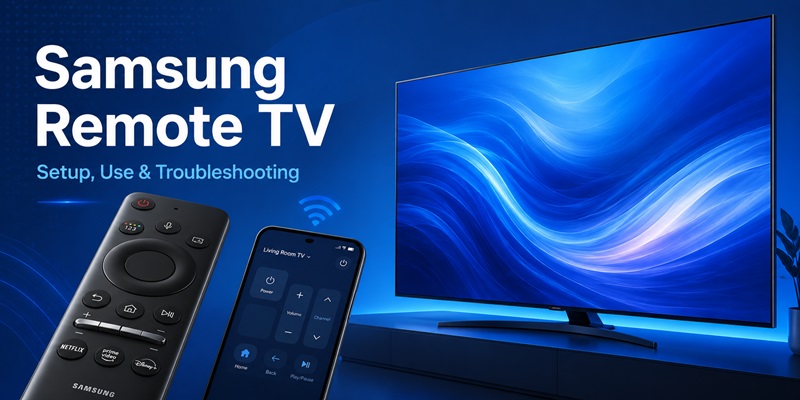
Quick Answer: A Samsung TV can be controlled using a traditional infrared remote, a Bluetooth-enabled Samsung Smart Remote, a rechargeable SolarCell Remote, or the SmartThings app on a compatible smartphone. To pair many Samsung Smart Remotes, turn on the TV, point the remote toward it, and hold Return and Play/Pause together for at least three seconds.
If your Samsung remote is not working, check the batteries or charge level, try pairing it again, and confirm that the television responds to its physical controls before buying a replacement.
A Samsung remote TV setup can also control compatible soundbars, streaming devices, and other connected equipment through features such as Anynet+ (HDMI-CEC) and Universal Remote Setup.
This guide explains how Samsung remotes work, how to pair and use them, how to control a Samsung Smart TV with your phone, and how to troubleshoot common problems.
Samsung TV Remote Types: Which One Do You Have?
Samsung televisions use different remote-control designs depending on the model, production year, and region.
Identifying your controller helps you choose the correct setup, charging, and troubleshooting instructions.
| Remote Type | Connection | Power Source | Main Features |
|---|---|---|---|
| Traditional Samsung remote | Infrared | Replaceable batteries | Power, volume, channels, number buttons |
| Samsung Smart Remote | Bluetooth and/or infrared | Batteries or rechargeable power | Smart Hub, navigation, voice on supported models |
| Samsung SolarCell Remote | Bluetooth and/or infrared | Rechargeable battery | Smart controls, solar charging, USB-C charging |
| SmartThings mobile remote | Network | Smartphone battery | Phone-based navigation and TV controls |
| Universal remote | IR, Bluetooth, or other supported methods | Varies | Control multiple compatible devices |
Traditional Samsung TV Remote
A traditional Samsung remote normally includes dedicated buttons for power, volume, channels, numbers, input selection, and menu navigation.
Most standard infrared remotes require a clear path to the TV’s infrared sensor.
They generally do not need Bluetooth pairing, although compatibility depends on the television and remote model.
Traditional remotes can be useful if you prefer physical buttons or need a simple replacement.
Samsung Smart Remote and One Remote
Samsung Smart Remote models often use a simplified button layout.
Common controls include:
- Power
- Home
- Return or Back
- Directional navigation
- Select
- Volume and channel rockers
- Play/Pause
- Voice or microphone button on supported models
Many Smart Remotes communicate through Bluetooth for navigation and advanced functions while using infrared for certain commands.
This explains why a remote may still turn the television on but fail to navigate menus when Bluetooth pairing is lost.
Samsung’s One Remote concept also supports control of selected connected devices through compatible television features.
Samsung SolarCell Remote
Some newer Samsung televisions include a SolarCell Remote with a rechargeable internal battery.
Instead of replacing disposable batteries, you can recharge the controller using:
- Light reaching the solar panel on the back
- A compatible USB-C charging cable
Place the rear solar panel facing upward where it can receive suitable light.
If the remote battery is low, USB-C charging is generally faster than relying on light alone.
The exact buttons, charging behavior, and supported functions depend on the remote model.
SmartThings Phone Remote
SmartThings allows a compatible Android phone or iPhone to act as a remote for supported Samsung Smart TVs.
After adding your television to SmartThings, select the TV to open the available mobile remote controls.
This is useful when the original controller is lost, damaged, or charging.
For a detailed smartphone setup, see our control Samsung TV with phone guide.
📖 Read More Guides: Remote Samsung Smart TV: Complete Control Guide
How to Pair and Set Up a Samsung Smart Remote
A Samsung Smart Remote may need to be paired after replacing the controller, resetting it, or losing its Bluetooth connection.
Step 1: Turn On Your Samsung TV
Use the TV’s physical power button or an available working remote to turn on the television.
Stand close to the screen during pairing.
Step 2: Check the Remote Power
If your controller uses replaceable batteries, install fresh batteries with the correct polarity.
If it is a SolarCell Remote, make sure it has sufficient charge.
Step 3: Pair the Samsung Smart Remote
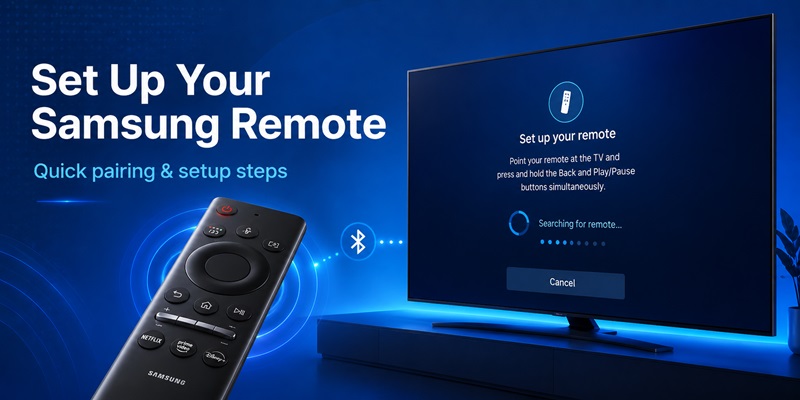
For many compatible Samsung Smart Remotes:
- Point the remote toward the television.
- Press and hold Return and Play/Pause together.
- Continue holding for at least three seconds.
- Wait for the pairing message on the TV.
- Release the buttons and test navigation.
This is a common Samsung pairing method, but exact instructions can vary by remote generation.
Step 4: Test the Main Controls
After pairing, check:
- Home and Back
- Directional navigation
- Volume and channels
- Input selection
- Voice controls, if supported
- Playback buttons
If Power works but Home and navigation do not, Bluetooth pairing may still be incomplete.
Step 5: Check the TV Model if Pairing Fails
Find the television’s full model number on its rear label or in its settings.
Use the model number to verify that the remote is compatible.
A similar-looking Samsung remote may not support every function on another TV model.
For additional physical remote instructions, see our Samsung remote control manual guide.
Samsung Smart Remote Features: One Remote, Anynet+ & Universal Control
A Samsung remote control smart setup can do more than change channels and volume.
Compatible Samsung TVs can coordinate control of soundbars, receivers, streaming players, and other connected devices.
What Is Samsung One Remote?
Samsung One Remote is a simplified remote-control approach designed to operate the TV and selected connected devices through a single controller.
The available functions depend on the television, remote, and external equipment.
For example, you may be able to:
- Open Smart Hub
- Switch HDMI inputs
- Adjust soundbar volume
- Navigate supported streaming devices
- Control media playback
- Use supported voice commands
What Is Anynet+ (HDMI-CEC)?
Anynet+ is Samsung’s name for HDMI Consumer Electronics Control, commonly called HDMI-CEC.
It allows compatible HDMI-connected devices to exchange certain control commands.
Depending on your setup, Anynet+ may support:
- Power synchronization
- Automatic input switching
- Playback commands
- Volume control through compatible audio equipment
To enable Anynet+, open your Samsung TV settings and look for the HDMI-CEC or Anynet+ option.
On many models, it appears under External Device Manager or a related Connections menu.
The exact path varies by TV generation.
How to Set Up Universal Remote Control
Some Samsung TVs include Universal Remote Setup for compatible external equipment.
A typical setup process is:
- Connect the external device to your Samsung TV.
- Open the TV’s Home or Connected Devices screen.
- Find Universal Remote Setup, if available.
- Select the type of connected device.
- Follow the on-screen instructions.
- Test the required buttons.
This feature may help control supported set-top boxes, Blu-ray players, and other equipment.
Not every external device supports all commands.
Control a Samsung Soundbar With the TV Remote
If you use a compatible Samsung soundbar, connect it through the appropriate HDMI ARC/eARC connection when available.
Enable the necessary HDMI-CEC settings and select the correct TV audio output.
Depending on the devices, you may be able to control soundbar volume using your Samsung TV remote.
For more detailed instructions, see our control Samsung soundbar with TV remote guide.
📘 Find the Right Guide: Remote Samsung Smart TV: Complete Control Guide
When Should You Use Anynet+ or Universal Remote Setup?
Use Anynet+ when the connected device supports HDMI-CEC and the required controls work correctly.
Use Universal Remote Setup when your television offers that feature and an external device needs additional configuration.
Some systems benefit from both methods.
How to Control Samsung TV With Your Phone
If your physical remote is unavailable, SmartThings is Samsung’s official mobile-control solution for compatible televisions.
Download SmartThings
SmartThings is available on Android and iPhone.
Download the application from Google Play or the Apple App Store and verify that Samsung Electronics is the publisher.
Connect Your Phone to Samsung Smart TV
To use SmartThings as a Samsung TV remote:
- Turn on your Samsung television.
- Connect your phone and TV to a compatible network.
- Open SmartThings.
- Sign in with a Samsung account if required.
- Add your Samsung TV as a device.
- Approve any registration request shown on the television.
- Select the TV in SmartThings.
- Open the available remote interface.
Samsung’s mobile remote controls can include volume, channels, Home, Back, navigation, and input selection, depending on the television.
Can You Control Samsung TV Without the Original Remote?
Yes, if the TV is already configured, connected to a compatible network, and can complete any required registration or approval.
However, initial setup, factory resets, and network changes may still require a physical remote or the television’s own controls.
Can SmartThings Work Without Wi-Fi?
SmartThings TV remote functionality generally depends on compatible network connectivity and Samsung account services.
If your television is offline, the mobile remote may not be available.
An Android phone with an infrared blaster may provide an alternative for certain Samsung TVs, but this requires compatible hardware and software.
Read our Samsung TV phone control without Wi-Fi guide for additional options.
📖 Read More Guides: Free Samsung TV Remote App Android: Download and Control Your TV
How to Charge or Replace Samsung Remote Batteries
Samsung remote battery requirements depend on the controller type.
Replace Batteries in a Traditional Samsung Remote
For a remote with replaceable batteries:
- Open the battery compartment.
- Remove the old batteries.
- Check the required battery size and polarity.
- Insert fresh batteries.
- Close the cover.
- Test the Power and Home buttons.
Avoid mixing old and new batteries.
Charge a Samsung SolarCell Remote
If you have a SolarCell Remote:
- Check whether the remote responds.
- Place the rear solar panel under suitable indoor or natural light.
- For faster charging, connect a compatible USB-C cable.
- Allow sufficient time for charging.
- Disconnect the cable and test the remote.
Do not attempt to install disposable batteries in a sealed SolarCell controller.
How to Check Samsung Remote Battery Level
Some Samsung TVs display the Smart Remote battery level in the television settings.
The menu path varies by model.
Look for a remote-control information or power-management section.
If the remote responds slowly or inconsistently, charge it or replace its batteries before troubleshooting other features.
📖 Read More Guides: Samsung TV Remote Control Online: Safe Control Guide
Samsung TV Remote Not Working? Troubleshooting
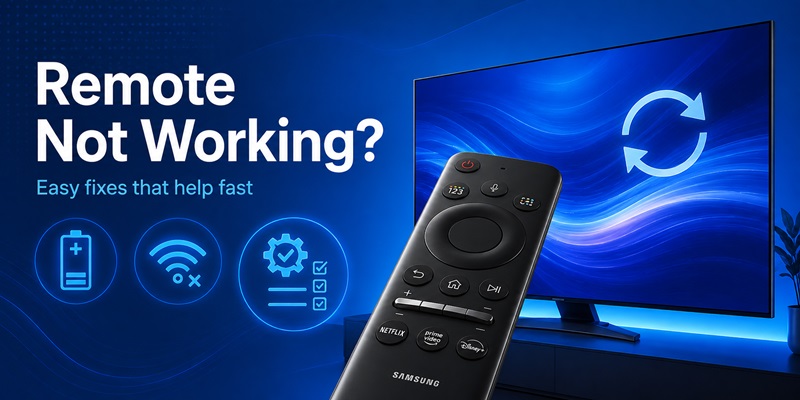
A Samsung remote may stop working because of low power, lost pairing, infrared obstruction, software issues, or problems with connected devices.
Use the following checks before buying another controller.
1. Check the Television
Try turning on the TV using its physical power button.
If the television does not respond to its own controls, the issue may not be the remote.
2. Replace or Recharge the Batteries
Replace disposable batteries or charge the SolarCell Remote.
Low power can cause intermittent button responses.
3. Check the Infrared Sensor
Remove objects blocking the TV’s sensor.
If you use a traditional infrared remote, point it toward the television and test Power or Volume.
Some smartphone cameras can detect infrared emissions, although this test does not verify Bluetooth communication.
4. Pair the Smart Remote Again
For compatible Smart Remotes, hold Return and Play/Pause together for at least three seconds.
Wait for the pairing confirmation.
If the remote controls Power but not Home or navigation, this step is especially relevant.
5. Restart the Samsung TV
Turn off the television.
Disconnect it from power briefly, then reconnect and restart it.
Try the remote again.
6. Check External Device Controls
If the Samsung TV responds but a soundbar or streaming device does not, check:
- Anynet+ settings
- HDMI connections
- Audio output selection
- Universal Remote Setup
- External device compatibility
A problem with one connected device does not necessarily mean the Samsung remote is defective.
7. Try SmartThings
If your television is already connected to SmartThings, test the mobile remote.
If the phone controls the TV normally but the physical remote does not, focus on the physical controller’s power, pairing, and hardware.
For a more detailed diagnosis, read our Samsung TV remote control not working guide.
📖 Explore Articles: Samsung Remote Control Volume: How to Use It and Fix Common Problems
How to Choose a Replacement Samsung TV Remote
If troubleshooting does not restore your remote, choose a replacement based on your exact Samsung TV model.
Original Samsung Remote
An original model-compatible Samsung remote is usually the safest choice when you need full support for Bluetooth pairing, voice functions, or model-specific buttons.
Third-Party Replacement Remote
A compatible third-party remote may be sufficient for basic functions such as power, volume, channels, and navigation.
However, advanced features may be unavailable.
Universal Remote
A universal remote may be useful when you want to control several devices.
Check supported Samsung TV models and whether the remote requires programming.
SmartThings as a Backup
SmartThings can serve as a convenient backup for a compatible Samsung Smart TV.
However, it should not always be your only control method because network changes or initial setup may require physical access.
What to Check Before Buying
Before choosing a replacement:
- Find your full Samsung TV model number.
- Check the original remote model.
- Confirm Bluetooth or infrared compatibility.
- Verify voice-control requirements.
- Check whether the remote uses replaceable or rechargeable batteries.
- Review the seller’s compatibility information and return policy.
A replacement that looks identical may not support every feature of your original controller.
FAQs About Samsung TV Remotes
How do I pair a Samsung Smart Remote?
For many compatible models, turn on the TV, point the remote toward it, and hold Return and Play/Pause together for at least three seconds until the pairing message appears.
What is the difference between a Samsung Smart Remote and a regular remote?
A regular remote typically uses infrared and has more dedicated buttons. A Samsung Smart Remote may use Bluetooth, a simplified layout, and additional smart features.
What is Samsung One Remote?
Samsung One Remote is a simplified controller concept that can operate the TV and selected compatible connected devices.
What is Anynet+ on Samsung TV?
Anynet+ is Samsung’s HDMI-CEC technology, which enables certain control commands between compatible HDMI-connected devices.
Can I use my phone as a Samsung TV remote?
Yes. Compatible Samsung Smart TVs can be controlled through the SmartThings app after the television has been registered.
Does SmartThings work with every Samsung TV?
No. Mobile remote compatibility and available functions depend on the television model, software, and network configuration.
How do I charge a Samsung SolarCell Remote?
Expose its rear solar panel to suitable light or use a compatible USB-C charging cable.
Why does my Samsung remote turn on the TV but not navigate menus?
On some Smart Remote models, Power may work through infrared while navigation requires Bluetooth pairing. Try pairing the remote again.
Can a Samsung remote control a soundbar?
Yes, on supported setups. HDMI-CEC, compatible audio connections, and the correct TV settings may allow soundbar volume control.
Can I use a universal remote with Samsung Smart TV?
Yes, if the universal remote supports your Samsung television model and the functions you need.
How do I find the correct Samsung replacement remote?
Use your TV’s full model number and check the replacement remote’s compatibility, connection method, and supported features.
Final Thoughts
The right Samsung remote TV setup depends on your television model and how you want to control it.
A traditional infrared remote is useful for basic functions, while a Samsung Smart Remote offers simplified navigation and additional features on compatible TVs. SolarCell models provide rechargeable convenience, and SmartThings offers a mobile remote option.
If you want to control soundbars and other connected equipment, explore Anynet+ and Universal Remote Setup.
Before replacing a remote that stops working, check its power, pairing, and device connections. These simple steps can often restore normal control without buying new hardware.
