
Sharp TV Remote App Free: Choose AQUOS, Roku, or Google TV Control
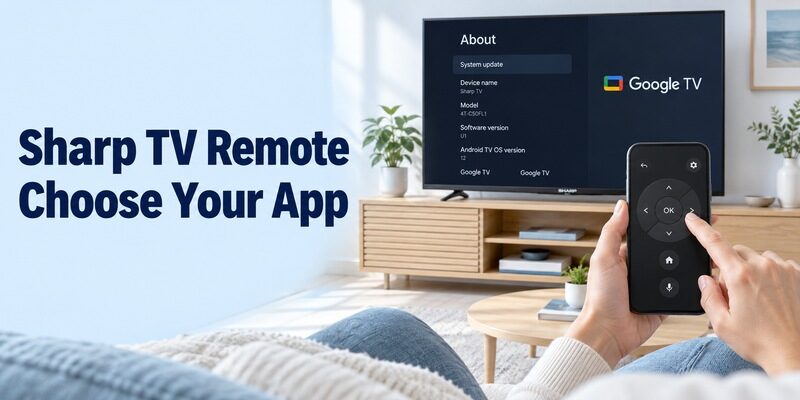
Short answer: Choose the free app that supports your Sharp TV’s actual platform: AQUOS TV Remote for listed compatible models, Roku for a Sharp Roku TV, or Google TV for compatible Google TV and Android TV equipment. A sharp tv remote app free search can return all three, but they are not interchangeable.
The Sharp badge alone does not identify the television’s software or regional support. An older AQUOS guide can also point to an application that has since been replaced. This guide helps you select the appropriate route, complete its connection process, and verify the controls you need. Start with the model and operating system, keep a usable controller nearby, and check the current app publisher before installing anything.
Sharp TV Remote App Free: Compare the Supported Routes
Choose by platform and exact model before comparing interfaces. A free download is useful only when the application can communicate with the television you own.
| Your television or setup | Starting point | What to verify |
|---|---|---|
| AQUOS model listed by Sharp Japan | AQUOS TV Remote | Exact model and required TV settings |
| Sharp Roku TV | Roku mobile app | Roku built into the television |
| Compatible Sharp Google TV or Android TV | Google TV mobile app | Actual Google TV or Android TV platform |
| Older television with infrared control only | Compatible IR hardware and controller | Phone transmitter and matching command profile |
| HDMI streaming device connected to Sharp TV | The streaming platform’s app | Which device handles navigation and sound |
Read the complete television identity
Find the model on the television’s information screen, rear label, or purchase documents. Record the country where it was sold. Use the corresponding regional Sharp support site, because a similar-looking model elsewhere may have a different operating system.
For a sharp tv remote app free choice, a retailer’s short description is only a starting clue. The model’s manual and the active Home screen provide a stronger basis for choosing the app.
Keep a streaming box separate from the television
A Roku or Google streaming device connected to HDMI can supply its own Home screen. That does not necessarily mean the Sharp television itself runs that platform. Identify the target before expecting its app to open the TV’s picture settings.
A sharp tv remote app free setup should make that distinction clear to everyone using it. Save a recognisable device name where supported, particularly if the room contains more than one television or player.
Replace AQUOS Connect Instructions with the Current App
AQUOS Connect is an outdated starting point. Sharp’s official service notice states that the smartphone application ended service on March 31, 2025, and directs users to AQUOS TV Remote.
Follow the replacement named by Sharp
If an old tutorial tells you to download AQUOS Connect, use Sharp’s current support guidance for the replacement instead. Check the supported-model list before assuming the newer app applies to every television carrying the AQUOS name.
This matters during a sharp tv remote app free search because archived instructions can remain visible long after an application changes. A familiar icon or an old installation file does not establish current support.
Distinguish the old app from a television setting
Some supported televisions can still have an AQUOS Connect label inside their network-control settings. Sharp’s current instructions account for that wording. The presence of the old name in a television menu does not mean you should reinstall the retired phone application.
Keep the TV model and the app identity as separate checks. For a sharp tv remote app free migration, preserve the television’s working network configuration while following the instructions for its specific generation.
Connect AQUOS TV Remote on a Listed Compatible Model
Use Sharp’s model-specific preparation steps before discovery. Its AQUOS TV Remote support page separates Google TV, Android TV, and other supported AQUOS televisions.
Enable the documented network-control option
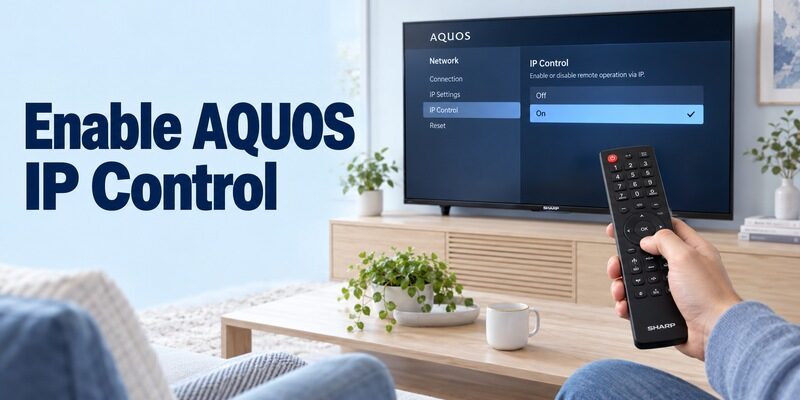
Sharp’s guide calls for a shared home network; the television may also use Ethernet on that network. On the documented Google TV route, enable Remote operation (IP control) under Network & Internet. Other supported generations use the corresponding communication or AQUOS remote setting described in their own instructions.
Do not translate that example into a universal menu path for every Sharp TV. If the option is absent, confirm the model against the support list before changing unrelated settings. A sharp tv remote app free installation cannot add a network-control service that the television does not provide.
Register the intended television
Open AQUOS TV Remote, complete its introductory screens, and choose the intended television from the discovered devices. Sharp’s guide then moves to the remote interface after connection. Follow any current prompts shown by your actual setup.
For a sharp tv remote app free test, move one menu highlight and return to the previous screen. A saved television name alone is not proof that commands are reaching the correct set. Reopen the app and repeat the same action to verify a second session.
Read more: 4 Digit Universal Remote Codes for Roku TV
Use the Roku App for a Sharp Roku TV
A Sharp Roku TV uses the Roku control route. Sharp’s official Roku television announcement explicitly identifies the free Roku mobile app as a supported feature of that product family.
Select the television through Roku
Install the Roku-published mobile application on a supported phone. Keep the television awake and connected to the same home network, open the device selector, choose the correct Roku TV, and open its remote controls.
A sharp tv remote app free result from an unrelated publisher is not the same as Roku’s official application. Check the developer name on the actual store page before accepting an unfamiliar purchase or trial prompt.
Verify the television and viewing source
Test Home, directional movement, selection, and Back. Then check the ordinary source you watch. If an external receiver changes broadcast channels, its controls remain a separate question from navigation around the Roku television.
For a sharp tv remote app free arrangement used by several people, demonstrate how to return to the usual input. A successful app installation is less useful if the next viewer cannot recover after selecting the wrong source.
Read more: Free Roku Remote Control App: Best Options and Setup
Pair Google TV with a Compatible Sharp Television
Google’s mobile remote applies to compatible Google TV and Android TV devices. Use this route when the television’s actual system supports it, rather than because a casting button or YouTube application is present.
Pair from Android or iPhone
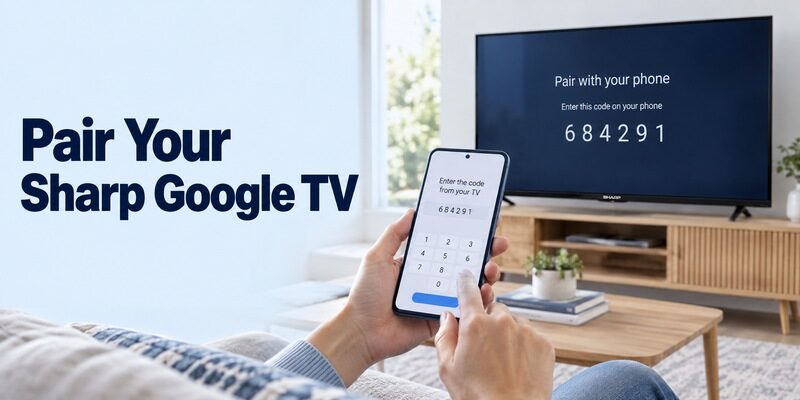
Google’s connection instructions describe opening Google TV, choosing TVs nearby, selecting the target, entering the code displayed by that device, and tapping Pair. Use the current equivalent controls if the interface wording changes.
Keep the correct screen visible throughout a sharp tv remote app free pairing attempt. If the code appears on another television, return to the selector and choose the intended device. The displayed pairing code is not a universal infrared code from a brand list.
Test navigation before additional features
Open Home, move between a few items, and return with Back. Try a short word in a supported search field to evaluate phone keyboard entry. Different television apps may handle individual text fields differently.
The broader guide covers this platform route in more detail. For Sharp equipment, keep the television’s own model information available when investigating commands outside ordinary platform navigation.
Evaluate AQUOS Buttons and Optional Functions Separately
A working directional pad does not verify every special television feature. Sharp’s AQUOS app description includes channel, volume, guide, and other controls while qualifying available functions by model.
Begin with the controls you actually need
Make a short list: opening the guide, selecting a channel, adjusting sound, and returning to the usual viewing source. Test each action on the television rather than relying on the app’s button animation.
A sharp tv remote app free evaluation should use the same source throughout each test. Switching between a tuner, streaming application, and HDMI receiver can change which device is responsible for the requested action.
Treat advanced features as model-dependent
Direct service buttons, broadcast-related functions, and connected-recorder controls should be checked against the specific model’s supported-function information. Their appearance in a general app description is not proof that every Sharp television exposes them.
Keep a physical controller for any task the phone does not support. Missing one optional function does not necessarily mean the entire connection needs to be erased and paired again.
Read more: How to Pair New Roku Remote Without Old One
Check Sound and Standby as Separate Problems
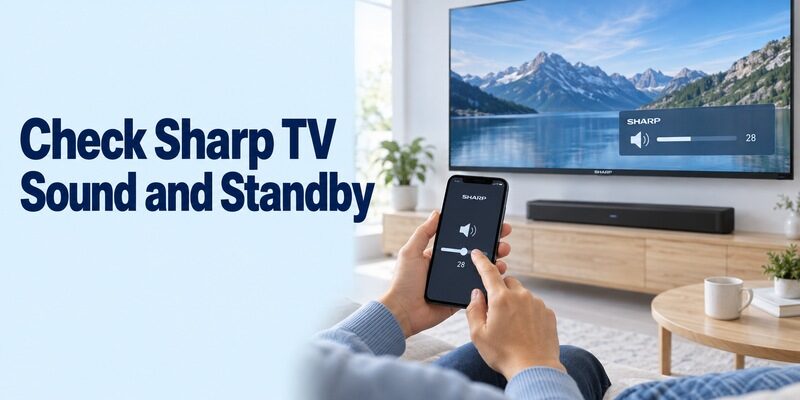
Sound output and waking from standby deserve their own tests. They can fail even when ordinary menu navigation works.
Identify the active audio device
Check whether sound comes from the television speakers, a soundbar, or an AV receiver. Change the volume by one step and restore it. Observe the device that responds, not just the indicator shown on the phone.
For a sharp tv remote app free setup involving HDMI equipment, consult the applicable HDMI-CEC and audio-control instructions. A physical remote may operate external sound hardware through a different command path than the phone.
Test after a normal standby interval
Sharp’s AQUOS app listing directs users with power-on difficulties to the television’s Quick Start setting; current model instructions can use other energy-mode wording. Follow the exact model guidance rather than assuming every set has an identical option.
Once ordinary navigation works, repeat the test after the television has been in standby. If the phone cannot wake it, use the physical controller and check whether phone navigation resumes. That separates standby availability from a complete loss of compatibility.
Troubleshoot the First Stage That Fails
Locate the failure before reinstalling the app. Discovery, connection, navigation, sound, and standby depend on different conditions.
| What happens | Check first | Useful next step |
|---|---|---|
| No television appears | Platform, power, and shared network | Wake the target and confirm its connection |
| AQUOS app cannot connect | Supported model and network-control setting | Follow that model’s current preparation guide |
| Another television responds | Selected device identity | Return to the app’s selector |
| Menus work but sound does not | Active speakers and external audio equipment | Test the documented audio-control route |
| Failure follows a router replacement | Network saved on the television | Reconnect the TV with a working controller |
Compare network access on both devices
Read the network name on the phone and television. Pay attention to guest networks or isolated connections. Internet access on the phone alone does not demonstrate that it can discover devices on the home network.
When investigating a sharp tv remote app free connection, change one relevant condition at a time. Return to the same device selector after each change so the result remains understandable.
Preserve the evidence from a successful connection
Record the app name, publisher, TV model, and first action that worked. If another household phone still operates the set, compare its selected device and app settings before altering the television.
Avoid factory-resetting a working TV merely because its original remote is misplaced. A reset can remove the network configuration you need and create an initial-setup problem that the phone cannot resolve by itself.
Understand Free Use and Infrared Requirements
Free software does not create missing control hardware. An older Sharp television without a supported network remote may require a compatible physical infrared controller or a phone with a suitable transmitter.
An ordinary iPhone does not acquire an IR blaster through an app download. Some Android phones contain infrared hardware, but that must be confirmed in the phone’s specifications. A camera, flashlight, Bluetooth connection, or brand selection screen is not a substitute for the transmitter.
When an infrared app offers several Sharp profiles, test more than power before saving one. Check volume, navigation, and input selection with reversible actions. A partially matching profile can operate one button while sending incorrect commands for another.
A sharp tv remote app free listing may describe an independent product with ads, optional purchases, or a limited free tier. Read the actual store terms. Sharp’s own AQUOS Google Play listing currently identifies ads; that is separate from whether a particular television is compatible.
Before discarding an IR profile, verify that the phone emitter points toward the television and that the path is unobstructed. Then repeat a single ordinary command. If the hardware is absent, stop changing software profiles and choose a control method that actually supplies the required signal.
Keep a Second Control Route Ready
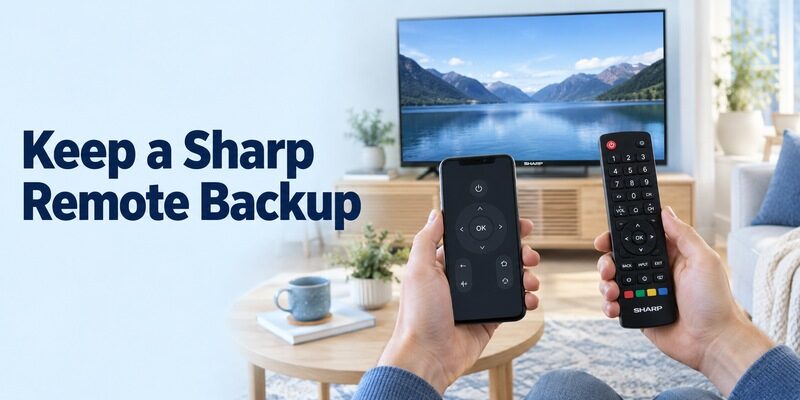
Choose an alternative for a specific practical need. Review if you want another supported phone interface, and confirm compatibility with your exact television and phone before relying on it.
Keep the working official app available while comparing the alternative. Use the same television state, viewing source, and sound output in each test. This makes it easier to identify a real usability improvement rather than an accidental difference between two setups.
A physical backup remains useful for initial configuration, router changes, and a phone with a depleted battery. Store it somewhere accessible and confirm that it can open the network settings and select the usual input.
For a sharp tv remote app free household routine, show another person the saved device name and how to reach the remote screen. Repeat the demonstration after closing and reopening the app, because its starting screen may contain entertainment or promotional content instead of the controls.
Keep a simple record for the next phone
Write down the successful app publisher, television model, and the name shown in its device selector. This is useful when replacing a phone or helping a guest. Do not record account passwords in the same note; the purpose is to identify the working control route and the normal viewing source.
A sharp tv remote app free setup can otherwise become difficult to reproduce when several similarly named applications remain installed. Remove an unused app only after confirming which one provides the working connection. Keep the actual television configuration unchanged during that cleanup.
Test the ordinary handover between controllers
Start a familiar programme with the phone, return Home, and then select the usual input with the physical controller. Switch back to the phone and check navigation again. This short sequence reveals whether the two controllers operate the same device or separate parts of the entertainment setup.
For a sharp tv remote app free comparison, repeat the same handover with the alternative application. Note any task that still requires the television remote, such as reaching a model-specific picture menu. The goal is a clear everyday routine that another person can follow without guessing which device a button controls.
Frequently Asked Questions
Is there one official free app for every Sharp TV?
No single route covers every model and market. Choose AQUOS TV Remote, Roku, Google TV, or another explicitly supported option according to the actual television. Check the regional model documentation before installing.
Can I still follow an AQUOS Connect tutorial?
Use it cautiously. Sharp ended the phone app’s service in March 2025 and named AQUOS TV Remote as its replacement. A television setting can retain older wording, so follow the current model-specific instructions.
Will the app work when the TV is not connected to Wi-Fi?
A network remote needs an appropriate local connection; supported Ethernet arrangements can also qualify. Infrared is a separate hardware route. Installing another Wi-Fi app does not connect an offline television automatically.
Why does the app navigate but fail to adjust sound?
The soundbar, receiver, or current audio configuration may use a different control path. Check the active output and the model’s supported audio controls before treating this as a pairing failure.
Final Thoughts
The right sharp tv remote app free choice starts with the exact platform, model, and regional support. Use current AQUOS replacement guidance where applicable, Roku for Sharp Roku TV, or Google’s remote for compatible Google TV and Android TV equipment.
Verify visible navigation, test sound and standby separately, and keep a physical fallback. A dependable everyday connection is more valuable than collecting several unverified remote applications.
