
Skyworth TV Remote App Free: Set Up Google TV, CooLink, or CastPlay
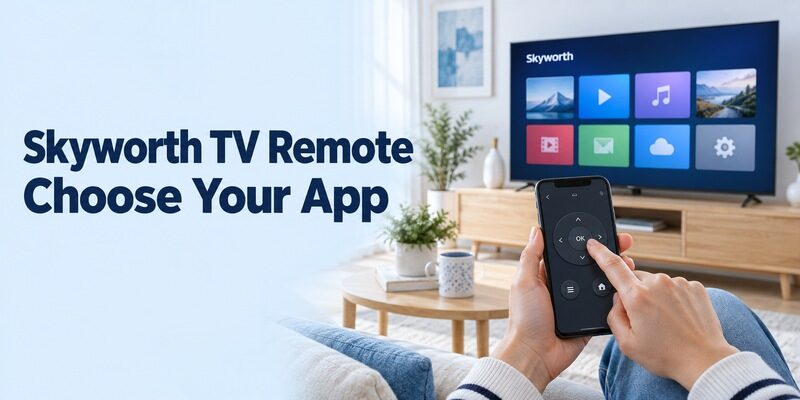
Short answer: Start with Google’s free Google TV app for a compatible Skyworth Google TV or Android TV. For a supported Coolita model, check CooLink; use CastPlay where your model’s Skyworth instructions identify it. A skyworth tv remote app free search therefore needs the television’s platform before it needs another download.
Skyworth sells televisions with different software, and an official-looking app name can also describe warranty services instead of remote control. This guide explains the main routes, how to make the first connection, and what to test afterward. It also covers iPhone requirements, older infrared televisions, and missing-device problems. Keep the existing controller nearby until the phone can operate the intended television reliably and recover the normal viewing source.
Skyworth TV Remote App Free: Start with Google TV Where Supported
Choose Google TV only when the target supports Google’s remote platform. Skyworth’s SUE7600 product information, for example, identifies Google TV remote; its E5000G information identifies a different system, Coolita.
Verify the platform on your television
Read the exact model label and open the TV’s system information with its current controller. Match that model to the regional support documentation. Do not rely only on screen size, a YouTube tile, or a casting feature.
For a skyworth tv remote app free choice, the actual platform matters more than a generic promise to support smart televisions. A Google streaming device plugged into HDMI also has its own interface; distinguish that player from the Skyworth television displaying it.
Install Google’s own phone application
Use the Google-published Google TV listing on the supported phone. Its mobile remote is part of an application that also browses entertainment, so the opening screen may not immediately resemble a remote.
Check current phone requirements on the actual store page. If an unexpected trial appears during a skyworth tv remote app free search, verify which publisher’s application you opened before accepting it. Similar titles do not establish identical features or terms.
Pair the Phone with the Correct Google TV Device
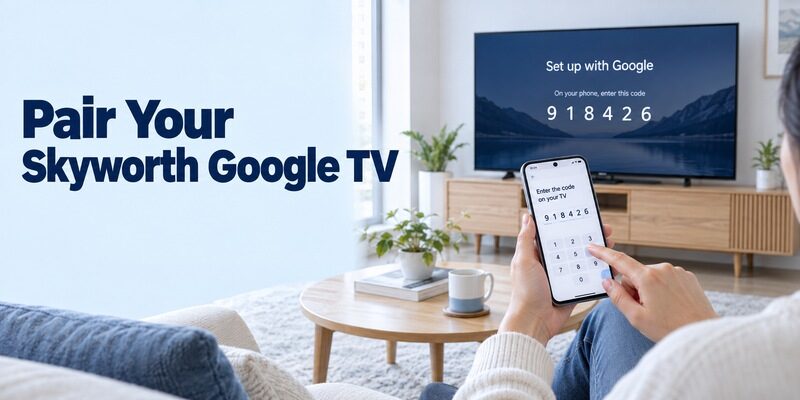
Complete the device selection and on-screen code process. Google documents this route for Android and for iPhone or iPad through the Google TV application.
Prepare an awake television and shared network
Keep the phone and supported TV on the required home network. Confirm the television’s saved connection rather than relying on the phone’s mobile data or internet access. A guest network can separate local devices even when both reach websites.
During a skyworth tv remote app free setup, keep a usable physical controller nearby. The phone cannot automatically fill in missing television Wi-Fi credentials before a working connection exists. Initial setup and ordinary daily remote use are different stages.
Enter the displayed code and verify a command
Open Google TV, choose TVs nearby or the current equivalent connection control, select the intended device, enter its displayed code, and tap Pair. If another television shows the prompt, return to the device selector.
Test a directional movement on the visible Home screen, select a familiar item, and return with Back. A skyworth tv remote app free connection should be confirmed by the TV’s response, not merely a saved device card on the phone.
For additional platform details, the guide covers Google’s mobile controls. Use Skyworth’s model instructions for television-specific settings outside that platform interface.
Read more: How to Control Google TV With Phone: Android & iPhone Guide
Check CooLink for a Supported Skyworth Coolita TV
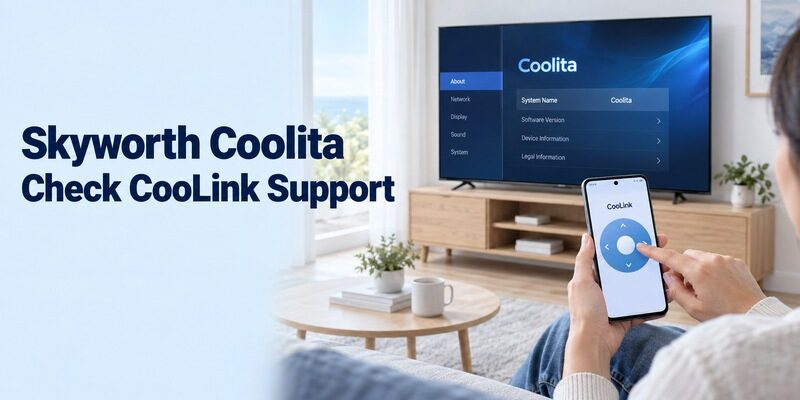
Coolita requires its own compatibility check. Skyworth’s official E5000G product page describes Coolita and identifies CooLink support through an Android phone. That is useful model evidence, not a promise for every Skyworth television.
Confirm the exact model and phone route
Look for CooLink in the model’s manual or television guidance. The current Google Play listing identifies COOLITA TECHNOLOGY PTE. LTD. and includes remote-control, voice, search, and casting functions.
For a skyworth tv remote app free option on a supported Coolita set, follow that documented connection route and the prompts shown by the equipment. Do not install a Google TV remote solely because the television contains streaming applications.
Test the remote separately from entertainment features
After connecting through the supported process, open CooLink’s actual remote controls and test navigation. Then evaluate additional features one at a time. A search result or a media page loading on the phone does not demonstrate that the television is receiving commands.
Keep the model’s supported phone requirements in view. An Android route mentioned on a product page should not be silently extended to an iPhone with a similarly named application. If your phone is unsupported, preserve the physical controller while checking the manufacturer’s alternatives.
Use CastPlay When the Model’s Instructions Call for It
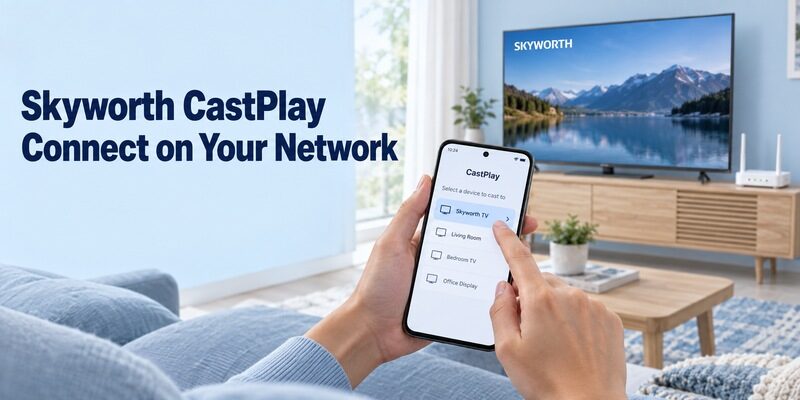
CastPlay is another documented Skyworth route for applicable televisions. Skyworth Vietnam maintains guidance specifically about using CastPlay as a remote for Android televisions.
Match the supported app identity
The Android CastPlay listing identifies SmartTV Software Studio and describes local-network interaction with a smart television. Use the application’s supported destination from your model guidance where available, and compare the publisher rather than relying on the word CastPlay alone.
This distinction matters in a skyworth tv remote app free search because similarly named casting applications can belong to different developers. A familiar description does not establish that two listings are the same product or support the same television service.
Establish the local connection before testing controls
CastPlay’s current listing calls for the phone and television to share the home network. Follow the exact model’s connection and authorization prompts, then select the intended device. Avoid inventing a universal pairing-code sequence when your television uses a different process.
For a skyworth tv remote app free test through CastPlay, try an ordinary menu action after connection. Keep media sharing as a separate check. A video successfully reaching the screen does not automatically prove that every television setting is available through the phone.
Read more: How to Connect Google TV to WiFi Without Remote: 5 Working Methods
Measure the Functions That Matter to Your Viewing Routine
Use a small, repeatable sequence to evaluate the connection. The best route is the supported one that handles the tasks you actually perform.
| Task | Simple check | What to record |
|---|---|---|
| Navigation | Move, select, then return Home | Correct television responds |
| Text entry | Type one short search word | Supported field receives the intended text |
| Sound | Change one step and restore | Which speaker system changes volume |
| Viewing source | Return to the usual input or app | A clear recovery path exists |
| Later session | Close and reopen the remote | The saved connection remains usable |
Check navigation before keyboard and voice
Start with Home, directional movement, selection, and Back. These actions make a useful baseline before trying text entry or voice features. Read the television’s response after each action instead of repeatedly pressing buttons while the screen is changing.
Your skyworth tv remote app free setup may offer keyboard entry only in supported fields. Try a short familiar word first. If a particular streaming app handles text differently, keep the working directional controls available rather than deleting the entire connection.
Identify where sound and channels originate
The television, a soundbar, and an external receiver can have separate control paths. Likewise, a provider box can supply channels while the TV handles only the HDMI input. Determine which component is responsible before diagnosing a missing button.
A skyworth tv remote app free interface that navigates Google TV correctly may still leave equipment-specific tasks to another controller. Record those limits so another viewer knows which remote to use for sound, broadcast channels, or picture settings.
Keep Casting, Voice, and Full Remote Control Distinct
Successful media playback is not a complete navigation test. Casting sends or shares content through a supported route, while a remote must also operate the target’s interface.
Stop or leave the current video and return to the television’s Home screen. Check whether the phone can still move a menu highlight. That test separates control of one media session from the continuing navigation needed to choose the next application.
For a skyworth tv remote app free arrangement, evaluate voice on the actual model and app combination. A television’s physical voice remote, a phone microphone feature, and a built-in hands-free microphone are different inputs. The presence of one does not prove every other route is available.
Do not confuse a companion app’s entertainment recommendations with a connection to your television. Select the device deliberately, open its controls, and verify the visible result. This is especially useful when the app starts with content or search instead of the remote interface.
An ordinary successful navigation session is enough to begin using the phone. Optional casting, media sharing, or voice can be checked afterward without changing several unrelated television settings at once.
Review iPhone and Infrared Limitations Before Switching Apps
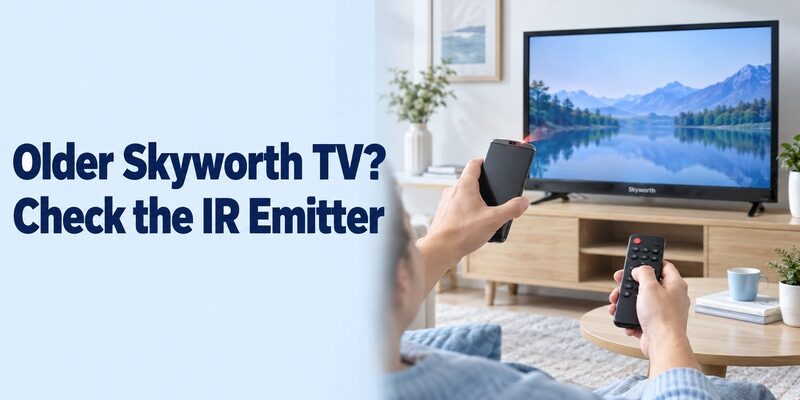
Check both the phone and the connection technology. A television can support one mobile route without supporting every application carrying the Skyworth name.
Use a documented iPhone route
Google provides iPhone and iPad instructions for its remote on compatible Google TV and Android TV equipment. For CooLink, CastPlay, or another model-specific application, verify the current supported iOS listing through the appropriate product guidance.
An iPhone skyworth tv remote app free result with a similar icon can be a different developer’s casting product. Compare the actual purpose, publisher, TV support, and free-use terms before assuming it replaces an Android app named in a manual.
Require real hardware for infrared control
An older television with only IR control needs a suitable transmitter and matching commands. An ordinary iPhone cannot gain an IR blaster through an application download. Some Android phones include that hardware; confirm the exact phone specifications before choosing the IR route.
If hardware is present, point its emitter toward the television and test more than power. Verify volume, menu movement, selection, and input recovery. A partly matching profile can operate one command while failing another, so a successful power test alone is not sufficient.
Diagnose Discovery and Response Without Resetting Everything
Work from the earliest failure that you can observe. An unsupported platform, a missing local connection, and an unresponsive soundbar should not all trigger the same reinstall procedure.
| Symptom | Likely area to check | Practical next step |
|---|---|---|
| No TV appears | Platform, power, and network | Wake the target and verify its saved connection |
| Wrong screen responds | Selected device | Return to the device selector |
| Google pairing fails | Correct current code and target | Repeat selection while watching the intended screen |
| Casting works but menus do not | Remote mode and model support | Open the actual remote interface |
| One phone fails while another works | App identity, access, and phone network | Compare with the known working phone |
| Trouble follows a router change | TV’s stored network details | Reconnect the television with a working controller |
Restore the relevant prerequisite
Read the network names on both devices, including guest or secondary-network labels. Check any required local-device permission on the phone. Then reopen the app’s device selector and repeat the same connection attempt.
When investigating a skyworth tv remote app free failure, change one relevant condition at a time. This preserves evidence of what solved the problem and avoids losing a working TV configuration while testing several unrelated adjustments.
Separate a restart from a factory reset
Use the equipment’s normal restart instructions if the supported connection remains unresponsive. Allow startup to finish before trying the phone again. Do not interrupt an active software update as part of a routine test.
Avoid a factory reset when the physical remote is missing and you have no confirmed way through initial setup. Resetting can remove the saved network that the phone needs. Preserve a known working control method while obtaining model-specific guidance.
Read Free-Use Terms and Brand-App Descriptions Carefully
A brand name does not identify either the publisher or the application’s purpose. Skyworth VN, for example, describes warranty activation, repair requests, and product information; those functions do not establish a virtual remote.
The Google Play listing TV Remote For Skyworth by TheMixzone explicitly calls itself independent and not affiliated with Skyworth. It also distinguishes IR hardware from its network mode and discloses ads. Treat those as publisher statements to evaluate, not as independent proof of universal model support.
For a skyworth tv remote app free comparison, inspect whether the controls you need remain available without starting a trial. Read any purchase screen before accepting it. A paid upgrade cannot create missing hardware or change the operating system inside the television.
Keep streaming-service charges separate from remote access. Opening a subscription service through the phone does not make its films free, and a content-purchase screen is not necessarily charging for navigation.
Keep an Alternative and a Physical Backup You Can Actually Use
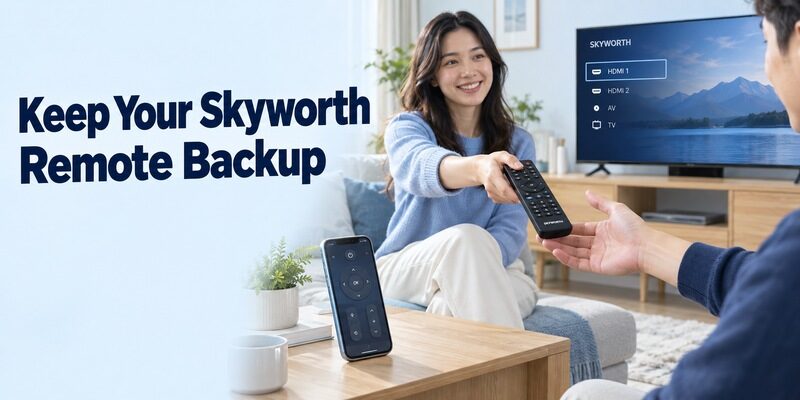
Compare another interface against a working baseline. Review if you want an additional supported option, and confirm compatibility with your exact Skyworth model and phone.
Repeat the same tasks with each interface
Keep the television on the same input and sound configuration while testing. Check Home, Back, selection, supported text entry, and reconnection. A comparison is clearer when the target and viewing source do not change between attempts.
For a skyworth tv remote app free alternative, record any useful improvement and any task still requiring a physical controller. Retain the verified platform app until the alternative has worked beyond its first session.
Prepare for standby, phone replacement, and network changes
Test the phone after a normal standby interval. If it cannot wake the television, use the physical remote and check whether mobile navigation returns afterward. Treat standby behavior separately from ordinary control while the set is awake.
Keep a short note of the TV model, app publisher, and saved device name. Show another household member how to reach the controls and return to the usual input. Those steps make recovery easier when the primary phone is unavailable.
Before replacing a physical controller, verify the television model and the buttons needed for recovery. Power alone may not be enough: you may need input selection, navigation, and access to network settings. If the original remote has a separate part number, keep that distinct from the TV model when asking support about a replacement.
A skyworth tv remote app free setup should also be tested after switching between the TV’s own interface and an attached streaming player. Use the physical controller to select the normal input, then reopen the phone remote and check which device responds. Save clear room or device names wherever the interface allows them.
If another viewer cannot reproduce the connection, simplify the handover. Show the exact phone app, its device selector, and the control that returns to Home. Then let that person repeat the sequence from a closed application. This reveals confusing steps that a single successful setup can hide.
For a skyworth tv remote app free connection that repeatedly drops, record when it happens: during navigation, after locking the phone, after standby, or after changing networks. Keep the same target during the comparison. That timing gives model support a more useful starting point than a general report that the remote is unreliable.
Preserve a working configuration while investigating. If only an optional media feature fails, keep using the verified navigation controls and examine that feature’s own prerequisites. A complete reset is unnecessary merely to compare two phone interfaces.
Final Thoughts
The right skyworth tv remote app free route follows the exact television platform and supported phone application. Start with Google TV on compatible Google equipment, CooLink on documented Coolita models, or CastPlay where Skyworth’s model guidance calls for it.
Verify a visible command, test everyday functions separately from casting, and keep a physical fallback. A supported, repeatable connection is the basis of dependable phone control.
