
Free Roku Remote Control App: iPhone & Android Guide
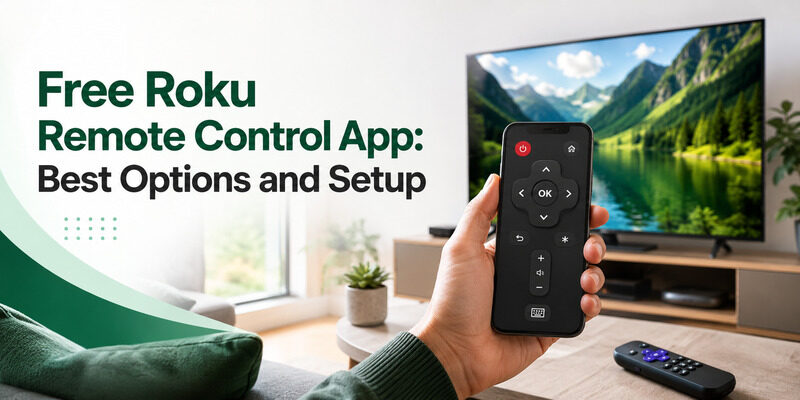
Quick Answer: The best free Roku remote control app is The Roku App (Official), available for compatible iPhones and Android phones. It lets you use your smartphone as a remote for supported Roku TVs and Roku streaming players. To get started, install the app, connect your phone and Roku device to the same Wi-Fi network, select your Roku device, and open the virtual remote.
Can I use my phone as a Roku remote? Yes. You can control a compatible Roku TV or Roku streaming player from your phone without purchasing another remote. However, your Roku device generally needs to be powered on and already connected to your local network.
Whether you’re searching for a Roku iPhone remote, a Roku TV remote app for Android, or a free alternative to a lost physical remote, this guide covers everything you need to get connected.
Best Free Roku Remote Control Apps
There are two main options for controlling Roku devices from your phone: the official Roku mobile app and compatible third-party remote applications.
For most users, the official app is the best starting point.
| Remote App | iPhone | Android | Basic Remote Cost | Best For |
|---|---|---|---|---|
| The Roku App (Official) | Yes | Yes | Free | Roku TVs and streaming players |
| Third-party Roku remote apps | Varies | Varies | Free or paid | Alternative interfaces |
| Universal TV remote apps | Varies | Varies | Often freemium | Multiple compatible TV brands |
1. The Roku App – Best Official Free Roku Remote
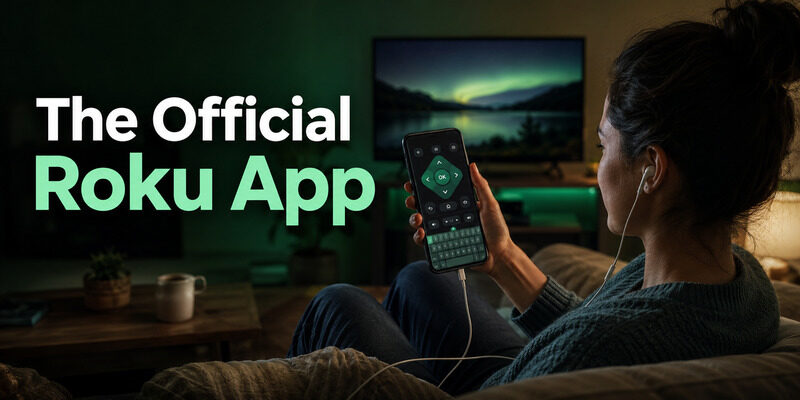
The Roku App is developed by Roku and includes a virtual remote for compatible Roku devices.
It provides many everyday controls found on a physical Roku remote, including:
- Home and Back navigation
- Directional buttons and selection
- Playback controls
- Volume and mute on supported Roku devices
- Smartphone keyboard input
- Voice-related features where available
- Private listening on compatible devices
The official Roku mobile app is free to download, and its basic remote-control functionality does not require a separate subscription.
Best for: Roku TV and Roku streaming player owners who want a reliable, free mobile remote.
Important: The Roku app does not make paid streaming services free. Subscription charges for streaming content are separate from the remote application.
2. Third-Party Roku Remote Apps
Third-party applications may provide alternative button layouts, shortcuts, or additional interface options.
Some are free to download, while others include advertising, in-app purchases, or subscriptions.
Before installing, review the app’s developer, permissions, supported Roku devices, and pricing.
Roku recommends its official application and advises caution when using third-party remote apps.
3. Universal Remote Apps for Roku and Other TVs
A universal remote application may be convenient if you want to control multiple supported television brands from one phone.
For example, Remote TV App offers a smartphone remote-control solution for compatible smart TVs and streaming devices.
However, a universal app’s Roku compatibility and available features depend on the app and your device.
For a wider comparison, explore our free remote control app for TV guide.
How to Download Roku Remote App for iPhone and Android
The official Roku mobile app is available through the Apple App Store and Google Play Store.
Download it from the appropriate store rather than relying on an unverified APK or third-party download website.
Roku iPhone Remote: Download and Setup
If you want to use your iPhone as a Roku remote, follow these steps:
- Open the Apple App Store.
- Search for The Roku App (Official).
- Verify that the application is published by Roku.
- Tap Get and install the app.
- Open the Roku application.
- Allow Local Network access if prompted.
- Connect your iPhone to the same Wi-Fi network as your Roku.
- Select your Roku device and open Remote.
The Roku iPhone remote can be useful when your physical remote is lost or when you want to type searches using your phone keyboard.
For other compatible television platforms, read our free TV remote app for iPhone guide.
Roku TV Remote App for Android: Download and Setup
Android users can also install the official Roku application for free.
To download a Roku TV remote app for Android:
- Open Google Play Store.
- Search for The Roku App (Official).
- Verify the publisher.
- Tap Install.
- Open the app.
- Allow the necessary network or nearby-device permissions.
- Connect your phone to the same network as your Roku.
- Select the device and open the remote interface.
The available features may vary depending on your Android version, Roku device, and app version.
Is the Roku Remote App Completely Free?
Yes. The official Roku app provides free basic remote-control functionality for compatible Roku devices.
Some other functions or content available through the Roku ecosystem may involve separate subscriptions or purchases.
Third-party remote apps can have different pricing models, so always review their store listings before installing.
Can I Use My Phone as a Roku Remote?
Yes. You can use a compatible iPhone or Android smartphone as a Roku remote through the official Roku mobile app.
You do not need to purchase a separate mobile remote subscription.
However, there are several requirements.
What You Need Before Connecting
- A compatible Roku TV or Roku streaming player
- An Android phone or iPhone supported by the current Roku app
- A working local network
- Both devices connected to the same accessible network
- Permission for mobile-app control on the Roku device
Your Roku device should already be configured and connected to the network.
Can I Use My Phone if I Lost the Roku Remote?
Yes, if your Roku device is already connected to your network and the app can discover it.
This makes the Roku mobile app a useful temporary or everyday replacement for a missing physical remote.
However, if your Roku has been factory-reset or has never been connected to Wi-Fi, the app normally cannot discover it.
In that situation, you may need a compatible physical remote to complete the initial setup.
For more alternatives, see our lost Roku remote guide.
Does the Roku App Work With Roku TV and Roku Streaming Sticks?
Yes. The official app supports compatible Roku TVs and Roku streaming players.
However, some controls differ.
For example, TV volume and power functions may depend on whether you are controlling a Roku TV or a separate Roku streaming device.
A Roku streaming stick does not necessarily expose all the controls of the television it is connected to.
Read more: Roku Remote Control Volume: How to Set It Up and Fix Problems
How to Connect Your Phone to Roku TV
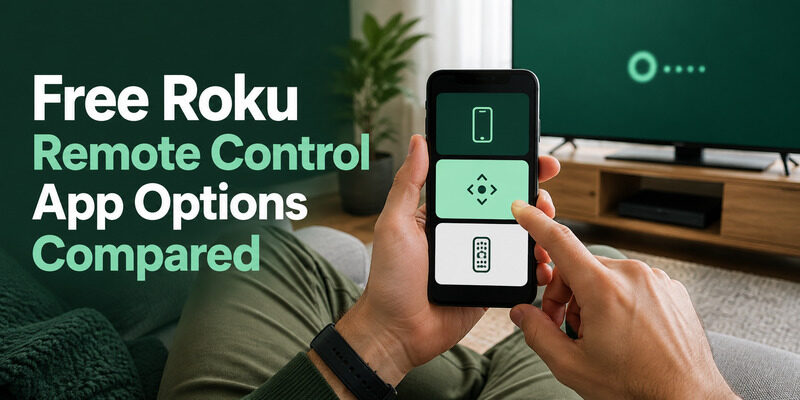
Once the app is installed, connecting your phone to Roku is straightforward.
Step 1: Turn On Your Roku Device
Power on your Roku TV or streaming player.
Make sure it has completed its initial setup and is connected to your home network.
Step 2: Connect Your Phone to the Same Wi-Fi
Open Wi-Fi settings on your iPhone or Android phone.
Connect to the same local network as your Roku device.
Avoid guest networks that prevent connected devices from communicating.
Step 3: Open The Roku App
Launch the official Roku application.
Follow any setup prompts.
Depending on the app version, you may be able to access the remote without signing in, although certain Roku account features require authentication.
Step 4: Select Your Roku Device
Open the Devices section and wait for the app to discover your Roku.
Select the correct Roku TV or streaming player.
If you have multiple Roku devices, check their names carefully.
Step 5: Open the Virtual Remote
Tap Remote to display the on-screen controls.
Test Home, Back, directional navigation, and playback.
Check volume and power controls if your device supports them.
Step 6: Start Using Your Phone as a Roku Remote
You can now navigate the Roku interface and control supported functions from your phone.
For instructions about connecting or pairing a physical Roku remote, read our how to connect Roku remote to TV guide.
What Can the Free Roku Remote App Do?
The official Roku mobile app includes more than basic directional buttons.
Navigate Roku Menus
Use the virtual directional pad to browse the home screen, open applications, and move through settings.
Home and Back buttons provide familiar navigation.
Control Playback
Supported playback commands can help you pause, resume, or navigate streaming content.
The available commands depend on the Roku device and application.
Type With Your Phone Keyboard
Using a smartphone keyboard can be easier than entering search terms with a traditional remote.
Keyboard input is available in supported Roku text fields.
Adjust Volume and Mute
The Roku mobile app can control volume and mute on supported devices.
If you use a Roku streaming player connected to another television, available TV controls may differ.
Use Private Listening
Private listening allows compatible Roku devices to route supported audio to headphones connected to your smartphone.
Availability depends on the Roku model, application, and content.
Use Supported Voice Features
Voice search and voice-related controls may be available depending on your device, app version, and region.
These features are not guaranteed on every Roku setup.
Read more: Roku Remote Control Online: Free Apps and How to Use Them
Can You Use the Roku Remote App Without Wi-Fi?
The official Roku mobile remote generally requires your phone and Roku device to communicate through the same local network.
If Your Internet Connection Stops Working
A local Wi-Fi network may continue operating even when your internet service is temporarily unavailable.
In some cases, local remote functions can still work while both devices remain connected.
Streaming services and online features may not function normally.
If Your Roku Is Not Connected to Wi-Fi
If your Roku device is offline or connected to a different inaccessible network, the mobile app usually cannot discover it.
Using cellular data alone does not solve this problem.
Can You Use an Android IR Remote Instead?
Some Android phones include an infrared transmitter, but that does not mean they can control every Roku device.
An IR-equipped phone and compatible application may control certain Roku devices that accept infrared commands.
However, Roku Streaming Stick models generally require wireless remote communication rather than traditional infrared control.
When You Need a Physical Roku Remote
A physical remote may be necessary if:
- Your Roku has never been configured.
- The television has been factory-reset.
- Your Roku is disconnected from its saved Wi-Fi network.
- Your phone cannot access the network.
- The device does not support the alternative control method.
In these situations, choose a replacement remote compatible with your exact Roku model.
Read more: Roku Remote Control Volume: How to Set It Up and Fix Problems
Roku Remote App Not Working? Troubleshooting
If your Roku remote app cannot find or control your device, try the following solutions.
1. Check Your Wi-Fi Network
Make sure your phone and Roku device are on the same local network.
Avoid guest networks or router settings that isolate connected devices.
2. Enable Control by Mobile Apps
On supported Roku devices, go to:
Settings → System → Advanced system settings → Control by mobile apps
Review the available access settings.
Use the normal recommended setting that allows authorized local-network control. Avoid unnecessarily permissive network-access settings.
Menu names may vary by Roku OS version.
3. Check App Permissions
On iPhone, make sure the Roku app has Local Network permission.
On Android, review the permissions required for device discovery.
4. Restart Your Devices
Close the Roku mobile app.
Restart your phone and Roku device.
Open the app and try connecting again.
5. Update Roku OS and the Mobile App
Check for updates to the Roku mobile application.
Also check whether your Roku TV or streaming player has a system update available.
6. Reconnect Your Roku
If the device appears but does not respond, disconnect it from the app and try connecting again.
Make sure you select the correct Roku if several devices appear.
7. Check for Network or Compatibility Errors
Some connection problems are caused by router configuration, app compatibility, or outdated software.
For additional help, see our Roku remote app not connecting to TV guide.
FAQs About Roku Remote Apps
What is the best free Roku remote control app?
The Roku App (Official) is the recommended free option for compatible Roku TVs and Roku streaming players.
Can I use my phone as a Roku remote?
Yes. Install the official Roku mobile app, connect your phone and Roku to the same local network, select your device, and open the virtual remote.
Is there a free Roku iPhone remote?
Yes. The official Roku app is available for compatible iPhones and includes free basic remote controls.
Is there a Roku TV remote app for Android?
Yes. Android users can download The Roku App from Google Play and control compatible Roku devices.
Can I use my Roku phone remote without the original remote?
Yes, if your Roku is already connected to an accessible network. Initial setup or network recovery may still require a physical remote.
Does the Roku remote app work without Wi-Fi?
The official mobile remote generally needs local network connectivity. It cannot normally discover a Roku that is offline or connected to an inaccessible network.
Why won’t my Roku remote app find my TV?
Possible causes include different networks, blocked device discovery, disabled mobile-app control, missing permissions, or outdated software.
Can the Roku app control TV volume?
Yes, on supported Roku devices. Volume functionality varies depending on the television and Roku hardware.
Is the official Roku remote app free forever?
The official Roku app offers free basic remote-control functionality. Streaming subscriptions and optional content purchases are separate.
Can one Roku remote app control multiple Roku TVs?
Yes. The official app can discover and connect to multiple compatible Roku devices on an accessible network, allowing you to select which device to control.
Final Thoughts
A free Roku remote control app is a convenient way to use your iPhone or Android phone as a replacement for a compatible Roku remote.
For most users, The Roku App (Official) is the best starting point because it provides free basic controls, straightforward device discovery, and useful features such as keyboard input and private listening on supported devices.
Whether you use a Roku TV or streaming player, make sure your device is already connected to your network before attempting to control it from your phone.
If your Roku is offline or cannot be discovered, check your network, permissions, and mobile-control settings before considering a compatible physical replacement remote.
Download TV Remote App