
Sony Remote Control Manual: Buttons, Pairing, Batteries and Setup
If you need a Sony remote control manual, start by identifying your TV and remote model. Sony uses different remote designs across BRAVIA, Google TV, Android TV, and older television models, so button layouts, Bluetooth pairing steps, batteries, and available features can vary.
For model-specific instructions, Sony recommends using the support page for your exact TV model. Newer Sony remotes commonly include buttons for Power, Input, Home, Quick Settings, navigation, Volume, voice control, and streaming apps, while older remotes may include number keys, color buttons, Guide, or additional playback controls.
Quick Sony Remote Control Guide
| Button or function | What it usually does |
|---|---|
| Power | Turns the TV on or places it in standby |
| Input | Opens the input/source selector |
| Home | Opens the Google TV or Android TV Home screen |
| Quick Settings | Opens frequently used picture, sound, and system settings |
| Directional pad | Moves through menus |
| Enter / OK | Selects the highlighted item |
| Back | Returns to the previous screen |
| Volume + / – | Adjusts TV volume |
| Channel + / – | Changes broadcast channels on supported models |
| Microphone / Assistant | Starts voice search or voice control |
| TV | Opens TV channels or a configured TV input |
| 123 / Control Menu | Displays additional controls on newer remotes |
| Streaming buttons | Opens supported streaming services |
The exact buttons available depend on the Sony TV model, region, and remote supplied with it.
1. Where to Find Sony Remote Control Manual for Your Sony Remote
The safest way to find the correct manual is to search using the Sony TV model number, not just a generic phrase such as “Sony remote manual.”
Sony remote functions often depend on the television model and software running on it.
Find Your Sony TV Model Number
The TV model number is usually available:
- On the label on the rear of the TV
- In the TV’s system information menu
- On the original box or purchase documentation
- On the Sony support page if the TV is already registered
Sony also notes that model information can be found on the label on the back of the television or on its model support page.
A model number may look similar to:
- XR-65X90L
- K-55XR70
- KD-55X85K
- XBR-55X900H
Once you know the model, search Sony Support for that exact number.
Find the Sony Remote Model Number
If the remote has a replaceable battery compartment, the model number may be printed:
- Inside the battery compartment
- On the rear shell
- On a label underneath the batteries
Sony specifically notes that opening the battery compartment can also reveal the remote-control name or model printed inside.
You may see model prefixes such as:
- RMF-
- RM-YD
- RM-ED
- RM-GD
Do not assume instructions for one remote automatically apply to another just because both control Sony TVs.
Download TV Remote App🧭 Explore Guides:
App Remote TV Sony: Control Your Sony TV From Your Phone
2. Sony Remote Control Buttons Explained
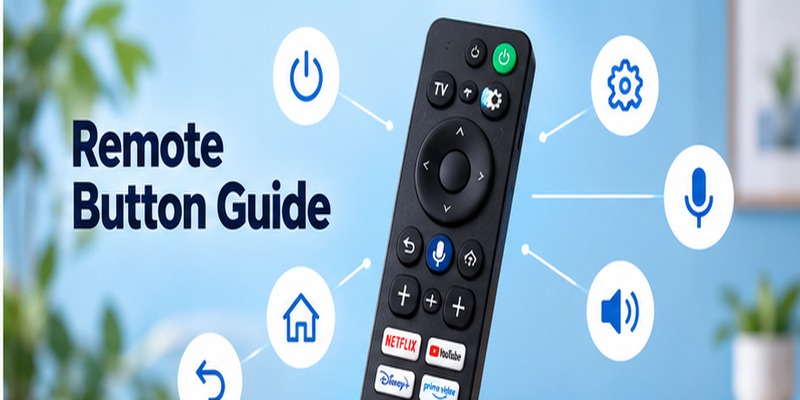
Sony has changed its remote layouts significantly over the years, but the most common controls remain similar.
Power
The Power button turns the television on or switches it to standby.
If Power works but other buttons do not, that does not automatically mean the entire remote is paired correctly. Some functions can use different communication methods.
Input
The Input button opens the list of connected sources.
You may use it to switch between:
- HDMI 1
- HDMI 2
- Game console
- Cable box
- Blu-ray player
- Antenna/TV
- Other connected devices
On supported Sony TVs, you can also configure the TV button as a shortcut to a preferred input.
Home
Press Home to open the main Google TV or Android TV interface.
From here you can usually access:
- Apps
- Recommendations
- Inputs
- Settings
- Search
- User profiles
Sony notes that Home and directional controls may only be available through the supplied remote on some models, even when basic functions such as Power or Volume can be controlled directly from the TV.
Quick Settings
The Quick Settings button usually uses a gear or settings-style icon.
Pressing it opens shortcuts to frequently used controls such as:
- Picture mode
- Sound settings
- Inputs
- Speakers
- Network settings
- Accessibility
- Full Settings
Sony allows users on supported models to customize which options appear in this menu.
Directional Pad and Enter
Use:
- Up
- Down
- Left
- Right
to move around menus.
Press the center Enter/OK button to choose the highlighted item.
This is one of the main controls used throughout Google TV and Android TV.
Back
The Back button returns to the previous menu or screen.
In apps, its behavior may vary slightly depending on the app.
Volume
Use Volume + and Volume – to adjust sound.
The exact location varies by remote design.
If Volume does not work but Home and navigation still do, the issue may be related to the TV, audio system, or remote configuration rather than a complete remote failure.
Channel
Channel Up and Down controls are mainly useful when watching:
- Antenna TV
- Cable
- Other configured broadcast sources
They may have little effect while using streaming apps.
Microphone or Google Assistant
On supported Sony Google TV and Android TV remotes, the microphone button activates voice search or assistant functions.
Sony states that voice search requires:
- A compatible TV
- An internet connection
- A paired voice remote
and the setup can depend on the TV and remote model.
123 or Control Menu
Some newer minimalist Sony remotes replace multiple physical buttons with a 123 / Control Menu button.
Pressing it opens additional controls on screen that are not physically present on the remote.
Streaming App Buttons
Some Sony remotes include dedicated buttons for supported online services.
Available services differ by:
- Model
- Country
- Production year
These buttons normally open the assigned streaming service directly.
💡 Discover Helpful Guides: Sony TV Remote Download: How to Install and Use the Sony TV Remote App
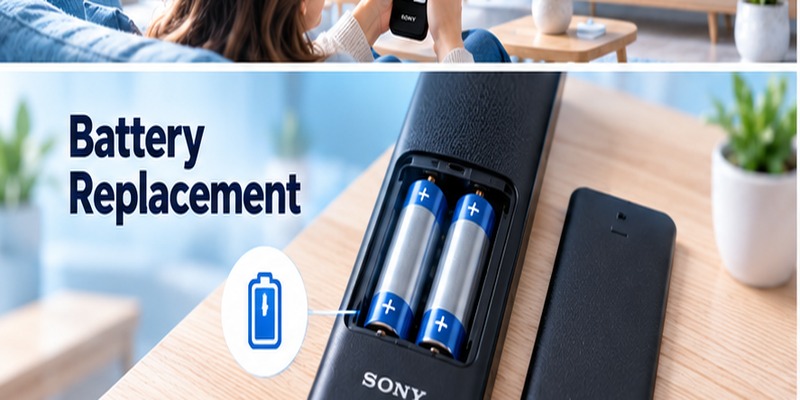
3. Sony Remote Battery Type and Replacement
Not every Sony remote uses the same type of battery.
Many traditional remotes use replaceable batteries, while some newer models are rechargeable.
Check Before Buying Batteries
Open the battery compartment and look at the markings inside.
The remote should show:
- Battery size
- Positive (+) orientation
- Negative (–) orientation
Sony recommends following the polarity markings inside the compartment rather than assuming a battery type from another remote.
How to Replace Sony Remote Batteries
For a replaceable-battery remote:
- Turn the remote over.
- Open or slide off the rear battery cover.
- Remove both old batteries.
- Check the battery contacts for dirt or leakage.
- Insert the new batteries according to the + and – markings.
- Close the cover securely.
- Test Power, Home, and navigation.
Sony uses several battery-cover designs, including sliding, clip-style, and release-button mechanisms.
Do Not Mix Batteries
Avoid mixing:
- Old and new batteries
- Different battery types
- Different brands or capacities
Sony also recommends removing depleted batteries rather than leaving them inside the remote, where they could eventually leak.
What If Your Sony Remote Has a USB-C Port?
If the remote has a USB-C charging port at the bottom, it may be a rechargeable Sony remote.
In that case, do not try to open it to replace an internal battery.
Sony’s current troubleshooting guidance specifically distinguishes USB-C rechargeable remotes from standard battery-operated models.
For supported rechargeable remotes, use the supplied or appropriate USB Type-C charging cable.
Sony advises against charging certain supported remotes from the TV’s USB port and instead recommends a suitable adapter or powered computer.
📘 Find the Right Guide: Sony TV Remote Not Working? How to Fix It Fast
If Batteries Drain Too Quickly
Unusually fast battery drain can be caused by:
- A button being held down
- Poor-quality or mismatched batteries
- Heavy use of Bluetooth or voice functions
- Battery contact problems
- A remote hardware fault
First inspect the buttons and replace both batteries together.
If the problem continues, check the support information for your exact Sony TV and remote model.
4. How to Pair a Sony Voice Remote
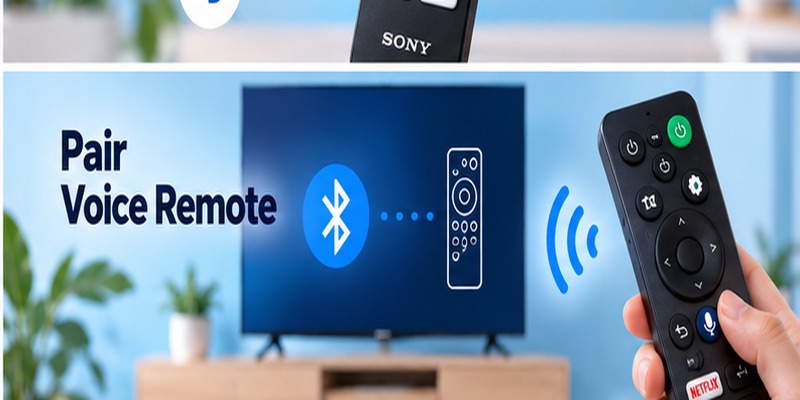
Sony does not use one universal pairing method for every TV remote.
Pairing steps vary by TV model, production year, and remote type.
That means generic instructions such as “hold the pairing button” are not reliable for every Sony television.
For Many Sony Google TV and Android TV Models
Start from:
Settings → Remotes & Accessories
Depending on the TV, you may then see options such as:
Remote control → Connect via Bluetooth
or:
Voice Remote Control → Activate the microphone button
Sony recommends following the on-screen instructions because menu names can differ between models.
Some Models Use Volume Down + Microphone
On supported Sony models, pairing involves holding:
Volume Down + Microphone
for approximately 3 seconds after selecting the Bluetooth pairing option.
The TV should then display a connection message.
Do not use this button combination blindly on every Sony TV. Use it only when the TV’s instructions or model-specific support page specify it.
If You Replace the Voice Remote
A replacement Bluetooth voice remote generally needs to be paired with the television before voice functions work.
Sony also notes that a remote may occasionally need to be paired again after certain software updates.
Use Fresh Batteries Before Pairing
If the remote uses replaceable batteries, make sure they have enough power before attempting Bluetooth pairing.
Sony specifically warns that pairing can fail when the battery level is too low.
📖 Read More Guides: Sony Universal Remote TV Codes: Full Programming Guide
5. How to Use Voice Control on a Sony Remote
If your remote has a microphone or Google Assistant button, it can be used to search for content and perform supported voice commands.
On many Sony Google TV models:
- Make sure the TV is connected to the internet.
- Make sure the remote is paired.
- Press and hold the microphone or Assistant button.
- Speak toward the microphone on the remote.
- Release the button if required by your model.
Sony confirms that an active internet connection and paired remote are required for supported voice-search functions.
If the Microphone Button Does Not Work
Check:
- The TV has internet access.
- The remote is paired through Bluetooth.
- Voice control is enabled where applicable.
- The TV is configured as Google TV rather than basic TV on models where this matters.
- The batteries are strong enough.
Sony notes that voice recognition may not work when a Google TV has been configured only as a basic TV, and it also provides model-dependent Voice Control settings.
If navigation works but voice does not, Bluetooth pairing or voice configuration should be checked before assuming the microphone is physically damaged.
💡 Discover Helpful Guides: Sony Remote Control Codes: 3, 4, and 5 Digit Code Guide
6. Common Sony Remote Setup Problems
Remote Does Not Respond at All
First check whether the TV itself is working.
Try the physical controls on the television, if available.
If the TV responds normally, then check the remote.
For standard battery remotes, Sony recommends:
- Remove the batteries.
- Hold the Power button for about three seconds.
- Wait approximately one minute.
- Reinsert the batteries with the correct polarity.
- Test again.
USB-C rechargeable remotes require a different troubleshooting process.
Power Works but Other Buttons Do Not
This may happen when basic infrared control is working but Bluetooth functions are not.
If you use a Sony voice remote, check:
Settings → Remotes & Accessories
and confirm that the remote is paired.
Home and Navigation Work but Voice Does Not
This points more strongly toward:
- Bluetooth pairing
- Voice configuration
- Internet connection
rather than a completely dead remote.
Pair the remote again and verify that the TV can access the internet.
Only One Button Does Not Work
A single failed button is more likely to indicate:
- Dirt
- Mechanical wear
- A stuck button
- Physical damage
than a pairing problem.
Press the affected button several times and compare its feel with nearby working buttons.
Remote Works Only From Very Close Range
For infrared functions:
- Remove objects blocking the TV sensor
- Point the remote directly at the television
- Replace weak batteries
For Bluetooth-dependent functions, check pairing instead.
📘 Find the Right Guide: Sony TV Factory Reset Without Remote: Step-by-Step
7. How to Find Instructions for Older Sony Remotes
Older Sony remote models can differ significantly from newer Google TV remotes.
If you have an older model such as an RM-YD, RM-ED, or other model-specific Sony remote, search using the exact remote number rather than relying on instructions for a current BRAVIA remote.
For example, use:
Sony + [remote model] + manual
or search the Sony support page associated with your TV.
The TV model is often the better starting point because Sony support pages group the correct manuals, accessories, software, and remote instructions for that television.
Older Remotes May Include More Buttons
Legacy Sony remotes may include dedicated controls for:
- Numbers
- Subtitle/CC
- Guide
- Info
- Favorites
- Scene modes
- Color buttons
- Playback
- Audio
- Wide mode
Do not assume a function is missing simply because a newer minimalist remote no longer has a dedicated physical button. Some newer Sony remotes move additional controls into an on-screen menu.
📖 Read More Guides: Sony TV Remote Repair: Fix, Replace, or Go App-Free
8. Use Your Phone If the Sony Remote Is Missing
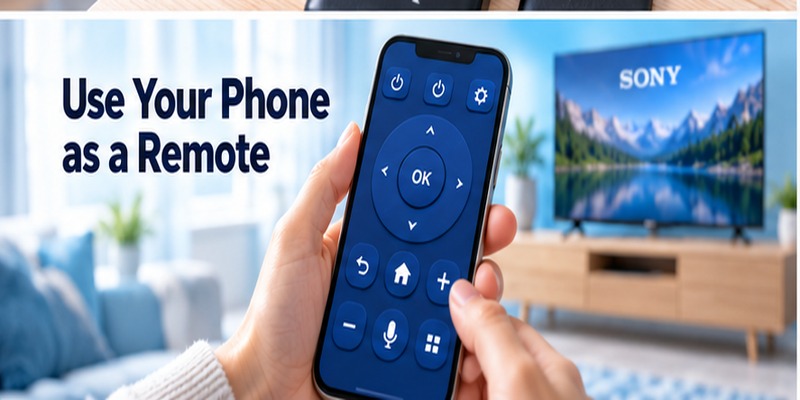
If the physical remote is lost or temporarily unavailable, some Sony TVs can still be controlled from a phone.
Sony notes that supported televisions may work with mobile control options such as the Google TV app, depending on the model and configuration.
A compatible Remote TV App can also provide a temporary way to access common controls on supported TVs.
Phone control is especially useful when you need to:
- Navigate menus
- Adjust volume
- Open apps
- Enter text
- Reach Bluetooth remote settings
However, network-based phone control usually requires the TV and phone to be reachable on the same network.
For that reason, a phone app is best treated as a backup rather than a replacement for model-specific Sony remote instructions.
Use your phone as a temporary Sony TV remote while you find, pair, or replace the physical remote.
FAQs About Sony Remote Control Manuals
Where can I download a Sony remote control manual?
Use the Sony support page for your exact TV or remote model.
Searching by TV model is often the safest option because Sony groups manuals and model-specific remote information on the television’s support page. Sony confirms that manuals are available on model support pages.
How do I identify my Sony TV remote?
Look inside the battery compartment or on the back of the remote for a model number.
Sony notes that some remote model information is printed inside the battery compartment.
What does the Quick Settings button do?
It opens a customizable menu containing frequently used television settings such as picture and sound controls.
How do I pair a Sony TV remote?
Pairing depends on the television and remote model.
On many Google TV and Android TV models, open:
Settings → Remotes & Accessories → Remote control → Connect via Bluetooth
and follow the on-screen instructions.
Some models instruct you to hold Volume Down + Microphone for about three seconds.
Why is the microphone on my Sony remote not working?
Check Bluetooth pairing, internet access, and voice-control settings.
Voice search on supported Sony TVs requires the remote to be paired and the television to have an active internet connection.
What batteries does a Sony TV remote use?
It depends on the remote model.
Check the markings inside the battery compartment rather than assuming a specific size. Some newer Sony remotes are rechargeable via USB-C instead of using replaceable batteries.
Can I use my Sony TV without the remote?
Some basic functions such as Power, Volume, or Input may be available through buttons on the television itself. Sony notes that functions such as Home and directional navigation may still require the supplied remote on some models.
Why does my Sony remote Power button work but voice control does not?
Power may work while Bluetooth-dependent voice functions are unavailable.
Check whether the voice remote is paired under Remotes & Accessories, then verify internet and voice-control settings.
🗺️ Browse How-To Guides: Sony TV Remote Buttons Explained PDF: Full Button Guide
Final Thoughts
A useful Sony remote control manual starts with the exact TV and remote model because Sony uses different button layouts, batteries, and pairing procedures across its product range.
For most users, the key steps are:
- Identify the Sony TV and remote model.
- Learn the main Power, Input, Home, Quick Settings, navigation, Volume, and voice buttons.
- Check whether the remote uses replaceable batteries or USB-C charging.
- Pair Bluetooth voice remotes through Remotes & Accessories using the model-specific instructions.
- Use the Sony model support page whenever the menu or button combination differs.
Avoid assuming that instructions for one Sony remote apply to every BRAVIA TV. The exact model remains the most reliable reference for pairing, charging, and button behavior.
Download TV Remote App